Category: PC & Hardware

  • 2026 AI PC Hardware Guide: Memory, GPUs, and Storage for Local AI Models

    2026 AI PC Hardware Guide: Memory, GPUs, and Storage for Local AI Models

    Local AI in 2026: Hardware Essentials for Running Models On-Device

    Running AI models locally in 2026 hinges on more than just a capable processor. Memory, GPU power, bandwidth, and storage all play critical roles. Whether you’re using a standard laptop or a high-end workstation, understanding how these components scale with model size is key to making the right hardware choices.

    Memory: The Primary Constraint

    The amount of RAM and video memory (VRAM) directly determines which AI models your system can handle. For example, a 7-billion-parameter model at 4-bit precision requires roughly 4–5 GB for its weights. Larger models scale up quickly: a 14B model needs 8–10 GB, a 30B model needs 18–22 GB, and a 70B model demands 40–45 GB. For cutting-edge models like a 120B or 300B, you’re looking at 70–80 GB and 170–190 GB respectively.

    Beyond the model weights, your operating system, cache, and AI tools also consume memory. That’s why 32 GB is a sensible starting point for smaller models, but 64 GB or 128 GB offers far more headroom. High-end systems like AMD’s Ryzen AI Max PRO 400 series push the envelope with up to 192 GB of unified memory, enabling models over 300 billion parameters to run locally.

    GPU and Unified Memory: Boosting Performance

    For serious AI workloads, dedicated graphics hardware is non-negotiable. NVIDIA’s RTX PRO 6000 Blackwell Workstation Edition, with its 96 GB of GDDR7 memory and 1,792 GB/s bandwidth, is built for massive local models. Alternatively, NVIDIA’s RTX Spark takes a unified-memory approach, pairing a Grace CPU with a Blackwell GPU and up to 128 GB of shared memory, capable of handling inference, model development, and AI agent tasks.

    Apple’s 2026 Mac Studio follows a similar path. The M5 Max offers up to 128 GB of unified memory, while the M5 Ultra doubles that to 512 GB, making it a powerhouse for on-device large language models.

    Bandwidth and Storage: Often Overlooked

    Memory bandwidth is just as important as capacity. A system with 512 GB of memory but slow bandwidth will bottleneck large models. Apple’s M5 Ultra achieves 1.2 TB/s, while NVIDIA’s DGX Spark offers 273 GB/s with 128 GB of LPDDR5X memory. Always consider bandwidth when choosing hardware for AI.

    Storage is another critical factor. A 1 TB SSD is fine for a basic setup, but 2 TB is more practical if you plan to store multiple models. For serious development, 4 TB or more is recommended to accommodate model files, datasets, and checkpoints.

    Hardware Tiers by Use Case

    Entry-Level AI PC: 16–32 GB RAM, a 40+ TOPS NPU, and a 512 GB–1 TB SSD. Suitable for small language models, speech recognition, and basic image tasks.

    Mid-Range AI System: 32–64 GB memory and 8–16 GB GPU memory. Handles 7B, 8B, and 14B models comfortably, with room for some larger models.

    High-End AI Workstation: 64–128 GB memory and 24–32 GB GPU memory (or a large unified-memory design). Supports 30B and 70B models with ease.

    Enthusiast/Large-Model Rig: 128–512 GB memory. Systems like NVIDIA DGX Spark (128 GB, expandable to 700B parameters with four units) or Apple M5 Ultra (512 GB) are built for the most demanding local AI workloads.

    The Bottom Line

    The 2026 AI PC landscape is defined by a clear shift: while NPUs handle efficient local features, memory capacity is now the hard limit for model size. For most users, 64 GB is a strong practical target, while 128 GB offers ample headroom for future-proofing. If you’re serious about running large models locally, investing in high-bandwidth memory and a capable GPU is just as important as raw capacity.

    Frequently Asked Questions

    Q: How much RAM do I need for local AI in 2026?
    32 GB is sufficient for smaller models, but 64 GB is recommended for a more comfortable experience with demanding workloads.

    Q: Is an NPU enough for local AI?
    No. While a 40+ TOPS NPU is useful for specific features, larger models depend far more on memory capacity, GPU power, and bandwidth.

    Q: Can I run a 70B model on a PC?
    Yes, but it requires roughly 40–45 GB just for the weights. A system with 64 GB or more memory is strongly advised.

    Q: Is 128 GB RAM better than a powerful GPU?
    It depends. More memory lets you fit larger models, but GPU memory and bandwidth heavily influence inference speed. Both are important.

    Q: How much storage should I allocate?
    1 TB is a start, but 2 TB is more practical for multiple models. For serious development, 4 TB or more ensures you won’t run out of space.
  • Lenovo Project Swan Rollable Laptop Unveiled at IFA 2026: Specs, Price, and Availability

    Lenovo Project Swan Rollable Laptop Unveiled at IFA 2026: Specs, Price, and Availability

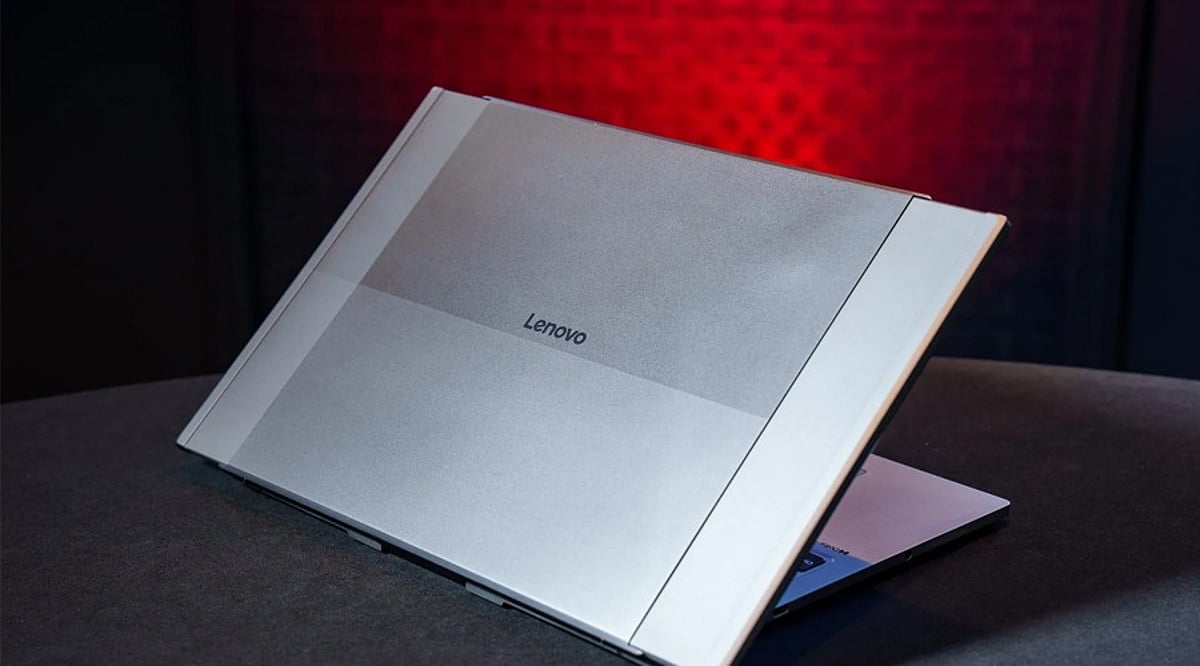
    Lenovo has introduced Project Swan at IFA 2026 in Berlin, a rollable laptop concept that expands from a standard 14-inch display to a 17-inch screen using a flexible OLED panel. Designed for professionals who require extra workspace without sacrificing portability, the ThinkBook concept aims to bridge the gap between compact laptops and larger monitors.

    The device starts as a conventional 14-inch laptop and expands horizontally to a 17-inch 16:9 display via a motorized mechanism. This approach keeps the laptop’s base footprint unchanged while providing additional screen real estate for multitasking, document comparisons, presentations, dashboards, and creative workflows. Project Swan runs on an Intel Core Ultra 7 processor based on the Lunar Lake architecture.

    Measuring approximately 17.9mm thick and weighing around 1.6kg, the rollable laptop is lighter than many traditional 17-inch models while offering comparable screen space when fully expanded. The horizontal expansion design distinguishes it from Lenovo’s earlier ThinkBook Plus Gen 6 Rollable, which increased screen height instead.

    Durability remains a key concern before any commercial launch. The moving OLED mechanism could experience wear, dust infiltration, and hinge stress over repeated use. Battery consumption may also rise when the larger display operates for extended periods. Lenovo has not announced pricing or retail availability, classifying the device as a proof of concept for now. Nonetheless, Project Swan points toward future laptops that adapt their screen size based on changing work needs.

  • Cooling Pad vs. Laptop Stand: The Ultimate Guide to Choosing the Right Laptop Accessory in 2026

    Cooling Pad vs. Laptop Stand: The Ultimate Guide to Choosing the Right Laptop Accessory in 2026

    A laptop running hot can affect performance, battery life, and long-term reliability. That’s why many users consider accessories like cooling pads and laptop stands to improve airflow and comfort. While both aim to keep your laptop cooler, they work in different ways and suit different users.

    If you’re unsure which one deserves a place on your desk, here’s a detailed comparison to help you decide.

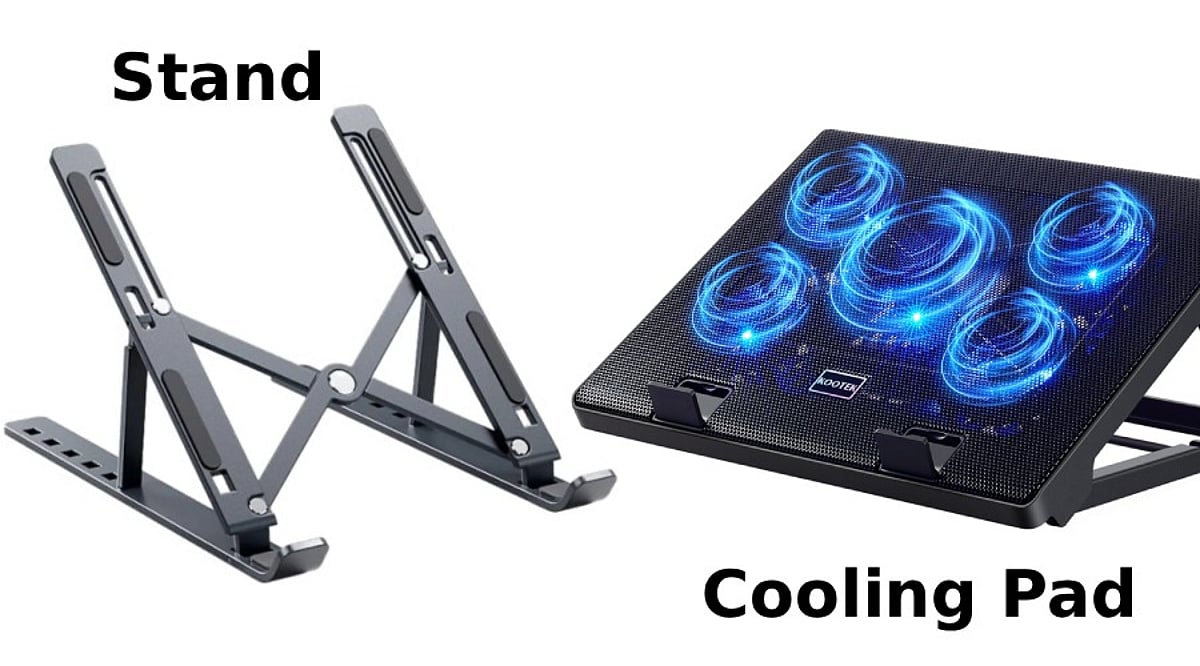
    What Is a Laptop Cooling Pad?

    A cooling pad is a hardware add-on with fans that help blow cold air directly into your laptop’s vents. They can be charged using a USB port and have various speeds, angles, and LED lights.

    A cooling pad is highly recommended for gaming laptops or powerful laptops that tend to heat up when performing tasks such as gaming, video editing, 3D rendering, coding, and more.

    • Best for: Gamers, video editors, graphic designers, developers and engineers, multitasking users

    What Is a Laptop Stand?

    It helps elevate your laptop to the right height and allows proper airflow underneath it. Unlike a cooling pad, it doesn’t have fans. The laptop stand is portable and lightweight and does not require charging.

    • Best for: Students, office workers, remote employees, writers, everyday users

    Cooling Performance: Which Works Better?

    While a cooling pad can lower temperatures, laptop stands don’t have fans that actively move air over the laptop’s bottom. The laptop will be cooled thanks to the elevated position and better airflow.

    Winner: Cooling Pad

    Comfort and Ergonomics

    In case you work long hours on your laptop, ergonomics is as important as temperature.

    The main function of laptop stands is elevating the laptop screen to eye level, and therefore reducing strain on your neck and shoulders. Moreover, some adjustable laptop stands allow you to adjust the viewing angle.

    As for the cooling pads, they elevate laptops; however, not for ergonomic reasons.

    Winner: Laptop Stand

    Noise, Portability, and Power

    There are spinning fans inside the cooling pads, so they make some noise. In expensive cooling pads, it will be barely noticeable, while in cheap ones, it can be pretty loud. Also, cooling pads occupy more space on the table and require you to take away one of your USB ports.

    Laptop stands do not make any noise. They are lighter, foldable, and portable.

    Winner: Laptop Stand

    Which One Is More Valuable?

    In general, for most people, the laptop stand seems more valuable since it increases comfort, provides better airflow, and does not need any electrical power.

    But if your laptop tends to overheat when playing games or using demanding applications, then you should consider purchasing a cooling pad.

    It all depends on what you use your laptop for.

    Cooling Pad vs Laptop Stand: Quick Comparison

    Feature Cooling Pad Laptop Stand
    Active cooling Yes (fans) No
    Ergonomics Limited Excellent
    Noise Low to moderate None
    Portability Bulky Lightweight, foldable
    Power needed USB port None
    Best for Gaming, heavy workloads Office, study, everyday use

    Who Should Buy a Cooling Pad?

    The purchase of a cooling pad would be justified if you:

    • Frequently play graphic games.
    • Edit videos or create 3D content.
    • Feel that your laptop becomes increasingly hot.
    • Face thermal throttling.
    • Live in a warm climate.

    Who Should Purchase a Laptop Stand?

    A laptop stand should be purchased by those who:

    • Work at home or in the office.
    • Take online lessons or participate in online video conferences.
    • Need improved posture.
    • Use their laptops primarily for web surfing or typing.
    • Require a portable device.

    Can They Be Used Together?

    Yes. Most people use both the cooling pad and the laptop stand with the external keyboard. Some expensive cooling pads also have height adjustability features, which means you get both active cooling and better ergonomics.

    If you spend a lot of time working at your desk and also do performance-intensive work, using both is the best option.

    Final Verdict

    A cooling pad and laptop stand address two entirely different needs. If your concern is the laptop’s temperature while performing intense tasks, then the cooling pad is a much more logical buy for you.

    Should your primary concern be comfort and productivity, the laptop stand would suit you better since it does not make any noise, weighs very little, requires no maintenance, and suits almost everyone.

    The gamer, artist, or professional who runs heavy-duty software will get much out of a cooling pad. The office worker, student, or home user will do fine with a decent laptop stand.

    Frequently Asked Questions

    Is a cooling pad better than a laptop stand?

    A cooling pad is better for heavy workloads, while a laptop stand is ideal for comfort, posture, and everyday productivity.

    Do cooling pads actually reduce laptop temperature?

    Yes. Cooling pads improve airflow and can lower temperatures, especially on gaming laptops with bottom-mounted air intake vents.

    Can a laptop stand prevent overheating?

    A laptop stand improves airflow underneath the device, helping reduce heat buildup during regular work, though not as effectively.

    Should gamers buy a cooling pad or a stand?

    Gamers should choose a cooling pad because active fans help maintain lower temperatures during long gaming sessions and intensive workloads.

    Can I use a cooling pad and laptop stand together?

    Yes. Some cooling pads include adjustable stands, while external keyboards make combined ergonomic and cooling setups even more effective.

  • Top 8 AI-Powered PCs Transforming Personal Computing in 2026

    Top 8 AI-Powered PCs Transforming Personal Computing in 2026

    Artificial intelligence is redefining the personal computing landscape, with a new wave of AI PCs that bring on-device intelligence, enhanced productivity, and seamless user experiences. In 2026, these eight models stand out for their integration of dedicated AI hardware and software optimizations.

    1. Microsoft Surface Laptop

    The Microsoft Surface Laptop delivers Copilot+ AI experiences, combining excellent battery life with powerful on-device processing. Its seamless Windows integration makes it a top choice for productivity and creative tasks.

    2. Lenovo Yoga Slim 9i

    Lenovo’s Yoga Slim 9i pairs a premium design with advanced AI acceleration and intelligent performance tuning. Its exceptional display quality caters to professionals and creators who demand both style and substance.

    3. Dell XPS 13

    The Dell XPS 13 features AI-powered optimization for long-lasting battery life and premium portability. Intelligent workload management makes it a reliable companion for business and everyday use.

    4. HP OmniBook X AI PC

    Powered by dedicated AI hardware, the HP OmniBook X enhances multitasking, video conferencing, and local AI workloads while maintaining impressive energy efficiency.

    5. ASUS Zenbook A14

    With its lightweight design, the ASUS Zenbook A14 offers AI-assisted productivity features, fast processing, and extended battery life — ideal for students and remote professionals.

    6. Acer Swift AI

    The Acer Swift AI integrates advanced AI computing and intelligent thermal management to boost productivity for creators, students, and hybrid workers.

    7. Samsung Galaxy Book5 Pro

    Samsung’s Galaxy Book5 Pro leverages Galaxy ecosystem integration for AI-powered productivity, premium OLED visuals, and lightweight portability for everyday computing.

    8. MSI Prestige AI Evo

    Designed for professionals, the MSI Prestige AI Evo delivers AI acceleration, creative performance, enterprise-grade security, and efficient multitasking in a sleek package.

    These AI PCs represent the forefront of personal computing in 2026, blending intelligent features with powerful hardware to meet the evolving needs of users across work, creativity, and entertainment.

  • Best Business Ultrabooks 2026: Long Battery Life and Premium Performance Compared

    Best Business Ultrabooks 2026: Long Battery Life and Premium Performance Compared

    Business ultrabooks combine lightweight designs, long battery life, and reliable performance for professionals who work on the move. The top models stand out in different areas, from durability to display quality and all-day endurance. Choosing the right one depends on balancing security, portability, performance, and real-world productivity needs.

    Overview

    Business ultrabooks balance portability, long battery life, enterprise security, and reliable performance to support professionals working in the office, remotely, or while traveling. Intel Core Ultra and Snapdragon X platforms offer different strengths, making software compatibility, efficiency, and battery life key factors when choosing a laptop. The best choice depends on real-world priorities such as security, repairability, battery endurance, keyboard comfort, display quality, and overall productivity rather than specifications alone.

    Intel Core Ultra vs Snapdragon X: The Real Decision

    Every model below runs one of two competing platforms, and this choice affects daily use more than any other spec. Intel Core Ultra chips handle legacy business software, docking stations, and Thunderbolt peripherals without compatibility concerns. Snapdragon X and X2 chips trade some of that flexibility for longer runtime and quieter operation under everyday load. Professionals working mainly in Microsoft 365, Teams, and browser tools often get a better balance from Snapdragon. Anyone running specialized software or docking into multi-monitor setups daily is safer with Intel.

    Top Business Ultrabooks

    Lenovo ThinkPad X1 Carbon Gen 14

    A redesigned internal frame lets owners swap the battery and SSD without a repair shop, a genuine edge over sealed rivals. At under a kilogram with an 84 percent screen-to-body ratio, it stays light for a 14-inch machine. Road warriors who need years of daily travel without failure get the clearest value here. It carries a fingerprint reader, IR camera, TPM 2.0, and optional vPro. The 58Wh battery trails category leaders, held flat to protect weight.

    Specs: Intel Core Ultra 7 355, up to 32 GB RAM, 0.99 kg, from RS.165,000.

    ASUS Zenbook S 14

    A 2.8K OLED panel rated at 1,100 nits runs brighter than most business laptops at any price. Battery life sits a step behind the fastest Snapdragon machines, but the metal chassis and 120Hz refresh reward anyone whose work centers on screen time. Fan noise rises under sustained load, a fair trade for the higher power ceiling.

    Specs: Intel Core Ultra 7 356H, 32GB RAM, 1.2 kg, from RS.1,55,000.

    Dell XPS 14 (2026)

    Balance defines this machine rather than any single standout spec. It combines strong performance, premium build, and dependable battery life, with a restored function row after past design missteps. The OLED variant runs under 400 nits, dimmer than the Zenbook and OmniBook at similar prices.

    Specs: Intel Core Ultra 5 325, 16GB RAM, 1.36 kg, from RS.1,10,000.

    Acer Swift Go 14 AI

    The longest tested runtime on this list comes from a Snapdragon X Plus chip, passing 19 hours in video playback and over 16 hours in real mixed use. That endurance comes from efficiency rather than raw power, matching daily email and video-call demands better than benchmarks suggest. CPU-heavy tasks trail Intel and higher Snapdragon tiers, a fair cost for the battery gain.

    Specs: Snapdragon X Plus, 16GB RAM, 1.5 kg, from RS.82,000.

    HP OmniBook Ultra 14

    An 18-core Snapdragon X2 Elite chip pairs with a 3K OLED touchscreen, a combination few rivals match at this weight. Four screws grant access to the battery and SSD, rare repairability for a laptop this thin. It skips USB-A ports and an SD reader, meaning frequent peripheral users need adapters.

    Specs: Snapdragon X2 Elite, up to 32GB RAM, 1.28 kg, from RS.1,58,000.

    Buying Framework

    Security certifications should narrow the field first, separating genuine business hardware from consumer laptops wearing a business label. Battery life comes next, checked against how each figure was tested rather than taken at face value. Sixteen gigabytes of RAM covers most professional work, while 32GB adds headroom for multitasking and AI tools. Weight and keyboard comfort matter more over a year of use than any single benchmark. Display finish deserves attention too: matte holds up better outdoors, while OLED earns its cost only when color accuracy or long reading sessions justify it. Price should settle the decision last. Workloads involving CAD, rendering, or video editing belong on a mobile workstation instead.

    Final Thought

    The gap between Intel and Snapdragon-powered ultrabooks will likely narrow further through 2026. But the buying logic in this guide holds regardless of which chip wins the next round. Security, serviceability, and honest battery testing will keep mattering more than raw spec sheets, and the businesses that shop by that logic will end up with hardware that lasts.

    FAQs

    What is the best business ultrabook with long battery life?

    The best business ultrabook depends on your priorities, but models with efficient Intel Core Ultra, AMD Ryzen AI, or Qualcomm Snapdragon X processors typically deliver the longest real-world battery life while maintaining strong productivity performance.

    What makes a laptop a business ultrabook?

    A business ultrabook is a thin and light laptop designed for professionals. It combines premium build quality, long battery life, reliable performance, comfortable keyboards, enterprise-grade security features, and portability for everyday work.

    Are business ultrabooks suitable for multitasking and professional workloads?

    Yes. Modern business ultrabooks are built to handle multitasking, video conferencing, office applications, web-based business tools, AI-assisted productivity, and light creative work without compromising portability.

    Which features should I prioritize when buying a business ultrabook?

    Look for long real-world battery life, a lightweight design, a comfortable keyboard, a high-quality display, at least 16GB of RAM, fast SSD storage, and modern processors that balance performance with power efficiency.

    Are premium business ultrabooks worth the extra cost?

    Premium business ultrabooks are often worth the investment for professionals who travel frequently or work on the go. They typically offer better durability, longer battery life, higher-quality displays, stronger security features, and a more refined user experience than standard laptops.

  • Avoid These Common Laptop Buying Mistakes for a Smarter Purchase

    Avoid These Common Laptop Buying Mistakes for a Smarter Purchase

    When purchasing a new laptop, it’s easy to get overwhelmed by specifications and flashy features. However, making the wrong choice can lead to poor performance, unnecessary expenses, and frustration. To help you make an informed decision, we’ve compiled a list of common laptop buying mistakes and how to avoid them.

    1. Ignoring Your Usage Needs

    Choosing a laptop without considering your primary tasks often leads to overspending on features you don’t need or poor performance for everyday requirements. Always assess how you’ll use the device—whether for work, gaming, or casual browsing—before making a decision.

    2. Focusing Only on the Processor

    A powerful processor alone cannot guarantee smooth performance if other components like RAM, storage, cooling, and graphics are inadequate. A balanced configuration is essential for handling diverse workloads efficiently.

    3. Buying Too Little RAM

    Opting for 8GB or less of RAM for demanding tasks like video editing or multitasking can quickly become a bottleneck. As software requirements grow, insufficient RAM slows down your laptop, so consider 16GB or more for future-proofing.

    4. Choosing Slow Storage

    Traditional hard drives significantly reduce boot times and application performance. Solid-state drives (SSDs) offer much faster speeds, quicker file access, and better overall responsiveness, making them a worthwhile investment for daily use.

    5. Ignoring Battery Life

    Attractive specifications mean little if the battery drains quickly. For frequent travelers or those who work remotely, a laptop with long battery life is crucial to avoid constant charging during meetings, flights, or long work sessions.

    6. Overlooking Display Quality

    Poor screen brightness, low resolution, and inaccurate colors can hinder productivity and cause eye strain during extended use. A high-quality display enhances both work efficiency and entertainment experiences.

    7. Forgetting Port Availability

    Insufficient USB, HDMI, or Thunderbolt ports may force you to buy expensive adapters, creating inconvenience when connecting accessories or external displays. Check that your laptop has the ports you need for your peripherals.

    8. Skipping Build Quality

    Weak hinges and flimsy construction reduce durability, leading to higher repair costs and shorter device lifespan. A well-built laptop withstands everyday handling and travel, offering better long-term reliability.

    9. Ignoring Future Upgradability

    Choosing a laptop with upgradeable RAM or storage extends its usability and saves money, as you can enhance performance without replacing the entire device. Prioritize models that allow easy upgrades when possible.

    By avoiding these common pitfalls, you can ensure that your new laptop meets your needs and provides a great experience for years to come.

  • Top Tips to Boost Your PC’s Speed and Prolong Its Life

    Top Tips to Boost Your PC’s Speed and Prolong Its Life

    Keep your operating system updated: install the latest Windows or Linux updates regularly to improve security, fix bugs, enhance stability, and maintain smooth overall system performance.

    Remove unnecessary startup apps: disable unwanted startup programs to reduce boot time, free system resources, and help your PC respond faster during everyday tasks.

    Clean temporary files regularly: delete temporary files, cache, and recycle bin contents regularly to free up storage space and keep your computer running efficiently.

    Upgrade your storage to an SSD: replacing a hard drive with a solid-state drive instantly boosts boot speeds, application loading, and overall computer responsiveness.

    Add more RAM if needed: increasing memory allows smoother multitasking, faster application switching, and better performance while running demanding software or multiple browser tabs.

    Keep your PC dust-free: clean internal fans, vents, and filters regularly to improve airflow, prevent overheating, and protect important hardware from long-term damage effectively.

    Use reliable antivirus software: scan your computer frequently to remove malware, protect personal files, and prevent harmful software from slowing down overall system performance.

    Monitor hardware temperature: use trusted monitoring tools to check CPU and GPU temperatures, ensuring safe operation and avoiding heat-related performance drops or failures.

    Shut down and restart regularly: restarting your PC clears background processes, refreshes system memory, installs pending updates, and helps maintain consistent long-term performance and stability.