Tag: accessibility

  • Apple iPhone Eye Tracking: How to Set Up and Use Hands-Free Navigation

    Apple iPhone Eye Tracking: How to Set Up and Use Hands-Free Navigation

    Apple has introduced a new Eye Tracking feature for iPhones, enabling users to control their devices using only their eyes. This accessibility-focused tool provides a hands-free alternative to traditional touchscreen controls, benefiting individuals with physical disabilities and anyone seeking a touch-free experience.

    How to Enable Eye Tracking on iPhone

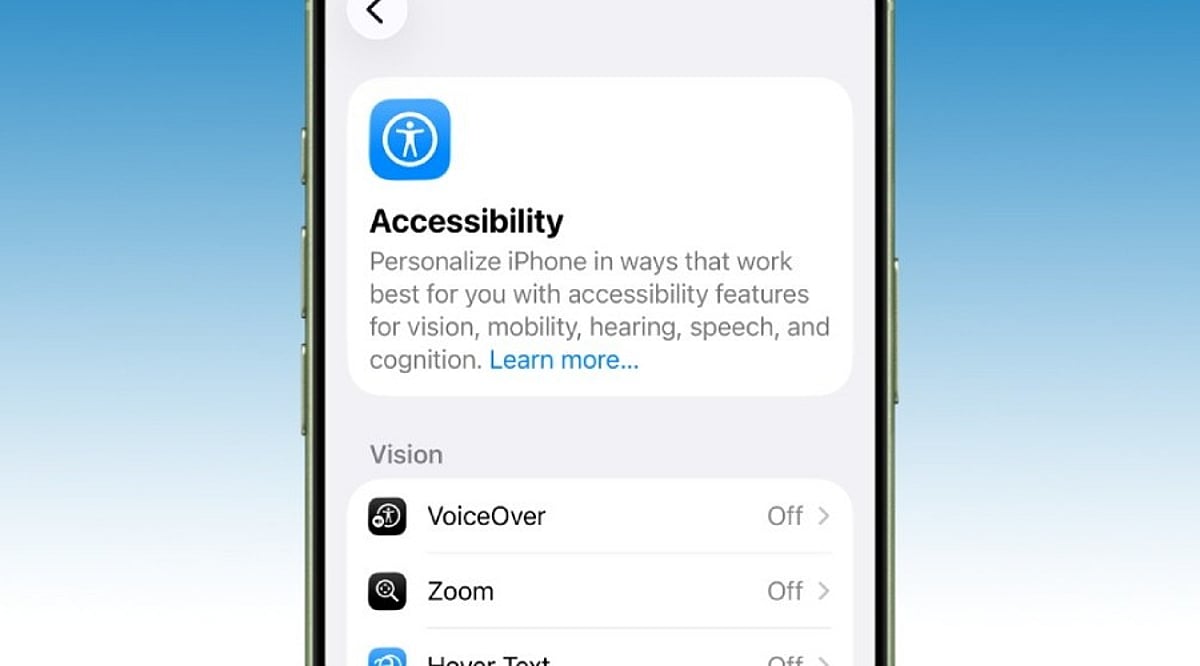
    To activate Eye Tracking, go to Settings, select Accessibility, and toggle the Eye Tracking option on. Once enabled, you can customize sensitivity and assign specific actions to eye movements for a personalized experience.

    How Eye Tracking Works

    The feature relies on the iPhone’s front-facing camera to track and interpret eye movements. Apple has developed advanced algorithms that allow the device to follow your gaze and respond accordingly. This eliminates the need for physical contact with the screen, making navigation easier for users with limited mobility.

    Performance and Considerations

    Early user feedback highlights precise and responsive tracking. However, performance can be affected by lighting conditions and camera angles. For best results, position your face clearly in front of the camera and ensure consistent lighting.

    A New Hands-Free Control Option

    Eye Tracking offers a new way to interact with your iPhone without touch input. While it significantly improves accessibility for people with physical disabilities, it also serves as a convenient hands-free option for all users. Apple combines the front camera with facial recognition and movement detection to deliver this innovative control method.

  • Insomniac Games Responds to ‘Fart Gas’ Complaints, Promises Fixes for Marvel’s Wolverine Scent Trail

    Insomniac Games Responds to ‘Fart Gas’ Complaints, Promises Fixes for Marvel’s Wolverine Scent Trail

    Insomniac Games is actively working on fixes for Marvel’s Wolverine after a controversial scent-trail feature sparked widespread criticism online, with players jokingly referring to the visual effect as ‘fart gas.’

    The controversy centers on a blue-green trail that appears when Wolverine uses his heightened senses to track a person, sound, whisky, or another clue. The feature is designed to represent Logan’s mutant abilities and elite tracking skills.

    Scent Trail Becomes Viral Talking Point

    The visual effect drew criticism after reviewers and players shared footage showing the trail guiding Wolverine through sections of the game. Some users argued that the mechanic makes exploration too straightforward and gives players too much direction.

    The discussion intensified after The Washington Post journalist Gene Park described the effect as ‘fart gas’ on social media. Players subsequently began using the phrase across social platforms when discussing the game’s navigation system.

    Insomniac community and marketing director James Stevenson previously clarified that the scent trail is not always active. He explained that it appears only when Logan is tracking a specific scent or sound, during story or mission moments, or when he detects a collectible.

    Players Want More Control

    The criticism also focused on the game’s accessibility settings. Players found that while Marvel’s Wolverine includes options for navigation assistance and other guidance features, the scent trail cannot be switched off through those settings.

    It prompted requests for Insomniac to introduce a toggle allowing players to decide when they want to use Wolverine’s tracking ability.

    Some players suggested tying the ability to a button press, such as R3 on the DualSense controller. That would allow players to activate Logan’s heightened senses when required instead of having the visual trail appear automatically during specific sequences.

    Stevenson also clarified that collectible tracking still involves some exploration. Players first need to get close enough to detect the relevant sound or scent before Wolverine can identify it.

    Insomniac Working on Fixes

    The debate has now moved beyond social media criticism, with the developer indicating that it is working on fixes following the reaction to the feature.

    The timing comes as Marvel’s Wolverine launches exclusively on PlayStation 5 on September 15. Insomniac’s latest release faced discussion around its linear structure, guidance systems, and accessibility options, alongside praise for its combat, presentation, and character work.

    The game also received a day-one update addressing several gameplay, progression, visual, and stability issues. The update adds a beard option for Logan and includes fixes for gameplay elements, progression problems, visual issues, and general stability.

    For now, the ‘fart gas’ debate highlights a broader disagreement over how much guidance modern action games should provide. For Insomniac, the challenge is to preserve Wolverine’s signature tracking ability while giving players enough control over how prominently that ability appears on screen.

  • iOS 27 Set for September 2026 Launch: Key Features and Improvements

    iOS 27 Set for September 2026 Launch: Key Features and Improvements

    Apple is expected to unveil iOS 27 alongside its new iPhone lineup in September 2026, following the company’s annual release cycle. While the exact rollout date will be confirmed during Apple’s official announcement, users can anticipate the update to be made available for compatible iPhone models shortly after the event.

    Updated Interface

    iOS updates typically bring visual refinements, and iOS 27 is no exception. Users can expect changes to system apps, menus, and navigation, all designed to create a more cohesive and user-friendly experience without overhauling the familiar iPhone look.

    Apple Intelligence and AI Advancements

    Artificial intelligence remains a core focus for Apple. iOS 27 is likely to expand Apple Intelligence with smarter automation and improved on-device capabilities. Availability of specific AI features may depend on the iPhone model, processing power, language support, and regional rollout.

    Enhanced Siri

    Siri is undergoing significant upgrades as part of Apple’s broader AI strategy. iOS 27 could bring better contextual understanding, deeper app integration, and the ability to handle more complex requests, making voice interactions more practical for everyday tasks.

    Privacy and Security

    Privacy continues to be a cornerstone of iOS. iOS 27 is expected to introduce stronger protections against emerging digital threats, along with more granular controls over app permissions and personal data. Users are advised to install the update promptly once available.

    Health and Accessibility

    Apple regularly enhances health, wellness, and accessibility features with each iOS iteration. iOS 27 may include updates to existing tools and new capabilities aimed at making iPhones more useful for tracking personal health and supporting users with diverse accessibility needs.

    Compatible iPhones

    Not every iPhone will support all iOS 27 features. Hardware constraints—especially those tied to AI processing and newer chips—may restrict advanced functions. Before upgrading, users should consult Apple’s official compatibility list to see which features work on their specific device.

    Stay tuned for official announcements from Apple regarding the exact release date, supported models, and regional availability.

  • Essential iPhone Accessibility Features Everyone Should Know

    Essential iPhone Accessibility Features Everyone Should Know

    Many iPhone users only explore the Accessibility menu when a specific need arises, leaving several powerful tools unnoticed. Apple designs these features for people with different abilities, but many also simplify everyday tasks for everyone. Recent updates in iOS 26, powered by Apple Intelligence, have made these tools even more capable. Here are 10 iPhone accessibility features that can save time, reduce effort, and enhance your overall experience without extra apps or accessories.

    Back Tap Adds Instant Shortcuts

    Back Tap turns the back of your iPhone into a hidden button. A double or triple tap can trigger actions like taking a screenshot, opening the camera, toggling the flashlight, or launching a favorite shortcut. It can also open Control Center or Notification Center. Many users find it indispensable after setup, as it eliminates extra steps and works through most phone cases.

    Live Captions Make Audio Easy to Follow

    Live Captions display spoken words as text on screen during calls, videos, and other audio content. This is invaluable in noisy environments, quiet spaces, or when hearing is difficult. iOS 26 expands caption support and Apple Intelligence improves subtitle quality, ensuring you never miss important details.

    Voice Control Handles Everyday Tasks

    Voice Control lets you operate your iPhone with spoken commands. Open apps, scroll, return to the Home Screen, or tap buttons without touching the display. Recent updates enhance natural language understanding, making commands feel more intuitive. Ideal for cooking, exercising, or any situation where your hands are busy.

    AssistiveTouch Simplifies Navigation

    AssistiveTouch places a floating button on screen that opens a menu of useful controls: lock screen, adjust volume, activate Siri, take screenshots, and more. You can create custom gestures for repetitive tasks. It’s a lifesaver when physical buttons wear out and enables one-handed use by keeping controls within reach.

    Background Sounds Create a Calm Space

    Background Sounds play soothing audio like rain, ocean waves, or white noise to improve focus and relaxation. Built directly into iOS, you can access it from Control Center without installing another app. Perfect for work, study, or rest.

    Sound Recognition Listens for Important Alerts

    Sound Recognition detects sounds like doorbells, smoke alarms, baby cries, or sirens and sends notifications. It keeps you aware of your environment even when wearing headphones or focusing elsewhere. Apple continues to improve accuracy through software updates.

    Magnifier Turns the Camera Into a Helpful Tool

    The Magnifier app transforms your iPhone camera into a digital magnifier. Read small text on medicine labels, menus, or documents with brightness, color filters, and contrast adjustments. iOS 26 adds Apple Intelligence for richer object and scene descriptions.

    Personal Voice and Live Speech Support Communication

    Personal Voice lets you create a digital version of your own voice for future use. Live Speech speaks typed words during calls, FaceTime, or in-person conversations. Recent updates improve voice quality and expand language support, helping preserve your unique communication style.

    Reduce Motion and Assistive Access Improve Comfort

    Reduce Motion minimizes screen animations for a calmer, more readable interface. Assistive Access simplifies the home screen with larger icons and essential apps only, designed for cognitive accessibility but also great for seniors, children, or anyone wanting a distraction-free experience.

    iOS 26 Brings Major Accessibility Improvements

    iOS 26 introduces Accessibility Reader for adjustable text, Braille Access for note-taking, and deeper Apple Intelligence integration. VoiceOver, Magnifier, Voice Control, and Accessibility Reader gain smarter image descriptions and language understanding. New features like Vehicle Motion Cues reduce travel discomfort. Apple continues to treat accessibility as a core part of the iPhone experience.

    These features prove that accessibility tools benefit everyone, not just those with specific needs. Try them out and see how they can streamline your daily iPhone use.

  • Augmental’s MouthPad: A Tongue-Controlled Cursor for Hands-Free Computing

    Augmental’s MouthPad: A Tongue-Controlled Cursor for Hands-Free Computing

    Augmental has unveiled the MouthPad, a groundbreaking assistive device that enables users to control a computer cursor through tongue movements. Resembling a custom dental retainer, the MouthPad fits discreetly inside the mouth and offers hands-free navigation, significantly improving digital accessibility for individuals with limited hand mobility.

    The device incorporates miniature sensors that detect tongue movements with high precision. These movements are translated into cursor actions such as moving, clicking, scrolling, and selecting items. Users can interact with computers without relying on traditional mice, touchpads, or external adaptive hardware, making everyday computing tasks more accessible.

    Unlike bulky assistive devices, the MouthPad is entirely internal and wireless, providing a natural and portable solution. This design helps users maintain independence while working, studying, communicating, or accessing digital services throughout the day.

    Artificial intelligence enhances the MouthPad by learning individual tongue movement patterns over time. This improves cursor accuracy, reduces unintended actions, and creates a more personalized experience. AI-driven calibration also shortens the learning curve, allowing users to become comfortable with the technology more quickly.

    The device primarily targets people living with spinal cord injuries, paralysis, muscular disorders, or other mobility challenges. By enabling independent computer access, it supports education, employment, communication, entertainment, and everyday digital activities without depending on caregivers or specialized workstations.

    Beyond accessibility, the MouthPad demonstrates how human-computer interaction is evolving. It showcases the growing role of wearable technology, AI, and advanced sensors in creating intuitive interfaces. Innovations like this could inspire future hands-free control systems for computers, smart homes, and connected devices across industries.

    Augmental’s MouthPad represents a significant step toward inclusive technology by making computers easier to operate for users with physical disabilities. As assistive innovations continue advancing, intelligent, wearable input devices may redefine how people interact with digital systems, creating more accessible and empowering computing experiences for everyone.

  • Veo Debuts Three-Wheeled Electric Trike in Denver, Aiming to Broaden Micromobility Reach

    Veo Debuts Three-Wheeled Electric Trike in Denver, Aiming to Broaden Micromobility Reach

    Shared micromobility company Veo has launched its new electric tricycle, the Rover, in Denver, marking a significant step toward making shared transportation more stable and accessible. The three-wheeled vehicle is designed to appeal to seniors, beginners, commuters, and individuals with physical challenges, offering a safer alternative to traditional e-bikes and e-scooters.

    Riders can unlock the Rover through the Veo app, pay per trip, and return it after use. The trike fits within standard bike lanes and has a top speed of 10 mph, lower than typical shared micromobility limits, which Veo says enhances rider safety. It also boasts an estimated range of 45 miles per charge and includes a rear cargo basket suitable for groceries or luggage.

    Unlike two-wheeled vehicles, the Rover’s three-wheel design eliminates the need for balancing, keeping it upright automatically. Veo developed the design in consultation with disability rights groups, organizations for the elderly, and mobility experts.

    Denver signed an exclusive contract with Veo to operate the city’s bike-sharing system, replacing Lime and Bird. The city will serve as a testbed for the Rover, allowing Veo to study rider behavior before expanding to other US cities. The vehicle is equipped with an AI voice assistant for navigation and riding updates, as well as lidar technology that detects sidewalk riding. Trip data is anonymous.

    While electric tricycles have been available in the consumer market for years, Veo’s initiative represents one of the first large-scale efforts to introduce them into shared micromobility services. The company believes the format could appeal to a broad audience, including commuters seeking a more stable ride.

  • How to Enable the Hidden Volume Slider on Your iPhone Lock Screen

    How to Enable the Hidden Volume Slider on Your iPhone Lock Screen

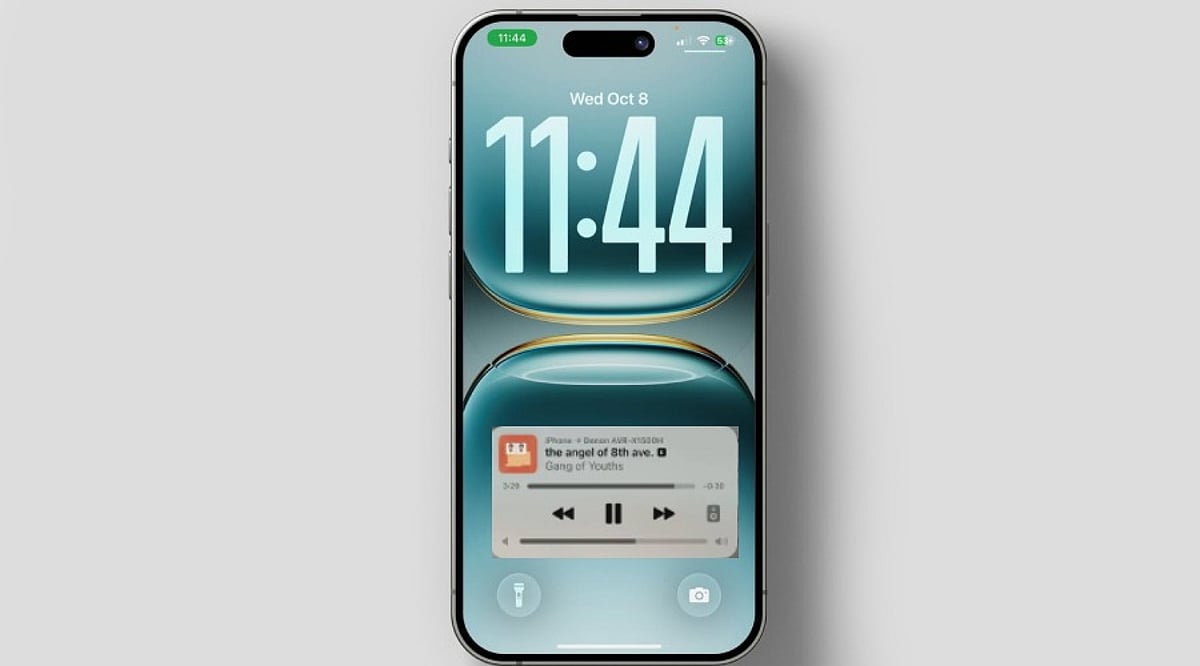
    Many iPhone users are unaware that Apple includes a hidden volume slider on the Lock Screen. The latest iOS update introduces a volume slider that allows users to control audio directly from the lock screen without unlocking the device. This feature is especially useful for adjusting the volume while listening to music, podcasts, or audiobooks. It offers more convenient control than using the physical side buttons and enhances the listening experience.

    Enabling this feature is straightforward. Navigate to Settings → Accessibility → Hearing → Audio & Visual. Scroll down and toggle ‘Always Show Volume Control’ to the ON position. Once set, lock your iPhone and the volume slider should appear on the Lock Screen. Though small, this feature can significantly improve daily usability.

    More Helpful iPhone Features You May Have Missed

    The volume slider is just one of several accessibility tools on the iPhone. Background Sounds can play relaxing audio such as rain, ocean, or white noise to help with focus or relaxation. Live Speech speaks typed words aloud, while Vocal Shortcuts enable actions via custom phrases. Assistive Access simplifies the interface with larger icons and a streamlined layout.

    Better Control for Everyday Listening

    If you listen to audio throughout the day, this hidden volume slider is a valuable addition. Whether using Spotify, Apple Music, Audible, or a podcast app, you can adjust volume without opening the phone or repeatedly pressing side buttons. This quick access means fewer interruptions and a smoother experience, whether working, traveling, or relaxing at home.

  • Top Senior-Friendly Smartphones of 2026: Easy-to-Use Models Compared

    Top Senior-Friendly Smartphones of 2026: Easy-to-Use Models Compared

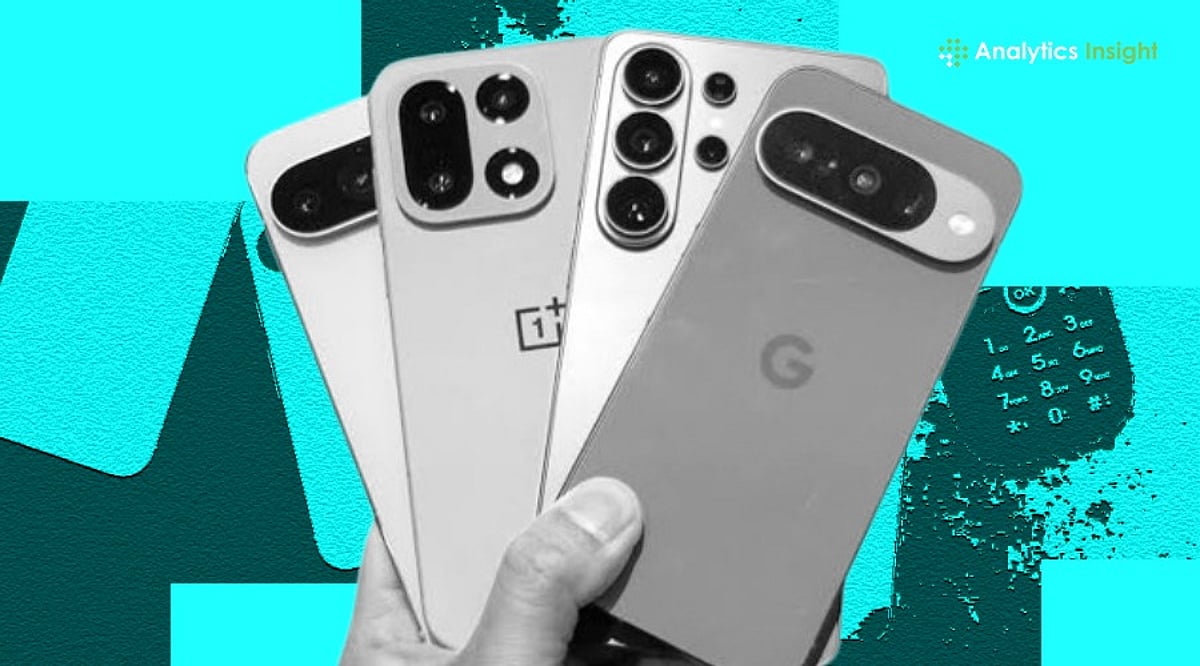
    The best smartphone for seniors should be simple, practical, and dependable. Features like larger icons, loud speakers, and emergency tools improve the overall experience. This comparison highlights the top smartphones for seniors in 2026 across different budgets.

    Overview

    Ten phones grouped by real need, from a first smartphone to a dedicated cognitive-decline device, not a single best-to-worst ranking. A comparison table with a dedicated software support column, plus a short accessibility section covering screen readers, magnifiers, and live captions. Apple’s discontinued iPhone SE was replaced with the current iPhone 17e, verified against Apple’s active lineup.

    A confusing phone does more than frustrate an elderly parent. It can cut them off from family, slow down help during a health scare, and even leave the door open to scam callers. The right phone can help solve all three problems while making everyday communication simpler and safer. Below are ten simple smartphones that get ease of use, safety, and value right for seniors in 2026, with a side-by-side comparison table and a short guide to help you pick the right one.

    What Matters Most for a Senior’s First or Next Phone

    Four things matter most: a simple, uncluttered screen, loud and clear audio, a fast way to reach help in an emergency, and protection from spam and scam calls. Battery life and drop resistance matter too, but they support daily use rather than define it. Rankings below weigh ease of use, accessibility, safety features, software support, and value for money in that order. Camera quality and gaming power are not part of the criteria. Built-in accessibility tools also matter. Features such as screen readers, magnifiers, live captions, voice typing, and hearing aid compatibility make smartphones easier to use for seniors with visual, hearing, or mobility challenges.

    Phone Selection Criteria for Seniors in 2026

    Every spec on this list was checked against the manufacturer’s own page, and safety and battery claims were confirmed with more than one source. Any claim that could not be confirmed led to that phone being dropped. Price and carrier access across the US, UK, and India shaped the final ten.

    Best Easy-to-Use Phones for Seniors Compared

    • Jitterbug Smart5: Best for a first smartphone. The list-based menu, large 6.75-inch display, and one-touch Urgent Response button keep things simple. It only works on Lively’s network.
    • Consumer Cellular IRIS Flip: Best for calling and texting only. The familiar flip design, hearing aid compatibility, and physical buttons keep the learning curve short. There is no access to apps or the internet.
    • Samsung Galaxy A26 5G: Best for the most balanced smartphone overall, especially in India. Easy Mode, IP67 water resistance, Gorilla Glass Victus+, location-sharing SOS, and six years of security updates combine accessibility, durability, and long-term value. It costs more than entry-level Android phones, but the extra years of support close the gap.
    • Samsung Galaxy A17: Best for a budget-conscious senior who still wants a modern experience. Easy mode, a large bright display, and steady performance keep navigation simple at a lower price than the A26, though durability drops a step.
    • Google Pixel 10a: Best for long-term security. Seven years of updates, crash detection, live captioning, and a clean Android interface make for a secure, accessible phone, though it has no dedicated easy mode.
    • Apple iPhone 17e: Best for a family already using Apple devices. Siri, FaceTime, and Family Sharing ease of communication, and Apple’s accessibility tools remain among the strongest available. It costs more than comparable Android phones but fits naturally into an Apple household.
    • Moto G 5G: Best for an affordable Android phone for everyday use. The clean interface, large display, and reliable battery handle calls, messaging, and WhatsApp well, though software support runs shorter than on premium models.
    • Chatsie Phone: Best for a senior who reads text more easily than icons. Text-based menus, adjustable fonts, and a dedicated support line make this one of the most accessible phones here, though it limits advanced features.
    • Xiaomi Redmi A5: Best for the lowest-cost smartphone without losing essential usability. A simplified home screen, dependable battery, and easy navigation suit a first-time user, with shorter software support than Samsung, Google, or Apple.
    • RAZ Memory Cell Phone: Best for cognitive decline. The photo-contact interface removes navigation entirely, so a single tap starts a call, and the phone works with any carrier. It offers fewer general features than the rest of this list.

    Smartphone Comparison Table for Seniors

    Prices are approximate. They may change by region and retailer. (A full comparison table would be inserted here with columns for model, price, display size, battery, software support, and key features.)

    How to Choose the Right Smartphone for Seniors

    For any senior with difficulty using a touchscreen, begin with the Jitterbug Smart5 or the IRIS Flip. If they are already capable of basic apps, the Galaxy A26, A17, or Moto G has scam protection capabilities that the majority of senior phones lack. In the case of long-term software support, the Pixel 10a or the iPhone 17e will last for years longer than the cheaper Android phones. When it comes to memory loss, go with the RAZ Memory Phone over any other.

    Final Thoughts

    The best phones for seniors are not necessarily the latest or most powerful. Taking the usability, accessibility, reliable safety, and software support into consideration is far more important than flagship specifications. A senior who is confident with the technology will benefit from improved communications, giving independence and peace of mind to the user and family. As smartphones become more advanced, there are more useful and accessible options for older people than ever before.

  • ChatGPT’s Advanced Audio: The Future of Natural AI Conversations

    ChatGPT’s Advanced Audio: The Future of Natural AI Conversations

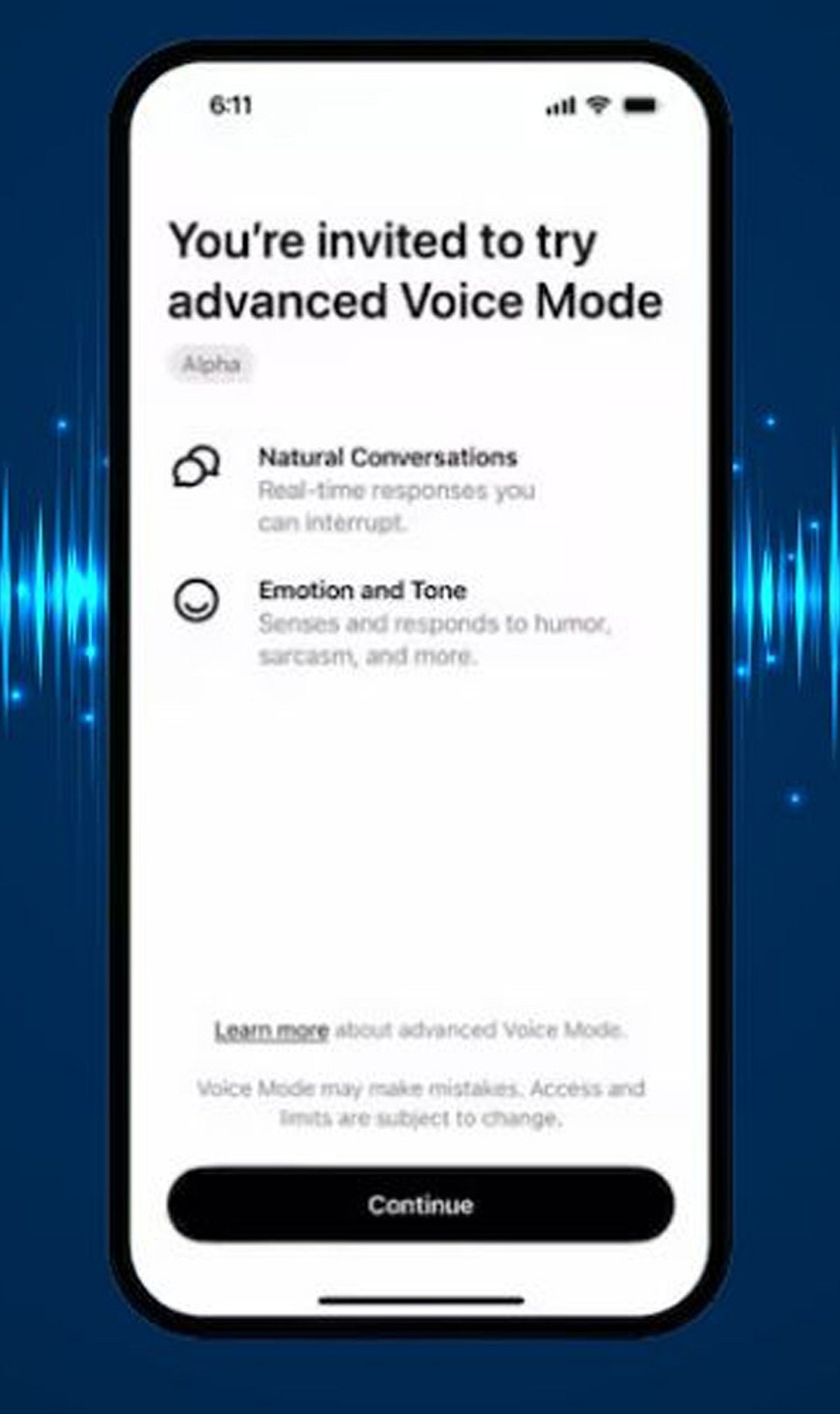
    AI conversations are becoming more natural thanks to ChatGPT’s advanced audio technology, which enables faster, smoother, and more human-like interactions. Modern voice AI can now understand natural speech patterns, allowing users to interrupt, ask follow-up questions, and maintain fluid conversations without awkward pauses.

    Improved speech synthesis adds realistic tone, emphasis, and pacing, making AI responses sound more expressive and engaging. Real-time translation capabilities could help users communicate across multiple languages during live conversations, making AI more useful for travel, business, and education.

    Developers are also using advanced audio models for live transcription, meeting summaries, accessibility tools, and customer support applications. Future AI assistants are expected to become increasingly audio-first, enabling hands-free interactions at home, in cars, and on wearable devices.

    More natural voice interactions could improve accessibility for users who prefer speaking over typing in everyday tasks. However, challenges remain, including maintaining accuracy, reducing hallucinations, protecting user privacy, and ensuring reliable performance in noisy environments.

    As audio AI continues to evolve, voice-based conversations are expected to become an increasingly important way people interact with intelligent assistants.