
Tag: AI Design Tools

  • Canva Pro Cost Guide: Monthly vs Annual Plans, Features, and Verdict

    Canva Pro Cost Guide: Monthly vs Annual Plans, Features, and Verdict

    Canva has become a go-to design platform for creators, marketers, and business owners who need professional visuals without hiring a designer. While the free version covers basic needs, Canva Pro unlocks a more powerful toolkit. This guide breaks down the exact pricing, what you get for your money, and whether upgrading is the right move for your workflow.

    Canva Pro Pricing at a Glance

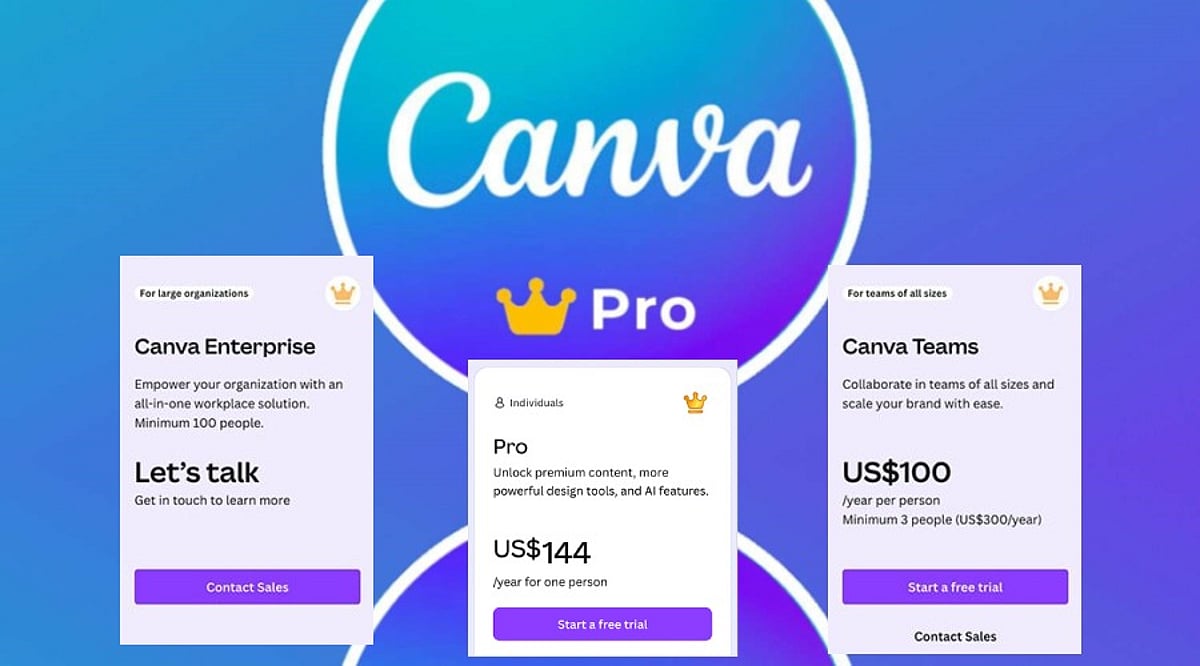
    Canva Pro is available with two billing options:

    • Monthly plan: $15 per user per month
    • Annual plan: $120 per user per year (effectively $10 per month)

    Choosing annual billing saves you $60 per year, a 33% discount compared to paying month-to-month. For teams, Canva also offers discounted per-seat pricing, but the individual Pro plan is the most common starting point.

    What Does Canva Pro Include?

    Canva Pro goes far beyond extra templates. Subscribers get access to a massive library of premium assets, advanced AI tools, and time-saving features that streamline the design process.

    Premium Templates and Assets

    With Pro, you can use millions of premium templates for presentations, social media posts, business documents, videos, and marketing materials. The library also includes premium photos, graphics, videos, icons, illustrations, and fonts, giving you everything needed to complete almost any project.

    AI-Powered Design Tools

    Canva’s AI features are a major draw for Pro users. Magic Write helps generate copy and content ideas, while Magic Edit lets you alter specific parts of an image. Magic Eraser removes unwanted objects from photos in seconds. These tools reduce editing time and help you create polished designs with less effort.

    Branding and Productivity Features

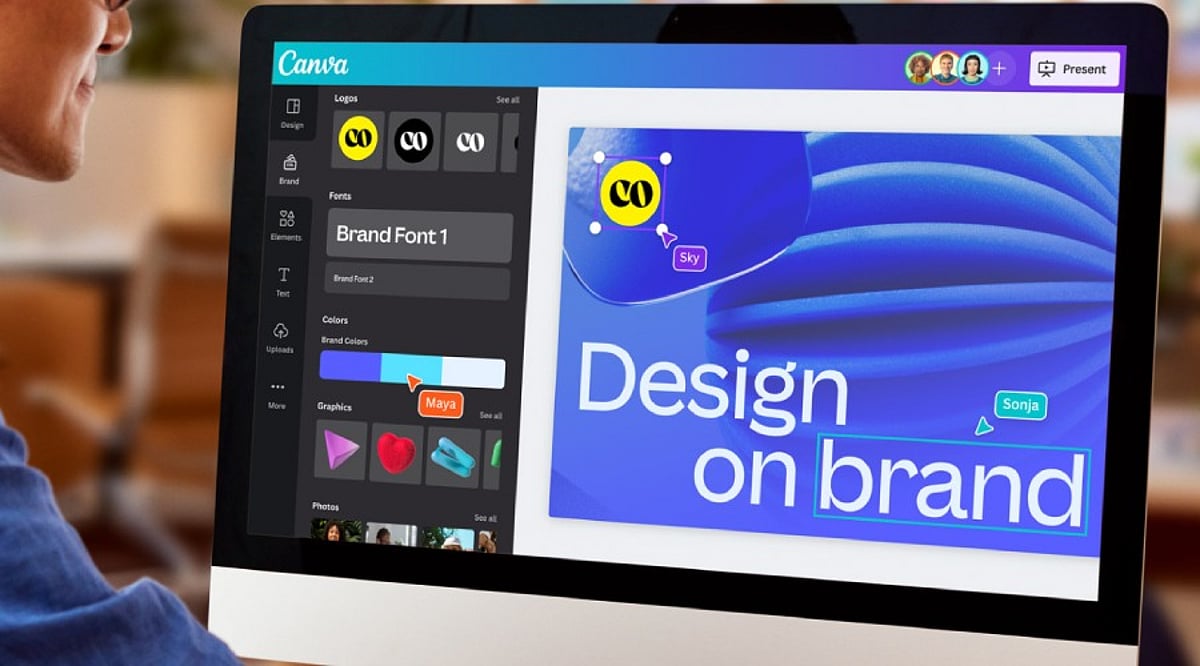
    • Brand Kit: Store logos, brand colors, and fonts in one place so every project stays on-brand.
    • Magic Resize: Instantly adapt a single design into multiple sizes for Instagram, Facebook, LinkedIn, posters, presentations, and more.
    • Background Remover: Isolate the main subject of an image with one click, ideal for product shots and profile photos.
    • Content Planner: Schedule and publish social media posts directly from Canva’s dashboard.
    • Extra cloud storage: More space for files, photos, videos, and completed projects.
    • Premium animations and effects: Add professional motion and visual polish to presentations and social content.

    Canva Free vs Canva Pro

    The free version of Canva is perfect for beginners and occasional users. It offers thousands of templates, basic editing tools, and a limited set of AI features. Simple presentations, posters, invitations, and social posts can look great without spending anything.

    Canva Pro expands every major area of the platform. You get premium templates, millions of extra assets, advanced AI features with higher usage limits, the Brand Kit, Magic Resize, Background Remover, and social media scheduling. For anyone creating content regularly, these additions make the design process faster and more flexible.

    Is Canva Pro Worth the Price?

    The value of Canva Pro depends entirely on how often you design. If your work involves social media management, presentations, e-commerce, or client projects, the subscription pays for itself quickly. You gain access to premium images, branding tools, photo editing, and scheduling features all in one platform, eliminating the need for multiple separate services.

    The annual plan offers the best value, reducing the effective cost to $10 per month and saving you $60 each year. For casual users who only need a few simple designs annually, the free tier is sufficient. But active designers, freelancers, and business owners will find that regular use easily justifies the subscription cost.

    How Canva Pro Compares to Alternatives

    Canva Pro competes with tools like Adobe Express Premium (around $9.99 per month) and Microsoft Designer, which is available through select Microsoft subscriptions. While each platform has its strengths, Canva stands out for combining a vast template library, AI tools, branding features, collaboration options, and content scheduling in one app. This all-in-one approach saves users from juggling multiple subscriptions and keeps every stage of a creative project in a single workspace.

    Final Verdict

    Canva Pro delivers a balanced mix of creative tools, premium content, AI features, and branding options at a competitive price. For $15 per month or $120 per year, you get a professional-grade design suite that simplifies everyday creative work. The annual plan is the smartest choice for regular users, offering a 33% savings compared to monthly billing. If you design frequently, the premium assets, AI tools, brand kit, and scheduling features make Canva Pro well worth the investment.

    Frequently Asked Questions

    How much does Canva Pro cost?

    Canva Pro costs $15 per user per month with monthly billing, or $120 per user per year with annual billing (equivalent to $10 per month).

    Is Canva Pro worth paying for?

    Yes, if you design regularly. The premium assets, AI features, branding tools, and time-saving capabilities provide strong value for frequent users.

    What is included in Canva Pro?

    Canva Pro includes premium templates, millions of stock assets, AI tools, Brand Kit, Magic Resize, Background Remover, Content Planner, and expanded cloud storage.

    Can I use Canva for free?

    Yes. Canva Free offers thousands of templates and essential design tools, making it suitable for casual users and students.

    Which Canva Pro plan offers the best value?

    The annual plan provides the best value, reducing the effective monthly cost to $10 and saving $60 per year compared to monthly billing.
  • Unlock Professional Branding: How Canva Pro Streamlines Logo Design, Presentations, and Brand Kits

    Unlock Professional Branding: How Canva Pro Streamlines Logo Design, Presentations, and Brand Kits

    Canva Pro helps businesses create professional logos, presentations, and consistent branding using Brand Kits, AI-powered design tools, and flexible collaboration features, making visual content creation faster, easier, and more professional.

    A Professional Logo Builds Brand Identity

    A logo gives a company a distinctive identity. Customers tend to recognize the logo before anything else related to the company. Canva Pro has thousands of tweakable templates for logos that can fit various business types. The different templates have features that make it easy to change the layout, color, font, etc. A company can have a logo ready very quickly while maintaining the right professional look.

    Besides that, Canva Pro enables you to export your logo in SVG file format, which means you get a high-quality logo regardless of the logo’s size. A logo looks perfect on a business card, mug, website, billboard, and product packaging. In addition to that, exporting in transparent PNG format allows the logo to be seamlessly integrated with various backgrounds and eliminates unwanted blank boxes. The editing tools powered by AI help create and tweak various shapes and colors easily.

    Brand Kit Keeps Every Design Consistent

    Brand consistency plays a major role in business success. Customers remember a brand more easily when every design shares the same colors, fonts, and logo style. Canva Pro solves this challenge through its Brand Kit feature.

    The Brand Kit stores logos, brand colors, heading fonts, body fonts, and other visual elements in one place. Every new project can use these saved assets with only a few clicks. This simple process saves valuable time and keeps every design uniform across presentations, social media graphics, brochures, reports, and advertisements.

    Canva Pro now allows up to 100 Brand Kits. This feature serves marketing agencies, design studios, and companies that manage several brands at the same time. Each brand keeps its own colors, fonts, and logo without confusion.

    Brand Kit Builder Saves Valuable Time

    Many businesses already have a website or a brand guideline document. Canva Pro offers another helpful feature called Brand Kit Builder. This tool collects logos, fonts, colors, and other visual details directly from a company website or a PDF brand guide.

    The entire setup takes far less time than manual entry. A business starts new design projects with a complete brand identity already in place. This process also reduces mistakes and keeps every team member on the same visual style from the first project onward.

    Canva Pro Creates Professional Presentations

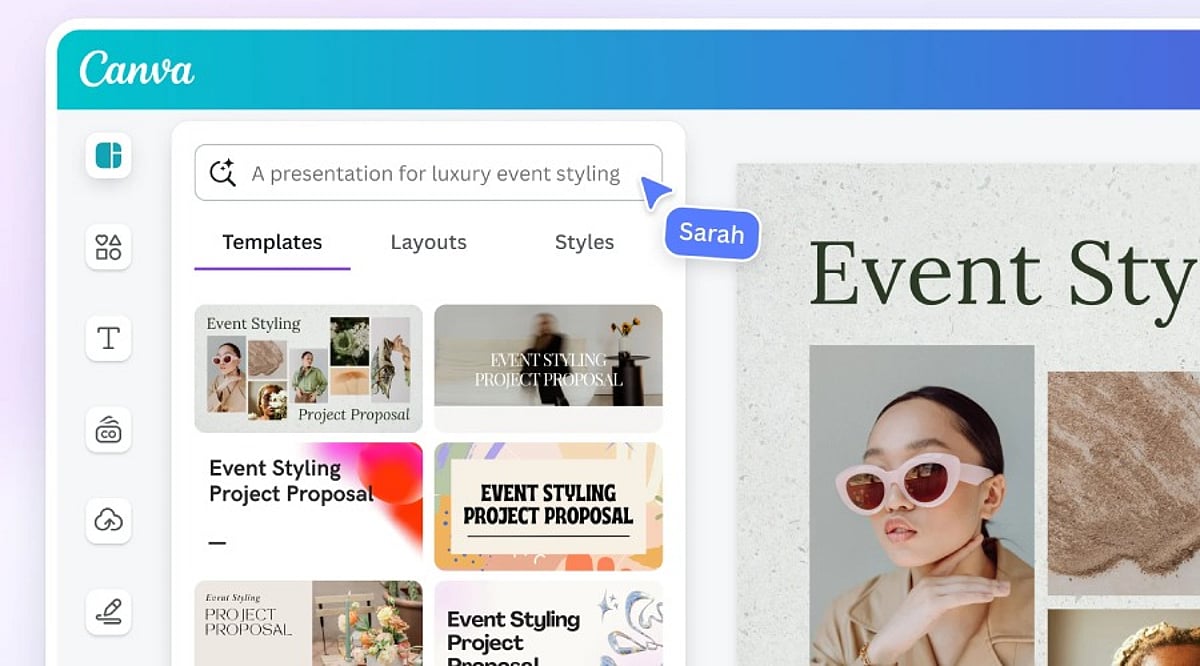
    Business presentations need a clean layout, readable text, attractive charts, and strong visual balance. Canva Pro includes thousands of presentation templates for sales meetings, business proposals, company reports, educational sessions, and product launches.

    Built-in charts and infographic tools help present numbers in a clear format. Animation features add smooth movement that keeps audience attention from the first slide to the last. Presenter View displays speaker notes while the audience sees only the presentation. Video presentation tools allow recording and sharing without extra software. Team members can also edit the same presentation together, which supports faster project completion.

    AI Features Speed Up Creative Work

    Artificial intelligence is a vital part of modern-day design. Canva Pro’s expanding Visual Suite offers a variety of tools equipped with AI technology to help the designer make layouts, edit images, create texts, and improve the design further.

    The release of new products such as Magic Studio, Canva Sheets, Canva Code, and advanced photo editing opens a door for many different design possibilities through the platform itself, not just graphic design. Today, businesses create their presentations, documents, promotions, and other visual outputs in one workspace rather than jumping around from one application to another.

    Better Brand Control Creates Better Results

    Strong brands stay consistent across every customer touchpoint. A matching logo, color palette, font style, and presentation design help customers recognize a business quickly. Canva Pro supports this goal through one central location for every important brand asset.

    Every employee or designer works with the same approved colors, logos, and fonts. Marketing campaigns, presentations, reports, and digital content maintain the same professional appearance. This level of consistency strengthens brand recognition and builds customer confidence over time.

    Canva Pro Fits Businesses of Every Size

    Small businesses often need affordable design software, while larger companies need advanced brand management tools. Canva Pro serves both groups through flexible features. A startup can create its first logo and presentation within hours. A growing company can manage several brands through multiple Brand Kits. A design agency can organize client projects with clear separation between each brand identity.

    Simple tools remove technical barriers, yet professional export options support high-quality business materials. This balance makes Canva Pro suitable for beginners as well as experienced designers.

    Final Thoughts

    Canva Pro has developed into something more advanced than a basic design service. Over 220 million users, support for more than 100 languages, and powerful business tools speak of the service’s global applicability. The features of creating logos in a professional way, exporting SVG images, exporting transparent background images, the ability of having Brand Kit and Brand Kit Builder, AI design tools, presentation abilities, make it possible to create various visual content easily. Introduction of 100 Brand Kits allows various agencies and organizations to produce different brands within the same platform.

    Frequently Asked Questions

    What is Canva Pro used for?

    Canva Pro is a design platform that helps users create logos, presentations, marketing materials, social media graphics, and branded content with premium features.

    What is the benefit of Canva Pro Brand Kit?

    Brand Kit stores logos, colors, fonts, and other brand assets in one place to ensure consistent branding across all designs.

    Can Canva Pro create professional presentations?

    Yes. Canva Pro offers thousands of presentation templates, animations, charts, speaker notes, collaboration tools, and video presentation features.

    Does Canva Pro support AI-powered design?

    Yes. Canva Pro includes AI features such as Magic Studio, AI image editing, content generation, and layout suggestions to speed up design work.

    Who should use Canva Pro?

    Canva Pro is ideal for startups, small businesses, marketing teams, agencies, educators, and enterprises looking to create professional visual content efficiently.

  • Master Canva AI: Speed Up Your Design Workflow with Smart Automation

    Master Canva AI: Speed Up Your Design Workflow with Smart Automation

    Creating professional graphics no longer requires starting from a blank canvas. With Canva’s suite of artificial intelligence tools, users can generate layouts, write copy, edit images, and automate repetitive tasks—all within the familiar drag-and-drop editor. These features help designers, marketers, and content creators move from concept to polished visual in record time, while still preserving the human touch needed for branding and originality.

    Why Canva AI Accelerates the Design Process

    Traditional design involves multiple steps: choosing templates, selecting fonts and colors, sourcing images, and writing copy. Canva AI collapses these stages by generating ready-to-edit designs based on minimal input. For example, a business owner creating a marketing poster or a student preparing a presentation can receive several design options instantly, skipping the initial setup and focusing only on refinement.

    Key Canva AI Tools That Matter Most

    Magic Design

    This feature generates complete layouts from a text prompt or an uploaded image. It suggests templates for presentations, social media posts, posters, flyers, and more, giving users a strong starting point.

    Magic Write

    Magic Write creates headlines, captions, product descriptions, blog outlines, and other written content directly inside Canva. It’s ideal for quickly generating copy that matches your design theme.

    Magic Edit

    With Magic Edit, users can modify parts of an image by typing descriptive text. Combined with tools like Background Remover and Magic Eraser, photo cleanup becomes effortless.

    AI for Video

    Canva also offers AI-powered video editing, including automatic subtitle generation and smart resizing for different platforms.

    Better Prompts Deliver Better Designs

    The quality of AI-generated outputs depends heavily on the prompt. A vague request like “design a poster” yields generic results. A detailed prompt specifying the target audience, purpose, color palette, and style helps Canva understand your vision. For instance, “a simple Instagram post promoting a weekend café offer, using warm colors and modern fonts” produces more relevant designs. Experimenting with slight variations in wording can also unlock fresh layouts and concepts.

    AI Is Just the Beginning

    While AI-generated designs are often impressive, they should never be published without human review. Canva’s AI cannot grasp a brand’s unique style, marketing strategy, or audience preferences. Adjustments to layout, typography, colors, images, and text are typically necessary. The best results come from combining AI’s initial ideas with human creativity and editorial oversight.

    Tips to Maximize Results

    • Be specific in your prompts: include the goal, color scheme, style, and target audience.
    • Never treat AI-generated designs as final—always edit, check brand compliance, and proofread copy.
    • Save personalized templates to speed up future projects.

    The Bottom Line

    Canva AI has made design faster without adding complexity. Tools like Magic Design, Magic Write, Magic Edit, and AI-powered image editing cut down routine tasks while providing a strong creative foundation. However, technology works best when paired with human judgment. AI generates ideas and automates processes, but the final result requires careful editing, clear messaging, and audience awareness. By combining both, users can produce professional designs quickly without sacrificing quality.

    Frequently Asked Questions

    What is Canva AI used for?

    Canva AI helps users create designs, generate content, edit images, and automate creative tasks using artificial intelligence.

    Is Canva AI free to use?

    Canva offers some AI features for free, while advanced tools and higher usage limits require a Canva Pro subscription.

    Which Canva AI tool is best for beginners?

    Magic Design is ideal for beginners because it generates ready-to-edit templates from simple prompts or uploaded images quickly.

    Can Canva AI create social media posts?

    Yes, Canva AI generates social media graphics, captions, presentations, videos, and marketing materials for multiple digital platforms efficiently.

    Does Canva AI replace professional designers?

    No. Canva AI speeds up design creation, but human creativity and editing remain essential for unique, accurate, and brand-aligned results.

  • 10 Essential Figma Tips and Skills Every New Designer Should Master in 2026

    10 Essential Figma Tips and Skills Every New Designer Should Master in 2026

    Overview

    Learn the most important Figma skills every beginner should master, from Auto Layout and components to variables and Dev Mode. Understand how Figma’s latest AI features and Motion tools can improve productivity without replacing core design principles. Build cleaner, more scalable design files that enable faster, more efficient collaboration with developers and design teams.

    Design tools continue to evolve rapidly, but mastering the fundamentals remains essential for every new designer. While recent updates to Figma have introduced AI-powered capabilities such as automated layer organization, motion design tools, intelligent Auto Layout suggestions, and shader generation, these features are designed to enhance workflows rather than replace core design skills. A well-structured file, consistent components, and a solid understanding of layout principles remain the foundation of effective collaboration and scalable design systems. This guide highlights ten essential Figma skills that every new designer should develop, along with practical ways to use the platform’s latest features to work more efficiently.

    Get the Fundamentals Right First

    1. Master Auto Layout

    Auto Layout is still the single most important skill in Figma. A file built on Auto Layout resizes properly, hands off cleanly to developers, and survives content changes without falling apart. Skip it, and every edit becomes manual repair work.

    2. Use Components and Variants Inconsistently

    Building reusable components from your first file, rather than duplicating and tweaking copies, is the difference between a design system and a pile of inconsistent screens that drift further apart with every update. Variants allow you to manage different states and sizes efficiently.

    3. Leverage Variables for Color, Spacing, and Type

    Variables deserve early attention. Change one variable, and every linked instance updates instantly; the alternative is hunting down dozens of hardcoded values by hand and missing at least one.

    Speed Up with Shortcuts, Not Just AI

    4. Learn Keyboard Shortcuts

    Before reaching for AI shortcuts, learn the manual ones. Keyboard-based resizing, alignment, and frame navigation make a real difference once a file has more than a handful of screens; mouse-only workflows get noticeably slower as complexity grows. This is a five-minute habit to build, and it compounds for the rest of your career in the tool.

    Use the New AI Tools with One Rule

    5. Use AI for Tedious Tasks

    Figma’s AI agent genuinely earns its place for specific, narrow tasks: renaming messy layers, generating realistic placeholder content instead of Lorem Ipsum, and suggesting Auto Layout spacing on repetitive elements like cards and list items. Independent testing this year put the auto layout suggestions at roughly 70% accuracy; good enough to be a real time-saver, not good enough to skip checking. AI handles the tedious, repetitive parts. Humans handle the creative and nuanced parts. That’s where the actual productivity gain lives, not in asking AI to design the whole page for you.

    6. Use First Draft for Exploration, Not Final Design

    First Draft, Figma’s text-to-design feature, is genuinely useful for early exploration and mood-boarding, but it generates from Figma’s own component libraries, not yours. Treat its output as a starting point for ideas, never as something ready to ship without rebuilding it inside your actual design system.

    All Ten, at a Glance

    7. Embrace Dev Mode Early

    Dev Mode is worth opening before your first real handoff, not after a frustrated developer asks why your spacing values don’t match anything. Seeing how Figma translates your layers into actual code changes how you structure files going forward; it’s one of the fastest ways to build the instinct for clean, handoff-ready design.

    8. Explore Figma Motion for Micro-Interactions

    Figma Motion, just launched at Configuration, is worth a look too, animating small interactions directly on the canvas, rather than exporting to a separate prototyping tool, saves real time on simple transitions. It won’t replace dedicated motion tools for complex work, but for the kind of micro-interaction most product designers need daily, it’s a genuine addition.

    9. Maintain Consistent Naming Conventions

    Layer and component naming is often overlooked but critical for collaboration. Clear, descriptive names make files searchable and developer-friendly. Use a naming convention from the start to avoid chaos later.

    10. Always Test on Real Devices

    While Figma’s preview features are powerful, nothing replaces testing your designs on actual devices. Use Figma Mirror or export prototypes to mobile and desktop to catch spacing, touch target, and readability issues that the canvas might hide.

    Why This Matters

    Modern product design is no longer just about creating attractive interfaces. Designers are expected to build scalable, developer-friendly files that support collaboration and faster product delivery. Learning Figma’s core features alongside its latest AI capabilities helps new designers improve efficiency, reduce repetitive work, and prepare for real-world design projects.

    Frequently Asked Questions

    Why is Auto Layout considered the most important Figma skill?

    Auto Layout allows designs to resize and adapt automatically as content changes. It helps designers build responsive interfaces, reduces manual adjustments, improves consistency, and creates files that developers can implement more efficiently across different screen sizes.

    What are Figma components, and why should beginners use them?

    Components let designers reuse interface elements such as buttons, cards, and navigation menus throughout a project. Using components from the beginning improves consistency, speeds up design updates, and forms the foundation of a scalable design system.

    How do variables improve a Figma workflow?

    Variables allow designers to define colors, spacing, typography, and other design values in one place. Updating a variable automatically updates every linked element, making large projects easier to maintain and reducing repetitive editing.

    Are Figma’s AI features enough to replace design skills?

    No. Figma’s AI tools can automate repetitive tasks like renaming layers, generating placeholder content, and suggesting layouts. Still, they cannot replace design thinking, creativity, user research, or sound interface design principles.

    What is Dev Mode in Figma?

    Dev Mode helps bridge the gap between designers and developers by displaying measurements, spacing, colors, typography, and code-related information. Learning it early helps designers create cleaner files that are easier to translate into production-ready code.