
Every time you install a new app on your Android phone, it asks for permission to access your camera, contacts, location, microphone, or other sensitive data. Most people tap ‘Allow’ without thinking, but that small habit can quietly expose your personal life. Android permissions exist to give you control, and learning how to use them wisely makes a real difference to your daily privacy and security.
This guide explains what each permission does, which ones are safe to grant, which deserve caution, and how to manage them on any Android device.
Why Permissions Matter
Smartphones today hold more personal information than most people realize: photos, messages, banking apps, health data, and location history. Every permission an app receives opens a small door into that information. A weather app asking for location makes sense; a flashlight app asking for contacts does not.
Google explains that an app sends a notification asking for permission before it can use a feature such as the camera or contacts list, and you get to allow or deny each request. This system puts control back in your hands instead of leaving it entirely to the app developer. Understanding this mechanism helps you make smarter choices instead of clicking through prompts out of habit.
Types of Permissions on Android
Android sorts permissions into two main categories that matter most for everyday users:
- Normal permissions: Cover simple actions such as connecting to the internet or using Bluetooth. The system grants these automatically without asking.
- Dangerous permissions: Touch personal data directly, so the phone always asks for confirmation first. These include access to the camera, microphone, contacts, location, SMS, calendar, phone log, and storage.
Once you grant one permission inside a group, the app often receives every related permission in that group without a fresh prompt. This detail matters — a single ‘Allow’ tap can open more access than you expect.
Permissions That Are Usually Safe to Allow
Some permissions carry low risk and support the core purpose of an app:
- Location: For navigation apps
- Camera and microphone: For video calling apps
- Contacts: For messaging apps to help find friends
- Notification access: For apps that need to send alerts
- Storage access: For photo editors
- Calendar access: For scheduling tools
In these cases, the permission matches the job the app is meant to do, so granting it rarely causes harm — as long as the app comes from a trusted developer and a genuine app store listing.
Permissions That Deserve a Careful Look
Trouble usually starts when a permission request does not match the app’s purpose. A simple game asking for microphone access, a flashlight app requesting contacts, or a photo editor wanting to read SMS messages should raise immediate questions. These mismatches often point toward data harvesting or, in worse cases, malware designed to read passwords sent through text messages.
The table below sums up common permissions and how to treat them:
| Permission | Safe to Allow? | When to Be Cautious |
|---|---|---|
| Location | Yes for navigation, maps, weather | If a game, calculator, or wallpaper app requests it |
| Camera | Yes for photo/video apps, video calls | If a music player or document reader requests it |
| Microphone | Yes for voice recorders, calling apps | If a simple game or flashlight app requests it |
| Contacts | Yes for messaging, social media | If a game or utility app requests it |
| SMS | Only for messaging apps that send texts | If any app that does not handle SMS requests it |
| Calendar | Yes for scheduling, productivity apps | If a game or entertainment app requests it |
| Storage | Yes for file managers, photo editors | If a simple game or wallpaper app requests it |
The Cybersecurity and Infrastructure Security Agency advises users to review app permissions regularly and remove access that is not supported. Old permissions often sit unused and forgotten on a phone for years.
How to Check and Change Permissions
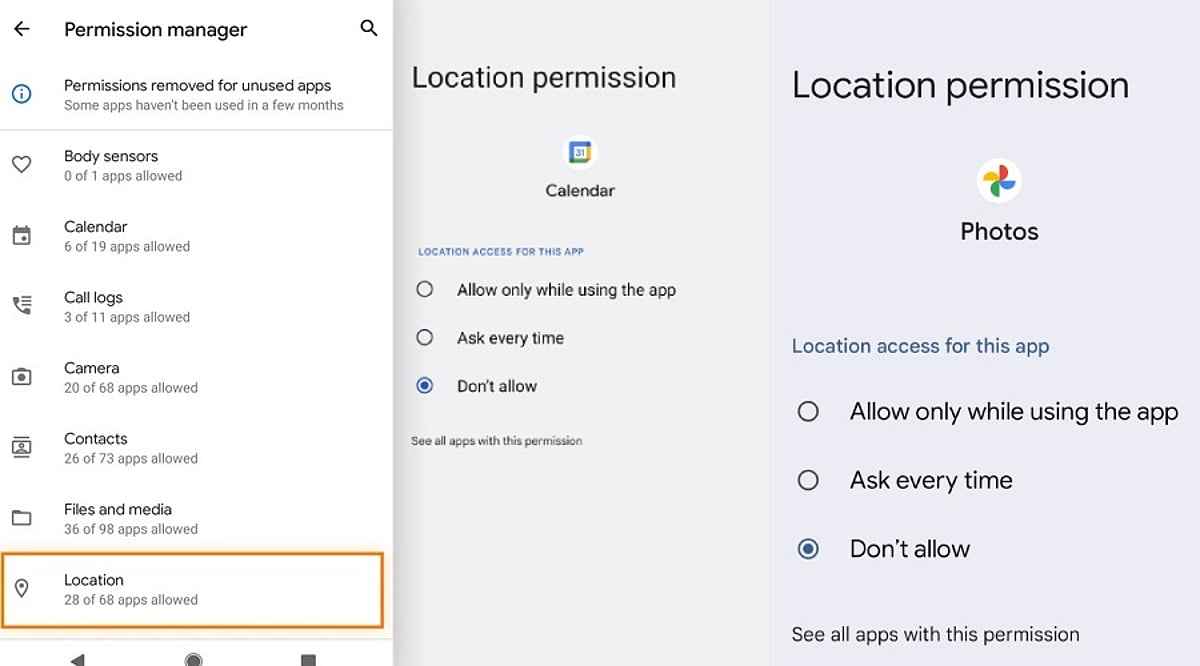
Android gives you a straightforward path to review and adjust these settings whenever you choose. The steps stay almost the same across most modern Android phones:
- Open Settings and tap Apps.
- Select the app in question, then tap Permissions.
- Choose Allow, Allow only while using the app, Ask every time, or Don’t allow, depending on what options the permission offers.
- Visit Settings > Security & Privacy > Permission Manager to see every app that holds a specific permission, such as location or camera.
- Turn on Pause app activity if unused for apps that sit idle for long stretches, so their permissions get removed automatically.
This last feature works quietly in the background and trims away access from apps you may have forgotten about, closing gaps before they turn into a problem.
Signs an App Is Asking for Too Much
A few warning signs can help you spot a risky request before tapping Allow:
- A brand-new app with very few reviews asking for administrator-level access
- An app that repeatedly shows the same permission pop-up after you have denied it (a known trick used by malicious software)
- A basic mismatch: compare what the app does against what it asks for
Reading reviews, checking the developer name, and searching the app name alongside the word ‘permissions’ often reveals whether other users have flagged similar concerns.
Final Thoughts
Android permissions work as a simple gate between your personal data and outside access. Every tap on Allow or Deny decides how much of that gate stays open. A little patience during setup, a quick permission audit every few months, and a habit of questioning mismatched requests go a long way toward protecting your personal information. Technology moves fast, and apps will keep asking for more access as new features arrive. Staying alert, reading each prompt carefully, and denying anything that does not fit an app’s purpose keeps your phone safer without demanding much extra effort.
FAQ
Which Android app permissions should you normally allow?
Allow permissions that directly support an app’s main function, such as location for navigation, camera and microphone for video calls, or contacts for messaging. Review each request individually rather than granting access automatically during installation.
Which Android permissions should users be most careful about?
Location, contacts, SMS, microphone, camera, and accessibility access deserve closer attention since they can expose sensitive information or device capabilities. Check whether the requested permission is genuinely necessary for the application’s stated purpose.
How can you check app permissions on Android?
Open Settings, select Apps, choose the relevant application and tap Permissions. Modern Android devices also provide Permission Manager under Security & Privacy, allowing you to review which applications can access specific categories.
Can Android automatically remove permissions from unused apps?
Yes. Android includes an option that can pause activity for unused applications and remove permissions they previously received. This feature is useful for limiting forgotten access from apps that have not been opened for extended periods.
What should you do when an app repeatedly requests denied permissions?
If an app keeps requesting access after you have denied it, first consider whether that permission is essential. Check the developer, reviews, and app purpose, then keep the permission denied if the request appears unnecessary or suspicious.