
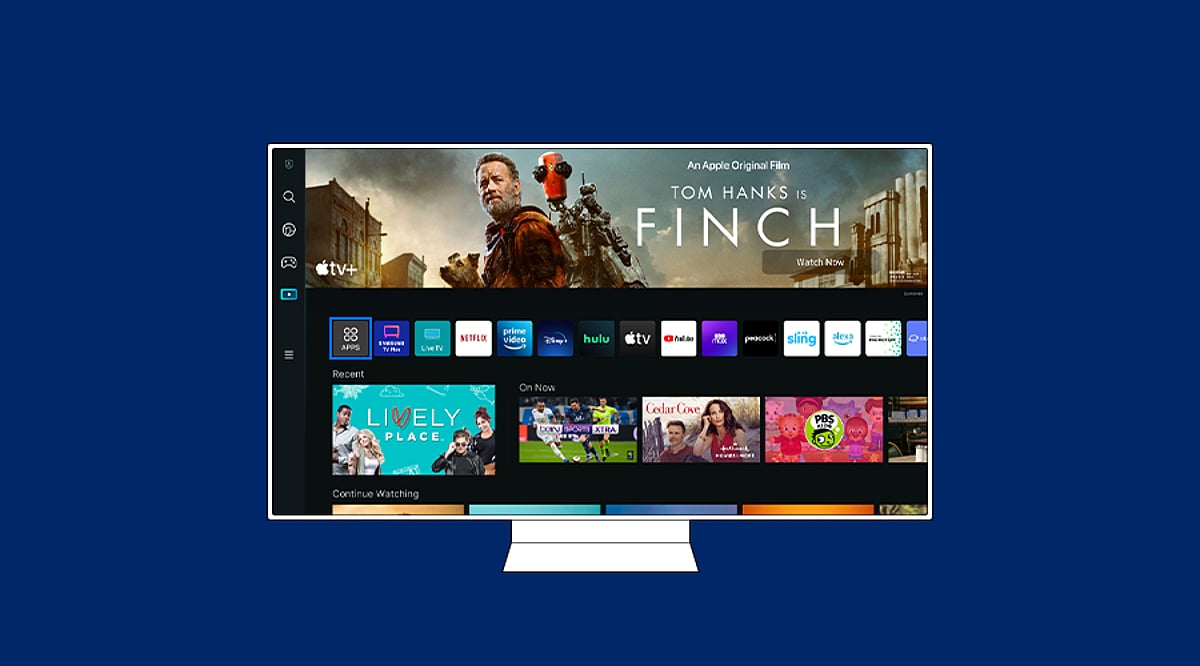
Smart TVs offer access to a wide range of streaming services, games, and utility apps. Whether you own a Samsung, LG, Google TV, Fire TV, or Roku device, the process of downloading apps is straightforward. This guide walks you through each step to get your favorite apps up and running.
Step 1: Connect Your Smart TV to the Internet
Before you can download any apps, your TV must be connected to the internet. Use Wi-Fi or an Ethernet cable. Navigate to Settings, select Network, and choose your Wi-Fi network. Enter the password if prompted. A stable connection ensures smooth browsing of the app store and seamless downloads.
Step 2: Open the Built-In App Store
Press the Home button on your remote and locate the app store. The name varies by brand: Google TV uses the Apps section or Google Play Store, Samsung uses “Apps”, LG uses “LG Content Store”, while Fire TV and Roku have their own dedicated stores. Open the store to browse available applications.
Step 3: Search for the App You Want
Use the search function within the app store and type the name of the app you’re looking for. Review the results carefully to select the official version. Check the developer name and app description to ensure it’s the correct app before proceeding.
Step 4: Install the App
Select the official app listing and click Install, Get, or Download (the wording depends on your TV platform). Wait for the installation to complete. Google TV and Android TV install apps via Google Play, while Samsung and LG use their proprietary stores.
Step 5: Open the App and Sign In
Once installed, you can open the app directly from the store or find it on your Home screen. Launch the app and sign in if required. Some services may need a separate subscription or activation before content becomes available.
Step 6: Add the App to Your Home Screen (Optional)
For quick access, you can add frequently used apps to your Home screen. Samsung TVs, for example, allow you to pin apps to the Home bar. Menu options vary by model and software version, so explore your TV’s settings to customize your layout.
Troubleshooting: App Not Showing Up?
If an app doesn’t appear or fails to install, try these fixes: restart your TV and router, check for system software updates, free up storage space, and verify your TV’s region and compatibility. Some apps are not available on certain models or operating systems. As a workaround, consider casting from a phone, using AirPlay, or connecting a streaming device like Chromecast or Amazon Fire Stick.