Tag: audio quality

  • 10 Expert Tips to Enhance Netflix Audio Quality for Clearer Dialogue and Richer Sound

    10 Expert Tips to Enhance Netflix Audio Quality for Clearer Dialogue and Richer Sound

    Whether you’re watching a thrilling action movie or a quiet drama, poor audio can ruin the experience. Here are ten practical ways to improve the audio quality on Netflix, from simple volume checks to advanced surround-sound settings.

    1. Check Device Volume

    Ensure your television, smartphone, computer, or streaming device isn’t set too low. Low output can make audio seem muffled or unclear, even if the content is well-mastered.

    2. Adjust Netflix Playback Volume

    Raise the volume within the Netflix app on your device. Avoid pushing levels into the red zone, which can cause distortion, clipping, or an unpleasant listening experience.

    3. Select Stereo Audio

    If you’re using standard television speakers, a laptop, or basic headphones, choose the stereo audio option. This setting delivers clearer dialogue and more balanced sound for everyday setups.

    4. Enable Surround Sound

    When your TV, soundbar, receiver, or home theater system supports it, select Dolby Digital or a compatible surround-sound format. This immerses you in a richer sound field, especially for movies and series with cinematic audio.

    5. Check Audio Output Routing

    Make sure your device is sending audio to the intended output—whether it’s your TV speakers, soundbar, headphones, or receiver. A misrouted signal can lead to silent or distorted playback.

    6. Improve Internet Stability

    A stable internet connection is crucial for consistent streaming quality. Fluctuating bandwidth can affect audio bitrate and, in some cases, force Netflix to downgrade to lower-quality audio tracks.

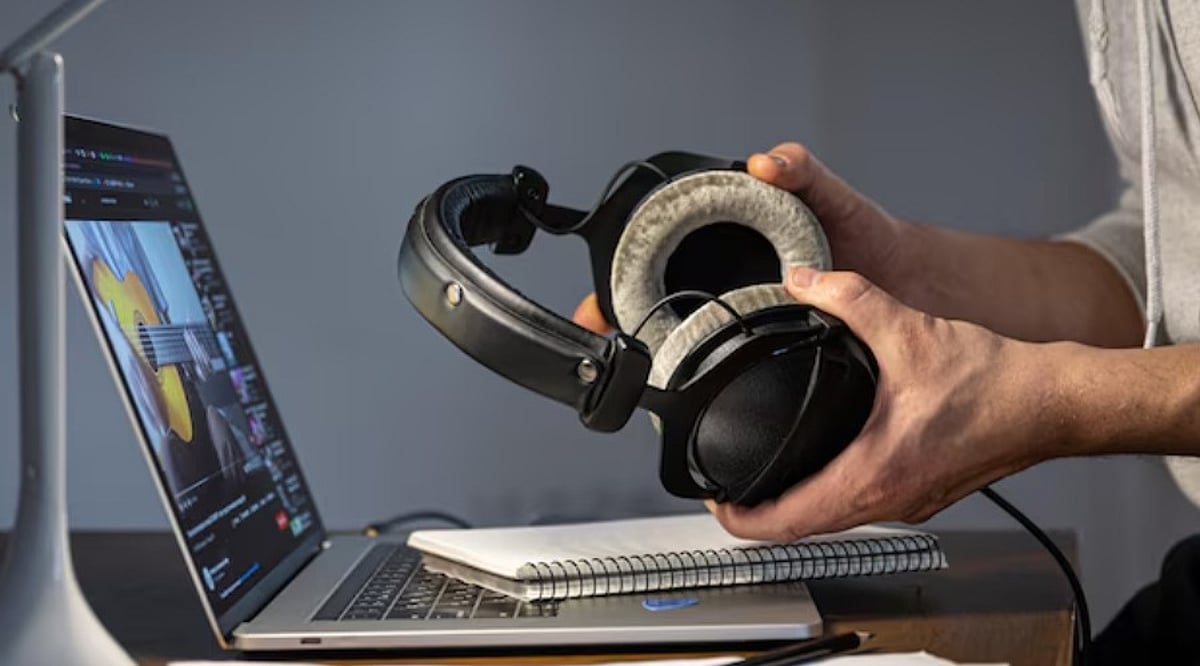
    7. Use Quality Headphones

    Invest in reliable wired or wireless headphones with balanced sound reproduction. Good headphones minimize distracting background noise and make dialogue easier to follow.

    8. Keep Your Devices Updated

    Regularly update Netflix, your TV’s firmware, streaming device software, and any connected audio gear. Updates often fix bugs, improve compatibility, and unlock new audio codecs or options.

    9. Adjust Soundbar Dialogue Settings

    Many soundbars include dialogue enhancement or speech modes. Activating these settings makes conversations clearer without forcing you to raise the overall volume to uncomfortable levels.

    10. Pair with a Quality Sound System

    For the best experience, consider upgrading to a dedicated sound system. A soundbar with a subwoofer or a full home theater setup can dramatically improve audio clarity and depth.

    By following these steps, you can transform your Netflix viewing experience—bringing every whisper, explosion, and musical score to life.

  • 5 Common PC Audio Mistakes That Ruin Your Sound Quality (And How to Fix Them)

    5 Common PC Audio Mistakes That Ruin Your Sound Quality (And How to Fix Them)

    Is your PC audio distorted, too quiet, or cutting out? These five common mistakes could be responsible, and simple changes to Windows settings and connections may help restore better sound.

    Overview

    • Outdated drivers can cause crackling, distortion, low volume, and unexpected audio interruptions on Windows PCs.
    • Incorrect audio settings may affect playback quality even when your headphones or speakers work properly.
    • Checking connections, output devices, and audio formats can resolve several common PC sound problems.

    When your PC starts sounding worse than usual, it is easy to blame the headphones or speakers. Yet, the hardware may not be the problem at all. A driver issue, an incorrect Windows setting, or even a loose cable can affect sound quality without giving you an obvious clue about what went wrong.

    Fix Simple Mistakes, Improve PC Audio

    Before you spend money on a new headset or speaker, it is worth checking a few simple things. Here are five common PC audio mistakes and what you can do to fix them:

    1. Not Updating Your Audio Drivers

    Audio drivers help Windows communicate with the sound hardware inside your PC. When a driver becomes outdated, corrupted, or incompatible after an update, you may start hearing crackling, distortion, low volume, or audio that cuts out unexpectedly. The problem can be easy to miss because Windows may still show that your headphones or speakers are connected.

    How to Fix It: Open Device Manager and go to Sound, video and game controllers. Find your audio device, right-click it, and select Update driver. If updating does not solve the problem, reinstall the driver or check your PC manufacturer’s website for a newer version.

    2. Leaving Audio Enhancements On

    Audio enhancements sound useful, but they do not always make your audio better. Depending on your PC and headphones, they can make music sound distorted, change the volume, or add effects you may not want. This is particularly noticeable when your headphones or speakers already have their own audio-processing features.

    How to Fix It: Go to Settings > System > Sound, select your audio device, and look for Audio enhancements. Turn them off and play the same song or video again. If the sound improves, you have likely found the culprit.

    3. Picking the Wrong Audio Format

    Windows allows you to choose different audio formats, including different sample rates and bit depths. While there is no single setting that works perfectly for every device, the wrong combination can sometimes result in distortion, dropouts, or inconsistent playback. This can happen after switching to a new pair of headphones or installing new audio software.

    How to Fix It: Open the settings for your audio device and go to its Advanced properties. Under Default format, try another available option and test your audio. If the problem gets worse, simply switch back.

    4. Sending Sound to the Wrong Device

    If you regularly connect Bluetooth headphones, USB speakers, a monitor, or a wired headset to your PC, there can be several audio outputs available at once. Windows may switch to another output when a new device is connected. You might then think your headphones have stopped working when the audio is actually being sent to your monitor or another connected device.

    How to Fix It: Go to Settings > System > Sound and check the Output section. Select the headphones or speakers you want to use and make sure they are the selected playback device.

    5. Overlooking Cables and Connections

    Sometimes, the simplest explanation is the right one. A loose cable, damaged connector, unreliable USB port, or unstable Bluetooth connection can all cause audio problems. The source you are listening to matters as well. If a song, video, or recording has poor quality or is heavily compressed, changing your Windows settings will not bring back the missing detail.

    How to Fix It: Reconnect your device, try another cable or USB port, and test the same headphones or speakers with another device. With Bluetooth, move closer to the PC and check whether other nearby devices could be causing interference.

    Final Thoughts

    Bad PC audio does not always mean your headphones or speakers need replacing. Quite often, the problem is hiding in a setting, driver, or connection that takes only a few minutes to check. So, before buying new audio hardware, start with the basics. Update the drivers, turn off unnecessary enhancements, check the audio format, select the right output, and inspect your connections. These simple checks could be enough to get your PC audio back to normal.

    FAQs

    Why does my PC audio sound distorted or crackly?

    Distorted or crackling audio can be caused by outdated drivers, audio enhancements, incorrect formats, damaged cables, Bluetooth interference, or problems with the connected audio device.

    How can I update my PC’s audio drivers?

    Open Device Manager, select Sound, video and game controllers, right-click your audio device, and choose Update driver. You can also check your manufacturer’s website.

    Should I turn off Windows audio enhancements?

    If your audio sounds unnatural, distorted, or overly processed, turn audio enhancements off and test playback. Some headphones and speakers already use their own audio-processing features.

    Why is my PC sending sound to the wrong device?

    Windows can switch audio output when you connect monitors, Bluetooth headphones, USB speakers, or wired headsets. Check Settings > System > Sound and select your preferred output.

    Can a poor-quality audio source affect sound quality?

    Yes. Heavily compressed music, videos, or recordings may already have lost audio detail. Changing Windows settings cannot restore information that was removed from the original source.


  • Moto Pad 70 Groove vs Standard Moto Pad 70: Which Motorola Tablet Delivers Better Audio?

    Moto Pad 70 Groove vs Standard Moto Pad 70: Which Motorola Tablet Delivers Better Audio?

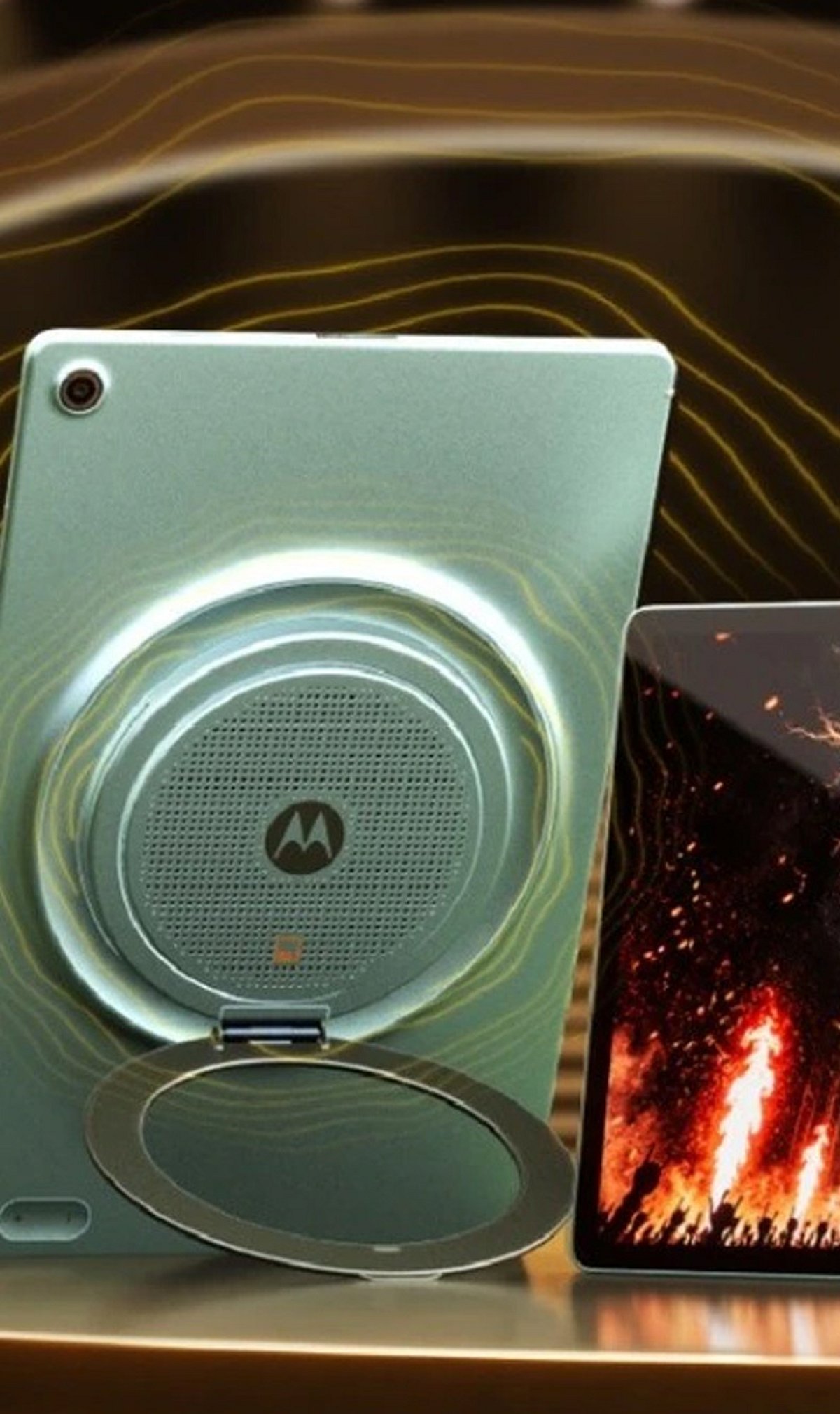
    Motorola’s Moto Pad 70 Groove and the standard Moto Pad 70 may look nearly identical, but they target different user priorities. The key difference lies in audio performance: the Groove variant is engineered for richer sound, making it a stronger choice for entertainment lovers, while the regular model offers a more balanced, no-frills tablet experience.

    The Moto Pad 70 Groove puts audio front and center. Its enhanced sound system is designed to elevate music, movies, and gaming, creating a more immersive media experience. For users who frequently stream content or play audio-heavy games, the Groove model provides a noticeable upgrade in sound quality and volume.

    In contrast, the standard Moto Pad 70 takes a simpler approach. It delivers solid performance for everyday tasks such as browsing, reading, streaming, and light gaming, but does not emphasize audio as a standout feature. This makes it a more straightforward option for users who want a capable large-screen device without paying extra for specialized speakers.

    Both tablets share a similar design and are built to handle typical digital activities. Motorola’s strategy with these two variants shows how small hardware tweaks can create distinct experiences, even when the devices look alike. The Groove model appeals specifically to users who value sound quality, while the standard model caters to those who prefer a well-rounded tablet at a potentially lower price point.

    Ultimately, the decision comes down to how you use your tablet. If rich audio matters to you, the Moto Pad 70 Groove is the clear winner. If you need a reliable, all-purpose tablet without extra audio emphasis, the standard Moto Pad 70 remains a solid choice.

  • 10 Common Spotify Sound Quality Killers and How to Solve Them

    10 Common Spotify Sound Quality Killers and How to Solve Them

    Having a good pair of headphones or speakers does not automatically mean you are getting the best sound from Spotify. Streaming settings, Bluetooth connections, volume processing, and even old downloads can affect playback. Spotify currently offers low, normal, high, very high, and Lossless options, depending on the plan and device. Supported Premium users can stream up to 24-bit/44.1kHz FLAC in Lossless. Here are 10 factors that can ruin your Spotify sound quality and how to fix each one.

    1. Streaming at Low Audio Quality

    Spotify lets users choose different audio-quality levels. Low quality is around 24kbps, Normal about 96kbps, High about 160kbps, and Very High about 320kbps. Lower settings use less data but can reduce detail, especially when listening through capable headphones. Check media quality and select the highest practical option for your connection.

    2. Forgetting to Enable Very High or Lossless

    If your plan and device support Lossless, leaving the setting at High or Very High means you are not using the highest available quality. Spotify says Lossless can reach up to 24-bit/44.1kHz FLAC. Go to Media Quality and check the settings for both streaming and downloads.

    3. Relying on Bluetooth for Maximum Fidelity

    Bluetooth is convenient, but it can limit access to lossless playback depending on the headphones, speaker, and connection being used. That does not mean Bluetooth always sounds poor. For Spotify’s full lossless capability, compatible wired equipment or supported Spotify Connect devices are better choices.

    4. Using Volume Normalization Without Realizing

    Spotify’s Volume Normalization balances quieter and louder tracks so songs play at a more consistent level. That can be useful for playlists, but listeners who want to hear the original dynamics of recordings may prefer to test playback with it turned off.

    5. Messing with the Equalizer

    The equalizer can help correct a particular headphone’s sound, but large boosts and cuts can also make music sound unnatural. Excessive bass may mask vocals, while boosted treble can make recordings harsh. If there is no specific reason to change it, keeping the EQ flat is a sensible starting point.

    6. Streaming Over an Unstable Connection

    Higher-quality audio needs more bandwidth. Spotify recommends a steady 1.5 to 2Mbps connection for the best listening experience. If your Wi-Fi or mobile connection is unstable, buffering or quality adjustments can interfere with playback. A strong Wi-Fi connection is preferable for high-quality streaming.

    7. Playing Old, Lower-Quality Downloads

    Changing your streaming quality does not mean that downloaded music is replaced with a higher-quality version. Spotify allows users to choose download quality separately. After switching to downloads, you need to update them. Check your offline library after changing the setting.

    8. Ignoring Headphones or Speakers

    Spotify cannot fix hardware at the other end of the audio chain. Poorly tuned headphones, damaged drivers, weak speakers, or poor speaker placement can have a greater effect than changing an app setting. Ensure that your equipment is working properly in the first place.

    9. Phone or PC Audio Processing

    System-level EQs, spatial audio, sound enhancements, and other processing can alter Spotify’s output. Windows users with compatible external audio equipment can also try Spotify’s Exclusive Mode. It gives Spotify direct control of the audio device and is designed for higher-fidelity playback.

    10. Expecting Every Track to Sound the Same

    Lossless preserves the quality of the source, but it cannot improve a recording that was poorly recorded or mastered. Spotify itself notes that the original recording, playback equipment and connection all influence what listeners hear. Some users may also notice little difference between lossless and high-quality compressed playback.

    Frequently Asked Questions

    1. What is the highest Spotify audio quality?

    Spotify Premium supports Lossless playback up to 24-bit/44.1kHz FLAC on compatible devices, while Very High reaches approximately 320kbps.

    2. Does Spotify automatically reduce audio quality?

    Spotify can automatically adjust audio quality based on network conditions to reduce playback interruptions, particularly when connections are unstable or bandwidth is limited.

    3. What internet speed does Spotify recommend for Lossless?

    Spotify recommends maintaining a steady 1.5 to 2Mbps connection for the best Lossless listening experience and fewer playback or buffering problems.

    4. Can old Spotify downloads have lower quality?

    Yes. If you change your download quality, existing downloads may need updating. Spotify provides an option to update downloaded tracks to Lossless.

    5. Will Lossless work with Bluetooth headphones?

    Lossless availability depends on the connection and hardware. Spotify says connection type can affect quality, so compatible wired or Spotify Connect devices are preferable.

  • Top Digital Voice Recorders of 2026: Audio Quality, Features, and Value Compared

    Top Digital Voice Recorders of 2026: Audio Quality, Features, and Value Compared

    Missing an important point during a meeting or an interview can be frustrating. A good digital voice recorder helps ensure every word is captured clearly, so there is no need to rely solely on memory or handwritten notes. It is a useful device for students, journalists, office workers, and anyone who regularly records conversations.

    Many voice recorders today offer much more than basic recording. Some include noise reduction for clearer sound, while others offer large storage capacity, voice activation, USB support, and longer battery life. With so many models available, finding the right one is not always easy. To help you decide, we compared some of the best digital voice recorders.

    Best Digital Voice Recorders Compared

    Each recorder below is designed for different needs. Some focus on affordability, while others offer better sound quality and extra features. Here are the standout models:

    • TECHNOVIEW 360 High Definition HD USB Voice Recorder – A compact, dependable choice for everyday use.
    • Arvox 32GB Voice Recorder – Offers a balanced price-to-performance ratio with good sound quality and ample storage.
    • Remi8 AI Voice Recorder 64GB – Features AI noise reduction for clear audio even in noisy environments, plus large storage.
    • MSTECH Digital Voice MP3 Recorder – A versatile option with good audio playback capabilities.

    Each recorder provides different audio quality to make voices easier to hear, even in locations with high background noise. Some models even allow you to play back audio files in useful ways.

    Which Digital Voice Recorders Would I Recommend?

    After testing all the models mentioned, if I had to choose one, I would definitely go with the Remi8 AI Voice Recorder 64GB. I like the way it records sound, even with background noise. The large storage is another reason for my choice.

    My second choice would be the Arvox 32GB Voice Recorder Device. What impressed me most about this device is its balanced price-to-performance ratio. The sound quality is good, the storage is enough for most users, and the recorder is easy to carry. For daily use, it is a solid option.

    The third recorder I recommend is the TECHNOVIEW 360 High-Definition HD USB Voice Recorder. It is simple, compact, and easy to use. I like products that do their job without adding extra steps, and this recorder does exactly that.

    Final Thoughts

    A digital voice recorder can be useful in many everyday situations. It helps save important conversations, lectures, interviews, and voice notes without missing key details. A clear recording also makes it much easier to listen again whenever needed.

    Before buying one, think about how often you will use it and what features matter most to you. Some people need more storage, while others may prefer better sound quality or longer battery life. Choosing the right recorder based on your needs will give you better value and a much better recording experience.

    Frequently Asked Questions

    Which digital voice recorder has the best audio quality?

    The Remi8 AI Voice Recorder 64GB is one of the best options for clear audio. Its AI noise reduction helps reduce background noise, making voices easier to hear during playback.

    How much storage is enough for a digital voice recorder?

    A 16GB recorder is enough for casual use. If you record meetings, lectures, or interviews often, choosing a 32GB or 64GB model gives you more recording time.

    Is a digital voice recorder better than recording on a phone?

    In many situations, yes. A dedicated voice recorder usually offers clearer sound, longer battery life, and useful features like noise reduction and voice-activated recording.

    Can recordings be transferred to a computer?

    Yes. Most digital voice recorders come with USB support, making it easy to copy recordings to a computer for editing, sharing, or keeping a backup.

    Who should buy a digital voice recorder?

    Students, teachers, journalists, office workers, and content creators can all benefit from a digital voice recorder. It is useful for recording meetings, lectures, interviews, and personal voice notes.