

Tag: beta

  • Apple macOS 27.2 Beta 2 Adds Multi-Language Siri AI Support and Developer Fixes

    Apple macOS 27.2 Beta 2 Adds Multi-Language Siri AI Support and Developer Fixes

    Apple has released the second developer beta of macOS 27.2, build 26B5091g, arriving one week after the first beta and following the initial launch of macOS 27 earlier this month. This preview continues testing for the upcoming Golden Gate update, with a strong focus on refinements, bug fixes, and ongoing evaluation of known issues.

    Expanded Siri AI Language Support

    The most significant addition in macOS 27.2 is the expansion of Siri AI to multiple languages beyond English. The first beta introduced support for French, Japanese, Korean, Portuguese, and Spanish, and Beta 2 continues that effort. This marks a major step in Apple’s push to bring advanced on-device intelligence and natural-language capabilities to users worldwide through the Foundation Models framework and App Intents APIs.

    Beta 2 Focus on Testing and Stability

    Apple has not unveiled any major new user-facing features specifically for Beta 2. Instead, the release emphasizes continued testing and resolution of issues flagged in the first beta. The official release notes list several known problems under investigation, including potential Xcode crashes during code completion ranking, notification failures after a clean installation, and a glitch affecting the Shortcuts ‘Describe a Shortcut’ function. Apple advises developers to review the release notes carefully before installing.

    How to Install macOS 27.2 Beta 2

    Registered developers can download the beta via System Settings > General > Software Update, then select the macOS developer beta under Beta Updates. Apple strongly recommends backing up your Mac before installing any beta software, as preview builds may contain bugs, compatibility issues, or other problems. The stable release is expected later in October after additional beta iterations.

  • Minecraft Bedrock 26.50.22 Beta and Preview: Complete Download Guide for Every Platform

    Minecraft Bedrock 26.50.22 Beta and Preview: Complete Download Guide for Every Platform

    Minecraft Bedrock Edition players can now access version 26.50.22 Beta and Preview, which includes experimental features, bug fixes, and performance improvements. Follow the platform-specific instructions below to get started.

    Windows PC

    Open the Minecraft Launcher from the Microsoft Store or Xbox app and select Minecraft Preview if available. Players who own Minecraft Bedrock Edition can install or update the Preview directly through the launcher. If already installed, simply check for updates to access version 26.50.22 and start testing the latest experimental features.

    Xbox Consoles

    Xbox users who own Minecraft Bedrock Edition can download Minecraft Preview from the Microsoft Store. Search for “Minecraft Preview,” install it, and launch the app after updating to version 26.50.22. Your regular Minecraft game remains separate, allowing you to test new content without affecting existing worlds.

    Android Devices

    Android players can join the Minecraft Beta through the Google Play Store. Open the Minecraft app page, scroll to the beta section, and enroll if slots are available. Once registration is complete, update the game to download Minecraft Bedrock 26.50.22 Beta and explore upcoming features before the stable release.

    iPhone and iPad

    iOS users need Apple’s TestFlight app to access Minecraft Preview. Open TestFlight, accept the Minecraft Preview invitation if available, and install the latest version. Preview slots are limited and often fill quickly, so availability may vary depending on Microsoft’s testing capacity and ongoing beta enrollment.

    PlayStation Consoles

    Minecraft Preview is currently unavailable on PlayStation. Players on PS4 and PS5 can only access the stable Bedrock Edition until Mojang expands Preview support. Keep your game updated through the PlayStation Store so you receive new features as soon as they officially launch in public releases.

    Important Backup Tips

    Beta and Preview builds may contain bugs, crashes, or unfinished features that could affect saved worlds. Always create backups before opening important worlds in testing versions. Keeping separate saves for stable and beta gameplay helps prevent accidental data loss or compatibility issues after future updates.

    Why Install the Beta or Preview

    Minecraft Bedrock 26.50.22 Beta and Preview let players experience experimental gameplay, bug fixes, performance improvements, and upcoming features before the official release. Testing these builds also allows players to submit feedback to Mojang, helping improve stability and gameplay ahead of the final public update.

    Join our WhatsApp Channel to get the latest news, exclusives and videos on WhatsApp.

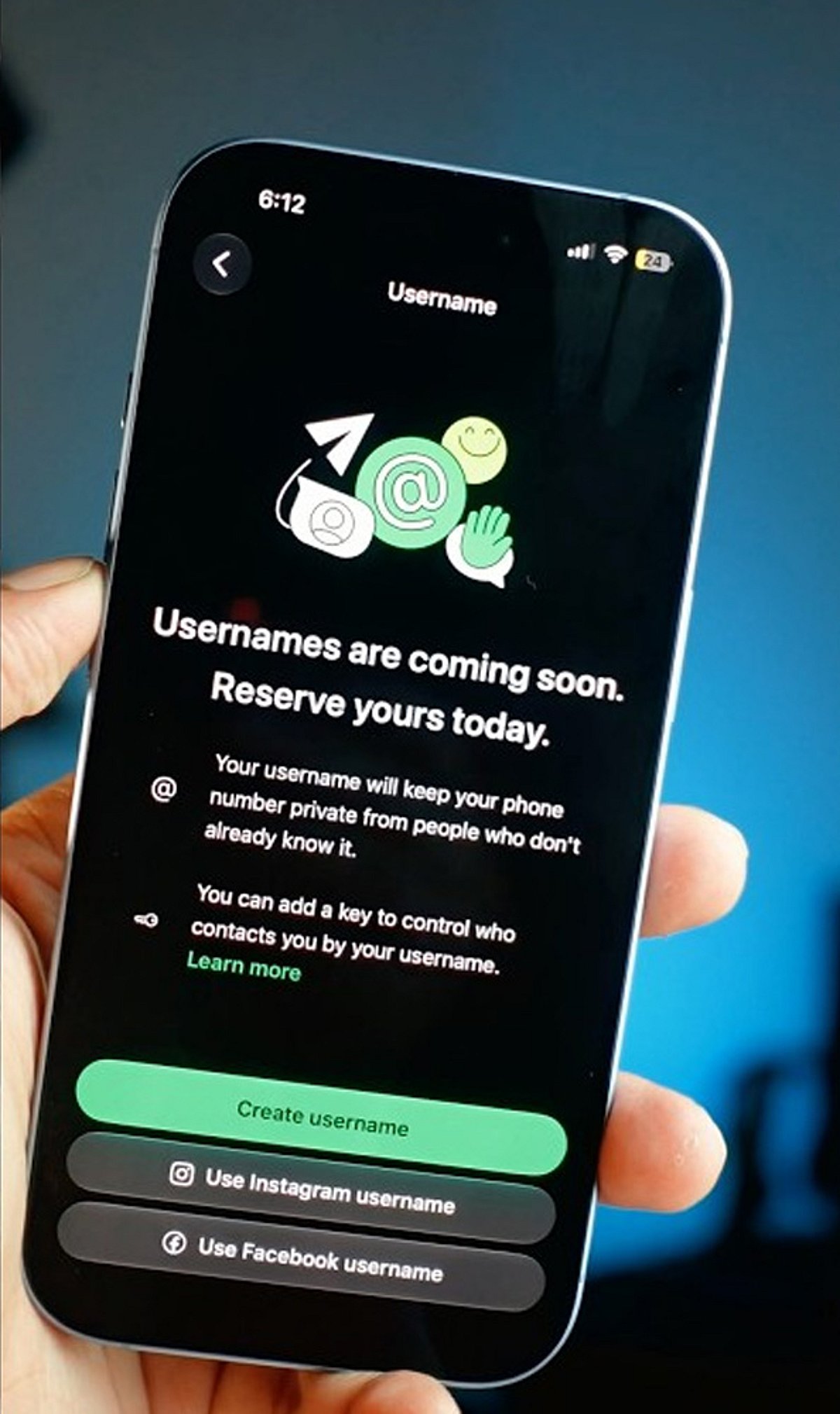
  • Claim Your WhatsApp Username Early: Step-by-Step Guide to Secure It Before Everyone Else

    Claim Your WhatsApp Username Early: Step-by-Step Guide to Secure It Before Everyone Else

    WhatsApp is rolling out a new feature that allows users to reserve a unique username, giving you a more personalized way to be found on the platform. With demand likely high, acting quickly can help you secure the name you want. Follow these steps to reserve your WhatsApp username before everyone else.

    Update WhatsApp

    Install the latest WhatsApp version from your app store to ensure you have access to new features as soon as username support becomes available.

    Open Settings

    Launch WhatsApp and tap the Settings menu. Once the feature reaches your account, a username option will appear here.

    Find the Username Option

    Look for the Username section below your profile information. It appears only after Meta enables the feature for your account, so keep checking regularly.

    Choose a Unique Name

    Pick a memorable username using letters, numbers, and permitted symbols that reflects your identity without revealing personal information publicly.

    Check Availability

    WhatsApp instantly verifies whether your preferred username is available. If your first choice is already taken, try alternative spellings or variations.

    Follow Username Rules

    Avoid restricted words, special characters, or usernames that violate WhatsApp guidelines to ensure successful registration without unnecessary delays or errors.

    Save Immediately

    Once your preferred username is accepted, save it immediately to prevent someone else from claiming the same username first.

    Join the Beta Program

    Beta users often receive new WhatsApp features before the public release, increasing your chances of securing a preferred username early.

    Keep Checking Updates

    If the feature is unavailable today, regularly update WhatsApp and check Settings because the rollout may happen in phases worldwide.