Why Browser AI Permissions Matter
Modern browsers now come with built-in AI tools like Gemini, Copilot, Leo, and Apple Intelligence, often enabled by default. These tools can read pages, summarize content, access files, and even perform tasks on your behalf. While they enhance productivity, they also introduce new privacy and security considerations. Understanding how to manage these permissions is essential for protecting your data.
The 5-Minute Security Review
If you’re short on time, start with these quick checks:
- Open your browser’s AI settings and see what’s enabled by default (page content, location, voice).
- Audit installed extensions and remove any that have access to all sites.
- In the AI service’s own settings, look for training or retention opt-outs.
- Review the list of sites where the AI can sign in or autofill.
- Use a private window or separate profile for sensitive one-off tasks.
Essential Browser Permissions to Check
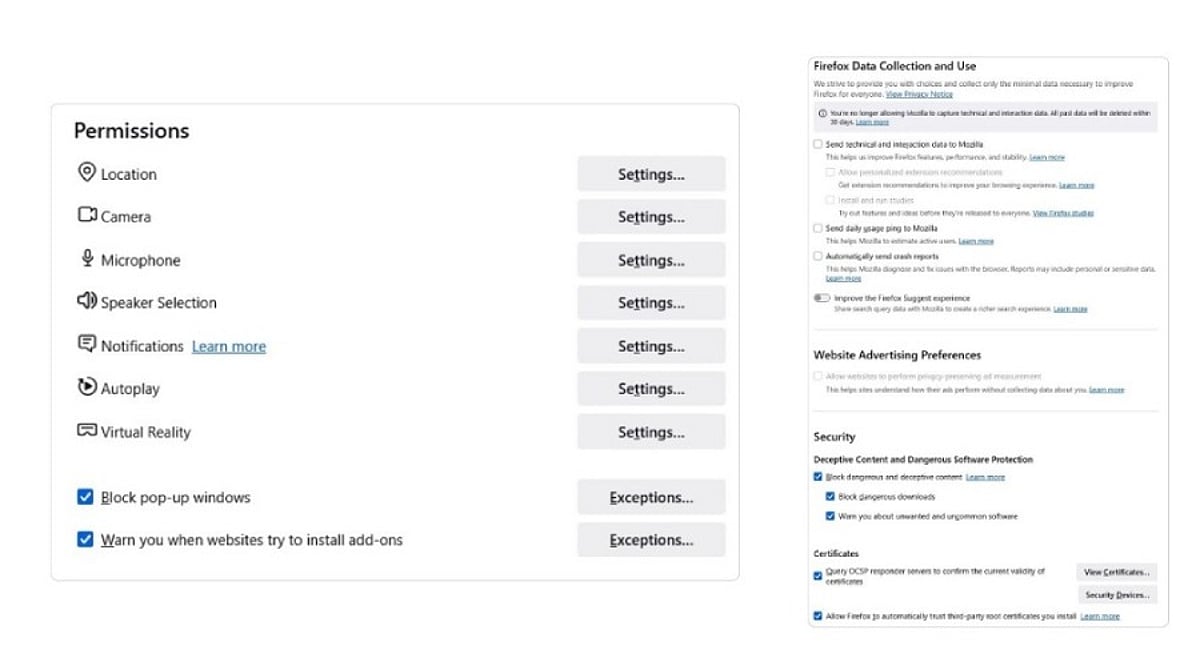
These settings are managed directly in your browser and form the foundation of your AI privacy.
Extension Host Permissions
Extensions that request “all sites” access can read and modify every page you visit. This permission is fixed at installation, so review your extensions regularly and remove any you don’t use.
Camera, Microphone, and Screen Sharing
Multimodal AI features may request access to these per site. Set the default to “Ask” to ensure access is granted only for a single session, not indefinitely.
Clipboard Access
Some AI features can read your clipboard. If you copy passwords or sensitive codes while an assistant is active, that data could be exposed. Disable clipboard access for AI tools unless absolutely necessary.
File Uploads and File System Access
Many AI features can read files you drag in or maintain folder-level access. Check which sites have standing file permissions and revoke any that are unfamiliar.
AI Service Privacy Settings
These settings live in the AI vendor’s own configuration, not in your browser.
Page Content and Tab Access
Each browser has its own name for this: Edge calls it “Context Clues,” Chrome has it under “AI Innovations.” Disable these to stop the AI from pulling data from your current page or browsing history.
Model Training Opt-Outs
Some AI services use your prompts and uploads to improve their models. Brave’s Leo routes queries through a proxy to strip identifying details, while Chrome and Edge offer explicit opt-outs. Check your settings and disable training if you prefer not to participate.
Agentic Browsing and Autofill Permissions
Newer AI services can fill forms, sign into sites, and perform multi-step tasks. For example, Chrome’s Gemini can be given permission to sign in via Google Password Manager. Review the list of approved sites and revoke any you don’t recognize.
Security Habits for Everyday Browsing
Beyond settings, your habits play a crucial role in limiting data exposure.
Use Separate Profiles
Keep work and personal browsing separate. This prevents a personal AI feature from accidentally accessing enterprise files or client data.
Handle Sensitive Queries in Private Windows
For legal, financial, or strategic questions, use a private window. This limits local traces, though it doesn’t stop the AI service from processing the data after you submit it.
Recheck After Major Updates
Browser AI features often arrive silently with updates. A quarterly review of your AI settings will help you catch new defaults before they become a habit.
How Permissions Differ Across Browsers
As of mid-2026, Chrome and Edge offer page-level controls, while Safari manages AI permissions at the app level. This means Safari cannot restrict Apple Intelligence to specific sites, whereas Chrome and Edge can. Brave’s Leo uses a proxy for privacy, and its conversations are not stored.
Key Takeaways
Every browser ships with defaults optimized for a smooth first run, not for minimal AI exposure. The key is to understand which mechanism controls each permission: a manifest grant, a settings toggle, or an account-level index. Learning this pattern once will help you evaluate any future AI feature quickly and confidently.
Final Thought
Browser AI is still evolving, and settings will continue to change. But the underlying structure—browser permissions, service settings, and user habits—remains constant. By mastering this pattern, you’ll be able to navigate any new AI feature with confidence, without waiting for a headline to tell you what changed.
Frequently Asked Questions
Why should I review AI browser permissions?
AI-powered browsers and extensions may access your tabs, clipboard, camera, or browsing data to deliver features. Reviewing permissions helps you limit unnecessary data exposure and maintain control over your privacy.
Which permissions are most important?
Start with extension host permissions, camera/microphone, clipboard, file uploads, and screen sharing. Also check whether AI features can access your browsing history or use your interactions for training.
How often should I review them?
Review whenever you install a new AI extension, enable a new feature, or after a major browser update. A quarterly audit is a good practice.
Are third-party extensions safer than built-in assistants?
Not necessarily. Both can request broad access. Always review the permissions they require and disable features you don’t use.
Does Incognito mode protect my data?
Incognito reduces local traces, but it does not prevent AI providers from processing your prompts or files. For sensitive information, combine private browsing with carefully reviewed AI settings.