
Tag: browser extensions

  • LinkedIn Email Finder Tools and Extensions for 2025: Enhance Your Networking and Lead Generation

    LinkedIn Email Finder Tools and Extensions for 2025: Enhance Your Networking and Lead Generation

    LinkedIn remains the premier platform for professionals to connect, network, and discover business opportunities. However, its strict privacy policies hide email addresses, making direct outreach challenging. LinkedIn email finder tools and browser extensions solve this by locating verified professional emails quickly and securely. This article explores the top tools for 2025, their features, and best practices for using them responsibly.

    Why Use a LinkedIn Email Finder?

    Manually hunting for someone’s work email is inefficient, especially when it’s not listed on their profile. These tools streamline the process by:

    • Generating authentic, working email addresses in seconds.
    • Saving hours when reaching out to large numbers of contacts.
    • Significantly improving your chances of connecting with leads or potential hires.

    They are ideal for sales teams targeting customers, recruiters seeking top talent, and business owners building professional networks.

    Top LinkedIn Email Finder Tools in 2025

    Hunter.io

    Widely used by professionals, Hunter.io filters business emails and integrates seamlessly with LinkedIn. It creates real email addresses and helps manage outreach directly on the site, ensuring your messages reach real users.

    Snov.io

    Available as both a Chrome extension and a web platform, Snov.io provides email addresses along with verification. It includes bulk email sending and forwarding features, making it ideal for marketers and recruiters searching for multiple contacts in one session.

    Lusha

    Lusha is an easy-to-use extension known for high accuracy. It scrapes emails and phone numbers directly from LinkedIn profiles. Many sales professionals rely on it for daily networking activities.

    AeroLeads

    This extension excels at finding obscure emails and phone numbers across platforms, including LinkedIn. Users can store contacts in CRM systems like Salesforce or HubSpot, making it perfect for companies needing robust network management.

    Linked Helper

    Linked Helper uses its own database along with Apollo and Snov.io to find verified emails for any LinkedIn or Sales Navigator profile. It reaches 2nd and 3rd-degree connections server-side without profile visits, preserving your daily limits. Each lead is enriched with phone numbers and extra data for easy CRM export.

    LeadLeaper

    LeadLeaper extracts emails from LinkedIn profiles and automatically uploads them to a spreadsheet. It syncs directly with LinkedIn Sales Navigator, making it a top choice for B2B operations.

    Rules for Appropriate Usage

    While these tools are powerful, ethical and legal use is essential:

    • Privacy: Only contact members and access their business emails for a valid business purpose.
    • Double-check emails: Use built-in verification features to ensure addresses are valid.
    • Follow LinkedIn rules: Avoid web scraping or automated methods prohibited by LinkedIn. Respecting platform privacy ensures uninterrupted access.

    Conclusion

    LinkedIn email finder tools and extensions provide verified contact information while adhering to LinkedIn’s terms and legal standards. Whether for sales, talent hunting, or networking, tools like Hunter.io, Snov.io, Lusha, AeroLeads, Linked Helper, and LeadLeaper streamline the collection process with advanced functionalities and search optimization. Users should evaluate features and performance, adhere to security regulations, and maintain privacy standards.

    Frequently Asked Questions

    1. What is a LinkedIn email finder tool?

    A tool that helps locate professional email addresses from LinkedIn profiles quickly and accurately.

    2. Are LinkedIn email finder tools safe to use?

    Yes, as long as they are used responsibly and follow LinkedIn’s privacy guidelines.

    3. Which is the most accurate LinkedIn email finder in 2025?

    Tools like Hunter.io, Lusha, and Snov.io are recognized for their high accuracy and verified email addresses.

    4. Can I export emails from LinkedIn finder tools to CRM software?

    Yes, most tools, such as AeroLeads and LeadLeaper, allow direct export to CRM platforms.

    5. Do I need a premium LinkedIn account to use these email finder extensions?

    Not always, but some advanced features work best with LinkedIn Premium or Sales Navigator.
  • Essential AI Browser Permissions: 10 Key Settings to Review for Privacy and Security

    Essential AI Browser Permissions: 10 Key Settings to Review for Privacy and Security

    AI browsers have transformed how we interact with the web, offering features like page summarization, form filling, product comparisons, and task automation. However, these capabilities rely heavily on browser permissions that can expose sensitive data if not managed carefully. With 88% of organizations now using AI regularly—up from 78% in 2024—and the AI browser market projected to grow from $4.5 billion in 2024 to $76.8 billion by 2034, reviewing your browser permissions is more critical than ever.

    1. Site Permissions Need Regular Reviews

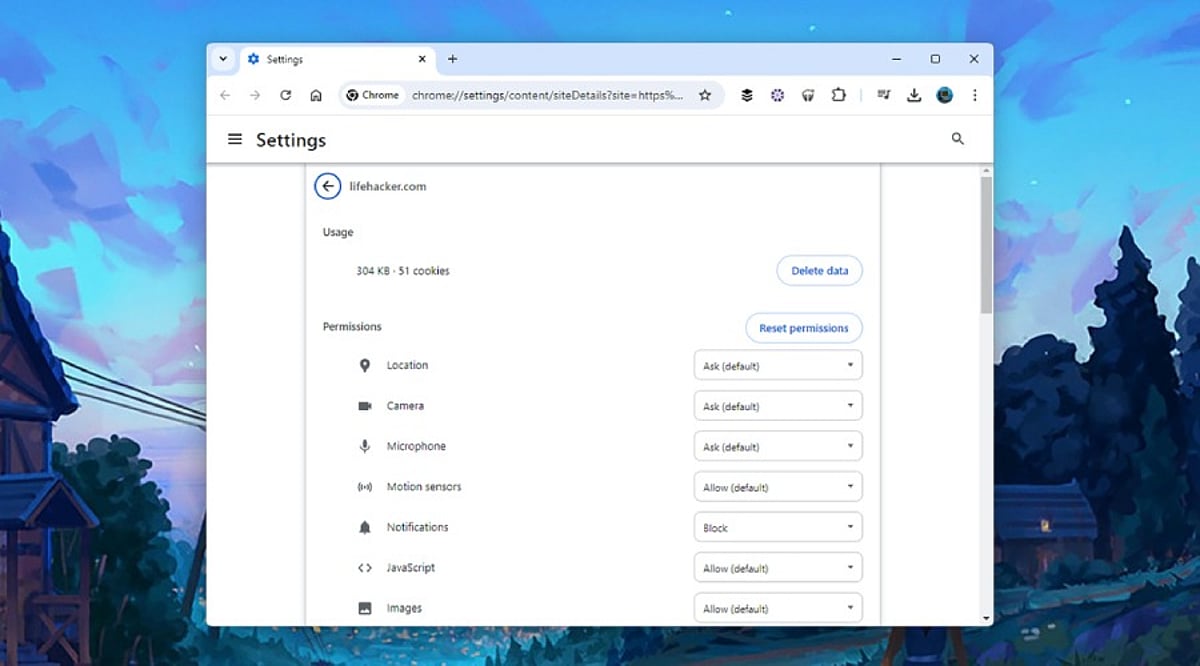
    Every website requests different permissions, from location access for maps to camera and microphone for meetings. AI browsers often combine multiple permissions for a single task, making regular reviews essential. Unused permissions create unnecessary exposure. Camera, microphone, clipboard, notifications, USB devices, Bluetooth, and file access should only be granted to trusted websites. A quick review helps remove permissions that no longer serve a purpose, lowering privacy risks.

    2. AI Extensions Deserve Extra Attention

    AI extensions offer writing assistance, page summaries, and research support but often receive broad access. Security researchers warn that browser agents inherit existing login sessions, meaning an extension could access email, cloud storage, and work platforms. Regularly review and remove unused AI extensions to reduce the number of applications handling sensitive information.

    3. Clipboard Access Can Reveal Sensitive Information

    The clipboard stores everything copied—passwords, payment details, API keys, and more. Modern AI tools may read clipboard content to simplify tasks, creating privacy concerns. Limit clipboard access to trusted websites or extensions that genuinely need it to protect valuable information.

    4. Camera and Microphone Access Should Stay Limited

    Voice assistants and visual AI tools make camera and microphone permissions common for video meetings, voice commands, and live translations. Permanent access is rarely necessary; temporary permission offers a safer option. Grant access only during the session that requires it and revert settings afterward.

    5. Notification Permissions Can Create Security Problems

    Many websites request notification access immediately upon visit. Security experts report notification abuse for phishing and fake alerts. AI assistants can summarize notifications across sites, increasing the value of trusted sources. Regularly review and remove unknown websites from notification access.

    6. Password Manager Access Requires Careful Control

    Browser password managers simplify logins, but AI agents operate within the same authenticated session. Protect password managers with strong authentication and prevent unnecessary extensions from accessing stored credentials to safeguard accounts.

    7. File Access and Data Sharing Matter More Than Ever

    AI browsers can open PDFs, summarize documents, and upload content, requiring local storage access. Grant file access only to trusted websites and verified AI tools. Review settings for chat history, cloud sync, uploaded documents, and stored prompts. Many AI browsers offer controls to limit conversation storage and cloud retention.

    8. Browser Updates Keep Security Strong

    Browser developers introduce new AI features regularly. Google’s WebMCP technology and Chrome Enterprise’s AI management features improve security. Regular updates protect against newly discovered threats and enhance privacy controls for AI services. Current software offers stronger protection against emerging risks like indirect prompt injection and excessive permissions.

    9. Why This Matters

    AI browsers handle personal data, business documents, and online accounts. Permission settings determine how much access these tools receive. Careful management protects sensitive information, reduces security risks, and ensures AI features work safely without exposing valuable data.

    10. Final Thoughts

    AI browsers enable rapid research and automation, but advanced features depend on permission settings. A full permission assessment takes only a few minutes and contributes to enhanced privacy and security. As AI browsers become essential for personal and corporate use, strict permission management is an easy and effective way to ensure safer browsing.

    FAQs

    1. Why are browser permissions important for AI browsers?
    AI browsers use permissions to access device features like camera, microphone, files, and clipboard. Managing these permissions helps protect your privacy and sensitive data.

    2. Which browser permissions should I review first?
    Start with camera, microphone, location, clipboard, notifications, file access, password manager access, Bluetooth, USB devices, and installed AI extensions.

    3. Are AI browser extensions safe to use?
    Trusted extensions can be helpful, but unused or unverified ones may have broad access. Review them regularly.

    4. How often should I check browser permissions?
    A monthly review or checking after installing new AI tools is a good security practice.

    5. Do browser updates improve AI security?
    Yes. Updates include security patches, enhanced privacy controls, and protections against AI-related threats.