Tag: browser security

  • How to Secure Google Chrome: A Comprehensive Guide to Protecting Your Browser

    How to Secure Google Chrome: A Comprehensive Guide to Protecting Your Browser

    Keeping Google Chrome secure is essential to protect your data and accounts from online threats. This guide covers key practices such as keeping the browser updated, using Safe Browsing, managing extensions, and strengthening account security.

    Key Takeaways

    • Chrome updates close known security weaknesses and help keep the browser protected.
    • Safe Browsing and careful extension choices reduce risks from harmful sites and unsafe tools.
    • Strong, unique passwords and two-step verification add another layer of account protection.

    Keep Chrome on the Latest Version

    Chrome can update itself when a new version becomes available. These updates include security fixes, so running an old browser leaves known flaws open. On a computer, open Chrome, select More, choose Help, and select About Google Chrome. Chrome will show the current version and offer a Relaunch option when an update needs a restart.

    On Android, the Play Store manages Chrome updates, while the About Chrome page shows the installed version. Do not ignore a relaunch notice for a long period. A restart puts a security fix into effect and closes weaknesses that attackers may target.

    Set Safe Browsing to a Strong Level

    Safe Browsing warns about harmful sites, risky downloads, unsafe extensions, malware, fake login pages, and deceptive content. Chrome offers Standard protection and Enhanced protection, while No protection turns this safeguard off. Standard protection covers known threats. Enhanced protection can warn about new threats that Google has not yet identified and can flag untrusted extensions.

    Chrome lists the setting under More > Settings > Privacy and security > Security. Enhanced protection sends more security data to Google, such as site addresses, small samples of page content, download details, extension activity, and system information. Choose the protection level that matches your security needs and privacy preferences.

    Check Extensions with Care

    Extensions can add useful tools to Chrome, but some ask for broad access to websites or computer data. An extension with access to all site data can read, request, or change information across pages, including sensitive pages like bank accounts or email.

    Install extensions only from the Chrome Web Store and review each permission before approval. To review access, open More > Extensions > Manage extensions. Limit site access to specific sites instead of every site. Remove extensions that no longer serve a clear purpose.

    Review Chrome Safety Check

    Chrome Safety Check provides a central place to review several security issues. The tool flags available Chrome updates, risky extensions, unused site permissions, and unwanted notification permissions. Open Chrome, select More > Settings > Privacy and security > Safety Check.

    Chrome can also remove permissions from sites that haven’t been used recently and remove notification permissions from sites that Safe Browsing identifies as deceptive. These controls reduce access that old or untrusted sites keep.

    Use Strong, Separate Passwords

    Password reuse can turn one stolen password into a wider account problem. Each important account should have a strong, unique password. Chrome’s password tools help create and manage separate passwords, while Password Checkup flags weak, exposed, or reused passwords.

    Two-step verification adds another barrier to your Google Account. Google also offers Password Alert for Chrome, which warns when a Google Account password appears on a non-Google site. Always check the web address carefully before entering a password, as fake login pages can look almost identical to real ones.

    Treat Downloads and Pop-Ups as Potential Risks

    A file, pop-up, or urgent message can ask for an action that seems harmless but gives a scammer access to your account or device. Chrome warns about dangerous downloads and suspicious sites, but a warning only helps when you pay attention. Avoid files from unknown sources, strange browser alerts, and pages that demand a password or payment without a clear reason.

    Secure Chrome at the Account Level

    Chrome security also depends on the Google Account connected to the browser. Security Checkup shows recommended actions, account alerts, password issues, and other areas that need attention. A strong account password, two-step verification, current recovery details, and careful review of unfamiliar activity add protection beyond the browser itself.

    Chrome cannot block every scam or harmful file. Strong defaults, current software, careful extension choices, Safe Browsing, and account security work together to reduce common paths to stolen data. A secure Chrome setup does not require complex tools—it requires regular attention to the controls that already exist and a firm pause when a site asks for something unusual.

    Frequently Asked Questions

    How can Chrome stay secure?

    Keep Chrome updated, use Safe Browsing, review extensions, check security settings, and use strong passwords for important accounts.

    Why do Chrome updates matter?

    Updates include security fixes that close weaknesses found in older Chrome versions.

    Are Chrome extensions safe?

    Extensions can be useful, but some request broad access to websites or data. Review permissions and remove extensions that no longer serve a clear purpose.

    What does Safe Browsing do in Chrome?

    Safe Browsing warns about harmful websites, dangerous downloads, unsafe extensions, malware, and deceptive content.

    How can Google Account security improve Chrome security?

    A strong, unique password, two-step verification, current recovery details, and regular security checks provide added protection.

  • Google Chrome 153 Introduces Two-Week Release Cycle to Deliver Faster Security Fixes

    Google Chrome 153 Introduces Two-Week Release Cycle to Deliver Faster Security Fixes

    Google has launched Chrome 153 with a new two-week release cycle across desktop, Android, and iOS. The accelerated schedule is designed to deliver security fixes, bug patches, performance updates, and new features more quickly while reducing the gap between vulnerability discovery and patch deployment.

    Under the previous system, major Chrome versions arrived every four weeks. Before 2021, the browser followed a six-week schedule. Google says the faster cycle will help its teams release smaller updates more often. The Chrome team described the change as ‘a win for the entire web.’ Shorter development windows also mean web developers receive browser fixes and new web features sooner.

    Chrome users on desktop, Android, and iOS will now receive more frequent stable releases. Each update is expected to include fewer changes because development work is divided across shorter release periods. Chrome 154 is scheduled to arrive on September 22, continuing the new two-week pattern.

    Security is a key driver behind the change. Google has increased its use of AI tools to search for software flaws and support vulnerability research. Community researchers continue to report security bugs through Chrome’s existing programs. Shorter release cycles can reduce the ‘N-day patch gap’—the period between public discovery of a security problem and delivery of a fix. A shorter gap limits the time attackers have to exploit known vulnerabilities before users receive patches.

    The faster schedule also makes it easier to isolate software regressions. Smaller releases contain fewer changes, helping developers identify the source of a problem when a new update causes an error. Google previously moved Chrome from a six-week to a four-week cycle in 2021.

    Enterprise customers have more flexibility under the new system. Google recommends the two-week Stable channel for most organizations. Companies that cannot manage updates every two weeks can use Chrome’s Extended Stable channel, which follows an eight-week schedule.

    Google is also preparing other changes. Starting with Chrome 155, Android users will see a redesigned notification permission interface aimed at reducing prompt fatigue. Other browser developers like Microsoft Edge, Mozilla Firefox, and Brave have also introduced or explored shorter update cycles.

    With Chrome 153, Google has formally moved its main browser to a two-week stable release cycle, supporting faster security patches, more frequent feature delivery, and quicker updates across major operating systems.

  • AI Browser Permissions: 10 Settings to Review for Safer Browsing

    AI Browser Permissions: 10 Settings to Review for Safer Browsing

    Why Browser AI Permissions Matter

    Modern browsers now come with built-in AI tools like Gemini, Copilot, Leo, and Apple Intelligence, often enabled by default. These tools can read pages, summarize content, access files, and even perform tasks on your behalf. While they enhance productivity, they also introduce new privacy and security considerations. Understanding how to manage these permissions is essential for protecting your data.

    The 5-Minute Security Review

    If you’re short on time, start with these quick checks:

    • Open your browser’s AI settings and see what’s enabled by default (page content, location, voice).
    • Audit installed extensions and remove any that have access to all sites.
    • In the AI service’s own settings, look for training or retention opt-outs.
    • Review the list of sites where the AI can sign in or autofill.
    • Use a private window or separate profile for sensitive one-off tasks.

    Essential Browser Permissions to Check

    These settings are managed directly in your browser and form the foundation of your AI privacy.

    Extension Host Permissions

    Extensions that request “all sites” access can read and modify every page you visit. This permission is fixed at installation, so review your extensions regularly and remove any you don’t use.

    Camera, Microphone, and Screen Sharing

    Multimodal AI features may request access to these per site. Set the default to “Ask” to ensure access is granted only for a single session, not indefinitely.

    Clipboard Access

    Some AI features can read your clipboard. If you copy passwords or sensitive codes while an assistant is active, that data could be exposed. Disable clipboard access for AI tools unless absolutely necessary.

    File Uploads and File System Access

    Many AI features can read files you drag in or maintain folder-level access. Check which sites have standing file permissions and revoke any that are unfamiliar.

    AI Service Privacy Settings

    These settings live in the AI vendor’s own configuration, not in your browser.

    Page Content and Tab Access

    Each browser has its own name for this: Edge calls it “Context Clues,” Chrome has it under “AI Innovations.” Disable these to stop the AI from pulling data from your current page or browsing history.

    Model Training Opt-Outs

    Some AI services use your prompts and uploads to improve their models. Brave’s Leo routes queries through a proxy to strip identifying details, while Chrome and Edge offer explicit opt-outs. Check your settings and disable training if you prefer not to participate.

    Agentic Browsing and Autofill Permissions

    Newer AI services can fill forms, sign into sites, and perform multi-step tasks. For example, Chrome’s Gemini can be given permission to sign in via Google Password Manager. Review the list of approved sites and revoke any you don’t recognize.

    Security Habits for Everyday Browsing

    Beyond settings, your habits play a crucial role in limiting data exposure.

    Use Separate Profiles

    Keep work and personal browsing separate. This prevents a personal AI feature from accidentally accessing enterprise files or client data.

    Handle Sensitive Queries in Private Windows

    For legal, financial, or strategic questions, use a private window. This limits local traces, though it doesn’t stop the AI service from processing the data after you submit it.

    Recheck After Major Updates

    Browser AI features often arrive silently with updates. A quarterly review of your AI settings will help you catch new defaults before they become a habit.

    How Permissions Differ Across Browsers

    As of mid-2026, Chrome and Edge offer page-level controls, while Safari manages AI permissions at the app level. This means Safari cannot restrict Apple Intelligence to specific sites, whereas Chrome and Edge can. Brave’s Leo uses a proxy for privacy, and its conversations are not stored.

    Key Takeaways

    Every browser ships with defaults optimized for a smooth first run, not for minimal AI exposure. The key is to understand which mechanism controls each permission: a manifest grant, a settings toggle, or an account-level index. Learning this pattern once will help you evaluate any future AI feature quickly and confidently.

    Final Thought

    Browser AI is still evolving, and settings will continue to change. But the underlying structure—browser permissions, service settings, and user habits—remains constant. By mastering this pattern, you’ll be able to navigate any new AI feature with confidence, without waiting for a headline to tell you what changed.

    Frequently Asked Questions

    Why should I review AI browser permissions?

    AI-powered browsers and extensions may access your tabs, clipboard, camera, or browsing data to deliver features. Reviewing permissions helps you limit unnecessary data exposure and maintain control over your privacy.

    Which permissions are most important?

    Start with extension host permissions, camera/microphone, clipboard, file uploads, and screen sharing. Also check whether AI features can access your browsing history or use your interactions for training.

    How often should I review them?

    Review whenever you install a new AI extension, enable a new feature, or after a major browser update. A quarterly audit is a good practice.

    Are third-party extensions safer than built-in assistants?

    Not necessarily. Both can request broad access. Always review the permissions they require and disable features you don’t use.

    Does Incognito mode protect my data?

    Incognito reduces local traces, but it does not prevent AI providers from processing your prompts or files. For sensitive information, combine private browsing with carefully reviewed AI settings.

  • Essential AI Browser Permissions: 10 Key Settings to Review for Privacy and Security

    Essential AI Browser Permissions: 10 Key Settings to Review for Privacy and Security

    AI browsers have transformed how we interact with the web, offering features like page summarization, form filling, product comparisons, and task automation. However, these capabilities rely heavily on browser permissions that can expose sensitive data if not managed carefully. With 88% of organizations now using AI regularly—up from 78% in 2024—and the AI browser market projected to grow from $4.5 billion in 2024 to $76.8 billion by 2034, reviewing your browser permissions is more critical than ever.

    1. Site Permissions Need Regular Reviews

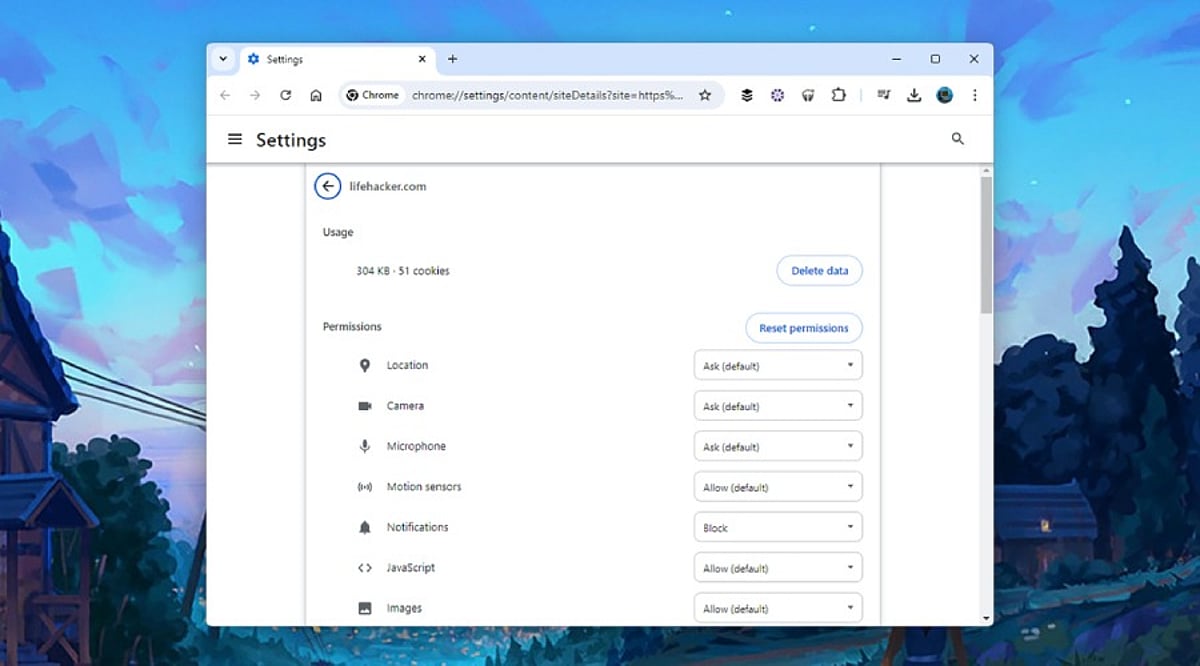
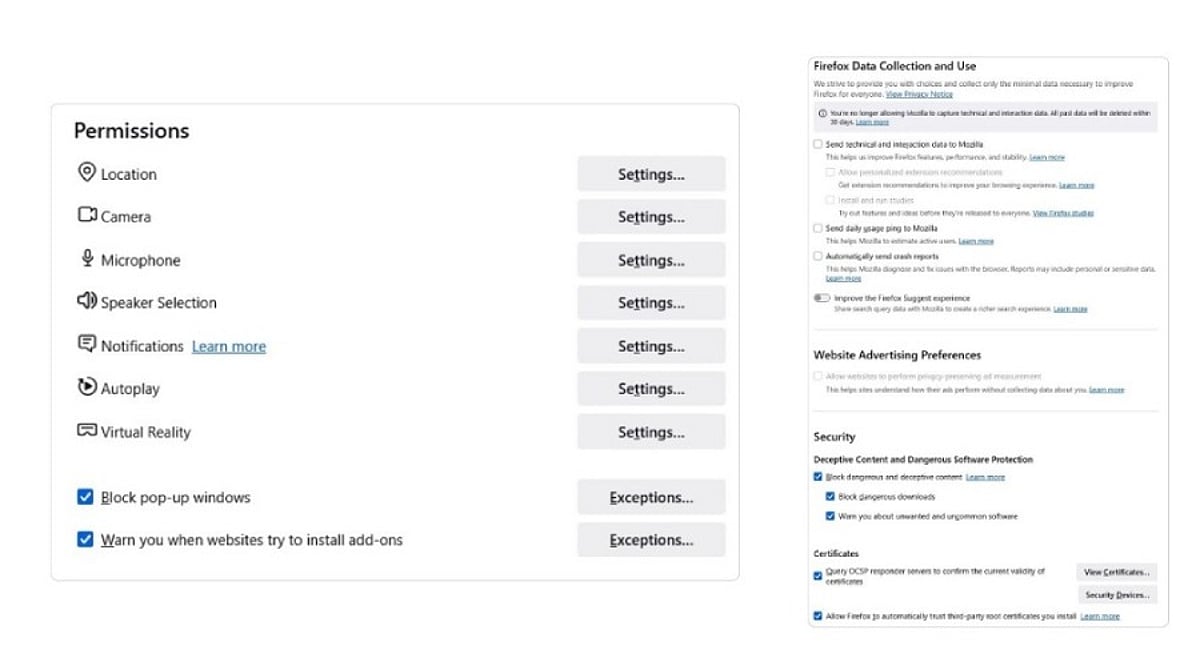
    Every website requests different permissions, from location access for maps to camera and microphone for meetings. AI browsers often combine multiple permissions for a single task, making regular reviews essential. Unused permissions create unnecessary exposure. Camera, microphone, clipboard, notifications, USB devices, Bluetooth, and file access should only be granted to trusted websites. A quick review helps remove permissions that no longer serve a purpose, lowering privacy risks.

    2. AI Extensions Deserve Extra Attention

    AI extensions offer writing assistance, page summaries, and research support but often receive broad access. Security researchers warn that browser agents inherit existing login sessions, meaning an extension could access email, cloud storage, and work platforms. Regularly review and remove unused AI extensions to reduce the number of applications handling sensitive information.

    3. Clipboard Access Can Reveal Sensitive Information

    The clipboard stores everything copied—passwords, payment details, API keys, and more. Modern AI tools may read clipboard content to simplify tasks, creating privacy concerns. Limit clipboard access to trusted websites or extensions that genuinely need it to protect valuable information.

    4. Camera and Microphone Access Should Stay Limited

    Voice assistants and visual AI tools make camera and microphone permissions common for video meetings, voice commands, and live translations. Permanent access is rarely necessary; temporary permission offers a safer option. Grant access only during the session that requires it and revert settings afterward.

    5. Notification Permissions Can Create Security Problems

    Many websites request notification access immediately upon visit. Security experts report notification abuse for phishing and fake alerts. AI assistants can summarize notifications across sites, increasing the value of trusted sources. Regularly review and remove unknown websites from notification access.

    6. Password Manager Access Requires Careful Control

    Browser password managers simplify logins, but AI agents operate within the same authenticated session. Protect password managers with strong authentication and prevent unnecessary extensions from accessing stored credentials to safeguard accounts.

    7. File Access and Data Sharing Matter More Than Ever

    AI browsers can open PDFs, summarize documents, and upload content, requiring local storage access. Grant file access only to trusted websites and verified AI tools. Review settings for chat history, cloud sync, uploaded documents, and stored prompts. Many AI browsers offer controls to limit conversation storage and cloud retention.

    8. Browser Updates Keep Security Strong

    Browser developers introduce new AI features regularly. Google’s WebMCP technology and Chrome Enterprise’s AI management features improve security. Regular updates protect against newly discovered threats and enhance privacy controls for AI services. Current software offers stronger protection against emerging risks like indirect prompt injection and excessive permissions.

    9. Why This Matters

    AI browsers handle personal data, business documents, and online accounts. Permission settings determine how much access these tools receive. Careful management protects sensitive information, reduces security risks, and ensures AI features work safely without exposing valuable data.

    10. Final Thoughts

    AI browsers enable rapid research and automation, but advanced features depend on permission settings. A full permission assessment takes only a few minutes and contributes to enhanced privacy and security. As AI browsers become essential for personal and corporate use, strict permission management is an easy and effective way to ensure safer browsing.

    FAQs

    1. Why are browser permissions important for AI browsers?
    AI browsers use permissions to access device features like camera, microphone, files, and clipboard. Managing these permissions helps protect your privacy and sensitive data.

    2. Which browser permissions should I review first?
    Start with camera, microphone, location, clipboard, notifications, file access, password manager access, Bluetooth, USB devices, and installed AI extensions.

    3. Are AI browser extensions safe to use?
    Trusted extensions can be helpful, but unused or unverified ones may have broad access. Review them regularly.

    4. How often should I check browser permissions?
    A monthly review or checking after installing new AI tools is a good security practice.

    5. Do browser updates improve AI security?
    Yes. Updates include security patches, enhanced privacy controls, and protections against AI-related threats.

  • 7 Effective Ways to Stop Websites From Tracking Your Online Activity

    7 Effective Ways to Stop Websites From Tracking Your Online Activity

    Online tracking is pervasive, but you can take simple yet powerful steps to protect your privacy. Here are seven proven methods to reduce how much websites and advertisers know about your browsing habits.

    1. Switch to a Privacy-Focused Browser

    Many websites use cookies and trackers to monitor your activity across the internet. Choosing a privacy-focused browser like Brave or Firefox, or enabling stronger privacy protections in Chrome, can automatically block many known trackers. This simple change reduces unwanted data collection while maintaining a smooth and secure browsing experience.

    2. Block Third-Party Cookies

    Third-party cookies are commonly used by advertisers to follow users across multiple websites and build detailed browsing profiles. Most modern browsers now allow you to block these cookies through privacy settings. Enabling this option helps reduce targeted advertising and limits how much information companies collect about your online activity.

    3. Install a Trusted Tracker Blocker

    Browser extensions such as uBlock Origin and Privacy Badger can prevent tracking scripts, advertising networks, and invisible tracking pixels from collecting your data. Installing trusted privacy tools from official browser stores adds another layer of protection, helping you browse more privately without noticeably affecting performance.

    4. Review Website Permissions Regularly

    Many websites request access to your location, camera, microphone, notifications, or clipboard. Grant these permissions only when necessary and periodically review them in your browser settings. Removing unnecessary permissions limits the personal information websites can access and reduces privacy risks over time.

    5. Enable Enhanced Tracking Protection

    Most popular browsers now include built-in features that block tracking scripts, browser fingerprinting attempts, and malicious content. Activating Enhanced Tracking Protection or similar settings requires only a few clicks and strengthens your privacy without installing extra software.

    6. Clear Cookies and Browsing Data

    Websites store cookies, cached files, and other data that can recognize returning visitors. Clearing this information regularly—or configuring your browser to delete cookies automatically after each session—helps reduce long-term tracking and limits stored information linked to your browsing history.

    7. Combine Multiple Privacy Measures

    No single privacy tool can completely stop online tracking because techniques like browser fingerprinting and account-based tracking still exist. Combining privacy-focused browsers, tracker blockers, stronger settings, secure connections, and cautious permission management provides much better protection and gives you greater control over your personal data.