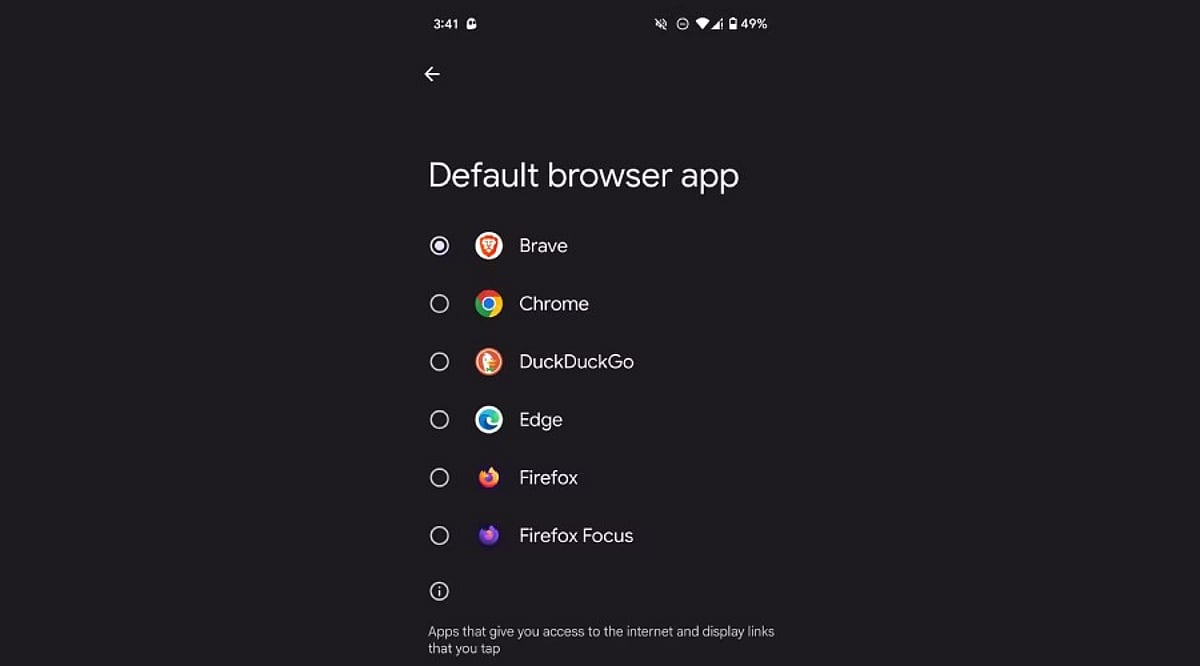
Android phones ship with a set of default apps for browsing, messaging, calling, and more. Most people never bother changing them, but customizing these defaults can make your phone feel truly personal. Whether you prefer a different browser, a dedicated gallery app, or a specific messaging service, switching defaults takes only a few taps. This guide explains where to find these settings, how to change them, and why it matters more than most users realize.
What Default Apps Actually Are
Every Android phone assigns a default app to handle common actions—opening a web link, sending a text, viewing a photo. When you tap a link in an email, the phone needs to know which browser should open it. That decision comes from the default app setting. Without a default set, Android sometimes asks you to pick an app every single time, which gets tiring fast. Setting a clear default removes that repeated prompt and speeds up everyday tasks like opening links, dialing numbers, or viewing images.
Where to Find Default App Settings
The exact path varies slightly by phone brand, but the core steps are the same across most Android devices. Open the Settings app, scroll down, and tap Apps. Inside this menu, look for Default apps—on Samsung and Xiaomi it may be under a submenu called Advanced or App Management. Tapping this opens a full list of categories: browser, phone, SMS, gallery, and digital assistant. Here you can see exactly which app currently handles each task.
Changing a Default Browser, Messaging, or Camera App
Switching a default app takes just a few taps. Select the category you want to change, such as Browser app, and a list of every compatible installed app appears. Tap the desired app—like Chrome, Firefox, or Brave—to set it as the new default immediately. The same process works for messaging apps (WhatsApp, Google Messages) and camera or gallery apps. Android applies the change instantly, so the very next link, text, or photo opens through the newly chosen app without needing a restart.
Handling Default Apps for Specific File Types and Links
Beyond the main categories, Android lets you control which app opens specific file types or web links—known as “Opening links” settings. This sits inside each app’s settings page rather than the general Default apps menu. For instance, you can choose whether Instagram links always open in the Instagram app or default to a browser instead. This level of control matters if you juggle multiple similar apps, like two PDF readers or note-taking tools, since it avoids constant pop-ups asking which to use.
Why Setting the Right Defaults Matters
Choosing the right default apps affects daily convenience far more than people expect. A slow default browser adds unnecessary loading time to every link you tap. A messaging app that isn’t the default might cause missed notifications if messages route through another service. Privacy also plays a role—some apps collect more data than others, and picking a privacy-focused default browser or keyboard reduces exposure. For professionals relying on specific tools for calls, calendars, or file management, correct defaults keep workflows smooth without repeated interruptions.
A Quick Recap for Everyday Use
Changing default apps on Android takes only a minute but improves the overall experience noticeably. Open Settings, head to Apps, then Default apps, and pick your preferred option for each category. Beyond the basics, checking individual app link settings adds another layer of control for anyone using multiple apps that serve similar purposes. This small adjustment—across browsers, messaging, camera, and file handling—adds up to a phone that behaves exactly the way you want, cutting down on unnecessary taps and confusing pop-ups. Taking a few minutes to set these preferences correctly makes a real difference in how smooth and personal your Android phone feels every day.
Frequently Asked Questions
Where exactly are default app settings located on Android?
Default app settings live inside the main Settings app. Open Settings, scroll down to Apps, and look for an option called Default apps. On some brands like Samsung or Xiaomi, this option sits inside a submenu named Advanced or App Management. Once inside, a full list shows categories like browser, phone, SMS, gallery, and digital assistant, each showing the app currently handling that task.
Can users change the default browser without uninstalling the old one?
Yes. Switching the default browser does not require removing any other browser. Inside the Default apps menu, selecting the Browser app category shows every compatible browser installed. Tapping a different option—such as Firefox or Brave—instantly sets it as the new default, while the old browser stays installed and available whenever needed.
Why does Android keep asking which app to open a link with?
This repeated prompt usually appears when no default app has been set for that category, or when multiple apps handle the same file type without a clear preference. Setting a proper default through the Default apps menu removes this pop-up for general categories. For specific links (like Instagram or YouTube URLs), you may also need to check that app’s individual “Opening links” setting to stop the recurring prompt.
Does changing default apps affect phone performance or battery life?
Changing default apps mainly affects convenience rather than overall performance or battery life. A faster default browser or messaging app can make everyday tasks feel quicker due to less friction from selection prompts, but the difference in actual battery usage or system performance is minimal. The bigger benefit shows up in daily experience—links, texts, and photos open through your preferred app right away without extra taps or delays.
Is it possible to reset all default apps back to original settings?
Most Android phones allow you to reset app preferences through a single option, usually found at the bottom of the Default apps or App Management screen, sometimes labeled “Reset app preferences.” Tapping this clears every custom default you’ve set, and the phone goes back to prompting for a choice the next time an action like opening a link or file happens. This works well for troubleshooting a default app that stopped working correctly or for starting fresh.