
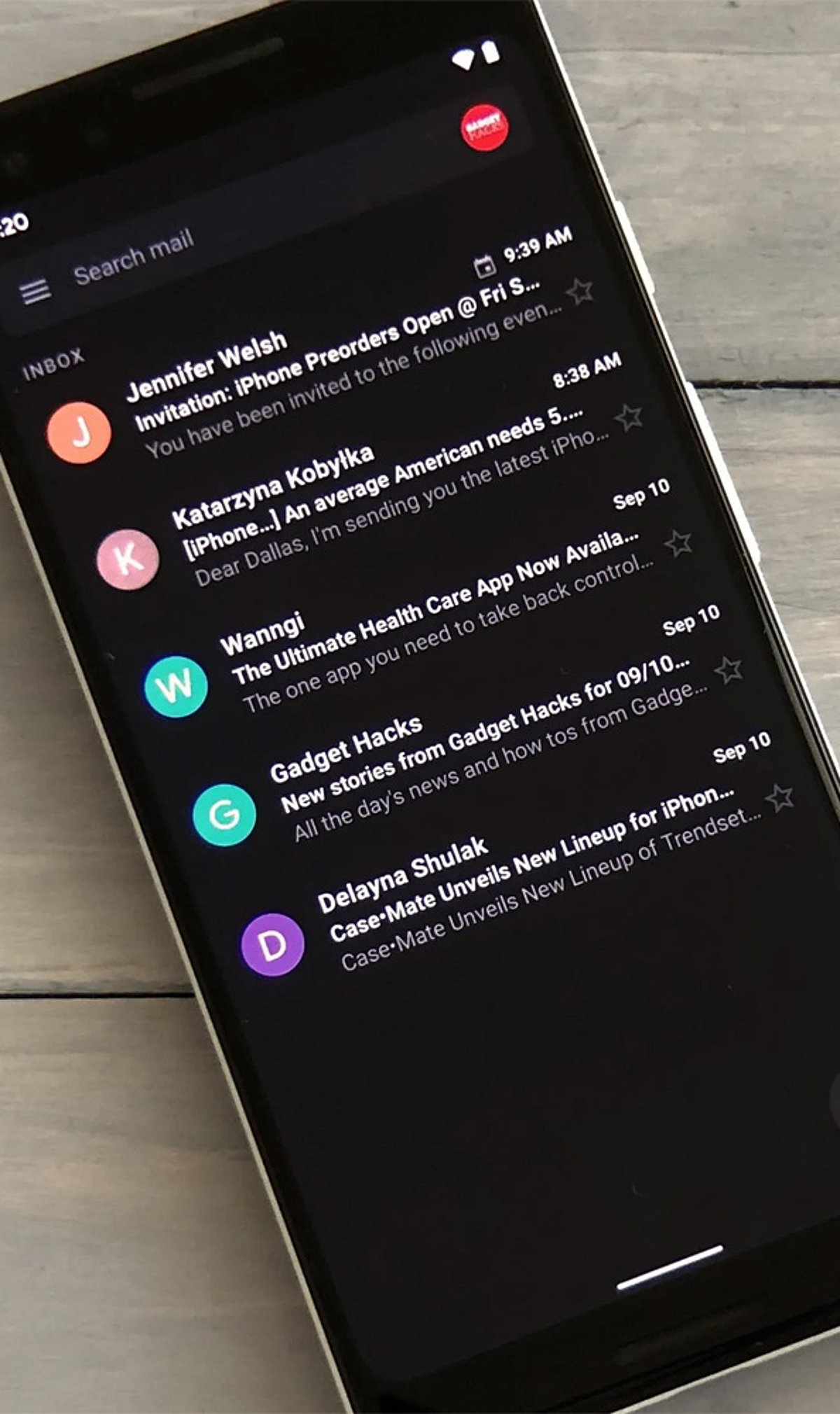
How to Enable Gmail Dark Mode on Android
To switch Gmail to dark mode on your Android device, follow these steps:
- Open the Gmail app.
- Tap the hamburger menu (☰) in the top-left corner.
- Go to Settings > General settings > Theme.
- Choose Dark or System default.
Selecting System default will make Gmail automatically follow your phone’s dark mode schedule, switching between light and dark based on the time of day or your system settings.
How to Turn On Gmail Dark Mode on iPhone
- Open the Gmail app on your iPhone.
- Tap the hamburger menu (☰) and go to Settings.
- Select Theme and choose Dark.
- If the option is not available, enable Dark Mode from your iPhone’s system settings: Settings > Display & Brightness > Dark.
How to Enable Dark Theme on Desktop
- Open Gmail in your web browser.
- Click the Settings gear icon (⚙️) in the top-right corner.
- Select See all settings.
- Go to the Themes tab.
- Choose a dark theme from the available options and click Save.
Note: On the desktop version, Gmail’s interface darkens but many email message bodies may still appear white due to the sender’s original formatting. This is a known limitation.
Why Use Gmail Dark Mode?
Dark mode reduces eye strain in low-light environments, saves battery life on OLED displays, and provides a cleaner, more comfortable viewing experience. It also helps you focus on your emails without the harsh glare of a bright screen.
Troubleshooting: Dark Mode Keeps Turning Off
If Gmail reverts to light mode unexpectedly, try reapplying the dark theme on your primary device. Theme settings are often synced across your Google account, so changes on one device may affect others. Ensure you have selected the correct theme in the Gmail settings or set it to System default to follow your device’s schedule.