Your smartphone is capable of far more than making calls and running apps. Many powerful tools remain hidden in menus and settings, waiting to be discovered. Both Apple and Google have added practical features that can boost productivity, enhance privacy, extend battery life, and simplify everyday tasks. The best part? You may already own a phone with these features—you just need to know where to find them. Here are several hidden smartphone features worth trying.
Circle to Search: Find Anything on Your Screen
Android users can search for items directly from their screen using Google’s Circle to Search. Simply press and hold the navigation handle or Home button, then circle, highlight, or tap something displayed on your screen. Google will search the selected text, image, or object, and you can even translate content without leaving the current app. This is especially useful while shopping or browsing social media—identify products without manually typing their names. The feature is available on selected Android devices, including Pixel 6 models.
Lock or Hide Private Apps
Your phone may contain apps you’d rather keep private. iPhones offer built-in options to lock or hide supported apps. Press and hold an app icon on the Home Screen, then choose the option requiring Face ID, Touch ID, or your passcode. You can also hide eligible downloaded apps completely; they move into a dedicated Hidden folder within the App Library. This helps protect banking, messaging, or personal applications, even when someone temporarily uses your unlocked phone. Android phones also offer similar privacy tools—check your device’s security settings for available options.
Turn Search into a Quick Action Tool
Many people use smartphone search only for finding apps, but on iPhone, Spotlight can do much more. Swipe down from the middle of the Home Screen, then type the information or action you need. Search can find contacts, messages, emails, photos, settings, and applications. On supported software, it can also trigger certain actions directly—for example, search for a setting and change it, or search for a contact and quickly start a communication. This can save several taps throughout the day.
Use Focus Modes for Different Parts of Life
Notifications can quickly become a distraction. Modern smartphones provide more control than simply switching on silent mode. iPhone Focus lets you create profiles for different situations—work, sleep, driving, or personal time. Each Focus can control which people and apps can notify you, and you can automate Focus modes around specific schedules or locations. Android phones offer comparable tools through notification and digital wellbeing settings. A customized Focus setup can reduce unnecessary interruptions while keeping important notifications from getting lost.
Turn Your Phone into a Smart Display
An iPhone can become a useful bedside display while charging with Apple’s StandBy feature. When the phone is positioned horizontally, it can show clocks, widgets, photos, and other information. Widgets provide quick access to calendars and reminders, and you can customize the information shown according to your routine. This feature is especially handy beside a bed or workspace, giving an older charging habit a more useful purpose.
Check Battery Insights Before Blaming the Battery
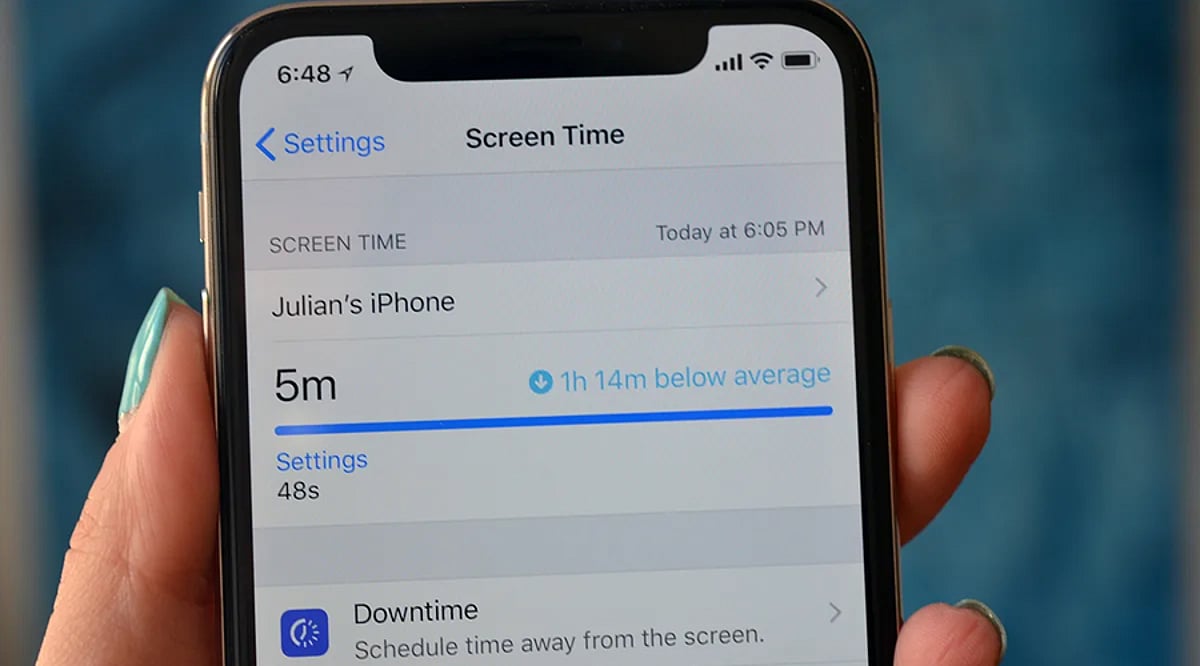
Battery problems aren’t always caused by an aging battery—background activity can sometimes explain unusually high power consumption. Recent iPhones provide battery usage charts and activity information, showing which apps and system processes consume the most power. Apple also provides battery suggestions and Insights that can flag settings affecting battery life. Some newer iPhones support Adaptive Power, which adjusts settings when daily usage becomes unusually high. Android devices offer similar battery dashboards and adaptive battery features. Checking these reports can quickly reveal power-hungry apps.
AI Features Are Becoming Smartphone Shortcuts
AI is changing how people use smartphones. Newer devices can handle tasks that once required separate applications. On supported iPhones, Apple Intelligence works across several system experiences, including writing assistance, image editing, visual intelligence, and Siri AI. Android manufacturers are adding comparable AI tools to newer devices. Availability depends on the phone, software version, language, and region. Many smartphone features are already available without downloading another app. Spend a few minutes exploring your settings this month—you may discover tools that make your phone far more useful.