
Tag: gaming tips

  • Fortnite Quests Made Simple: A Practical Guide to Finding, Tracking, and Finishing Challenges

    Fortnite Quests Made Simple: A Practical Guide to Finding, Tracking, and Finishing Challenges

    Fortnite quests add optional objectives to every match, giving players a way to earn XP and move through the Battle Pass while still playing the battle royale they enjoy. The key is knowing where to look, which challenges to combine, and how to track progress without turning every match into a checklist.

    Where to find Fortnite quests

    Open Fortnite and go to the Quests section from the lobby. Available quests are organized by type and can change with the season, live events, and the specific Fortnite experience being played. Reviewing the list before you enter a match helps you choose objectives that fit your preferred landing spot, weapons, and play style.

    How to complete quests without disrupting your match

    Read each objective carefully before you drop. A location-based quest is easier to handle when you plan your landing spot around it. A combat quest that asks for damage with a particular weapon is easier when you look for that weapon early. You do not need to change your entire approach for one challenge; the goal is to work quests into normal play.

    • Group similar objectives: Pick a location quest, a collection quest, and a weapon challenge that can be completed in the same area.
    • Plan around your landing spot: Choose challenges near where you already intend to drop.
    • Do not force everything into one match: Longer challenges can be finished across several games.
    • Use Daily and Weekly quests to structure sessions: Daily quests reset each day, while Weekly quests refresh on Tuesdays.

    Tracking progress and timing

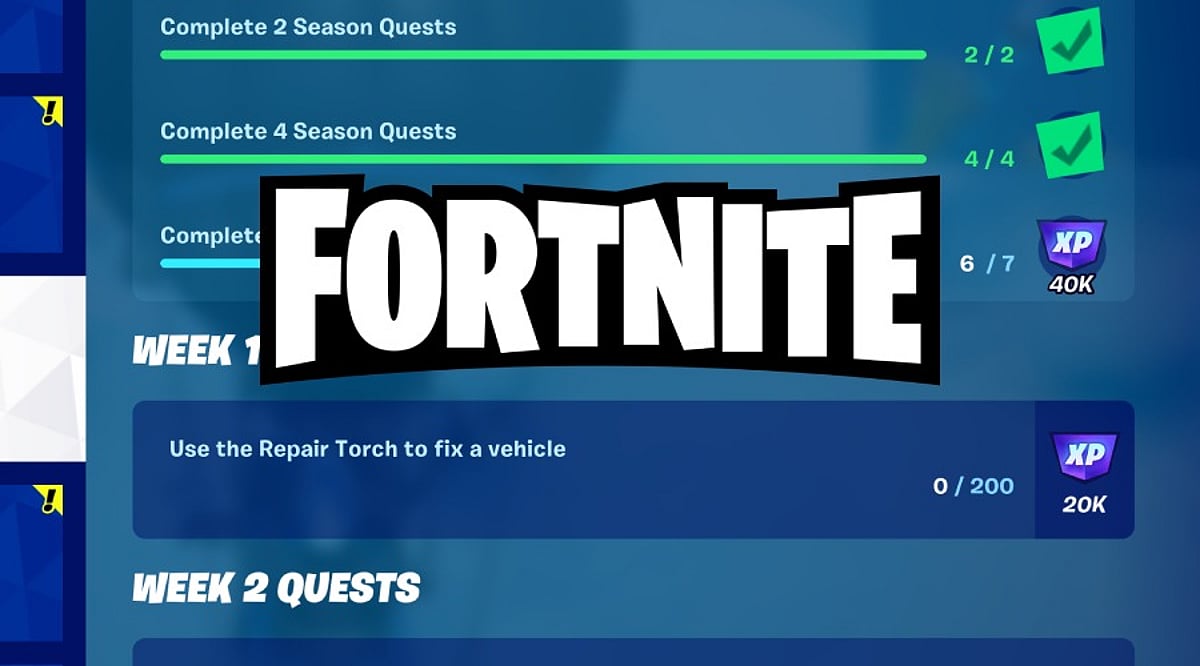
    The Quests section also shows how much progress you have made. Fortnite has consolidated different quest types into a more central view, making it easier to move between objectives and see what is available. Check your progress during or after a match so you know which challenges are close to completion and which ones need a different strategy.

    Why completing Fortnite quests is worth the effort

    The biggest benefit is XP. Daily, Weekly, Seasonal, and other quests give players additional ways to build XP and advance the Battle Pass. Quests can also encourage exploration: you may visit a new area or try a weapon you usually ignore because a challenge asks for it. Even a match that does not end in a Victory Royale can still feel productive if you complete one or two objectives.

    Epic Games also notes that players who miss some Daily or Weekly quest XP may receive Supercharged XP under certain conditions, which can increase XP gains afterward. That makes regular quest check-ins even more useful for players working through the Battle Pass.

    Build a simple quest plan

    1. Open the Quests tab before you ready up.
    2. Choose two or three objectives that can be completed together.
    3. Pick a landing spot and loadout that support those objectives.
    4. Track progress in the Quests section and adjust your plan for the next match.

    Fortnite quests do not replace the thrill of the battle royale. They add another layer to it. With a little planning, ordinary matches can become steady progress toward XP, Battle Pass rewards, and a broader understanding of the island.

    FAQs

    Where can I find Fortnite quests?

    Go to the Quests section from the Fortnite lobby. The available quests can vary by season, event, and the Fortnite experience you are playing.

    How can I complete Fortnite quests faster?

    Combine objectives that can be finished in the same match. For example, pair a location-based task with a collection or weapon challenge.

    Do Fortnite quests give XP?

    Yes. Quests are one of the ways to earn XP in Fortnite. Daily, Weekly, Seasonal, and other quests can help you build XP and progress through the Battle Pass.

    How do I track Fortnite quest progress?

    Open the Quests section to view objectives and progress. The updated Quests view brings different quest types together for easier management.

    When do Fortnite Daily Quests reset?

    Daily quests reset each day. Check the Quests section for current tasks and reset information.
  • Optimize Your Mobile Game Graphics for Smooth, Lag-Free Play

    Optimize Your Mobile Game Graphics for Smooth, Lag-Free Play

    Mobile games now deliver console-quality graphics, expansive worlds, and advanced features. But cranking every setting to maximum often leads to overheating, battery drain, and frustrating frame drops. The secret to a great gaming experience lies in finding the right balance between visuals and performance.

    How Mobile Gaming Has Evolved

    The mobile gaming landscape has transformed dramatically, driven by powerful new smartphones with faster processors, better GPUs, and high-refresh-rate displays. Titles like PUBG Mobile, Call of Duty Mobile, and Genshin Impact have set new standards, offering competitive multiplayer and vast open worlds that once required a PC or console. However, pushing all graphics options to their highest level doesn’t guarantee smooth gameplay. Heat buildup can throttle performance, causing stutters and sudden FPS drops — even on flagship devices.

    Best Graphics Settings for Smoother Gameplay

    The ideal settings vary by phone and game, but the following approach works as a solid starting point for most players:

    • Prioritize frame rate: A stable 60 FPS feels much better than an unstable 90 or 120 FPS that frequently dips. If your phone supports higher refresh rates, try them but monitor heat and battery use.
    • Adjust graphics quality: Medium to High settings are often a sweet spot. Lower shadows, reflections, and effects if the game struggles.
    • Turn off motion blur: This is especially helpful in shooters and racing games — it makes quick movements easier to track.
    • Manage heat: Take short breaks, avoid direct sunlight, and consider removing a thick case during long sessions.

    Finding the Right Balance for Your Phone

    There’s no universal graphics preset that works for everyone. Competitive players should focus on stable FPS and clear visuals, while those who enjoy story-driven games may prefer richer textures and lighting. The goal isn’t to make the game look as impressive as possible — it’s to keep it smooth, responsive, and enjoyable without lag. Sometimes, the best experience comes from lowering a few settings to maintain stability.

    Frequently Asked Questions

    1. What are the best graphics settings for mobile gaming? Medium to High graphics with a stable high frame rate is a good starting point. Lower shadows and effects if the phone struggles.
    2. Is 60 FPS better than higher graphics? For fast-paced games, a stable 60 FPS often feels better than higher graphics settings that cause frame drops.
    3. Should I turn off motion blur? Yes, especially for shooting and racing games. It makes quick movements easier to follow.
    4. Do high graphics make a phone hotter? Yes, high graphics increase the workload on the phone, leading to more heat and battery drain during extended sessions.
    5. Should I use 90 FPS or 120 FPS? If your phone and game support it smoothly, higher FPS can improve gameplay — but watch for excessive heat and battery consumption.
  • 10 Hidden PS5 Features Most Gamers Overlook

    10 Hidden PS5 Features Most Gamers Overlook

    Many PlayStation 5 owners enjoy popular features, but several powerful tools remain hidden, improving gameplay, convenience, customization, and overall gaming experience.

    Game Help

    PlayStation Plus subscribers can access Game Help cards, offering spoiler-free hints and guidance without leaving supported games during challenging moments.

    Activity Cards

    Activity Cards let players jump directly into missions, challenges, or objectives, reducing loading time and making game sessions much more efficient.

    Custom Control Center

    Rearrange Control Center shortcuts to quickly access settings, downloads, music, notifications, and accessories without navigating through multiple menus every time.

    Mute Controller Speaker

    The DualSense controller speaker can be muted or adjusted, reducing distractions while keeping immersive haptic feedback and adaptive trigger features active.

    Automatic Trophy Videos

    PS5 automatically records short gameplay clips whenever trophies unlock, creating memorable highlights that players can revisit or easily share later.

    Remote Play

    Remote Play lets users stream PS5 games to compatible smartphones, tablets, PCs, or another PlayStation console over supported internet connections.

    Voice Commands

    Voice Commands allow players to open games, capture screenshots, or control media hands-free, making everyday console navigation faster and more convenient.

    Expand SSD Storage

    Compatible M.2 SSD upgrades expand PS5 storage, allowing players to install more games without constantly deleting favorite titles from the console.