Tag: Gmail

  • Gmail’s ‘Copy Code’ Button Eliminates a Step in Two-Factor Authentication

    Gmail’s ‘Copy Code’ Button Eliminates a Step in Two-Factor Authentication

    Gmail is rolling out a new ‘Copy code’ option for two-factor authentication (2FA) emails. This feature allows users to copy verification codes directly from the inbox without opening the email. Instead of manually selecting numbers, users can tap a button below the subject line to copy the code to their clipboard.

    The change is designed for people who regularly use email-based 2FA when signing into banking, shopping, work, social media, and other online accounts. While it does not alter the security of two-factor authentication, it significantly improves convenience by reducing the number of steps required.

    How Gmail’s 2FA Code Copy Feature Works

    When a user attempts to log into a third-party application using a Gmail ID with 2FA enabled, Google detects the verification email. It then displays a ‘Copy code’ button below the subject line. Users do not need to open the message to find the number. They can tap the button and copy the code to their phone’s clipboard, then paste it into the sign-in page.

    Currently, this feature is available on Android and iOS devices; the web version of Gmail will not receive it during this rollout phase. The whole process takes only a few seconds, saving time compared to the previous method of opening the email, searching for the code, selecting it, copying it, and switching back to the other app.

    What Gmail’s New Feature Means for Users

    The biggest benefit is convenience. For users who perform 2FA tasks multiple times a day, the single extra tap can reduce frustration. This change also demonstrates how email apps are becoming more action-oriented, adding quick actions based on email content. A verification email is a perfect example: most people only need the code, so giving them a direct copy option makes sense.

    The feature may also reduce small mistakes, such as copying an extra space or missing a digit when manually selecting a code. However, security remains important. Users should never share verification codes with anyone, even with the new shortcut. Scammers can still trick users into giving away codes. The feature does not replace stronger login methods like passkeys or security keys, which Google recommends for better phishing protection.

    A Small Change That Makes 2FA Easier

    Gmail’s ‘Copy code’ option is not a major security change; its value comes from streamlining a familiar, repetitive task. Users no longer need to open every 2FA email just to find a number. A single tap copies the code and gets them back to the sign-in screen. This fits into a larger trend of making account protection easier while reducing friction. Until passkeys become more widespread, verification codes remain common, and this shortcut can make them a little less annoying.

    Frequently Asked Questions

    1. What is Gmail’s new 2FA Code Copy feature?

    It is a new Gmail option that lets users copy a verification code directly from the inbox without opening the email.

    2. How does Gmail’s Copy code button work?

    Gmail shows a ‘Copy code’ button below eligible verification emails. Users tap it to copy the code and paste it into the required sign-in field.

    3. Is Gmail’s Copy code feature available on iPhone?

    Yes, it is rolling out on both Android and iPhone, depending on the Gmail app version and account.

    4. Does the feature make 2FA more secure?

    It mainly makes 2FA easier to use. It does not change how verification codes protect an account. Google recommends passkeys and security keys for stronger protection.

    5. Should users share their Gmail verification codes?

    No. Users should never share verification codes with other people, as a scammer could use them to bypass account security.

  • Gmail’s New ‘Copy Code’ Button Speeds Up Two-Factor Authentication on Mobile

    Gmail’s New ‘Copy Code’ Button Speeds Up Two-Factor Authentication on Mobile

    Google is making two-factor authentication (2FA) codes easier to handle in Gmail. The mobile versions of the Gmail app on Android and iOS are rolling out a new feature called Copy Code. This button appears in the email preview, allowing users to tap and copy verification codes directly to their clipboard without opening the full message.

    The Copy Code option is designed specifically for 2FA emails. It appears below the subject line and next to the preview snippet. Once tapped, the code is copied, and users can return to the website or app they are signing into and paste the code. This eliminates the need to open every verification email individually.

    The feature is currently available on Gmail for Android version 2026.09.07.x and iOS version 6.0.260907. It is not yet available on the web version of Gmail.

    Getting a 2FA code from email has traditionally required opening Gmail, locating the right message, copying the numbers, and then switching back. The new shortcut removes several steps, making the login process faster. Google Messages already offers a similar convenience for SMS-based verification codes.

    While the change is small, it has a noticeable impact on daily user experience. The security of two-factor authentication remains unchanged; only the copying process is streamlined. As more services rely on email for verification codes, features like this reduce friction without compromising security.

  • Master Gmail Bulk Editing: Clean Up Your Inbox in Minutes

    Master Gmail Bulk Editing: Clean Up Your Inbox in Minutes

    Gmail’s bulk tools go beyond simple deletion. Selection, archiving, and labeling each serve different needs. Search operators and filters narrow the scope before action. Reviewing results first turns routine cleanup into a controlled, repeatable system rather than a one-time fix.

    Overview

    Gmail’s checkbox and “select all conversations” option can act on messages far beyond what fits on one screen. Archiving, deleting, labeling, and marking messages as read or unread each solve a different inbox problem. Search operators and filters turn a one-time cleanup into a system that runs on its own.

    A full inbox rarely gets fixed one message at a time. Most people open Gmail, sigh at the unread count, and close the tab again. Yet Gmail already has the tools to clear that backlog in minutes, not hours. The gap is not features—it is awareness.

    Selecting Multiple Emails

    Click the checkbox beside a single conversation to select it. For a larger batch, use the master checkbox at the top of the message list. This selects the conversations shown on the current page, usually up to 50, though account settings can change that number.

    Selecting Every Matching Conversation

    A page of messages is rarely the whole problem. Once the master checkbox is clicked, Gmail often shows a banner offering to select every conversation matching the current view or search, not only the ones on screen. That single click turns a partial cleanup into a complete one. It applies equally to an entire inbox or a narrow search result.

    Archiving Emails

    Archiving pulls messages out of the inbox without deleting them. They stay searchable under All Mail, ready to surface again if needed. This suits anyone who wants a clear inbox while keeping every message on record.

    Deleting Emails

    Deleting moves selected messages to Trash, where Gmail removes them permanently after 30 days unless they are cleared sooner. This works well for old notifications, expired promotions, and clutter that serves no future purpose. Storage concerns need a different approach, though. A search like larger:10M finds the large attachments actually consuming space, which clears more room than deleting ordinary messages ever could.

    Labeling and Marking Read or Unread

    Use the Labels button to tag selected messages, grouping related conversations such as receipts or subscriptions. Move to shift messages out of the current view entirely, a distinct action from labeling. The envelope icon marks a batch as read or unread in one step, clearing notification counts without opening a single message.

    Search Operators Before Bulk Editing

    Narrowing a search before acting reduces the odds of a mistake. Gmail operators such as from:, subject:, has:attachment, older_than:, and is:read make it easier to isolate specific messages. Combining operators refines results even further. For example, from:newsletter@example.com older_than:1y finds older emails from a specific sender, while older_than:1y is:read surfaces read messages more than a year old, ready to review, archive, or delete in bulk.

    Filters for Ongoing Management

    Manual cleanup fixes today’s mess, not next month’s. A filter built from the search bar can archive, label, or delete future messages that match set criteria, such as a sender or subject line. It affects only new mail arriving after it is created, unless the option to apply it retroactively is selected during setup. That single distinction saves people from wondering why their inbox history stayed untouched.

    Managing Gmail on Mobile

    The mobile app skips the desktop-style workflow for selecting every conversation across a mailbox or search. Long-pressing a message allows several to be handled together, but sweeping cleanup still belongs on the web version.

    Review Before Acting

    Bulk actions are hard to undo once applied widely. Scan a few results from the search query before deleting or moving a large batch, just to confirm nothing important slipped in. When in doubt, archiving instead of deleting keeps a message available for later reference. Any filter that includes automatic deletion deserves a second look before it gets saved.

    Final Thought

    Fast inbox cleanup has little to do with selecting more messages. It comes down to narrowing the right group first, picking the right action, and letting filters carry the weight of future maintenance. That shift, from reacting to managing, is what separates a cluttered inbox from a controlled one.

    Frequently Asked Questions

    Can I edit multiple emails at once in Gmail?

    Yes. Select multiple conversations using the checkboxes, then archive, delete, label, move, or mark them as read or unread in one action.

    How do I select all emails in my Gmail inbox?

    Click the checkbox at the top of the inbox. If Gmail shows an option to select all conversations matching the current view, click it to expand the selection.

    Can I bulk delete old emails in Gmail?

    Yes. Use search operators such as older_than:1y to find older messages, review the results, select the conversations, and click Delete.

    Can I bulk organize Gmail emails with filters?

    Yes. Gmail filters can automatically label, archive, or delete future messages that match criteria such as a sender, subject, or keyword.

    Can I bulk edit Gmail emails from my phone?

    The Gmail mobile app supports selecting multiple messages, but large-scale inbox cleanup is generally easier through Gmail on the web.

  • Complete Guide to Enable Gmail Dark Mode on Android, iPhone, and Desktop

    Complete Guide to Enable Gmail Dark Mode on Android, iPhone, and Desktop

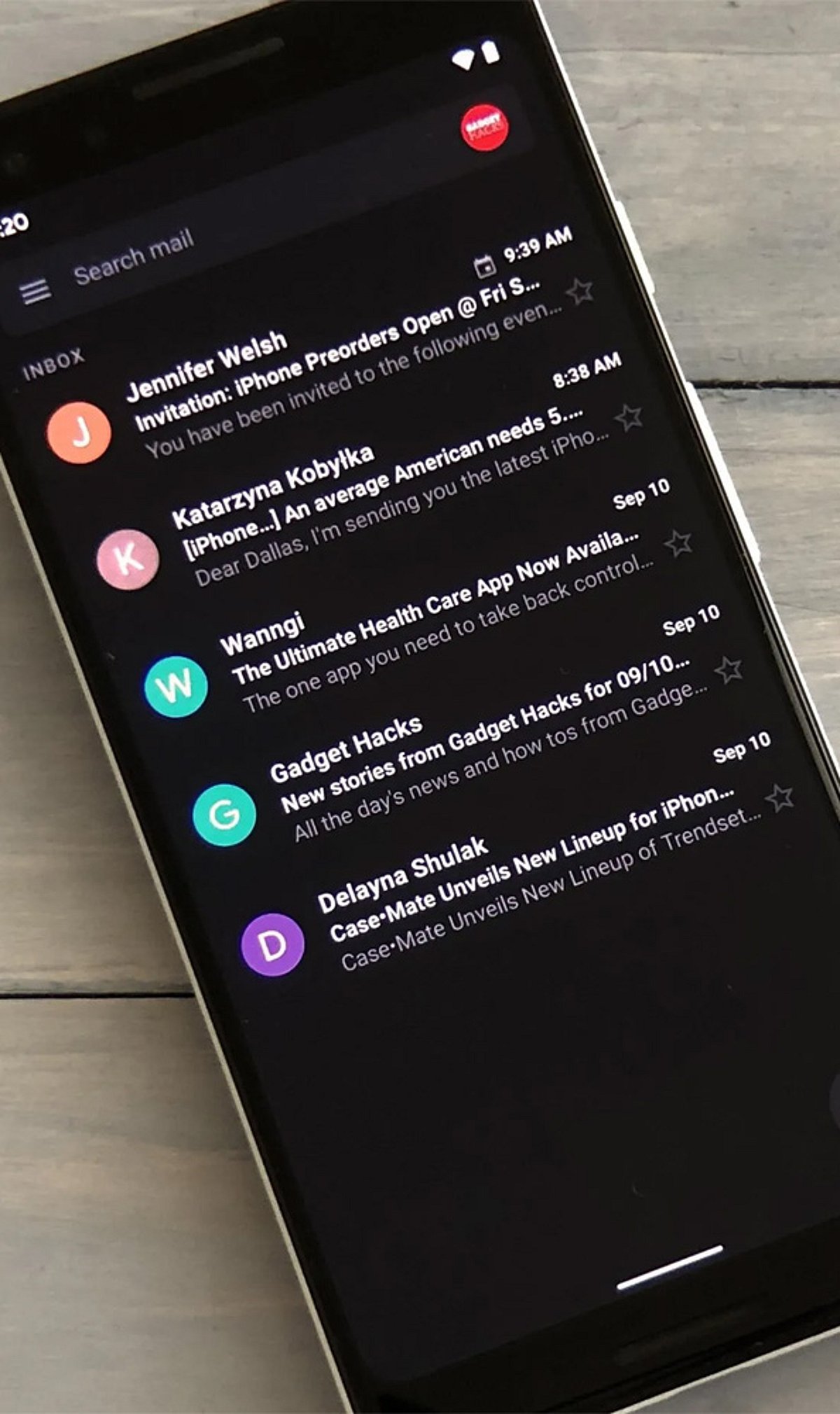
    How to Enable Gmail Dark Mode on Android

    To switch Gmail to dark mode on your Android device, follow these steps:

    1. Open the Gmail app.
    2. Tap the hamburger menu (☰) in the top-left corner.
    3. Go to Settings > General settings > Theme.
    4. Choose Dark or System default.

    Selecting System default will make Gmail automatically follow your phone’s dark mode schedule, switching between light and dark based on the time of day or your system settings.

    How to Turn On Gmail Dark Mode on iPhone

    1. Open the Gmail app on your iPhone.
    2. Tap the hamburger menu (☰) and go to Settings.
    3. Select Theme and choose Dark.
    4. If the option is not available, enable Dark Mode from your iPhone’s system settings: Settings > Display & Brightness > Dark.

    How to Enable Dark Theme on Desktop

    1. Open Gmail in your web browser.
    2. Click the Settings gear icon (⚙️) in the top-right corner.
    3. Select See all settings.
    4. Go to the Themes tab.
    5. Choose a dark theme from the available options and click Save.

    Note: On the desktop version, Gmail’s interface darkens but many email message bodies may still appear white due to the sender’s original formatting. This is a known limitation.

    Why Use Gmail Dark Mode?

    Dark mode reduces eye strain in low-light environments, saves battery life on OLED displays, and provides a cleaner, more comfortable viewing experience. It also helps you focus on your emails without the harsh glare of a bright screen.

    Troubleshooting: Dark Mode Keeps Turning Off

    If Gmail reverts to light mode unexpectedly, try reapplying the dark theme on your primary device. Theme settings are often synced across your Google account, so changes on one device may affect others. Ensure you have selected the correct theme in the Gmail settings or set it to System default to follow your device’s schedule.

  • Maximize Team Efficiency with Gemini AI in Google Workspace: A Practical Guide

    Maximize Team Efficiency with Gemini AI in Google Workspace: A Practical Guide

    Gemini AI is transforming how teams collaborate within Google Workspace, enabling faster writing, analysis, organization, and collaboration. According to recent insights, users can save up to three hours per week by leveraging Gemini’s capabilities across Gmail, Docs, Sheets, Slides, Meet, and Drive.

    Streamline Email Management with Gemini in Gmail

    In Gmail, Gemini helps draft polished emails, summarize lengthy conversations, rewrite messages for clarity, and instantly extract action items from threads. This reduces time spent on email triage and ensures key tasks are never missed.

    Accelerate Document Creation in Google Docs

    Gemini in Google Docs generates first drafts, rewrites content in different tones, summarizes meeting notes, and builds reusable templates. Teams can focus on refining ideas rather than starting from scratch.

    Simplify Data Analysis in Google Sheets

    With Gemini in Sheets, users can clean data, explain complex formulas, analyze trends, generate charts, and organize spreadsheets. This makes data-driven decisions accessible to everyone, regardless of technical expertise.

    Create Impactful Presentations in Google Slides

    Turn documents into professional presentations effortlessly. Gemini in Slides produces outlines, speaker notes, and AI-generated visuals, helping teams communicate ideas clearly and quickly.

    Enhance Meetings with Gemini in Google Meet

    Gemini automatically records notes, creates meeting summaries, highlights next steps, and helps late joiners catch up. This ensures everyone stays aligned without manual note-taking.

    Search and Organize with Natural Language

    Use natural language to search Google Drive and Gmail. Gemini retrieves files, summarizes documents, and organizes shared folders in seconds, saving time on manual browsing.

    Boost Teamwork with Integrated Workflows

    Combine Gemini across Docs, Gmail, Sheets, Drive, and Meet to automate repetitive tasks. Your team can focus on reviewing and refining outputs while Gemini handles the heavy lifting.

    Optimize Results with Clear Prompts

    For best results, provide Gemini with clear prompts that include project details, target audience, desired tone, and format. This yields more accurate and relevant AI-generated content.

  • Google Adds Three Gemini-Powered Features to Gmail: AI Inbox, Overviews, and Enhanced Help Me Write

    Google Adds Three Gemini-Powered Features to Gmail: AI Inbox, Overviews, and Enhanced Help Me Write

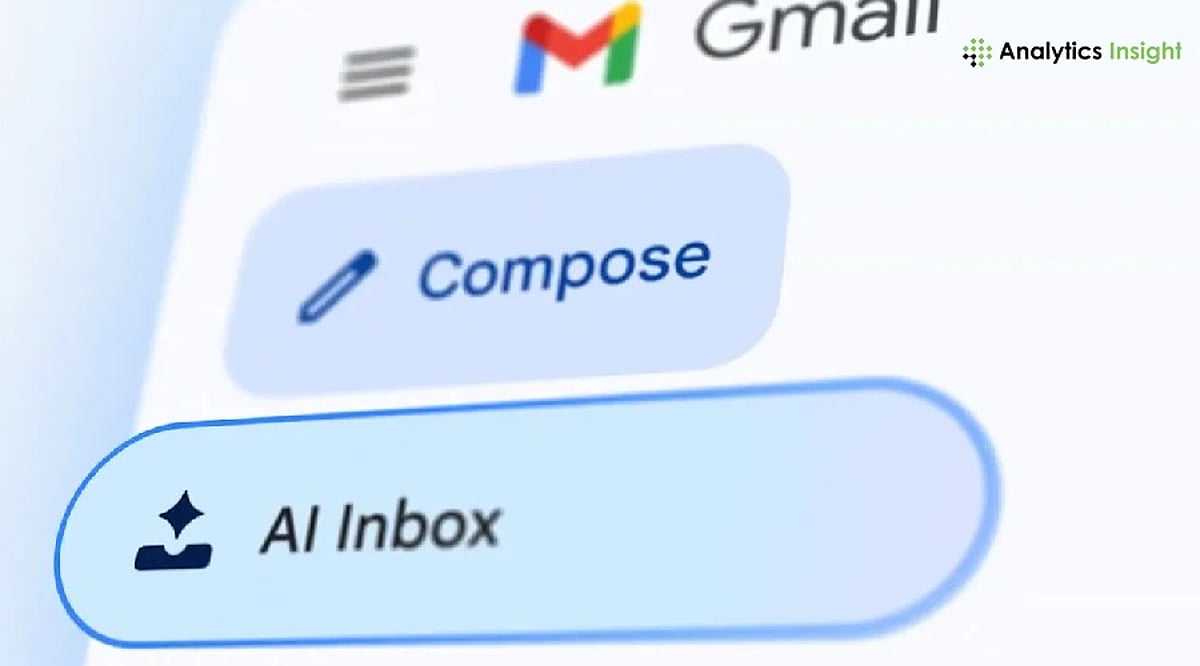
    Google has expanded Gmail’s AI capabilities with three new features powered by its Gemini AI model: AI Inbox, AI Overviews, and an upgraded Help Me Write tool. These features are designed to help users organize their inboxes, quickly find important information, and draft emails with less effort. The rollout applies to Google AI Pro, AI Ultra, and eligible Google Workspace subscribers.

    AI Inbox Highlights What Needs Attention

    The new AI Inbox changes how Gmail displays emails. Instead of listing messages in chronological order, it highlights those that require immediate attention. A Proposed To-Dos list helps users locate emails that need action, such as responding to requests or paying bills. Another section, Topics to Catch Up On, groups related emails together with an overview. This function operates only on emails in the Primary folder, not spam or other folders.

    Help Me Write Speeds Up Email Drafting

    Google has also enhanced Help Me Write, allowing users to generate an email draft by entering a simple prompt. The tool can rewrite the draft based on user preferences—making it shorter, more formal, more detailed, or easier to understand—before sending. The final draft remains editable, giving users complete control over the message.

    AI Overviews Summarize Long Conversations

    Another addition is AI Overviews, which condenses lengthy email threads into short summaries. Users can also ask Gmail questions about emails in their inbox using natural language. Instead of searching through multiple conversations, the feature pulls together relevant information and presents it in a concise format.

    Part of Google’s Gemini Expansion

    The latest Gmail update is part of Google’s wider effort to integrate Gemini across Workspace applications. The company says the new tools aim to reduce the time users spend managing emails while making it easier to stay on top of conversations. Google recommends reviewing AI-generated drafts and summaries before using them, especially for important or professional communication.

  • Master Gmail Spam Removal in 2026: Essential Tips to Clean Your Inbox

    Master Gmail Spam Removal in 2026: Essential Tips to Clean Your Inbox

    Spam emails have become more sophisticated, but Gmail offers powerful tools to keep your inbox clean. Learn how to use Manage Subscriptions, spam reporting, filters, sender blocking, and smart security practices to reduce unwanted emails, improve inbox organization, and protect your account from phishing and spam attacks in 2026.

    Use Gmail’s New Manage Subscriptions Feature

    Manage Subscriptions is one of the most significant enhancements to Gmail that is meant to ease the process of unsubscribing from newsletters. Rather than having to sift through several promotional emails, Gmail will display all your subscriptions and show you how often each one sends emails to you.

    To use it:

    • Open Gmail.
    • Navigate to Manage Subscriptions.
    • Review your mailing lists.
    • Remove newsletters and promotions you no longer read.

    This feature is especially useful for legitimate marketing emails that accumulate over time without requiring you to open each message individually.

    Report Spam Instead of Simply Deleting It

    Many users delete junk emails immediately. While that removes them from the inbox, it doesn’t help Gmail improve its spam detection.

    Instead:

    • Select the unwanted email.
    • Click Report Spam.
    • Gmail moves the message to the Spam folder and uses the report to improve future filtering.

    Filing repeated spam reports for similar emails makes it easier for Gmail to detect similar campaigns. Emails in the Spam folder are automatically deleted after 30 days. There is no need to empty your Spam folder manually if you don’t want to save space.

    Block Persistent Senders

    Some unwanted senders continue emailing despite repeated spam reports. For these cases:

    • Open the email.
    • Click the three-dot menu.
    • Select Block Sender.

    Future emails from that address will automatically be directed to the Spam folder. However, remember that blocking works best against individual senders. Professional spammers often change email addresses regularly, so blocking alone won’t eliminate every unwanted message.

    Create Filters for Recurring Spam

    If you notice similar promotional emails arriving from different addresses but sharing common keywords or subjects, Gmail filters can automate cleanup. For example, you can filter emails containing:

    • “Congratulations! You’ve won”
    • “Crypto investment”
    • “Exclusive offer”
    • Certain domains or sender names

    After creating the filter, choose actions such as:

    • Delete automatically
    • Skip Inbox
    • Mark as Spam
    • Archive immediately

    Filters are particularly effective for recurring promotional campaigns that Gmail doesn’t automatically classify as spam.

    Never Click Suspicious Unsubscribe Links

    It should be noted that not all unsubscribe buttons are safe. When dealing with trustworthy companies such as Amazon or LinkedIn, for example, using the unsubscribe button is completely acceptable. In case an email appears to be dubious, poorly formatted, and/or sent by an unknown user, never click on any unsubscribe buttons. As cybersecurity experts suggest, phishing unsubscribe buttons may reveal that your email is real and thus result in receiving even more junk mail.

    Protect Your Email Address Before Spam Starts

    Preventing spam is always easier than managing an already overloaded inbox. There are a few tips to prevent any spam emails from reaching you. It is not advisable to share your Gmail address on any website where you are required to enter it. You can create different email accounts for various activities. You should regularly audit the apps that connect to your Google account and remove any app whose services you are not currently using. It is also wise to activate two-factor authentication (2FA), which adds more security to your email account. Be very careful when registering with any new websites or promotional sites.

    When your inbox fills up with hundreds of emails very fast, it could indicate that you have received a mail bombing. The attackers usually do this as a strategy to hide any security notifications that might require action, such as password changes and unauthorized logins.

    Keep Your Inbox Clean with Small, Regular Actions

    A clutter-free Gmail inbox isn’t achieved by deleting thousands of emails in one sitting. Instead, it comes from consistent habits like reporting spam, unsubscribing from trusted newsletters, creating smart filters, and using Gmail’s built-in subscription management tools. With Gmail consistently improving its AI-based spam prevention measures, the combination of Google’s automatic spam filter and some time spent organizing one’s inbox will ensure that the number of spam emails received becomes minimal. Organization is crucial in protecting one from phishing attacks, scams, and other types of spam.

    Why This Matters

    Email remains one of the most important communication tools for work and personal life, making inbox security more critical than ever. As spam, phishing, and AI-generated scam emails become increasingly sophisticated, knowing how to use Gmail’s built-in security and filtering features helps protect sensitive information, improves productivity, and reduces the risk of cyber threats.

    Frequently Asked Questions

    How can I permanently reduce spam emails in Gmail?

    While it’s impossible to eliminate spam, you can significantly reduce it by reporting unwanted emails, blocking persistent senders, unsubscribing from trusted mailing lists, and creating Gmail filters. Regularly reviewing connected apps and enabling two-factor authentication also helps prevent your email address from being misused, keeping your inbox cleaner over time.

    What is Gmail’s Manage Subscriptions feature, and how does it work?

    Gmail’s Manage Subscriptions feature automatically gathers your newsletter and promotional subscriptions into one place. Instead of opening individual emails to unsubscribe, you can view all active subscriptions, see how frequently each sender emails you, and remove unwanted subscriptions with a single click, making inbox cleanup much faster.

    Is reporting spam better than simply deleting unwanted emails?

    Yes. Deleting spam only removes it from your inbox, while reporting it helps Gmail’s AI-powered spam detection system learn from the message. Over time, this improves Gmail’s ability to identify similar spam campaigns and automatically block them before they reach your inbox or other users’ accounts.

    Should I click the unsubscribe link in every promotional email?

    Not always. If the email is from a trusted company such as Amazon, Google, or LinkedIn, using the unsubscribe option is generally safe. However, avoid clicking unsubscribe links in suspicious or poorly designed emails, as scammers may use them to verify that your email address is active and send even more spam.

    How do Gmail filters help remove recurring spam emails?

    Gmail filters let you automatically sort, archive, delete, or mark emails as spam based on criteria such as sender, subject line, keywords, or specific domains. They are especially useful for recurring promotional emails or newsletters that bypass Gmail’s default spam filter yet remain unwanted in your inbox.