
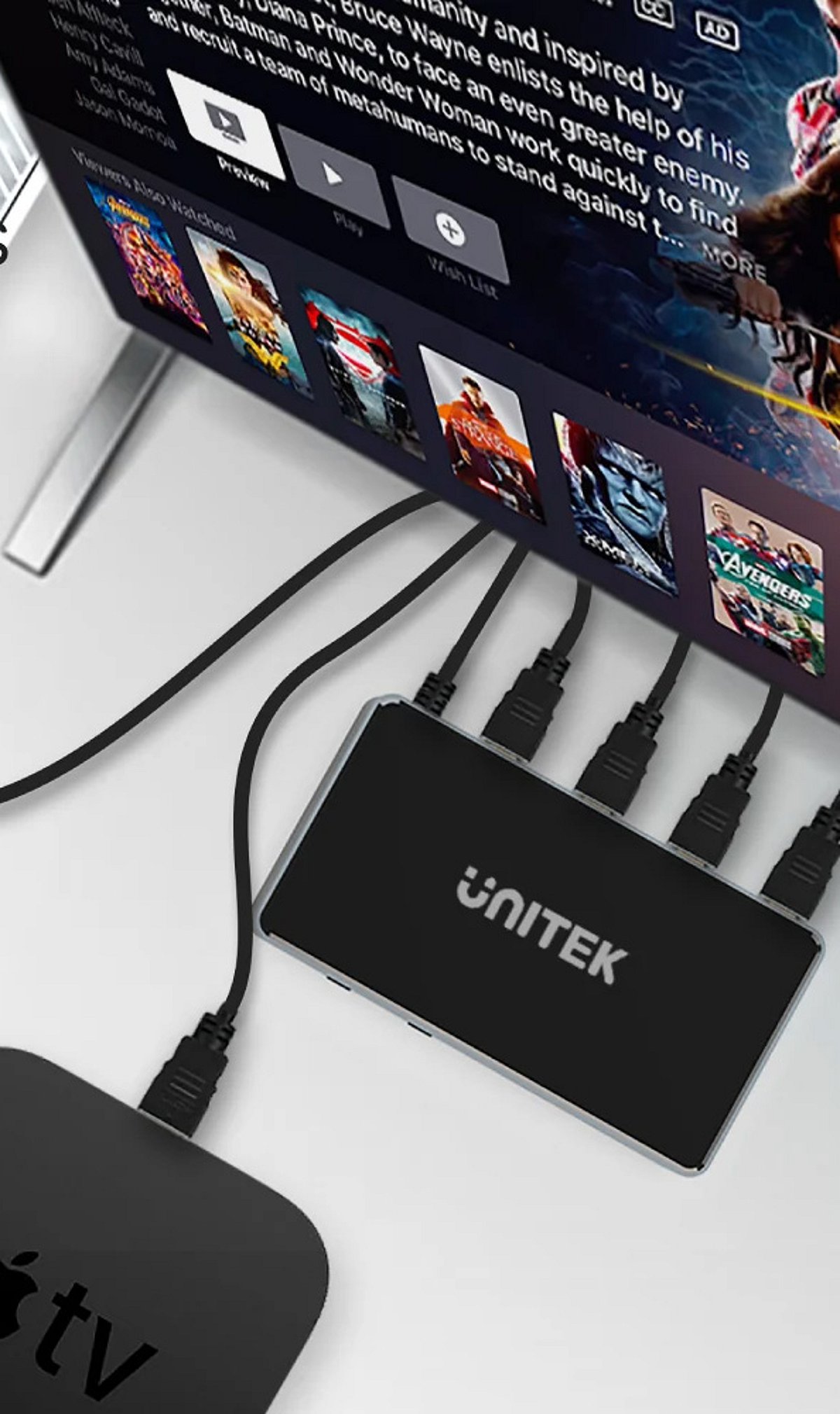
Modern entertainment setups often involve several HDMI devices—gaming consoles, streaming sticks, Blu-ray players, laptops, and set-top boxes—but many TVs come with only a few HDMI ports. This guide walks you through the steps to connect and manage multiple HDMI devices using a single TV, whether you have enough ports or need an external switch.
Check Your TV’s HDMI Ports
Before connecting anything, examine the back or side of your TV to see how many HDMI ports are available. Note which ports are already in use by other devices like soundbars or cable boxes. This will help you plan your setup.
List Your HDMI Devices
Identify all the devices you want to connect: gaming consoles (PlayStation, Xbox, Nintendo Switch), streaming devices (Roku, Amazon Fire Stick, Apple TV), Blu-ray players, laptops, or set-top boxes. Knowing exactly what you need to connect will determine whether you can use the TV’s built-in ports or need an HDMI switch.
Use Available HDMI Ports Directly
If your TV has enough HDMI ports for all your devices, simply connect each device to a separate port. This is the simplest and most reliable method, as it avoids additional hardware and potential signal degradation.
Get an HDMI Switch
If your TV lacks sufficient HDMI ports, an HDMI switch is the solution. A switch allows you to connect multiple devices to a single TV port. Switches come in various sizes (e.g., 3-port, 5-port) and support different resolutions and refresh rates.
Connect the HDMI Switch
Plug the HDMI switch into one of your TV’s available HDMI ports. Then connect your gaming consoles, streaming devices, and other equipment to the switch’s input ports. Most switches are plug-and-play, requiring no additional software.
Choose the Right HDMI Switch
Before purchasing a switch, check the supported resolution (1080p, 4K, 8K), refresh rate (60Hz, 120Hz), HDR compatibility, and HDMI version (2.0, 2.1). Ensure the switch matches your devices’ capabilities to avoid issues like lag or poor picture quality.
Switch Between Connected Devices
Most HDMI switches come with a physical button or a remote control to toggle between connected devices. Press the button or use the remote to select the device you want to use, eliminating the need to repeatedly unplug and replug cables.
Check Audio and Video Settings
After connecting everything, turn on your TV and select the correct HDMI input (the one connected to the switch, or the direct port). Verify that video, sound, HDR, and refresh rates are working properly. Adjust settings in your TV’s menu if needed.
Keep Your Setup Organized
Label your HDMI cables and the ports on the switch to quickly identify which device is which. This makes switching between consoles and other devices much simpler and keeps your entertainment area tidy.
By following these steps, you can enjoy a clutter-free, efficient multi-device setup without constantly swapping cables. Share this guide with anyone looking to simplify their home entertainment system.