
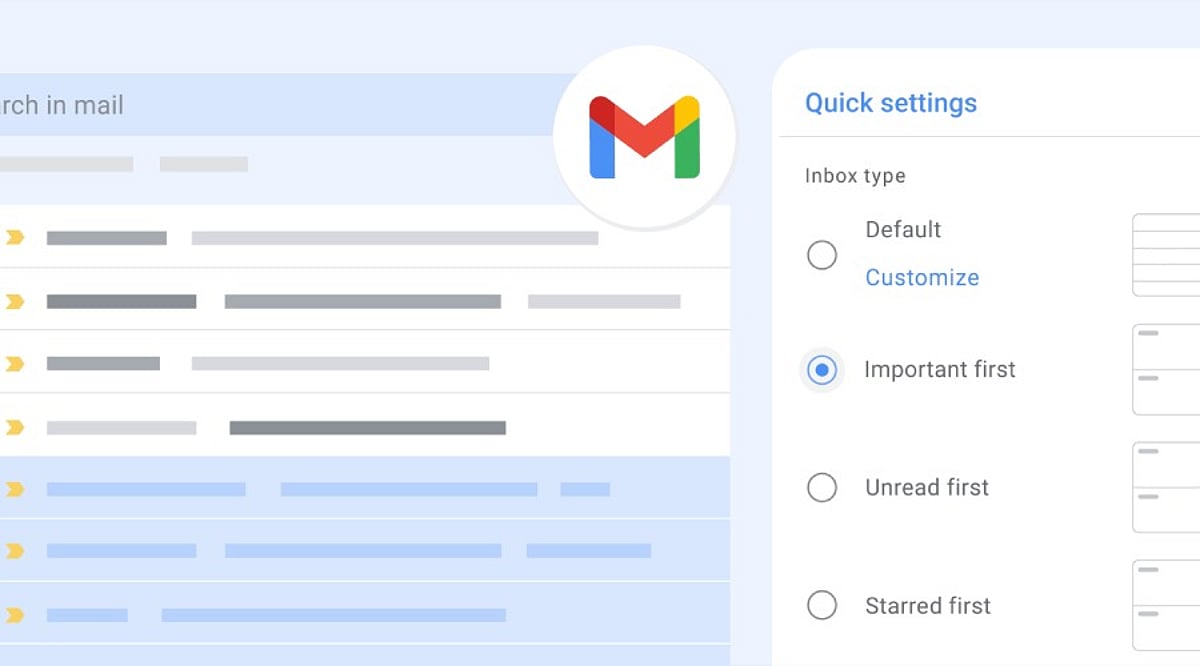
Gmail’s bulk tools go beyond simple deletion. Selection, archiving, and labeling each serve different needs. Search operators and filters narrow the scope before action. Reviewing results first turns routine cleanup into a controlled, repeatable system rather than a one-time fix.
Overview
Gmail’s checkbox and “select all conversations” option can act on messages far beyond what fits on one screen. Archiving, deleting, labeling, and marking messages as read or unread each solve a different inbox problem. Search operators and filters turn a one-time cleanup into a system that runs on its own.
A full inbox rarely gets fixed one message at a time. Most people open Gmail, sigh at the unread count, and close the tab again. Yet Gmail already has the tools to clear that backlog in minutes, not hours. The gap is not features—it is awareness.
Selecting Multiple Emails
Click the checkbox beside a single conversation to select it. For a larger batch, use the master checkbox at the top of the message list. This selects the conversations shown on the current page, usually up to 50, though account settings can change that number.
Selecting Every Matching Conversation
A page of messages is rarely the whole problem. Once the master checkbox is clicked, Gmail often shows a banner offering to select every conversation matching the current view or search, not only the ones on screen. That single click turns a partial cleanup into a complete one. It applies equally to an entire inbox or a narrow search result.
Archiving Emails
Archiving pulls messages out of the inbox without deleting them. They stay searchable under All Mail, ready to surface again if needed. This suits anyone who wants a clear inbox while keeping every message on record.
Deleting Emails
Deleting moves selected messages to Trash, where Gmail removes them permanently after 30 days unless they are cleared sooner. This works well for old notifications, expired promotions, and clutter that serves no future purpose. Storage concerns need a different approach, though. A search like larger:10M finds the large attachments actually consuming space, which clears more room than deleting ordinary messages ever could.
Labeling and Marking Read or Unread
Use the Labels button to tag selected messages, grouping related conversations such as receipts or subscriptions. Move to shift messages out of the current view entirely, a distinct action from labeling. The envelope icon marks a batch as read or unread in one step, clearing notification counts without opening a single message.
Search Operators Before Bulk Editing
Narrowing a search before acting reduces the odds of a mistake. Gmail operators such as from:, subject:, has:attachment, older_than:, and is:read make it easier to isolate specific messages. Combining operators refines results even further. For example, from:newsletter@example.com older_than:1y finds older emails from a specific sender, while older_than:1y is:read surfaces read messages more than a year old, ready to review, archive, or delete in bulk.
Filters for Ongoing Management
Manual cleanup fixes today’s mess, not next month’s. A filter built from the search bar can archive, label, or delete future messages that match set criteria, such as a sender or subject line. It affects only new mail arriving after it is created, unless the option to apply it retroactively is selected during setup. That single distinction saves people from wondering why their inbox history stayed untouched.
Managing Gmail on Mobile
The mobile app skips the desktop-style workflow for selecting every conversation across a mailbox or search. Long-pressing a message allows several to be handled together, but sweeping cleanup still belongs on the web version.
Review Before Acting
Bulk actions are hard to undo once applied widely. Scan a few results from the search query before deleting or moving a large batch, just to confirm nothing important slipped in. When in doubt, archiving instead of deleting keeps a message available for later reference. Any filter that includes automatic deletion deserves a second look before it gets saved.
Final Thought
Fast inbox cleanup has little to do with selecting more messages. It comes down to narrowing the right group first, picking the right action, and letting filters carry the weight of future maintenance. That shift, from reacting to managing, is what separates a cluttered inbox from a controlled one.
Frequently Asked Questions
Can I edit multiple emails at once in Gmail?
Yes. Select multiple conversations using the checkboxes, then archive, delete, label, move, or mark them as read or unread in one action.
How do I select all emails in my Gmail inbox?
Click the checkbox at the top of the inbox. If Gmail shows an option to select all conversations matching the current view, click it to expand the selection.
Can I bulk delete old emails in Gmail?
Yes. Use search operators such as older_than:1y to find older messages, review the results, select the conversations, and click Delete.
Can I bulk organize Gmail emails with filters?
Yes. Gmail filters can automatically label, archive, or delete future messages that match criteria such as a sender, subject, or keyword.
Can I bulk edit Gmail emails from my phone?
The Gmail mobile app supports selecting multiple messages, but large-scale inbox cleanup is generally easier through Gmail on the web.
