
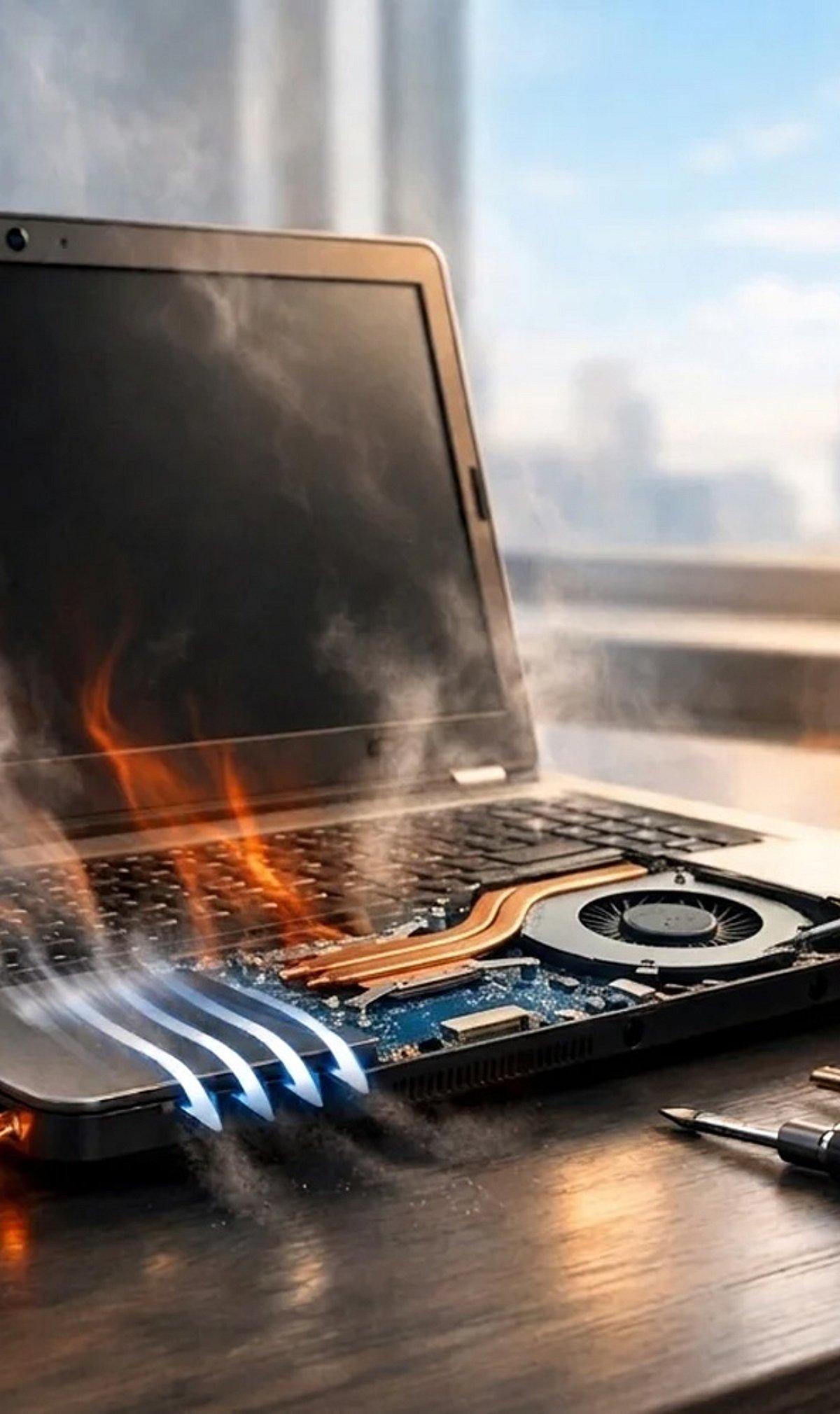
Is your laptop fan suddenly roaring like a jet engine? A noisy fan isn’t just annoying—it’s often a warning sign that your system is working harder than it should. Understanding what’s causing the extra noise can help you fix the problem and keep your laptop cool, quiet, and running smoothly.
Common Causes of a Loud Laptop Fan
- Dust Buildup: Dust accumulates inside the vents and on cooling components, blocking airflow and forcing the fan to spin faster to compensate.
- High CPU Usage: Demanding apps, background processes, or too many open programs increase the processor workload, which generates more heat and triggers louder fan activity.
- Overheating: When internal temperatures climb too high, the laptop speeds up the fan to protect critical components and maintain performance.
- Blocked Air Vents: Using your laptop on beds, cushions, or soft surfaces can cover the vents, trap heat, and make the fan work much harder.
- Too Many Background Apps: Unnecessary applications running at the same time consume system resources, raising processor activity and causing the cooling fan to spin faster.
- Outdated or Incompatible Drivers: Old drivers can create inefficient hardware performance, increasing resource use and contributing to unnecessary fan activity.
- Malware or Unwanted Software: Malicious programs can quietly eat up processor resources, generating extra heat and making the fan run continuously at high speeds.
- Poor Thermal Paste: Deteriorated thermal paste reduces heat transfer between the processor and cooling system, leading to higher temperatures and louder fan operation.
How to Fix and Prevent a Noisy Laptop Fan
- Clean the vents regularly: Use compressed air to gently remove dust from the air intake and exhaust areas.
- Elevate your laptop: Place it on a hard, flat surface or a laptop stand to improve airflow underneath.
- Close unnecessary programs: Shut down apps you aren’t using to reduce CPU load and heat generation.
- Use a cooling pad: A cooling pad can help bring temperatures down during heavy workloads or gaming sessions.
- Run a malware scan: Regularly check for malicious software that may be using resources in the background.
- Update your drivers: Keep chipset, graphics, and BIOS drivers current to ensure efficient hardware performance.
If the fan remains excessively loud after trying these steps, it may be worth having a professional inspect the internal cooling system and replace the thermal paste if needed.