
Tag: laptop upgrade

  • 5 Essential SSD Upgrade Tips to Revitalize Your Laptop’s Speed

    5 Essential SSD Upgrade Tips to Revitalize Your Laptop’s Speed

    Why Upgrade to an SSD?

    Upgrading to a solid-state drive (SSD) is one of the most impactful enhancements you can make to your laptop. Unlike traditional hard disk drives (HDDs), SSDs use flash memory, delivering faster boot times, quicker application launches, improved multitasking, and overall snappier responsiveness. Even an older laptop can feel like new with this simple upgrade.

    1. Check SSD Compatibility

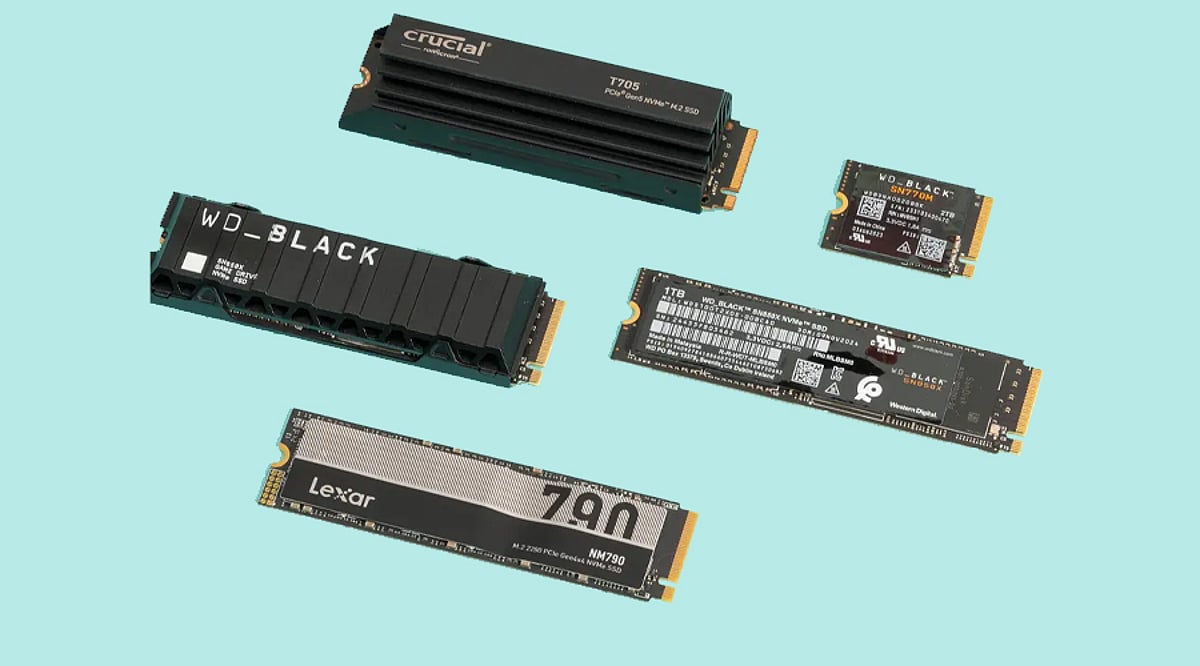
    Before purchasing an SSD, ensure your laptop supports the correct interface and form factor. Older laptops typically require 2.5-inch SATA SSDs, while modern models often accommodate M.2 NVMe drives. Consult your laptop’s specifications or service manual to confirm the maximum storage capacity supported.

    2. Choose the Right SSD Type

    Selecting the appropriate SSD depends on your device and performance needs. SATA SSDs offer excellent value for older systems, while NVMe SSDs provide significantly higher read and write speeds for current laptops. If your laptop supports NVMe, opt for it to enjoy faster boot times, smoother multitasking, and quicker file transfers.

    3. Clone Your Existing Drive

    Rather than reinstalling Windows and all applications, clone your current hard drive to the new SSD. Cloning preserves your operating system, software, settings, and personal files, making the upgrade seamless and time-efficient. Use reliable cloning software and a compatible USB adapter or external enclosure for a safe migration.

    4. Optimize SSD Performance

    After installation, optimize your SSD for long-term performance. Enable TRIM support, update the SSD firmware, and keep at least 10–20% of storage free. These practices help maintain high read/write speeds, improve reliability, reduce performance degradation, and extend the drive’s lifespan.

    5. Buy a Trusted SSD Brand

    Invest in SSDs from reputable manufacturers such as Samsung, Western Digital, Crucial, Kingston, or SK hynix. Reliable brands offer consistent performance, higher endurance ratings, better firmware support, and longer warranties. Choosing a quality SSD ensures dependable operation, especially for users handling large files or intensive workloads.

    Key Takeaways

    An SSD upgrade is a cost-effective way to make your laptop faster and more efficient. Check compatibility, choose the right SSD type, clone your existing drive, optimize system settings, and invest in a trusted brand. Following these five practical tips ensures a smooth upgrade and delivers lasting improvements in speed and productivity.
  • Revive Your Aging Laptop: Affordable Upgrades That Turn It Into a Productivity Powerhouse

    Revive Your Aging Laptop: Affordable Upgrades That Turn It Into a Productivity Powerhouse

    Does your old laptop feel painfully slow? You’re not alone. Boot times stretch into minutes, applications crash, and multitasking becomes a distant memory. Before you give up and buy a new machine, consider this: with a few practical upgrades, you can transform that sluggish laptop into a reliable productivity hub—without breaking the bank.

    Step 1: Clean Out the Clutter

    The easiest fix is often the most overlooked. Remove unnecessary files and programs that have accumulated over the years. Delete unused applications, clear temporary files, and organize important documents into folders. Freeing up storage reduces system load and noticeably improves startup and application launch times.

    Step 2: Upgrade the Hardware

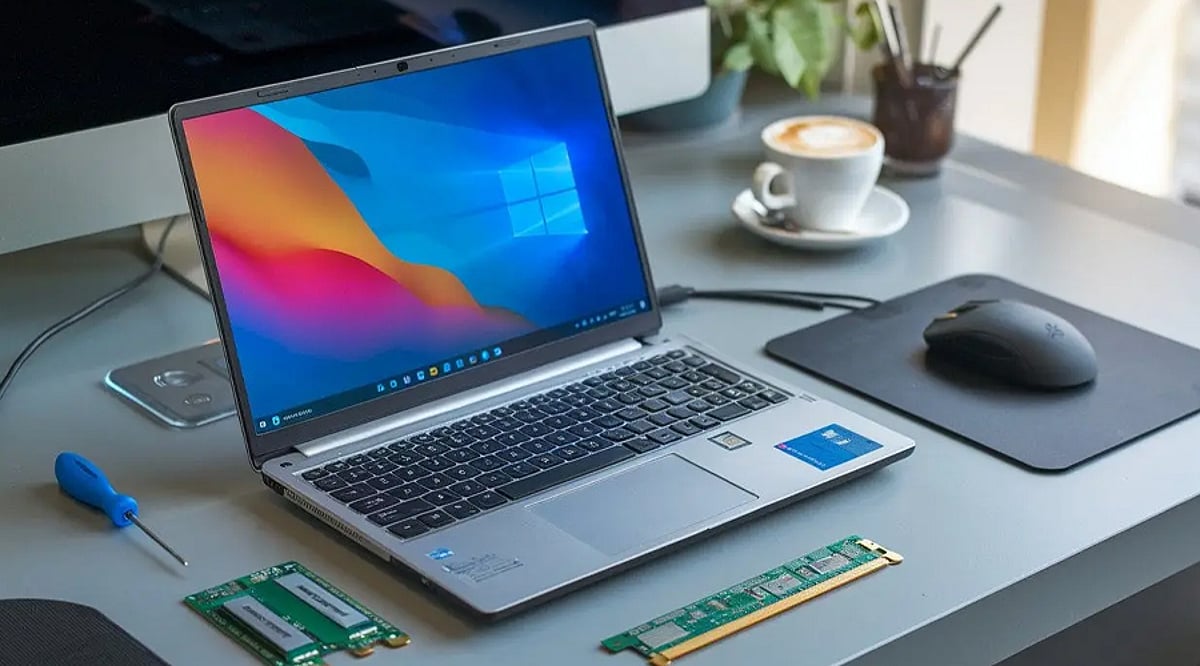
    The single biggest performance boost comes from replacing your old hard drive with a solid-state drive (SSD). This simple swap dramatically reduces boot times and makes applications feel snappier. If your laptop allows it, upgrading the RAM is another affordable improvement that lets you run multiple applications smoothly. Together, these hardware upgrades can make an aging system feel almost as responsive as a much newer computer.

    Step 3: Choose Lightweight Software

    Not all software is created equal. Switch to lightweight browsers and productivity apps that demand fewer system resources. Disable unnecessary startup programs to cut boot time, and keep your operating system and applications updated for better stability and security. These changes cost nothing but can make your laptop run significantly faster.

    Step 4: Create a Comfortable Workspace

    Productivity isn’t just about speed—it’s also about comfort. Add an external monitor for a bigger screen, a wireless keyboard, and a comfortable mouse. A laptop stand improves airflow and reduces neck strain during long work sessions. A well-designed workspace helps you stay focused and efficient for hours.

    Better Performance Every Day

    With these upgrades, your old laptop can easily handle writing, online research, spreadsheets, presentations, and video meetings. It will run much faster than before, and everyday tasks will be completed without frustrating delays. These improvements save both time and money while extending your laptop’s useful life.

    A Smart Investment That Paid Off

    Instead of spending a large amount on a new computer, invest in a few practical upgrades. The experience proves that older devices still have plenty of potential when properly maintained. With a little effort, an aging laptop can become a reliable productivity powerhouse once again.