Tag: macOS

  • Apple macOS 27.2 Beta 2 Adds Multi-Language Siri AI Support and Developer Fixes

    Apple macOS 27.2 Beta 2 Adds Multi-Language Siri AI Support and Developer Fixes

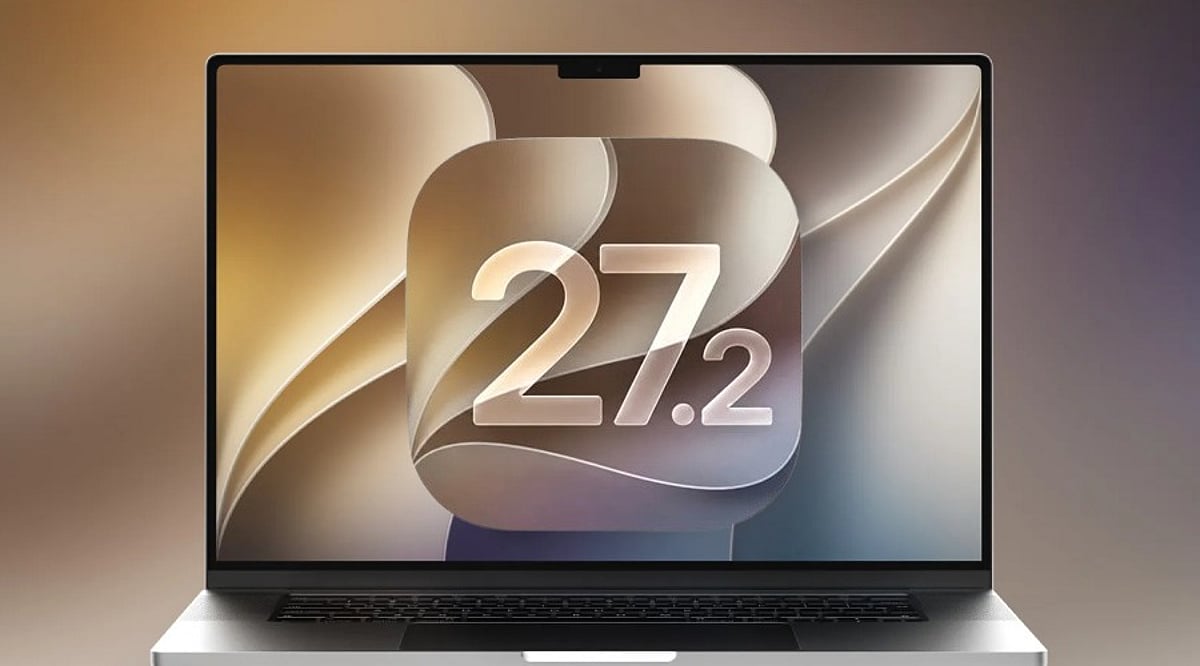
    Apple has released the second developer beta of macOS 27.2, build 26B5091g, arriving one week after the first beta and following the initial launch of macOS 27 earlier this month. This preview continues testing for the upcoming Golden Gate update, with a strong focus on refinements, bug fixes, and ongoing evaluation of known issues.

    Expanded Siri AI Language Support

    The most significant addition in macOS 27.2 is the expansion of Siri AI to multiple languages beyond English. The first beta introduced support for French, Japanese, Korean, Portuguese, and Spanish, and Beta 2 continues that effort. This marks a major step in Apple’s push to bring advanced on-device intelligence and natural-language capabilities to users worldwide through the Foundation Models framework and App Intents APIs.

    Beta 2 Focus on Testing and Stability

    Apple has not unveiled any major new user-facing features specifically for Beta 2. Instead, the release emphasizes continued testing and resolution of issues flagged in the first beta. The official release notes list several known problems under investigation, including potential Xcode crashes during code completion ranking, notification failures after a clean installation, and a glitch affecting the Shortcuts ‘Describe a Shortcut’ function. Apple advises developers to review the release notes carefully before installing.

    How to Install macOS 27.2 Beta 2

    Registered developers can download the beta via System Settings > General > Software Update, then select the macOS developer beta under Beta Updates. Apple strongly recommends backing up your Mac before installing any beta software, as preview builds may contain bugs, compatibility issues, or other problems. The stable release is expected later in October after additional beta iterations.

  • Apple Gaming Controller: Beats-Branded Gamepads T6502 and T1057 Spotted in macOS Code

    Apple Gaming Controller: Beats-Branded Gamepads T6502 and T1057 Spotted in macOS Code

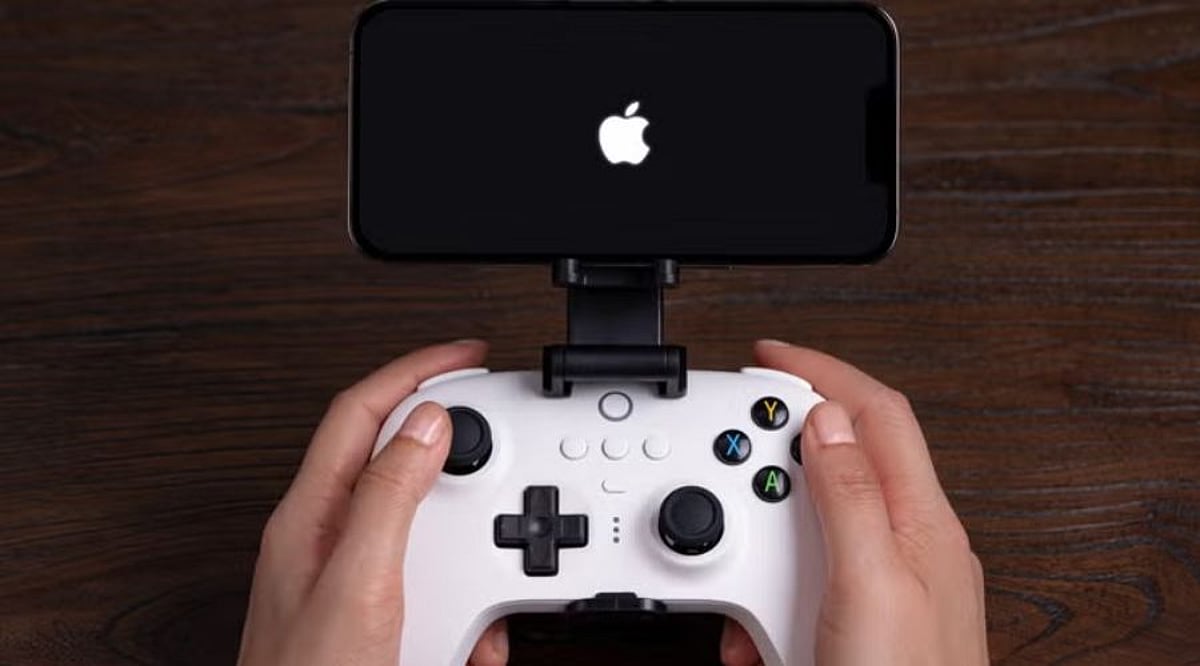
    Apple is reportedly developing its first gaming controllers under the Beats brand, according to Bloomberg’s Mark Gurman. The two models, identified as T6502 and T1057 in leaked macOS code, could bring physical controls, haptics, motion sensors, and Bluetooth connectivity to iPhone gamers, offering Apple a lower-risk entry into gaming hardware.

    The controllers, which have been in development for over a year, are being led by Beats executives. The leaked profiles describe two conventional gamepads with dual thumbsticks, ABXY buttons, shoulder buttons, and analog triggers. The T6502 model may use USB connectivity with four haptic channels across two motors, while the T1057 adds Bluetooth, motion sensors, and a single haptic motor.

    Apple has not confirmed the controllers, their branding, pricing, or release timeline. The software references appeared in a macOS 26.7 release candidate in September, with later changes to those references leaving launch plans uncertain.

    Beats could give Apple more flexibility in pricing and design, allowing it to challenge established brands like Backbone, Razer, GameSir, Sony, and Microsoft without the premium Apple pricing. The brand’s lifestyle identity, focused on entertainment, fashion, and youth culture, makes a colorful plastic gamepad a natural fit.

    If Apple moves forward, the strategy could extend Beats beyond audio accessories and strengthen the iPhone’s position as a serious gaming device, with tighter integration with Apple Arcade and other Apple platforms.

  • Kaspersky Launches App Cleaner for macOS to Remove Hidden App Leftovers

    Kaspersky Launches App Cleaner for macOS to Remove Hidden App Leftovers

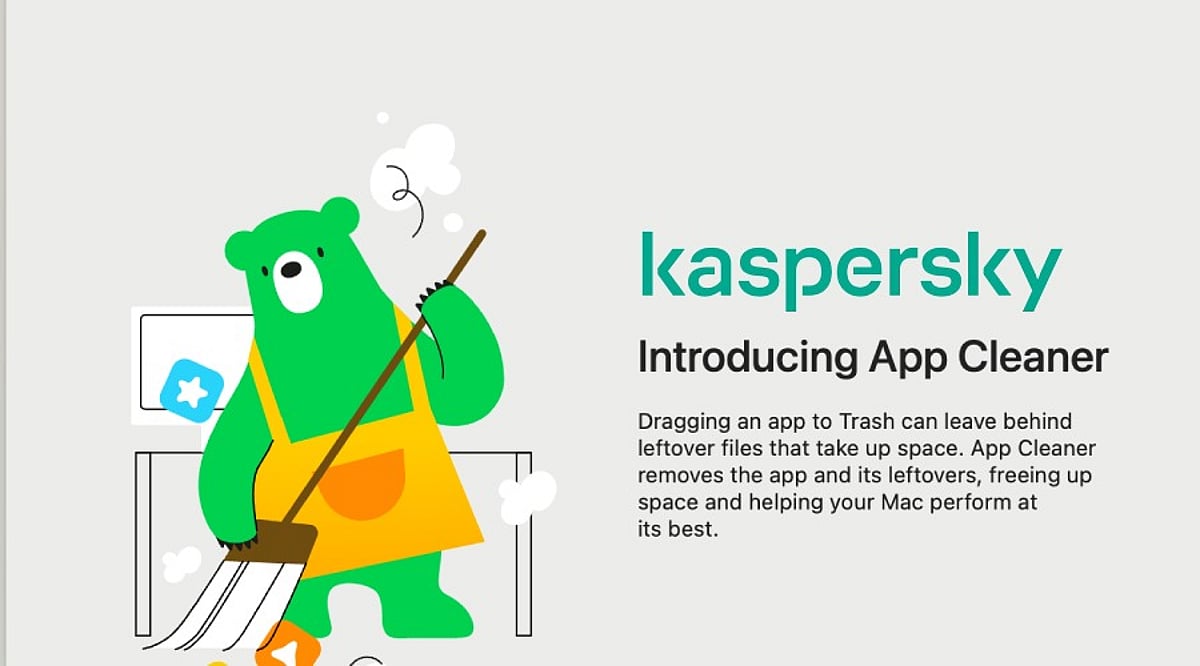
    Kaspersky has introduced a new feature called App Cleaner as part of Kaspersky Premium for macOS, designed to tackle a persistent issue for Mac users: leftover files that remain even after applications are uninstalled. When users drag an app to the Trash, caches, preferences, support files, and other associated data often stay behind, gradually consuming disk space and contributing to digital clutter. App Cleaner ensures complete removal of apps without leaving traces, and also detects and deletes leftover files from previously uninstalled applications.

    The Hidden Cost of Uninstalling Apps

    A recent Kaspersky survey revealed that macOS users are generally proactive about managing digital clutter. Nearly 56% clear browser history, cookies, cache, and temporary files, while 54% manage or delete unnecessary files like photos and videos. However, only 44% regularly delete unused or rarely used apps. Removing leftover files from uninstalled apps remains an overlooked challenge.

    When an app is deleted by dragging it to the Trash, users often assume it is completely gone. In reality, settings, caches, logs, support files, and other associated data may persist on the disk. These leftovers can be difficult to locate and, in some cases, occupy more space than the original application—especially for browsers. Some app components may also be hidden from the standard macOS interface, making them hard to detect.

    Leftover files may contain sensitive information, including account tokens, saved passwords, activity logs, IP addresses, usernames, document fragments, images, chats, and personal folder paths. If an attacker gains access to the device, or if it is sold or given away without being fully wiped, these files could be used to recover passwords, steal personal data, or access user accounts.

    How App Cleaner Works

    App Cleaner solves this problem by detecting and deleting associated files when a user removes an app. It can also find and remove leftover app-specific files from applications that were uninstalled in the past. The exception is shared files—App Cleaner will not delete files used by other apps, such as common components shared between Microsoft Office apps. These files can only be deleted along with the last application that uses them.

    Security Beyond Cleanup

    While macOS has long been considered more secure, today’s threats are not limited to viruses. Ransomware, trojans, spyware, online scams, phishing credential theft, and other threats pose risks to Mac users. Kaspersky specialists have even identified cases where malware was disguised as legitimate cleaning software, impersonating tools like CleanMyMac, Mole, or CCleaner Pro. The company warns users to stay vigilant when downloading any cleaning software, especially from third-party websites.

    Irina Ermilova, Vice President for Consumer Product Management at Kaspersky, commented: “We’ve seen growing demand for device management tools as users accumulate more digital content. Yet a patchwork of third‑party utilities is both inconvenient and risky. With App Cleaner, macOS users can clean up digital leftovers without installing additional software – keeping their devices secure and clutter‑free.”

    Essential Security Practices for Mac Users

    Beyond using App Cleaner, Kaspersky experts recommend the following practices to keep Mac devices secure:

    • Use a dedicated security solution. While macOS has built‑in protections, security software adds a crucial layer of real‑time defense against threats that the system alone cannot block. Kaspersky Premium for macOS protects against ransomware, trojans, spyware, phishing, and hacking attacks.
    • Grant necessary permissions. For any security software to function properly, it needs full disk access and the ability to install system extensions and network content filtering. Without these permissions, protection features may not work as intended.
    • Keep apps and OS updated. Regular updates include critical security patches and new features.
    • Be cautious with downloads and links. Phishing attacks rely on social engineering and can appear in emails, messages, or websites. Avoid opening suspicious links or downloading unverified software.
    • Remove sensitive data before handing over your Mac. If you lend or transfer your device, remove sensitive files and sign out of personal accounts. Before selling or giving away your Mac, perform a complete factory reset.

    The survey was conducted by Kaspersky’s market research center in March 2026, with 7,200 respondents from 18 countries.

    Kaspersky is a global cybersecurity and digital privacy company founded in 1997. It protects over a billion devices and serves consumers, businesses, critical infrastructure, and governments worldwide.

  • Apple Mac Studio: What to Expect This Fall and Beyond

    Apple Mac Studio: What to Expect This Fall and Beyond

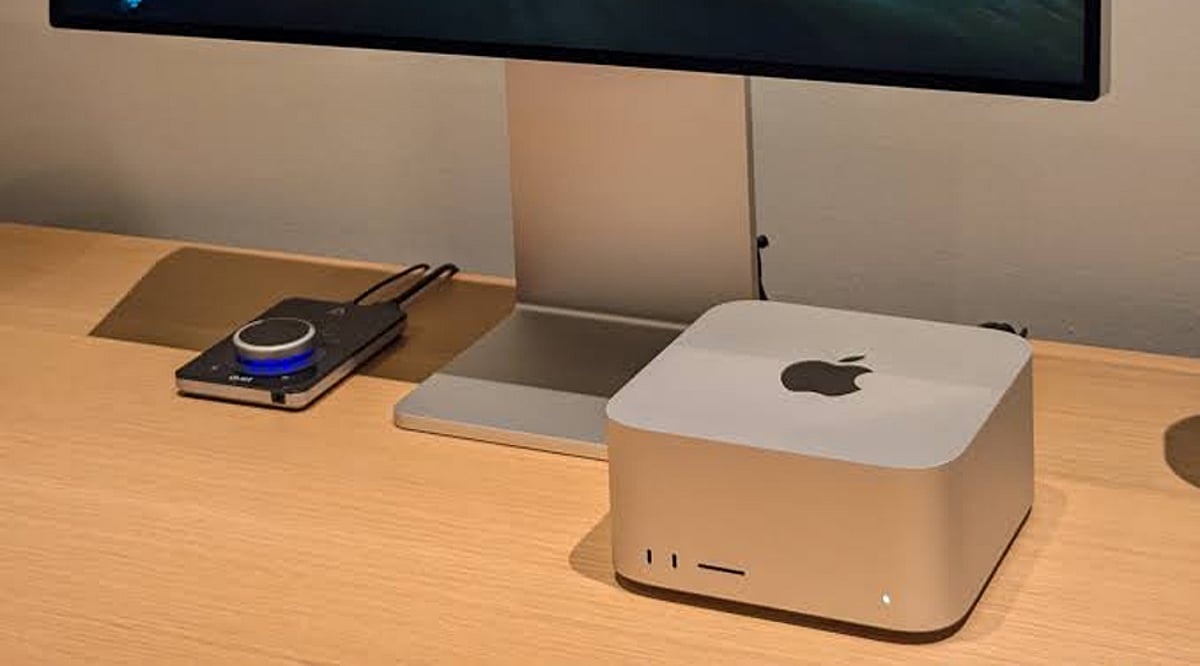
    Apple’s Mac Studio is evolving. The powerful desktop continues targeting creative professionals with exceptional performance. New hardware and software improvements are expected this fall and beyond. From advanced chips to AI features, the Mac Studio could become even more capable. Here’s what to expect.

    Next-Generation Apple Silicon

    Apple is expected to introduce even more powerful Apple Silicon chips for the Mac Studio. Improved CPU and GPU performance could significantly boost demanding creative workflows. AI processing capabilities may also receive a major upgrade. Professionals could see faster rendering and development speeds.

    Better AI Performance

    Artificial intelligence is becoming central to Apple’s desktop strategy. Future Mac Studio models may feature stronger Neural Engine performance for AI-assisted applications. Developers, designers, and content creators stand to benefit. Local AI processing could also improve privacy and responsiveness.

    Thunderbolt & Connectivity

    Apple may expand connectivity with faster Thunderbolt ports and additional high-speed I/O options. Improved support for external displays and storage is also expected. Faster data transfers will benefit video editors and engineers. Connectivity remains one of Mac Studio’s biggest strengths.

    macOS Improvements

    Upcoming macOS updates are expected to bring better multitasking, productivity, and Apple Intelligence integration. Creative software should become more optimized for Apple Silicon. Improved collaboration tools may also arrive. The overall desktop experience is likely to become even smoother.

    Professional Workflows

    Mac Studio continues to target professionals working in video editing, 3D rendering, software development, and music production. Future hardware improvements could reduce rendering times significantly. Better AI acceleration may automate repetitive tasks. Productivity gains remain a key focus.

    Final Outlook

    Apple’s Mac Studio is expected to remain one of the company’s most powerful desktop computers. Continued Apple Silicon innovation and software optimization should strengthen its appeal. Professionals looking for high-end desktop performance have plenty to watch. This fall could bring another major leap forward.

  • Step-by-Step Guide to Unlocking Apple’s Hidden Siri AI Popover

    Step-by-Step Guide to Unlocking Apple’s Hidden Siri AI Popover

    Apple has introduced a hidden Siri AI Popover that transforms how users interact with the digital assistant on compatible devices. This guide walks you through the activation process, from checking device compatibility to exploring the AI-powered interface.

    Check Device Compatibility

    The hidden Siri AI Popover is available only on compatible Apple Intelligence-supported devices, including newer iPhone, iPad, and Mac models. Ensure your device supports Apple Intelligence and is running the latest compatible software version before attempting to access the redesigned Siri interface.

    Update to the Latest Software

    Install the latest version of iOS, iPadOS, or macOS that includes Apple Intelligence features. Software updates often unlock hidden capabilities, improve Siri performance, and ensure compatibility with the AI-powered floating Siri Popover interface designed for eligible Apple devices.

    Enable Apple Intelligence

    Open your device settings and turn on Apple Intelligence if it is available in your region. Some features may require joining the waitlist or downloading additional AI resources before the hidden Siri Popover becomes accessible through supported voice commands or activation methods.

    Turn On Siri Features

    Navigate to Siri settings and enable options like “Listen for Siri” and side button activation. These settings allow the assistant to launch correctly, making it easier to trigger the new floating AI Popover interface instead of relying on traditional full-screen Siri interactions.

    Activate Siri Normally

    Once everything is configured, activate Siri using your voice or the device’s dedicated button. On supported Apple Intelligence devices, Siri appears as a subtle glowing border or compact Popover, allowing you to continue using apps without interrupting your workflow or screen activity.

    Explore AI Capabilities

    The Siri AI Popover supports contextual assistance, writing tools, summaries, and app-aware interactions through Apple Intelligence. Experiment with different prompts, ask follow-up questions, and use productivity-focused requests to experience the upgraded AI assistant beyond standard voice commands and basic information retrieval.

    Know the Availability Limits

    Apple Intelligence features, including the Siri AI Popover, are rolling out gradually across devices, languages, and regions. If you cannot access the feature immediately, keep your software updated, monitor Apple’s announcements, and wait for wider availability as support continues expanding.

  • Master Gemini Spark on macOS: A Guide to AI-Powered Productivity

    Master Gemini Spark on macOS: A Guide to AI-Powered Productivity

    Google has expanded the Gemini experience across devices, and Gemini Spark on macOS helps users quickly access AI-powered assistance for writing, coding, brainstorming, and research.

    Getting Started with Gemini Spark

    Download and install the latest Gemini app for macOS, then sign in with your Google account to access Gemini Spark features. The setup process is straightforward and takes only a few minutes.

    Core Capabilities

    Gemini Spark lets you summarize long documents, draft emails, generate ideas, and answer complex questions without switching between multiple apps. Its versatility makes it an essential tool for professionals and creatives alike.

    For Developers

    Developers can use Gemini Spark for code generation, debugging, explaining code snippets, and creating scripts in multiple programming languages. This streamlines development workflows and boosts efficiency.

    Integration with Google Workspace

    The app integrates with Google Workspace services, making it easier to work with Docs, Gmail, Drive, and Calendar where supported. You can leverage AI assistance directly within your everyday tools.

    File Analysis

    Users can upload PDFs, images, and other supported files, allowing Gemini Spark to analyze content and provide summaries or insights. This feature is particularly useful for research and data review.

    Voice and Conversational Features

    Voice input and conversational interactions make it easy to ask follow-up questions and refine responses naturally. The AI understands context and maintains coherent dialogues.

    Best Practices

    For the best experience, keep the app updated, verify AI-generated information, and review privacy settings before sharing sensitive data. As Google continues to enhance Gemini with new AI models and productivity tools, Gemini Spark is becoming a valuable assistant for Mac users.

    Stay tuned for more updates and features as Google expands its AI ecosystem on macOS.