
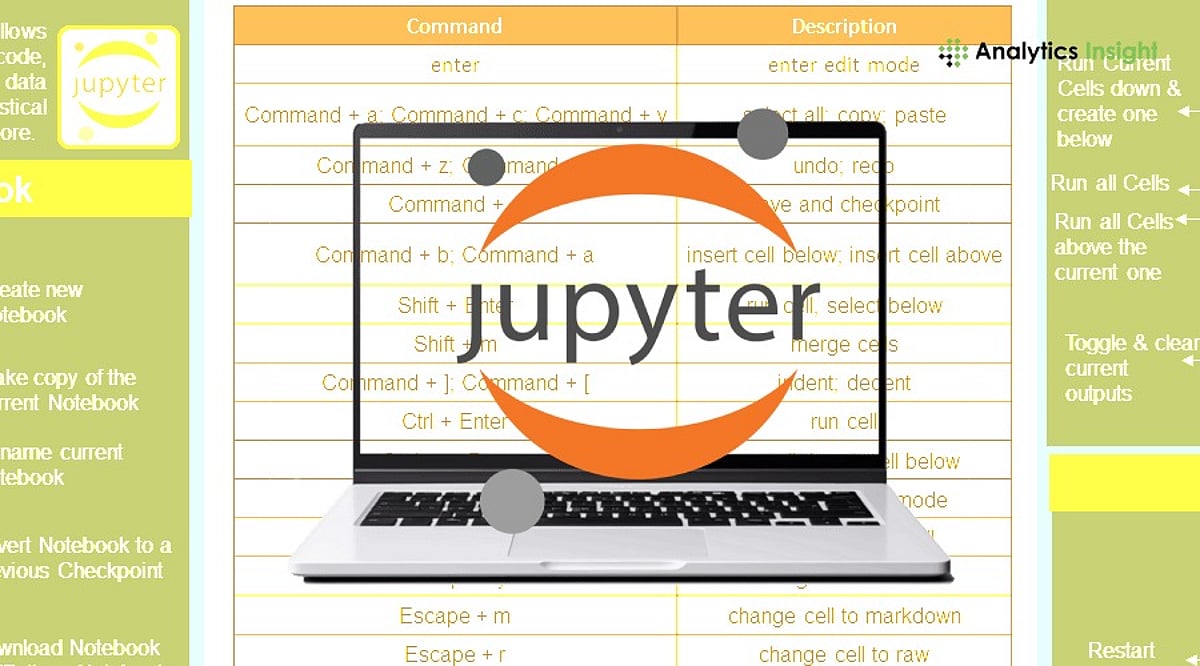
Jupyter Notebook remains a powerhouse for Python, AI, and data science development in 2026. With the latest updates—including Jupyter AI integration and the March 2026 performance boost—knowing essential shortcuts, commands, and magic functions can dramatically accelerate your workflow. This guide covers everything you need to work smarter, not harder.
Why Jupyter Notebook Still Dominates in 2026
Despite competition from tools like Deepnote, Jupyter Notebook’s simplicity and flexibility keep it at the forefront. It combines code execution, documentation, visualization, and testing in one unified workspace—ideal for both small experiments and large-scale machine learning projects. Universities, research labs, and AI teams continue to rely on it for its ease of use and powerful ecosystem.
Understanding the Two Working Modes
Jupyter operates in two modes: Command Mode (for notebook-level actions like adding, deleting, or moving cells) and Edit Mode (for typing code or markdown inside a cell). Mastering the switch between these modes—using Esc and Enter—saves countless mouse clicks and speeds up navigation.
How Keyboard Shortcuts Save Time
Shortcuts reduce repetitive manual work. Studies show that efficient shortcut usage can cut coding time by 30–40% during large projects. Essential shortcuts include:
- Shift + Enter – Run current cell and move to the next
- Ctrl + Enter – Run current cell without moving
- Alt + Enter – Run current cell and insert a new one below
- A (Command Mode) – Insert cell above
- B (Command Mode) – Insert cell below
- DD (Command Mode) – Delete selected cell
- M (Command Mode) – Change cell to Markdown
- Y (Command Mode) – Change cell to Code
Important Commands for Environment Control
Jupyter commands let you manage kernels, check versions, and control the server without leaving the notebook. Use !pip list to see installed packages, %lsmagic to list all magic functions, and %who to display active variables. These commands streamline troubleshooting and environment management.
Magic Functions That Boost Productivity
Magic functions are built-in shortcuts that perform complex tasks with a single line. Key ones include:
- %timeit – Measure execution time of a statement
- %run – Run an external Python file
- %load – Load code from an external file
- %matplotlib inline – Display plots directly in the notebook
- %pdb – Enable interactive debugging on errors
- %%writefile – Write cell contents to an external file
Better Performance for Data Science Work
Jupyter integrates seamlessly with libraries like pandas, NumPy, and scikit-learn. You can inspect large datasets, generate statistical summaries, and create visualizations—all within one notebook. This eliminates context-switching and improves project organization.
Improved Debugging Features
Modern Jupyter includes advanced debugging: set breakpoints, inspect variables, and auto-reload modules with %autoreload. This reduces manual restarts and speeds up iterative development, especially for complex Python applications.
Major Jupyter Updates in 2026
The March 2026 update brought speed improvements, better stability, and enhanced extension support. Jupyter AI now offers code generation, debugging assistance, and notebook summarization directly inside the environment. Additionally, research like the JupOtter bug detection system—analyzing over 21,000 notebooks—promises even fewer errors in future releases.
Final Thoughts
Jupyter Notebook remains an indispensable tool for developers, data scientists, and AI engineers. By mastering shortcuts, commands, and magic functions, you can reduce manual work and focus on what matters: building innovative solutions. With AI enhancements and ongoing performance improvements, Jupyter is more powerful than ever.
FAQs
1. Why is Jupyter Notebook still popular in 2026?
It combines coding, documentation, visualization, and testing in one simple workspace.
2. What is the biggest Jupyter update in 2026?
The March 2026 update improved speed, stability, and extension compatibility.
3. What is Jupyter AI?
Jupyter AI adds artificial intelligence features such as code generation, debugging help, and notebook summaries.
4. How do shortcuts help in Jupyter Notebook?
Shortcuts reduce repeated manual work and can improve coding speed by nearly 30 to 40 percent.
5. Is Jupyter Notebook only for data science work?
No. Jupyter is widely used for Python development, machine learning, research computing, education, and software testing.