Tag: messaging

  • Master Your Android: A Complete Guide to Changing Default Apps for Browser, Messaging, Camera & More

    Master Your Android: A Complete Guide to Changing Default Apps for Browser, Messaging, Camera & More

    Android phones ship with a set of default apps for browsing, messaging, calling, and more. Most people never bother changing them, but customizing these defaults can make your phone feel truly personal. Whether you prefer a different browser, a dedicated gallery app, or a specific messaging service, switching defaults takes only a few taps. This guide explains where to find these settings, how to change them, and why it matters more than most users realize.

    What Default Apps Actually Are

    Every Android phone assigns a default app to handle common actions—opening a web link, sending a text, viewing a photo. When you tap a link in an email, the phone needs to know which browser should open it. That decision comes from the default app setting. Without a default set, Android sometimes asks you to pick an app every single time, which gets tiring fast. Setting a clear default removes that repeated prompt and speeds up everyday tasks like opening links, dialing numbers, or viewing images.

    Where to Find Default App Settings

    The exact path varies slightly by phone brand, but the core steps are the same across most Android devices. Open the Settings app, scroll down, and tap Apps. Inside this menu, look for Default apps—on Samsung and Xiaomi it may be under a submenu called Advanced or App Management. Tapping this opens a full list of categories: browser, phone, SMS, gallery, and digital assistant. Here you can see exactly which app currently handles each task.

    Changing a Default Browser, Messaging, or Camera App

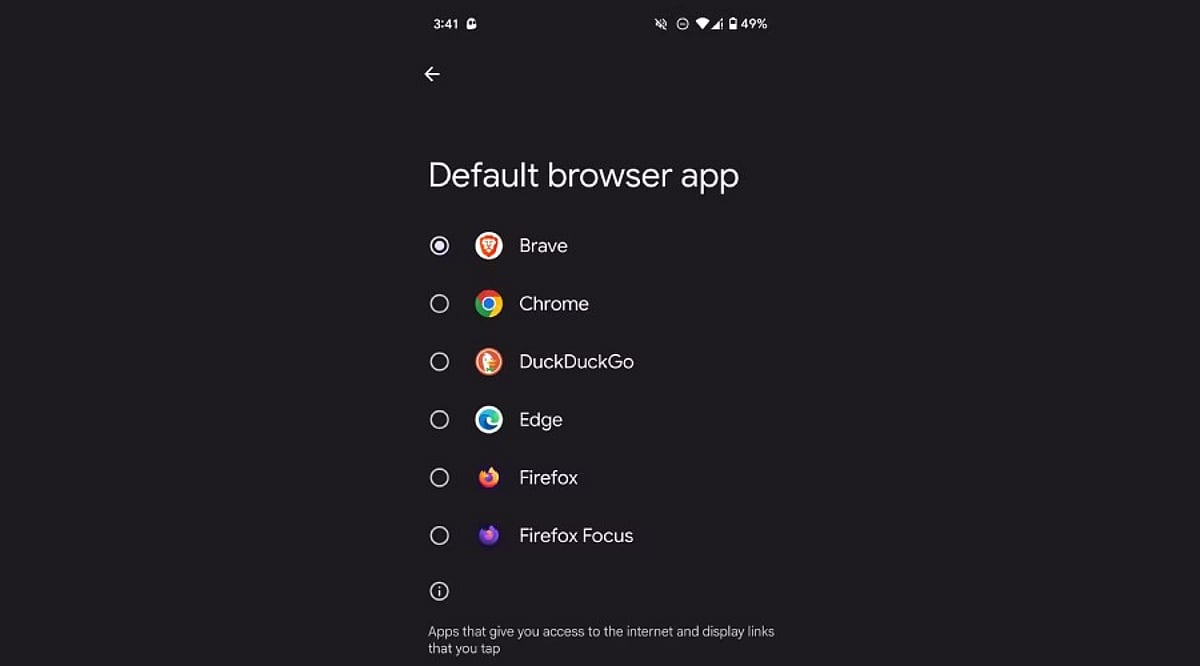
    Switching a default app takes just a few taps. Select the category you want to change, such as Browser app, and a list of every compatible installed app appears. Tap the desired app—like Chrome, Firefox, or Brave—to set it as the new default immediately. The same process works for messaging apps (WhatsApp, Google Messages) and camera or gallery apps. Android applies the change instantly, so the very next link, text, or photo opens through the newly chosen app without needing a restart.

    Handling Default Apps for Specific File Types and Links

    Beyond the main categories, Android lets you control which app opens specific file types or web links—known as “Opening links” settings. This sits inside each app’s settings page rather than the general Default apps menu. For instance, you can choose whether Instagram links always open in the Instagram app or default to a browser instead. This level of control matters if you juggle multiple similar apps, like two PDF readers or note-taking tools, since it avoids constant pop-ups asking which to use.

    Why Setting the Right Defaults Matters

    Choosing the right default apps affects daily convenience far more than people expect. A slow default browser adds unnecessary loading time to every link you tap. A messaging app that isn’t the default might cause missed notifications if messages route through another service. Privacy also plays a role—some apps collect more data than others, and picking a privacy-focused default browser or keyboard reduces exposure. For professionals relying on specific tools for calls, calendars, or file management, correct defaults keep workflows smooth without repeated interruptions.

    A Quick Recap for Everyday Use

    Changing default apps on Android takes only a minute but improves the overall experience noticeably. Open Settings, head to Apps, then Default apps, and pick your preferred option for each category. Beyond the basics, checking individual app link settings adds another layer of control for anyone using multiple apps that serve similar purposes. This small adjustment—across browsers, messaging, camera, and file handling—adds up to a phone that behaves exactly the way you want, cutting down on unnecessary taps and confusing pop-ups. Taking a few minutes to set these preferences correctly makes a real difference in how smooth and personal your Android phone feels every day.

    Frequently Asked Questions

    Where exactly are default app settings located on Android?

    Default app settings live inside the main Settings app. Open Settings, scroll down to Apps, and look for an option called Default apps. On some brands like Samsung or Xiaomi, this option sits inside a submenu named Advanced or App Management. Once inside, a full list shows categories like browser, phone, SMS, gallery, and digital assistant, each showing the app currently handling that task.

    Can users change the default browser without uninstalling the old one?

    Yes. Switching the default browser does not require removing any other browser. Inside the Default apps menu, selecting the Browser app category shows every compatible browser installed. Tapping a different option—such as Firefox or Brave—instantly sets it as the new default, while the old browser stays installed and available whenever needed.

    Why does Android keep asking which app to open a link with?

    This repeated prompt usually appears when no default app has been set for that category, or when multiple apps handle the same file type without a clear preference. Setting a proper default through the Default apps menu removes this pop-up for general categories. For specific links (like Instagram or YouTube URLs), you may also need to check that app’s individual “Opening links” setting to stop the recurring prompt.

    Does changing default apps affect phone performance or battery life?

    Changing default apps mainly affects convenience rather than overall performance or battery life. A faster default browser or messaging app can make everyday tasks feel quicker due to less friction from selection prompts, but the difference in actual battery usage or system performance is minimal. The bigger benefit shows up in daily experience—links, texts, and photos open through your preferred app right away without extra taps or delays.

    Is it possible to reset all default apps back to original settings?

    Most Android phones allow you to reset app preferences through a single option, usually found at the bottom of the Default apps or App Management screen, sometimes labeled “Reset app preferences.” Tapping this clears every custom default you’ve set, and the phone goes back to prompting for a choice the next time an action like opening a link or file happens. This works well for troubleshooting a default app that stopped working correctly or for starting fresh.

  • WhatsApp for iPhone Gains New Search Shortcut to Find Older Messages Faster

    WhatsApp for iPhone Gains New Search Shortcut to Find Older Messages Faster

    WhatsApp is introducing a dedicated search button for iPhone users that simplifies locating older messages within conversations. The Meta-owned messaging platform began rolling out this feature in September 2026, following beta testing in August.

    The new search button appears automatically when users scroll upward through older messages in individual chats, group conversations, or Channels. Tapping the button opens the existing search tool directly, eliminating the need to navigate to the chat information screen first.

    According to WABetaInfo, the feature is compatible with WhatsApp for iOS version 26.36.74 and is being deployed gradually to select users. A broader rollout is expected in the coming weeks.

    In earlier beta builds, the search shortcut was positioned near the bottom-right corner of the conversation. The final version moves it to the top of the screen, just below the navigation bar. The button only appears while scrolling upward; returning to the latest messages hides it again, keeping the interface clean.

    WABetaInfo described the change simply: “The new search button appears at the top of the screen when users scroll up.” Tapping the button activates search mode directly within the conversation, with no changes to the underlying search functionality. Users can still enter keywords and browse matched messages as before.

    Previously, iPhone users had to open a chat, tap the contact or group name, and then select Search from the chat information screen. The update brings that entry point directly into the conversation, reducing the number of steps required to find older content.

    WhatsApp Channels also benefit from the same shortcut, allowing users to search through historical posts without opening the Channel information screen. This is especially useful for Channels with frequent updates and long histories.

    Because the feature is rolling out gradually, it may not appear immediately on all iPhones. Updating the app can help, but account-level activation determines availability. Users without the shortcut can still use the traditional search method through chat information.

    Overall, the update focuses on improving accessibility rather than introducing new search capabilities. For long conversations, active groups, and busy Channels, fewer navigation steps make it easier to locate older messages.

  • WhatsApp Adds Poll Deadlines, Anonymous Voting, and @All Mentions to Group Chats

    WhatsApp Adds Poll Deadlines, Anonymous Voting, and @All Mentions to Group Chats

    WhatsApp is rolling out a suite of new group chat features designed to make voting, alerts, and group planning more efficient. The update, announced globally on August 4, includes poll deadlines, anonymous voting, @all mentions, and a faster way to create new groups. The features will be available to users gradually over the coming weeks.

    Anonymous WhatsApp Polls

    Users can now create polls with a fixed voting deadline. Poll creators also have the option to hide voter names for added privacy when needed. Additionally, poll questions can be edited within 15 minutes of posting, allowing users to correct spelling mistakes or clarify questions without creating a new poll. These improvements aim to simplify group decisions and reduce redundant messages.

    Quick Alerts with @all

    The new @all mention feature lets users notify every group member with a single tag. This is particularly useful for urgent updates such as school closures, office changes, event deadlines, or sudden plan changes. For groups with more than 32 members, only admins can use the @all mention. The alert will appear even if the group is muted, though users have the option to mute @all notifications in their settings.

    New Group Chats from Existing Groups

    WhatsApp also allows users to create a new group from an existing group with just one tap. Members can start separate chats for event planning, projects, or private discussions without needing to add everyone again.

    These features are designed to reduce clutter and make large group conversations easier to manage.

  • Claim Your WhatsApp Username Early: Step-by-Step Guide to Secure It Before Everyone Else

    Claim Your WhatsApp Username Early: Step-by-Step Guide to Secure It Before Everyone Else

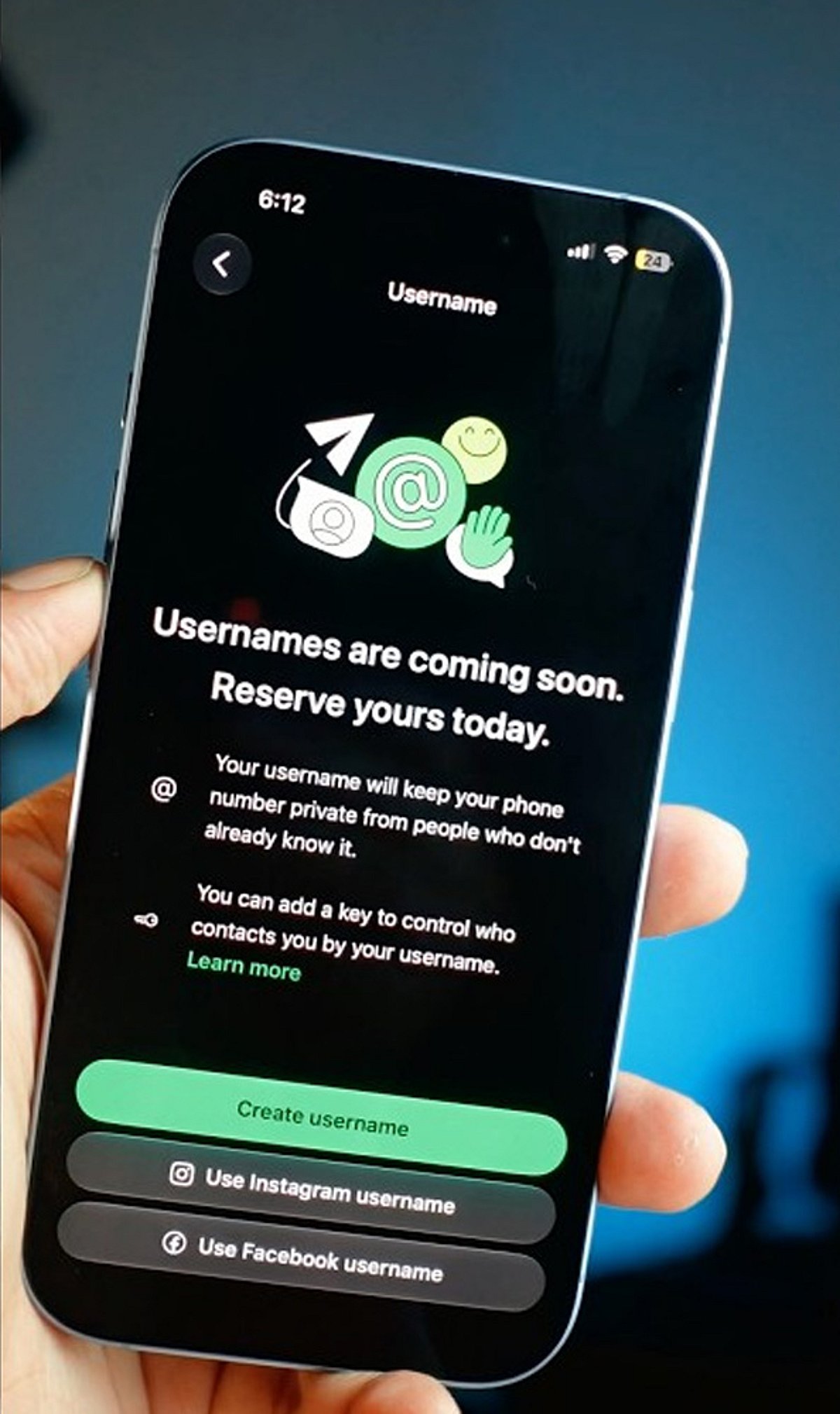
    WhatsApp is rolling out a new feature that allows users to reserve a unique username, giving you a more personalized way to be found on the platform. With demand likely high, acting quickly can help you secure the name you want. Follow these steps to reserve your WhatsApp username before everyone else.

    Update WhatsApp

    Install the latest WhatsApp version from your app store to ensure you have access to new features as soon as username support becomes available.

    Open Settings

    Launch WhatsApp and tap the Settings menu. Once the feature reaches your account, a username option will appear here.

    Find the Username Option

    Look for the Username section below your profile information. It appears only after Meta enables the feature for your account, so keep checking regularly.

    Choose a Unique Name

    Pick a memorable username using letters, numbers, and permitted symbols that reflects your identity without revealing personal information publicly.

    Check Availability

    WhatsApp instantly verifies whether your preferred username is available. If your first choice is already taken, try alternative spellings or variations.

    Follow Username Rules

    Avoid restricted words, special characters, or usernames that violate WhatsApp guidelines to ensure successful registration without unnecessary delays or errors.

    Save Immediately

    Once your preferred username is accepted, save it immediately to prevent someone else from claiming the same username first.

    Join the Beta Program

    Beta users often receive new WhatsApp features before the public release, increasing your chances of securing a preferred username early.

    Keep Checking Updates

    If the feature is unavailable today, regularly update WhatsApp and check Settings because the rollout may happen in phases worldwide.

  • Why iMessage Fails HIPAA Compliance and What Healthcare Teams Need Instead

    Why iMessage Fails HIPAA Compliance and What Healthcare Teams Need Instead

    If anyone on your team uses an iPhone, iMessage is already in their pocket. It’s encrypted, and Apple has built its entire brand around privacy. So is iMessage safe for texting about patients? Can you configure it to be HIPAA-compliant, or does the encryption already take care of that? If your team texts about patients on iMessage, or you suspect they do, the question deserves a direct answer.

    Here’s whether iMessage meets HIPAA requirements, where it falls short, what continued use can cost, and what to look for in a compliant team chat app.

    The Short Answer: iMessage Isn’t HIPAA-Compliant

    iMessage isn’t HIPAA-compliant, and no setting inside the app changes that. According to Apple’s iCloud Terms of Service, healthcare organizations agree not to “use any component, function or other facility of iCloud to create, receive, maintain or transmit any ‘protected health information.’” In plain terms, Apple bans patient information from iCloud entirely. And because iMessages back up to iCloud by default, using iMessage to share patient information with your team is both a HIPAA violation and a violation of Apple’s own terms.

    Why iMessage Isn’t HIPAA-Compliant

    The verdict comes down to three gaps, and any one of them would be enough on its own. Here’s each one and why it matters for your organization.

    Apple won’t sign a Business Associate Agreement

    HIPAA requires a signed BAA from any vendor that stores or transmits protected health information (PHI). It’s a contract that makes the service provider legally responsible for protecting that data. Apple doesn’t offer one for iMessage, and without a BAA, no messaging app can be HIPAA-compliant, no matter how secure it feels.

    End-to-end encryption stops at the iCloud backup

    iMessage has a strong security reputation because messages are end-to-end encrypted on their way to the recipient, but HIPAA compliance breaks down after the message is sent. According to Apple’s own iCloud data security overview, with default settings your iCloud backup includes a copy of the Messages encryption key, and Apple keeps those backup keys in its own data centers. Unless every staff member turns off iCloud backup or turns on Advanced Data Protection, and nobody in your organization can check either one, the content of those messages sits where Apple can read it and where a breach of Apple’s servers could reach it. “Encrypted” sounds like “compliant,” and with iMessage the gap between the two is wide.

    There’s no admin control and no audit trail

    iMessage runs on personal Apple IDs, and its group chats have no admin roles. Anyone can start a group chat about work, and anyone in it can add more people, with no way to limit who can see or share what’s posted. HIPAA expects your organization to control who can access patient information and to prove that it can. iMessage offers no way to do either.

    What’s at Stake When Staff Text About Patients on iMessage

    Every patient-related text on iMessage carries a cost, even when nothing goes wrong right away. Here’s what those threads mean for your organization in practice.

    Patient data syncs to every Apple device staff own

    An iMessage thread doesn’t stay on one phone. It syncs to the personal iPads and Macs signed into the same Apple ID, and iCloud backups keep copies of everything. A photo of a wound or a screenshot of a lab result can end up on a personal device, where nobody in your organization can retrieve or delete it.

    Former employees keep every thread

    When someone leaves, there’s no account to close and no access to shut off. Even if you remove them from every group chat you know about, everything already on their phone stays theirs: the full chat history, the files, and the patient photos, all synced to their personal iCloud account. And because these group chats live on personal devices, you don’t know how many work group chats exist in the first place, let alone which ones a former employee is sitting in. You can’t cut off access to a text thread that lives on hardware you don’t own.

    You can’t produce records for reviews or investigations

    Compliance reviews, HR investigations, and legal holds all run on records. iMessage gives you nothing to export, because there are no admin accounts and no activity records. If an investigator asks how patient information moved through your team, the honest answer is that nobody knows.

    Fines and breach costs pile up before anyone notices

    HIPAA fines can reach $50,000 or more per violation, and every patient-related text sent through a personal messaging app such as iMessage counts as one. HIPAA violations accumulate quietly, one thread at a time, until a complaint, a lost phone, or a resentful former employee brings them to light. According to the HIPAA Journal, the average healthcare data breach costs $7.42 million once you count legal fees, patient notification, and cleanup, and that figure doesn’t include the damage to patient trust when the story gets out.

    Why Staff Text About Patients on iMessage Anyway

    Healthcare teams run on quick messages. A question about a med change, a heads-up before a shift, a photo that needs a second opinion. For iPhone users, iMessage is the most convenient way to send them. It’s already on the phone, it opens in a second, and the whole team knows how to use it. If your approved messaging option is slower, desktop-bound, or not intuitive enough to open quickly, staff will fall back to iMessage every time. Compliance teams call this shadow IT, which means staff solving a work problem with tools the organization never approved and can’t see. With iMessage, it’s the quietest version of the problem, because there’s nothing to install and no sign-up to flag. The way out is a HIPAA-compliant team chat app that’s as easy as texting, because policy memos don’t beat convenience.

    What a HIPAA-Compliant Team Chat App Needs to Have

    If your team is already texting about patients, the goal is to move those conversations into a HIPAA-compliant messaging app built for them. Look for:

    • A signed BAA, offered as a standard part of onboarding
    • Secure cloud storage your organization controls, so nothing is saved on personal devices
    • One-click offboarding, so you can instantly remove access to the entire workspace when someone leaves
    • Admin controls with granular permissions, so you can manage exactly who can see and do what, and the right people see the right information
    • Exportable activity records for compliance reviews, HR investigations, and legal holds

    There’s one more requirement that’s just as important as everything on that list. Your team has to want to use the app, because the fanciest tool in the world is useless if it’s too complicated to open during a busy shift. Your healthcare team needs a HIPAA-compliant iMessage alternative that staff will pick up without training. Zenzap is a team chat app built for healthcare that’s intuitive and easy to use while meeting all HIPAA requirements, with the professional features your organization needs. For teams that use iMessage today, switching barely feels like a change, and that’s what finally moves conversations about patients off personal texting for good.

    Get Conversations About Patients Off iMessage

    iMessage isn’t HIPAA-compliant, and it can’t be configured into compliance. The texts your team has already sent are out of reach, but the next ones don’t have to follow them. Start by finding out where conversations about patients happen today, then give your team a HIPAA-compliant team chat app that’s just as easy to use. That’s how you protect your organization and the patients it cares for.

    Frequently Asked Questions

    Is iMessage HIPAA-compliant?

    No, iMessage isn’t HIPAA-compliant, and every patient-related message your team sends through it violates both HIPAA and Apple’s iCloud terms.

    Does iMessage’s end-to-end encryption make it HIPAA-compliant?

    No, iMessage’s end-to-end encryption doesn’t make it HIPAA-compliant. With default settings, messages back up to iCloud and Apple keeps the encryption key on its servers. Compliance also requires a signed BAA, admin control over who can access patient information, and records your organization can produce on request. iMessage provides none of those.

    Can we make iMessage HIPAA-compliant by turning off iCloud backup?

    No, turning off iCloud backup doesn’t make iMessage HIPAA-compliant. Your organization has no way to verify or enforce settings on personal devices, and Apple won’t sign a BAA or take responsibility for patient information on its devices either way. Without a BAA, the app can’t be compliant no matter how it’s configured.

    Can my team use iMessage if we never mention patient names?

    No, leaving out patient names doesn’t make iMessage safe for messages about patients. Protected health information covers far more than names: photos, room numbers, appointment details, and any detail that could identify a patient all count. If a text is about a patient, treat it as PHI.

    What is the best HIPAA-compliant messaging app for healthcare teams?

    For healthcare teams, Zenzap is one of the best HIPAA-compliant messaging apps. It feels as familiar as texting, so staff use it the way they use iMessage today, without the compliance problems that come with a personal messaging app.

  • WhatsApp Usernames: Connect Without Sharing Your Phone Number

    WhatsApp Usernames: Connect Without Sharing Your Phone Number

    WhatsApp is rolling out a new feature that allows users to connect using unique usernames, eliminating the need to share personal phone numbers. This update is designed to enhance privacy and simplify communication for individuals and businesses alike.

    Instead of giving out your mobile number, you can now create a memorable username that follows WhatsApp’s guidelines and is easy for friends, customers, or clients to find. Once your username is set, people can search for it and send messages without ever seeing your phone number, wherever the feature is supported.

    Usernames are particularly valuable for creators, freelancers, businesses, and community administrators who frequently interact with many people. Privacy settings allow users to control who can discover them or initiate contact, adding an extra layer of account protection.

    WhatsApp continues to bolster security with end-to-end encryption, passkeys, and advanced scam protection alongside the username feature. As the feature rolls out, availability may vary by region and app version, so users should keep WhatsApp updated to access the latest tools.

    Usernames are expected to make connecting easier while giving users greater control over their personal contact information. For more updates, join our WhatsApp Channel to get the latest news, exclusives, and videos on WhatsApp.

  • WhatsApp Usernames: Privacy Boost or New Scam Risk?

    WhatsApp Usernames: Privacy Boost or New Scam Risk?

    WhatsApp is rolling out a major privacy update that lets users start conversations without sharing their phone numbers. Instead of revealing a mobile number, people can now share a unique username. However, this new feature has also raised concerns among creators and entrepreneurs, who fear it could make impersonation and fraud easier if strong safeguards are not in place.

    The update is being released in stages, and users in supported regions can already reserve their usernames. WhatsApp says the feature will reach more countries in the coming months.

    WhatsApp Username Feature Expands Privacy

    The change comes as Meta works to make WhatsApp safer and more private for its billions of users. It follows the appointment of Indian fintech entrepreneur Kunal Shah to lead WhatsApp, as Meta continues adding new services to the platform.

    The biggest change is how conversations begin. Currently, anyone needs a phone number to send a message on WhatsApp. Once the new feature is available, a username will be enough for first-time chats. The phone number will remain hidden unless the user decides to share it.

    WhatsApp says this update is designed to give people better privacy, protecting personal numbers in situations such as joining large group chats, messaging a business for the first time, or talking to someone new. It can also reduce unwanted calls and spam messages.

    How to Create and Use a WhatsApp Username

    Creating a username is simple. Users need the latest version of WhatsApp. After updating the app, they can open Settings, tap Account, and choose Username. They can then pick an available name that contains between three and thirty-five characters.

    WhatsApp will not create a public list of usernames. People cannot search for random users as they can on many social media platforms. Someone must know the exact username before sending the first message, giving users more control over who can contact them.

    The app also includes another safety feature called a username key. Users can turn it on for extra protection. New contacts must enter both the username and the key before sending the first message. The key can be changed whenever needed.

    Why the New Privacy Update Matters

    WhatsApp’s Username feature makes sharing contact details much safer. Many people use WhatsApp for work, online selling, community groups, and school activities. A username allows them to stay connected without giving away a personal phone number.

    Businesses, creators, and organizations will also benefit from the update. They can reserve the same username already used on Instagram or Facebook. This keeps their online identity consistent across Meta’s apps and makes it easier for customers to recognize them.

    WhatsApp will also block usernames linked to celebrities, public figures, and government organizations. This step aims to stop fake accounts and reduce impersonation.

    More than 3 billion people use WhatsApp worldwide, so many popular usernames may be taken quickly. The company has opened early reservations to give users a better chance of getting the name they want before the full rollout ends.

    The update brings WhatsApp closer to other messaging apps that already use usernames. At the same time, it keeps privacy at the center with better phone number protection, stronger secure messaging, and a safer digital identity for everyday conversations.