

Tag: mobile tips

  • 7 Smartphone Tricks to Simplify Your Daily Routine

    7 Smartphone Tricks to Simplify Your Daily Routine

    Your smartphone is more powerful than you think. Beyond calls and apps, it packs hidden features that can save time, reduce clutter, and make everyday tasks effortless. Here are seven clever tricks to get the most out of your device.

    Use Your Phone as a Scanner

    Your smartphone camera can scan documents without needing a separate scanner. Use the built-in document scanning feature in your camera or notes app to capture receipts, forms, and important papers. Many phones automatically straighten edges and improve readability, making digital copies easier to store, share, and access later.

    Turn On One-Handed Mode

    Large smartphone screens can be difficult to use with one hand. One-handed mode moves the screen closer to your thumb, making buttons and menus easier to reach. Look for this option under your phone’s accessibility or display settings. It can be especially useful while commuting or carrying something.

    Set Custom Quick Settings

    You can save time by placing frequently used controls in your phone’s quick settings panel. Add options such as screen recording, hotspot, calculator, flashlight, or screen brightness. Rearranging these shortcuts means you can access useful functions immediately instead of searching through multiple menus or settings.

    Use Voice Commands

    Voice assistants can handle several simple tasks without requiring you to type. You can set reminders, create calendar events, send messages, check the weather, or start navigation using voice commands. This feature is particularly useful when your hands are busy or when you need to complete something quickly.

    Share Your Wi-Fi Easily

    Instead of reading out long Wi-Fi passwords, use your smartphone’s built-in sharing option. On many Android phones and iPhones, you can share network access through a QR code or nearby device. This makes connecting family members, friends, or guests faster while reducing the chance of entering the password incorrectly.

    Use Focus and Do Not Disturb

    Constant notifications can interrupt work, study, or sleep. Use Focus Mode or Do Not Disturb to silence unnecessary alerts during specific times. You can allow important contacts or selected apps to break through. Setting automatic schedules can help reduce distractions without requiring you to change settings every day.

    Find Your Phone Quickly

    If you frequently misplace your phone, enable its built-in device-finding service. These tools can show the phone’s location, play a sound, or help secure the device remotely. Adding an emergency contact and keeping location services enabled can also make recovery easier if your phone is lost.
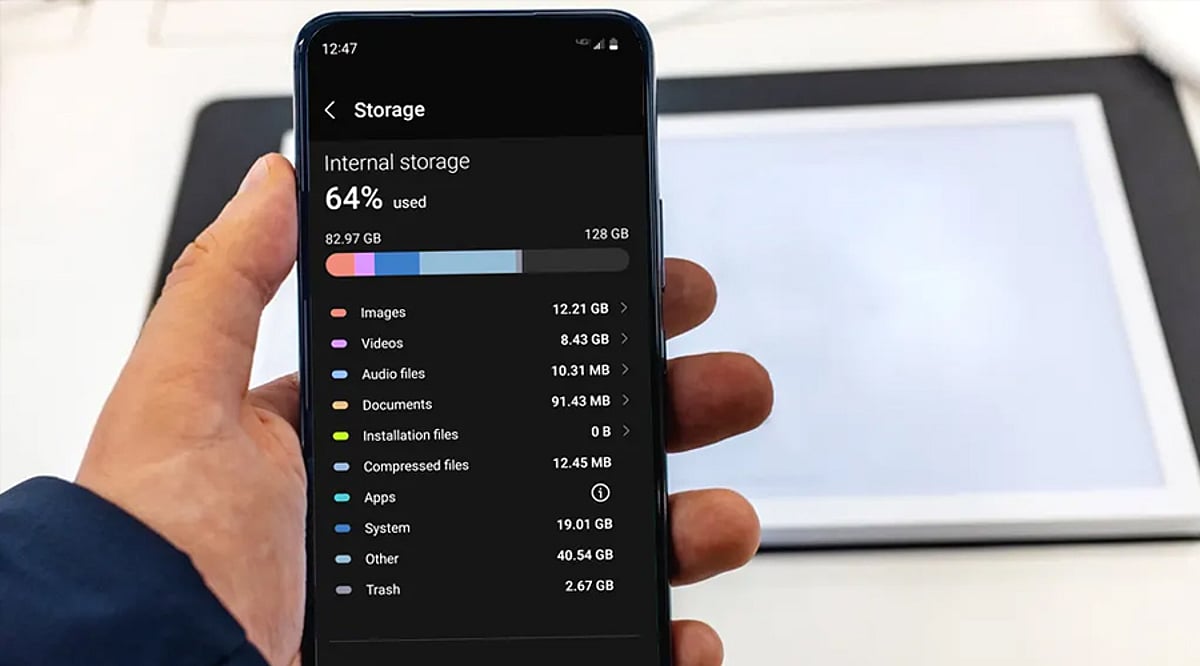
  • How to Free Up Gigabytes of Storage on Android: 7 Simple Hacks I Tried

    How to Free Up Gigabytes of Storage on Android: 7 Simple Hacks I Tried

    Running out of storage is one of the most frustrating Android problems. Before deleting your favorite photos, videos, or apps, try these simple tricks. I tested them on my phone and managed to free up several gigabytes without sacrificing anything important. The best part? Most of these fixes take only a few minutes and require no special apps or technical knowledge.

    1. Clear Cached Data

    Apps silently accumulate cache files over weeks and months, eating up valuable storage. A quick visit to Settings > Storage let me clear unnecessary cache, instantly freeing space while keeping my apps, logins, and personal files completely safe. It’s one of the easiest storage wins.

    2. Delete Duplicate Photos

    My gallery was overflowing with duplicate screenshots, WhatsApp images, and repeated photos. Using a duplicate finder, I removed hundreds of unnecessary copies and recovered a surprising amount of storage. My photo library also became much cleaner and easier to navigate.

    3. Uninstall Unused Apps

    I discovered several games and utility apps that I hadn’t opened in months. Removing these forgotten apps instantly freed up storage while reducing background activity. The phone not only gained extra space but also felt smoother and more responsive during daily use.

    4. Move Photos and Videos to Cloud Storage

    Uploading older photos and videos to Google Photos allowed me to safely delete local copies without losing my memories. Everything remained accessible whenever I needed it, while several gigabytes of internal storage became available for newer files and apps.

    5. Clean the Downloads Folder

    My Downloads folder had turned into a digital junk drawer filled with old PDFs, APKs, ZIP files, memes, and installers. Deleting these forgotten files recovered more space than I expected. It’s worth checking this folder every few weeks.

    6. Remove Offline Downloads

    Offline Netflix episodes, Spotify playlists, YouTube videos, and maps were quietly consuming huge amounts of storage. Removing content I no longer needed instantly created more breathing room. The best part is that I can always download them again whenever required.

    7. Use Android’s Built-in Storage Manager

    Android’s Storage Manager highlighted large files, duplicate items, and apps I rarely used. With just a few taps, I reclaimed even more space without manually digging through folders. It’s a powerful built-in tool that many Android users completely overlook.