
Tag: notifications

  • How to Clean Up Your X (Twitter) Feed: Stop Unwanted Tweets and Improve Your Experience

    How to Clean Up Your X (Twitter) Feed: Stop Unwanted Tweets and Improve Your Experience

    Are you tired of seeing irrelevant, annoying, or offensive tweets on your X (Twitter) timeline? You’re not alone. Fortunately, the platform offers several built-in tools to help you curate a more enjoyable experience. Below, we break down the most effective methods to reduce unwanted posts and take control of your feed.

    Mute Keywords

    Hide any tweet containing specific words, hashtags, or phrases. This is perfect for avoiding spoilers, political arguments, or topics you simply don’t care about.

    Mute Accounts

    Silence posts from specific users without unfollowing them. They won’t know you’ve muted them, and their tweets will no longer clutter your timeline.

    Block Problematic Users

    For those who are truly disruptive, blocking prevents them from interacting with you or appearing in your feed at all. Use this when muting isn’t enough.

    Mark ‘Not Interested’

    When X recommends a post you dislike, tap the three-dot menu and select “Not interested.” This helps train the algorithm to show you better recommendations.

    Adjust Sensitive Content Settings

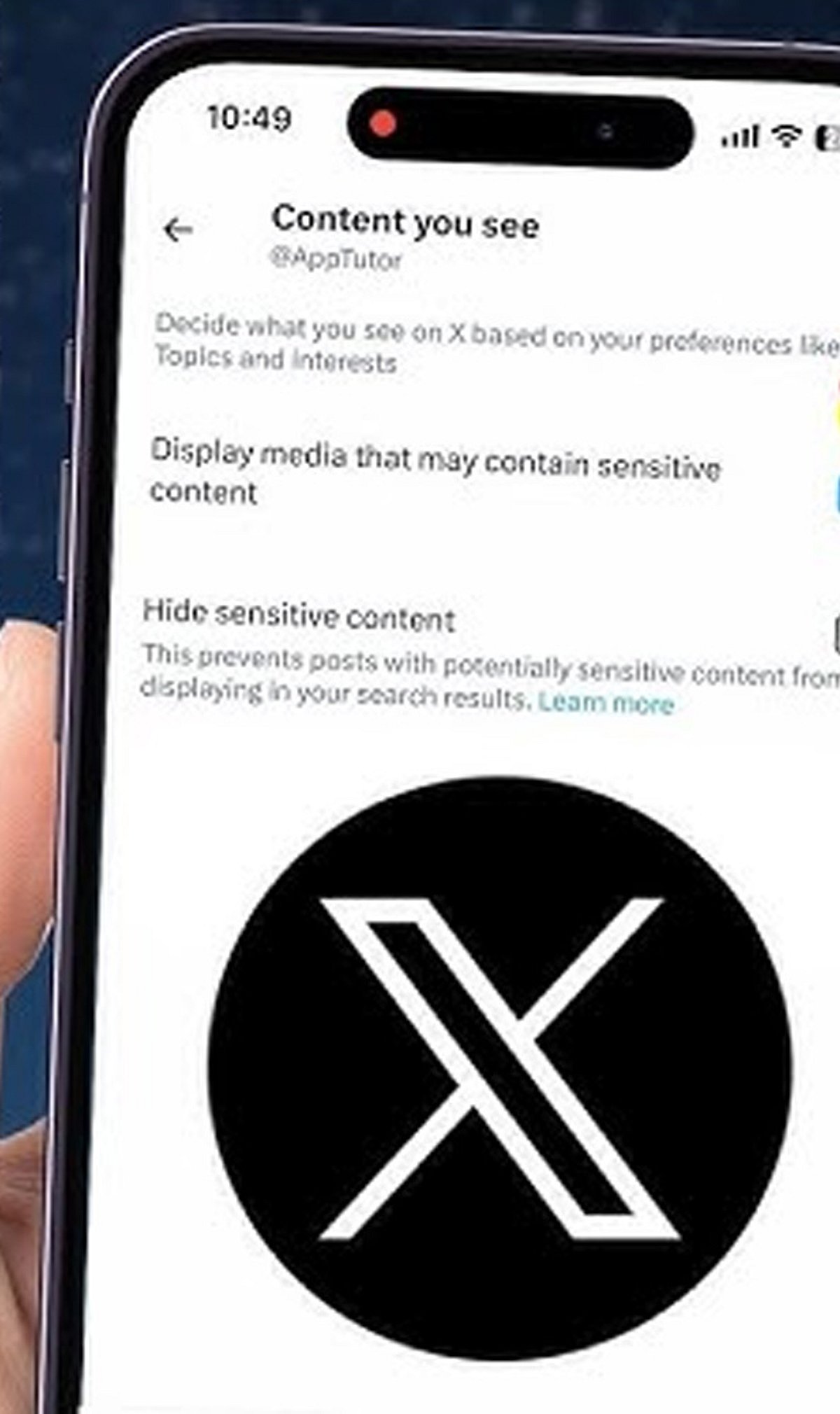
    You can limit exposure to sensitive or explicit media. Go to your privacy settings and toggle the “Display media that may contain sensitive content” option.

    Unfollow Noisy Accounts

    If an account no longer aligns with your interests, don’t hesitate to unfollow. A leaner timeline means fewer distractions.

    Manage Notifications

    Reduce interruptions by filtering notifications. You can choose which types of interactions (likes, retweets, replies) you want to be alerted about.

    Customize Your Following Feed

    Switch between the “Following” (chronological posts from people you follow) and “For You” (algorithmic recommendations) tabs. Prioritize “Following” to see only content from accounts you chose.

    By applying these settings, you can transform your X experience from noisy to enjoyable. Start with one or two changes and gradually refine your feed.

  • Essential Windows Settings to Tweak on Every New PC for Better Performance and Privacy

    Essential Windows Settings to Tweak on Every New PC for Better Performance and Privacy

    A brand-new PC delivers excellent performance, but the default settings aren’t always optimized for speed, privacy, or convenience. Spending just a few minutes customizing key options can significantly improve your experience. These simple tweaks help your computer run more efficiently, stay secure, and feel personalized from the very first day.

    Remove Unnecessary Startup Apps

    Many apps automatically add themselves to the startup list, slowing down your PC every time it boots. Open the Startup Apps settings and disable programs you don’t need immediately after signing in. This reduces memory usage, speeds up startup times, and keeps your system responsive. You can always enable specific apps later if your workflow changes.

    Turn On Storage Sense

    Storage Sense is one of Windows’ most useful maintenance features, yet many users never enable it. It automatically deletes temporary files, empties the Recycle Bin, and clears unnecessary system data. This keeps your storage organized without requiring manual cleanup. It’s especially useful if you frequently download large files or install new applications.

    Adjust Privacy Permissions

    Windows gives apps access to features like your camera, microphone, location, and contacts by default in some cases. Reviewing these permissions helps you decide which apps truly need access to sensitive information. Limiting unnecessary permissions improves your privacy while reducing background activity. It’s a quick setting that can make your PC much more secure.

    Change Power and Battery Settings

    The default power mode may not suit how you actually use your computer. If you edit videos, play games, or run demanding software, switching to Best Performance can improve responsiveness. Laptop users can choose power-saving options to extend battery life while traveling. Adjusting these settings helps strike the right balance between speed and efficiency.

    Enable Automatic Backups

    Backing up your files should be one of the first things you do on a new PC. Windows Backup and cloud services can automatically save your documents, photos, and important settings. This protects your data against accidental deletion, hardware failure, or malware attacks. A reliable backup ensures you can quickly recover if something goes wrong.

    Customize Notifications

    Constant notifications can interrupt your work, gaming, or study sessions throughout the day. Open Notification settings and disable alerts from unimportant apps. Keeping only essential notifications helps you stay focused without missing critical updates. You can also schedule Do Not Disturb mode during meetings or bedtime for fewer distractions.

    Keep Windows Update Active

    Some users delay Windows updates, but doing so can leave their PCs vulnerable to security threats. Regular updates include important security patches, bug fixes, performance improvements, and compatibility enhancements. Keeping automatic updates enabled ensures your system remains protected and stable. It also helps your PC support the latest software and hardware features without issues.

  • Essential Windows Settings to Tweak on a Brand-New PC

    Essential Windows Settings to Tweak on a Brand-New PC

    A brand-new PC delivers excellent performance out of the box, but its default settings aren’t always optimized for speed, privacy, or convenience. Spending just a few minutes customizing key options can dramatically improve your experience. Below are the essential tweaks I always make to keep my computer running smoothly, securely, and personalized from day one.

    Remove Unnecessary Startup Apps

    Many apps automatically add themselves to the startup list, which slows down boot time. Open the Startup Apps settings and disable any program you don’t need immediately after signing in. This reduces memory usage, speeds up startup, and keeps your system responsive. You can always enable specific apps later if your workflow changes.

    Turn On Storage Sense

    Storage Sense is one of Windows’ most useful maintenance features, yet it’s often disabled by default. It automatically deletes temporary files, empties the Recycle Bin, and clears unnecessary system data. This keeps your storage organized without manual cleanup—especially helpful if you frequently download large files or install new applications.

    Adjust Privacy Permissions

    Windows often grants apps default access to your camera, microphone, location, and contacts. Review these permissions to decide which apps truly need sensitive information. Limiting unnecessary permissions improves privacy and reduces background activity, making your PC more secure with a quick setting change.

    Change Power and Battery Settings

    The default power mode may not suit how you actually use your computer. If you edit videos, play games, or run demanding software, switching to Best Performance can improve responsiveness. Laptop users can choose power-saving options to extend battery life while traveling. Adjusting these settings helps strike the right balance between speed and efficiency.

    Enable Automatic Backups

    Backing up your files should be one of the first things you do on a new PC. Windows Backup and cloud services can automatically save your documents, photos, and important settings. This protects your data against accidental deletion, hardware failure, or malware attacks. A reliable backup ensures you can quickly recover if something goes wrong.

    Customize Notifications

    Constant notifications can interrupt your work, gaming, or study sessions. Open Notification settings and disable alerts from unimportant apps. Keeping only essential notifications helps you stay focused without missing critical updates. You can also schedule Do Not Disturb mode during meetings or bedtime for fewer distractions.

    Keep Windows Update Active

    Some users delay Windows updates, but doing so can leave their PCs vulnerable to security threats. Regular updates include important security patches, bug fixes, performance improvements, and compatibility enhancements. Keeping automatic updates enabled ensures your system remains protected and stable, while also supporting the latest software and hardware features.

  • Simple Phone Settings That Slashed My Screen Time by Hours

    Simple Phone Settings That Slashed My Screen Time by Hours

    Like many people, I found myself constantly checking my phone throughout the day. Social media, notifications, and endless scrolling consumed hours without me realizing it. Instead of deleting apps completely, I explored built-in phone settings that encouraged mindful usage. These simple adjustments helped me regain focus and improve my daily routine.

    Turning Off Unnecessary Notifications

    The first change was disabling notifications from social media, shopping, and entertainment apps. Constant alerts were the biggest trigger for checking my phone. I kept only essential notifications for calls, messages, email, and work-related apps. Fewer interruptions made it easier to stay focused and reduced unnecessary screen pickups throughout the day.

    Setting App Time Limits

    I used my phone’s Digital Wellbeing or Screen Time feature to set daily limits for distracting apps. Social media, streaming platforms, and games each received a fixed time allowance. Once the limit expired, I had to decide whether to continue, making me more conscious of how I spent my time online.

    Using Grayscale and Organizing Apps

    Switching the display to grayscale made colorful apps less appealing and reduced the urge to scroll endlessly. I also moved distracting apps into folders on the last home screen page. That extra step created a small pause before opening them, helping me break the habit of mindless phone usage.

    Activating Focus Mode and Bedtime Mode

    Focus Mode temporarily blocked distracting apps during work hours, helping me stay productive without constant interruptions. Bedtime Mode automatically silenced notifications and dimmed the screen at night. These features reduced late-night scrolling, improved my sleep quality, and encouraged healthier digital habits without requiring drastic lifestyle changes.

    Tracking My Progress

    Weekly screen time reports showed exactly how much time I spent on different apps. Seeing the numbers motivated me to make better decisions and celebrate small improvements. Tracking progress turned screen time reduction into an achievable goal rather than an overwhelming challenge, making it easier to stay consistent.

    The Results and Key Takeaway

    Within a few weeks, my screen time dropped noticeably. I became more productive, slept better, and spent more time reading, exercising, and connecting with family. The biggest lesson was that small adjustments to app settings can create lasting habits. You don’t need a digital detox—just smarter control over your phone.