
Tag: overheating

  • Proven Gaming Laptop Cooling Tips to Prevent Overheating

    Proven Gaming Laptop Cooling Tips to Prevent Overheating

    Gaming laptops are built for speed, but they also generate a lot of heat during long gaming sessions. Excess heat can reduce performance, cause frame drops, and even affect the laptop’s lifespan. These practical cooling tips can help keep temperatures under control and ensure smoother, more reliable gameplay.

    Use a Cooling Pad

    A quality cooling pad improves airflow beneath your laptop and helps remove excess heat. Choose one with large, quiet fans that match your laptop’s size. It is an affordable accessory that can make a noticeable difference during long gaming sessions.

    Keep Air Vents Clear

    Avoid placing your laptop on beds, cushions, or blankets because they block the air vents. Always use a hard, flat surface like a desk or laptop stand. Better airflow allows the cooling system to work efficiently and prevents unnecessary heat buildup.

    Clean Dust Regularly

    Dust collects inside the cooling fans and heatsinks over time, reducing airflow and trapping heat. Use compressed air to clean the vents every few months, or have the laptop professionally cleaned if needed. A clean cooling system helps maintain stable gaming performance.

    Adjust Game Settings

    Playing every game at the highest graphics settings puts extra load on the CPU and GPU. Lowering settings like shadows, ray tracing, or resolution slightly can reduce heat without affecting gameplay too much. Your laptop will stay cooler and perform more consistently.

    Update Drivers and BIOS

    Laptop manufacturers often release updates that improve fan control, power management, and thermal performance. Install the latest graphics drivers and BIOS updates from the official manufacturer. These updates can improve system stability while helping your laptop manage heat more effectively.

    Manage Background Apps

    Before starting a game, close browsers, downloads, and unnecessary software running in the background. These apps use valuable CPU, RAM, and storage resources, creating extra heat. Keeping only essential programs open gives your laptop more power for gaming and better temperature control.

    Replace Thermal Paste When Needed

    If your gaming laptop is several years old, the thermal paste between the processor and cooling system may have dried out. Replacing it with a high-quality thermal paste can improve heat transfer, reduce temperatures, and restore cooling performance during demanding gaming sessions.
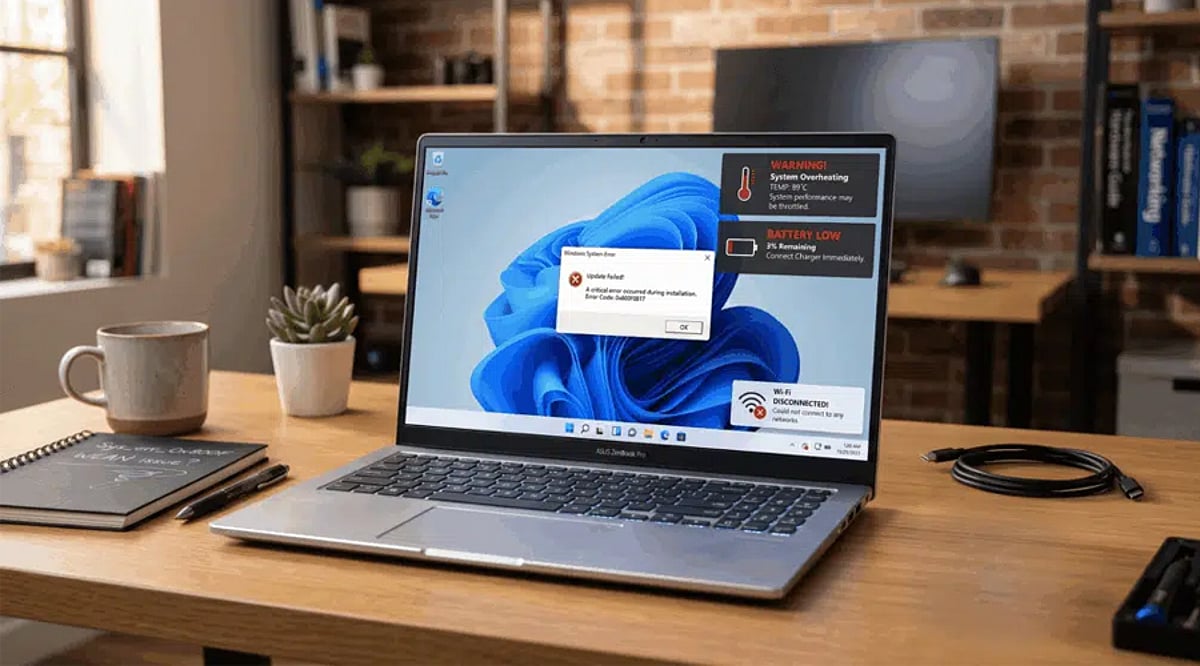
  • Top Gaming Laptop Issues and Easy Fixes for 2026

    Top Gaming Laptop Issues and Easy Fixes for 2026

    Gaming laptops deliver impressive performance, but they aren’t immune to everyday problems that can disrupt gameplay. From slowdowns to overheating, understanding these common issues and their solutions can keep your rig running smoothly. Here’s a breakdown of the most frequent laptop headaches gamers face in 2026 and how to fix them.

    Why Gaming Laptops Slow Down

    Performance degradation is common as games become more demanding. Background applications, outdated drivers, thermal throttling, and limited storage space all contribute to lag and stuttering. Regular maintenance—keeping software updated and minimizing startup programs—helps maintain consistent frame rates.

    Overheating and Thermal Throttling

    High temperatures remain a top concern in 2026. Dust buildup, blocked vents, aging thermal paste, and demanding graphics settings force CPUs and GPUs to throttle performance. Clean cooling vents regularly, invest in a quality cooling pad, and tweak in-game graphics to lower temperatures during long sessions.

    FPS Drops and Stuttering

    Unexpected frame rate drops often stem from outdated drivers, background updates, insufficient RAM, or power-saving settings. Install the latest GPU drivers, enable high-performance power mode, close unused apps, and reduce graphics-intensive effects for a smoother experience.

    Battery Drain While Gaming

    Modern games consume significant power, draining batteries quickly even on newer laptops. For best performance, play while plugged into the original charger and activate performance mode. Lowering screen brightness and disabling unnecessary wireless features also helps conserve battery during lighter gaming.

    Network Lag and Online Issues

    Competitive multiplayer games demand stable connections. Wi-Fi interference, outdated network drivers, and crowded networks increase latency and packet loss. Use a Wi-Fi 6 or Ethernet connection, update network drivers, and prioritize gaming traffic via router QoS settings to improve online performance.

    Storage Running Out Too Quickly

    Today’s popular games often exceed 100GB, making limited SSD capacity a common frustration. Regularly remove unused games, clear temporary files, and upgrade to a larger NVMe SSD where supported. This ensures faster loading times and enough space for future installations.

    Keep Your Gaming Laptop Running Smoothly

    Routine maintenance is the easiest way to extend your laptop’s lifespan. Update Windows and graphics drivers, clean cooling systems, monitor hardware temperatures, and back up important files regularly. Combining these habits with optimized game settings delivers reliable performance and a better gaming experience in 2026.