Tag: privacy settings

  • How Your Smartphone Apps Track You: A Deep Dive into 2026’s Biggest Data Collectors

    How Your Smartphone Apps Track You: A Deep Dive into 2026’s Biggest Data Collectors

    Your smartphone can reveal significant details about your habits—location, purchases, searches, contacts, identifiers, and usage data can create a detailed digital profile. However, data collection is not automatically the same as harmful tracking. Some information is necessary for app functionality, security, personalization, or analytics. Learn what app tracking means and how to reduce your personal data exposure.

    Meta Apps Lead in Data Collection

    A 2026 Surfshark analysis highlighted Meta apps among the biggest data collectors. The study examined 171 iOS apps from major technology companies. Meta apps disclosed an average of 25 data types. This does not mean every user shares every data type; it shows what developers disclose through Apple’s privacy system. Seven of the study’s most data-hungry apps belonged to Meta. Meta AI reportedly listed 33 of 35 possible data types. Meta Horizon, Messenger, Facebook, and other apps followed closely. The categories can include identifiers, location, product interactions, and browsing information. Some Meta apps also declare data linked directly to users. Meta says information from businesses can help personalize content and AI experiences. Its June 2026 update expanded how this activity can influence personalization. The important point is context: data collection does not automatically mean misuse.

    Google Apps Also Gather Broad Data

    Google apps ranked below Meta on average in the same study. However, Google’s enormous app portfolio makes the picture more complicated. The research examined 44 Google apps. Twenty-nine Google apps appeared among those declaring the broadest data collection. Different Google apps can collect different types of data, including search history, purchases, photos, email addresses, and identifiers. Some collection directly supports useful features like search personalization, account synchronization, and security. Users should examine individual app disclosures rather than relying on a company’s overall reputation.

    Amazon and Other Popular Apps

    Amazon’s apps also collect several categories of user information. The study found an average of 12 data types across Amazon’s apps. Amazon apps commonly declared names, email addresses, device identifiers, and product interactions. Some also declared precise location information. Fitness apps deserve separate attention. Health and fitness applications can access particularly sensitive information. The Surfshark analysis found Fitbit, Strava, and Nike Training Club among data-heavy fitness apps. Fitbit declared 24 data types in that analysis. Fitness data can reveal routines, locations, activities, and other personal details, making permission choices especially important.

    What Does ‘Tracking’ Actually Mean?

    Data collection and tracking are not the same thing. Apple’s privacy system separates these concepts. ‘Data linked to you’ means collected information connects with your identity. ‘Data used to track you’ involves linking information with third-party data. That distinction matters when reading privacy labels. An app can collect information without necessarily using it for cross-service tracking. Apple’s App Store labels show declared data categories and their purposes. Developers provide this information themselves, so privacy labels should be treated as a starting point—not a complete technical audit of an application.

    How to Reduce Your Data Exposure

    You do not need to delete every app to improve privacy. Start by reviewing permissions you rarely use. Location access deserves particular attention. Consider whether an app really needs precise location access. Review microphone, camera, contacts, photos, and Bluetooth permissions too. Disable access when those features are unnecessary. On iPhone, the App Privacy Report can show network activity and accessed domains, providing visibility into connections made by apps and websites. Android users can similarly review permissions through system privacy controls. App-store privacy information can provide another useful reference. Users should also review advertising and personalization settings regularly, as these controls can change as platforms update their privacy systems.

    The Goal Is Smarter Privacy, Not Zero Data

    Modern apps need some information to function properly. Navigation apps need location, while shopping apps need account and purchase details. The bigger issue is understanding what information leaves your device and why companies collect it. The data-hungry app rankings offer a useful warning: popular services can collect far more categories than users expect. That does not make every data-heavy app dangerous, but it does make privacy settings worth reviewing. A few minutes spent checking permissions can significantly improve your digital privacy. The best approach is informed use, not fear of every app.

    FAQs

    What are data-hungry apps?
    Data-hungry apps are applications that report collecting many categories of user information. These categories can include location, identifiers, browsing history, purchases, contacts, and usage data. Collection levels vary between apps, and gathering more data does not automatically mean an app is unsafe or malicious.

    Which apps collect the most personal data in 2026?
    Surfshark’s August 2026 analysis found Meta had the highest average data collection among five major technology companies. Meta apps collected an average of 25 out of 35 possible data types. Meta AI ranked highest individually, declaring 33 data types.

    Does data collection mean an app is tracking me?
    Not necessarily. Data collection and tracking have different meanings. Apple defines tracking as linking app or device data with information from other companies for targeted advertising or measurement. An app can collect information without necessarily using it for cross-service tracking.

    What personal information can mobile apps collect?
    Depending on the app, collected information can include location, email addresses, names, device identifiers, purchase history, browsing history, photos, and usage information. Health and fitness apps can also handle sensitive activity-related information. The exact categories depend on the app and its disclosed practices.

    Are Meta apps the most data-hungry apps?
    According to Surfshark’s 2026 study, Meta had the highest average among the five Big Tech companies analyzed. Its apps averaged 25 of 35 possible data types. The study found that Meta’s seven highest-collection apps occupied the top seven positions.

  • Essential AI Browser Permissions: 10 Key Settings to Review for Privacy and Security

    Essential AI Browser Permissions: 10 Key Settings to Review for Privacy and Security

    AI browsers have transformed how we interact with the web, offering features like page summarization, form filling, product comparisons, and task automation. However, these capabilities rely heavily on browser permissions that can expose sensitive data if not managed carefully. With 88% of organizations now using AI regularly—up from 78% in 2024—and the AI browser market projected to grow from $4.5 billion in 2024 to $76.8 billion by 2034, reviewing your browser permissions is more critical than ever.

    1. Site Permissions Need Regular Reviews

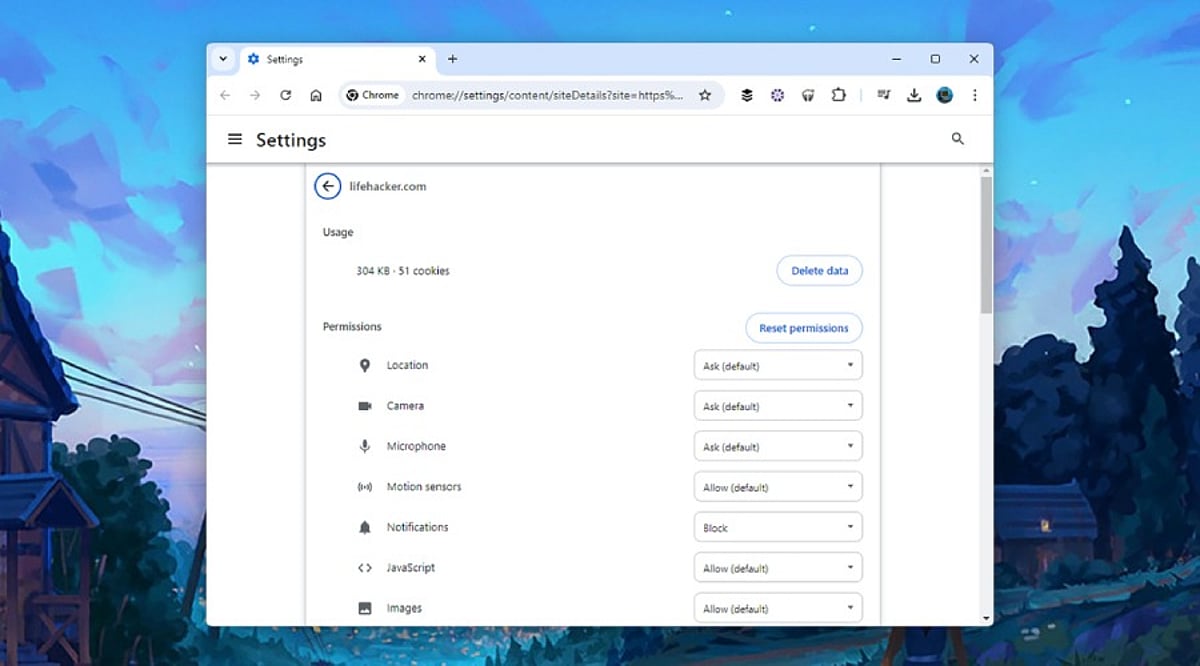
    Every website requests different permissions, from location access for maps to camera and microphone for meetings. AI browsers often combine multiple permissions for a single task, making regular reviews essential. Unused permissions create unnecessary exposure. Camera, microphone, clipboard, notifications, USB devices, Bluetooth, and file access should only be granted to trusted websites. A quick review helps remove permissions that no longer serve a purpose, lowering privacy risks.

    2. AI Extensions Deserve Extra Attention

    AI extensions offer writing assistance, page summaries, and research support but often receive broad access. Security researchers warn that browser agents inherit existing login sessions, meaning an extension could access email, cloud storage, and work platforms. Regularly review and remove unused AI extensions to reduce the number of applications handling sensitive information.

    3. Clipboard Access Can Reveal Sensitive Information

    The clipboard stores everything copied—passwords, payment details, API keys, and more. Modern AI tools may read clipboard content to simplify tasks, creating privacy concerns. Limit clipboard access to trusted websites or extensions that genuinely need it to protect valuable information.

    4. Camera and Microphone Access Should Stay Limited

    Voice assistants and visual AI tools make camera and microphone permissions common for video meetings, voice commands, and live translations. Permanent access is rarely necessary; temporary permission offers a safer option. Grant access only during the session that requires it and revert settings afterward.

    5. Notification Permissions Can Create Security Problems

    Many websites request notification access immediately upon visit. Security experts report notification abuse for phishing and fake alerts. AI assistants can summarize notifications across sites, increasing the value of trusted sources. Regularly review and remove unknown websites from notification access.

    6. Password Manager Access Requires Careful Control

    Browser password managers simplify logins, but AI agents operate within the same authenticated session. Protect password managers with strong authentication and prevent unnecessary extensions from accessing stored credentials to safeguard accounts.

    7. File Access and Data Sharing Matter More Than Ever

    AI browsers can open PDFs, summarize documents, and upload content, requiring local storage access. Grant file access only to trusted websites and verified AI tools. Review settings for chat history, cloud sync, uploaded documents, and stored prompts. Many AI browsers offer controls to limit conversation storage and cloud retention.

    8. Browser Updates Keep Security Strong

    Browser developers introduce new AI features regularly. Google’s WebMCP technology and Chrome Enterprise’s AI management features improve security. Regular updates protect against newly discovered threats and enhance privacy controls for AI services. Current software offers stronger protection against emerging risks like indirect prompt injection and excessive permissions.

    9. Why This Matters

    AI browsers handle personal data, business documents, and online accounts. Permission settings determine how much access these tools receive. Careful management protects sensitive information, reduces security risks, and ensures AI features work safely without exposing valuable data.

    10. Final Thoughts

    AI browsers enable rapid research and automation, but advanced features depend on permission settings. A full permission assessment takes only a few minutes and contributes to enhanced privacy and security. As AI browsers become essential for personal and corporate use, strict permission management is an easy and effective way to ensure safer browsing.

    FAQs

    1. Why are browser permissions important for AI browsers?
    AI browsers use permissions to access device features like camera, microphone, files, and clipboard. Managing these permissions helps protect your privacy and sensitive data.

    2. Which browser permissions should I review first?
    Start with camera, microphone, location, clipboard, notifications, file access, password manager access, Bluetooth, USB devices, and installed AI extensions.

    3. Are AI browser extensions safe to use?
    Trusted extensions can be helpful, but unused or unverified ones may have broad access. Review them regularly.

    4. How often should I check browser permissions?
    A monthly review or checking after installing new AI tools is a good security practice.

    5. Do browser updates improve AI security?
    Yes. Updates include security patches, enhanced privacy controls, and protections against AI-related threats.

  • How to Disable AI Data Sharing on Meta Apps: A Step-by-Step Guide

    How to Disable AI Data Sharing on Meta Apps: A Step-by-Step Guide

    Meta’s apps, including Facebook and Instagram, use artificial intelligence to power features like recommendations, moderation, and personalization. If you’re concerned about your data being used for AI training, you can adjust your settings to limit or remove AI data sharing. Follow this guide to take control of your privacy across Meta’s platforms.

    Step 1: Access Meta’s AI Privacy Settings

    Open the Meta app you use most, such as Facebook or Instagram. Navigate to the Settings menu and look for the Privacy Center or an AI-related section. Meta periodically updates these options, so the exact location may vary depending on the app version and your region.

    Step 2: Open the Privacy Center

    The Privacy Center consolidates many controls related to your account and personal information. From here, you can review how Meta uses your data across its services. Read each option carefully before making changes, as some settings affect how AI features work inside the apps.

    Step 3: Review AI Data Usage Options

    Find the section that explains how Meta AI may use your information. Depending on your location, you may see options to object to certain data processing or limit how your public information is used. Review every setting before submitting any request or preference.

    Step 4: Submit an Objection Request

    If your region supports it, Meta allows users to submit a request to object to AI training using their personal information. Complete the required form with accurate details and send it through the app or website. Meta may review the request before confirming any changes.

    Step 5: Limit Public Information Sharing

    Reduce the amount of public information available on your Facebook and Instagram profiles. Delete old public posts if needed, change future posts to Friends or Private, and review profile visibility. Less public content means less information that could potentially be available for AI systems.

    Step 6: Manage Connected App Permissions

    Check which third-party apps and websites are connected to your Meta account. Remove services you no longer use and revoke unnecessary permissions. This helps reduce the amount of personal information shared across platforms and improves your overall account privacy.

    Step 7: Keep Privacy Settings Updated

    Meta regularly changes its privacy tools and AI features. Review your account settings every few months to see if new controls have been added. Staying updated helps you keep better control over your personal information and understand how your data may be used.

  • How to Disable Sensitive Content Warnings on X (Twitter) – Step-by-Step Guide

    How to Disable Sensitive Content Warnings on X (Twitter) – Step-by-Step Guide

    Enable Sensitive Media on the Web

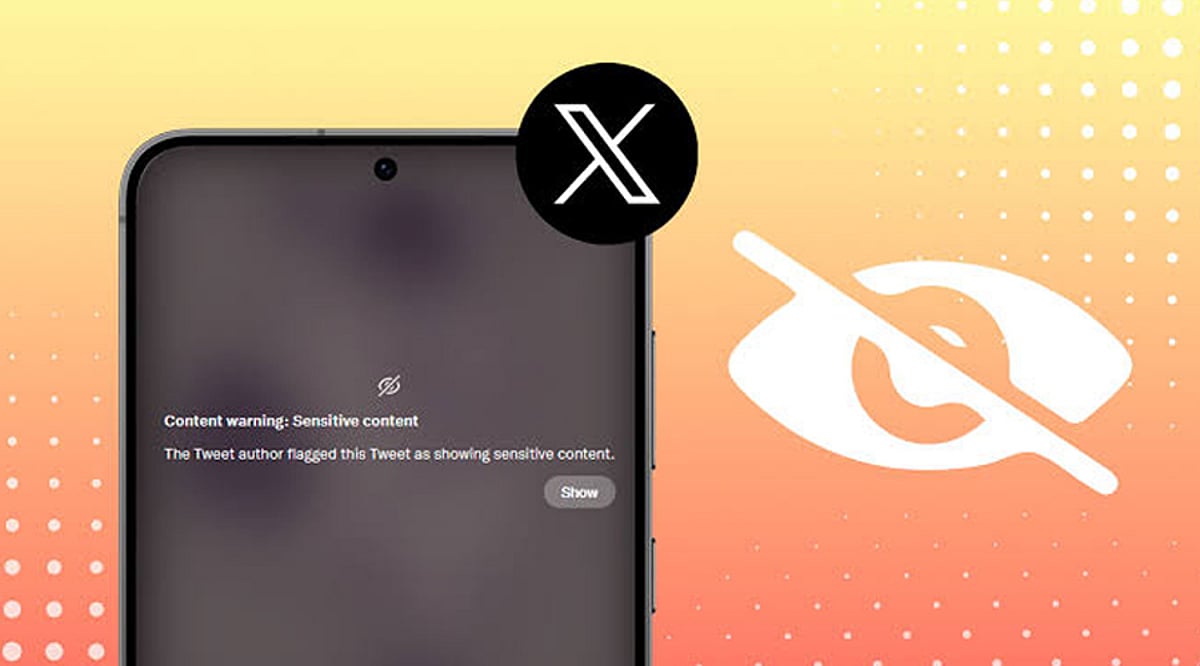
    Log in to your X account from a web browser and navigate to Settings and Privacy. Go to Privacy and Safety, then Content You See. Toggle on the option to display media that may contain sensitive content. Once activated, posts marked as sensitive will appear in your timeline without the usual warning overlay.

    Update Search Settings

    Under Privacy and Safety, open Search Settings and disable the option that hides sensitive content from search results. This allows eligible photos, videos, and posts labeled as sensitive to appear in searches. The change helps you view a wider range of content while still adhering to X’s platform policies.

    Understand Mobile App Limitations

    The availability of sensitive content settings depends on your device. Android users generally have access to these options, while iPhone and iPad users may not due to App Store restrictions. If the setting is unavailable, use the web version of X through your browser instead.

    Refresh Your Account

    After changing your settings, refresh the website or restart the X app to ensure the changes take effect. If sensitive media remains hidden, sign out of your account and log in again. This often synchronizes your updated preferences across different devices and sessions.

    Check Account Eligibility

    Some users cannot access sensitive content due to age restrictions, incomplete profile information, or regional regulations. Verify that your birth date is correct and that your account meets the platform’s eligibility requirements. Certain countries may also impose additional restrictions based on local laws.

    Know What the Setting Changes

    Disabling sensitive content warnings only affects how media is displayed on your account. It does not bypass X’s moderation policies or allow access to illegal or restricted content. Posts removed for policy violations or blocked due to local regulations will remain inaccessible regardless of your settings.

    Troubleshoot Missing Options

    If the sensitive content option is missing, update the X app, clear your browser cache, or try accessing your account from another browser. Some settings are rolled out gradually and may not be available to every user at the same time. Checking X’s Help Center can also provide updated guidance.