Tag: remote work

  • Microsoft Teams Review: Key Features, Benefits, and Challenges for Modern Workplaces

    Microsoft Teams Review: Key Features, Benefits, and Challenges for Modern Workplaces

    Overview

    Microsoft Teams is collaboration software by Microsoft that combines chat, meetings, calls, file storage, calendar, tasks, and document collaboration in one online workspace. Highly integrated with Microsoft 365, Teams enables teams to use tools like Word, Excel, PowerPoint, OneDrive, and SharePoint. Features of Microsoft Teams allow users to communicate, hold virtual meetings, share documents, coordinate projects, and enhance productivity using AI. Benefits include communication centralization, cross-device capability, and teamwork simplification. Despite challenges such as poor performance, notification overload, and difficulty locating old files, Teams remains a leading workplace communication solution.

    General Information

    • Launched in: 2016
    • Platform Support: Android, iOS, Windows, macOS, Web
    • Download: Click Here

    Main Features of Microsoft Teams

    • Chat: Facilitates individual conversations, groups, mentions, and organized discussions for workplace communications.
    • Meetings: Provides audio and video meetings, screen sharing, recordings, live transcription, breakout sessions, and collaboration during meetings.
    • Channels: Organizes discussions according to projects, departments, and topics to make workplace discussions more organized.
    • File Sharing: Supports file and document sharing via chats and channels, integrated with OneDrive and SharePoint to facilitate file management of business documents.
    • AI Copilot: Includes Copilot to facilitate summaries of meetings, conversation assistance, and follow-ups for missing meetings.

    Benefits of Microsoft Teams

    • Integrates chat, meetings, calls, file sharing, and collaboration functionalities, eliminating the need for multiple workplace software applications.
    • Offers great integration with Microsoft 365, keeping documents and productivity applications connected to daily team communications.
    • Fosters remote and hybrid working conditions using cross-device functionality, virtual meetings, screen sharing, recording, and collaborative documents.
    • Organizes project communications using teams, channels, files, calendars, tasks, and meeting-related information.
    • Acts as a centralized digital workspace that can improve communication and collaboration in distributed teams.

    Challenges of Microsoft Teams

    • The application can be resource-hungry, especially during long meetings or when many applications and channels are used simultaneously.
    • A large number of notifications may make it hard to see important alerts among others in busy teams and channels.
    • Locating old messages and documents may require extra effort.
    • Managing multiple teams, channels, accounts, and collaboration tools can make the interface feel crowded.
    • Some users may experience problems with loading the app and accessing account information.

    Subscription Information

    Microsoft Teams is available for free for personal use; additional services are accessible through Microsoft 365 subscriptions. Premium features are available through Microsoft Teams Premium.

    Support Options

    • Help Center and Learning Resources: Microsoft provides Teams help covering meetings, chat, notifications, teams and channels, calls, files, troubleshooting, administration, Copilot, and application management.
    • Customer Support: Microsoft offers support information, technical help, troubleshooting, account help, and IT admin support.

    Conclusion

    Microsoft Teams is an extensive communications solution that integrates messaging, online meetings, calling, file sharing, document collaboration, and productivity tools into one unified system. Its strong relationship with Microsoft 365 is a key advantage, especially for enterprises already using Word, Excel, PowerPoint, OneDrive, and SharePoint. Collaboration and communication features receive high marks in reviews, but performance, search, notifications, and mobile experience still need improvements.

  • Top Webcam Upgrades for Remote Work and Streaming in 2026

    Top Webcam Upgrades for Remote Work and Streaming in 2026

    The best webcam upgrades in 2026 focus on 4K video, improved low-light sensors, AI framing and tracking, and enhanced microphone quality. Whether you’re a remote worker, streamer, or content creator, these models deliver professional-grade performance.

    Leading Webcam Models

    Logitech MX Brio offers 4K video, 1080p at 60fps, HDR support, a privacy shutter, and dual beamforming microphones — ideal for professional calls.

    Insta360 Link 2C Pro stands out with sharp 4K video, strong low-light performance, AI features, and a compact design suitable for both work and content creation.

    Elgato Facecam Pro targets streamers and creators with 4K video at up to 60fps, detailed manual controls, and support for professional streaming setups.

    Razer Kiyo Pro Ultra is built for difficult lighting conditions, featuring a large Sony STARVIS 2 sensor, f/1.7 aperture, HDR, and 4K video at 30fps.

    AI Tracking and Use Cases

    AI tracking webcams such as the Insta360 Link and OBSBOT models can follow movement, making them valuable for presentations, teaching, fitness, and dynamic streams.

    Important Considerations

    For everyday video calls, 4K may not be essential. Platforms like Zoom, Google Meet, and Microsoft Teams commonly limit webcam video to 1080p, so image quality and lighting remain equally important.

    Before purchasing, check USB-C connectivity, autofocus, microphone quality, privacy shutters, Mac and Windows support, and compatibility with apps such as Zoom, Teams, and OBS.

    Recommendations

    Choose based on your setup: Logitech MX Brio for professional calls, Insta360 for AI features, Elgato Facecam Pro for streaming, and Razer Kiyo Pro Ultra for strong low-light performance.

  • Uber Slashes 3,300 Corporate Jobs and Tightens Remote Work Policy

    Uber Slashes 3,300 Corporate Jobs and Tightens Remote Work Policy

    Uber is cutting approximately 3,300 corporate jobs in its largest workforce reduction since the COVID-19 pandemic. The ride-hailing giant is also sharply limiting remote-work options, with fewer than 1% of employees expected to remain fully remote under the new policy.

    CEO Dara Khosrowshahi announced the restructuring in a message to employees on September 2. He explained that Uber’s rapid expansion over the past five years had created excessive management layers, fragmented responsibilities, and more coordination than the company now requires. The restructuring aims to make the business “simpler and faster” while freeing up resources for growth and innovation.

    Management Layers to Shrink

    Khosrowshahi told staff that Uber is moving toward a model where employees are grouped around a small number of designated hubs. The company’s two largest offices in New York and San Francisco will house global teams, with additional regional, country, and tech hubs for other functions. Under the new approach, fully remote roles will be capped at approximately 1% of the company’s global headcount. This marks a major reversal from the flexible, work-from-anywhere culture Uber had built since the pandemic began.

    The restructuring also brings a major change for employees working from home. Uber plans to ask the vast majority of its remote employees to relocate closer to company offices.

    Future Roadmap

    Uber will continue to enforce its existing hybrid policy, which requires employees to work from an office at least three days a week. The company also plans to concentrate teams in key hubs, including San Francisco and New York.

    These latest layoffs are the biggest at Uber since May 2020, when the firm laid off 6,700 employees amid the pandemic. This time, Uber is positioning the layoffs as organizational restructuring meant to simplify operations and redirect resources toward growth, innovation, and its expanding autonomous-vehicle strategy.

  • How Distributed Teams Rely on Cross-Device Office Software for Seamless Document Workflows

    How Distributed Teams Rely on Cross-Device Office Software for Seamless Document Workflows

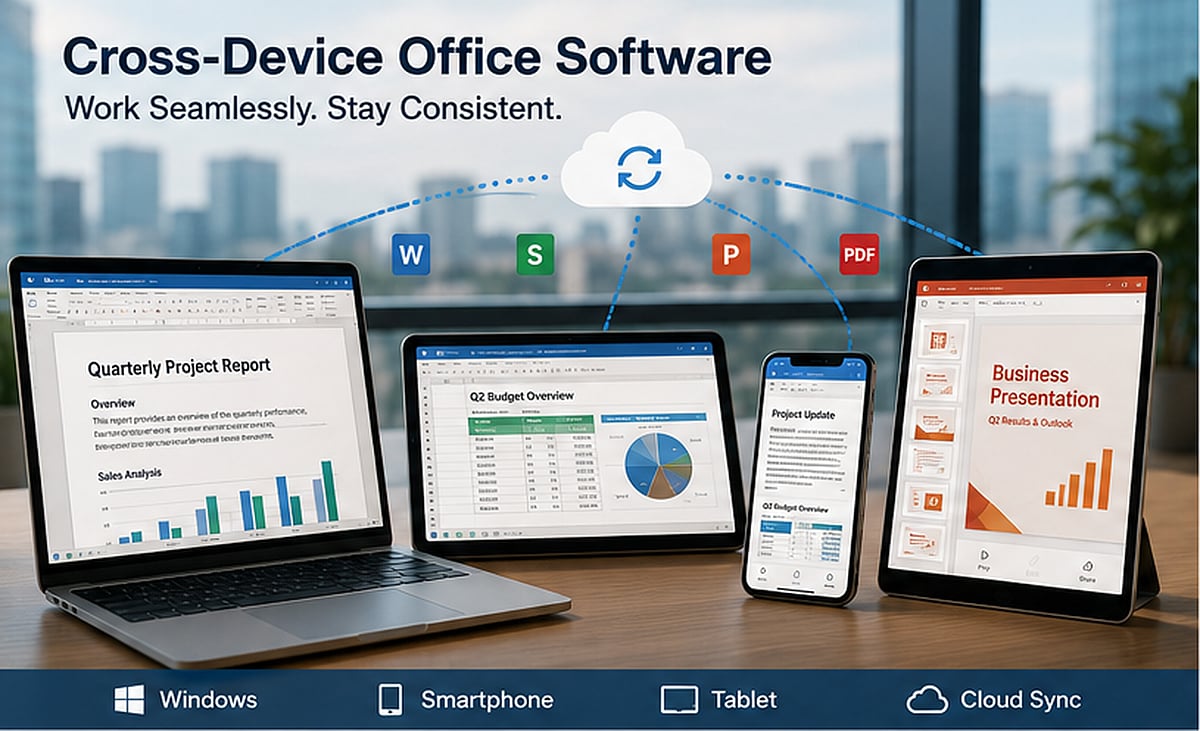
    Distributed work has transformed how documents are created, reviewed, approved, and stored. A single report may start on a Windows laptop, receive comments on a tablet, get approved from a smartphone, and finally be exported as a PDF for a client overseas. This flexibility accelerates team velocity, but it introduces a significant operational challenge: files must remain consistent across devices, operating systems, applications, and user environments.

    Simply opening a file on multiple devices does not guarantee it will display or function correctly. Fonts may be replaced, spreadsheet formulas can behave differently, presentation elements may shift, and PDF annotations might change during conversion. For distributed teams, these inconsistencies lead to rework, approval delays, and uncertainty about which version is final.

    Office software is now a critical component of an organization’s workflow infrastructure. Teams must evaluate not only whether an application can edit files, but whether it supports consistent document handling across Windows PCs, smartphones, tablets, shared folders, and cloud environments.

    The Shift from Single-Device Work to Distributed Document Workflows

    Traditional office workflows relied on a predictable environment: employees used company-managed computers, connected to the same network, and worked with a limited set of approved applications. Most documents were created, edited, and printed from similar devices. Hybrid and remote work have replaced that model with a distributed document lifecycle. A project manager drafts a proposal at home, a finance colleague reviews the budget on a corporate laptop, and an executive approves the final version from a mobile device while traveling. Students and cross-border teams face the same challenge, especially when members use different hardware, operating systems, and languages.

    Files now pass through drafting, review, revision, approval, conversion, distribution, and archiving. Each transition can introduce formatting changes, duplicate copies, missing comments, or outdated content. Cross-device software improves access, but access alone is insufficient. Teams also need clear rules for file naming, storage, approval, and primary editing responsibility.

    Why File Compatibility Still Matters

    Modern office applications can usually open common document, spreadsheet, presentation, and PDF formats, but the quality of compatibility varies with file complexity. Font replacement is a frequent issue—if a device lacks the original font, a substitution may occur. The text remains readable, but page breaks, table widths, headings, and alignment can change. This is especially disruptive in contracts, proposals, multilingual documents, and branded materials.

    Spreadsheets introduce different risks. Basic tables may transfer correctly, but formulas, macros, conditional formatting, data links, and pivot tables can behave differently across applications or versions. A file may appear correct during a quick mobile review even though a calculation has changed. Presentation files are equally sensitive: text boxes may move, images may resize, animations can disappear, and charts may render differently. PDF comments, signatures, form fields, and export settings can also vary between desktop and mobile tools.

    When evaluating a suite such as WPS Office, the relevant question is not simply whether it opens a file. Teams should test whether it preserves structure through editing, review, export, and sharing. Compatibility should be treated as a workflow requirement, particularly for complex templates and client-facing files.

    The Role of Windows in Modern Office Workflows

    Mobile devices are valuable for communication and quick approval, but Windows computers still handle most intensive office work. Long-form writing, detailed spreadsheet analysis, document comparison, bulk conversion, presentation design, and large PDF processing are generally easier in a desktop environment. A full-size screen, keyboard, precise pointer controls, and direct access to local storage make Windows suitable for tasks requiring accuracy. Desktop systems also allow users to compare revisions, organize multiple folders, and manage several files at once.

    Phones and tablets serve a different purpose: they are effective for reading, commenting, signing, approving, and making limited changes while away from a desk. The strongest workflows use Windows as the primary production environment and mobile devices as review and decision-making tools.

    How Teams Standardize Documents Across Devices

    Cross-device consistency depends on standardization. Teams should define which formats are used during editing and which are used for final distribution. Editable document, spreadsheet, and presentation formats may be used during production, while approved files can be converted to PDF for external sharing.

    Default fonts should be widely available across Windows, mobile platforms, and web viewers. Page sizes, margins, heading styles, chart formats, and language settings should be built into shared templates. Naming rules are equally important: a file name should identify the project, document type, date, status, and version. For example, “ProjectName_Proposal_2026-07-19_v03” is more useful than “final-new-latest.”

    Teams should also designate one authoritative working copy. Mobile users can review or comment, but major structural changes should return to the primary file and primary editing environment.

    Version Control Without Enterprise Complexity

    Small teams do not always need an enterprise content management system. Clear habits can prevent most version confusion. Dates and version numbers should follow a predictable format: major versions for approved milestones, minor versions for internal drafts. Vague labels such as “final2” or “final-revised” should be avoided.

    Files should not be repeatedly sent through several chat windows. Every attachment creates another copy, increasing the chance that someone edits an outdated version. A controlled link to a central file is usually safer. A dedicated approval folder can separate drafts from files awaiting review. Once approved, the final version should move to a read-only or restricted archive. When reliable real-time collaboration is unavailable, one person should be responsible for consolidating edits.

    Evaluating Desktop Office Software

    Desktop office software should be tested against real workflow requirements rather than marketing feature lists. The first consideration is format support across documents, spreadsheets, presentations, and PDFs. Windows compatibility should include installation behavior, update methods, performance on typical company hardware, printing, local folder access, and file associations. Companion mobile applications should allow users to review, comment, and approve files without losing important formatting.

    Teams should test PDF tools, spreadsheet functions, presentation fidelity, and document comparison using actual company files. A marketing team may prioritize layout accuracy, while a finance team may focus on formula reliability and large spreadsheet performance. Installation sources and update channels also matter. When assessing WPS Office for a Windows-centered workflow, the evaluation should be tied to desktop tasks such as long-document editing, spreadsheet analysis, presentation preparation, file conversion, and shared-folder integration. The objective is to determine whether the Windows version can serve as a stable primary editing environment.

    Security and Privacy in Document Collaboration

    Cross-device convenience can increase security risk when permissions are poorly managed. Organizations should decide which files may be stored locally, which must remain in approved cloud locations, and which require restricted access. Local files offer control but can be difficult to recover if a device is lost. Cloud files are easier to synchronize and back up, yet they require account security, permission reviews, and clear offboarding procedures.

    Temporary files and autosave data should not be ignored. Office applications may create cached copies, recent-file records, thumbnails, and recovery files. On shared or unmanaged devices, these traces can expose sensitive information. Access should be reviewed whenever a project ends or a member leaves. Shared folders, external links, mobile sessions, and synchronized devices should all be included in the cleanup process.

    A Practical Cross-Device Office Framework

    A practical framework can be built around four principles:

    • Use Windows as the primary editing environment for complex work, including long documents, advanced spreadsheets, presentations, bulk operations, and final formatting.
    • Use phones and tablets mainly for viewing, commenting, signing, and approval. Mobile editing remains useful, but the scope of changes should match the device.
    • Keep the authoritative file in one approved cloud location or shared folder. Share links instead of repeated attachments, and assign permissions according to each member’s role.
    • Perform a weekly version cleanup. Remove obsolete drafts, archive approved files, verify naming conventions, and confirm that the primary version is clearly identified.

    This framework does not require a large IT department. It requires agreement on how documents move through the team and which tools support that process.

    Conclusion

    The value of cross-device office software comes from workflow consistency. Distributed teams need more than the ability to open a document on different screens. They need formatting fidelity, clear version ownership, reliable mobile review, secure storage, and a stable desktop environment for complex editing.

    Software provides the foundation, but governance determines the result. File formats, fonts, templates, naming conventions, permissions, approval folders, and cleanup routines all influence whether a document remains accurate throughout its lifecycle. As remote work, international collaboration, and device switching continue to shape modern organizations, office software will increasingly be treated as operational infrastructure. The teams that benefit most will combine capable cross-device tools with simple, enforceable document rules.

  • How Desktop Messaging Workflows Drive Efficiency in Remote Operations

    How Desktop Messaging Workflows Drive Efficiency in Remote Operations

    Remote work doesn’t mean every conversation should happen on a smartphone. While mobile messaging works for quick replies and urgent alerts, most sustained business activity still occurs on a computer. Employees draft documents, review spreadsheets, attend online meetings, manage browser tabs, and organize project files from a desktop environment.

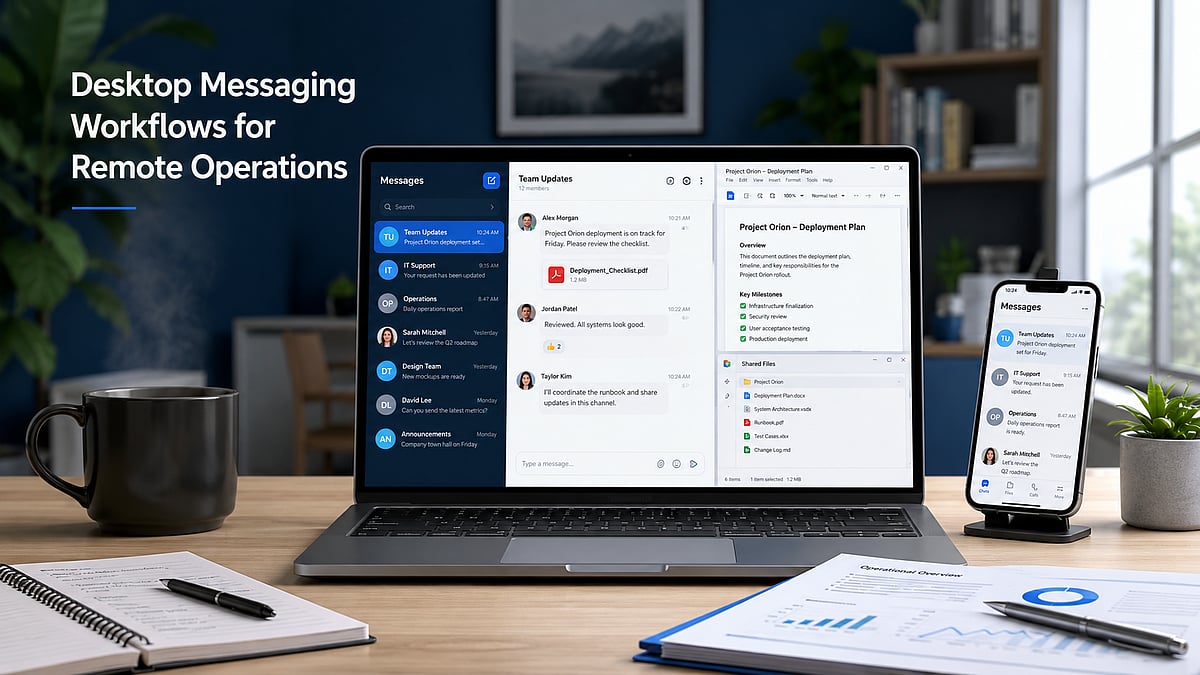
    Desktop messaging applications have become an integral part of the modern digital workspace. They keep communication visible alongside documents, browsers, shared folders, and productivity tools. A team member can receive an update, open the related file, compare information, and respond without switching devices repeatedly.

    However, desktop access alone doesn’t create an efficient workflow. Without clear notification rules, organized download locations, secure installation practices, and session management, messaging apps can cause distraction and file confusion. Remote teams need to treat desktop messaging as an operational system rather than just another communication channel.

    The Return of Desktop-Centered Communication

    The growth of mobile communication hasn’t eliminated desktop work. For many professionals, the computer remains the primary environment for focused tasks, long-form writing, analysis, project management, design, and document review. Desktop messaging supports this environment by allowing users to work across multiple windows. A team member can keep a project discussion open beside a spreadsheet, copy information from a browser into a conversation, or review a shared document while participating in a group chat.

    This is difficult to reproduce efficiently on a phone. Mobile screens are optimized for short interactions, but extended file handling, detailed responses, and multitasking are easier with a keyboard, larger display, and direct access to organized folders. The most effective remote operations don’t choose between desktop and mobile communication—they assign each device a practical role. The computer becomes the primary work environment, while the phone acts as a supplementary device for urgent updates, travel, and short approvals.

    Why Remote Teams Need Persistent Desktop Access

    Persistent desktop access helps remote employees stay connected without interrupting their primary work. Notifications can be reviewed as part of the normal desktop environment instead of requiring repeated checks of a separate phone. This is particularly useful when conversations contain long instructions, technical details, links, or several attachments. Copying a detailed message into a document, responding with formatted content, or comparing multiple files is faster on a computer.

    Teams also benefit when employees can participate in a meeting and follow the related chat simultaneously. One window may contain the video conference, another the project discussion, and another the document being reviewed. Desktop access brings these activities into one coordinated workspace. For users evaluating a solution such as Telegram desktop, the main consideration should be how well the desktop experience supports persistent team access, long-form communication, file handling, and integration with everyday work tools. The value comes from the usage environment, not simply from having a larger version of a mobile app.

    Persistent access should still be managed carefully. Employees should not feel required to respond to every message immediately. Desktop availability is most productive when teams also define reasonable expectations around response time and urgency.

    Managing Notifications Without Losing Productivity

    Messaging applications can improve coordination, but uncontrolled notifications can reduce concentration. When every channel, group, and direct message generates a desktop alert, employees may spend more time reacting than working. Teams should distinguish between urgent and non-urgent communication spaces. Operational alerts, active project incidents, and time-sensitive approvals may justify immediate notifications. General announcements, social discussions, and low-priority updates can often be reviewed at scheduled times.

    Employees should be encouraged to mute low-value groups and disable unnecessary sound or banner alerts. This doesn’t mean ignoring communication—it means choosing a notification system that reflects the importance of each channel. Focus periods are also valuable. A team member working on analysis, writing, or design may reserve specific blocks of time without message interruptions. Colleagues can use a defined urgent channel or another agreed method when immediate attention is genuinely required. A well-managed notification policy protects both productivity and communication quality.

    Organizing Files and Download Locations

    Desktop messaging often becomes an informal file distribution system. Teams exchange reports, images, presentations, contracts, and spreadsheets inside conversations. Without a storage policy, these files can accumulate in a default downloads folder and become difficult to locate later. Organizations should define a standard location for work-related messaging attachments. Files may be moved into project folders, client directories, or approved shared storage after download. Important documents should not remain permanently mixed with personal downloads or temporary installation files.

    Duplicate attachments are another common problem. The same document may be downloaded several times after being shared in different conversations. Employees should regularly remove redundant copies and confirm which version is authoritative before editing. Consistent file naming reduces confusion. Names should identify the project, document type, date, status, and version where relevant. A structured name such as “ClientA_Review_2026-07_v03” is easier to manage than “latest-final-new.” Messaging platforms are effective for delivering files, but they should not automatically become the permanent archive. Final and approved documents should move into a controlled storage location with clear ownership and access rules.

    Verifying Desktop Software Before Installation

    Desktop software should be verified before installation, especially when users discover it through search results, shared links, forums, or third-party download pages. A familiar logo or application name doesn’t by itself confirm that a page is official or trustworthy. Users should inspect the domain carefully and confirm that the site uses HTTPS. Similar-looking domains, added words, unusual subdomains, or unfamiliar redirects should be treated cautiously. Search advertisements may appear prominently, but visibility doesn’t guarantee authenticity.

    The selected download should also match the user’s operating system and device architecture. Employees should confirm that they are choosing the correct Windows version and review the installer’s file name before opening it. Where supported, users can review a file’s digital signature and publisher details through the operating system. Security scanning tools may provide an additional check, although no single scan should be treated as an absolute guarantee. Unexpected permission requests, unclear publisher information, or unusual installation behavior should be reported rather than ignored.

    Managing Multiple Devices and Active Sessions

    Remote employees often access messaging accounts from several devices. A typical setup may include a work computer, personal phone, tablet, and occasionally a temporary or replacement device. This flexibility is useful, but it increases the number of active sessions that must be managed. Users should periodically review connected devices and remove sessions that are no longer required. Old computers deserve particular attention—replaced laptops, repaired devices, and machines transferred to another employee should not remain connected to business messaging accounts.

    Public or shared computers should generally be avoided for business communication. When temporary use is unavoidable, users should not save credentials, should sign out fully, and should verify afterward that the session is no longer active. If a device is lost or stolen, the employee should notify the appropriate administrator, terminate the relevant session where possible, change affected credentials, and review recent account activity.

    Separating Personal and Business Communication

    Remote work can blur the boundary between personal and professional messaging. Employees may use the same device for both, but communication spaces, files, and permissions should remain clearly separated. Business teams can organize projects into dedicated channels, groups, or folders. Sensitive documents should not be forwarded into personal conversations or unrelated community groups. Employees should verify the recipient and destination before sharing confidential material.

    Access should follow job responsibilities. Not every team member needs visibility into every project, client, or internal discussion. Smaller and more relevant communication spaces reduce both information overload and accidental exposure. Offboarding is equally important—when an employee, contractor, or partner leaves, administrators should remove access to work groups, shared files, administrative roles, and related systems promptly. A clear separation policy helps teams preserve professional records while reducing the chance that business information becomes scattered across personal accounts and informal conversations.

    Creating a Secure Cross-Device Workflow

    A secure desktop messaging workflow can be built around a small number of repeatable practices. First, applications should be obtained from trusted and verifiable sources. Employees should avoid unknown download pages, repackaged installers, and unsolicited links. Second, teams should standardize notification rules—urgent communication should be distinguishable from general discussion, and employees should have protected focus time. Third, downloaded files should follow a defined storage and naming process. Important attachments should move from temporary download locations into controlled project folders or shared storage. Fourth, active devices and permissions should be reviewed on a regular schedule. A monthly review can identify old sessions, unnecessary group access, and outdated member permissions. Finally, desktop and mobile applications should be kept updated through approved channels. Updates may address compatibility, stability, and security issues.

    Remote Messaging Workflow: Message → File → Review → Archive

    Desktop messaging tools deliver the most value when they are integrated into the wider office workflow. Their purpose is not simply to reproduce mobile conversations on a larger screen—they support persistent communication, multitasking, detailed responses, file handling, and coordination across documents, meetings, and browser-based tools. Remote teams must manage this convenience carefully. Notification overload can reduce productivity, unorganized downloads can create version confusion, and unmanaged sessions can increase security risk. A reliable desktop messaging workflow combines trusted software sources, clear notification expectations, structured file storage, device oversight, and appropriate access controls. When these elements work together, messaging becomes part of an efficient remote operations system rather than a constant source of interruption.

  • Why Entry-Level Remote Jobs Are So Competitive Now (And How to Land One)

    Why Entry-Level Remote Jobs Are So Competitive Now (And How to Land One)

    Remote work has long been seen as the ideal career path for new graduates and early-career professionals, offering flexibility and access to opportunities beyond local markets. However, the landscape has shifted dramatically. Entry-level remote jobs are now harder to secure than ever before, driven by global competition, AI-powered hiring tools, and a shrinking pool of fully remote openings.

    The Rising Competition

    The primary factor behind the increased difficulty is the sheer volume of applicants. Unlike traditional in-office roles, remote positions attract candidates from across cities, states, and even countries. This gives employers a massive talent pool to choose from, but it means job seekers must compete with hundreds or thousands of other applicants for a single vacancy. Highly qualified candidates often don’t even get an interview because hiring managers are overwhelmed by the number of submissions.

    Employers Want Self-Starters

    Companies are increasingly looking for candidates who can hit the ground running. Remote work demands strong time management, excellent digital communication skills, and the ability to work independently with minimal supervision. As a result, employers tend to favor applicants who already have some work experience, even if it’s from a different field. For entry-level candidates without a long work history, proving they possess these qualities is a significant hurdle.

    AI Has Transformed the Hiring Process

    Technology has fundamentally changed how companies screen applicants. Many organizations now use Applicant Tracking Systems (ATS) and AI-powered tools to filter resumes before a human recruiter ever sees them. These systems scan for specific keywords, skills, certifications, and experience mentioned in the job description. If your resume doesn’t match the criteria, it’s automatically rejected. This means generic, one-size-fits-all applications rarely succeed. Tailoring each resume to the specific job is no longer optional—it’s essential.

    Fewer Fully Remote Openings

    Despite the continued popularity of remote work, many companies have shifted back to hybrid or office-based models. This has reduced the number of fully remote entry-level positions available compared to a few years ago. Fewer openings combined with more applicants creates a highly competitive environment. To stand out, you need more than a degree; you need a polished resume and demonstrable skills.

    Common Challenges for Entry-Level Candidates

    Fresh graduates and career changers face a Catch-22: companies want experience, but it’s hard to get experience without a job. Building a portfolio or taking on freelance projects can help bridge this gap, but it requires proactive effort. The good news is that these challenges are surmountable with the right strategy.

    How to Improve Your Chances

    Here are actionable steps to become a stronger candidate:

    • Customize your resume and cover letter for every single application, incorporating keywords from the job description.
    • Build practical digital and AI skills through online courses or personal projects.
    • Create a portfolio showcasing your work, whether it’s writing samples, design projects, code repositories, or case studies.
    • Optimize your LinkedIn profile to highlight your skills and interests.
    • Network actively by connecting with professionals in your field, joining relevant online communities, and attending virtual events.
    • Apply consistently and don’t get discouraged by rejections—persistence is key.

    Practical Skills Trump Degrees

    Employers today prioritize practical knowledge over academic credentials. Skills in Microsoft Excel, Google Workspace, SEO, copywriting, digital marketing, data analysis, project management, and AI-driven productivity tools are highly sought after. Many of these can be learned affordably through online platforms like Coursera, Udemy, or LinkedIn Learning. Building a portfolio of personal or freelance projects gives recruiters concrete evidence of your abilities, regardless of your professional background.

    Networking Reveals Hidden Opportunities

    Many remote jobs are filled through referrals before they’re ever publicly advertised. Networking is therefore one of the most effective job-seeking strategies. Engage with industry professionals on LinkedIn, participate in forums, and attend virtual meetups. These connections can lead to unlisted opportunities and provide valuable insights into what companies are looking for.

    Keep Learning and Stay Adaptable

    The job market evolves rapidly, especially with the rise of new technologies. Employers value candidates who demonstrate curiosity, initiative, and a willingness to learn. Staying current with AI tools, improving communication skills, and following industry trends will make you a more competitive applicant. Companies appreciate individuals who actively invest in their own development.

    Final Thoughts

    Entry-level remote jobs still exist, but landing one now requires more effort than in the past. The competition is fierce, hiring processes are more automated, and expectations are higher. However, by acquiring relevant skills, building a strong portfolio, tailoring your applications, and networking strategically, you can significantly improve your odds. With persistence and the right approach, a remote job is still within reach.

  • The Rise of Endpoint Management: Why IT Certifications Matter More Than Ever

    The Rise of Endpoint Management: Why IT Certifications Matter More Than Ever

    The rapid evolution of the modern workplace, driven by remote and hybrid work models and widespread cloud adoption, has fundamentally changed how IT departments operate. Managing a diverse array of endpoints—laptops, mobile devices, desktops, and virtual machines—has become a critical responsibility. As cyber threats grow more sophisticated and device ecosystems become more complex, organizations urgently need skilled professionals who can secure and manage these endpoints. This surge in demand has made IT certifications focused on endpoint management increasingly valuable.

    The Evolution of Endpoint Management

    Just a decade ago, endpoint management was largely manual and centralized. IT administrators had physical access to devices, handling updates and configurations on-site. The rise of cloud technology and remote work rendered this approach obsolete. Today, cloud-based management tools enable organizations to configure, secure, and control devices regardless of location. Specialized platforms now handle operating system management, application deployment, security enforcement, and compliance monitoring—all remotely. This shift improves productivity and reduces security risks.

    Why Endpoint Management Matters for Business

    Every device connected to a corporate network is a potential entry point for cyberattacks. Without proper endpoint management, organizations face increased vulnerability to malware, data breaches, and unauthorized access. Effective management ensures devices are consistently updated with security patches and configured to meet organizational policies, reducing risk and supporting regulatory compliance. Beyond security, automated endpoint management alleviates the workload on IT teams, letting them focus on strategic initiatives rather than repetitive maintenance, leading to greater operational efficiency.

    Certifications as Career Catalysts

    In a competitive IT job market, certifications validate technical skills and demonstrate professional commitment. Employers increasingly rely on certifications to gauge a candidate’s knowledge in areas such as device management, security configuration, application deployment, and cloud integration. Structured certification programs offer clear learning paths that combine theory with practical preparation. Many professionals use resources like Prep Away to reinforce their understanding and boost exam confidence. Certifications not only enhance career prospects but also open doors to advanced roles such as endpoint administrator, systems administrator, cloud administrator, and IT security specialist.

    Cloud-Based Endpoint Management

    Cloud platforms have revolutionized how endpoints are managed. Instead of relying on on-premises infrastructure, businesses now use cloud-based systems to deploy applications, enforce security policies, and monitor device health in real time. Automated updates keep all devices secure without manual intervention. Scalability is a key advantage—organizations can easily add or remove devices without reconfiguring their entire IT infrastructure, making cloud solutions ideal for dynamic, distributed workforces.

    Microsoft Endpoint Administrator Certification (MD-102)

    Microsoft offers the MD-102 certification specifically for professionals managing endpoints in modern enterprise environments. The certification covers device deployment, application management, security configuration, and compliance enforcement. It is suited for endpoint administrators, IT support specialists, and systems administrators. Earning the MD-102 demonstrates the ability to manage devices efficiently in cloud and hybrid environments, and confirms expertise in implementing security policies and maintaining compliance.

    Key Responsibilities of Endpoint Administrators

    Endpoint administrators are tasked with ensuring all devices are secure, updated, and properly configured. Core duties include device provisioning (setting up new devices with standardized configurations using automation tools), security management (implementing antivirus, encryption, access controls, and monitoring), and responding to security incidents. They also ensure compliance with industry standards.

    Career Opportunities and Continuous Learning

    The field of endpoint management offers a broad career path with rising demand as remote and hybrid work models persist. Typical job titles include endpoint administrator, IT support engineer, systems administrator, cloud administrator, and IT security specialist. With experience and certifications, professionals can progress to IT manager, cloud architect, or cybersecurity analyst roles. Continuous learning is essential in IT—technologies evolve quickly, and staying current through certifications, online courses, hands-on labs, and professional communities keeps skills relevant. Employers value candidates who demonstrate a commitment to lifelong learning, ensuring their teams can tackle emerging challenges.

    Frequently Asked Questions

    What is endpoint management?
    Endpoint management is the process of managing and securing devices such as laptops, desktops, and mobile devices within an organization’s network.

    Why is endpoint management important?
    It ensures device security, compliance, and efficient operation across enterprise environments.

    What does the MD-102 certification cover?
    The MD-102 covers endpoint deployment, application management, security configuration, and compliance enforcement.

    Are endpoint management skills in demand?
    Yes, due to the growth of remote work and cloud-based IT environments, demand is high.

    How can IT certifications help professionals?
    Certifications validate skills, improve job opportunities, and support career advancement in specialized technical fields.

    Conclusion

    Endpoint management has become a cornerstone of modern IT operations. As organizations rely on distributed devices and cloud systems, ensuring endpoints remain secure and configured is vital for business continuity and data protection. Professionals with endpoint management expertise are highly valued, and certifications combined with continuous learning are key to building successful careers. By blending practical experience with structured preparation and industry-recognized credentials, IT professionals can make a significant impact on the security and efficiency of today’s digital workplaces.

  • Essential Data Security Practices for Remote Analytics Teams

    Essential Data Security Practices for Remote Analytics Teams

    Remote analytics teams handle some of the most valuable assets in modern organizations: customer information, operational metrics, financial records, and proprietary business intelligence. Effective data security requires multiple layers of protection, including access controls, encryption, endpoint security, and secure network connections.

    Why Is Data Security More Challenging for Remote Analytics Teams?

    Remote work has drastically altered the way companies use data analytics. Analysts have to work with various dashboards, cloud data warehouses, machine learning tools, customer databases, and other reporting systems from places outside of the conventional company network infrastructure.

    Such flexibility makes people more productive, yet, at the same time, it expands the area for potential attacks of hackers. People who conduct remote work might use public Wi-Fi, personal computers, their own routers, or even third-party apps to access the network.

    There is an increased risk for analysts, as they deal with a lot of confidential data. The hacking of such an analyst’s account might give hackers an opportunity to steal customer databases, financial reports, forecasts, or other important pieces of information.

    It is necessary to prevent such attacks not only because of the security, but also due to the necessity to comply with various privacy requirements and to guarantee the protection of data integrity.

    How Can Remote Teams Build a Secure Analytics Environment?

    A secure analytics environment relies on multiple protective measures working together. No single technology can eliminate all risks.

    1. Implement Strong Identity Controls

    Identity security comes first. Companies must have strong passwords, password managers, and multi-factor authentication (MFA). MFA decreases the probability of account hacking as hackers cannot get access without having access to more than just the password.

    There must also be role-based access controls where users will only have access to what is required in their roles.

    2. Encrypt Data in Transit and at Rest

    Encryption protects information from unauthorized viewing during transmission and storage. Cloud platforms, databases, analytics tools, and file-sharing systems should all use modern encryption standards. Teams should regularly verify that encryption settings remain enabled after software updates or platform migrations.

    3. Secure Network Connections

    Remote employees frequently connect from hotels, airports, cafes, coworking spaces, and home networks. Organizations should establish policies that require secure connections when accessing sensitive business systems.

    In some situations, teams may use secure VPN solutions to encrypt network traffic before accessing corporate resources. For example, in addition to additional security measures like MFA and endpoint protection, a free VPN service like Planet VPN can secure your connection. VPNs should be viewed as one component of a broader security framework rather than a complete solution.

    4. Protect Endpoints

    All laptops, workstations, and mobile devices used for analytics should be equipped with endpoint protection applications. Security professionals should make sure that the devices get OS updates and anti-malware protection without manual interventions. There are many device management tools which can facilitate the implementation of security policies.

    5. Monitor and Audit Access

    Continuous monitoring helps organizations identify unusual behavior before it becomes a serious incident. Security teams should review login patterns, access logs, permission changes, and data exports. Automated alerts can identify suspicious activities such as large downloads, unusual login locations, or repeated authentication failures.

    What Additional Security Layers Should Organizations Consider?

    Organizations that have advanced analytics systems may go further to employ defense-in-depth mechanisms for their cybersecurity needs.

    The Zero Trust system has gained popularity due to its assumption that nothing is to be trusted by default. All access requests are constantly checked and validated regardless of any location.

    The classification of data can also enhance security through recognizing which databases need extra measures of protection. Personal data of customers, financial data, data from the field of healthcare, and proprietary algorithms can need extra security measures compared to ordinary operation reports.

    Another useful mechanism is the data loss prevention system. The DLP system can help prevent any illegal dissemination of sensitive information.

    Security training of the staff is an essential measure. A significant number of successful attacks on businesses start from phishing attacks and human error and not from some technical flaws in the system.

    Periodic security assessment and testing are needed as well.

    What Common Data Security Mistakes Should Teams Avoid?

    A number of security breaches can be attributed to mistakes, rather than elaborate attacks.

    Excessive access rights represent one such common problem. Employees end up accessing various databases and systems even when their job responsibilities have changed. Such practices inevitably pose risks in the future.

    Another mistake involves the use of traditional security measures. With most employees working remotely and accessing company assets from different places, such security systems prove to be ineffective.

    Organizations tend to ignore the threats posed by shadow IT as well. Employees might start using unauthorized programs and productivity tools.

    Failing to patch the systems in time poses another vulnerability. Many attacks utilize existing flaws that could have been fixed already.

    The final common mistake includes concentrating too much on preventive measures and not on how to respond to the threat in case of an attack.

    What Are the Most Important Security Best Practices?

    Organizations can strengthen remote analytics security by following these core practices:

    • Require multi-factor authentication for all analytics and data platforms.
    • Limit user access according to business needs and job responsibilities.
    • Encrypt sensitive data during storage and transmission.
    • Maintain endpoint security across laptops, mobile devices, and workstations.
    • Monitor access logs and investigate suspicious activity quickly.
    • Conduct regular security awareness training programs.
    • Apply software updates and security patches without delay.
    • Develop and test incident response procedures regularly.
    • Classify sensitive data and apply stronger controls where necessary.
    • Review permissions and third-party integrations on a scheduled basis.

    These practices create multiple layers of protection that reduce risk while supporting productive remote collaboration.

    Frequently Asked Questions

    What are data security best practices for remote teams?

    Data security best practices for remote teams include multi-factor authentication, encrypted communications, endpoint protection, access controls, continuous monitoring, and employee security training. Organizations should combine multiple controls rather than relying on a single technology.

    Why is data security important for analytics teams?

    Analytics teams often work with highly sensitive information, including customer records, financial data, operational metrics, and strategic business intelligence. A security breach can expose valuable information and lead to compliance violations, financial losses, and reputational damage.

    How do remote employees protect sensitive business data?

    Remote employees can protect sensitive data by using strong authentication, secure devices, encrypted connections, approved software platforms, and company security policies. Regular software updates and awareness of phishing threats are also essential.

    Is a VPN enough to secure remote work?

    No. A VPN can help encrypt network traffic, but it does not replace identity management, endpoint protection, access controls, monitoring, or employee training. Effective security requires multiple layers working together.

    What is Zero Trust security?

    Zero Trust is a cybersecurity model that continuously verifies users and devices before granting access to resources. It assumes that no user, device, or network should be trusted automatically, even when operating inside a corporate environment.

    How often should organizations review data access permissions?

    Organizations should review permissions regularly, especially after role changes, employee departures, mergers, or major system updates. Quarterly reviews are common, although highly regulated industries may require more frequent assessments.

  • Why IT Certification Skills Are Essential for Modern Endpoint Management

    Why IT Certification Skills Are Essential for Modern Endpoint Management

    As the workplace evolves rapidly with technology, organizations must manage devices, applications, and identities securely and efficiently. The rise of remote and hybrid work, combined with cloud environments, has transformed IT operations. Managing diverse endpoints—laptops, mobile devices, desktops, and virtual machines—has become a critical responsibility for IT professionals.

    Endpoint management encompasses security, compliance, and configuration of all devices connected to a corporate network. With cyber threats growing more sophisticated and organizations adopting varied device ecosystems, the demand for specialists skilled in endpoint management is increasing. Consequently, IT certifications focused on endpoint management are becoming highly relevant.

    The Evolution of Endpoint Management

    Over the past decade, endpoint management has undergone significant changes. Traditionally, devices were managed manually in a centralized environment, with administrators having physical access for updates and configurations on-site.

    However, the advent of cloud technology and remote work has rendered this approach obsolete. Organizations now require remote management solutions that allow configuration, security, and control of devices regardless of location. This need has driven the rise of cloud-based endpoint management.

    Today, IT professionals use specialized tools to manage operating systems, deploy applications, secure company devices, enforce policy compliance, and more. This enables organizations to maintain productivity while minimizing security risks.

    Why Endpoint Management Matters for Business

    Endpoint management plays a vital role in maintaining organizational security and efficiency. Every device connected to a corporate network represents a potential entry point for cyber threats. Without proper management, these endpoints can become vulnerable to malware, data breaches, and unauthorized access.

    Effective endpoint management ensures that all devices are updated with the latest security patches and configured according to organizational policies. This helps reduce vulnerabilities and protect sensitive data. It also enables IT teams to enforce compliance requirements, ensuring all devices meet industry standards and regulations.

    Beyond security, endpoint management improves operational efficiency. Automated deployment and configuration tools reduce manual workload for IT teams, allowing them to focus on strategic tasks rather than repetitive maintenance.

    The Role of IT Certifications in Professional Development

    IT certifications are essential for validating technical skills and demonstrating expertise in specialized areas like endpoint management. Employers often rely on certifications to assess whether candidates have the knowledge and practical abilities required for specific roles.

    Certification programs offer structured learning paths covering key topics such as device configuration, security management, application deployment, and cloud integration. This structured approach helps professionals build a strong foundation and stay current with industry best practices.

    Many learners use supplementary resources like PassGuide during their certification preparation. These materials help candidates understand exam structures, practice scenarios, and reinforce important concepts. While practical experience remains essential, structured preparation tools can significantly enhance learning outcomes.

    Certifications not only improve job prospects but also contribute to long-term career growth by expanding technical knowledge and improving problem-solving skills.

    Modern Endpoint Management in the Cloud Era

    Cloud technology has revolutionized endpoint management by enabling centralized control over distributed devices. IT administrators can now manage thousands of endpoints from a single dashboard, regardless of location.

    Cloud-based endpoint management systems allow organizations to automate updates, deploy applications remotely, and enforce security policies in real time. This reduces the need for manual intervention and ensures consistent configuration across all devices.

    Another significant advantage is scalability. As organizations grow, they can easily add new devices and users without restructuring their entire IT infrastructure. This flexibility makes cloud-based endpoint management ideal for modern businesses with dynamic work environments.

    Microsoft Endpoint Administration Certification Overview

    Microsoft offers specialized certifications focused on modern endpoint management and device administration. These certifications are designed for IT professionals who want to validate their skills in managing enterprise devices and implementing security policies.

    The MD-102 certification focuses on managing endpoints in a modern enterprise environment. It covers essential topics such as device deployment, application management, security configuration, and compliance enforcement. This certification is intended for professionals responsible for maintaining secure and efficient device ecosystems within organizations.

    Earning this certification demonstrates the ability to manage modern workplace technologies effectively and ensures professionals are prepared for real-world IT challenges.

    Key Responsibilities of Endpoint Administrators

    Endpoint administrators play a crucial role in ensuring organizational devices are secure, updated, and properly configured. Their responsibilities include deploying operating systems, managing user access, configuring security policies, and monitoring device performance.

    One primary task is device provisioning—setting up new devices with required configurations and applications before distribution to users. Automation tools are often used to streamline this process and ensure consistency.

    Another important responsibility is security management. Administrators must implement antivirus solutions, encryption policies, and access controls to protect devices from threats. They also monitor systems for suspicious activity and respond to security incidents when necessary.

    Career Opportunities in Endpoint Management

    A career in endpoint management opens multiple opportunities in the IT sector. With the rise of hybrid work models, demand for professionals in this field has grown significantly.

    Common roles include endpoint administrator, IT support specialist, systems administrator, cloud administrator, and IT security analyst. These positions involve managing endpoints, ensuring system security, and supporting end users.

    With additional qualifications and experience, professionals can advance to senior roles such as IT manager, cloud architect, or cybersecurity specialist.

    The Importance of Continuous Learning in IT Careers

    Technology constantly evolves, and IT professionals must continually update their skills to remain effective. Endpoint management methods change to address new security risks and improve efficiency.

    Ways to stay current include earning certifications, gaining practical training, taking online courses, and engaging with professional networks. Organizations highly value individuals committed to learning and adaptability, which not only advances careers but also contributes to organizational success.

    Frequently Asked Questions

    What is endpoint management?

    Endpoint management is the process of managing and securing devices such as laptops, desktops, and mobile devices within an organization’s network.

    Why is endpoint management important?

    It ensures device security, compliance, and efficient operation within enterprise environments.

    What does the MD-102 certification cover?

    The MD-102 certification covers endpoint deployment, security management, application control, and compliance enforcement in modern IT environments.

    Are endpoint management skills in demand?

    Yes, due to the growth of remote work and cloud-based IT infrastructure, endpoint management skills are in high demand.

    How can IT certifications help professionals?

    Certifications validate technical skills, improve job opportunities, and support career advancement in specialized IT fields.

    Conclusion

    Endpoint management has become a critical function in modern IT environments as organizations rely heavily on distributed devices and cloud-based systems. Ensuring all endpoints remain secure, compliant, and properly configured is essential for maintaining business continuity and protecting sensitive data.

    With increasing IT infrastructure complexity, professionals with endpoint management skills are highly valued across industries. Certifications and continuous learning play a key role in developing these skills and preparing individuals for real-world challenges.

    By combining practical experience with structured learning resources and industry-recognized certifications, IT professionals can build successful careers in endpoint management and contribute significantly to the security and efficiency of modern digital workplaces.