Tag: Samsung Galaxy

  • Top Writing Tablets for Digital Note-Taking in 2026: Expert Picks

    Top Writing Tablets for Digital Note-Taking in 2026: Expert Picks

    Digital note-taking has become essential for students, professionals, and creatives. Here are the top writing tablets of 2026 that offer exceptional handwriting experiences.

    • Apple iPad Air M3 – Excellent writing tablet offering responsive Apple Pencil support, smooth performance, and powerful multitasking for students and professionals alike.
    • Samsung Galaxy Tab S10 – Premium Android tablet featuring S Pen, vibrant display, and productivity-focused software for seamless handwritten note-taking.
    • reMarkable Paper Pro – E Ink writing tablet delivering paper-like feel, distraction-free interface, and exceptional handwriting experience for focused productivity.
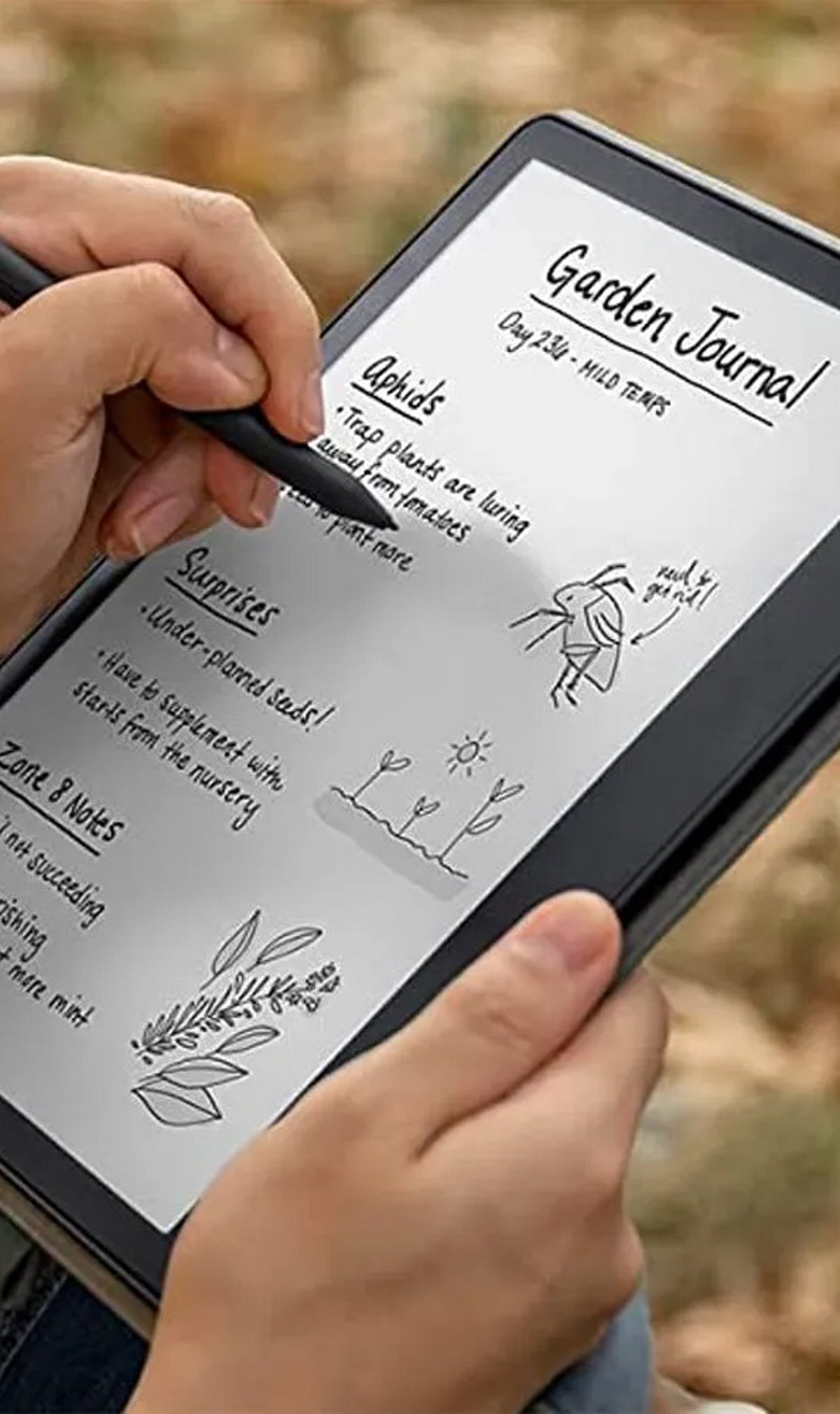
    • Amazon Kindle Scribe – Large E Ink display supporting handwritten notes, annotations, and comfortable reading with weeks of battery life.
    • BOOX Note Air 4C – Android-powered E Ink tablet combining note-taking, document management, and app compatibility for flexible workflows.
    • Huawei MatePad Pro – Lightweight tablet featuring responsive stylus, excellent display quality, and powerful hardware for creative professionals and students.
    • Microsoft Surface Pro 12 – Versatile Windows tablet offering digital handwriting, laptop functionality, and premium productivity tools for demanding users.
    • Lenovo Tab P12 – Affordable writing tablet with bundled stylus, large display, and dependable performance for note-taking, entertainment, and online learning.
    • XPPen Magic Note Pad – Dedicated digital writing tablet combining natural handwriting experience, cloud synchronization, and efficient note organization.

    Stay updated with the latest in digital tools by joining our community.
  • Essential Samsung Galaxy Battery Settings to Extend Charging Life

    Essential Samsung Galaxy Battery Settings to Extend Charging Life

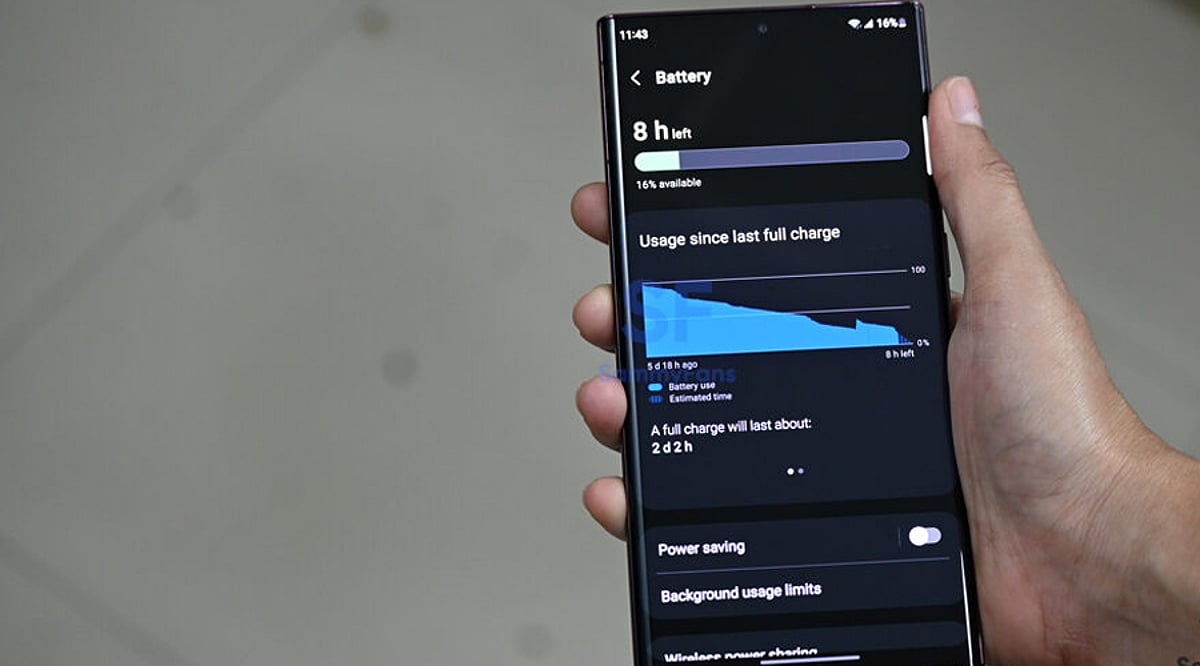
    Samsung Galaxy users can optimize battery performance with a few key settings that reduce power consumption and extend battery health. Here are the most effective adjustments you can make right now.

    Adaptive Battery

    Samsung’s Adaptive Battery uses AI to learn your daily usage patterns and limits power consumption for apps you rarely open. By automatically prioritizing frequently used applications while restricting background activity for others, it helps reduce unnecessary battery drain. Keeping this feature enabled is one of the easiest ways to improve battery life throughout the day without affecting normal smartphone performance.

    Enable Light Performance Mode

    Light Performance Mode reduces processor power during everyday tasks such as messaging, browsing, and streaming while maintaining a smooth user experience. The setting lowers energy consumption without noticeably impacting daily performance. It is especially useful for users who want longer battery life and don’t regularly run demanding games or heavy productivity applications on their Galaxy smartphone.

    Turn On Adaptive Power Saving

    Adaptive Power Saving intelligently switches Battery Saver on or off depending on your phone’s usage and remaining battery level. Instead of staying active all the time, it adjusts automatically to maximize efficiency when needed. This smart automation helps extend battery life while minimizing interruptions, making it one of the most practical battery-saving features available in One UI.

    Optimize Display Settings

    The display is one of the biggest battery consumers on any smartphone. Reducing screen brightness, enabling Adaptive Brightness, using Dark Mode, and selecting a lower refresh rate when high refresh isn’t necessary can noticeably improve battery life. Samsung’s AMOLED displays are especially efficient in Dark Mode, making these adjustments effective without compromising the overall viewing experience.

    Manage Background Apps

    Many applications continue running in the background even after being closed, consuming battery and system resources. Samsung’s battery settings allow users to place unused apps into Sleep or Deep Sleep mode, preventing unnecessary background activity. Reviewing these settings regularly helps improve battery performance while ensuring essential apps continue functioning normally when required.

    Use Battery Protection Features

    Samsung’s Battery Protection feature limits charging to around 80–85% (depending on the device and One UI version) to reduce long-term battery wear. Combined with optimized overnight charging, this helps maintain battery health over several years. While it may slightly reduce a single charge’s maximum capacity, it can significantly extend the overall lifespan of the battery.

    Keep Software Updated

    Samsung frequently releases One UI and security updates that include battery optimization improvements, performance enhancements, and bug fixes. Installing the latest software ensures your Galaxy device benefits from the newest power management features and efficiency improvements. Keeping both the operating system and installed apps updated helps deliver better battery life, smoother performance, and improved overall device stability.

  • Unlock These 10 Under-the-Radar AI Features on Samsung Galaxy Phones

    Unlock These 10 Under-the-Radar AI Features on Samsung Galaxy Phones

    Samsung Galaxy phones are packed with artificial intelligence capabilities that many users never discover. From real-time language translation to intelligent photo editing, these hidden tools can transform how you work, communicate, and capture memories. Here’s a rundown of the most useful AI features you might be missing.

    Circle to Search

    Search for text, products, landmarks, or images directly from your screen by simply circling them. No need to leave the current app — just gesture and get instant results.

    Live Translate

    Translate phone calls in real time, enabling natural conversations across different languages. On-device AI processing keeps your conversations private and secure.

    Interpreter Mode

    Display instant two-way translations on a split screen, making face-to-face conversations seamless during travel, meetings, or interactions with foreign speakers.

    Note Assist

    Automatically summarize lengthy notes, create structured formats, generate titles, and improve readability. Perfect for saving time during study sessions or work.

    Browsing Assist

    Summarize lengthy web pages, translate articles, and simplify complex content directly within Samsung Internet for faster information consumption.

    Transcript Assist

    Convert voice recordings into accurate text transcripts, identify speakers, and generate concise summaries for interviews, lectures, or business meetings.

    Generative Edit

    Remove unwanted objects, reposition subjects, fill missing backgrounds intelligently, and enhance photos using Samsung’s AI-powered editing capabilities.

    Writing Assist

    Rewrite messages, adjust writing tone, correct grammar, and generate polished responses directly from the Samsung Keyboard across supported apps.

    Audio Eraser

    Reduce distracting background noises like wind, traffic, or crowds in recorded videos, making voices clearer without requiring third-party editing software.