Tag: screen time

  • Simple Tech for Less Screen Time: Minimalist Gadgets That Support Digital Detox

    Simple Tech for Less Screen Time: Minimalist Gadgets That Support Digital Detox

    Digital detoxes do not always require abandoning technology altogether. A growing category of minimalist gadgets is designed to keep useful functions—calls, messages, maps, music, reading, and note-taking—while removing the endless feeds, alerts, and app loops that make smartphones hard to put down.

    What Makes a Gadget Minimalist?

    Minimalist devices usually do one thing well, or a small set of things, instead of trying to be an all-purpose entertainment hub. The goal is not deprivation. It is fewer interruptions, clearer boundaries, and more intentional use of screens.

    Phones With Fewer Distractions

    The Light Phone III is built around essentials such as calls, texts, directions, and music. It avoids social media, advertising, and infinite scroll, which can make it a useful secondary phone or a step-down device for people who want to stay reachable without staying plugged in.

    The Mudita Kompakt takes a different approach with a 4.3-inch E Ink display and a distraction-free operating system. It includes essential tools and offline maps, aiming for calmer phone use with less visual noise and fewer reasons to keep checking the screen.

    E-Readers for Reading and Notes

    Dedicated e-readers such as Kindle, Kobo, reMarkable, and Kindle Scribe can replace a phone or tablet for reading and note-taking. Because they are not built around notifications and social apps, they reduce the pull to switch tasks. Some current models also support dedicated note-taking, making them useful for focused work as well as books.

    Simple Phones for Basic Communication

    Devices such as the Punkt MP02 and Nokia feature phones focus on calls and messages rather than app-heavy experiences. They can be a practical choice for weekends, vacations, focused work periods, or anyone who wants a reliable way to stay in contact without constant scrolling.

    Analog Tools That Create Screen-Free Time

    Not every digital detox tool needs a battery. A physical alarm clock, paper planner, Pomodoro timer, or notebook can handle everyday tasks without requiring a smartphone. These low-tech options are especially helpful in bedrooms and during deep-work sessions, where even a quick glance at a phone can turn into a long detour.

    Phone Lockboxes Add Friction

    Timed phone lockboxes create a physical barrier between you and your device. They can keep a smartphone out of reach during meals, bedtime, focused work, or family time, making accidental checking harder. The added friction is the point: it turns a mindless habit into a deliberate choice.

    Minimalist Audio Without the Feed

    A basic MP3 player or simple headphones can provide music and podcasts without opening social media, news feeds, or other apps. For people who mainly use their phone for audio, a dedicated player can remove a common gateway to distraction.

    Start Small Before Switching Phones

    A full device switch is not the only way to begin. Try grayscale mode, remove social apps from your home screen, disable non-essential notifications, or set Digital Wellbeing limits. A 7–14 day trial can help you learn which changes actually make focus easier and which ones feel impractical.

    Minimalist gadgets are not a cure-all, but they can support better digital habits by making the useful parts of technology easier to access and the distracting parts easier to avoid.

  • Top Parental Control Apps for Managing Screen Time in 2026

    Top Parental Control Apps for Managing Screen Time in 2026

    Key Takeaways

    • Screen time management apps help create healthier digital habits for children.
    • Most parental control apps include screen limits, content filters, and activity reports.
    • The right app depends on device compatibility, family needs, and preferred safety features.

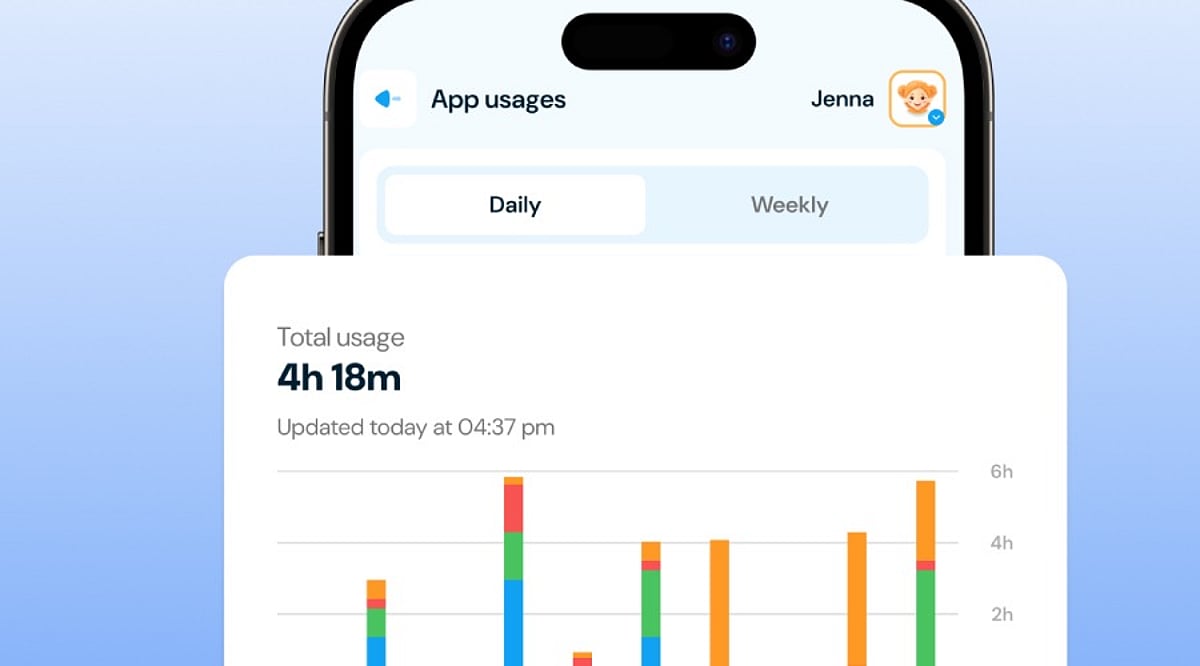
    Children spend a large part of each day with smartphones, tablets, computers, and gaming devices. Digital tools help with school work, learning, entertainment, and communication. At the same time, long hours in front of a screen can affect sleep, physical activity, family time, and concentration. Many parents search for a simple way to create healthy digital habits without constant arguments.

    Parental control apps solve this problem with practical tools that help families set clear limits. Most apps allow parents to decide when a child can use a device, block unwanted content, approve app downloads, and check online activity. Several apps also show daily reports that help parents understand screen habits. A suitable parental control app creates balance instead of complete restriction. Children enjoy technology while parents stay informed and confident.

    Qustodio

    Among the parental control apps that parents trust today is Qustodio. This application is compatible with devices running Android, iPhones, Windows, Mac, Chromebooks, and Kindle. Thus, families with different devices will be able to manage them from one account.

    The application has the screen time feature that enables parents to set daily limits and customize schedules for school hours, homework, sleep time, and family activities. Apart from that, it provides the service of blocking the internet access when the parents set time limits. Activity reports are sent to parents which include applications in use, websites generally visited, and screen time duration. The location tracker feature enhances parents’ security because it gives status updates on the location.

    Google Family Link

    Google Family Link offers a free solution for families with Android devices. Parents can create digital rules without extra cost while children enjoy a safe online environment. The app works especially well with Google accounts for children.

    Parents can set daily screen limits, lock devices from a distance, approve or reject app downloads, and check app activity. The app also shows how much time each child spends with different applications. Family Link supports location tracking, which helps parents know where children stay throughout the day. The clean design makes every option easy to find without confusion.

    Microsoft Family Safety

    Microsoft Family Safety serves families that use Windows computers together with Android or Xbox devices. The app combines screen time management with online safety features in one place.

    Parents can set screen schedules for each device and decide how many hours children can spend online every day. The app also filters websites, blocks unsuitable content, and provides activity reports that show browsing habits and app use. Location sharing works well for family members who carry Android phones. Microsoft Family Safety creates a connected experience across several Microsoft products without complicated setup.

    Bark

    Bark places emphasis on the significance of online safety along with supervision of usage of devices. The application examines the online behaviors of an individual on various platforms like texting, emailing, social media, and other sites. The alerts provided by the application aids the parents in understanding about the cyberbullying, predators, inappropriate contents, and unsafe discussions on their children’s devices.

    Bark application allows parents to make rules concerning the screen time usage like making a daily routine for device usage or forbidding access to various online platforms while the child is studying, sleeping, or at family events.

    Norton Family

    Norton Family comes from a well-known cybersecurity company and offers reliable parental control features for modern families. The app supports Android, Windows, and web browsers with a simple interface.

    Parents can create screen time schedules, monitor web searches, block inappropriate websites, and receive detailed reports about online activity. School Time mode supports focused learning by limiting access to entertainment during study hours. The reporting system presents useful information without unnecessary details, which helps parents understand digital habits more easily.

    OurPact

    OurPact stands out with flexible screen time scheduling and simple device management. The app works with both Android and iPhone devices, which makes it suitable for families with different operating systems.

    Parents can block apps with one touch, create automatic schedules, and pause internet access during meals, homework, or bedtime. The app also allows selective app blocking instead of complete device restriction. This feature helps children continue school work while entertainment apps stay unavailable. The colorful interface remains easy for parents who prefer a simple setup process.

    Net Nanny

    Net Nanny has earned a strong reputation for advanced internet filtering and family safety tools. The app supports several major platforms and offers reliable protection against harmful websites.

    The screen time tools allow parents to create schedules that match school routines and family activities. Internet filters analyze website content in real time instead of relying only on fixed lists. Parents also receive reports that highlight browsing history, app activity, and screen time patterns. Location tracking adds another useful feature for families with older children who travel alone.

    Apple Screen Time

    Apple Screen Time comes built into every iPhone, iPad, and Mac. Families that use Apple devices do not need another app for basic screen time management.

    Parents can create daily limits, block apps during specific hours, set communication limits, and restrict purchases. Content filters help children avoid unsuitable websites and age-restricted material. Weekly reports display detailed information about app use and total screen time. The built-in design works smoothly across Apple devices without extra installation.

    How to Select the Right App

    Each family has unique requirements, which means that the top parental control application will vary according to the needed function. Some parents may find content filtering features highly valuable, while others may rather go for detailed tracking of children’s activities or knowing their whereabouts. Compatibility with devices is also significant, especially in families where Apple, Android, Windows, and Chromebook products are available at the same time.

    A quality parental control app must be easy to manage, work well, and provide clear reporting. Effective scheduling permits children to do schoolwork, entertain themselves, and spend time with the family without being reminded constantly, while privacy needs to be assured in light of the fact that personal data is usually present in every report received.

    Why This Matters

    Healthy screen habits facilitate fewer disturbances in sleeping cycles, better focus, and regular workouts. Parental control apps help adults set clear and simple rules regarding the use of technology among children. Good screen habits also help avoid distractions, promote responsible behavior, and create positive habits.

    Final Thoughts

    Parental control apps help families build healthier digital habits without unnecessary stress. Features such as screen time limits, activity reports, content filters, and location tracking create a safer online experience for children of every age. Qustodio, Google Family Link, Microsoft Family Safety, Bark, Norton Family, OurPact, Net Nanny, and Apple Screen Time each offer valuable tools for modern families.

    The right app supports healthy routines, encourages responsible device use, and gives parents greater confidence every day. Consistent rules, open family conversations, and suitable technology create a balanced digital lifestyle that supports learning, entertainment, and personal growth.

    FAQs

    1. What is a parental control app? A parental control app helps parents manage screen time, monitor online activity, and block inappropriate content on children’s devices.
    2. Which parental control app is best for Android? Google Family Link and Qustodio rank among the top choices for Android devices.
    3. Can parental control apps limit screen time? Yes. Most apps allow parents to set daily limits, schedules, and device lock times.
    4. Are parental control apps safe to use? Trusted apps from established companies protect user data and provide secure account management.
    5. Do parental control apps work on multiple devices? Many leading apps support Android, iPhone, Windows, Mac, and other popular platforms through a single family account.

  • Top Parental Control Apps for 2026: Cross-Device Protection and AI Monitoring

    Top Parental Control Apps for 2026: Cross-Device Protection and AI Monitoring

    Parental controls have evolved far beyond simple website blocking and screen time limits. In 2026, families need tools that work seamlessly across smartphones, tablets, PCs, and gaming consoles, while also addressing the rise of AI-powered platforms. The best solutions now combine content filtering, app controls, location tracking, and behavioral reporting in a single dashboard, shifting from restriction to guidance.

    What Matters Most in a Parental Control Tool

    Cross-device coverage is no longer a premium feature—it’s the baseline. Children use multiple devices throughout the day, including school-owned ones. A tool limited to one platform leaves gaps. Modern parental controls must also tackle AI chatbots and generative AI, which traditional filters often miss. Providers that ignore this risk losing visibility into a growing part of a child’s digital life.

    Top Parental Control Tools for 2026

    Qustodio

    Qustodio remains the most comprehensive option for mixed-device households. It supports Android, iOS, Windows, macOS, and Kindle under one subscription. Its dashboard delivers detailed activity reports showing specific apps used, websites visited, and search terms. For families juggling multiple device types, Qustodio offers unmatched depth and usability.

    Bark

    Bark focuses on conversations rather than websites. It monitors messaging apps, email, and social media using AI to detect cyberbullying, self-harm discussions, explicit content, and predatory communication. Alerts are sent only when something concerning arises, making it ideal for parents who want targeted protection without reviewing every message.

    Google Family Link

    For Android-first households, Google Family Link is the strongest free choice. It provides app approvals, daily screen time limits, location sharing, and remote device locking at no cost. While not as deep as paid platforms, it reliably covers the essentials for younger children.

    Microsoft Family Safety

    Microsoft Family Safety is the practical pick for Windows-heavy homes. Screen time controls, web filtering, location sharing, and activity reports integrate through existing Microsoft accounts, minimizing setup friction. Xbox integration makes it especially useful for families managing gaming alongside schoolwork.

    Norton Family

    Norton Family excels at web supervision. Detailed browsing reports, search monitoring, and content filtering give parents clear visibility into internet activity. It’s less strong for communication monitoring but remains dependable for everyday browsing management.

    Age Shapes the Right Tool

    A setup that works for a nine-year-old often feels restrictive to a fifteen-year-old, inviting workarounds. Younger children benefit from content filters and screen time limits; teenagers need more flexibility with safeguards focused on genuine risks. The most effective strategy is to adjust controls over time, evolving from restriction to guidance.

    The Transparency Factor

    Explain your monitoring openly. When children feel watched without understanding why, they often bypass controls. Clear communication builds trust and cooperation. Software should support conversations about online safety, not replace them.

    What Comes Next

    Parental control platforms are moving from static filters to AI-driven behavioral pattern recognition. The future is about guiding children toward healthy habits, awareness, and judgment—tools that work with families, not against them.

    FAQ

    1. What is the best parental control app for families in 2026? Qustodio is often the strongest all-around choice for its cross-device support and unified dashboard.

    2. Are parental control apps effective across multiple devices? Yes. Leading platforms work on Android, iOS, Windows, and Mac, allowing consistent management.

    3. Can parental control tools monitor AI chatbots? Coverage varies; check if a platform offers reporting for AI services.

    4. What features should parents look for? Content filtering, screen time management, app controls, location tracking, activity reports, and cross-platform compatibility.

    5. Do these apps replace conversations about online safety? No. The best approach combines technology with ongoing discussions about behavior and privacy.

  • Simple Phone Settings That Slashed My Screen Time by Hours

    Simple Phone Settings That Slashed My Screen Time by Hours

    Like many people, I found myself constantly checking my phone throughout the day. Social media, notifications, and endless scrolling consumed hours without me realizing it. Instead of deleting apps completely, I explored built-in phone settings that encouraged mindful usage. These simple adjustments helped me regain focus and improve my daily routine.

    Turning Off Unnecessary Notifications

    The first change was disabling notifications from social media, shopping, and entertainment apps. Constant alerts were the biggest trigger for checking my phone. I kept only essential notifications for calls, messages, email, and work-related apps. Fewer interruptions made it easier to stay focused and reduced unnecessary screen pickups throughout the day.

    Setting App Time Limits

    I used my phone’s Digital Wellbeing or Screen Time feature to set daily limits for distracting apps. Social media, streaming platforms, and games each received a fixed time allowance. Once the limit expired, I had to decide whether to continue, making me more conscious of how I spent my time online.

    Using Grayscale and Organizing Apps

    Switching the display to grayscale made colorful apps less appealing and reduced the urge to scroll endlessly. I also moved distracting apps into folders on the last home screen page. That extra step created a small pause before opening them, helping me break the habit of mindless phone usage.

    Activating Focus Mode and Bedtime Mode

    Focus Mode temporarily blocked distracting apps during work hours, helping me stay productive without constant interruptions. Bedtime Mode automatically silenced notifications and dimmed the screen at night. These features reduced late-night scrolling, improved my sleep quality, and encouraged healthier digital habits without requiring drastic lifestyle changes.

    Tracking My Progress

    Weekly screen time reports showed exactly how much time I spent on different apps. Seeing the numbers motivated me to make better decisions and celebrate small improvements. Tracking progress turned screen time reduction into an achievable goal rather than an overwhelming challenge, making it easier to stay consistent.

    The Results and Key Takeaway

    Within a few weeks, my screen time dropped noticeably. I became more productive, slept better, and spent more time reading, exercising, and connecting with family. The biggest lesson was that small adjustments to app settings can create lasting habits. You don’t need a digital detox—just smarter control over your phone.