
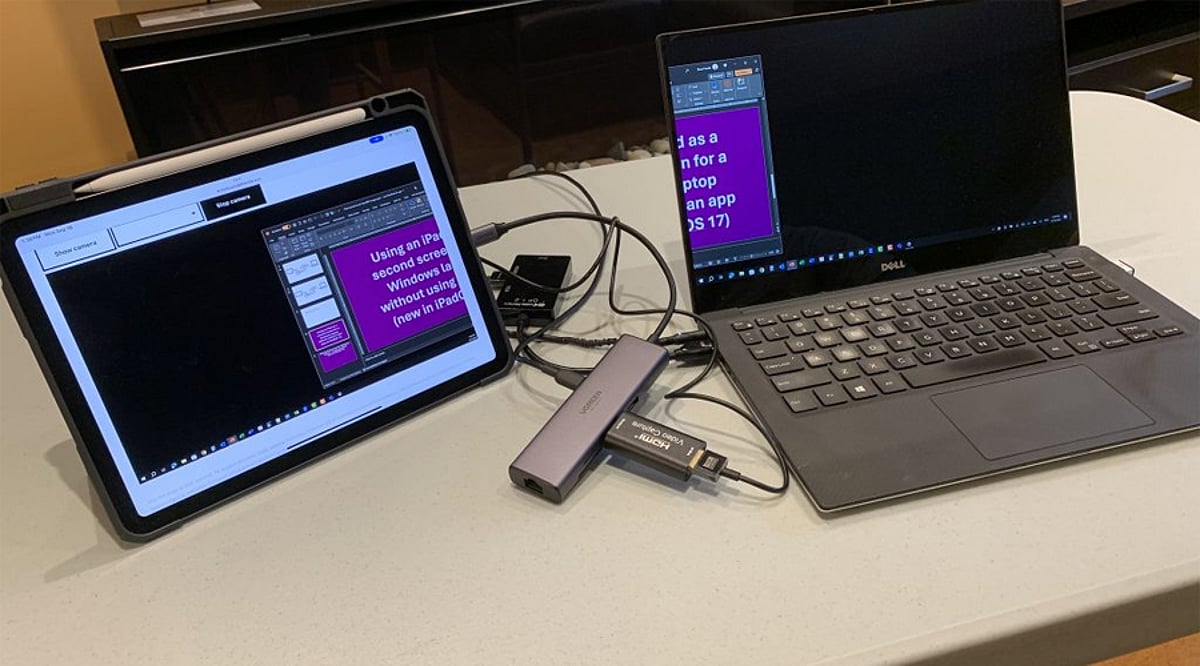
Your iPad can do much more than serve as a standalone tablet. When paired with a compatible Mac, Apple’s Sidecar feature transforms your iPad into a second screen, expanding your workspace for documents, creative applications, research, and multitasking. This guide walks you through the entire process, from compatibility checks to advanced tips.
Check Compatibility First
Before diving in, ensure your Mac and iPad support Sidecar and are signed in to the same Apple Account. Both devices must run compatible operating systems, and you’ll need to have two-factor authentication enabled for that account. This requirement ensures a secure and seamless connection.
Connect Your Devices
Sidecar works both wirelessly and over a wired USB connection. For wireless setup, turn on Wi-Fi, Bluetooth, and Handoff on both devices, and keep them near each other. A USB connection is ideal for long sessions, as it keeps your iPad charged while working.
Enable Sidecar
On your Mac, open Control Center and select Screen Mirroring, then choose your iPad from the list. Alternatively, go to System Settings, click Displays, and add the iPad from there. Once connected, your iPad will act as an extension of your Mac desktop.
Extend or Mirror the Screen
Sidecar offers two primary modes: Extend and Mirror. In Extend mode, you can place different windows on each screen, effectively doubling your workspace. In Mirror mode, both displays show the same content—ideal for presentations or teaching. You can also rearrange display positions so moving the cursor between screens feels natural.
Use Apple Pencil Too
For creative professionals, Sidecar becomes even more powerful with an Apple Pencil. You can draw, edit photos, annotate documents, and interact with supported Mac applications directly on your iPad. The iPad’s sidebar gives quick access to common modifiers like Command, Option, and Shift, making it a natural extension of your workflow.
Build a Bigger Workspace
Once Sidecar is running, drag research materials, reference pages, or tool palettes onto the iPad while keeping your main project on the Mac. This setup eliminates cramped multitasking and boosts productivity. When you’re done, simply disconnect your iPad via the Screen Mirroring menu or Sidecar controls to return to normal operation.
Join our WhatsApp Channel for the latest news, exclusives, and videos on technology.