
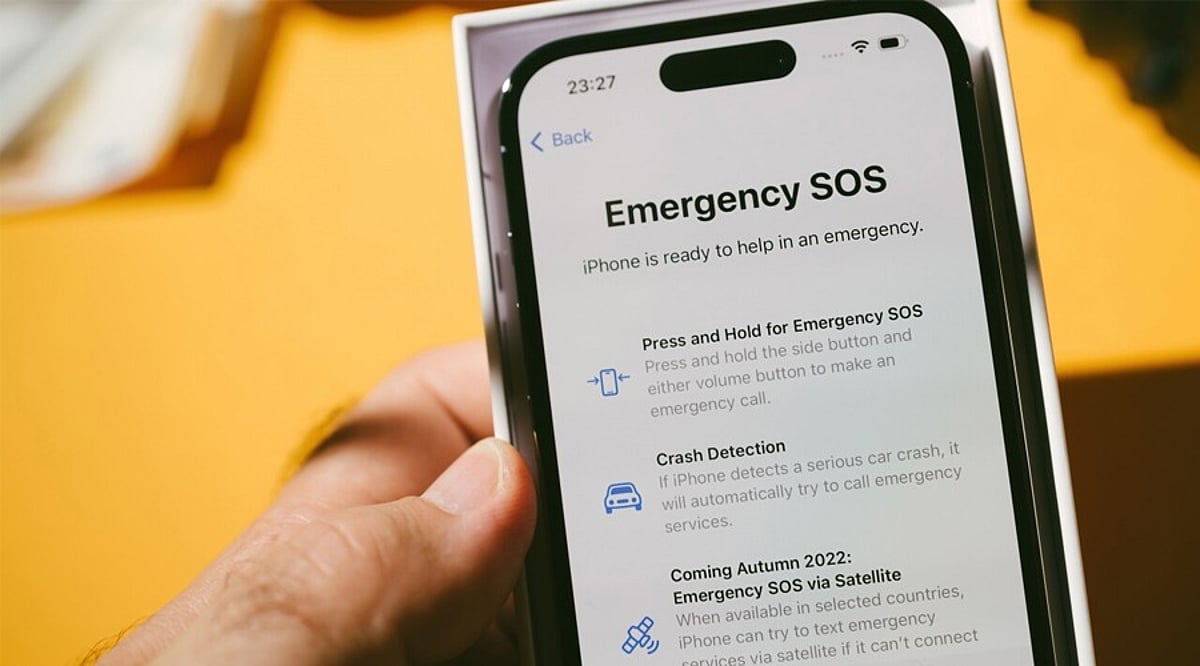
Seeing “SOS” or “SOS Only” on your phone’s status bar can be alarming, but it’s not a sign of a broken device. This indicator means your phone has lost connection to your carrier’s network and can only make emergency calls. While it might seem like a major issue, the causes are often simple to fix. This guide explains why this happens and walks you through practical steps to restore your full service quickly.
What Does SOS Mean on a Phone?
When your phone displays “SOS” instead of signal bars, it means it can no longer connect to your home carrier’s network. The phone still detects a nearby cell tower, but it’s only allowed to make emergency calls (like 911). Regular calls, texts, and mobile data will not work until the issue is resolved. This is a safety feature required by law, ensuring you can always reach emergency services even without an active plan or SIM card.
Common Causes of SOS Only
Several factors can trigger SOS mode. Understanding the root cause is the first step to fixing it.
SIM Card Issues
A loose, damaged, or outdated SIM card is a frequent culprit. Similarly, eSIM profiles can sometimes fail, especially after a system update.
Carrier Account Problems
An unpaid bill or a suspended line will immediately cut off standard service. Emergency access remains active by design, which is why you see SOS instead of “No Service.”
Network Outages
Storms, tower maintenance, or power failures can disrupt coverage across an entire area. Your phone might still pick up a competitor’s tower, but only for emergency calls.
Software Glitches
Operating system updates occasionally corrupt carrier configuration files. The radio hardware works, but your phone’s software fails to authenticate your account credentials.
Incorrect Network Settings
Manually changed APN settings or accidentally enabling Airplane Mode can cause the same symptom. These are easy to overlook during troubleshooting.
Hardware Damage
Physical damage from a drop or water exposure can block reception permanently. This usually requires professional repair.
Roaming Gaps
When traveling to areas without a roaming agreement, your phone may only be able to make emergency calls. Local towers recognize your device but refuse standard registration.
How to Fix SOS on Android Phones
Most SOS issues can be resolved with a few simple steps. Try these in order before contacting support:
- Restart your phone: Turn it off, wait 30 seconds, then turn it back on.
- Toggle Airplane Mode: Turn it on for 10 seconds, then turn it off.
- Reinsert the SIM card: Remove the SIM tray, check for damage, and firmly reinsert it.
- Update your software: Install any pending system or carrier settings updates.
- Check your account status: Log into your carrier’s app or website to ensure your bill is paid and your line is active.
- Reset network settings: Go to Settings > System > Reset options > Reset network settings. This won’t delete your personal data.
If these steps don’t work, contact your carrier using WiFi calling. They can check for outages, confirm your account status, or send a replacement SIM.
How to Disable SOS on Samsung Phones
Samsung’s Emergency SOS feature is different from network-based SOS. It activates when you press the side button five times quickly, which can happen accidentally. Here’s how to adjust it:
- Open Settings and tap Safety and emergency.
- Select Emergency SOS.
- Toggle the switch off if allowed, or enable Require swipe to call.
- Extend the countdown timer to give yourself more time to cancel an accidental trigger.
Note that newer Samsung models (since June 2023) may not allow full deactivation. Using the swipe confirmation is a good compromise to prevent accidental calls while keeping genuine emergency access.
When to Seek Professional Help
If SOS persists after all troubleshooting, the issue may be with your account or hardware. Carriers can often resolve account issues remotely or send a new SIM. If you suspect water damage or a hardware fault, have a technician inspect your device. Check your warranty before paying for repairs.
Final Thoughts
SOS mode is concerning but usually fixable. Start with simple checks like your SIM card and account status, then move to software resets. If the problem continues, professional help is just a call away. For Samsung users, adjusting the Emergency SOS settings can prevent accidental triggers while keeping you safe.