Tag: SSD

  • SanDisk Optimus Series Signals Shift in Gaming Hardware Priorities: Speed and Capacity Take Center Stage

    SanDisk Optimus Series Signals Shift in Gaming Hardware Priorities: Speed and Capacity Take Center Stage

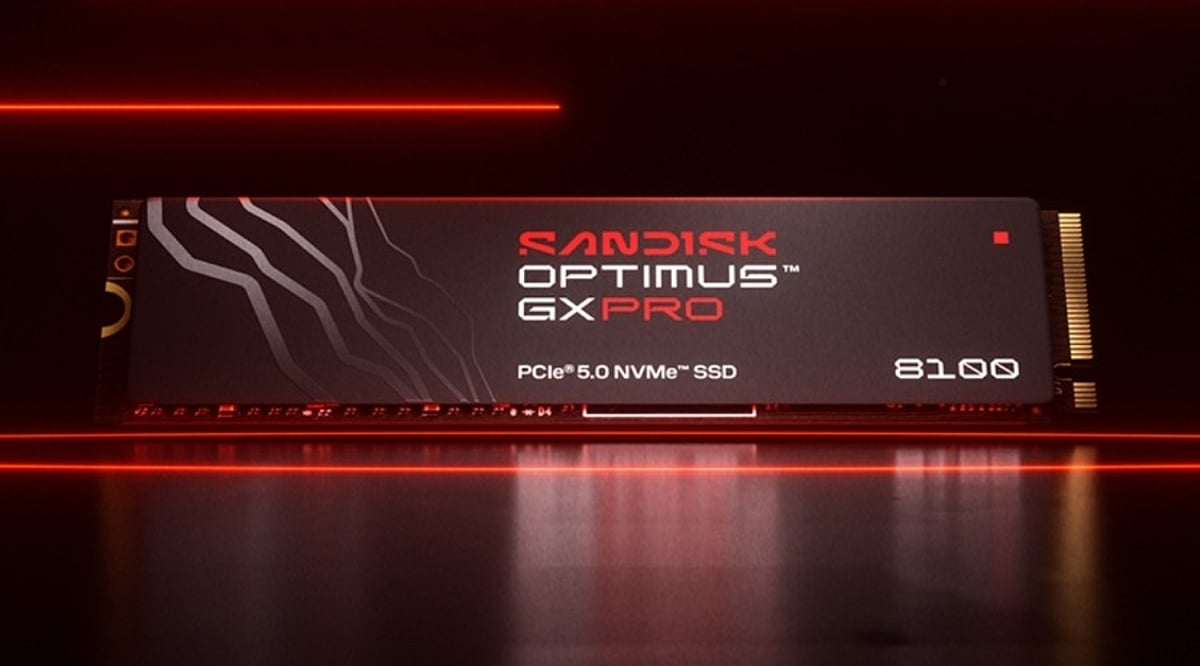
    SanDisk is making a stronger push into the gaming and esports sector as modern games demand increasingly more storage for downloads and updates. With the Indian gaming market surpassing the USD 1 billion mark in 2025 and projected to have over 550 million gamers in 2026, the company is entering the ecosystem with two powerful new SSDs: the SanDisk Optimus GX SSD and the SanDisk Optimus GX PRO SSD. Launched in 2026, these drives are built for gamers and developers, respectively, offering the capacity and speed required by demanding titles.

    Traditional gaming hardware discussions often center on GPUs and CPUs, but the SanDisk Optimus GX PRO 8100, a PCIe 5.0 NVMe SSD, aims to deliver a friction-free experience. Players can run games, multitask, and transfer files without lag. For console gamers, SanDisk introduced microSD Express cards for handheld gaming consoles, boasting read speeds up to 880 MB/s and the ability to store up to 36 games.

    As AAA games grow and digital libraries expand, storage is becoming a regular part of gaming upgrades rather than an afterthought. The Optimus range illustrates how gaming hardware priorities are evolving: performance is no longer just about graphics and processing power. For players with extensive libraries, fast and spacious storage is now one of the most practical upgrades available. As games continue to expand, the humble SSD may play an increasingly critical role in any gaming setup.

  • SanDisk Launches NAS-Optimized SSDs in India: NAS 600 SATA and NAS 800 NVMe

    SanDisk Launches NAS-Optimized SSDs in India: NAS 600 SATA and NAS 800 NVMe

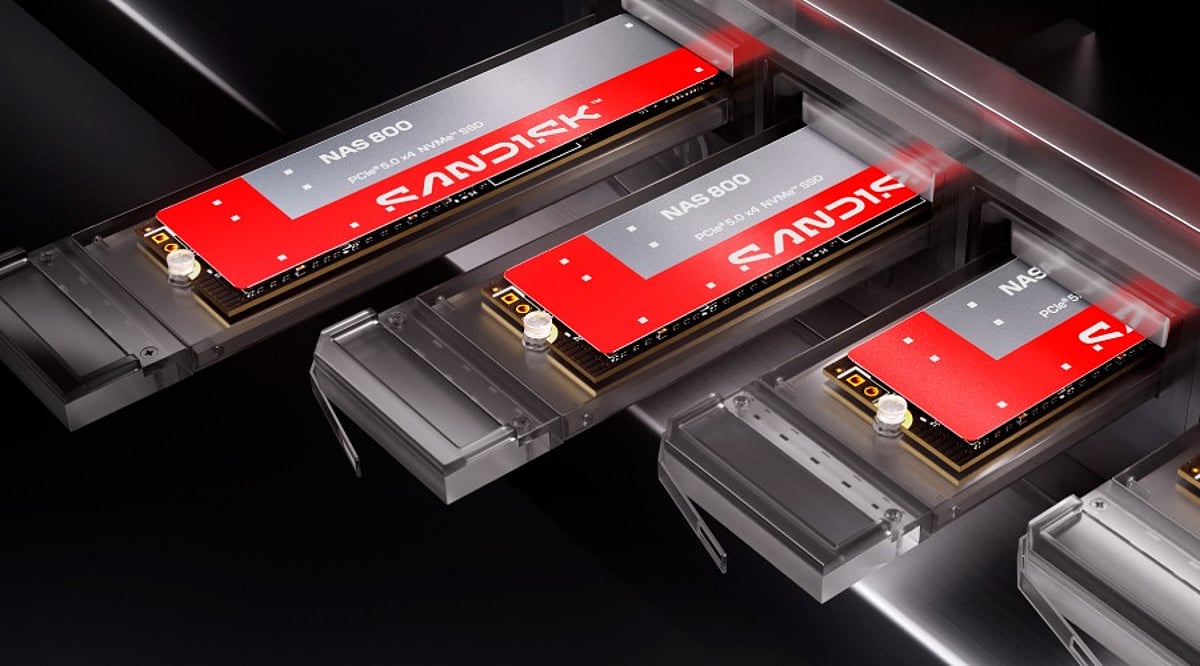
    SanDisk has launched a new lineup of NAS-focused SSDs in India, catering to home users, small businesses, and creative professionals. The two models introduced are the NAS 600 SATA SSD and the NAS 800 NVMe SSD, both engineered for reliable, high-performance storage in network-attached storage (NAS) environments.

    NAS 600 SATA SSD: Affordable Upgrades for Existing Systems

    The NAS 600 SATA SSD is designed as a drop-in replacement for traditional hard drives in older NAS units. It comes in a 2.5-inch, 7mm form factor and fits into 3.5-inch drive bays without additional adapters. Key specifications include:

    • Read speeds up to 560 MB/s
    • Capacities from 500GB to 4TB
    • Top endurance of 2,500 TBW (for the 4TB model)
    • Suitable for storage expansion or cache duties

    NAS 800 NVMe SSD: High-Speed Performance for Demanding Workloads

    The NAS 800 NVMe SSD targets heavier workloads such as databases, virtual machines, AI processing, and content creation. It leverages PCIe 5.0 in an M.2 2280 form factor. Highlights include:

    • Capacities from 960GB up to 7.68TB
    • Maximum read speed of 14,900 MB/s
    • Maximum write speed of 13,200 MB/s (actual speeds vary by model)
    • Endurance rating of up to 14 PBW for the top SKU

    Both SSDs are optimized for 24/7 operation in NAS systems, providing consistent performance and reliability. SanDisk states that the new drives will be available from September through its official channels and select retailers.

  • Top Affordable Laptops for Work, Study, and Streaming in 2026

    Top Affordable Laptops for Work, Study, and Streaming in 2026

    The days of sacrificing performance for price are over. Today’s budget laptops deliver impressive speed, crisp Full HD displays, and all-day battery life, making them ideal for work, online classes, and entertainment without breaking the bank.

    Performance That Matters

    Modern affordable laptops are powered by Intel Core i3 or AMD Ryzen 5 processors, paired with at least 8GB or 16GB of RAM and speedy SSD storage. This combination ensures smooth multitasking across browser tabs, Microsoft Office, video calls, and streaming. Unlike older hard drives, SSDs boot up in seconds and launch apps instantly.

    Premium Features at a Lower Price

    Budget laptops now include features once reserved for high-end models: Full HD anti-glare displays, backlit keyboards, camera shutters for privacy, and Wi-Fi 6 connectivity. Slim and lightweight designs make them perfect for students and professionals on the go.

    More Choices Than Ever

    Top brands like ASUS, HP, Dell, Lenovo, and Acer offer a wide range of models. Whether you prefer a compact 14-inch screen or a larger 15.6-inch display, there’s an option for every need. AMD Ryzen laptops excel at multitasking, while Intel models are favored for workplace software compatibility. Increased competition keeps prices low while raising the bar on specs.

    What to Look For

    Experts recommend prioritizing RAM, SSD storage, and processing power over flashy extras that don’t improve daily use. A well-configured budget laptop handles work, education, communication, and leisure with ease.

  • 5 Essential SSD Upgrade Tips to Revitalize Your Laptop’s Speed

    5 Essential SSD Upgrade Tips to Revitalize Your Laptop’s Speed

    Why Upgrade to an SSD?

    Upgrading to a solid-state drive (SSD) is one of the most impactful enhancements you can make to your laptop. Unlike traditional hard disk drives (HDDs), SSDs use flash memory, delivering faster boot times, quicker application launches, improved multitasking, and overall snappier responsiveness. Even an older laptop can feel like new with this simple upgrade.

    1. Check SSD Compatibility

    Before purchasing an SSD, ensure your laptop supports the correct interface and form factor. Older laptops typically require 2.5-inch SATA SSDs, while modern models often accommodate M.2 NVMe drives. Consult your laptop’s specifications or service manual to confirm the maximum storage capacity supported.

    2. Choose the Right SSD Type

    Selecting the appropriate SSD depends on your device and performance needs. SATA SSDs offer excellent value for older systems, while NVMe SSDs provide significantly higher read and write speeds for current laptops. If your laptop supports NVMe, opt for it to enjoy faster boot times, smoother multitasking, and quicker file transfers.

    3. Clone Your Existing Drive

    Rather than reinstalling Windows and all applications, clone your current hard drive to the new SSD. Cloning preserves your operating system, software, settings, and personal files, making the upgrade seamless and time-efficient. Use reliable cloning software and a compatible USB adapter or external enclosure for a safe migration.

    4. Optimize SSD Performance

    After installation, optimize your SSD for long-term performance. Enable TRIM support, update the SSD firmware, and keep at least 10–20% of storage free. These practices help maintain high read/write speeds, improve reliability, reduce performance degradation, and extend the drive’s lifespan.

    5. Buy a Trusted SSD Brand

    Invest in SSDs from reputable manufacturers such as Samsung, Western Digital, Crucial, Kingston, or SK hynix. Reliable brands offer consistent performance, higher endurance ratings, better firmware support, and longer warranties. Choosing a quality SSD ensures dependable operation, especially for users handling large files or intensive workloads.

    Key Takeaways

    An SSD upgrade is a cost-effective way to make your laptop faster and more efficient. Check compatibility, choose the right SSD type, clone your existing drive, optimize system settings, and invest in a trusted brand. Following these five practical tips ensures a smooth upgrade and delivers lasting improvements in speed and productivity.

  • Revive Your Aging Laptop: Affordable Upgrades That Turn It Into a Productivity Powerhouse

    Revive Your Aging Laptop: Affordable Upgrades That Turn It Into a Productivity Powerhouse

    Does your old laptop feel painfully slow? You’re not alone. Boot times stretch into minutes, applications crash, and multitasking becomes a distant memory. Before you give up and buy a new machine, consider this: with a few practical upgrades, you can transform that sluggish laptop into a reliable productivity hub—without breaking the bank.

    Step 1: Clean Out the Clutter

    The easiest fix is often the most overlooked. Remove unnecessary files and programs that have accumulated over the years. Delete unused applications, clear temporary files, and organize important documents into folders. Freeing up storage reduces system load and noticeably improves startup and application launch times.

    Step 2: Upgrade the Hardware

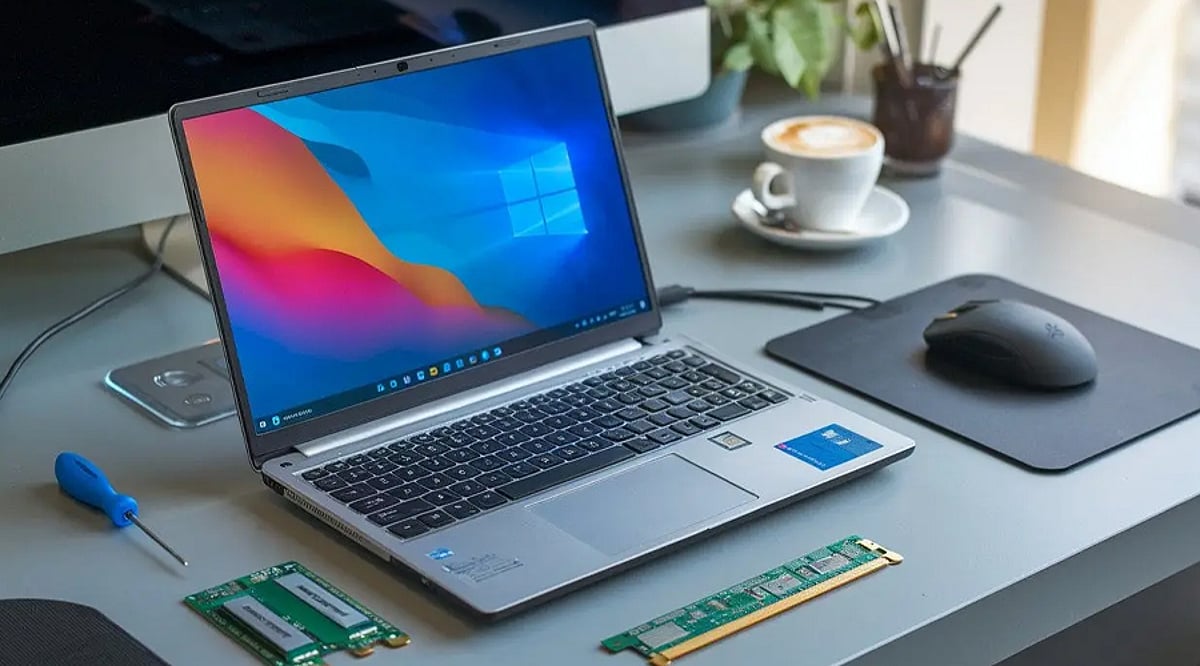
    The single biggest performance boost comes from replacing your old hard drive with a solid-state drive (SSD). This simple swap dramatically reduces boot times and makes applications feel snappier. If your laptop allows it, upgrading the RAM is another affordable improvement that lets you run multiple applications smoothly. Together, these hardware upgrades can make an aging system feel almost as responsive as a much newer computer.

    Step 3: Choose Lightweight Software

    Not all software is created equal. Switch to lightweight browsers and productivity apps that demand fewer system resources. Disable unnecessary startup programs to cut boot time, and keep your operating system and applications updated for better stability and security. These changes cost nothing but can make your laptop run significantly faster.

    Step 4: Create a Comfortable Workspace

    Productivity isn’t just about speed—it’s also about comfort. Add an external monitor for a bigger screen, a wireless keyboard, and a comfortable mouse. A laptop stand improves airflow and reduces neck strain during long work sessions. A well-designed workspace helps you stay focused and efficient for hours.

    Better Performance Every Day

    With these upgrades, your old laptop can easily handle writing, online research, spreadsheets, presentations, and video meetings. It will run much faster than before, and everyday tasks will be completed without frustrating delays. These improvements save both time and money while extending your laptop’s useful life.

    A Smart Investment That Paid Off

    Instead of spending a large amount on a new computer, invest in a few practical upgrades. The experience proves that older devices still have plenty of potential when properly maintained. With a little effort, an aging laptop can become a reliable productivity powerhouse once again.

  • Top SSD Upgrades to Give Your Old PC a New Lease on Life

    Top SSD Upgrades to Give Your Old PC a New Lease on Life

    Is your old PC feeling sluggish? One of the most impactful upgrades you can make is swapping out that aging hard disk drive (HDD) for a solid-state drive (SSD). Not only does it slash boot times and accelerate file access, but it also makes everyday computing feel snappy again. Below, we break down the best SSD upgrades that can transform your machine without breaking the bank.

    Replace Slow Hard Drives

    Replacing an old HDD with an SSD dramatically reduces boot times, accelerates file access, and makes everyday computing noticeably faster. It’s the single most effective performance upgrade for older systems.

    Choose SATA SSDs for Maximum Compatibility

    SATA SSDs fit most older desktops and laptops, offering excellent speed improvements without requiring expensive hardware upgrades or motherboard replacements. They are a drop-in solution for nearly any system with a standard SATA port.

    Upgrade to NVMe Where Supported

    If your PC has an M.2 NVMe slot, upgrading to an NVMe SSD unlocks significantly faster read and write speeds. This enhances multitasking, gaming, and productivity workloads, making your system feel modern again.

    Increase Storage Capacity

    Modern SSDs come in larger capacities than ever before. You can store more applications, media files, and games without sacrificing system performance or reliability. A high-capacity SSD means fewer worries about running out of space.

    Improve Boot and Shutdown Speeds

    SSDs enable operating systems to boot within seconds while reducing shutdown times. This creates a smoother and more efficient user experience, saving you precious time every day.

    Enhance Gaming Performance

    Faster storage decreases game loading times, speeds up level transitions, and minimizes texture-loading delays. Gamers will enjoy a more immersive experience with fewer interruptions.

    Boost Productivity Applications

    SSDs improve responsiveness in office software, creative applications, browsers, and multitasking. Completing tasks becomes more efficient, helping you get more done in less time.

    Reduce Power Consumption

    SSDs consume less energy than traditional hard drives, extending laptop battery life while producing less heat and operating almost silently. This is especially beneficial for mobile users.

    Extend the Life of Older PCs

    Installing a quality SSD is one of the most cost-effective upgrades you can make. It delays the need for expensive hardware replacements while delivering near-new system responsiveness. A simple upgrade can keep your trusted PC running for years to come.

  • SSD Buying Guide 2026: How to Pick the Best Solid-State Drive for Speed, Storage, and Value

    SSD Buying Guide 2026: How to Pick the Best Solid-State Drive for Speed, Storage, and Value

    Solid State Drives (SSDs) have become the default storage option for most modern computers, offering dramatically faster performance than traditional hard drives. However, with the rapid evolution of storage technology—including PCIe 5.0 drives, rising NAND flash prices, and growing capacity demands—choosing the right SSD requires careful consideration of speed, durability, compatibility, and long-term value. This guide will help you navigate the key factors and make an informed purchase in 2026.

    Understanding Different Types of SSDs

    Three major categories dominate the market today:

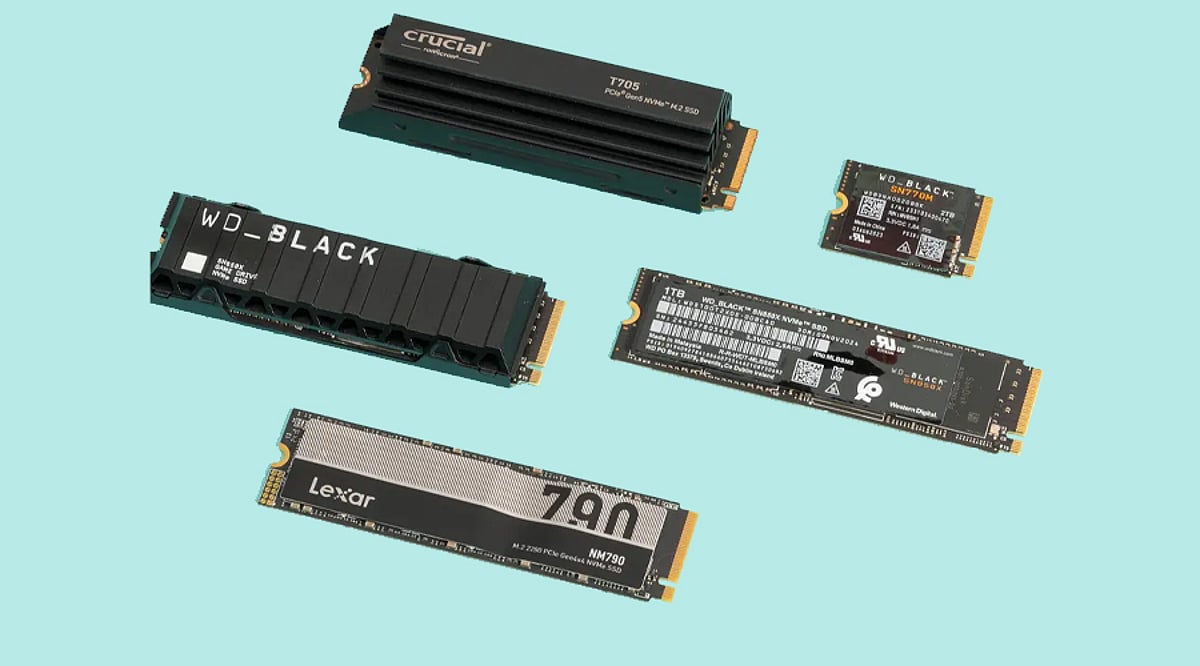
    • SATA SSDs: The most affordable option, delivering speeds up to 550 MB/s. Ideal for basic office work, web browsing, video playback, and older systems. While much faster than HDDs, they are now considered entry-level.
    • NVMe PCIe 4.0 SSDs: The mainstream choice, offering speeds between 5,000 MB/s and 7,500 MB/s. Perfect for gamers, students, professionals, and content creators who need fast file transfers and responsive system performance.
    • PCIe 5.0 SSDs: Premium drives like the WD Black SN8100 that reach read speeds up to 14,900 MB/s. Targeted at power users, video editors, AI workloads, and advanced workstations where maximum throughput is critical.

    Choosing the Right Storage Capacity

    Your capacity needs depend on your workload:

    • 500GB: Suitable for basic tasks, school projects, light software use, and web browsing.
    • 1TB: The most balanced option for average users, offering ample room for applications, files, and the operating system.
    • 2TB: Increasingly popular among gamers, as modern AAA titles regularly exceed 150GB per installation.
    • 4TB and 8TB: Best for professional creators, video editors, AI developers, and users handling huge daily file transfers. Larger SSDs often perform better due to more memory chips enabling faster internal data movement.

    Why PCIe Generation Matters

    SSD speed is limited by the motherboard’s PCIe connection. PCIe 3.0 maxes out at about 3,500 MB/s, PCIe 4.0 reaches nearly 7,500 MB/s, and PCIe 5.0 pushes toward 15,000 MB/s. However, PCIe 4.0 remains the best value for most users—PCIe 5.0 drives still command high prices, and the real-world difference for typical tasks is minimal. Consumer PCIe 6.0 SSDs aren’t expected before 2030.

    Checking the Type of NAND Memory

    The memory chips inside an SSD significantly affect speed and lifespan:

    • TLC NAND (Triple-Level Cell): The preferred choice for durability, consistent speed, and long-term reliability. Most premium SSDs use TLC memory.
    • QLC NAND (Quad-Level Cell): Focused on lowering cost. These drives are cheaper but can slow down during large file transfers and sustained heavy workloads. For long-term performance, TLC is the stronger option.

    Understanding SSD Lifespan Through TBW

    Drive endurance is measured in Terabytes Written (TBW). A budget 1TB SSD typically offers around 300 TBW, mid-range drives approach 600 TBW, and premium 2TB models often exceed 1,200 TBW. Higher endurance is important for professionals who constantly transfer large files—developers, video editors, and designers will benefit from drives with stronger ratings.

    Heat Management Has Become Important

    As SSD speeds increase, so does heat output, especially with PCIe 5.0 drives. Many premium SSDs now include built-in heatsinks or graphene cooling layers, and some motherboards offer dedicated SSD cooling. Without proper thermal management, the drive will throttle performance to protect itself. Always consider cooling when purchasing a high-speed SSD.

    SSD Prices Are Rising in 2026

    Global NAND flash shortages driven by AI infrastructure demand have pushed SSD prices sharply higher. Several high-capacity NVMe drives now cost nearly twice what they did in 2025. Analysts expect this pricing pressure to continue into 2027, making timing an important factor for buyers planning upgrades.

    Final Buying Advice for 2026

    For the majority of users, a PCIe 4.0 NVMe SSD offers the best balance of price and performance. SATA SSDs remain viable for older or low-end systems. PCIe 5.0 drives are reserved for professionals and enthusiasts who need the absolute fastest throughput. The global NVMe SSD market is projected to grow at a CAGR of about 18.9% over the next several years, driven by cloud computing, AI applications, and enterprise storage needs. Rather than waiting for the next technology leap, make your purchase decision based on required capacity, motherboard compatibility, endurance needs, and your long-term usage commitment.

    Frequently Asked Questions

    1. Which SSD is best for most buyers in 2026? A PCIe 4.0 NVMe SSD remains the best option because it delivers strong performance at a reasonable price.
    2. Is PCIe 5.0 worth buying in 2026? PCIe 5.0 is best for professionals and advanced users; high prices make it unnecessary for regular use.
    3. What SSD capacity should be chosen for gaming? A 2TB SSD works best for gaming because many modern games now exceed 150GB.
    4. Why are SSD prices increasing in 2026? Global NAND flash shortages and rising demand from AI infrastructure have pushed storage prices much higher.
    5. Does SSD cooling really matter? Yes. High-speed SSDs, especially PCIe 5.0 models, produce more heat and may slow down without proper cooling.