
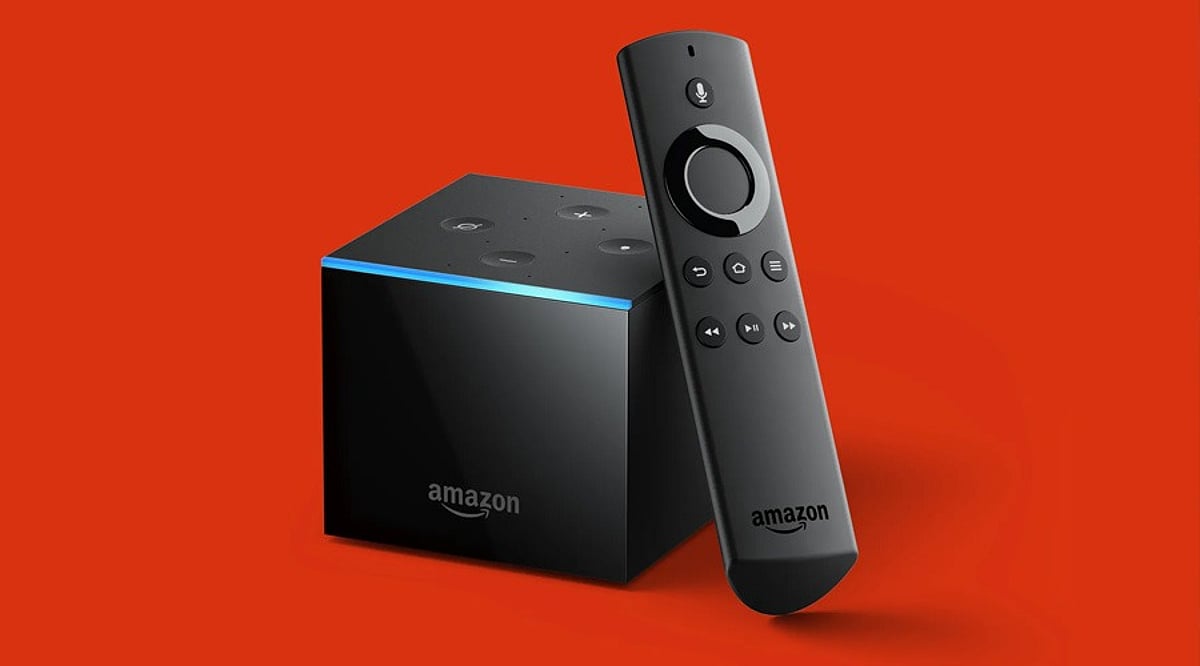
Fire TV storage can fill quickly due to cached data, unused apps, and forgotten downloads. Many users face recurring ‘critically low on storage’ warnings, especially on entry-level models with only 8GB of internal storage (around 5GB usable). Fortunately, you can reclaim significant space without deleting a single app. Fire OS includes built-in tools to clear cache, offload idle apps, and manage files. Here’s how to do it step by step.
Why Fire TV Storage Fills Up Fast
Amazon’s streaming devices ship with modest storage compared to modern smartphones. The Fire TV Stick 4K Max (late 2023) offers 16GB total, with roughly 12GB usable. Standard Fire TV Stick and Lite models have only 8GB, leaving under 5.5GB for apps and cached data. Unlike phones, Fire TV lacks cloud storage or expandable partitions, so cache and temporary data accumulate quickly.
Step 1: Clear App Cache and Data
Go to Settings > Applications > Manage Installed Applications. Select ‘Clear all Application Caches’ to instantly reclaim gigabytes. For individual apps, choose the app, then tap ‘Clear Cache’ (and ‘Clear Data’ if you want to reset the app entirely — note that clears logins). A recent test recovered roughly 2GB using the single cache-clear toggle without removing any installed software.
Step 2: Let Auto Offload Do the Work
Newer Fire OS versions include an automatic offloading feature that removes infrequently used apps (idle for over 30 days) while preserving their data. Reinstalling later restores everything. This runs silently in the background and cannot be disabled. Note: it only works for apps from the Amazon Appstore — sideloaded APKs must be managed manually.
Step 3: Trim Background Processes
Background activity can slow performance and eat resources. Close unused apps before putting the device to sleep. On older Fire TV models, a background limit toggle exists in Developer Options. On newer builds, use the Manage Installed Applications menu to force-stop resource-hungry apps.
Step 4: Manage Downloads and Sideloaded Files
APK installer files often remain after sideloading. Open the Downloader app, navigate to Files, long-press the file, select it, and delete it. Regularly check the Downloads folder for leftover installers. Also, transfer personal media (videos, photos) to external storage using a USB OTG adapter to free internal space.
Step 5: Expand Storage via USB OTG
Fire OS supports external USB drives up to 128GB through an OTG adapter. This is ideal for large media files, but core system apps still reside on internal storage, so regular cache management remains essential.
Final Thoughts
Persistent low-storage warnings rarely mean you need a new device. Regular cache clearing, reliance on Auto Offload, mindful background management, and periodic file cleanup can restore meaningful space in minutes. These built-in Fire OS tools prove that a factory reset or new purchase is often unnecessary when the right settings are already available.
