
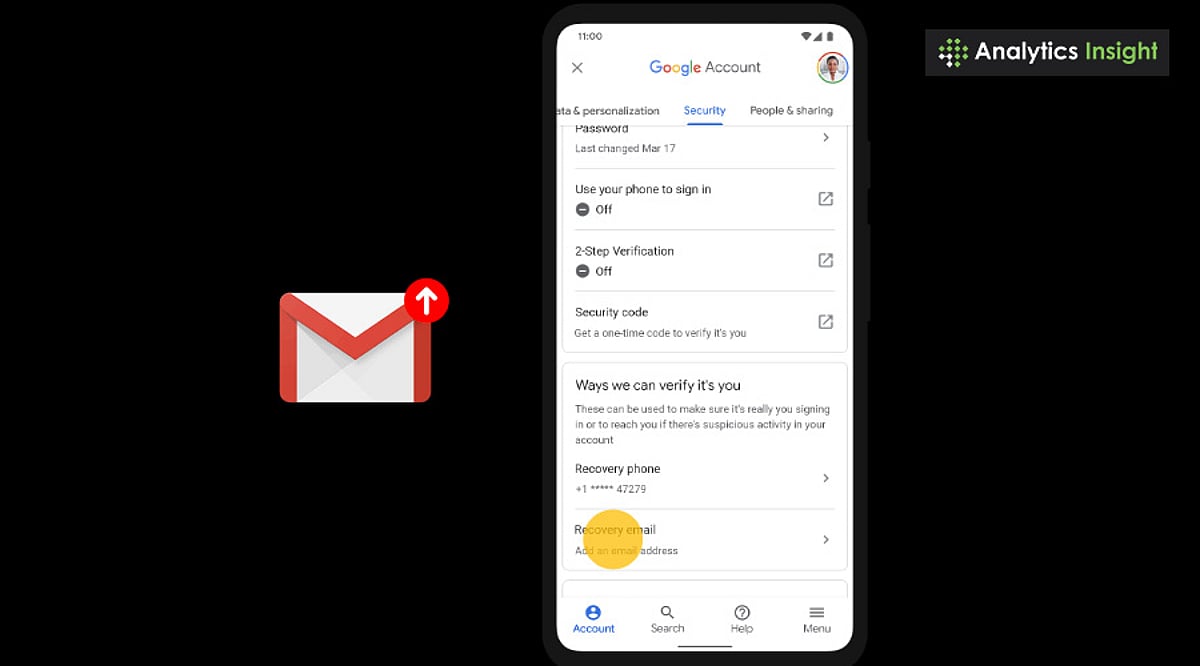
Keeping your Gmail account secure starts with making sure your recovery email and phone number are current. These details are essential if you forget your password, lose access to your account, or suspect suspicious activity. This guide walks you through every step of updating your recovery information in Gmail.
Why Keeping Your Recovery Information Updated Matters
Your recovery email and phone number act as a backup plan. If you are locked out of Gmail, Google uses these contact methods to verify your identity. Outdated recovery details can make it difficult or even impossible to get back into your account. Regularly reviewing and updating this information helps protect your account and ensures you can regain access quickly.
How to Change Your Recovery Email and Phone Number in Gmail
Step 1: Sign In to Gmail
Sign in to your Gmail account using your username and password. For security reasons, always do this on a device and internet connection you trust. Once signed in, you can access your account settings.
Step 2: Open Your Google Account Settings
- Click or tap the profile picture icon in the upper-right corner of Gmail.
- Select Manage your Google Account.
- You will be directed to a page where you can update your security and personal information.
Step 3: Go to Personal Info
On the left side, click Personal info. This page displays your email accounts, phone numbers, birthday, and other personal identifying details. Scroll down to the Contact information section.
Step 4: Update Your Recovery Email
- Under Contact info, click Email and locate your recovery email.
- Click it, then select Edit.
- Enter your new recovery email address.
- Verify it by entering the code Google sends to that address.
Make sure the recovery email you choose is one you actively use and that is secured with its own strong password. This will be the primary way you can recover your Google account if needed.
Step 5: Update Your Recovery Phone Number
- In Contact info, click Phone and select Edit next to your recovery phone number.
- Enter the new recovery phone number.
- Verify it by entering the code you receive through SMS.
- Save the updated number.
Your recovery phone number is especially helpful if you get locked out of your Google account or need to prove you are the account owner.
Step 6: Double-Check Your Changes
After updating your recovery options, review your account settings to confirm everything was saved correctly. Google may also send security notifications to your old recovery email or phone number as an extra verification step.
Tips for Keeping Your Gmail Account Secure
- Create a strong, hard-to-guess password using a mix of uppercase and lowercase letters, numbers, and special symbols.
- Turn on two-step verification for an additional layer of account security.
- Keep your recovery email and phone number current at all times.
- Monitor your account activity regularly and review your Gmail security settings for anything unusual.
- Always sign out of Gmail when using a public or shared computer.
By following these steps, you can always access your Gmail account, avoid lockouts, and protect your privacy.
Frequently Asked Questions
1. How do I change my recovery email in Gmail?
Go to your Google Account, select Personal info, then Contact info, click Email, choose Edit, and update your recovery email.
2. Can I update my recovery phone number in Gmail?
Yes. Navigate to Google Account → Personal info → Phone → Edit to add or change your recovery number.
3. Why is it important to keep my Gmail recovery info updated?
Updated recovery information ensures you can regain account access if you forget your password or face a security issue.
4. Will Google notify me when I change my recovery info?
Yes, Google sends notifications to your old email or phone number to confirm changes for security purposes.
5. Can I use any email or phone number as my recovery info?
You can use any active and secure email or phone number, but it should be one you regularly access so you can complete the account recovery process successfully.
Leave a Reply