
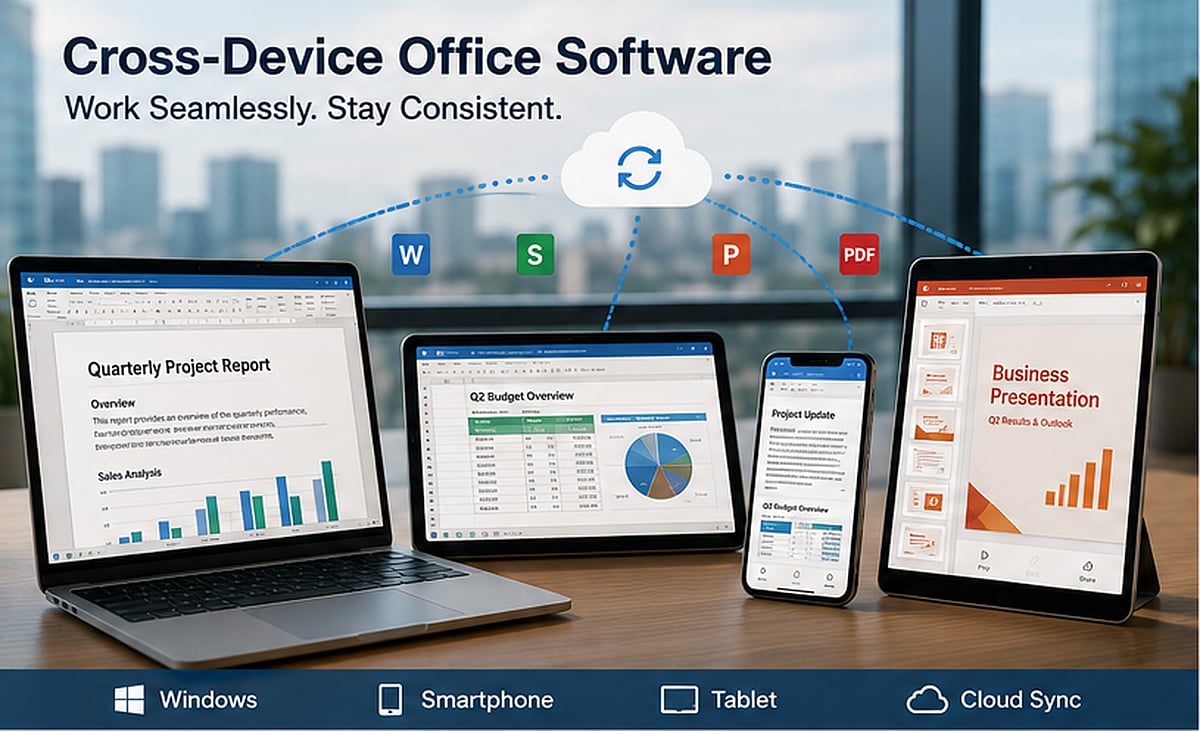
Distributed work has transformed how documents are created, reviewed, approved, and stored. A single report may start on a Windows laptop, receive comments on a tablet, get approved from a smartphone, and finally be exported as a PDF for a client overseas. This flexibility accelerates team velocity, but it introduces a significant operational challenge: files must remain consistent across devices, operating systems, applications, and user environments.
Simply opening a file on multiple devices does not guarantee it will display or function correctly. Fonts may be replaced, spreadsheet formulas can behave differently, presentation elements may shift, and PDF annotations might change during conversion. For distributed teams, these inconsistencies lead to rework, approval delays, and uncertainty about which version is final.
Office software is now a critical component of an organization’s workflow infrastructure. Teams must evaluate not only whether an application can edit files, but whether it supports consistent document handling across Windows PCs, smartphones, tablets, shared folders, and cloud environments.
The Shift from Single-Device Work to Distributed Document Workflows
Traditional office workflows relied on a predictable environment: employees used company-managed computers, connected to the same network, and worked with a limited set of approved applications. Most documents were created, edited, and printed from similar devices. Hybrid and remote work have replaced that model with a distributed document lifecycle. A project manager drafts a proposal at home, a finance colleague reviews the budget on a corporate laptop, and an executive approves the final version from a mobile device while traveling. Students and cross-border teams face the same challenge, especially when members use different hardware, operating systems, and languages.
Files now pass through drafting, review, revision, approval, conversion, distribution, and archiving. Each transition can introduce formatting changes, duplicate copies, missing comments, or outdated content. Cross-device software improves access, but access alone is insufficient. Teams also need clear rules for file naming, storage, approval, and primary editing responsibility.
Why File Compatibility Still Matters
Modern office applications can usually open common document, spreadsheet, presentation, and PDF formats, but the quality of compatibility varies with file complexity. Font replacement is a frequent issue—if a device lacks the original font, a substitution may occur. The text remains readable, but page breaks, table widths, headings, and alignment can change. This is especially disruptive in contracts, proposals, multilingual documents, and branded materials.
Spreadsheets introduce different risks. Basic tables may transfer correctly, but formulas, macros, conditional formatting, data links, and pivot tables can behave differently across applications or versions. A file may appear correct during a quick mobile review even though a calculation has changed. Presentation files are equally sensitive: text boxes may move, images may resize, animations can disappear, and charts may render differently. PDF comments, signatures, form fields, and export settings can also vary between desktop and mobile tools.
When evaluating a suite such as WPS Office, the relevant question is not simply whether it opens a file. Teams should test whether it preserves structure through editing, review, export, and sharing. Compatibility should be treated as a workflow requirement, particularly for complex templates and client-facing files.
The Role of Windows in Modern Office Workflows
Mobile devices are valuable for communication and quick approval, but Windows computers still handle most intensive office work. Long-form writing, detailed spreadsheet analysis, document comparison, bulk conversion, presentation design, and large PDF processing are generally easier in a desktop environment. A full-size screen, keyboard, precise pointer controls, and direct access to local storage make Windows suitable for tasks requiring accuracy. Desktop systems also allow users to compare revisions, organize multiple folders, and manage several files at once.
Phones and tablets serve a different purpose: they are effective for reading, commenting, signing, approving, and making limited changes while away from a desk. The strongest workflows use Windows as the primary production environment and mobile devices as review and decision-making tools.
How Teams Standardize Documents Across Devices
Cross-device consistency depends on standardization. Teams should define which formats are used during editing and which are used for final distribution. Editable document, spreadsheet, and presentation formats may be used during production, while approved files can be converted to PDF for external sharing.
Default fonts should be widely available across Windows, mobile platforms, and web viewers. Page sizes, margins, heading styles, chart formats, and language settings should be built into shared templates. Naming rules are equally important: a file name should identify the project, document type, date, status, and version. For example, “ProjectName_Proposal_2026-07-19_v03” is more useful than “final-new-latest.”
Teams should also designate one authoritative working copy. Mobile users can review or comment, but major structural changes should return to the primary file and primary editing environment.
Version Control Without Enterprise Complexity
Small teams do not always need an enterprise content management system. Clear habits can prevent most version confusion. Dates and version numbers should follow a predictable format: major versions for approved milestones, minor versions for internal drafts. Vague labels such as “final2” or “final-revised” should be avoided.
Files should not be repeatedly sent through several chat windows. Every attachment creates another copy, increasing the chance that someone edits an outdated version. A controlled link to a central file is usually safer. A dedicated approval folder can separate drafts from files awaiting review. Once approved, the final version should move to a read-only or restricted archive. When reliable real-time collaboration is unavailable, one person should be responsible for consolidating edits.
Evaluating Desktop Office Software
Desktop office software should be tested against real workflow requirements rather than marketing feature lists. The first consideration is format support across documents, spreadsheets, presentations, and PDFs. Windows compatibility should include installation behavior, update methods, performance on typical company hardware, printing, local folder access, and file associations. Companion mobile applications should allow users to review, comment, and approve files without losing important formatting.
Teams should test PDF tools, spreadsheet functions, presentation fidelity, and document comparison using actual company files. A marketing team may prioritize layout accuracy, while a finance team may focus on formula reliability and large spreadsheet performance. Installation sources and update channels also matter. When assessing WPS Office for a Windows-centered workflow, the evaluation should be tied to desktop tasks such as long-document editing, spreadsheet analysis, presentation preparation, file conversion, and shared-folder integration. The objective is to determine whether the Windows version can serve as a stable primary editing environment.
Security and Privacy in Document Collaboration
Cross-device convenience can increase security risk when permissions are poorly managed. Organizations should decide which files may be stored locally, which must remain in approved cloud locations, and which require restricted access. Local files offer control but can be difficult to recover if a device is lost. Cloud files are easier to synchronize and back up, yet they require account security, permission reviews, and clear offboarding procedures.
Temporary files and autosave data should not be ignored. Office applications may create cached copies, recent-file records, thumbnails, and recovery files. On shared or unmanaged devices, these traces can expose sensitive information. Access should be reviewed whenever a project ends or a member leaves. Shared folders, external links, mobile sessions, and synchronized devices should all be included in the cleanup process.
A Practical Cross-Device Office Framework
A practical framework can be built around four principles:
- Use Windows as the primary editing environment for complex work, including long documents, advanced spreadsheets, presentations, bulk operations, and final formatting.
- Use phones and tablets mainly for viewing, commenting, signing, and approval. Mobile editing remains useful, but the scope of changes should match the device.
- Keep the authoritative file in one approved cloud location or shared folder. Share links instead of repeated attachments, and assign permissions according to each member’s role.
- Perform a weekly version cleanup. Remove obsolete drafts, archive approved files, verify naming conventions, and confirm that the primary version is clearly identified.
This framework does not require a large IT department. It requires agreement on how documents move through the team and which tools support that process.
Conclusion
The value of cross-device office software comes from workflow consistency. Distributed teams need more than the ability to open a document on different screens. They need formatting fidelity, clear version ownership, reliable mobile review, secure storage, and a stable desktop environment for complex editing.
Software provides the foundation, but governance determines the result. File formats, fonts, templates, naming conventions, permissions, approval folders, and cleanup routines all influence whether a document remains accurate throughout its lifecycle. As remote work, international collaboration, and device switching continue to shape modern organizations, office software will increasingly be treated as operational infrastructure. The teams that benefit most will combine capable cross-device tools with simple, enforceable document rules.
Leave a Reply