Tag: cloud storage

  • Local vs Cloud CCTV Storage: A Complete Buying Guide for Home Security

    Local vs Cloud CCTV Storage: A Complete Buying Guide for Home Security

    Introduction

    When purchasing a CCTV system, one of the most critical decisions is how to store recorded footage. The two primary options are local storage and cloud storage, each offering distinct advantages. This guide compares both approaches to help you choose based on your priorities, including privacy, cost, internet reliability, and remote access.

    How Local CCTV Storage Works

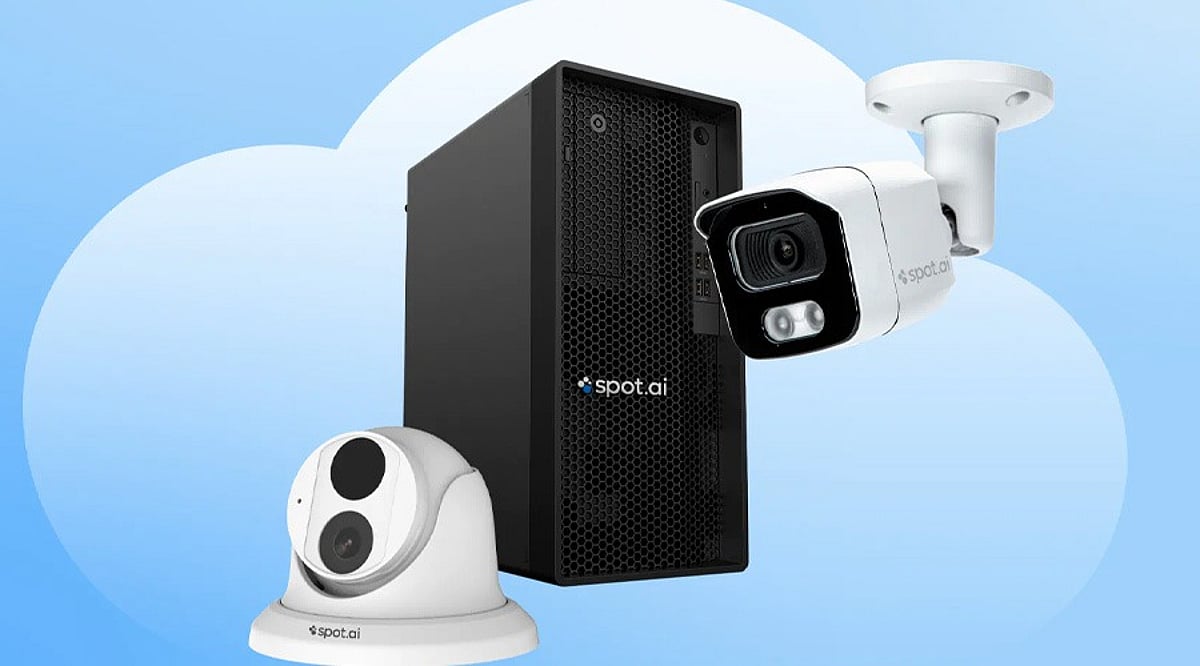
    Local storage keeps video recordings on physical devices installed at your property, such as microSD cards, DVRs, or NVRs. This method does not rely on an internet connection for recording, making it ideal for areas with unreliable connectivity. It also eliminates recurring subscription fees, though you must manage storage capacity manually. When the storage fills up, older footage is typically overwritten. A key downside is physical vulnerability: if the camera or recording device is stolen, locally stored footage may be lost.

    How Cloud CCTV Storage Works

    Cloud storage uploads footage to remote servers via the internet, allowing you to access recordings from anywhere through a smartphone app or web interface. This provides convenient remote monitoring and ensures that recordings remain safe even if the camera or local equipment is stolen. However, cloud services usually require a monthly or annual subscription, and the cost varies based on the number of cameras, storage capacity, and retention period. A stable internet connection is essential for uploading footage, and you should review the provider’s data security and privacy policies before subscribing.

    Local vs Cloud: Key Considerations

    • Cost: Local storage has higher upfront hardware costs but no recurring fees; cloud storage involves ongoing subscription costs.
    • Privacy: With local storage, footage stays on your equipment; with cloud storage, recordings are transferred to third-party servers.
    • Internet Reliability: Local recording continues without internet; cloud storage requires a consistent connection for uploading.
    • Remote Access: Cloud storage enables easy remote viewing; local storage may require additional networking setup for remote access.
    • Security Against Theft: Cloud storage preserves recordings off-site; local storage risks losing footage if devices are stolen.

    Is Hybrid Storage a Better Option?

    Some CCTV systems support both local and cloud storage simultaneously. This hybrid approach offers the best of both worlds: continuous local recording even during internet outages, plus off-site backups for critical events. It provides an extra layer of protection and flexibility, making it a strong choice for users who want both reliability and remote accessibility.

    Final Word

    There is no one-size-fits-all answer. Local storage suits users who prioritize control and lower long-term costs, while cloud storage appeals to those who value remote access and off-site backup. Before buying a CCTV system, evaluate its storage options, subscription charges, recording retention, internet requirements, and backup features. These factors are as important as camera resolution and night vision capabilities.

  • AI Subscriptions and Cloud Storage: What Your Digital Stack Really Costs in 2026

    AI Subscriptions and Cloud Storage: What Your Digital Stack Really Costs in 2026

    Several small monthly charges can add up to a surprisingly large annual bill. A single AI plan at $20 a month comes to $240 a year; two plans at the same price total $480. Add cloud storage, music, video, and productivity tools, and the full cost of your digital life can quickly outpace any one subscription’s sticker price.

    Recent pricing updates show that providers are competing on bundles as much as on raw AI performance or storage capacity. That makes it essential to compare annual totals, storage allowances, AI usage limits, and included extras before choosing a plan.

    Most AI Plans Cluster Around $20 a Month

    ChatGPT Plus remains priced at $20 per month. OpenAI says the tier offers broader model and tool access than the free version, higher usage limits, advanced reasoning, faster responses, and expanded features, although model access and limits may change over time.

    Claude Pro also stays at $20 per month in the US, with benefits such as higher usage, priority access, and early access to new features. In India, Anthropic now lists local pricing: Claude Pro is Rs 2,000 per month when billed annually, and Claude Max starts at Rs 11,999 per month. Those prices include local taxes, and mobile app pricing can differ from web pricing, so converting US prices directly does not give an accurate estimate for Indian users.

    Perplexity Pro is also $20 per month. It includes access to advanced AI models, deep research, higher usage limits, file analysis, and additional tools. Perplexity updated its consumer plan details in September 2026, with Pro listed alongside free and Max options.

    Google Pairs AI With Generous Cloud Storage

    Google takes a different approach by combining AI and storage in one package. A standard Google account includes 15 GB of free storage across Gmail, Google Drive, and Google Photos. The basic Google One 100 GB plan costs $1.99 per month in the US.

    Google AI Pro costs $19.99 per month and now includes 5 TB of storage. It also adds expanded Gemini access, Deep Research, Google Flow, Gemini in Gmail and Docs, Gemini Notebook, YouTube Premium Lite, and other Google benefits. The plan can be shared with up to five other people.

    That bundling changes the value equation. If you need both an AI assistant and terabytes of cloud storage, one Google AI Pro bill may be cheaper than separate AI and storage subscriptions, depending on how heavily you use each feature.

    For users with heavier AI needs, Google also offers AI Ultra, which starts at 20 TB of storage and provides higher access limits across several AI tools.

    Apple Expands iCloud+ in India

    Apple’s iCloud+ plans in India now start at Rs 75 per month for 50 GB, followed by Rs 219 for 200 GB, Rs 749 for 2 TB, Rs 2,999 for 6 TB, and Rs 5,900 for 12 TB.

    In September 2026, Apple added Apple TV and Apple Arcade to iCloud+ in India at no extra cost. Apple Arcade includes more than 200 games, while Apple TV adds Apple’s video catalog. Family Sharing lets one iCloud+ plan cover up to five family members.

    Apple also introduced Apple Music Select in India, which includes ad-free stations. Full Apple Music remains a separate service at Rs 115 per month for an Individual plan and Rs 145 per month for a Family plan. Apple One is no longer accepting new subscribers in India, though existing Apple One customers can keep their current plans.

    Infrastructure Costs Are Rising Too

    AI pricing is not isolated from broader industry trends. Reuters reported on September 17, 2026, that Nebius plans another price increase for selected chips starting October 1. The company had already raised prices once within the previous three months as demand for AI computing power pushed infrastructure costs upward.

    That does not guarantee consumer subscription prices will rise, but it provides helpful context for future AI costs. For now, the most effective way to manage digital expenses is to review annual totals, storage needs, AI limits, and bundled benefits before each renewal. A low monthly price can look harmless, but several small subscriptions can quietly turn into a substantial yearly bill.

  • 2026’s Best Home Security Cameras with Cloud Storage: Reviews and Comparison

    2026’s Best Home Security Cameras with Cloud Storage: Reviews and Comparison

    Home security cameras have become easier to install and manage, with many models now connecting directly to smartphones and home networks. Cloud storage adds another layer of convenience by keeping recorded footage accessible without relying on physical storage cards. However, cloud storage often comes with a subscription fee, and some cameras combine cloud services with local storage options. The right choice depends on your home, budget, privacy needs, and storage preferences. Here are some strong options to consider.

    Ring

    Ring remains a popular choice for connected home security. Its cameras integrate closely with the wider Ring ecosystem. The Ring Pan-Tilt Indoor Cam is one notable indoor option, offering 1080p video and broad room coverage. Ring’s subscription plans provide cloud video history and smart alerts, with current plans retaining recorded events for up to 180 days. This makes Ring useful for homeowners who regularly review older footage. The ecosystem also works well with other Ring security products. However, recorded video features generally require a paid subscription, so buyers should include that recurring cost in their budget.

    Google Nest

    Google’s Nest cameras are designed around the Google Home ecosystem, providing live video through compatible smartphones and smart displays. Cloud storage is available through Google’s paid home security plans, which also add features such as longer event history and advanced alerts. Google’s cameras can identify different types of activity, allowing users to receive alerts involving people, animals, vehicles, and packages. This makes Nest attractive for households already using Google smart home products. The main consideration is the recurring subscription, and continuous recording requires a higher-tier plan.

    Arlo

    Arlo offers cameras for both indoor and outdoor security, including models with higher-resolution video and advanced detection. The company’s subscription plans provide cloud storage and additional security features, such as alerts for people, vehicles, animals, and packages. Arlo also offers advanced features for users seeking more detailed security monitoring. The downside is cost: Arlo’s cloud plans can become expensive across multiple cameras. It suits users who value advanced features and video quality, but buyers should compare the total subscription cost before purchasing.

    Blink

    Blink offers a simpler approach to connected home security. Its cameras are compact and easy to install. The Blink Mini 2K+ is one option for indoor monitoring, recording at 2K resolution and supporting cloud or local storage. Blink’s subscription plans add cloud recording and smart detection features, with the basic plan positioned as a lower-cost option for individual cameras. This makes Blink suitable for buyers building a basic security setup, renters, and smaller homes. However, some advanced features depend on a subscription, so buyers should check which functions remain available without one.

    Eufy and Wyze: Alternatives to Expensive Subscriptions

    Eufy is worth considering for users who prefer local storage. Many Eufy systems use a local hub instead of relying entirely on cloud storage, reducing recurring costs and keeping footage closer to home. Some models also provide advanced detection without requiring a cloud subscription. Wyze offers another alternative for budget-conscious buyers. The Wyze Cam v3 supports MicroSD storage and limited free cloud storage. Local storage can be a major advantage during internet outages, but footage stored directly on a camera can be lost if the camera is stolen. A separate hub or recorder can better protect important recordings.

    How to Choose the Right Cloud Security Camera

    Start by deciding where to install the camera. Indoor cameras have different requirements from outdoor models; outdoor cameras should have appropriate weather resistance, and battery-powered models can simplify installation. Next, check video resolution and night vision. Full HD can work for basic monitoring, while higher-resolution cameras provide more detail when viewing distant subjects. Cloud storage deserves equal attention: check how long recordings remain available and how many cameras each plan covers. Users should also consider privacy and internet dependence, as cloud cameras need connectivity to upload recordings and provide remote access. Subscription costs can become significant over several years, so a cheaper camera may cost more over time. For many households, the best option is a balance of good video quality, reliable alerts, suitable storage, and manageable long-term costs.

    Frequently Asked Questions

    What is cloud storage in a CCTV camera?

    Cloud storage allows a security camera to upload recorded footage to remote servers. Users can then access recordings through an app or web service. This protects footage if the physical camera is damaged or stolen, but extended cloud storage often requires a monthly or annual subscription.

    Which CCTV camera is best with cloud storage in 2026?

    There is no single best camera for every household. Ring, Google Nest, Arlo, Blink, Eufy, and Wyze target different users. Ring suits Amazon households, Nest fits Google ecosystems, Arlo focuses on video quality, and Eufy and Wyze provide attractive local-storage alternatives.

    Do CCTV cameras require a cloud storage subscription?

    Not always. Some cameras provide local storage through MicroSD cards or dedicated hubs. Other brands offer limited free cloud storage but charge for longer video history. Ring, for example, requires a subscription for saved video storage. Buyers should check the exact model and plan before purchasing.

    How much does CCTV cloud storage cost?

    Cloud storage prices vary significantly between brands and plans. Some services cost only a few dollars monthly for basic coverage, while higher plans can cost considerably more, especially when multiple cameras are included. Buyers should calculate annual costs rather than focusing only on the camera’s upfront price.

    Is cloud storage better than local storage for security cameras?

    Neither option is universally better. Cloud storage protects recordings if someone steals the camera. Local storage avoids recurring subscription fees and keeps footage closer to home. Some systems combine both approaches. The right choice depends on privacy preferences, budget, internet reliability, and security requirements.

  • How Tera AI Agent Workspace Streamlines Search, Creation, Learning, and Productivity

    How Tera AI Agent Workspace Streamlines Search, Creation, Learning, and Productivity

    It is late afternoon, and a single task has spiraled into a dozen open tabs. You are checking facts in a search engine, drafting marketing copy from scattered notes, and digging through cloud storage for a specific asset. This fragmented workflow is a daily reality for freelancers, students, and small teams. Constantly switching between separate platforms drains time and mental energy. This is why AI Agent Workspaces are becoming essential. Tera AI, built directly into TeraBox, is a prime example of this approach, reducing the need to move between separate platforms at every stage.

    The Hidden Cost of Working Across Too Many Tools

    Most people don’t notice how much time tool-switching drains until they look closely at their daily output. Minimizing one app to check another breaks your focus, resulting in heavy cumulative losses over a workday:

    • The Fragmented Mindset: A sharp phrase or creative angle gets forgotten in the two seconds it takes to switch windows.
    • The File Version Chaos: Research notes sit in one app, early drafts in another, and the “final” version is usually scattered wherever you happened to stop typing.
    • The Manual Copy-Paste Burden: When tools cannot communicate with one another, you have to spend extra time copying, pasting, downloading, and uploading files just to move a task forward.

    For freelancers managing multiple clients or students juggling complex assignments, this digital clutter easily turns a two-hour task into a four-hour drag. The issue isn’t the individual tools; it’s that they were never built to work as a unified system.

    Beyond Chatbots: What Is an AI Agent Workspace?

    An AI agent is more than an advanced chatbot. A chatbot typically answers what is typed into it, but the response remains in an isolated chat window, disconnected from the user’s files and ongoing tasks. An AI Agent Workspace operates differently. Instead of just talking, it acts. It works directly inside your existing files and carries context from one step to the next. By remembering what you worked on a moment earlier and building upon it, it transforms from a tool that talks back into a workspace that works alongside you.

    How Tera AI Turns an Agent Workspace into a Dynamic Workflow

    TeraBox has evolved from a cloud storage platform into an AI productivity ecosystem. By layering Tera AI directly on top of your storage, it connects search, creation, learning, and productivity into a single, continuous workflow.

    Search

    Rather than requiring a search engine, a separate tab, and several rounds of narrowing down results, Tera AI can return what is being asked for directly. A simple request, such as locating a specific movie, brings back a direct link rather than a list of options to sort through manually. This extends to files already sitting inside TeraBox as well. Users can search for a video, document, or other file based on its content, even when they cannot remember the exact file name or folder.

    Creation

    Staring at a blank screen is often one of the hardest parts of starting a project. Tera AI helps reduce that friction by creating a first draft you can review, edit, and build on. For example, a request for a marketing email can produce more than a basic outline. The same approach can be used for articles, social media plans, resumes, and presentation decks. It also works in reverse, refining your existing material. You can rewrite rough drafts or edit images saved in TeraBox without leaving the platform. Users with access can even generate entirely new AI images directly within the same workspace.

    Learning

    For research, Tera AI goes beyond short summaries to deliver detailed, organized reports on a given topic. The same capability applies to files that already exist. A PDF, a Word document, or a spreadsheet can be uploaded and summarized directly, with the key points pulled out. Students can use this to explain complex concepts, rewrite essay sections, or generate practice exam questions.

    Productivity

    True productivity happens when these features stop working as individual tools and start working as a chain reaction. Because search, creation, and learning sit inside the same conversation, you can execute complex multi-step workflows in one continuous session. For example, user can upload a raw dataset, ask the agent to extract a summary report, turn that report into a presentation outline, and draft a follow-up client email about the results all within a single, unbroken session. Reducing these small, repetitive steps is what ends up saving a noticeable amount of time over a busy work week.

    It is worth being clear that an AI Agent Workspace is not a replacement for specialized, heavy-duty software. For the everyday middle ground of search, writing, and research, however, agentic AI tools like Tera AI clearly hold their own.

    Conclusion

    The value of an AI Agent Workspace is rarely found in one standout feature. It is in how little distance there is between asking for something and actually getting it, without leaving the workspace to go find it elsewhere. For anyone whose day involves research in one place, drafting in another, and searching somewhere else entirely, it may be worth spending a few minutes inside Tera AI on TeraBox to see how much of that back-and-forth it can genuinely remove.

  • 10 Smart Google Drive Hacks to Organize Your Files Like a Pro

    10 Smart Google Drive Hacks to Organize Your Files Like a Pro

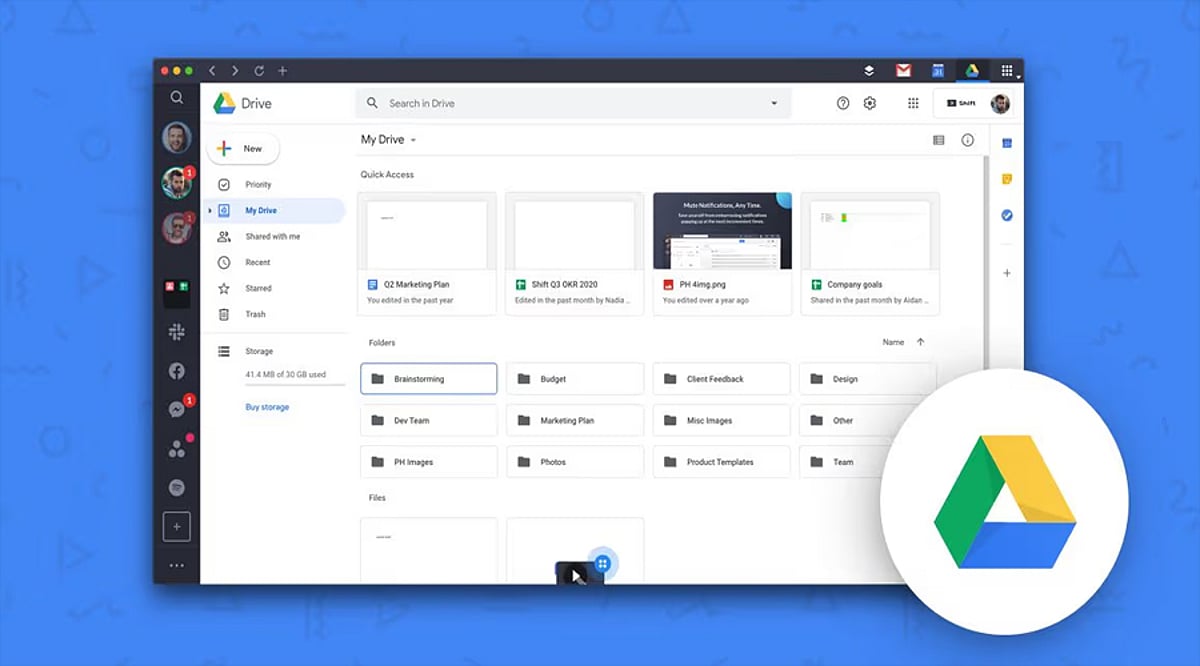
    Google Drive is a powerful cloud storage tool, but without a solid organization system, files can quickly become a mess. Here are proven hacks to keep your Drive tidy, boost productivity, and find any document in seconds.

    1. Create a Clear Folder Structure

    Start by building main folders for work, personal, school, or specific projects. Add subfolders only when necessary to avoid clutter. Use consistent, descriptive names so every file has a logical home. A simple hierarchy speeds up file retrieval and helps maintain order from day one.

    2. Use Color-Coded Folders

    Google Drive allows you to assign colors to folders for instant visual recognition. Give distinct colors to work, personal, finance, or shared folders. This makes important folders stand out and reduces time spent scanning long lists. A splash of color transforms navigation.

    3. Star Frequently Used Files

    Use the Star feature for files you access daily. Starred items appear in a dedicated section for one-click access. Perfect for ongoing projects, key reports, or essential spreadsheets. No more digging through folders—just star and go.

    4. Search Like a Pro

    Google Drive’s search is more powerful than most users realize. Filter by file type, owner, keywords, or last modified date. Combine multiple filters to zero in on any file, even in massive storage libraries. Smart searching beats manual browsing every time.

    5. Clean Up Shared Access

    Regularly review who has access to your shared files and folders. Remove people who no longer need permissions. Update access levels to keep sensitive data secure. This prevents accidental edits and ensures collaboration stays safe and organized.

    6. Delete Unused Files Regularly

    Set aside a few minutes each month to purge duplicates, outdated documents, and unnecessary files. Check for large files consuming storage. Empty the Trash after confirming deletion. Routine cleanup keeps Drive lean, fast, and easy to manage.

    By implementing these hacks, you’ll transform Google Drive from a chaotic storage dump into a streamlined productivity hub. Start today and enjoy a clutter-free digital workspace.

  • How to Free Up Gigabytes of Storage on Android: 7 Simple Hacks I Tried

    How to Free Up Gigabytes of Storage on Android: 7 Simple Hacks I Tried

    Running out of storage is one of the most frustrating Android problems. Before deleting your favorite photos, videos, or apps, try these simple tricks. I tested them on my phone and managed to free up several gigabytes without sacrificing anything important. The best part? Most of these fixes take only a few minutes and require no special apps or technical knowledge.

    1. Clear Cached Data

    Apps silently accumulate cache files over weeks and months, eating up valuable storage. A quick visit to Settings > Storage let me clear unnecessary cache, instantly freeing space while keeping my apps, logins, and personal files completely safe. It’s one of the easiest storage wins.

    2. Delete Duplicate Photos

    My gallery was overflowing with duplicate screenshots, WhatsApp images, and repeated photos. Using a duplicate finder, I removed hundreds of unnecessary copies and recovered a surprising amount of storage. My photo library also became much cleaner and easier to navigate.

    3. Uninstall Unused Apps

    I discovered several games and utility apps that I hadn’t opened in months. Removing these forgotten apps instantly freed up storage while reducing background activity. The phone not only gained extra space but also felt smoother and more responsive during daily use.

    4. Move Photos and Videos to Cloud Storage

    Uploading older photos and videos to Google Photos allowed me to safely delete local copies without losing my memories. Everything remained accessible whenever I needed it, while several gigabytes of internal storage became available for newer files and apps.

    5. Clean the Downloads Folder

    My Downloads folder had turned into a digital junk drawer filled with old PDFs, APKs, ZIP files, memes, and installers. Deleting these forgotten files recovered more space than I expected. It’s worth checking this folder every few weeks.

    6. Remove Offline Downloads

    Offline Netflix episodes, Spotify playlists, YouTube videos, and maps were quietly consuming huge amounts of storage. Removing content I no longer needed instantly created more breathing room. The best part is that I can always download them again whenever required.

    7. Use Android’s Built-in Storage Manager

    Android’s Storage Manager highlighted large files, duplicate items, and apps I rarely used. With just a few taps, I reclaimed even more space without manually digging through folders. It’s a powerful built-in tool that many Android users completely overlook.