Tag: data recovery

  • Why Data Resilience in Salesforce Is Now Critical for Business Continuity

    Why Data Resilience in Salesforce Is Now Critical for Business Continuity

    CRM platforms are no longer just sales databases. Customer relationship management platforms have become embedded in companies’ everyday operations as they hold such information as customer histories, service records, account relationships, and much more.

    Given the importance that such platforms hold, the reliability of CRM data has become a business continuity issue. In case any records or information become inaccurate or deleted, the consequences can go beyond just IT. These scenarios can stall sales activity, strip context from customer service teams, make reporting unreliable, and force managers to make decisions with incomplete information.

    Cloud Availability and Data Recoverability Aren’t the Same Thing

    Cloud availability and data recoverability aren’t the same thing. Organizations may be able to keep their infrastructure available and running smoothly, but that does not necessarily mean they can recover a given record or data if it is deleted or damaged.

    In many cases, a platform may have full cloud availability, while the data inside is no longer accurate or complete. Salesforce records can be affected by accidental deletion, incorrect bulk updates, faulty integrations, automation errors, or configuration changes. The problem is not whether Salesforce can remain online, but whether, in the event of accidental data deletion, the business can quickly restore the data to continue operating the same way.

    Note: Data integrity and protection are a shared responsibility. Salesforce recommends maintaining regular backups of data, especially before major operations.

    What Happens When Critical CRM Data Changes or Disappears?

    CRM data often sits inside revenue, service, compliance, and reporting processes. When that information is damaged or incomplete, the consequences can compound.

    A sales team may lose the opportunity history needed to manage a deal. Customer service staff may no longer have the full record of previous interactions. Management reports may reflect corrupted source data. Compliance teams may struggle to demonstrate what information existed at a specific point in time.

    Even when information can be reconstructed manually, the process can consume staff time and introduce further errors.

    Building Salesforce Into the Business Continuity Plan

    Before building a business continuity plan, companies should identify the following:

    • Which Salesforce data matters most?
    • How often does it change?
    • How much of that data can the company afford to lose?
    • How quickly will the company need that particular data back?

    Organizations should determine how they will backup Salesforce data and recover important records before an incident occurs, rather than discovering gaps in their recovery strategy during a disruption.

    This evaluation should go beyond mere CRM records. Depending on how Salesforce is configured, it should also cover custom objects, relationships, files and attachments, as well as metadata that evaluates how the environment behaves. Historical copies are also important to consider, especially when companies need to identify when a particular change happened.

    Recovery Readiness Requires More Than Creating Copies

    Backups are only useful if an organization understands how recovery will work in practice. Responsibilities should be clear: who decides what needs to be restored, who performs the recovery, who validates the results, and how business teams are informed.

    Retention also matters. Organizations should decide how far back they need to recover information and whether legal, regulatory, contractual, or operational requirements affect that period. Relationships between records must be considered because restoring an individual item without related information may leave a business process incomplete.

    Finally, recovery procedures should be tested periodically. Salesforce data resilience is not simply a technical safeguard; it is part of operational readiness. As CRM platforms become systems of record for important business processes, the ability to recover reliable data should become a routine element of continuity planning and enterprise risk management.
  • How to Recover Your WhatsApp Chats from iCloud Backup

    How to Recover Your WhatsApp Chats from iCloud Backup

    Losing WhatsApp chats can be stressful, especially when old messages, photos, documents, or group conversations are important. If you have an iCloud backup, you can restore that chat history on your iPhone, but only if a valid backup exists and account details match. This guide walks you through checking backups, reinstalling WhatsApp, troubleshooting common issues, and protecting future conversations with automatic backups.

    Key Takeaways

    • Verify the latest WhatsApp iCloud backup, phone number, iCloud account, and available storage before reinstalling WhatsApp.
    • Only data included in the latest successful backup can be restored; videos require the video backup option to have been enabled.
    • If iCloud restoration is not possible and your old iPhone still works, use WhatsApp’s direct Chat Transfer feature.

    Check the iCloud Backup Before WhatsApp Restore

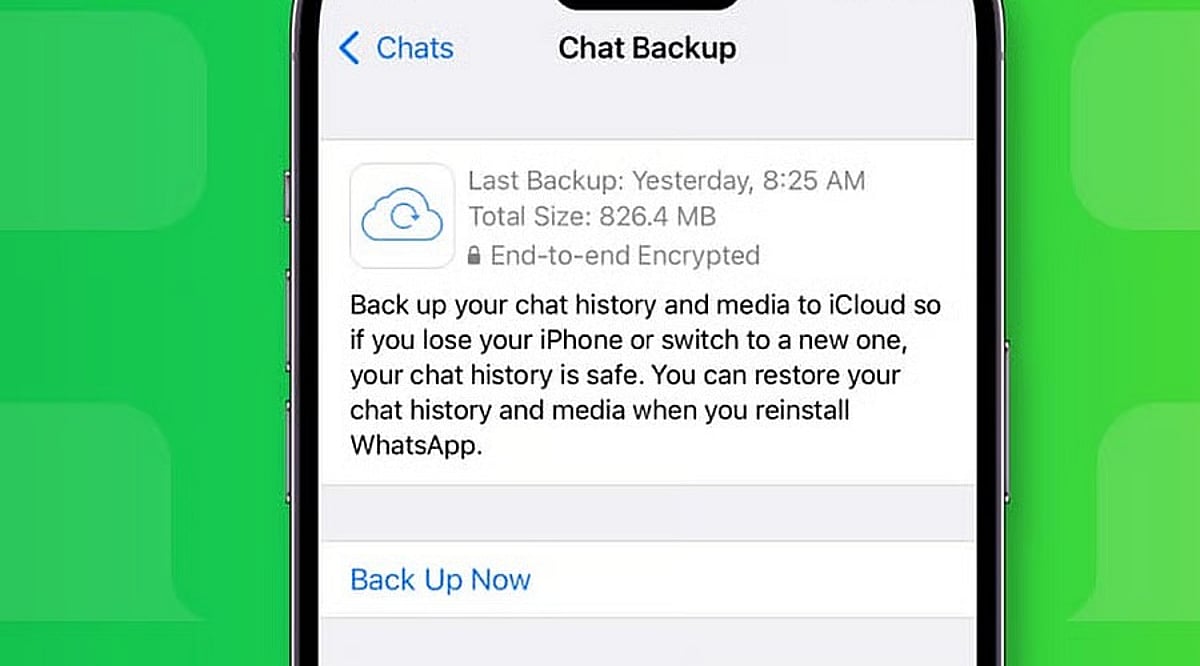
    Open WhatsApp on your iPhone and go to Settings > Chats > Chat Backup. The screen shows the date and size of the latest backup if a valid iCloud copy exists. The same phone number and iCloud account used for the original backup must match.

    Ensure enough free space is available on both iCloud and your iPhone. WhatsApp recommends having at least 2.05 times the backup size available as free storage on both. Limited storage can cause a failed or partial restore.

    If the backup is encrypted, you will need the associated password, passkey, or 64-digit encryption key. Without these recovery details, WhatsApp cannot provide access to the encrypted copy.

    Reinstall WhatsApp and Start the Chat Restore

    Once the backup details are confirmed, delete WhatsApp from your iPhone and install it again from the App Store. Open WhatsApp after the fresh install and complete account setup with the same phone number used for the backup.

    WhatsApp will then ask for the Apple ID linked to the backup. After account verification, a Restore Chat History option appears. Tap that option to start the restore. Extra identity checks may appear; a text message or call can provide a verification code if required.

    Restore time depends on backup size and chat media. A large history with many photos, documents, and videos takes longer than a small text-only history. Keep enough free space on both your iPhone and iCloud account.

    What the iCloud Backup Can Restore

    WhatsApp restores data from the latest successful backup. Any messages or media added after that backup date cannot be recovered from that backup. Videos require an extra condition: the Include Videos option must have been active before the latest backup. Without that option, chat history can return but videos will remain absent.

    Messages and media from WhatsApp communities may also be included in the backup. Channel updates can exist, but channel media returns only for accounts with an admin role. Note that WhatsApp does not keep complete chat history on company servers for manual recovery; an iCloud backup or direct chat transfer is the only route back to old conversations.

    Fix Common Restore Problems

    Failed restores often point to storage, account details, or the backup itself. Check free iCloud space and iPhone storage first. Confirm the same phone number and iCloud account used for the original backup, then verify the latest backup date inside WhatsApp.

    If storage caused the failure, free up space, then delete WhatsApp and repeat the restore. For encrypted backups, ensure you have the correct password, passkey, or 64-digit key.

    If no usable iCloud backup exists and your old iPhone still works, use WhatsApp’s Chat Transfer feature for an iPhone-to-iPhone move. Both phones need the latest iOS and WhatsApp versions, Wi-Fi, internet access, and a power source. The old phone can send the chat history directly to the new iPhone without an iCloud restore.

    Protect Future WhatsApp Chats

    A successful restore can recover a large part of your chat history, but the backup date sets the limit. WhatsApp offers automatic backup schedules under Chats > Chat Backup, with daily, weekly, or monthly options.

    An end-to-end encrypted backup can be protected with a password, passkey, or 64-digit encryption key. Keep the chosen recovery detail safe; a forgotten password or lost key can block access to the encrypted backup.

    The safest restore starts before the reinstall: check the backup date, confirm the phone number and iCloud account, verify storage, and protect any encryption key. Once those details match, WhatsApp can restore your saved chat history with far less risk of an incomplete recovery.

    Frequently Asked Questions

    Can I restore WhatsApp chats from iCloud?
    Yes, if a valid WhatsApp iCloud backup exists and you use the same phone number and iCloud account.
    Will WhatsApp restore messages received after the backup?
    No. Messages and media added after the latest successful backup cannot be recovered from that backup.
    Why are my WhatsApp videos missing after restoration?
    Videos are restored only if the Include Videos option was enabled before the backup was created.
    What if my encrypted WhatsApp backup asks for a password?
    You need the correct password, passkey, or 64-digit encryption key associated with the encrypted backup.
    Can I restore WhatsApp without an iCloud backup?
    If your old iPhone still works, WhatsApp’s Chat Transfer feature can transfer chat history directly to another iPhone.
  • Google Drive May Delete Inactive WhatsApp Backups After 5 Months — Protect Your Chats Now

    Google Drive May Delete Inactive WhatsApp Backups After 5 Months — Protect Your Chats Now

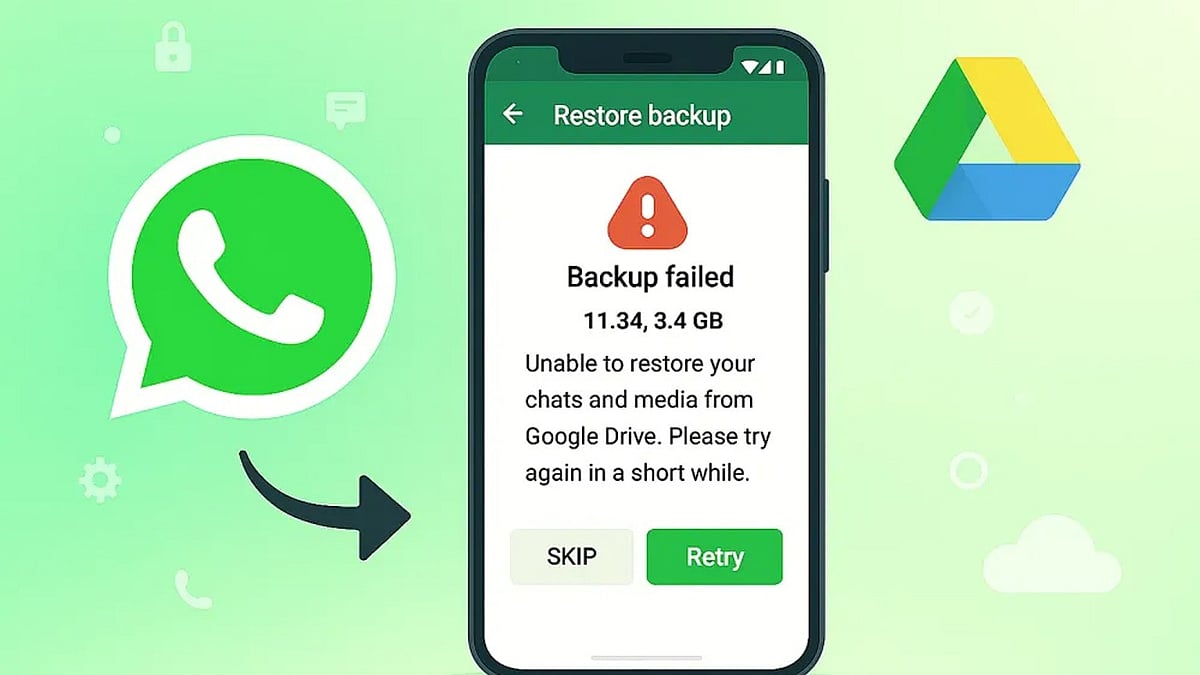
    Android users who rely on Google Drive to back up WhatsApp chats could lose years of conversations if their backup has not been updated in five months. Google may automatically remove inactive WhatsApp backups, and once they are gone, neither Google nor WhatsApp support can restore them.

    What Is Changing?

    According to guidance in the Google Drive Help Community, “WhatsApp backups that haven’t been updated in 5 months may automatically be deleted by Google.” The policy mainly affects Android users who use Google Account backups for WhatsApp and stop refreshing those backups for an extended period.

    The risk becomes more serious during phone upgrades or reinstallations because users often discover the missing backup only after WhatsApp has been installed on a new device. Without a recent backup, restoring old chats can be impossible.

    Why WhatsApp Backups Disappear

    Several factors can trigger the five-month deletion window, including:

    • Google Drive storage filling up and blocking new uploads
    • Changes to backup settings that stop scheduled backups
    • Repeated upload failures that are not checked over time

    Google Drive also keeps only the newest WhatsApp backup. Each successful upload replaces the previous copy, and older versions are not sent to a trash folder. This makes accidental chat loss much harder to reverse later.

    In addition, WhatsApp backups on Google Drive are encrypted. Users cannot browse or restore them through regular Google apps or websites, which means the cloud copy is not a simple backup file you can open independently.

    How to Keep Your WhatsApp Chats Safe

    Taking a few minutes to review your backup setup can prevent an unpleasant surprise. Android users should open WhatsApp Settings > Chats > Chat Backup regularly and follow these steps:

    • Set backup frequency to Daily or Weekly so Google Drive sees recent activity.
    • Confirm you have enough available Google Drive storage for new backups.
    • Make sure the Google Account listed in WhatsApp matches the account you use for regular backups.
    • Check the date of your last backup before switching phones or reinstalling WhatsApp.

    For important conversations, WhatsApp’s Export Chat feature creates a separate copy outside the backup system and can serve as extra protection. Local Android backups may also offer another recovery option if recent chats disappear from Google Drive.

    A Quick Check Can Save Years of Messages

    The risk of losing WhatsApp history is highest when users switch devices, because missing backups are usually discovered after the old phone is no longer available. Checking the last backup date today can reveal potential problems early and prevent a failed restore. With a simple review of your backup schedule and storage, you can protect years of conversations from automatic deletion.

  • 10 Best Ransomware File Recovery Tools to Restore Your Data Without Paying

    10 Best Ransomware File Recovery Tools to Restore Your Data Without Paying

    Ransomware attacks can lock you out of critical files—documents, financial records, and personal photos. Attackers demand a ransom for the decryption key, but cybersecurity experts strongly advise against paying. There’s no guarantee you’ll get your files back, and paying only fuels more attacks. Instead, isolate the infected device, identify the ransomware strain, and use trusted recovery tools.

    Top 10 Ransomware Recovery Tools

    While no tool can decrypt every variant, these ten solutions have helped many victims recover their data without paying hackers.

    1. No More Ransom

    Created by law enforcement and cybersecurity companies, this platform offers free decryptors for hundreds of ransomware families. Its Crypto Sheriff tool identifies the strain and recommends the right decryptor.

    2. Emsisoft Decryptor

    Emsisoft maintains a large collection of free decryptors supporting families like STOP/Djvu, Apocalypse, and Xorist. The database is regularly updated with new decryptors.

    3. Kaspersky Rakhni Decryptor

    This tool recovers files encrypted by Rakhni, Agent, CrySis, and others. It’s straightforward to use when the ransomware strain is supported.

    4. Trend Micro Ransomware File Decryptor

    Trend Micro offers free decryptors for older threats like WannaCry and CryptXXX. Success depends on the encryption method, but it’s worth trying before restoring from backups.

    5. EaseUS Data Recovery Wizard

    Some ransomware deletes original files after encryption. This tool recovers those deleted files from hard drives, SSDs, USB drives, and memory cards.

    6. Stellar Data Recovery

    Designed to retrieve deleted, lost, or corrupted files. While it cannot decrypt encrypted data, it can recover files removed during the attack.

    7. Disk Drill

    A file recovery tool for Windows and macOS. It restores deleted files, repairs damaged partitions, and creates disk backups before recovery, minimizing further data loss.

    8. TestDisk & PhotoRec

    These free, open-source tools fix partition errors (TestDisk) and recover deleted data from hard drives, memory sticks, and USB devices. Requires some technical skill.

    9. Ontrack EasyRecovery

    Recovers corrupted hard drives, RAID storage, and deleted files. Suitable for individuals and companies suffering massive data loss from ransomware.

    10. Acronis Cyber Protect

    Not a decryptor, but restores systems from secure backups and includes built-in ransomware protection. If you have recent backups, this is one of the fastest recovery methods.

    Final Thoughts

    AI-powered ransomware recovery tools increase the odds of restoring data, but there is no guarantee they work on all variants. The best defense remains up-to-date offline backups and strong cybersecurity practices.

    FAQs

    What should I do immediately after a ransomware attack?

    Disconnect the infected device from the internet and shared networks, avoid deleting encrypted files, identify the ransomware strain, and use trusted recovery tools before restoring from clean backups.

    Can ransomware-encrypted files be recovered without paying?

    Yes, in some cases using free decryptors, backup restoration, or data recovery software. Success depends on the ransomware family and availability of a compatible decryption tool.

    Are free ransomware decryptors safe?

    Yes, decryptors from trusted sources like No More Ransom, Emsisoft, Kaspersky, and Trend Micro are generally safe and regularly updated.

    What’s the difference between a decryptor and data recovery software?

    A decryptor unlocks files encrypted by supported ransomware variants. Data recovery software retrieves deleted or lost files that may remain recoverable on storage devices.

    How can I protect my files from future attacks?

    Maintain regular offline backups, keep software updated, enable multi-factor authentication, avoid suspicious email attachments, and use reliable antivirus software.

  • Top File Recovery Software for Windows PCs in 2025

    Top File Recovery Software for Windows PCs in 2025

    Losing important files can be a nightmare, but the right recovery software can bring them back. Whether you accidentally deleted a crucial document, formatted a drive, or experienced a system crash, these tools can help you restore lost data. Below, we’ve compiled a list of the best file recovery software for Windows PCs, ranging from beginner-friendly options to advanced solutions for professionals.

    EaseUS Data Recovery Wizard

    EaseUS Data Recovery Wizard is a versatile tool that recovers deleted files, formatted drives, lost partitions, and data from crashed systems. Its intuitive interface makes it suitable for both beginners and professionals, offering a straightforward way to retrieve lost data without technical expertise.

    Stellar Data Recovery

    Stellar Data Recovery specializes in restoring documents, photos, videos, emails, and data from external drives. It supports deep scans to handle complex data loss scenarios, ensuring a high recovery rate even in challenging situations.

    Disk Drill

    Disk Drill offers powerful file recovery with an added Recovery Vault feature that protects against future data loss. It supports hundreds of file formats and works seamlessly with internal and external storage devices, making it a comprehensive solution for Windows users.

    Recuva

    Recuva is a lightweight, free option that quickly retrieves accidentally deleted files. Its simplicity and effectiveness make it an excellent choice for basic recovery needs without overwhelming users with complex features.

    R-Studio

    R-Studio is an advanced recovery solution designed for professionals. It includes RAID reconstruction, network recovery, and comprehensive support for multiple Windows file systems, making it ideal for IT experts and data recovery specialists.

    MiniTool Power Data Recovery

    MiniTool Power Data Recovery recovers files from damaged, formatted, or inaccessible drives. Its simple interface is tailored for everyday Windows users, providing a hassle-free experience for recovering lost data.

    Wondershare Recoverit

    Wondershare Recoverit restores lost photos, videos, documents, and system files with high recovery rates. It also supports corrupted storage devices, ensuring you can retrieve data from even the most problematic drives.

    Wise Data Recovery

    Wise Data Recovery is a fast scanning tool that recovers deleted files from hard drives, SSDs, USB drives, and memory cards. It uses minimal system resources, making it a lightweight yet effective option for quick recoveries.

    Windows File Recovery

    Windows File Recovery is Microsoft’s official command-line tool for retrieving deleted files from NTFS, FAT, exFAT, and ReFS drives. While it requires some command-line knowledge, it’s a reliable option for advanced users who prefer an official solution.

    When choosing file recovery software, consider your specific needs—whether you need a simple interface for occasional use or advanced features for professional data recovery. Each tool listed above offers unique strengths to help you recover your valuable data effectively.

  • 7 Best Anti-Ransomware Solutions for Businesses and Home Users in 2026

    7 Best Anti-Ransomware Solutions for Businesses and Home Users in 2026

    Ransomware has evolved into one of the biggest cybersecurity threats facing businesses and everyday computer users. Cybercriminals don’t just lock files, but they often steal sensitive data first and then demand payment to prevent it from being leaked. With attacks becoming more sophisticated, relying on basic antivirus software is no longer enough.

    7 Essential Defenses for Today’s Digital Threats

    Investing in a reliable anti-ransomware solution can help detect suspicious activity, stop encryption before it spreads, and recover affected files. Here are seven of the best anti-ransomware solutions worth considering:

    Bitdefender GravityZone and Total Security

    Bitdefender is known to be efficient at preventing ransomware attacks before they do any harm. This antivirus uses technology that analyzes any file activity and prevents all malicious encryption. There is the GravityZone platform available for companies to use, providing centralized management for many devices. For home use, there is Total Security that provides protection for Windows, macOS, Android, and iOS operating systems. Bitdefender does not affect computer performance much.

    Microsoft Defender for Endpoint

    Microsoft has evolved its native security system into an efficient enterprise tool. Defender for Endpoint uses endpoint detection, threat intelligence, and automatic investigations to detect any ransomware attack even before it spreads throughout the network. The technology is well integrated into Microsoft 365, making it a feasible option for companies using Microsoft solutions. Home users, on their part, benefit from the constant evolution of Windows Security without installing any additional software.

    Sophos Intercept X

    Sophos Intercept X focuses on ransomware prevention rather than on removing malware after infection. The software uses the CryptoGuard feature to detect suspicious file-encryption activity and block it. If any files have been encrypted, they can be easily restored to their previous state. That is why Sophos is an especially good choice for small and medium-sized companies.

    CrowdStrike Falcon

    CrowdStrike Falcon is widely adopted by large companies for its cloud-based architecture and AI-driven threat detection capabilities. The tool does not rely on existing malware signatures; it constantly analyzes device behavior to detect malicious activity. Furthermore, security departments can obtain threat intelligence to enable prompt responses before ransomware infects the company’s infrastructure.

    Norton 360

    Norton is still a reliable choice for consumers and small businesses. In addition to ransomware protection, it offers firewall security, a virtual private network, a password manager, identity protection, and cloud backup services. Among these features, the cloud backup service is especially significant, as it ensures that the user can retrieve their data without paying a ransom.

    Malwarebytes Premium

    Malwarebytes has always been known to be reliable when it comes to removing malware, but the Premium version also offers reliable ransomware protection. This software is very simple to install, runs in the background without any hassles, and is great for users who need basic protection for their software.

    McAfee Total Protection

    McAfee provides an all-encompassing security service that caters to the needs of both family and business customers who have several devices to protect. Ransomware detection, firewall, identity protection, safe browsing, and VPN services make this service complete. Several subscription plans support multiple devices, making them affordable.

    Final Takeaway

    Even the best security software cannot stop every cyberattack. Good cybersecurity habits remain essential. Keep your operating system and applications updated, enable multi-factor authentication wherever possible, maintain regular offline or cloud backups, and educate employees about phishing scams. These simple practices can prevent many ransomware attacks before they begin.

    Choosing an anti-ransomware solution depends on your needs and budget. Businesses often require advanced endpoint monitoring and centralized management, while personal users may prioritize ease of use and reliable protection. Bitdefender, Microsoft Defender, Sophos, CrowdStrike, Norton, Malwarebytes, and McAfee all offer strong defenses against today’s ransomware threats. Paired with regular backups and safe online habits, they provide a solid layer of protection in an increasingly hostile digital environment.