
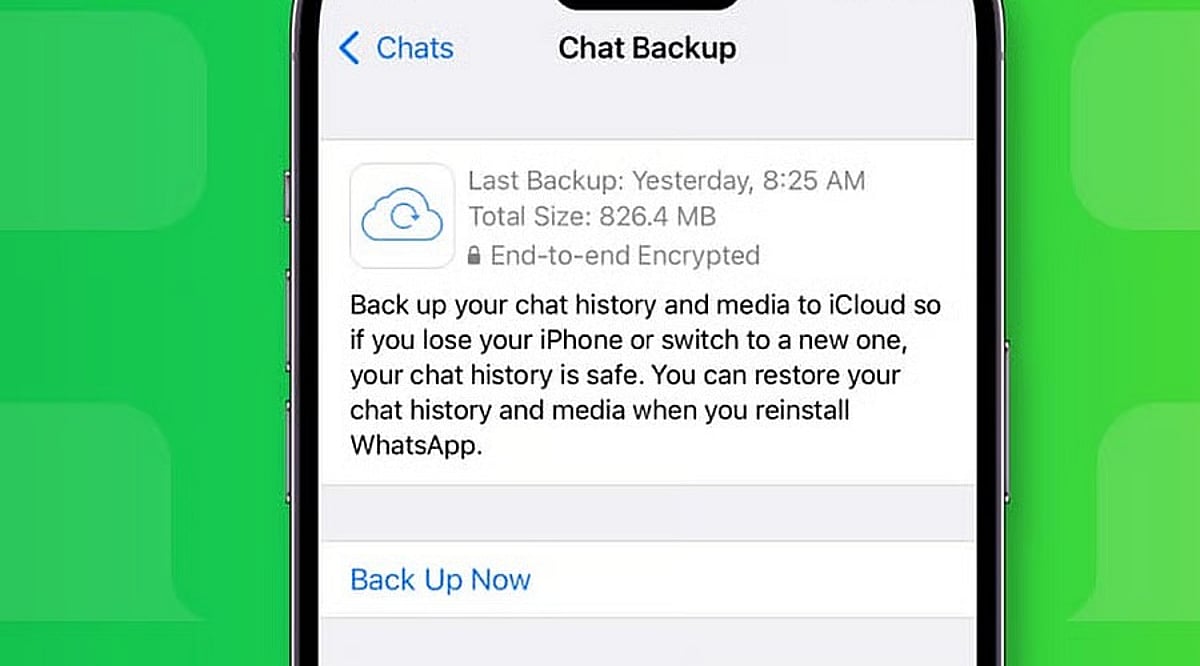
Losing WhatsApp chats can be stressful, especially when old messages, photos, documents, or group conversations are important. If you have an iCloud backup, you can restore that chat history on your iPhone, but only if a valid backup exists and account details match. This guide walks you through checking backups, reinstalling WhatsApp, troubleshooting common issues, and protecting future conversations with automatic backups.
Key Takeaways
- Verify the latest WhatsApp iCloud backup, phone number, iCloud account, and available storage before reinstalling WhatsApp.
- Only data included in the latest successful backup can be restored; videos require the video backup option to have been enabled.
- If iCloud restoration is not possible and your old iPhone still works, use WhatsApp’s direct Chat Transfer feature.
Check the iCloud Backup Before WhatsApp Restore
Open WhatsApp on your iPhone and go to Settings > Chats > Chat Backup. The screen shows the date and size of the latest backup if a valid iCloud copy exists. The same phone number and iCloud account used for the original backup must match.
Ensure enough free space is available on both iCloud and your iPhone. WhatsApp recommends having at least 2.05 times the backup size available as free storage on both. Limited storage can cause a failed or partial restore.
If the backup is encrypted, you will need the associated password, passkey, or 64-digit encryption key. Without these recovery details, WhatsApp cannot provide access to the encrypted copy.
Reinstall WhatsApp and Start the Chat Restore
Once the backup details are confirmed, delete WhatsApp from your iPhone and install it again from the App Store. Open WhatsApp after the fresh install and complete account setup with the same phone number used for the backup.
WhatsApp will then ask for the Apple ID linked to the backup. After account verification, a Restore Chat History option appears. Tap that option to start the restore. Extra identity checks may appear; a text message or call can provide a verification code if required.
Restore time depends on backup size and chat media. A large history with many photos, documents, and videos takes longer than a small text-only history. Keep enough free space on both your iPhone and iCloud account.
What the iCloud Backup Can Restore
WhatsApp restores data from the latest successful backup. Any messages or media added after that backup date cannot be recovered from that backup. Videos require an extra condition: the Include Videos option must have been active before the latest backup. Without that option, chat history can return but videos will remain absent.
Messages and media from WhatsApp communities may also be included in the backup. Channel updates can exist, but channel media returns only for accounts with an admin role. Note that WhatsApp does not keep complete chat history on company servers for manual recovery; an iCloud backup or direct chat transfer is the only route back to old conversations.
Fix Common Restore Problems
Failed restores often point to storage, account details, or the backup itself. Check free iCloud space and iPhone storage first. Confirm the same phone number and iCloud account used for the original backup, then verify the latest backup date inside WhatsApp.
If storage caused the failure, free up space, then delete WhatsApp and repeat the restore. For encrypted backups, ensure you have the correct password, passkey, or 64-digit key.
If no usable iCloud backup exists and your old iPhone still works, use WhatsApp’s Chat Transfer feature for an iPhone-to-iPhone move. Both phones need the latest iOS and WhatsApp versions, Wi-Fi, internet access, and a power source. The old phone can send the chat history directly to the new iPhone without an iCloud restore.
Protect Future WhatsApp Chats
A successful restore can recover a large part of your chat history, but the backup date sets the limit. WhatsApp offers automatic backup schedules under Chats > Chat Backup, with daily, weekly, or monthly options.
An end-to-end encrypted backup can be protected with a password, passkey, or 64-digit encryption key. Keep the chosen recovery detail safe; a forgotten password or lost key can block access to the encrypted backup.
The safest restore starts before the reinstall: check the backup date, confirm the phone number and iCloud account, verify storage, and protect any encryption key. Once those details match, WhatsApp can restore your saved chat history with far less risk of an incomplete recovery.
Frequently Asked Questions
- Can I restore WhatsApp chats from iCloud?
- Yes, if a valid WhatsApp iCloud backup exists and you use the same phone number and iCloud account.
- Will WhatsApp restore messages received after the backup?
- No. Messages and media added after the latest successful backup cannot be recovered from that backup.
- Why are my WhatsApp videos missing after restoration?
- Videos are restored only if the Include Videos option was enabled before the backup was created.
- What if my encrypted WhatsApp backup asks for a password?
- You need the correct password, passkey, or 64-digit encryption key associated with the encrypted backup.
- Can I restore WhatsApp without an iCloud backup?
- If your old iPhone still works, WhatsApp’s Chat Transfer feature can transfer chat history directly to another iPhone.
Leave a Reply