
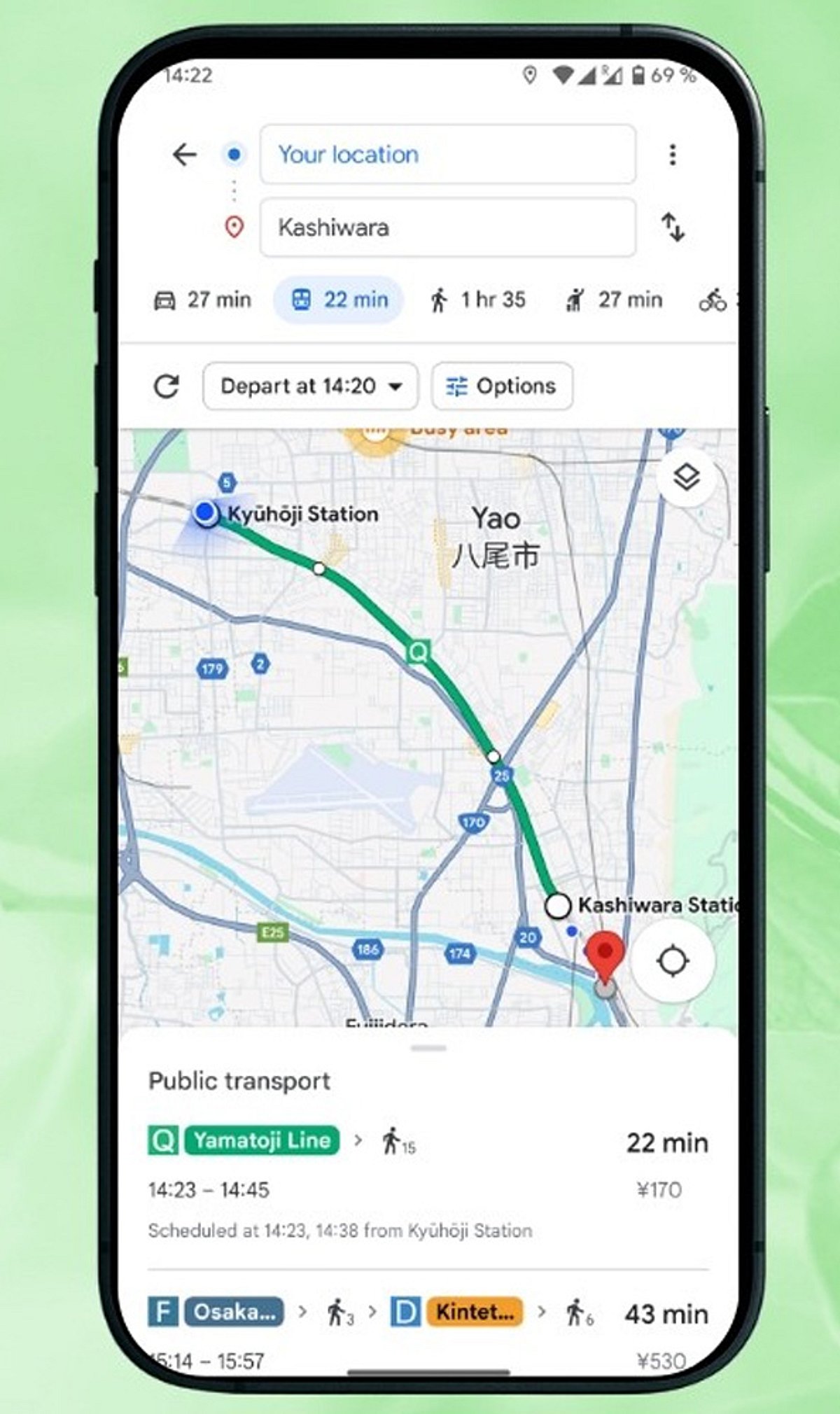
If you’ve ever opened Google Maps ready for turn-by-turn directions only to find the Start button missing, you’re not alone. This common glitch can stem from outdated apps, location permission issues, or misconfigured navigation settings. Fortunately, most causes are easy to fix. Follow these steps to get back on track.
Update Your Apps and Operating System
First, ensure both the Google Maps app and your phone’s operating system are up to date. Outdated software can cause compatibility issues that hide the Start button. Check your device’s app store for updates and install any pending system updates.
Enable Precise Location and GPS
Google Maps relies on accurate location data. Go to your device settings and confirm that location services are turned on, GPS is active, and Google Maps has permission to access your precise location. Weak or denied location signals can prevent navigation from starting.
Select a Valid Destination and Travel Mode
Before the Start button appears, you must choose a valid destination and a travel mode—Driving, Walking, Cycling, or Transit. Double-check that your destination is correctly entered and that a route exists.
Disconnect and Reconnect Android Auto or Apple CarPlay
If you’re using Android Auto or Apple CarPlay, the Start button may be missing due to a connection hiccup. Disconnect your phone from the vehicle system, reconnect it, and then reopen Google Maps. This often refreshes the navigation interface.
Clear Cache or Reinstall the App
For Android users, clearing the Google Maps cache can resolve temporary data corruption. On an iPhone, reinstalling the app may be more effective. Always restart your device after these steps to ensure changes take effect.
Disable Battery Optimization for Google Maps
Aggressive power-saving settings can interfere with navigation features. Check your phone’s battery optimization or background restrictions and set Google Maps to ‘Unrestricted’ or ‘Not optimized.’ This allows the app to run smoothly even when in the background.
Check Your Internet Connection
While offline maps work for basic routing, live navigation features like real-time traffic and turn-by-turn directions require a stable internet connection. Switch to Wi-Fi or ensure your mobile data is strong.
Report the Issue to Google
If none of the above steps work, submit feedback through the Google Maps Help section. Temporary bugs are often addressed in future updates, and your report helps developers prioritize fixes.
By systematically checking these common culprits, you can usually restore the Start button and get back to navigating with confidence.