Tag: messaging apps

  • Google Messages Adds 9 New Features: A Complete Guide for Android Users

    Google Messages Adds 9 New Features: A Complete Guide for Android Users

    Google Messages is getting a major update packed with quality-of-life improvements. From richer personalization options to smarter RCS controls, Android users will soon see a more flexible and connected messaging experience. Here are the nine new features rolling out to Google Messages.

    1. Personalized Chat Themes

    Users can now customize individual conversations with custom colors and wallpapers. Google Messages also supports personal photos and curated background collections, making it easy to give every chat its own look and feel.

    2. Google Keep Integration

    Google Keep notes can now be created, edited, and shared directly inside conversations. This integration helps users manage collaborative lists and planning tasks without switching between apps.

    3. Precise Copying

    The redesigned long-press menu allows users to select and copy specific portions of a message. Instead of copying an entire text, you can now grab just the part you need.

    4. Swipe for Timestamps

    Swiping left anywhere within a conversation now reveals message timestamps and RCS encryption information. The new gesture makes it quicker and more convenient to check message details.

    5. Updated Reply Gesture

    Google Messages has changed the reply interaction: a right swipe on a message bubble now opens direct replies. This replaces the previous left-swipe gesture and makes responding more intuitive.

    6. Official Feature Chat

    Google is introducing an official RCS chat where users can learn about new Google Messages features and receive in-app updates. This dedicated channel keeps users informed directly within their conversations.

    7. Android-iPhone RCS Replies

    RCS conversations between Android and iPhone users now support inline quoted replies and actual emoji reactions to photos, starting with iOS 27. Cross-platform chats will feel more expressive and responsive.

    8. Read Receipt Redesign

    Google Messages is testing a refreshed read receipt design with easier access to timestamps and encryption details. The new swipe-based conversation controls put key message information just a gesture away.

    9. Messages for Web

    Messages for web is moving toward Google Account sign-in as the primary login method. QR-code pairing is being phased out as the newer, more streamlined authentication approach rolls out to users.

    These updates reflect Google’s focus on making Messages more personal, efficient, and secure for Android users. Keep an eye on the app for these features as they become available.

  • WhatsApp Begins Testing Third-Party AI Agents on iPhone—With a Privacy Catch

    WhatsApp Begins Testing Third-Party AI Agents on iPhone—With a Privacy Catch

    WhatsApp expands AI agent testing to iPhone

    WhatsApp is taking another step toward integrating third-party artificial intelligence into its messaging app. The latest beta release for iOS — version 26.37.10.70 — lets select iPhone users in limited countries connect external AI agents directly inside chats. The rollout follows earlier testing on Android, with WABetaInfo reporting the update on September 22. WhatsApp also confirmed that the feature supports independent agents built by outside developers.

    How the new AI agent feature works

    Eligible users can create up to five third-party agents and interact with them through dedicated one-to-one conversations. Setting up an agent begins in the WhatsApp settings menu, where users assign a name and profile photo. WhatsApp then generates an API key that links the agent to its external hosting service, allowing the agent to respond in the chat.

    According to WABetaInfo, the API key connects WhatsApp with the external service running the agent. Users can reset the key if needed, and the key should be kept private. WhatsApp may adjust the five-agent limit in the future.

    What agents can and cannot access

    Third-party agents are deliberately isolated from most WhatsApp data. They can only see information shared directly with them in their designated conversation. Agents cannot access other chats, contacts, or media stored in WhatsApp, and group chats and communities are not included in the current setup.

    Privacy limits: No end-to-end encryption for agent chats

    The most important caveat is privacy. While regular personal chats remain protected by end-to-end encryption, WhatsApp explicitly says communications with third-party agents are not end-to-end encrypted.

    Messages sent to an agent travel through a Meta service that manages the conversation for the provider. That means the agent provider can receive, process, and store messages in unencrypted form. The provider is also responsible for its own data practices, including how it handles requests for access, deletion, correction, or data portability.

    What users should consider before trying AI agents

    This feature adds new functionality without extending WhatsApp’s standard encryption protections. Anyone thinking about connecting a third-party AI agent should review the provider’s privacy terms carefully before sharing sensitive information.

    WhatsApp has not announced a broader release date for the feature. The iOS rollout is still limited, so the final experience could change before it becomes widely available.

  • 8 Practical Tips for Discovering Valuable Telegram Channels Without the Clutter

    8 Practical Tips for Discovering Valuable Telegram Channels Without the Clutter

    Telegram can deliver a wealth of useful information, but an unchecked channel list quickly becomes noise. By combining focused search, careful selection, and simple management tools, you can keep your feed relevant and organized. Here are eight actionable strategies.

    1. Search with Specific Topics

    Telegram’s search works best with precise terms. Instead of broad keywords like “technology” or “news,” use phrases such as “Android security,” “football transfers,” or “stock market news.” This narrows results to public channels and posts that match your exact interest, and it can surface sources that a generic search would miss.

    2. Use the Posts Tab for Discovery

    Telegram’s global search now includes a dedicated Posts tab. This lets you search across posts from all public channels—even those you haven’t joined. When you find a useful post, visit the channel’s profile to learn more. This approach helps you discover high-quality sources without subscribing to every channel that appears in general results.

    3. Check Similar Channels Before Subscribing

    On any channel profile, look for the Similar Channels section. Telegram suggests channels with overlapping audiences and topics. You can also find these suggestions in the Channels section of global search. For example, a reliable tech channel may lead you to others focused on software, cybersecurity, or AI—broadening your coverage with a small, curated set of sources.

    4. Test a Channel Before Committing

    Don’t subscribe to every promising channel immediately. Give it a short trial period. Evaluate posting frequency, content quality, originality, repetition, and promotional material. A channel that posts one or two valuable updates daily is often more useful than one that floods your feed with dozens of low-value messages.

    5. Create Folders for Different Topics

    Telegram’s chat folders let you group channels by category—News, Tech, Work, Learning, Entertainment, and more. You can define rules to include or exclude specific chats, groups, channels, bots, or muted chats. This keeps unrelated content separate and gives your main chat list a cleaner, more manageable layout.

    6. Mute Channels that Don’t Need Alerts

    Useful channels don’t always require instant notifications. Telegram’s mute controls let you keep valuable sources accessible without constant interruptions. For instance, mute high-volume news channels while leaving learning channels unmuted. This way, you stay informed on your own schedule.

    7. Use AI Summaries for Long Posts

    Telegram introduced AI summaries for long channel posts in January 2026. This feature provides a concise overview of lengthy content, helping you decide quickly whether to read the full post. It’s especially useful for channels that publish detailed reports, news updates, or extended announcements.

    8. Review Your Channel List Regularly

    Just as important as discovery is cleanup. A channel that once delivered value may later become repetitive or overly promotional. Set aside time periodically to review your subscriptions and remove any that no longer serve your interests. A smaller, well-curated list is far more effective than a large, cluttered one.

    By combining these techniques—focused search, channel checks, folders, mute controls, AI summaries, and regular reviews—you can transform Telegram into a streamlined information hub where every channel has a clear purpose.

  • How to Recover Your WhatsApp Chats from iCloud Backup

    How to Recover Your WhatsApp Chats from iCloud Backup

    Losing WhatsApp chats can be stressful, especially when old messages, photos, documents, or group conversations are important. If you have an iCloud backup, you can restore that chat history on your iPhone, but only if a valid backup exists and account details match. This guide walks you through checking backups, reinstalling WhatsApp, troubleshooting common issues, and protecting future conversations with automatic backups.

    Key Takeaways

    • Verify the latest WhatsApp iCloud backup, phone number, iCloud account, and available storage before reinstalling WhatsApp.
    • Only data included in the latest successful backup can be restored; videos require the video backup option to have been enabled.
    • If iCloud restoration is not possible and your old iPhone still works, use WhatsApp’s direct Chat Transfer feature.

    Check the iCloud Backup Before WhatsApp Restore

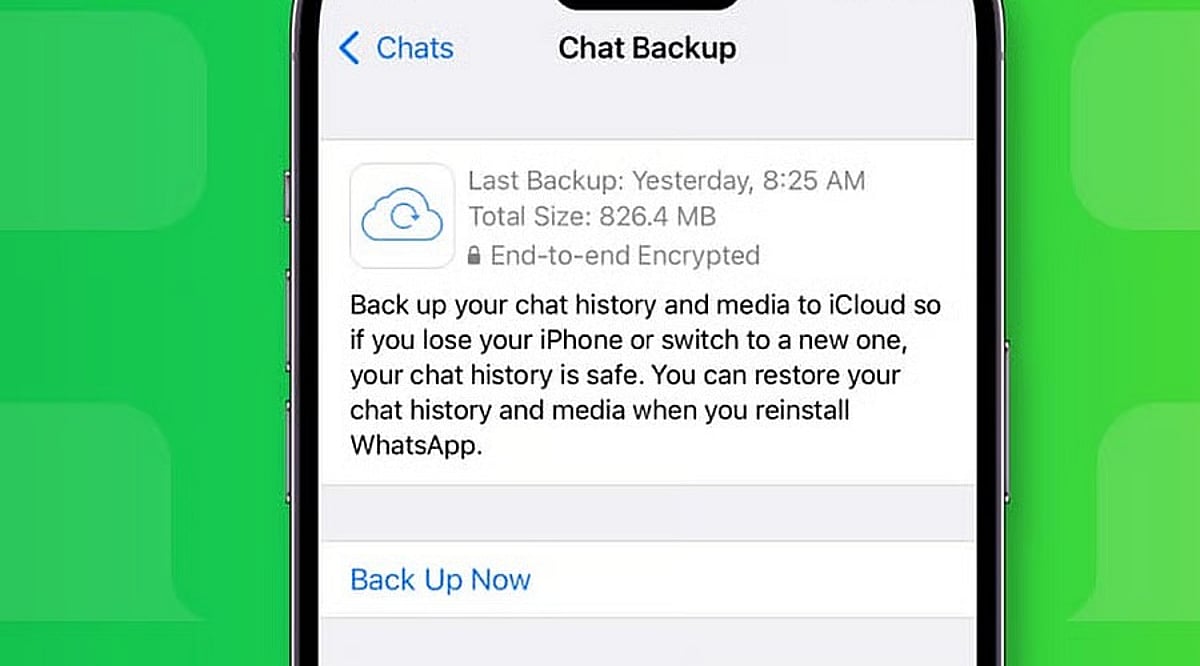
    Open WhatsApp on your iPhone and go to Settings > Chats > Chat Backup. The screen shows the date and size of the latest backup if a valid iCloud copy exists. The same phone number and iCloud account used for the original backup must match.

    Ensure enough free space is available on both iCloud and your iPhone. WhatsApp recommends having at least 2.05 times the backup size available as free storage on both. Limited storage can cause a failed or partial restore.

    If the backup is encrypted, you will need the associated password, passkey, or 64-digit encryption key. Without these recovery details, WhatsApp cannot provide access to the encrypted copy.

    Reinstall WhatsApp and Start the Chat Restore

    Once the backup details are confirmed, delete WhatsApp from your iPhone and install it again from the App Store. Open WhatsApp after the fresh install and complete account setup with the same phone number used for the backup.

    WhatsApp will then ask for the Apple ID linked to the backup. After account verification, a Restore Chat History option appears. Tap that option to start the restore. Extra identity checks may appear; a text message or call can provide a verification code if required.

    Restore time depends on backup size and chat media. A large history with many photos, documents, and videos takes longer than a small text-only history. Keep enough free space on both your iPhone and iCloud account.

    What the iCloud Backup Can Restore

    WhatsApp restores data from the latest successful backup. Any messages or media added after that backup date cannot be recovered from that backup. Videos require an extra condition: the Include Videos option must have been active before the latest backup. Without that option, chat history can return but videos will remain absent.

    Messages and media from WhatsApp communities may also be included in the backup. Channel updates can exist, but channel media returns only for accounts with an admin role. Note that WhatsApp does not keep complete chat history on company servers for manual recovery; an iCloud backup or direct chat transfer is the only route back to old conversations.

    Fix Common Restore Problems

    Failed restores often point to storage, account details, or the backup itself. Check free iCloud space and iPhone storage first. Confirm the same phone number and iCloud account used for the original backup, then verify the latest backup date inside WhatsApp.

    If storage caused the failure, free up space, then delete WhatsApp and repeat the restore. For encrypted backups, ensure you have the correct password, passkey, or 64-digit key.

    If no usable iCloud backup exists and your old iPhone still works, use WhatsApp’s Chat Transfer feature for an iPhone-to-iPhone move. Both phones need the latest iOS and WhatsApp versions, Wi-Fi, internet access, and a power source. The old phone can send the chat history directly to the new iPhone without an iCloud restore.

    Protect Future WhatsApp Chats

    A successful restore can recover a large part of your chat history, but the backup date sets the limit. WhatsApp offers automatic backup schedules under Chats > Chat Backup, with daily, weekly, or monthly options.

    An end-to-end encrypted backup can be protected with a password, passkey, or 64-digit encryption key. Keep the chosen recovery detail safe; a forgotten password or lost key can block access to the encrypted backup.

    The safest restore starts before the reinstall: check the backup date, confirm the phone number and iCloud account, verify storage, and protect any encryption key. Once those details match, WhatsApp can restore your saved chat history with far less risk of an incomplete recovery.

    Frequently Asked Questions

    Can I restore WhatsApp chats from iCloud?
    Yes, if a valid WhatsApp iCloud backup exists and you use the same phone number and iCloud account.
    Will WhatsApp restore messages received after the backup?
    No. Messages and media added after the latest successful backup cannot be recovered from that backup.
    Why are my WhatsApp videos missing after restoration?
    Videos are restored only if the Include Videos option was enabled before the backup was created.
    What if my encrypted WhatsApp backup asks for a password?
    You need the correct password, passkey, or 64-digit encryption key associated with the encrypted backup.
    Can I restore WhatsApp without an iCloud backup?
    If your old iPhone still works, WhatsApp’s Chat Transfer feature can transfer chat history directly to another iPhone.
  • Apple Briefly Delists Telegram from App Store Over Moderation Violations

    Apple Briefly Delists Telegram from App Store Over Moderation Violations

    Apple has temporarily removed Telegram from the App Store in select countries, leaving many users unable to find or download the messaging app on their iPhones and iPads. The action, which took effect on August 3, 2026, was later confirmed by Apple as a response to discovered content violating its strict guidelines on child sexual abuse material.

    According to a statement shared by Bloomberg’s Mark Gurman, Apple said: “We briefly removed Telegram from the App Store after our review found content that violates our strict guidelines prohibiting child sexual abuse material. The app was subsequently restored after the developer promptly removed the content and banned the user who posted it.”

    The removal was not global. Users in India and many other regions still see Telegram normally, and those who already had the app installed were unaffected. The issue only impacted first-time downloads in the affected countries. Google Play, Android’s official store, continues to offer Telegram without interruption.

    This isn’t the first time Telegram has faced such action. In 2018, Apple pulled the app from the App Store globally after inappropriate content was identified. However, this latest incident appears limited to specific markets, likely due to legal requests or regional enforcement.

    Apple’s ability to remove apps stems from its App Store guidelines, which all developers must follow. The company can also act on valid legal requests from governments. Once the offending content is removed and the issue resolved, the app can be reinstated, as happened here.

    For now, Telegram remains available on iOS in most regions, and Android users haven’t experienced any disruption. This incident highlights the ongoing challenge of content moderation on major platforms and the delicate balance between user safety and app availability.

  • A Practical Guide to Evaluating Messaging App Privacy Across Devices

    A Practical Guide to Evaluating Messaging App Privacy Across Devices

    Messaging applications now carry far more than casual conversations. People use them to exchange work documents, personal photographs, payment details, travel information, identity records, and private discussions. As these platforms become embedded in daily life, users are paying closer attention to how their data is handled across phones, tablets, and desktop computers.

    However, a privacy-focused reputation should not be accepted solely on the basis of marketing claims. Security depends on the complete user journey: where the application is downloaded, which permissions it requests, how login sessions are managed, where files are stored, and whether users regularly review account settings.

    A practical assessment therefore begins before installation and continues throughout everyday use. Instead of asking whether one messaging app is universally “safe,” users should examine the specific risks created by their devices, habits, account configuration, and shared content.

    Why Privacy Expectations Are Changing

    The boundary between personal and professional communication has become increasingly difficult to maintain. A single messaging account may contain family conversations, client discussions, project files, appointment details, and account-recovery information.

    This concentration of data increases the consequences of account compromise. An unauthorized user may not only read recent messages but also gain access to shared documents, saved contacts, group information, and active sessions on other devices.

    Multi-device access introduces another layer of exposure. Logging in on a work computer, home laptop, tablet, and mobile phone can improve convenience, but each device becomes another point that requires protection. Older computers may no longer receive updates. A phone may be lost. A browser session may remain active after a user leaves a shared workspace.

    Privacy expectations are changing because users increasingly understand that security is not determined by one feature. It is affected by account behavior, device maintenance, storage choices, and the way information is shared.

    For this reason, users should evaluate messaging platforms as part of a broader digital workflow rather than treating them as isolated communication tools.

    Evaluating the Download Source

    The first security decision occurs before the application is installed. Users should identify where the download comes from and whether the page provides enough information to make an informed choice.

    Recognized app stores generally provide structured details such as the publisher name, supported operating system, update history, permission information, and user feedback. A developer-managed website may provide direct desktop installers, release notes, or links to platform-specific versions.

    Third-party download pages require additional caution. Some are legitimate software directories, while others use misleading buttons, aggressive advertising, or modified installation packages. A page may display several “Download” buttons that lead to unrelated programs.

    Users should compare the domain name carefully, especially when similar spellings, additional hyphens, or unusual subdomains appear. A familiar logo does not confirm that the page is controlled by the application developer.

    The file itself also provides useful clues. Windows installers commonly use extensions such as .exe or .msi, while Android installation files may use .apk. An unexpected archive, script, or executable format should be treated cautiously. Users should also look for consistent version numbers, platform descriptions, release dates, and installation instructions.

    Chinese-speaking users researching 纸飞机下载 resources should therefore evaluate the surrounding page rather than relying on the keyword alone. The page should clearly explain the intended platform, file type, version context, and installation process without forcing unrelated downloads.

    The objective is not simply to find a working installer. It is to understand what is being downloaded, where it originated, and whether the source provides transparent information.

    Reviewing Permissions Before First Use

    After installation, the next step is to review the permissions requested by the application. Messaging apps may need access to certain device functions, but users should understand why each permission is being requested.

    Contact access can simplify the process of finding people who already use the service. However, users who prefer manual contact management may decide not to provide full address-book access.

    Camera and microphone permissions are normally associated with photo capture, voice messages, video calls, and scanning functions. These permissions can often be enabled only when a feature is used rather than granted permanently during setup.

    Storage or photo-library access allows users to send and save images, videos, and documents. Modern operating systems may offer limited access, allowing the user to select individual files rather than exposing an entire library.

    Notification permissions affect whether message previews appear on a locked screen. Users who receive sensitive work or personal messages may prefer to hide message content while still allowing a generic notification.

    Background activity can help messages and calls arrive promptly, but it may also affect battery usage and data consumption. Users should review whether the application needs unrestricted background operation on every device.

    The most practical principle is to grant only the permissions required for features the user actually intends to use. Permission settings can be revisited later through the operating system.

    Managing Desktop and Mobile Sessions

    Multi-device messaging is useful only when users maintain control over their active sessions. An account may remain logged in on devices that are no longer regularly used, including old phones, office computers, tablets, or borrowed laptops.

    Users should periodically open the account’s device or session management area and review the available information. Depending on the platform, this may include the device type, operating system, approximate location, IP information, or the time of recent activity.

    An unfamiliar session should be investigated promptly. It may reflect a forgotten device, a changed network location, or unauthorized access. When there is uncertainty, ending the session and changing relevant security credentials is generally safer than leaving it active.

    Old devices should also be removed after they are sold, recycled, returned to an employer, or given to another person. Logging out from the device itself may not always be sufficient if the user no longer has physical access to it.

    People researching localized resources such as 纸飞机中文版 should also consider whether the available guidance explains session management clearly in their preferred language. Download and interface localization are useful, but users must also understand how to identify devices, terminate sessions, and respond to unusual account activity.

    Public and shared computers present additional risks. Users should avoid saving passwords, allowing automatic login, or leaving desktop sessions open after use. Where possible, temporary access should be followed by a remote session review from a trusted personal device.

    Understanding Cloud Data and Device-Specific Data

    Users should distinguish between information stored in the cloud and information stored locally on a device.

    Cloud-based messages may remain available when a user logs in from another phone or computer. This provides continuity, but it also means that deleting an application from one device may not remove account data stored elsewhere.

    Local data includes cached images, downloaded videos, exported conversations, temporary files, thumbnails, and documents opened through another application. These files may remain on a computer or phone even after the conversation is deleted or the messaging app is uninstalled.

    The exact behavior varies across platforms and operating systems. Users should avoid assuming that every conversation uses the same encryption method, that every deletion is immediately synchronized, or that uninstalling an app closes the account.

    Instead, they should review the application’s privacy documentation, deletion controls, storage settings, and account-removal process. When the difference between “delete app,” “clear cache,” “delete chat,” and “delete account” is unclear, users should treat them as separate actions.

    Controlling Shared Media and Local Storage

    Photos, videos, voice messages, and documents can consume significant storage space and create privacy risks when automatically saved to a device.

    Automatic media downloads should be configured according to the network and content type. Users may allow images on Wi-Fi while requiring manual approval for large videos or documents. This reduces both storage usage and exposure to unwanted files.

    Desktop users should identify the default download directory. Sensitive files should not remain indefinitely in a general Downloads folder that other applications or users can access.

    Mobile users should check whether received images are automatically copied into the device’s photo gallery. A file intended for a private conversation may become visible to gallery apps, backup services, or other people using the device.

    Cache clearing can remove temporary copies and reduce storage use, but it should not be treated as a substitute for account deletion or secure file management. Important documents should be intentionally backed up to a controlled location before temporary files are removed.

    A useful routine is to review large files, clear outdated media, remove duplicate documents, and separate important records from casual chat attachments.

    Protecting Verification Codes and Recovery Information

    Verification codes are designed to confirm a login or account change. They should be entered only into the relevant application or trusted login screen.

    Users should never send a verification code through chat, even when the request appears to come from a friend, administrator, technical-support agent, or community moderator. Attackers may impersonate trusted contacts and claim that the code is required to restore a group, confirm an account, or solve a technical problem.

    Unexpected login codes are also warning signs. They may indicate that another person is attempting to access the account. Users should review active sessions and account-security settings when unexplained codes arrive.

    Recovery information deserves the same attention. A recovery email address should be current, independently secured, and protected by a strong password. Where additional account-security options are available, users should understand how they work before enabling them.

    Support communication should be verified carefully. Genuine support processes should not require users to disclose passwords, verification codes, or complete recovery credentials through an ordinary chat conversation.

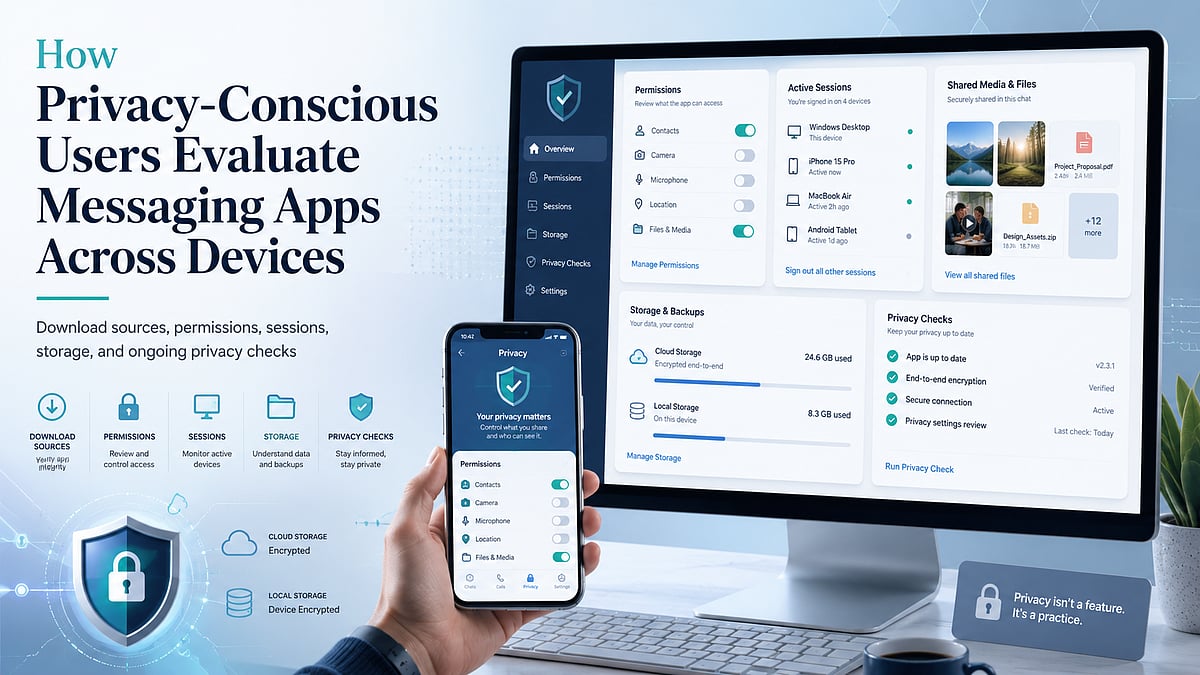
    A Practical Messaging App Evaluation Framework

    Privacy-conscious users can apply a simple framework before committing to a messaging platform.

    • Download source: Determine whether platform versions, file types, publisher details, and update information are clearly presented.
    • Permissions: Review access to contacts, camera, microphone, storage, notifications, and background activity. Grant only what is needed.
    • Login devices: Check whether active sessions can be viewed and ended remotely. Review the list regularly.
    • Privacy settings: Examine message previews, contact visibility, group invitations, blocked users, and account-discovery options.
    • File storage: Understand where images, videos, documents, exports, and cached data are saved on each device.
    • Update mechanism: Confirm whether updates arrive through an app store, built-in updater, or manual installer. Outdated versions may miss important security improvements.
    • Help and support: Look for accessible documentation covering account recovery, session management, privacy controls, and deletion procedures.

    This framework does not require advanced technical knowledge. It encourages users to ask practical questions that reveal how the application behaves across the entire account lifecycle.

    Conclusion

    Messaging app security is not a one-time setup task. It requires continuing attention to devices, permissions, login sessions, recovery information, and shared files.

    Users who review only promotional privacy claims may overlook risks introduced by unofficial downloads, excessive permissions, forgotten desktop sessions, automatic media storage, or exposed verification codes.

    A stronger approach is to evaluate each stage of use: installation, account setup, device access, file management, updates, and recovery. By repeating these checks periodically, users can reduce avoidable exposure while maintaining the convenience of cross-device communication.

    Six recurring checks help users evaluate messaging apps throughout the account lifecycle.

  • India Considers Unified Messaging Rules After WhatsApp and Telegram Username Review

    India Considers Unified Messaging Rules After WhatsApp and Telegram Username Review

    The Indian government is reviewing responses from WhatsApp and Telegram regarding their username features, as the Ministry of Electronics and Information Technology (MeitY) considers implementing common regulations for all messaging platforms. The initiative aims to strengthen cybersecurity and curb online scams nationwide.

    MeitY sent notices to WhatsApp, Telegram, and Signal after raising concerns that username-based messaging could enable fraudsters to conceal their identities. Officials worry that without proper safeguards, this feature might facilitate phishing attacks, identity theft, impersonation, and digital arrest scams.

    Government Reviews Messaging Safety

    Electronics and Information Technology Secretary S Krishnan confirmed that WhatsApp submitted its reply over the weekend, and the ministry is now analyzing it carefully. Officials will determine next steps only after completing the review. The government has also requested other messaging platforms to detail the safety measures integrated into their username systems.

    Government officials stated that the primary objective is to establish a single set of rules for all messaging platforms. A uniform policy would prevent disparate treatment of similar features and create clear standards for companies operating in India. Officials believe consistent rules will enhance online safety while supporting technological innovation.

    WhatsApp recently introduced usernames as an optional privacy feature in select countries, allowing users to connect without sharing phone numbers during new conversations. The company emphasized that phone numbers remain necessary for account creation and usage, with usernames serving as an additional layer of personal information protection.

    Telegram has offered username-based messaging for several years, while WhatsApp has not yet launched this feature in India. Government officials have asked both companies to explain how they prevent fake accounts, deter misuse, and protect users from fraud before permitting broader adoption of the feature.

    Why Common Rules are Needed

    India could soon establish a unified safety standard for username-based messaging across all platforms. This move may improve online privacy while reducing fraud and making digital communication more secure.

    The discussion aligns with the government’s broader focus on strengthening cybersecurity nationwide. Krishnan noted that while digital technology has created numerous opportunities, it has also increased security risks. Artificial intelligence can drive innovation, but criminals also exploit the technology to launch more sophisticated cyberattacks.

    Government agencies are now working to improve India’s cyber defenses through enhanced coordination. Organizations such as CERT-In, the National Cyber Coordination Centre, and the Ministry of Home Affairs currently manage various cybersecurity responsibilities. Officials believe better information sharing between government agencies and private companies will help improve India’s response to cyber threats.

    Focus on Stronger Cybersecurity

    Experts also believe clear rules will help businesses protect their official usernames and reduce the risk of fake profiles. Consumers could benefit from stronger identity verification and safer communication across different messaging platforms.

    The Centre will announce its decision after reviewing all responses submitted by the messaging companies. Any new policy is expected to balance user privacy, online safety, and technological innovation while applying the same standards to every messaging platform.

  • Top Telegram Features That Outshine WhatsApp in 2026

    Top Telegram Features That Outshine WhatsApp in 2026

    Massive Groups and Channels

    Telegram is built for large communities, supporting groups with hundreds of thousands of members and powerful admin tools. Its Channels let creators, brands, and organizations broadcast updates to unlimited subscribers without cluttered discussions. This makes Telegram especially useful for news, education, businesses, and public communities compared with WhatsApp’s more limited community features.

    True Cloud-Based Messaging

    Unlike WhatsApp, Telegram stores chats securely in the cloud, allowing users to access messages, photos, videos, and documents instantly across multiple devices. You can log in on phones, tablets, or computers without relying on your primary phone to keep everything synchronized, making device switching much more convenient.

    Powerful Bots and Mini Apps

    Telegram offers an extensive ecosystem of bots and Mini Apps that can automate tasks, provide customer support, manage communities, conduct polls, process payments in supported regions, and deliver interactive services. These built-in automation tools make Telegram a more flexible platform for businesses, developers, and productivity-focused users than traditional messaging apps.

    Superior File Sharing

    Telegram allows users to send files up to 2 GB per file, including videos, documents, ZIP archives, and high-quality images without aggressive compression. This makes it ideal for professionals, students, and content creators who frequently exchange large files, while maintaining fast downloads and cloud accessibility.

    Advanced Privacy and Customization

    Telegram provides extensive privacy controls, including hiding phone numbers, granular visibility settings, temporary QR codes for contact sharing, Secret Chats with end-to-end encryption, and highly customizable themes, chat folders, and interface options. These features give users greater control over both privacy and the overall messaging experience.

    Better Productivity Features

    Telegram includes tools like Saved Messages for personal cloud notes, chat folders for organization, message scheduling, silent messaging, pinned chats, editable sent messages, and searchable shared media. These productivity-focused features help users manage personal conversations, work communication, and important information more efficiently than many competing platforms.

    Why Telegram Continues to Stand Out

    Telegram continues introducing new features at a rapid pace, including improved business tools, enhanced video capabilities, AI-powered search and moderation features in some services, and stronger collaboration options. For users who prioritize flexibility, large communities, cloud convenience, and powerful customization, Telegram remains one of the strongest alternatives to WhatsApp in 2026.