

Tag: online security

  • ApexGuard VPN in 2026: 7 Key Features That Determine Its Real Value

    ApexGuard VPN in 2026: 7 Key Features That Determine Its Real Value

    A paid VPN earns its value through consistent protection, practical controls, usable performance, and coverage across the devices people actually use. ApexGuard combines encryption, privacy architecture, leak protection, Double VPN routing, RAM-only servers, and unlimited-device support in one service. The most useful evaluation looks beyond a feature count and asks whether each capability solves a relevant problem for the user.

    What a VPN Actually Does

    A VPN encrypts the connection between a device and a remote server, then routes supported traffic through that server. Websites see the server’s public IP address instead of the user’s home, workplace, or mobile network address. This basic tunnel matters on public Wi-Fi, during travel, and when moving between networks. However, a subscription’s value also depends on data handling, leak prevention, network capacity, and device coverage.

    1. Encryption and Protocols Still Set the Foundation

    Encryption protects traffic between device and VPN server by turning it into ciphertext. This prevents connected networks from reading the data, though it does not hide signed-in accounts or replace HTTPS. ApexGuard uses AES-256 encryption with IKEv2/IPsec.

    2. Privacy Depends on What Happens After Encryption

    Encryption protects traffic in transit, but privacy also depends on what the provider logs. A no-logs architecture limits routine activity records. ApexGuard uses a strict no-logs policy, avoiding retention of browsing history, DNS requests, or traffic content. Its RAM-only servers use volatile memory instead of persistent storage.

    3. A VPN Must Protect the Moments When It Fails

    VPN connections can drop during Wi-Fi changes or sleep mode. A kill switch blocks unprotected traffic during interruptions, and leak protection addresses DNS, IP, and WebRTC leaks. ApexGuard combines these controls as part of the connection.

    4. Network Infrastructure Determines Whether Security Feels Usable

    Network capacity and server distance affect latency and throughput. ApexGuard offers locations in over 125 countries with 3.2 Tbps of total capacity. Its privately owned infrastructure gives direct control over routing and operations.

    5. Device Coverage Changes the Economics of a Subscription

    A VPN that covers unlimited devices under one account shifts the value equation. ApexGuard supports unlimited devices with apps for Windows, macOS, Android, and iOS, plus browser extensions for Chrome, Firefox, and Edge. Split Tunneling lets users direct specific traffic outside the VPN when needed.

    6. Premium Features Need to Solve Real Problems

    Features like Double VPN routing (sending traffic through two servers), Dedicated IP (reduces CAPTCHAs), Threat Protection (blocks malware and trackers), and Smart Play (streaming access) only matter if they address actual needs. Each should be evaluated against personal usage.

    7. A Refund Period Is Part of Real-World Testing

    VPN performance varies by location, device, and time of day. ApexGuard offers a 30-day risk-free period to test connection stability, speed, device compatibility, kill switch, and leak protection under normal conditions.

    What Makes a Paid VPN Worth It in 2026?

    A paid VPN is worth it when its privacy architecture, failure protection, infrastructure, and device coverage match real-world needs. Compare beyond feature counts and headline prices. Value comes from handling data responsibly, limiting exposure, performing reliably, and solving actual problems. For readers comparing VPNs in 2026, that approach is more reliable than a simple yes or no.
  • How to Verify a Website’s Safety Before Sharing Personal Data

    How to Verify a Website’s Safety Before Sharing Personal Data

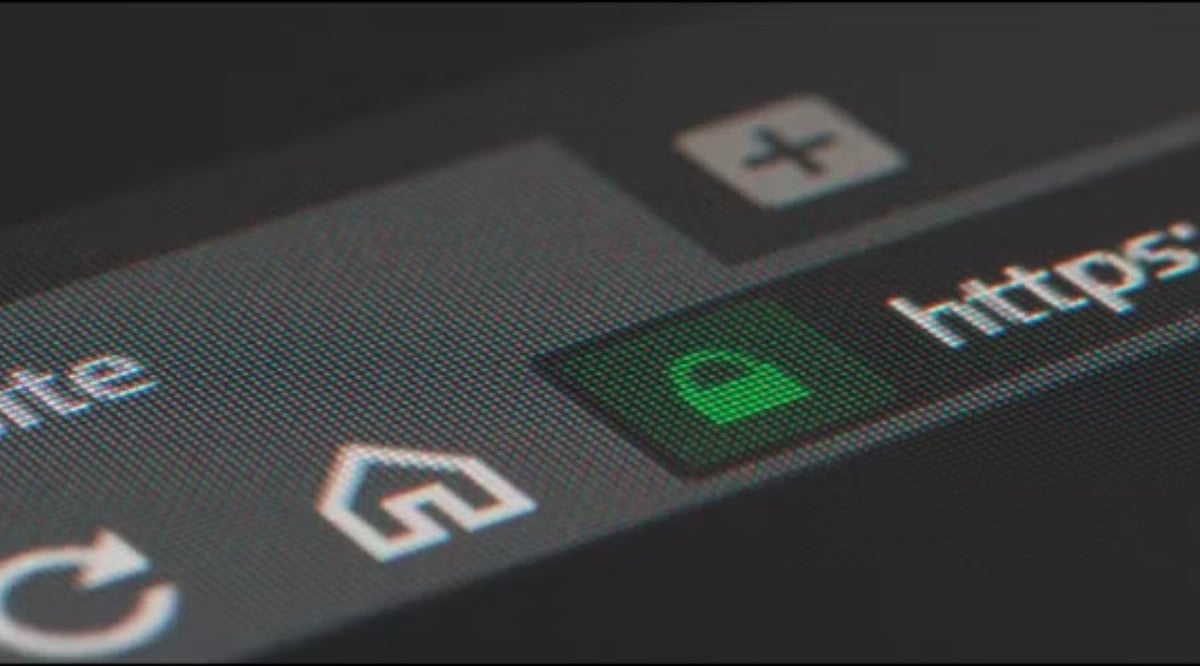
    A website can look legitimate but still pose a serious threat. A clean design, familiar logo, or a padlock icon does not guarantee that a site belongs to a trustworthy company. Fake pages often mimic trusted brands to steal passwords, credit card numbers, phone numbers, or other private information. Performing a few simple checks can reveal warning signs before you submit sensitive details.

    Check the Website Address First

    The web address is the first thing to examine. A legitimate company should have the correct main domain, with no misspellings, extra words, or unusual characters. A minor alteration can indicate a fraudulent page. For example, paypa1.com is not paypal.com, and paypal.com.example.com does not belong to PayPal. The real domain appears near the end of the URL, just before the first slash.

    HTTPS also matters, but it alone does not confirm trust. While a secure connection encrypts data between your browser and the site, fake websites can also obtain HTTPS certificates. Google Chrome still advises caution on secure pages and recommends checking the site name in the address bar.

    Take Browser Warnings Seriously

    A browser warning is a strong signal to stop. Chrome uses Google Safe Browsing to detect phishing, malware, harmful downloads, deceptive sites, and social engineering attacks. When Safe Browsing flags a site as dangerous, Chrome may display a full-page warning. Google advises against visiting such pages.

    A warning that says “Dangerous site” deserves immediate attention. Such a page may attempt to steal passwords or personal information, or install harmful software on your device. Chrome also warns about sites that resemble trusted websites but use a slightly altered address.

    Safe Browsing’s Enhanced mode offers extra protection by warning about risky sites that Google has not yet identified through standard lists. This feature can also check suspicious downloads and browser extensions.

    Check Where the Link Came From

    Even a safe-looking page can originate from an unsafe link. Unexpected emails, text messages, social media messages, pop-ups, or QR codes require extra caution. A better approach is to navigate directly to the official website by typing the known address into your browser or using a trusted bookmark.

    QR codes now deserve special attention. The Federal Trade Commission reported a September 2026 alert about scam QR codes placed over legitimate codes at parking meters. These codes can direct visitors to fake websites that ask for money or personal information.

    The same risk applies to emails and text messages. A message may claim that an account needs urgent action, a payment failed, or a package needs confirmation. Such pressure can push you toward a fake login page. Google advises against clicking links from suspicious messages and recommends visiting the expected website directly.

    Look at What the Site Requests

    A trusted website should have a clear reason for each piece of personal data it asks for. A sudden request for a password, credit card number, government ID, or other sensitive details should raise a red flag. A page that demands far more information than necessary is also suspicious.

    Strong account protection adds another layer of safety. Passkeys offer an alternative to passwords and can resist common phishing attacks. Two-step verification can also reduce risk after password theft, especially when using stronger methods such as security keys or account prompts.

    A safe website check does not rely on a single sign. HTTPS, the correct domain, browser alerts, the source of a link, and the type of data requested all matter. The goal is not to prove that a site looks professional—it is to confirm that the address belongs to the expected service before your private information leaves your device.

  • 7 Browser Settings You Should Change to Boost Online Privacy

    7 Browser Settings You Should Change to Boost Online Privacy

    Block Third-Party Cookies

    Third-party cookies allow advertisers to track your browsing habits across multiple websites. I blocked them to reduce targeted advertising, limit cross-site tracking, and prevent companies from building detailed profiles based on my online activity. Most trusted websites continue working normally, making this one of the simplest and most effective privacy improvements available.

    Disable Automatic Location Access

    I changed location permissions from automatic approval to “Ask Every Time.” This ensures websites only receive my location when absolutely necessary, such as for maps or delivery services. Limiting location sharing reduces unnecessary data collection and prevents websites from continuously tracking my physical whereabouts during everyday browsing sessions online.

    Enable Enhanced Tracking Protection

    I enabled the browser’s strict tracking protection mode to block advertising trackers, fingerprinting scripts, malicious websites, and hidden tracking technologies. Besides improving privacy, this setting also speeds up page loading by preventing unwanted scripts from running, resulting in a cleaner, faster, and more secure browsing experience overall.

    Turn On DNS Over HTTPS

    DNS Over HTTPS encrypts the requests your browser sends when looking up website addresses. Without encryption, these requests can be visible to internet providers or attackers. Enabling this feature protects browsing activity from interception, strengthens privacy, and makes it harder for third parties to monitor the websites you visit regularly.

    Automatically Clear Browsing Data

    I configured my browser to automatically delete cookies, browsing history, and cached files whenever I close it. This reduces the amount of personal information stored locally, limits long-term tracking, and protects my browsing history from anyone who may use the same computer or device after me.

    Restrict Camera and Microphone Permissions

    Instead of permanently allowing websites access to my camera and microphone, I changed permissions to request approval every time. This simple adjustment prevents unauthorized recording, reduces security risks, and ensures only trusted websites gain temporary access when I intentionally start a video call or meeting.

    Disable Password Autofill on Shared Devices

    Password autofill saves time but can expose sensitive accounts on shared or public computers. I disabled browser autofill and switched to a secure password manager protected by strong encryption and multi-factor authentication. This provides better security while keeping passwords easily accessible only when I intentionally unlock my vault.