
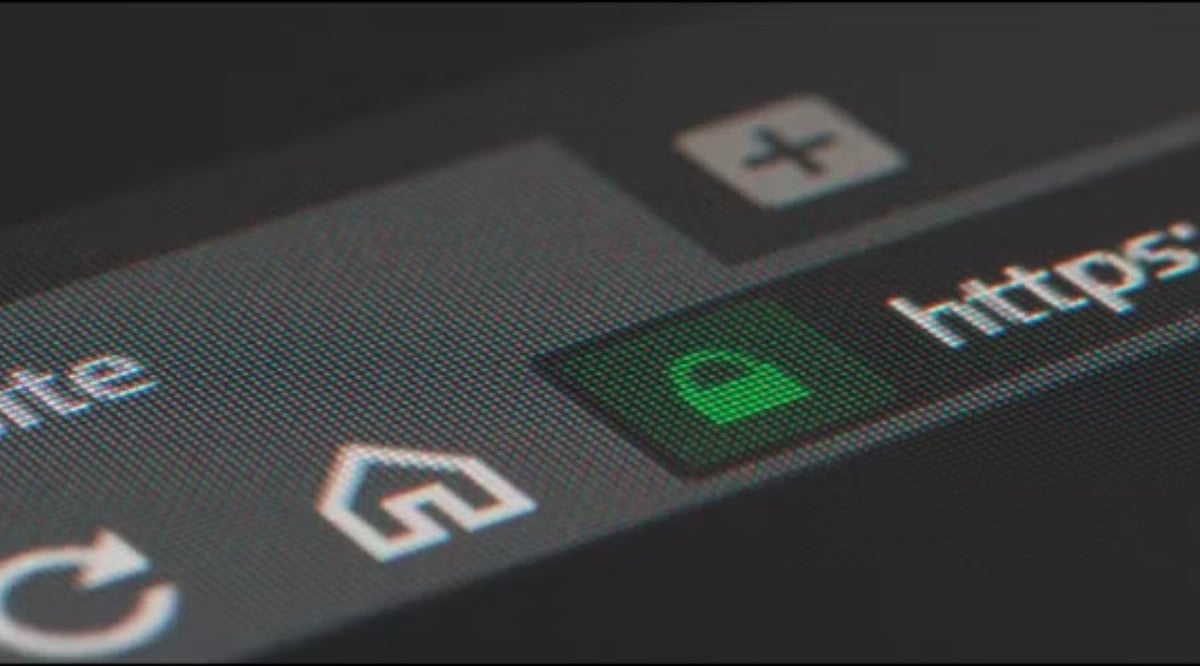
A website can look legitimate but still pose a serious threat. A clean design, familiar logo, or a padlock icon does not guarantee that a site belongs to a trustworthy company. Fake pages often mimic trusted brands to steal passwords, credit card numbers, phone numbers, or other private information. Performing a few simple checks can reveal warning signs before you submit sensitive details.
Check the Website Address First
The web address is the first thing to examine. A legitimate company should have the correct main domain, with no misspellings, extra words, or unusual characters. A minor alteration can indicate a fraudulent page. For example, paypa1.com is not paypal.com, and paypal.com.example.com does not belong to PayPal. The real domain appears near the end of the URL, just before the first slash.
HTTPS also matters, but it alone does not confirm trust. While a secure connection encrypts data between your browser and the site, fake websites can also obtain HTTPS certificates. Google Chrome still advises caution on secure pages and recommends checking the site name in the address bar.
Take Browser Warnings Seriously
A browser warning is a strong signal to stop. Chrome uses Google Safe Browsing to detect phishing, malware, harmful downloads, deceptive sites, and social engineering attacks. When Safe Browsing flags a site as dangerous, Chrome may display a full-page warning. Google advises against visiting such pages.
A warning that says “Dangerous site” deserves immediate attention. Such a page may attempt to steal passwords or personal information, or install harmful software on your device. Chrome also warns about sites that resemble trusted websites but use a slightly altered address.
Safe Browsing’s Enhanced mode offers extra protection by warning about risky sites that Google has not yet identified through standard lists. This feature can also check suspicious downloads and browser extensions.
Check Where the Link Came From
Even a safe-looking page can originate from an unsafe link. Unexpected emails, text messages, social media messages, pop-ups, or QR codes require extra caution. A better approach is to navigate directly to the official website by typing the known address into your browser or using a trusted bookmark.
QR codes now deserve special attention. The Federal Trade Commission reported a September 2026 alert about scam QR codes placed over legitimate codes at parking meters. These codes can direct visitors to fake websites that ask for money or personal information.
The same risk applies to emails and text messages. A message may claim that an account needs urgent action, a payment failed, or a package needs confirmation. Such pressure can push you toward a fake login page. Google advises against clicking links from suspicious messages and recommends visiting the expected website directly.
Look at What the Site Requests
A trusted website should have a clear reason for each piece of personal data it asks for. A sudden request for a password, credit card number, government ID, or other sensitive details should raise a red flag. A page that demands far more information than necessary is also suspicious.
Strong account protection adds another layer of safety. Passkeys offer an alternative to passwords and can resist common phishing attacks. Two-step verification can also reduce risk after password theft, especially when using stronger methods such as security keys or account prompts.
A safe website check does not rely on a single sign. HTTPS, the correct domain, browser alerts, the source of a link, and the type of data requested all matter. The goal is not to prove that a site looks professional—it is to confirm that the address belongs to the expected service before your private information leaves your device.
Leave a Reply