Tag: smart TV

  • Top Smart TVs of 2026: Comprehensive Guide to Features, Deals, and Best Picks

    Top Smart TVs of 2026: Comprehensive Guide to Features, Deals, and Best Picks

    Smart TVs continue to evolve with cutting-edge technology, superior image quality, and advanced features. As of 2026, several models lead their categories, offering options for every budget, performance need, and smart-home integration. This guide highlights the best smart TVs of 2026, detailing their standout features and unique characteristics.

    Samsung QN90D – Best Smart TV Overall

    The Samsung QN90D is widely regarded as the best overall smart TV of 2026. It delivers crystal-clear picture quality with an anti-reflective screen, making it ideal for bright rooms. Samsung’s refined QLED technology provides deeper blacks, richer colors, and improved energy efficiency. AI-based picture and sound optimization create an immersive viewing experience.

    TCL C845K – Top Value Smart TV

    For value-conscious shoppers, the TCL C845K offers outstanding performance without breaking the bank. It features stunning picture quality, high brightness, and a user-friendly smart interface. Support for major HDR formats (Dolby Vision, HDR10+) makes it competitive in the mid-range segment. Built-in streaming apps and voice commands add convenience.

    Sony Bravia XR X90L – Best LED 4K TV

    The Sony Bravia XR X90L excels with excellent color accuracy and contrast, powered by Sony’s Cognitive Processor XR. Its superior motion handling makes it perfect for sports and action content. Google TV enhances the experience with personalized recommendations and easy access to streaming services.

    Amazon Fire TV – Best Smart 4K TV

    Amazon’s Fire TV stands out for its advanced smart capabilities and seamless Alexa integration. It offers 4K resolution with HDR for clear, vibrant images. The intuitive interface provides instant access to streaming media and hands-free voice commands. AI-based content discovery simplifies browsing, while its price offers great value.

    Hisense U8N – The Brightest Smart TV

    The Hisense U8N is acclaimed for its exceptional brightness, high contrast, and wide color gamut. With a 144Hz native refresh rate, VRR, and AMD FreeSync Premium Pro, it’s a top choice for gamers. Apple AirPlay, Google Assistant, and Google Cast support enable seamless multi-ecosystem connectivity. Hisense’s Mini-LED technology balances performance and price.

    LG Evo G4 OLED TV – Ultimate OLED TV for Gaming

    LG’s Evo G4 OLED TV delivers rich, precise colors and outstanding gaming performance. Near-instant response times and a 120Hz refresh rate make it ideal for console and PC gaming. LG’s OLED technology ensures deep blacks and high contrast for a cinematic experience. AI-enhanced picture and sound settings adapt to room lighting.

    Panasonic Z95A OLED TV – Brightest OLED TV

    The Panasonic Z95A OLED TV offers superb brightness, accurate wide-color representation, and a spatial audio speaker system. It supports all major HDR formats, including Dolby Vision IQ and HDR10+, delivering optimal picture quality for any content.

    Samsung S95D – Best OLED TV with Anti-Glare Technology

    Samsung’s S95D combines OLED technology with a distinctive matte finish that minimizes glare while preserving color accuracy. Superior contrast and brightness make it impressive even in brightly lit rooms. Sub-millisecond input lag appeals to gamers, and the smooth Tizen OS ensures easy navigation. This model is a strong contender in the high-end TV segment.

    Final Thoughts

    The top smart TVs of 2025 cater to diverse preferences, whether you prioritize gaming, value, or image quality. Brands like Samsung, Sony, LG, and Hisense continue to push boundaries with new features and improved user experiences. When choosing a smart TV, consider display technology, refresh rate, and smart features to find the best fit for your needs. With emerging AI and display technologies, the future of smart TVs promises even more immersive experiences for viewers worldwide.

    Frequently Asked Questions

    1. Which smart TV is best overall in 2026? Samsung QN90D offers strong picture quality, anti-reflective technology, and AI-based optimization.
    2. Which smart TV is best for gaming? LG Evo G4 OLED provides 120Hz refresh rate, fast response, deep blacks, and high contrast.
    3. Which smart TV is best for bright rooms? Samsung QN90D and Hisense U8N perform well due to high brightness and robust screen performance.
    4. Which smart TV offers the best value for money? TCL C845K combines high brightness, strong picture quality, HDR support, and smart features at a competitive price.
    5. What should you consider before buying a smart TV? Display type, picture quality, brightness, refresh rate, HDR support, gaming features, operating system, smart features, and budget.
  • Top Free Streaming Services for Your Smart TV: No Subscription Needed

    Top Free Streaming Services for Your Smart TV: No Subscription Needed

    Want to watch movies and TV channels without adding another monthly subscription? Several ad-supported streaming platforms can turn your Smart TV into an entertainment hub, with free content available through supported apps and services.

    Tubi

    Tubi offers thousands of movies and TV shows for free, supported by short ad breaks instead of subscription fees. Its official help centre says the service is free and legal.

    Pluto TV

    Pluto TV combines live-style TV channels with on-demand movies and shows, making it feel more like traditional television while keeping the viewing experience free.

    The Roku Channel

    The Roku Channel brings free movies, TV episodes, and live channels together, giving Smart TV viewers another easy way to discover entertainment without paying for every title.

    Amazon Freevee

    Amazon Freevee offers ad-supported movies, TV shows and original programming, making it a useful option for viewers who want premium-style entertainment without a monthly subscription.

    YouTube

    YouTube is more than short videos, with free movies, documentaries, news streams and TV content available through official channels and supported services.

    Plex

    Plex combines free ad-supported movies and TV shows with live channels, creating a flexible entertainment library that works across many supported Smart TV platforms.

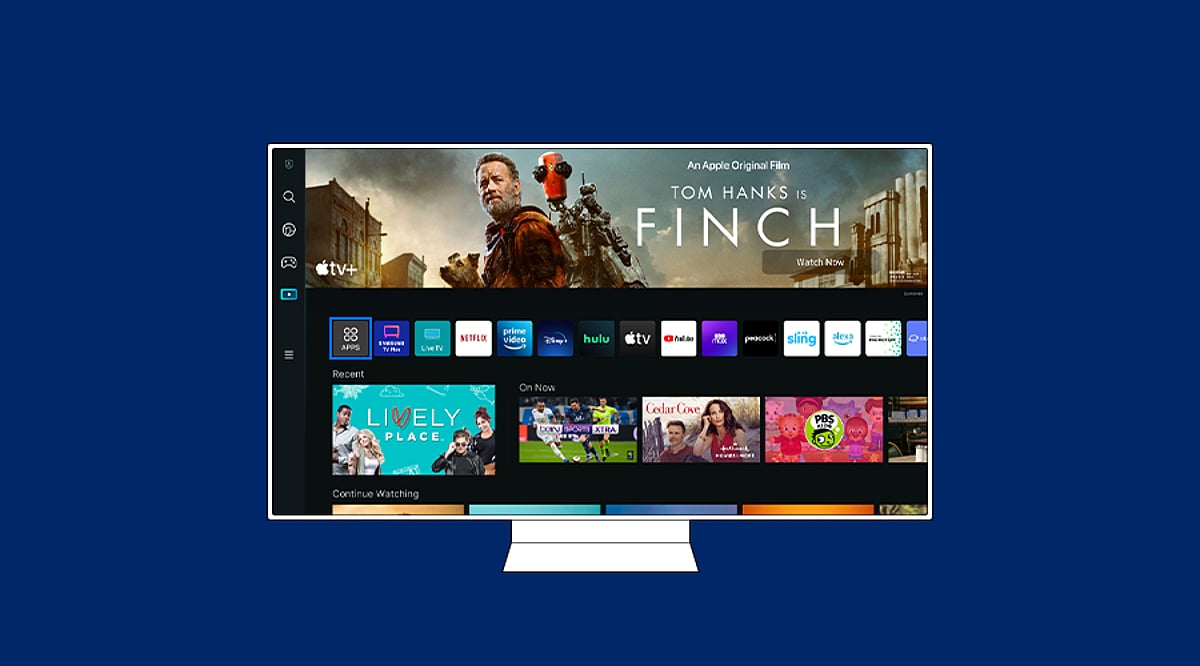
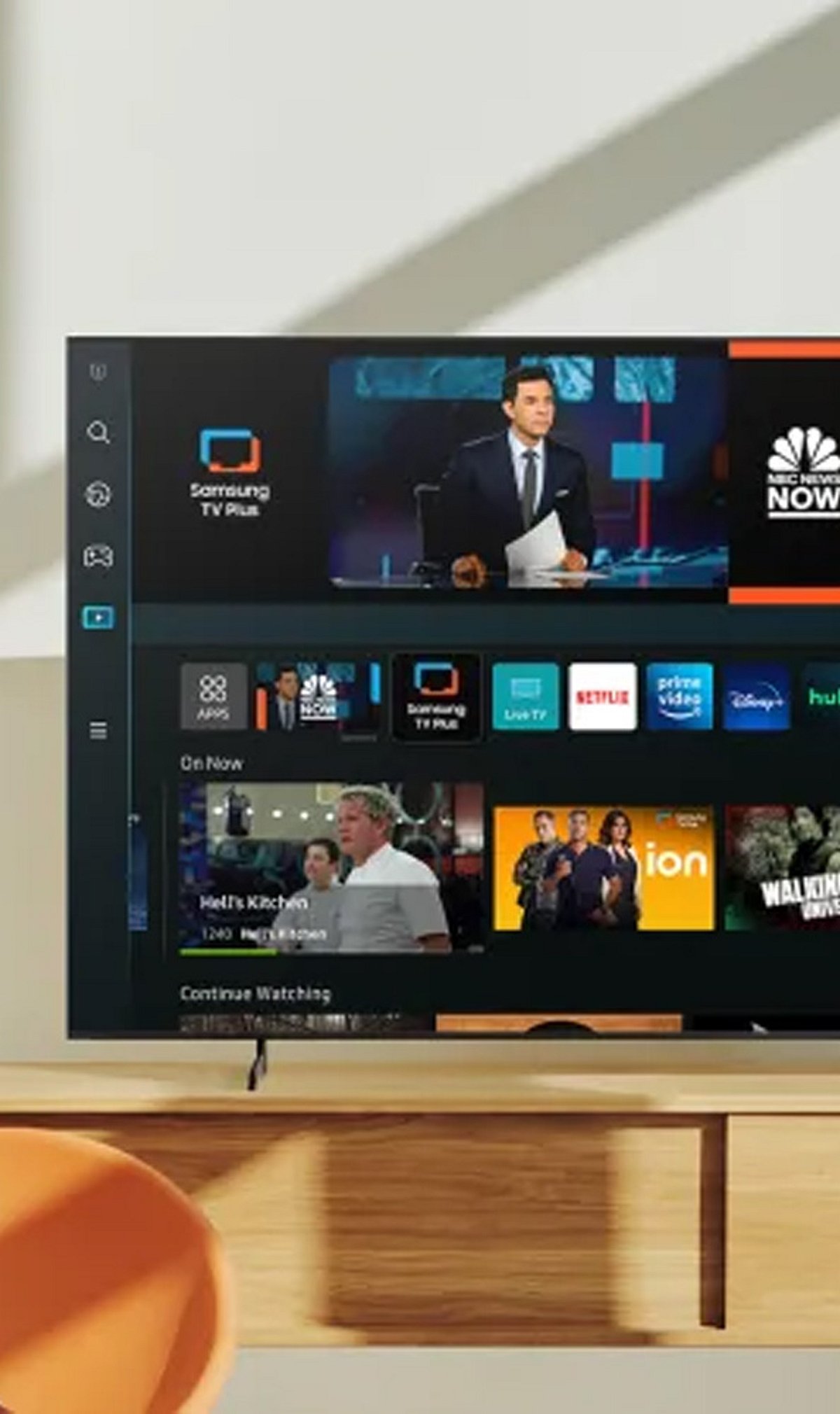
    Samsung TV Plus

    Samsung TV Plus provides free live channels and on-demand entertainment on compatible Samsung Smart TVs, with no separate paid TV subscription required for its free content.

    LG Channels

    LG Channels gives compatible LG Smart TV owners access to free streaming channels and entertainment, turning the television itself into a convenient content hub.

    Read More Stories
    Join our WhatsApp Channel to get the latest news, exclusives and videos on WhatsApp

  • Haier M70 Mini LED TV Brings 4K Picture, AI Enhancement, and 120Hz Gaming to Multiple Screen Sizes

    Haier M70 Mini LED TV Brings 4K Picture, AI Enhancement, and 120Hz Gaming to Multiple Screen Sizes

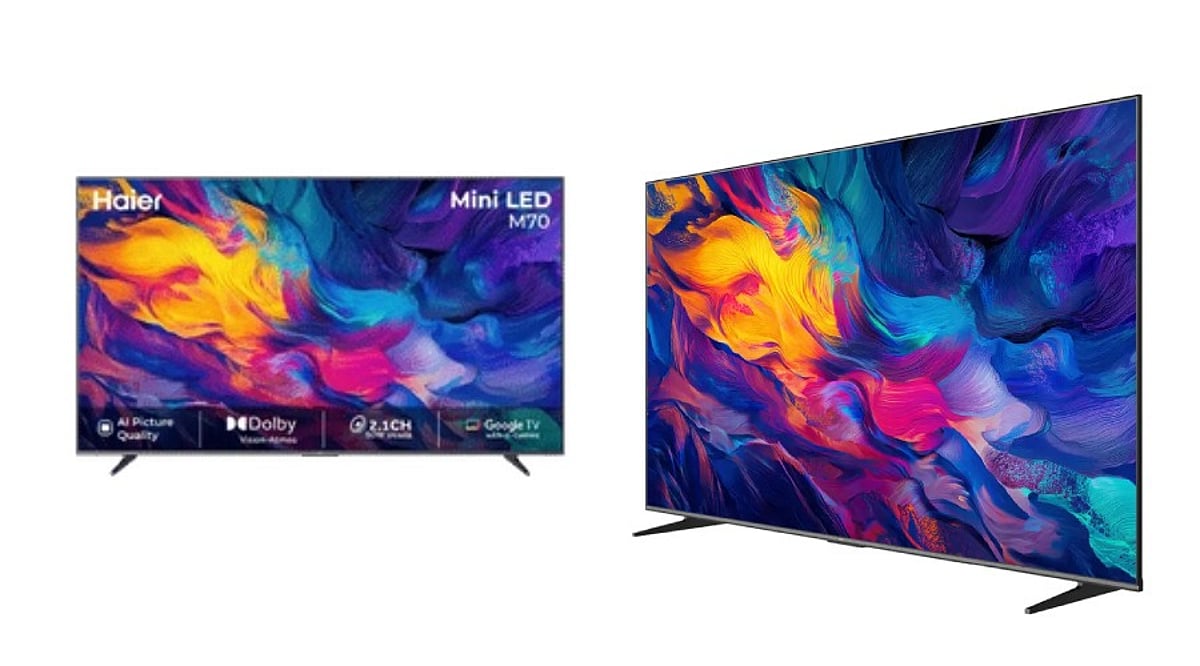
    The Haier M70 Mini LED TV series delivers a well-rounded package of modern television features across five screen sizes. With 4K Mini LED technology, AI-powered picture tools, 120Hz gaming support, Dolby Vision and Atmos, and Google TV integrated with Gemini, the M70 aims to be a versatile choice for movies, sports, and gaming. The 65-inch model further stands out with a 50W 2.1-channel audio system that includes a built-in subwoofer.

    Mini LED Technology Powers the Display

    The M70 series uses Mini LED backlighting, which employs smaller LEDs than conventional LED TVs, enabling finer control over brightness across the screen. This is combined with Micro Dimming technology that adjusts light levels across multiple zones. The 65-inch variant features a 3840 x 2160 4K resolution with a D-LED panel and delivers approximately 93 percent DCI-P3 color gamut coverage, ensuring vibrant and accurate colors.

    High dynamic range is supported through Dolby Vision and HDR10+, while MEMC (Motion Estimation, Motion Compensation) helps keep fast-moving scenes clear. Haier includes several AI-driven enhancements:

    • AI Picture Quality: Real-time adjustment of image details.
    • AI HDR Enhancer: Improved highlight detail and contrast.
    • AI Color Boost: Enhanced color saturation and impact.
    • AI Motion: Smoother rendering of fast sequences.
    • AI Noise Reduction: Reduction of unwanted image noise.

    Brightness Considerations

    It is important to note that Mini LED does not offer the same pixel-level black control as OLED. The 65-inch M70 has a measured peak brightness of approximately 320 nits. While not the brightest in the premium Mini LED segment, the TV focuses on color accuracy, contrast, HDR support, and AI processing to deliver a satisfying viewing experience.

    Gaming Features at 120Hz

    The M70 supports a 120Hz refresh rate along with Variable Refresh Rate (VRR), Auto Low Latency Mode (ALLM), and MEMC. These features reduce input lag and motion blur, making it suitable for fast-paced games. A dedicated Gaming Bar provides quick access to settings such as Shadow Enhancement and Crosshair Assist. The 65-inch model supports 4K at 60Hz and 1080p at 120Hz via DLG (Dual Line Gate) technology.

    Audio Performance

    The 65-inch model comes with a 50W 2.1-channel audio system that includes a built-in subwoofer and supports Dolby Atmos for an immersive soundstage. In tests, the system delivers strong volume and useful bass, potentially reducing the need for an external soundbar. At very high volumes, some harshness may appear, so moderate listening levels are recommended for optimal clarity.

    Smart Platform: Google TV with Gemini

    The M70 runs Google TV on Android 14, complete with Gemini AI assistance and Chromecast Built-in for easy content streaming from compatible devices. The 65-inch model is equipped with 2GB of RAM and 32GB of storage—sufficient for apps and games, though the interface can feel slightly sluggish at times.

    Size Options and Pricing

    Haier offers the M70 in five sizes: 43, 55, 65, 75, and 85 inches. Launch prices ranged from approximately Rs. 39,190 to Rs. 1,69,990 depending on size and configuration. The 43-inch model starts at about Rs. 40,690 on Haier’s official store. Retail prices may vary with promotions and availability.

    Conclusion

    The Haier M70 Mini LED TV series brings together a compelling mix of advanced display technology, smart features, gaming support, and robust audio. While brightness and black levels do not rival OLED or high-end Mini LED competitors, the M70 offers strong value for those seeking a feature-rich television across a range of screen sizes.

    Frequently Asked Questions

    1. What screen sizes does the Haier M70 offer?
    The M70 comes in 43-inch, 55-inch, 65-inch, 75-inch, and 85-inch sizes.

    2. Does the Haier M70 support 120Hz gaming?
    Yes. The TV supports 120Hz, VRR, ALLM, MEMC, Gaming Bar features, and 1080p at 120Hz through DLG support on the 65-inch model.

    3. Which HDR formats does the M70 support?
    The TV supports Dolby Vision and HDR10+ for compatible content.

    4. What audio system does the 65-inch M70 have?
    The 65-inch model has a 50W 2.1-channel audio system with a built-in subwoofer and Dolby Atmos.

    5. Does the Haier M70 have Google TV and Gemini?
    Yes. The M70 runs Google TV on Android 14 and includes Gemini support, along with Chromecast Built-in.

  • How to Install Apps on Your Smart TV: A Complete Step-by-Step Guide

    How to Install Apps on Your Smart TV: A Complete Step-by-Step Guide

    Smart TVs offer access to a wide range of streaming services, games, and utility apps. Whether you own a Samsung, LG, Google TV, Fire TV, or Roku device, the process of downloading apps is straightforward. This guide walks you through each step to get your favorite apps up and running.

    Step 1: Connect Your Smart TV to the Internet

    Before you can download any apps, your TV must be connected to the internet. Use Wi-Fi or an Ethernet cable. Navigate to Settings, select Network, and choose your Wi-Fi network. Enter the password if prompted. A stable connection ensures smooth browsing of the app store and seamless downloads.

    Step 2: Open the Built-In App Store

    Press the Home button on your remote and locate the app store. The name varies by brand: Google TV uses the Apps section or Google Play Store, Samsung uses “Apps”, LG uses “LG Content Store”, while Fire TV and Roku have their own dedicated stores. Open the store to browse available applications.

    Step 3: Search for the App You Want

    Use the search function within the app store and type the name of the app you’re looking for. Review the results carefully to select the official version. Check the developer name and app description to ensure it’s the correct app before proceeding.

    Step 4: Install the App

    Select the official app listing and click Install, Get, or Download (the wording depends on your TV platform). Wait for the installation to complete. Google TV and Android TV install apps via Google Play, while Samsung and LG use their proprietary stores.

    Step 5: Open the App and Sign In

    Once installed, you can open the app directly from the store or find it on your Home screen. Launch the app and sign in if required. Some services may need a separate subscription or activation before content becomes available.

    Step 6: Add the App to Your Home Screen (Optional)

    For quick access, you can add frequently used apps to your Home screen. Samsung TVs, for example, allow you to pin apps to the Home bar. Menu options vary by model and software version, so explore your TV’s settings to customize your layout.

    Troubleshooting: App Not Showing Up?

    If an app doesn’t appear or fails to install, try these fixes: restart your TV and router, check for system software updates, free up storage space, and verify your TV’s region and compatibility. Some apps are not available on certain models or operating systems. As a workaround, consider casting from a phone, using AirPlay, or connecting a streaming device like Chromecast or Amazon Fire Stick.

  • Modern Home Entertainment Hardware: Key Consumer Expectations

    Modern Home Entertainment Hardware: Key Consumer Expectations

    Home entertainment hardware has evolved dramatically over the past few years. A television is no longer an isolated screen; it now serves as the center of a broader digital ecosystem that includes streaming services, apps, wireless connectivity, voice controls, and high-resolution video. As a result, modern buyers look beyond a single feature and consider the entire package—performance, connectivity, storage, interface design, software support, and even after-sales service. This article explores what consumers expect from today’s home entertainment hardware and how products like the SuperBox S7 series are designed to meet those expectations.

    Performance Goes Beyond Basic Playback

    Consumers expect connected entertainment devices to respond quickly when opening apps, navigating menus, or switching between functions. A device that technically supports modern content but feels sluggish during everyday use quickly becomes frustrating. Processing power is now a major consideration when comparing consumer electronics.

    However, performance should be matched to actual usage. A casual viewer may not need the same processing muscle as a family that regularly uses multiple applications and connected features. The best choice is one that provides enough capability for current habits without adding unnecessary complexity.

    Better Connectivity Is a Core Requirement

    A modern entertainment device needs a dependable way to communicate with the home network. Wireless connectivity is especially important because many TVs and media players are located away from the main router. Wi-Fi improvements—such as Wi-Fi 6 support—make placement more flexible, while Gigabit Ethernet remains valuable when a wired connection is practical.

    Consumers are also paying more attention to the stability of their home networks. Even capable hardware cannot compensate for an unreliable internet connection or poor router placement. Buyers now evaluate the device and the network as parts of the same system rather than treating hardware specs as the only measure of performance.

    Connectivity also influences where a device can be installed. A living-room setup might have easy access to Ethernet, while a bedroom TV might depend entirely on wireless. Considering these conditions before purchasing helps consumers choose hardware that fits their existing environment without requiring a network redesign.

    Higher Resolution Is Part of the Buying Decision

    Display technology has raised expectations. As TVs become capable of showing increasingly detailed images, consumers naturally want connected devices that can work with modern video standards, including 4K and beyond. Support for higher-resolution content is becoming an important purchase factor, particularly for people upgrading several components at once.

    But resolution should not be viewed in isolation. The TV, content source, connection, and media device all contribute to the final viewing experience. A capable TV box can provide useful support for higher-resolution playback, but the result still depends on compatible content and the rest of the home setup.

    Storage Has Become More Useful

    Storage was once a secondary specification, but today it has a greater practical role. Connected TV hardware may need space for applications, system data, updates, and other functions. More storage reduces the need to constantly remove apps or manage space.

    This doesn’t mean every consumer needs the largest capacity available. A simple setup might be fine with less storage, while a household using many apps may appreciate more. The key is matching storage capacity with expected usage and the device’s lifespan.

    User Interfaces Need to Feel Simple and Responsive

    Consumers are accustomed to interfaces that are easy to understand. Complicated menus and unclear navigation can make even powerful hardware feel inconvenient. A connected TV device should make common actions straightforward, especially when multiple household members use the same equipment.

    Interface design also affects feature discovery. Search functions, organized applications, clear settings, and responsive navigation all contribute to a more comfortable experience. Software presentation is now nearly as noticeable as hardware specifications when consumers compare devices.

    Software Support Influences Long-Term Value

    Hardware specs attract attention at purchase, but software determines how useful a device remains over time. Consumers want access to applications and features that fit their viewing habits, and updates and compatibility can influence how practical the hardware feels later.

    This is especially relevant in the connected TV category because entertainment services and applications continue to evolve. Buyers should consider the software environment alongside processor speed, storage, and display support. Content and application availability can vary by region, so it’s wise to confirm that the services you intend to use are officially supported.

    Software also affects comfort months after installation. If applications are easy to manage and the interface remains familiar, users are more likely to get full value from the hardware.

    Brand Support Adds Confidence After Purchase

    The buying experience doesn’t end when the device arrives. Consumers want clear product information, reasonable return policies, warranty coverage, and access to support when something goes wrong. These factors are particularly important with connected electronics because setup questions and compatibility issues may arise after installation.

    Choosing an established source provides additional confidence. SuperBoxSmart, for example, presents itself as an authorized U.S. SuperBox dealer and offers product support, a one-year hardware warranty, and a 30-day return policy. Consumers should still review current terms before purchasing, but clear after-sales information makes the decision more comfortable.

    Consumers Want Technology That Fits Real Homes

    One of the strongest trends is the movement toward technology that works naturally within existing routines. People don’t want more features for the sake of having them; they want capabilities that solve practical problems—whether that means better connectivity, easier navigation, more storage, or support for modern displays.

    This changes how consumers should compare products. Instead of asking which device has the longest spec sheet, it’s more useful to ask which features will actually improve the household’s experience. A balanced combination of performance, connectivity, software, storage, and usability often provides more practical value than a single impressive specification.

    Different households have different priorities. A small apartment may value compact design and wireless connectivity, while a larger family may care more about storage and flexible application use. Looking at the intended environment first allows consumers to judge specifications in context.

    Future-Proofing Is About Flexibility Rather Than Hype

    No consumer electronic device can remain at the cutting edge forever. New apps, display technologies, network standards, and entertainment habits will continue to develop. Rather than trying to predict every future change, buyers can look for hardware with enough flexibility to support reasonable upgrades and evolving usage.

    This means considering factors like storage capacity, connectivity standards, processing capability, software environment, and available ports. A device with balanced specs may remain useful longer because it can adapt to more situations. Future-proofing is less about buying the most expensive model and more about avoiding obvious limitations that could become inconvenient later.

    Final Thoughts

    Modern home entertainment hardware is increasingly judged by the complete experience it provides. Consumers want responsive performance, dependable connectivity, useful storage, modern video support, straightforward software, and accessories that make everyday control easier. They also pay close attention to build quality, warranty coverage, and after-purchase support.

    The SuperBox S7 series illustrates how these expectations are shaping connected TV devices, offering multiple configurations with different storage capacities, Wi-Fi 6, Gigabit Ethernet, Bluetooth, modern Android software, and high-resolution video decoding. The right model depends on the user’s television, network, applications, storage needs, and viewing habits. By focusing on practical requirements instead of chasing specifications alone, consumers can make a more informed choice and build a home entertainment setup that remains convenient well beyond the initial purchase.

  • Acerpure Nitro 55-Inch QLED TV Review: Affordable 4K with Gaming Features

    Acerpure Nitro 55-Inch QLED TV Review: Affordable 4K with Gaming Features

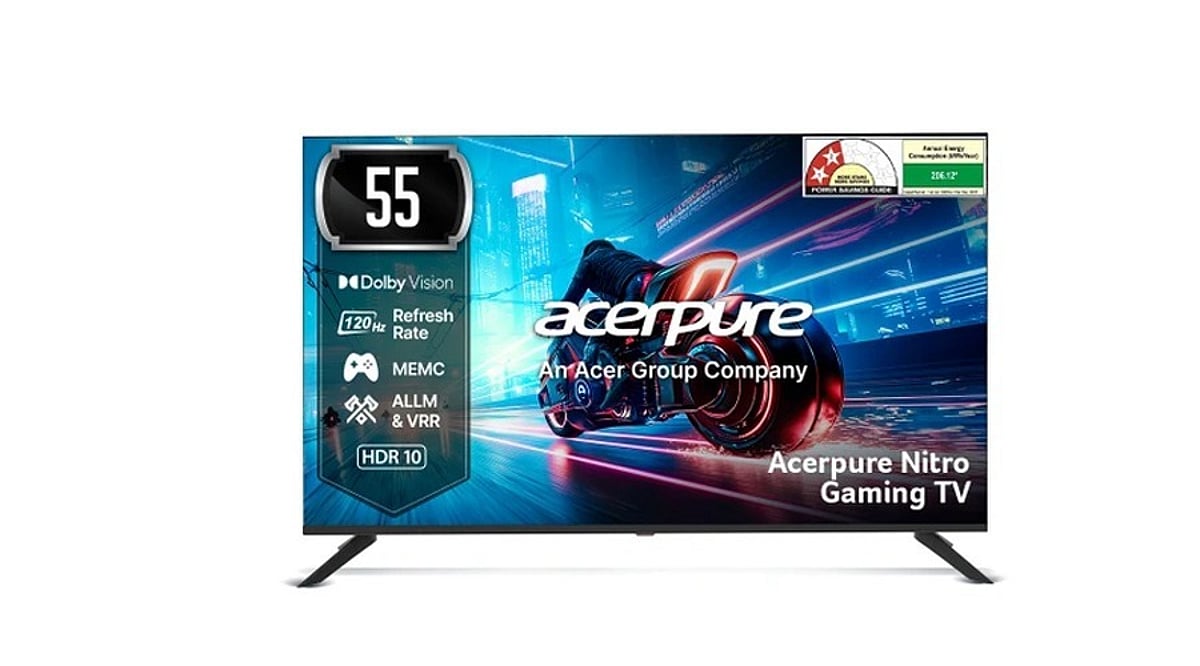
    The Acerpure Nitro 55-inch QLED TV is a feature-packed smart television that delivers strong value in the budget-friendly large-screen segment. It combines a 55-inch 4K QLED panel with a 120Hz refresh rate, Dolby Vision, MEMC, VRR, and ALLM support, making it an appealing option for both casual viewers and gamers. Powered by Google TV on Android TV 14, it also includes a 50W sound system with Dolby Atmos and dedicated gaming modes.

    Specifications

    • Display: 55-inch 4K QLED, 120Hz refresh rate
    • HDR Support: Dolby Vision, HDR10, HLG
    • Gaming Features: VRR, ALLM, MEMC
    • Smart Platform: Google TV (Android TV 14)
    • Audio: 50W speakers, Dolby Atmos
    • Connectivity: HDMI 2.1, USB, Wi-Fi, Bluetooth

    Pros and Cons

    Pros

    • Affordable price for a 55-inch QLED with 120Hz
    • Good brightness and sharpness for everyday content
    • Dolby Vision and Dolby Atmos support enhance movies and games
    • VRR and ALLM improve gaming responsiveness

    Cons

    • Color accuracy can be inconsistent; vivid colors sometimes appear washed out
    • Black levels are not as deep as higher-end OLED or Mini-LED TVs
    • Built-in sound, while decent, may not satisfy audiophiles

    Final Verdict

    The Acerpure Nitro 55-inch QLED TV offers an impressive set of features at a competitive price point. With 4K resolution, a 120Hz panel, and gaming-friendly technologies like VRR and ALLM, it is well-suited for gamers on a budget. However, those seeking superior color accuracy and deep blacks may want to consider higher-tier alternatives. Overall, it is a solid choice for anyone looking for a large, feature-rich TV without breaking the bank.

  • 5 AI-Powered TV Innovations Transforming Home Viewing by 2027

    5 AI-Powered TV Innovations Transforming Home Viewing by 2027

    Television has quietly evolved from a passive screen into an intelligent hub that listens, learns, and adapts. By 2027, AI will be the core of how we interact with our TVs, moving beyond simple voice commands to truly conversational experiences. The global AI TV market, valued at USD 9.76 billion in 2026, is projected to grow at a compound annual rate of 17.2 percent through 2030, according to market research firm Accio. This growth reflects how deeply artificial intelligence is becoming woven into the everyday act of watching television.

    1. Conversational AI Companions Replace Remote Controls

    Voice control on TVs is no longer about shouting single commands. Samsung’s Vision AI platform already lets viewers ask contextual questions about on-screen content, pulling in tools like Microsoft Copilot and Perplexity for real-time answers. In 2027, TVs will act less like screens and more like conversational assistants that understand what show is playing and respond accordingly. Consumer Reports notes that chatbots built into TVs will increasingly replace traditional remote navigation, allowing viewers to simply talk to find what they want.

    2. Personalized Content Discovery Gets Sharper

    AI-driven recommendation engines are becoming far more accurate. By 2027, TVs will study viewing patterns more closely, factoring in mood, time of day, and even who else is in the room. This means recommendations will feel highly tailored, keeping viewers engaged longer and reducing endless menu scrolling. For streaming platforms, smarter recommendations are a key competitive advantage.

    3. On-Device AI Processing Improves Privacy and Speed

    A major shift is moving AI processing from the cloud to local chips inside the TV. This reduces lag time and gives users more control over their data, addressing privacy concerns tied to always-listening devices. Stronger system-on-chip hardware makes this possible, and 2027 models are expected to lean further into local processing for faster, more private interactions.

    4. Smarter Picture and Sound Without Manual Tweaking

    AI upscaling is already standard, letting 1080p signals look close to 4K. By 2027, AI will automatically adjust brightness, contrast, and sound profiles based on content type—whether it’s a sports match, a dark thriller, or a video call. Viewers will spend less time fiddling with settings as the TV handles optimization in the background.

    5. The Bigger Picture: Why These Trends Matter

    These trends reshape how people interact with home entertainment and how much data companies collect. For manufacturers, AI has become the main differentiator in a market where screen technology alone no longer sets brands apart. For viewers, it means TVs that feel more intuitive, respond faster, and adapt to individual habits without extensive setup. As 2027 approaches, AI in television is no longer an add-on feature but the foundation shaping how screens are designed, marketed, and used every day.

  • How to Stream JioHotstar on Your TV: A Complete Setup Guide

    How to Stream JioHotstar on Your TV: A Complete Setup Guide

    Watching movies, TV shows, and live sports on a smartphone is convenient, but a television offers a more comfortable viewing experience. If you want to stream JioHotstar on your TV, you can either install the app directly on a compatible smart TV or use a supported streaming device such as a Chromecast. The setup usually takes only a few minutes, but the exact process can vary depending on the TV brand, operating system, and streaming device. Here is everything you need to know about connecting JioHotstar to your television.

    Check JioHotstar Compatibility

    Before installing the app, check whether your TV or streaming device supports JioHotstar.

    • Check the TV model: Older smart TVs may not support the latest JioHotstar application.
    • Check the operating system: The required software version can determine whether the app appears in the TV’s app store.
    • Look for the app: If JioHotstar doesn’t appear in the store, check the device’s compatibility before trying other methods.

    Connect Your TV to Wi-Fi

    A stable internet connection is required to stream JioHotstar content.

    • Open Settings: Go to the network or Wi-Fi section on your television.
    • Select your network: Choose your home Wi-Fi connection from the available networks.
    • Enter the password: Complete the connection and wait for the TV to connect to the internet.
    • Check the connection: A weak or unstable network can cause buffering, playback interruptions, and login problems.

    Download JioHotstar App

    Once the television connects to the internet, install the streaming application.

    • Open the app store: Launch the application store available on your smart TV.
    • Search for JioHotstar: Enter ‘JioHotstar’ in the search bar.
    • Install the official app: Select the JioHotstar application and download it.
    • Launch the app: Open JioHotstar from the TV’s app menu after installation.
    • Update if required: If you already have an older Hotstar app installed, check whether an update is available.

    Sign in to Your JioHotstar Account

    After installing the app, connect your account.

    • Open JioHotstar: Launch the application and select Login or Sign In.
    • Follow the instructions: The TV will display the login method supported by the device and the app version.
    • Complete verification: Depending on the login process shown, you may need to enter your phone number and verify it using an OTP.
    • Use the correct account: Make sure you sign in with the JioHotstar account linked to your subscription.

    Enter the JioHotstar Activation Code

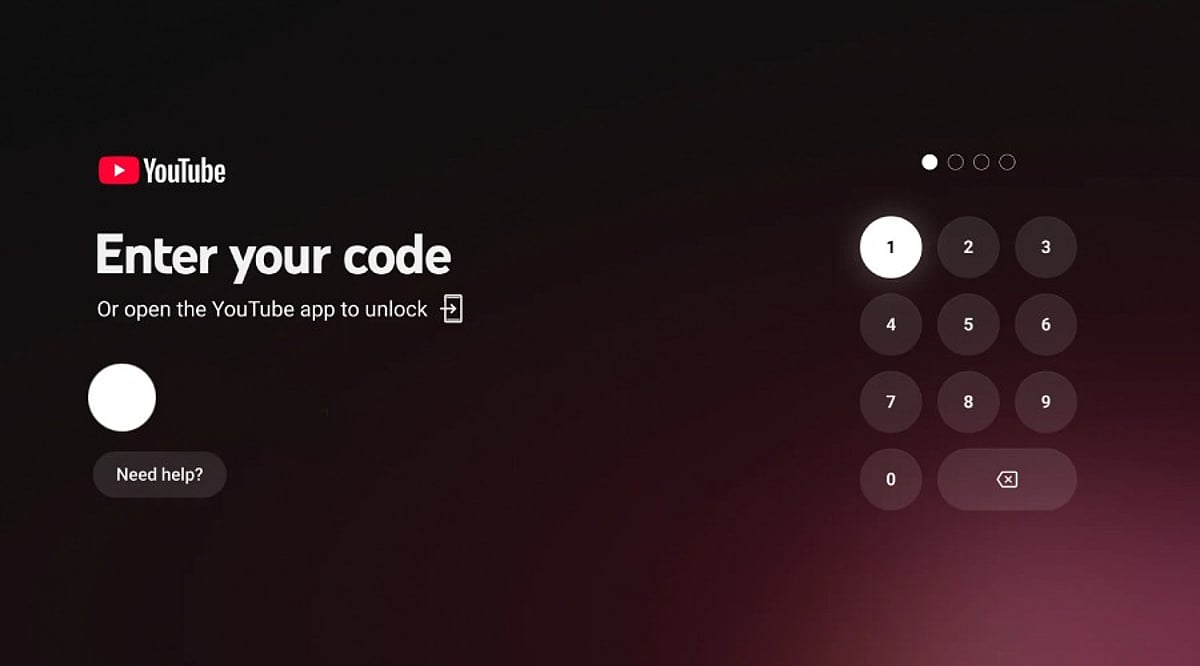
    Some televisions and streaming devices may show an activation code during login.

    • Look for the code: Keep the JioHotstar login screen open on the TV.
    • Use another device: Open the activation page JioHotstar provides on your smartphone or computer.
    • Sign in to your account: Use the same JioHotstar credentials you use on the TV.
    • Enter the TV code: Type the activation code displayed on your television.
    • Wait for confirmation: After successful authentication, the TV app should connect to your account.

    How to Watch JioHotstar Using Chromecast

    Chromecast offers another option for televisions without the JioHotstar app.

    • Connect Chromecast: Plug the Chromecast device into the television and complete its setup.
    • Connect to Wi-Fi: Make sure the smartphone and Chromecast are connected to the same Wi-Fi network.
    • Open JioHotstar: Launch the app on your smartphone.
    • Choose content: Select the movie, show, or live program you want to stream.
    • Tap Cast: Select the Cast icon when it appears.
    • Choose the TV: Select the Chromecast or compatible television from the list.
    • Start watching: The selected content should appear on the TV screen.

    JioHotstar supports Chromecast Gen 2 and newer devices, along with compatible televisions with Chromecast built-in.

    What to Do If JioHotstar Is Not Working

    Login or playback problems do not always mean the TV is incompatible. Try these basic troubleshooting steps first.

    • Check the internet: Make sure the TV stays connected to Wi-Fi.
    • Restart the TV: Turn off the TV and restart it before opening JioHotstar again.
    • Restart the router: Restarting the router can resolve temporary connectivity problems.
    • Update the app: Install the latest available version of JioHotstar.
    • Update the TV software: Check whether a system update is available.
    • Sign in again: Log out of the JioHotstar account and complete the login process again.
    • Check compatibility: For older televisions, verify whether the TV’s operating system meets JioHotstar’s requirements.

    Bottom Line

    Connecting JioHotstar to a TV is relatively straightforward when the television supports the application. The simplest route is to install JioHotstar directly from the TV’s app store and sign in with your account. If the app isn’t available, Chromecast or another supported streaming device can be an alternative. Before troubleshooting, check the TV’s model and operating system. This can quickly determine whether the issue is device compatibility, the app, the internet connection, or the account.

    FAQs

    Can I watch JioHotstar directly on my smart TV?
    Yes, JioHotstar works directly on several compatible smart TVs, including supported Android TV, Samsung and LG models.
    How do I activate JioHotstar on my TV?
    Open JioHotstar, select Login, follow the displayed instructions, and enter the activation code if your television provides one.
    Can I use Chromecast to watch JioHotstar?
    Yes, connect Chromecast and your smartphone to the same Wi-Fi network, open JioHotstar, tap Cast, and select your TV.
    Why is JioHotstar not appearing on my TV?
    Your television may not meet compatibility requirements. Check its operating system, model year, software updates and supported applications.
    Do I need a JioHotstar subscription to watch content?
    Access depends on the content and account plan. Some titles may require an active subscription, while availability varies across programmes.
  • Budget TV Buying Guide: 5 Critical Checks to Avoid Regret

    Budget TV Buying Guide: 5 Critical Checks to Avoid Regret

    Televisions on the showroom floor are designed to impress. Bright lighting, vivid picture modes, and high-detail demo clips can make almost any screen look sharp. But the real test comes when you bring that budget TV home and watch it under ordinary lighting with everyday content. Hidden compromises can turn a great deal into a source of frustration. Here are five critical checks to make before you buy.

    1. Picture Quality in Real-World Lighting

    Budget TVs often cut corners on brightness and color accuracy to keep costs down. A screen that looks bold in the store can appear pale or grey in a naturally lit room, especially if sunlight hits the screen directly.

    • Colors may look flat or washed out under normal room lighting
    • Local dimming, if present, is basic, so dark scenes lose detail
    • HDR support might be more marketing than substance—without proper backlighting, HDR content can look dimmer than standard content

    What to do: Ask to see the TV with the picture mode set to Standard or Normal, not the vivid store demo mode. If you watch mostly in a bright room, this test is essential.

    2. Sound Quality: The Hidden Weakness

    TV cabinets have become thinner, leaving less room for decent speakers. This is especially true on budget models. Expect thin sound, weak bass, and dialogue that gets buried in action scenes or noisy backgrounds.

    • Dialogue can be unclear during scenes with background music or effects
    • Bass response is often minimal or absent
    • Hard floors and bare walls can make the problem worse

    What to do: Listen to the built-in speakers in the store. If they sound weak, budget for a soundbar—a cost you might not have planned for.

    3. Ports and Refresh Rates: Check Before You Connect

    Most households connect more than just a cable box. Gaming consoles, streaming sticks, and soundbars all need HDMI ports. But not all HDMI ports are created equal.

    • Check the number of HDMI ports—three is a practical minimum
    • Look for HDMI ARC or eARC for soundbar connectivity
    • Refresh rate matters: 60Hz is fine for casual viewing, but 120Hz is better for sports and gaming

    What to do: List every device you plan to connect. Make sure the TV has enough ports and the right specs for your needs.

    4. Smart TV Performance: Speed Matters

    Two smart TVs can list the same apps but feel completely different in use. Budget models often pair a basic processor with an aging operating system, leading to slow menus and laggy app switching.

    • Menus and apps take longer to open
    • Software updates are infrequent, leaving apps and security outdated
    • The interface may feel dated within a year or two

    What to do: Test the actual interface in the store. Don’t just read the app list on the box—navigate menus, open a few apps, and see how responsive it feels.

    5. Warranty and After-Sales Support

    A TV purchase doesn’t end at the checkout. What happens if the panel fails six months later? The warranty terms and service network matter just as much as the specs.

    • Ask what the warranty actually covers—panel coverage and general coverage are sometimes separate
    • Check if the manufacturer has service centers nearby, not just in major cities
    • Know your consumer rights—many countries give you legal protection beyond the manufacturer’s warranty

    What to do: Read the warranty carefully. If you’re offered an extended warranty, compare it with your legal rights—some benefits may already be yours by law.

    Final Thoughts

    Budget TVs can be a great value for casual viewing, live TV, and streaming. The key is to know what you’re giving up. Test the picture in normal mode, check the ports against your devices, listen to the speakers, and ask about after-sales support. A few extra minutes of research now can save you years of regret.