Category: Art & Design Apps

  • Reliance Jio Offers Free Canva Pro for 12 Months: Eligible Plans and Activation Guide

    Reliance Jio Offers Free Canva Pro for 12 Months: Eligible Plans and Activation Guide

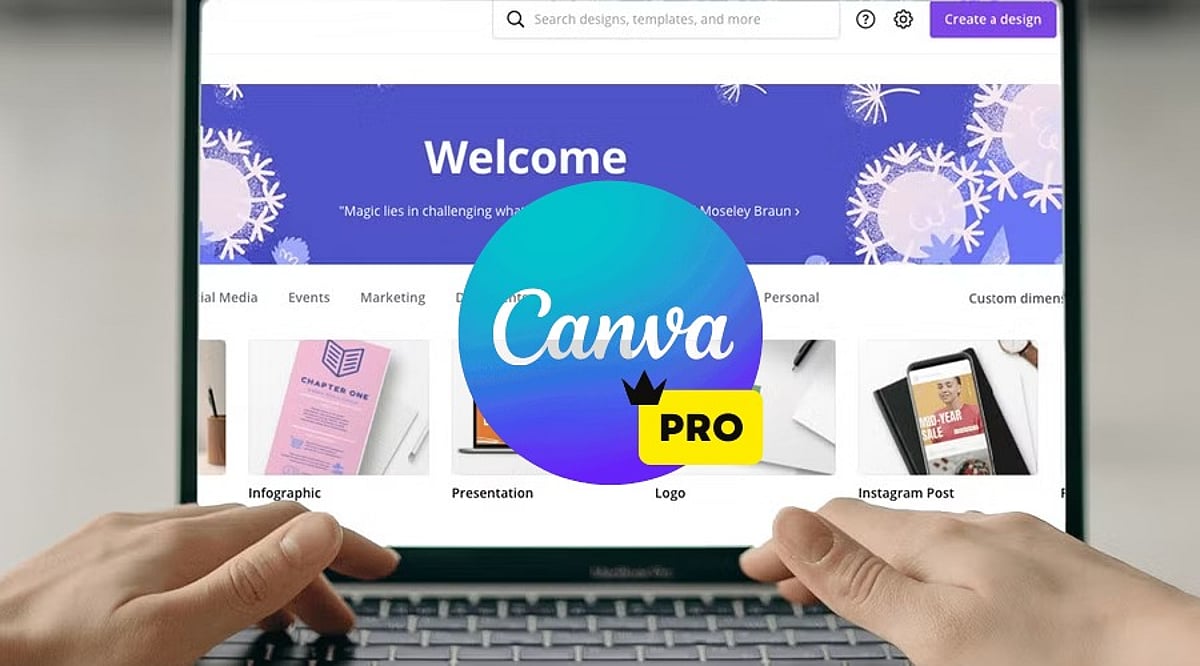
    Reliance Jio has partnered with Canva to provide eligible customers with free access to Canva Pro or Canva Pro Lite for up to 12 months. This exclusive benefit is available with select Jio recharge plans and can be claimed through the MyJio app starting September 16, 2026. The companies have valued the offer at up to Rs. 4,000.

    Which Jio Plans Are Eligible?

    The Canva subscription you receive depends on your Jio recharge plan. Customers on the Rs. 399 plan will get Canva Pro for 12 months. Users on the Rs. 349 plan and eligible 2GB-per-day plans priced above Rs. 349 will receive Canva Pro Lite for the same period.

    The offer does not require any additional subscription charges. However, customers should check the Canva offer section inside the MyJio app to confirm their eligibility before activating the benefit.

    How to Claim Your Free Canva Subscription

    Eligible customers can activate the benefit through the MyJio app. Simply open the app, locate the Canva offer, and follow the on-screen instructions. You may need to verify your Jio number and sign in to an existing Canva account or create a new one.

    Once activation is complete, the eligible Canva subscription will be linked to your account. Be sure to use the correct Canva account during activation to avoid linking the benefit to the wrong profile.

    This collaboration gives users access to premium design and AI tools, making it easier to create professional graphics, presentations, and more without a separate subscription fee.

  • Canva Business vs Canva Pro: Essential Features for Team Collaboration and Brand Management

    Canva Business vs Canva Pro: Essential Features for Team Collaboration and Brand Management

    Creative work slows down when teams spend more time chasing files than creating them. Brand assets sit in personal folders, feedback gets buried in chat threads, and approvals arrive through scattered emails. The result is delays, version confusion, and inconsistent branding. Canva’s business plan brings design, collaboration, brand assets, and approvals into one shared workspace, helping teams move from idea to publication with greater speed and control.

    Canva Pro vs Canva Business: What’s the Difference?

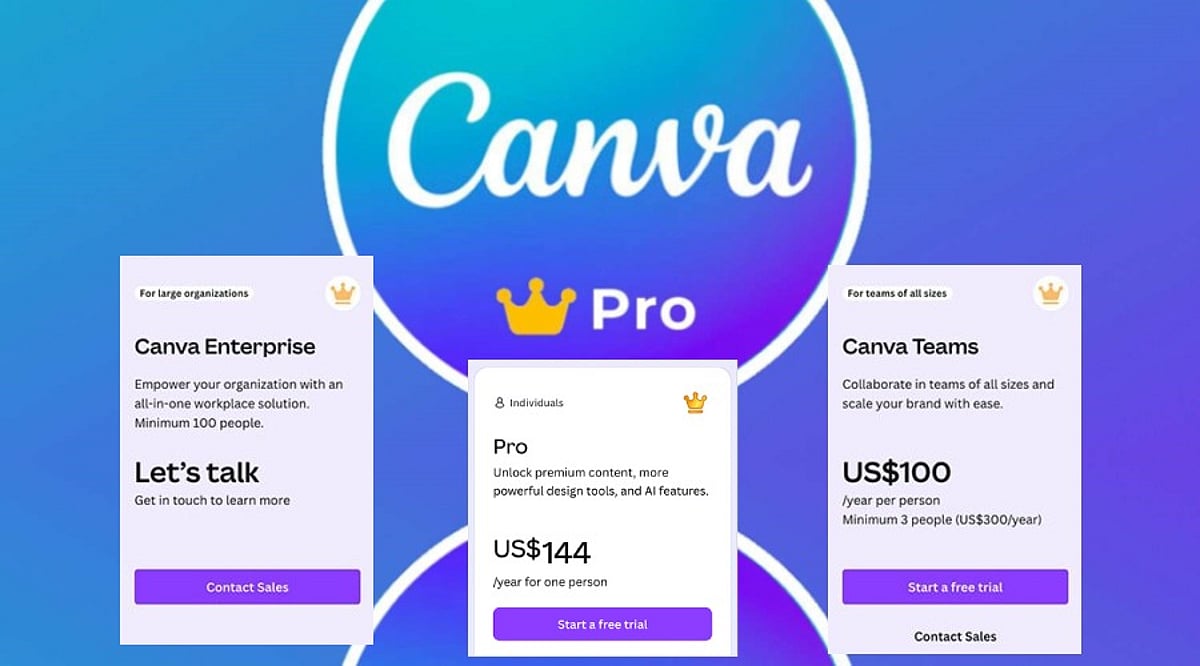
    The two plans solve different problems. Canva Pro sharpens individual output. Canva Business coordinates a group working toward the same brand standard. Canva Pro still exists for individual users, while Canva Business adds shared brand controls, admin permissions, and a structured review process on top of everything Pro already offers. The old flat-rate Teams plan has been retired for new customers and rebuilt around per-seat pricing. Costs and limits shift often enough that checking Canva’s own pricing page beats relying on older comparisons.

    Real-Time Editing for Seamless Collaboration

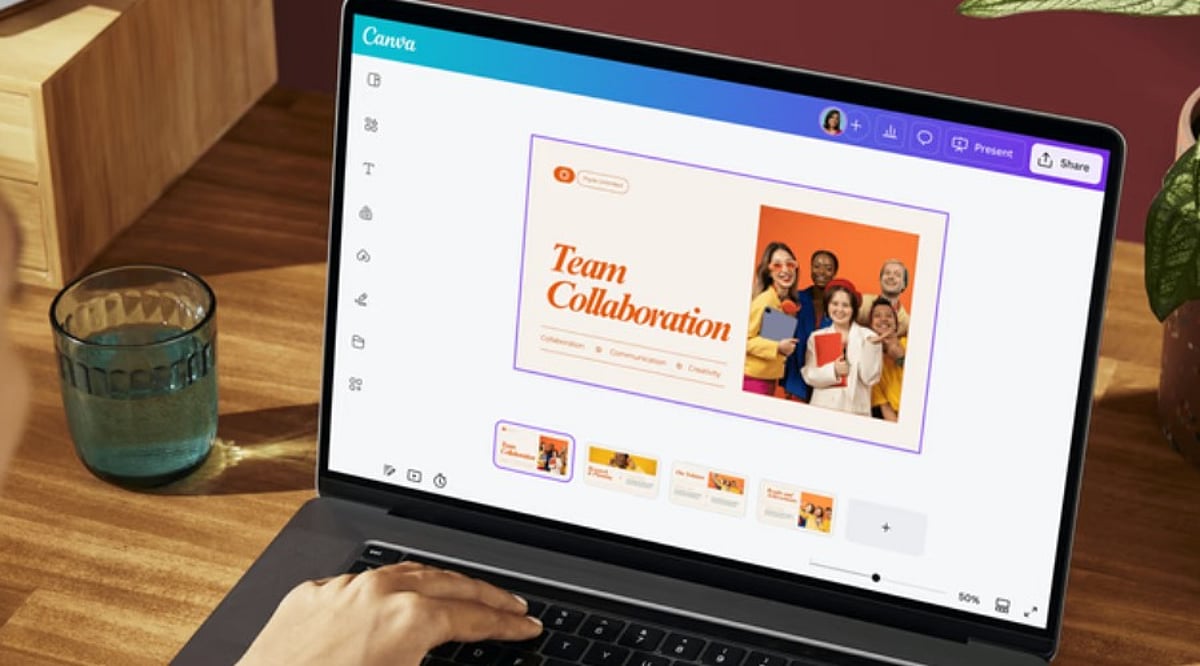
    Real-time editing removes the back-and-forth of exported files. A designer lays out a graphic, a copywriter edits the headline, and a manager leaves a comment, all inside the same file. Nobody waits for someone else to finish and send a new version. This works best when roles are clear from the start. A team that knows who owns creation, who reviews, and who approves moves through a design process far faster than one that relies on ad hoc requests.

    Brand Kits and Template Locking

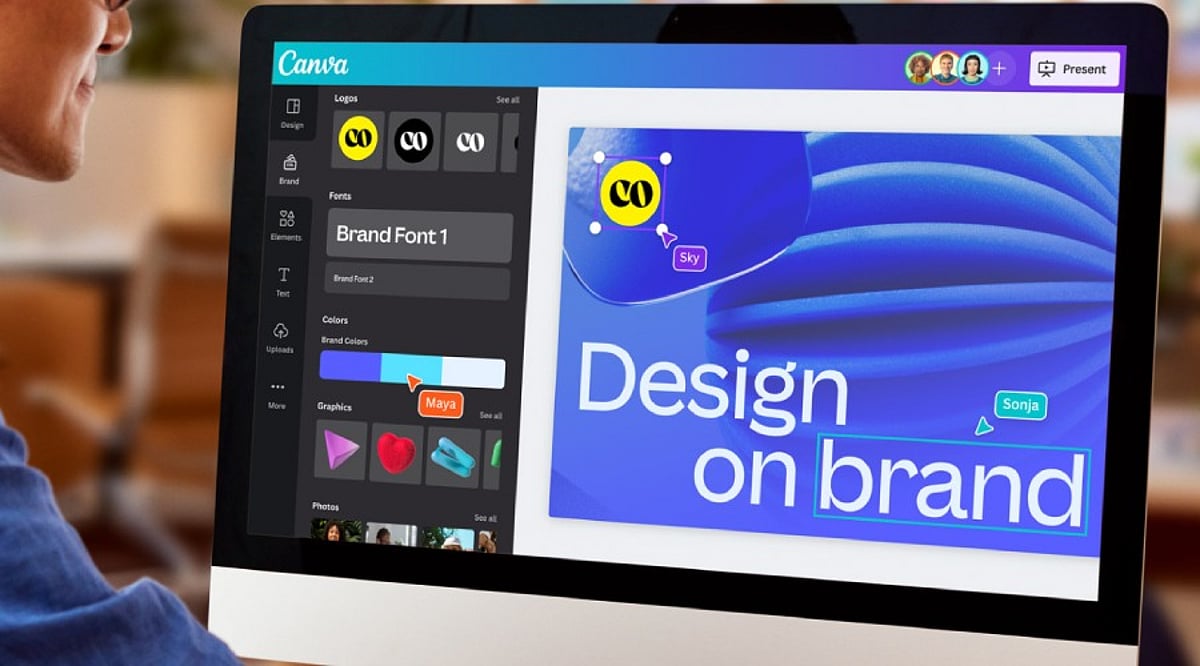
    Brand Kits store logos, color codes, fonts, and approved images in one place, so nobody has to guess which shade of blue is correct. Template locking goes a step further, keeping approved layouts intact even when several people can edit a file. The result is fewer off-brand designs slipping through review, since the right assets are simply the default option rather than something each contributor has to remember on their own.

    Separating Feedback from Approval

    These two steps get treated as one, but they are not. Comments handle the rough edges: a tag here, a suggested edit there, and a flag on something incomplete. Approval comes after, and it carries weight that comments do not. A file moves from creator to reviewer to a named approver, sometimes including legal, before it goes live. Keeping these stages apart means a comment never gets mistaken for final sign-off, and someone stays accountable for what gets published.

    Folders, Permissions, and Ownership

    Shared folders sort work by brand, client, or campaign, which matters once a workspace grows past a few people. Permissions decide who can touch brand assets, manage templates, or approve final work. Not everyone needs full access. Designs also live in the shared workspace rather than one person’s account, so a campaign stays reachable even after someone leaves the company or switches roles. That continuity rarely gets noticed until its absence causes a problem.

    A Campaign in Motion

    Picture a retail team building a seasonal push. Designers pull from approved templates. A copywriter edits copies directly in the file. A manager leaves notes during review. Legal checks the claims. An approver signs off. Every step happens inside one workspace, with no exported drafts floating through email.

    Where AI Adds Speed

    Canva’s business tools include AI features for drafting copy, building first-pass presentations, resizing assets, and adapting one design into several formats. These cut production time, though availability shifts by plan and region. Human review still matters most for tone, accuracy, and brand fit. AI speeds up the early draft. It does not replace the judgment applied during review and approval.

    Getting Started

    Teams adopting this setup tend to succeed faster with a short checklist: build one approved Brand Kit first, create templates for recurring content, assign clear roles, set folder conventions early, route feedback through comments instead of chat apps, and revisit permissions as the team changes.

    Final Thought

    The plan and pricing details will keep shifting, but the underlying shift will not: design work is moving away from individual files and toward shared, governed systems. Teams that build strong habits around brand control and approval now will adapt faster as these tools continue to expand.

    FAQs

    1. What is Canva Pro for teams?
    Many people search for Canva Pro for teams, but Canva’s collaborative business offering is now positioned as Canva Business. It builds on Canva Pro by adding shared workspaces, Brand Kits, role-based permissions, and collaboration features designed for teams.

    2. What is the difference between Canva Pro and Canva Business?
    Canva Pro is designed primarily for individual creators who need premium design tools and assets. Canva Business adds team-focused capabilities such as shared Brand Kits, approval workflows, administrative controls, shared folders, and centralized collaboration.

    3. Can multiple people edit the same Canva design at the same time?
    Yes. Canva supports real-time collaboration, allowing multiple team members to edit a design simultaneously, leave comments, mention colleagues, and review changes without creating multiple file versions.

    4. How does Canva Business help maintain brand consistency?
    Canva Business helps teams stay on brand by providing shared Brand Kits, reusable templates, approved design assets, and permissions that control who can edit brand elements. This reduces inconsistent designs across teams and campaigns.

    5. Does Canva Business support approval workflows?
    Yes. Canva Business includes approval workflows that allow designated reviewers or approvers to sign off on designs before they are published. This helps businesses improve accountability, streamline reviews, and reduce publishing errors.

  • Canva Pro Cost Guide: Monthly vs Annual Plans, Features, and Verdict

    Canva Pro Cost Guide: Monthly vs Annual Plans, Features, and Verdict

    Canva has become a go-to design platform for creators, marketers, and business owners who need professional visuals without hiring a designer. While the free version covers basic needs, Canva Pro unlocks a more powerful toolkit. This guide breaks down the exact pricing, what you get for your money, and whether upgrading is the right move for your workflow.

    Canva Pro Pricing at a Glance

    Canva Pro is available with two billing options:

    • Monthly plan: $15 per user per month
    • Annual plan: $120 per user per year (effectively $10 per month)

    Choosing annual billing saves you $60 per year, a 33% discount compared to paying month-to-month. For teams, Canva also offers discounted per-seat pricing, but the individual Pro plan is the most common starting point.

    What Does Canva Pro Include?

    Canva Pro goes far beyond extra templates. Subscribers get access to a massive library of premium assets, advanced AI tools, and time-saving features that streamline the design process.

    Premium Templates and Assets

    With Pro, you can use millions of premium templates for presentations, social media posts, business documents, videos, and marketing materials. The library also includes premium photos, graphics, videos, icons, illustrations, and fonts, giving you everything needed to complete almost any project.

    AI-Powered Design Tools

    Canva’s AI features are a major draw for Pro users. Magic Write helps generate copy and content ideas, while Magic Edit lets you alter specific parts of an image. Magic Eraser removes unwanted objects from photos in seconds. These tools reduce editing time and help you create polished designs with less effort.

    Branding and Productivity Features

    • Brand Kit: Store logos, brand colors, and fonts in one place so every project stays on-brand.
    • Magic Resize: Instantly adapt a single design into multiple sizes for Instagram, Facebook, LinkedIn, posters, presentations, and more.
    • Background Remover: Isolate the main subject of an image with one click, ideal for product shots and profile photos.
    • Content Planner: Schedule and publish social media posts directly from Canva’s dashboard.
    • Extra cloud storage: More space for files, photos, videos, and completed projects.
    • Premium animations and effects: Add professional motion and visual polish to presentations and social content.

    Canva Free vs Canva Pro

    The free version of Canva is perfect for beginners and occasional users. It offers thousands of templates, basic editing tools, and a limited set of AI features. Simple presentations, posters, invitations, and social posts can look great without spending anything.

    Canva Pro expands every major area of the platform. You get premium templates, millions of extra assets, advanced AI features with higher usage limits, the Brand Kit, Magic Resize, Background Remover, and social media scheduling. For anyone creating content regularly, these additions make the design process faster and more flexible.

    Is Canva Pro Worth the Price?

    The value of Canva Pro depends entirely on how often you design. If your work involves social media management, presentations, e-commerce, or client projects, the subscription pays for itself quickly. You gain access to premium images, branding tools, photo editing, and scheduling features all in one platform, eliminating the need for multiple separate services.

    The annual plan offers the best value, reducing the effective cost to $10 per month and saving you $60 each year. For casual users who only need a few simple designs annually, the free tier is sufficient. But active designers, freelancers, and business owners will find that regular use easily justifies the subscription cost.

    How Canva Pro Compares to Alternatives

    Canva Pro competes with tools like Adobe Express Premium (around $9.99 per month) and Microsoft Designer, which is available through select Microsoft subscriptions. While each platform has its strengths, Canva stands out for combining a vast template library, AI tools, branding features, collaboration options, and content scheduling in one app. This all-in-one approach saves users from juggling multiple subscriptions and keeps every stage of a creative project in a single workspace.

    Final Verdict

    Canva Pro delivers a balanced mix of creative tools, premium content, AI features, and branding options at a competitive price. For $15 per month or $120 per year, you get a professional-grade design suite that simplifies everyday creative work. The annual plan is the smartest choice for regular users, offering a 33% savings compared to monthly billing. If you design frequently, the premium assets, AI tools, brand kit, and scheduling features make Canva Pro well worth the investment.

    Frequently Asked Questions

    How much does Canva Pro cost?

    Canva Pro costs $15 per user per month with monthly billing, or $120 per user per year with annual billing (equivalent to $10 per month).

    Is Canva Pro worth paying for?

    Yes, if you design regularly. The premium assets, AI features, branding tools, and time-saving capabilities provide strong value for frequent users.

    What is included in Canva Pro?

    Canva Pro includes premium templates, millions of stock assets, AI tools, Brand Kit, Magic Resize, Background Remover, Content Planner, and expanded cloud storage.

    Can I use Canva for free?

    Yes. Canva Free offers thousands of templates and essential design tools, making it suitable for casual users and students.

    Which Canva Pro plan offers the best value?

    The annual plan provides the best value, reducing the effective monthly cost to $10 and saving $60 per year compared to monthly billing.

  • Unlock Professional Branding: How Canva Pro Streamlines Logo Design, Presentations, and Brand Kits

    Unlock Professional Branding: How Canva Pro Streamlines Logo Design, Presentations, and Brand Kits

    Canva Pro helps businesses create professional logos, presentations, and consistent branding using Brand Kits, AI-powered design tools, and flexible collaboration features, making visual content creation faster, easier, and more professional.

    A Professional Logo Builds Brand Identity

    A logo gives a company a distinctive identity. Customers tend to recognize the logo before anything else related to the company. Canva Pro has thousands of tweakable templates for logos that can fit various business types. The different templates have features that make it easy to change the layout, color, font, etc. A company can have a logo ready very quickly while maintaining the right professional look.

    Besides that, Canva Pro enables you to export your logo in SVG file format, which means you get a high-quality logo regardless of the logo’s size. A logo looks perfect on a business card, mug, website, billboard, and product packaging. In addition to that, exporting in transparent PNG format allows the logo to be seamlessly integrated with various backgrounds and eliminates unwanted blank boxes. The editing tools powered by AI help create and tweak various shapes and colors easily.

    Brand Kit Keeps Every Design Consistent

    Brand consistency plays a major role in business success. Customers remember a brand more easily when every design shares the same colors, fonts, and logo style. Canva Pro solves this challenge through its Brand Kit feature.

    The Brand Kit stores logos, brand colors, heading fonts, body fonts, and other visual elements in one place. Every new project can use these saved assets with only a few clicks. This simple process saves valuable time and keeps every design uniform across presentations, social media graphics, brochures, reports, and advertisements.

    Canva Pro now allows up to 100 Brand Kits. This feature serves marketing agencies, design studios, and companies that manage several brands at the same time. Each brand keeps its own colors, fonts, and logo without confusion.

    Brand Kit Builder Saves Valuable Time

    Many businesses already have a website or a brand guideline document. Canva Pro offers another helpful feature called Brand Kit Builder. This tool collects logos, fonts, colors, and other visual details directly from a company website or a PDF brand guide.

    The entire setup takes far less time than manual entry. A business starts new design projects with a complete brand identity already in place. This process also reduces mistakes and keeps every team member on the same visual style from the first project onward.

    Canva Pro Creates Professional Presentations

    Business presentations need a clean layout, readable text, attractive charts, and strong visual balance. Canva Pro includes thousands of presentation templates for sales meetings, business proposals, company reports, educational sessions, and product launches.

    Built-in charts and infographic tools help present numbers in a clear format. Animation features add smooth movement that keeps audience attention from the first slide to the last. Presenter View displays speaker notes while the audience sees only the presentation. Video presentation tools allow recording and sharing without extra software. Team members can also edit the same presentation together, which supports faster project completion.

    AI Features Speed Up Creative Work

    Artificial intelligence is a vital part of modern-day design. Canva Pro’s expanding Visual Suite offers a variety of tools equipped with AI technology to help the designer make layouts, edit images, create texts, and improve the design further.

    The release of new products such as Magic Studio, Canva Sheets, Canva Code, and advanced photo editing opens a door for many different design possibilities through the platform itself, not just graphic design. Today, businesses create their presentations, documents, promotions, and other visual outputs in one workspace rather than jumping around from one application to another.

    Better Brand Control Creates Better Results

    Strong brands stay consistent across every customer touchpoint. A matching logo, color palette, font style, and presentation design help customers recognize a business quickly. Canva Pro supports this goal through one central location for every important brand asset.

    Every employee or designer works with the same approved colors, logos, and fonts. Marketing campaigns, presentations, reports, and digital content maintain the same professional appearance. This level of consistency strengthens brand recognition and builds customer confidence over time.

    Canva Pro Fits Businesses of Every Size

    Small businesses often need affordable design software, while larger companies need advanced brand management tools. Canva Pro serves both groups through flexible features. A startup can create its first logo and presentation within hours. A growing company can manage several brands through multiple Brand Kits. A design agency can organize client projects with clear separation between each brand identity.

    Simple tools remove technical barriers, yet professional export options support high-quality business materials. This balance makes Canva Pro suitable for beginners as well as experienced designers.

    Final Thoughts

    Canva Pro has developed into something more advanced than a basic design service. Over 220 million users, support for more than 100 languages, and powerful business tools speak of the service’s global applicability. The features of creating logos in a professional way, exporting SVG images, exporting transparent background images, the ability of having Brand Kit and Brand Kit Builder, AI design tools, presentation abilities, make it possible to create various visual content easily. Introduction of 100 Brand Kits allows various agencies and organizations to produce different brands within the same platform.

    Frequently Asked Questions

    What is Canva Pro used for?

    Canva Pro is a design platform that helps users create logos, presentations, marketing materials, social media graphics, and branded content with premium features.

    What is the benefit of Canva Pro Brand Kit?

    Brand Kit stores logos, colors, fonts, and other brand assets in one place to ensure consistent branding across all designs.

    Can Canva Pro create professional presentations?

    Yes. Canva Pro offers thousands of presentation templates, animations, charts, speaker notes, collaboration tools, and video presentation features.

    Does Canva Pro support AI-powered design?

    Yes. Canva Pro includes AI features such as Magic Studio, AI image editing, content generation, and layout suggestions to speed up design work.

    Who should use Canva Pro?

    Canva Pro is ideal for startups, small businesses, marketing teams, agencies, educators, and enterprises looking to create professional visual content efficiently.

  • Top Canva Pro Template Families for Social Media, Business, and Marketing Success

    Top Canva Pro Template Families for Social Media, Business, and Marketing Success

    Brand consistency often unravels once content production scales across multiple platforms and team members. Canva Pro templates solve this by turning individual designs into reusable systems. Features like Brand Kit, Magic Resize, and locked elements streamline content creation, helping businesses maintain a cohesive look without repetitive manual work.

    Key Features That Make Templates Work at Scale

    Canva’s free plan offers a large template library, but Pro adds the machinery for true reusability. Brand Kit automatically applies your brand colors and fonts. Magic Resize adapts one design into multiple formats instantly. Locked elements prevent accidental layout shifts during team edits. These features don’t replace design judgment—they eliminate the repetitive tasks that slow down production.

    Essential Templates for Social Media, Business, and Marketing

    Social Media

    Instagram Carousel Posts lead in engagement. Metricool’s 2026 study of over 24 million posts found carousels generate nine times more saves than single images. Magic Resize converts one carousel into a Story and a Pin without extra design time. LinkedIn thought-leadership posts benefit from Brand Kit, keeping every post visually traceable to the same person.

    Business

    A Proposal Template with auto-applied brand kit reduces back-and-forth before client sign-off. A locked Brand Guidelines template prevents style drift as more team members create content. These templates ensure professional, on-brand communication every time.

    Marketing

    Lead Magnets with premium layout elements boost opt-in rates compared to plain PDFs. Resized Landing Page and Ad Banner sets keep the click and the page visually matched—a common reason paid traffic underperforms. Presentations, like locked Pitch Decks, keep founders focused on the argument instead of slide alignment.

    Building a Template Library, Not a File Pile

    A few rules separate an effective system from a folder of disconnected files:

    • Match templates to the platform before prioritizing aesthetics—a static post design often breaks as a Story.
    • Favor template families over single graphics; one carousel plus matching Story and Reel covers holds a brand together better than any isolated design.
    • Limit typography to two fonts through Brand Kit rather than choosing five for variety.
    • Treat heavy edits as a signal to pick a different template, not a reason to force one to fit.

    Smaller categories—newsletters, invoices, business cards, thumbnails—still deserve a spot in the same Brand Kit. Start with three template families: one for social, one for client communication, and one for marketing. Everything else becomes easier to standardize once that foundation is set.

    Final Thought

    The templates that earn a place in a real workflow are rarely the most decorative. They are the ones a team reaches for without thinking twice, resized in seconds, locked against accidental damage, and instantly recognizable as belonging to one brand.

  • Canva Pro Review: Features, Pricing, Benefits, and Everything You Need to Know

    Canva Pro Review: Features, Pricing, Benefits, and Everything You Need to Know

    Canva has transformed how people create visual content, making professional-looking designs accessible to everyone. Although the free version has an extensive suite of tools, Canva Pro offers advanced features that will be useful for professionals, businesses, teachers, marketers, and other content creators. If you make presentations, graphics for social media, marketing material, or videos, Canva Pro will make your work easier.

    Here is all you need to know about Canva Pro – features, advantages, price, and whether it’s worth upgrading.

    What is Canva Pro?

    Canva Pro is Canva’s premium subscription service, giving users access to advanced design tools, millions of premium resources, AI technologies, brand management tools, and collaboration features. Unlike the free version, Canva Pro is aimed at regular content creators. Whether you are a freelancer, a small business owner, a social media manager, or a student with multiple projects, Canva Pro can make your work easier and faster while still producing quality designs.

    Features of Canva Pro

    Millions of Premium Templates

    There are millions of professionally made templates that Canva Pro offers you, for categories including: Instagram posts and Reels, YouTube thumbnails, presentations, proposals, flyers, posters, brochures, resumes, invitations, infographics, and more. These templates are editable and always updated.

    Premium Photos, Videos, and Graphics

    Subscribers have access to a wide range of content such as stock photos, videos, audio tracks, icons, illustrations, stickers, and animations. This way, you can avoid purchasing separate stock content from stock websites.

    Magic Studio AI Tools

    Among the most important features offered by Canva Pro are the AI-enabled Magic Studio tools, which include: Magic Write (AI content generator), Magic Design, Magic Edit, Magic Eraser, Magic Expand, Magic Animate, Background Generator, AI Image generation, AI Presentations creation.

    Background Remover

    Background Remover is one of the most used tools in Canva Pro. A user can remove image backgrounds without using any other editing tool simply by clicking once. The feature is very helpful in product photography, profile pictures, marketing materials, and YouTube thumbnails.

    Brand Kit

    Companies can have consistent branding through Brand Kit. Users can save logos, brand colors, font styles, templates, and guidelines in this tool to make sure every design meets the same branding requirements.

    Resize Designs Instantly

    Using Magic Resize, users can instantly convert a design into different formats. For instance, an Instagram post can be converted into Facebook post, LinkedIn graphic, Pinterest pin, story, or presentation slide.

    Content Planner

    The Content Planner tool within Canva Pro enables users to schedule posts on social media channels including Instagram, Facebook, LinkedIn, Pinterest, and X (formerly Twitter). This makes Canva both a design and a publishing platform.

    Cloud Storage

    Canva Pro offers larger storage compared to its free counterpart, where users can store all their pictures, video clips, brand materials, templates, and design files. All stored files are accessible from any device.

    Team Collaboration

    Users can collaborate on projects, comment on them, assign tasks, work on designs collaboratively, and set permissions. It is especially useful for marketing teams and businesses.

    Version History

    With Canva Pro, you can undo your previous design changes to recover from unintentional changes.

    Benefits of Canva Pro

    • Time-Saving – Templates, AI, and one-click editing allow for faster creation of professional graphics.
    • Improved Branding Consistency – With the Brand Kit, it becomes easy for companies to maintain consistency of their visual branding across all channels.
    • Inexpensive – It becomes unnecessary to purchase stock images, graphic design templates, tools for removing backgrounds, or designing software separately, as Canva Pro offers a subscription package of all.
    • Intuitive Interface – No prior experience with graphic design is required. Even beginners can use the drag-and-drop interface to create professional graphics.
    • Best for Business – For a small business, there is a possibility to create marketing strategies, business cards, social media content, presentations, product catalogues, and advertising material without hiring professional graphic designers for every project.

    Canva Free vs Canva Pro

    [Comparison table or detailed points can be included here, but the source text only provides a brief mention. We’ll summarize: Free version has basic templates and limited assets; Pro adds premium templates, AI tools, Brand Kit, background remover, content planner, team collaboration, and larger storage.]

    Who Should Use Canva Pro?

    Canva Pro would be best used by: content creators, YouTubers, bloggers, digital marketers, small business owners, freelancers, teachers, students, startups, social media managers. Anyone producing visual content regularly is likely to benefit from the additional features.

    Should You Get Canva Pro?

    If you rarely create graphics, the free option may suffice. However, Canva Pro is beneficial if you: design content weekly, run multiple social media accounts, need premium stock assets, use AI technology in design, collaborate with a team, develop your brand identity, or make presentations, videos, or marketing content. Time saved through automation, templates, and premium assets could soon compensate for the cost of a subscription.

    Conclusion

    Canva Pro isn’t simply an upgrade of Canva; it’s a complete creative ecosystem offering all the tools you need for graphic design, AI-powered content creation, branding, collaboration, and social media posting. Several templates, premium assets, sophisticated editing tools, and productivity features make Canva Pro valuable for people and businesses that regularly create visual content. If you’re building your personal brand, running a business, or making presentations, Canva Pro will give you everything you need to design quality graphics efficiently.

    FAQs

    1. What is Canva Pro?

    Canva Pro is Canva’s premium subscription offering advanced design tools, AI features, premium assets, and branding capabilities for creators.

    2. Is Canva Pro better than the free version?

    Yes, Canva Pro includes premium templates, AI tools, Brand Kit, background remover, and advanced collaboration unavailable in the free version.

    3. Who should use Canva Pro?

    Content creators, marketers, businesses, students, educators, freelancers, and designers benefit most from Canva Pro’s advanced productivity features and assets.

    4. Does Canva Pro include AI tools?

    Yes, Canva Pro offers AI-powered Magic Studio, including Magic Write, Magic Design, Magic Edit, image generation, and automated design features.

    5. Is Canva Pro worth the subscription cost?

    If you create visual content regularly, Canva Pro saves time, improves quality, and provides valuable premium resources worth the investment.

  • Canva Pro vs Canva Free 2027: Which Plan Offers Better Value for Your Design Needs?

    Canva Pro vs Canva Free 2027: Which Plan Offers Better Value for Your Design Needs?

    Canva remains one of the most popular design platforms worldwide, used daily by students, business owners, marketers, freelancers, and content creators for presentations, social media posts, videos, posters, resumes, and more. The platform offers two main plans: Canva Free and Canva Pro. Both share the same easy-to-use editor but serve different purposes. Canva Free provides many useful tools at no cost, while Canva Pro adds advanced features that save time and improve design quality. The right choice depends on the type of work, project volume, and need for premium content.

    Canva Free vs Canva Pro Comparison

    Canva Free Offers Strong Value

    Canva Free has evolved into a complete design platform rather than a simple beginner tool. The plan includes millions of templates, a drag-and-drop editor, presentation tools, video editing, whiteboards, a website builder, and basic AI features. Every project starts with a clean workspace, and the editor keeps all tools within easy reach.

    Students often choose this plan for classroom work, presentations, and reports. Families create invitations, greeting cards, and photo collages with the same account. Small personal projects also fit well within the free plan. Many users never reach the point where a paid subscription becomes necessary.

    Canva Pro Focuses on Speed and Better Results

    Canva Pro adds features that help users finish projects in less time. The premium template library opens far more design options for every category. The plan also unlocks more than 100 million premium photos, videos, graphics, icons, and audio files. Designers no longer need to search across different websites for quality content.

    The biggest advantage comes from workflow improvements. Every tool works together inside one platform, keeping projects simple from start to finish. Professional creators often notice a clear difference after the first few days of use.

    Brand Kit Creates Consistent Designs

    Brand consistency is extremely important for companies. Canva Pro’s all-in-one brand kit provides logos, brand color palettes, typography, and templates. The system generates every new project in a manner consistent with a company’s corporate image, helping organizations achieve a uniform look across marketing communications.

    Magic Resize Saves Valuable Time

    One design rarely fits every social media platform. Canva Pro includes Magic Resize, which converts one design into several formats with a single click. A square Instagram post can quickly become a Facebook post, LinkedIn graphic, Pinterest pin, YouTube thumbnail, or Story format. This tool removes repetitive editing and keeps the overall design style unchanged.

    AI Tools Continue to Expand

    Artificial intelligence now plays a major role inside Canva. The platform offers tools such as Magic Design, Magic Write, Text-to-Image, Magic Edit, Magic Eraser, Magic Expand, AI presentation creation, AI video assistance, and Canva Code. The Free plan provides basic access to several AI tools, while Canva Pro unlocks the complete AI suite with higher usage limits.

    Premium Assets Improve Every Project

    Design quality often depends on images, graphics, and illustrations. Canva Free includes a large content library, but many premium assets remain locked. Canva Pro removes those limits and opens a collection of more than 100 million premium assets, helping businesses create polished marketing material and creators produce eye-catching thumbnails and social media posts without extra purchases.

    Recent Changes Make Canva More Powerful

    Canva has expanded far beyond graphic design. The platform now includes Visual Suite, which brings together presentations, documents, spreadsheets, websites, and whiteboards within one workspace. Canva Code also allows users to create interactive projects through simple text prompts. These updates show Canva’s move toward a complete productivity platform.

    Which Plan Delivers Better Value?

    Canva Free remains one of the strongest free design platforms available today. It covers everyday projects with ease and serves students, hobby users, and occasional designers. Many personal projects reach a professional finish without any payment.

    Canva Pro delivers far greater value for professionals, businesses, freelancers, and content creators with regular design work. Premium assets, advanced AI tools, Brand Kit, Magic Resize, Background Remover, and larger cloud storage reduce effort and improve workflow. The subscription cost often matches the amount of time saved across multiple projects.

    Final Thoughts

    Canva Free and Canva Pro both offer excellent design experiences. The free plan provides enough tools for personal work, school projects, and occasional creative tasks. Canva Pro transforms the platform into a complete professional workspace with advanced AI features, premium design resources, and productivity tools. Regular content production, client work, business branding, and marketing campaigns benefit the most from the paid plan. The final decision depends on design frequency, project size, and the need for premium features, yet both plans continue to rank among the best options available for digital design in 2027.

    FAQs

    1. Is Canva Free enough for beginners? Yes. Canva Free includes templates, basic AI tools, presentations, video editing, and many design features suitable for beginners.
    2. What makes Canva Pro better than Canva Free? Canva Pro unlocks premium templates, 100M+ assets, Brand Kit, Magic Resize, Background Remover, advanced AI tools, and 1 TB cloud storage.
    3. Does Canva Pro include AI features? Yes. Canva Pro provides access to Canva’s complete AI suite with higher usage limits than the Free plan.
    4. Who should choose Canva Pro? Freelancers, businesses, marketers, and content creators with regular design work receive the greatest value from Canva Pro.
    5. Is Canva Pro worth the subscription cost? For users who create designs frequently, the premium tools and time-saving features often justify the monthly subscription.
  • Adobe Express Review: Features, Pricing, and Benefits for Graphic Design

    Adobe Express Review: Features, Pricing, and Benefits for Graphic Design

    Adobe Express is an online and mobile graphic design platform that enables users to quickly create social media posts, videos, presentations, web pages, marketing content, and other visual media. It combines templates, stock images and videos, editing features, and AI powered by Adobe Firefly.

    General Information

    • Founded: 2016
    • Platform Support: Web, Android, iOS, Windows, macOS, ChromeOS
    • Download: Available via official Adobe website

    Main Features

    • Abundant templates and stock resources for social media, business graphics, presentations, and marketing materials.
    • AI-based generation for images, text, videos, and templates using Adobe Firefly.
    • Image editing tools: brightness, contrast, saturation, shadows, warmth, sharpening, blurring, masking, and filters.
    • Video creation services: AI-based video generation, Clip Maker, animations, captions, and optimization.
    • Brand management, content scheduling, website design, file conversion, collaboration, and integration with ChatGPT and TikTok.

    Benefits

    • Makes graphic design accessible to novices with templates and simple tools.
    • Helps users create visually appealing designs without expertise.
    • AI-powered tools for images, texts, templates, and videos.
    • Assists in planning, scheduling, and publishing on social media.
    • Combines graphic design, photo editing, video making, web publishing, and collaboration in one platform.

    Challenges

    • Certain AI-driven applications may produce inconsistent or poor output.
    • AI credits required for AI content creation, limiting heavy users.
    • Free version has limited access to premium fonts and resources.
    • Charts and graphs cannot use live data, reducing effectiveness for business reporting.
    • Advanced designers may find professional typographic options lacking.

    Subscription Information

    The free version includes standard editing features, templates, Adobe fonts, AI generation, stock content, 5 GB cloud storage, and version history. The premium version adds more fonts, templates, stock content, brand management, 100 GB storage, scheduling, and 250 AI credits monthly. Team plans offer more storage and 24/7 technical support. Adobe Creative Cloud Pro and Adobe Firefly Premium versions provide additional AI credits.

    Support Options

    • Help Center and Learning Resources: Tutorials, demonstrations, guides, and editing resources.
    • Customer Support: Premium and Teams users receive additional support; Teams accounts have 24/7 technical support.

    Conclusion

    Adobe Express is an accessible graphic design platform that combines templates, stock assets, photo editing, video creation, web publishing, social media scheduling, and generative AI. Its integration with Adobe Firefly makes it useful for quickly generating images, text effects, templates, and videos. Although some AI tools can be inconsistent and advanced designers may find certain controls limited, Adobe Express remains a capable solution for beginners, social media creators, marketers, and users who need to produce visual content efficiently.

  • Best Pen Display Tablets for Digital Artists and Designers: 2026 Buying Guide

    Best Pen Display Tablets for Digital Artists and Designers: 2026 Buying Guide

    Choosing the right pen display tablet depends on workflow, budget, and creative needs. From premium studio displays to portable models, buyers should compare display quality, pressure sensitivity, accessories, and overall value before making a purchase.

    What to Look for Before Buying

    • Resolution and color gamut: 4K panels with wide sRGB, Adobe RGB, and DCI-P3 coverage produce accurate artwork.
    • Pressure sensitivity: 8,192 levels is standard; newer pens push past 16,000.
    • Connectivity: Single USB-C for video and power reduces cable clutter.
    • Bundled accessories: Stands, spare nibs, key dials and cases may be extra.
    • OS support: Cross-platform compatibility with Windows, macOS, Android, and Linux.

    Premium Studio Displays

    Wacom Cintiq Pro 27

    27-inch 4K LCD, 120Hz refresh, 99% Adobe RGB, 98% DCI-P3, HDR support. Bundled Wacom Pro Pen 3 with 8,192 pressure levels. Stand sold separately.

    Xencelabs Pen Display 24

    4K OLED, Super AG etched surface, 44 customisable quick keys. Includes two pens and all accessories.

    Huion Kamvas Pro 27

    PenTech 4.0 with 0.35mm nib, 16,384 pressure levels. Keydial Mini controller with 18 programmable keys.

    Mid-Range and Portable Displays

    Wacom Cintiq 16 (2025)

    2.5K display, battery-free Pro Pen 3, weighs 2kg with foldable legs.

    Xencelabs Pen Display 16

    16-inch 4K OLED, factory calibrated colors.

    XP-Pen Artist Pro 16 (Gen 2)

    16-inch 2.5K display, 99% sRGB, Delta E <2.2. Bundled X3 Pro Smart Chip Stylus with 16,384 pressure levels, Mini Keydial controller, dual reversible ports, 1.79kg.

    Crossover and Budget Options

    Apple iPad Pro 11-inch

    Ultra Retina XDR tandem OLED, M5 chip. Apple Pencil Pro sold separately (£129).

    Gaomon M10K Pro

    Affordable, pairs with Android smartphones.

    Remarkable Paper Pro Move

    Handwriting-to-text, cloud sync, made from 50% recycled materials.

    Wacom Movinkpad 11

    Standalone Android OS, preloaded with Wacom Canvas and two-year Clip Studio Paint licence.

    Comparison at a Glance

    Model Screen Size Resolution Pressure Levels Price Point
    Wacom Cintiq Pro 27 27″ 4K 8,192 Premium
    Xencelabs Pen Display 24 24″ 4K OLED 8,192 Premium
    Huion Kamvas Pro 27 27″ 4K 16,384 Premium
    Wacom Cintiq 16 16″ 2.5K 8,192 Mid-range
    Xencelabs Pen Display 16 16″ 4K OLED 8,192 Mid-range
    XP-Pen Artist Pro 16 Gen 2 16″ 2.5K 16,384 Mid-range
    Apple iPad Pro 11 11″ Tandem OLED N/A (Pencil) Premium
    Gaomon M10K Pro 10″ HD 8,192 Budget
    Remarkable Paper Pro Move 10.3″ E Ink N/A Budget
    Wacom Movinkpad 11 11″ HD 8,192 Budget

    Final Word

    There is no one-size-fits-all pen display tablet. Professionals should consider the Wacom Cintiq Pro 27 or Huion Kamvas Pro 27. Students and beginners may prefer the XP-Pen Artist Pro 16 (Gen 2) or Wacom Cintiq 16. For portability, the Remarkable Paper Pro Move or Gaomon M10K Pro are solid choices. Always check the total cost of accessories before buying.

    Frequently Asked Questions

    Which is the best pen display tablet?

    It depends on your needs. Wacom Cintiq Pro 27 is top for professionals; XP-Pen Artist Pro 16 (Gen 2) offers great value.

    What should I check before buying?

    Display resolution, color accuracy, pressure sensitivity, OS compatibility, connectivity, and included accessories.

    Are expensive tablets worth it?

    Premium tablets offer better accuracy and build quality. Mid-range models provide excellent features at lower prices.

    Which tablet is best for beginners?

    XP-Pen Artist Pro 16 (Gen 2), Wacom Cintiq 16, or Gaomon M10K Pro are good choices.

    Do tablets include all accessories?

    Not always. Check if stand, stylus, or keydial are included to avoid extra costs.

  • Top Free AI Image Generators for Creators, Students, and Marketers

    Top Free AI Image Generators for Creators, Students, and Marketers

    Looking to create stunning AI-generated images without spending a dime? These free platforms make it easy for anyone—from students to professional marketers—to produce high-quality visuals with just a few clicks. Here are the best free AI image generators available right now.

    ChatGPT Images

    Generate high-quality images from simple text prompts using an intuitive interface. Perfect for quick visual ideas and brainstorming.

    Microsoft Designer

    Create AI-powered graphics, posters, and social media content effortlessly. Ideal for non-designers who need polished results fast.

    Adobe Firefly

    A favorite among professional designers, Firefly delivers realistic AI images and is safe for commercial use.

    Leonardo AI

    Excellent for gaming art, concept designs, and creative illustrations. Offers fine control over style and composition.

    Ideogram AI

    Known for producing images with accurate text and creative typography—great for logos, posters, and branded content.

    Playground AI

    Generate realistic photos and edit existing images with ease. A versatile tool for both beginners and advanced users.

    Canva AI Image Generator

    Perfect for beginners creating presentations, marketing graphics, and social posts. Integrated into Canva’s easy-to-use design suite.

    Mage.Space

    Fast AI image generation without complicated setup. Just type a prompt and get results in seconds.

    Whether you’re a student working on a project, a marketer crafting social media visuals, or a creator exploring new styles, these free AI image generators offer powerful capabilities at no cost. Start experimenting today!