
Category: Digital Communication

  • Why Multilingual Access Is Critical for Modern Messaging Platforms

    Why Multilingual Access Is Critical for Modern Messaging Platforms

    Messaging platforms have evolved far beyond simple chat tools. They now serve as everyday infrastructure for work, community coordination, customer communication, and cross-border collaboration. A single platform may support private conversations, team discussions, public channels, file sharing, support messages, and content distribution across regions.

    As these platforms expand, users evaluate more than just features. They pay close attention to language availability, account safety, login clarity, device compatibility, and whether they are accessing the correct official source. A messaging app may offer strong functionality, but if new users cannot understand the interface, interpret permissions, or verify where they are logging in, adoption slows and trust weakens.

    This is why multilingual access matters. Language is not a cosmetic layer added after product development. In modern messaging ecosystems, it directly shapes comprehension, confidence, and long-term engagement. For global platforms, multilingual access is now part of the product’s core experience.

    Messaging Platforms Are Becoming Global Infrastructure

    Over the past decade, messaging applications have expanded far beyond one-to-one personal communication. They are now used by distributed teams coordinating projects, communities organizing events, educators sharing information, creators broadcasting updates, and businesses offering lightweight customer support.

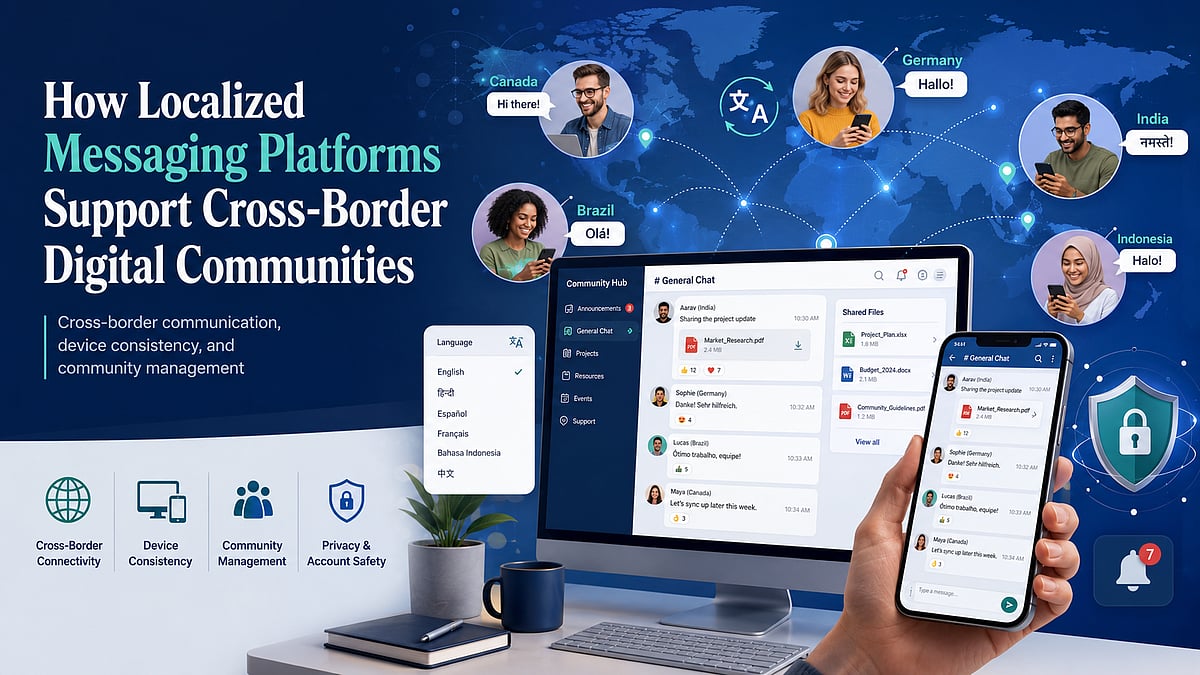
    This shift has changed the role of messaging ecosystems. A platform may host users from different countries inside the same group, channel, or workstream. One participant may be using a Windows laptop in an office, another a phone during a commute, and another a tablet while traveling. They may also be reading different interface languages while interacting in the same conversation.

    In that environment, usability is closely tied to accessibility. The platform must reduce friction for people with different language backgrounds and different levels of technical confidence. If a participant cannot clearly understand settings, notifications, permissions, or verification messages, then the platform becomes harder to trust and harder to use consistently.

    Global infrastructure works best when the barrier to entry is low. For messaging platforms, multilingual access is one of the most effective ways to lower that barrier.

    How Interface Language Affects Adoption

    Language settings influence the first moments of adoption more than many product teams realize. Registration screens, privacy prompts, notification controls, storage settings, and device permissions all require user understanding. If those elements are unclear, users are more likely to abandon setup, skip important protections, or misconfigure their accounts.

    This becomes especially important for users who are not fully comfortable navigating technical workflows in English. A localized experience can improve setup completion because it helps people understand what the app is requesting and why. When a new user sees a familiar-language version—such as 电报中文版 (Telegram Chinese version)—the benefit is not just convenience. It increases confidence during account creation, profile setup, contact permissions, and early message management.

    Interface language also affects how safely users behave. A misunderstood prompt about contacts, notifications, cloud sync, or session approval may lead to privacy confusion. Likewise, unclear warning messages can make it harder for users to recognize abnormal login activity or suspicious requests.

    Adoption is therefore not only about access to the app, but about clarity inside the app. The more understandable the interface is, the more likely users are to complete onboarding and continue using the platform effectively.

    Localization Beyond Interface Translation

    Real localization is more than translation of menus and buttons. Messaging systems need to be consistent in many ways, ranging from help content, explanations of the verification process, support documentation, security notifications, to account recovery of the accounts.

    For instance, perhaps one of the most frustrating situations for new customers is the moment of verification. If the explanation of the procedure for sending the code, time limits of the process, or behavior of the system in case of confirmation of the device is unclear, users can feel that there is some bug or security issue. The same is true for warnings related to any unknown links, suspicious activity, or actions required to secure the account.

    Also, localization concerns regional specifics of how information is presented. Time format, numbers format, calendar, filenames, notifications language—all these are elements which are not very critical, but make the application more comfortable and natural. Inconsistent use of terms within the same app for mobile and for desktop interface can cause doubt about the consistency of the information in both versions of the app. This consistency is crucial since it is necessary that users could understand what is changed.

    Why Official Access Points Matter

    However, in global messaging markets, the access process is not always clear. The user discovers the platform through search engines, referrals, posts in social networks, or links. During the process, users can be directed to third-party download pages, mirror sites, or websites that look just like the original website.

    This is the reason why official sources for accessing a messaging application are extremely important. First of all, search engine ranking does not mean an official site, and advertisements do not necessarily mean an official website either. It is better for the user to check the domain name, use HTTPS, and make sure of device support.

    When users search for a trusted source such as 电报官网入口 (Telegram official website entry), what they really need is confidence that they are reaching the correct destination before they log in, read support instructions, or choose a platform version. This is especially important in multilingual markets, where unofficial pages may imitate official branding while offering incomplete translations or unclear guidance.

    Official access matters because it shapes the entire trust chain. If the entry point is uncertain, then every step afterward—from download decisions to login confidence—becomes more fragile. Strong messaging ecosystems support trust not just through product design, but through recognizable, verifiable access routes.

    Creating Consistency Across Desktop and Mobile Devices

    Messaging behavior now spans devices by default. Many users register on a phone but spend a large portion of their day working from a desktop or laptop. Others switch between mobile and computer depending on the task—quick replies on a phone, longer reading and file handling on a computer, and occasional use on a tablet.

    A strong messaging ecosystem supports this device flow smoothly. Users expect conversations, read states, file access, contacts, and settings to feel consistent even when the screen and input method change. They also expect session visibility and confirmation prompts to help them understand when a device has been linked or activated.

    Desktop and mobile experiences do not need to be identical, but they should feel connected. If notification behavior is inconsistent, file handling changes unexpectedly, or contact management is difficult to interpret across devices, users may become less confident in the platform.

    Consistency also supports productivity. Teams often rely on messaging tools to coordinate discussions while simultaneously exchanging documents, images, and links. A coherent cross-device experience reduces friction and makes it easier for users to continue a task without re-learning the interface each time they switch screens.

    Protecting Accounts During Device Migration

    Device migration is one of the most sensitive moments in messaging usage. Users upgrade phones, replace laptops, reinstall systems, or move between personal and work devices. During these transitions, account hygiene matters.

    Before switching devices, users should review active sessions and identify which devices are currently connected. This provides a clearer picture of where the account is open and helps reduce the risk of forgotten access points remaining active.

    It is also important for users to pay attention to the usage of verification codes. Verification codes must never be given to strangers or other websites. It is easier to get confused if directions are not clear or if the user is trying to gain back access to an account in haste due to a change in devices.

    Once the transition to a different device has been made, it would be best to terminate or log out all unnecessary sessions. It would be wise to go through recovery possibilities and ensure privacy and security settings still suit the user.

    The Business Value of Multilingual Messaging

    While for businesses, multilingual messaging is a good usability improvement, it also offers tangible value in terms of operations. Customer service representatives become more efficient when users are able to comprehend prompts, menus, and instructions in their native tongue. Multilingual messaging allows teams that operate internationally to save time on explanation of settings and guidance of colleagues on basic actions.

    Multilingual messages are a way to decrease onboarding expenses. Messaging systems used by organizations internally tend to neglect the amount of time needed to onboard new members with notifications, messaging etiquette, file exchange, and group settings. Multilingual messages help decrease this cost.

    Language accessibility opens up additional markets for community growth. This way companies do not have to produce a unique product for every market, while allowing creators, moderators, and customer service representatives to work with a larger audience and maintain a more uniform experience.

    To sum up, multilingual messaging increases trust and decreases misunderstanding.

    The Future of Multilingual Messaging Ecosystems

    The future of messaging ecosystems will likely combine AI-assisted translation with careful human localization. Automated language tools can help users understand incoming content faster, while human review remains important for settings, warnings, and sensitive account guidance.

    We are also likely to see more region-aware safety communication. Instead of generic alerts, platforms may increasingly tailor guidance to local user behavior, common support issues, or language-specific misunderstandings. Cross-platform consistency will remain essential as users expect the same logic to apply across phones, tablets, and desktop environments.

    At the same time, user expectations around official access will grow. As digital ecosystems become more crowded, people will place greater value on recognizable official entry points, clear domain identity, and trustworthy multilingual support materials.

    The messaging platforms that succeed globally will not only offer strong features. They will make those features understandable, reachable, and reliable across languages and devices.

    Conclusion

    Multilingual access has become a foundational capability in modern messaging ecosystems. As messaging platforms serve workers, communities, businesses, and international users, language can no longer be treated as a secondary layer.

    User trust is shaped by three closely connected factors: whether the interface is understandable, whether the official access point is clear, and whether the experience remains consistent across devices. Together, these elements influence adoption, safe usage, and long-term engagement.

    In the next phase of digital communication, the strongest messaging ecosystems will be those that combine global reach with local clarity. Features matter, but comprehension, authenticity, and device confidence matter just as much.

  • How Desktop Messaging Workflows Drive Efficiency in Remote Operations

    How Desktop Messaging Workflows Drive Efficiency in Remote Operations

    Remote work doesn’t mean every conversation should happen on a smartphone. While mobile messaging works for quick replies and urgent alerts, most sustained business activity still occurs on a computer. Employees draft documents, review spreadsheets, attend online meetings, manage browser tabs, and organize project files from a desktop environment.

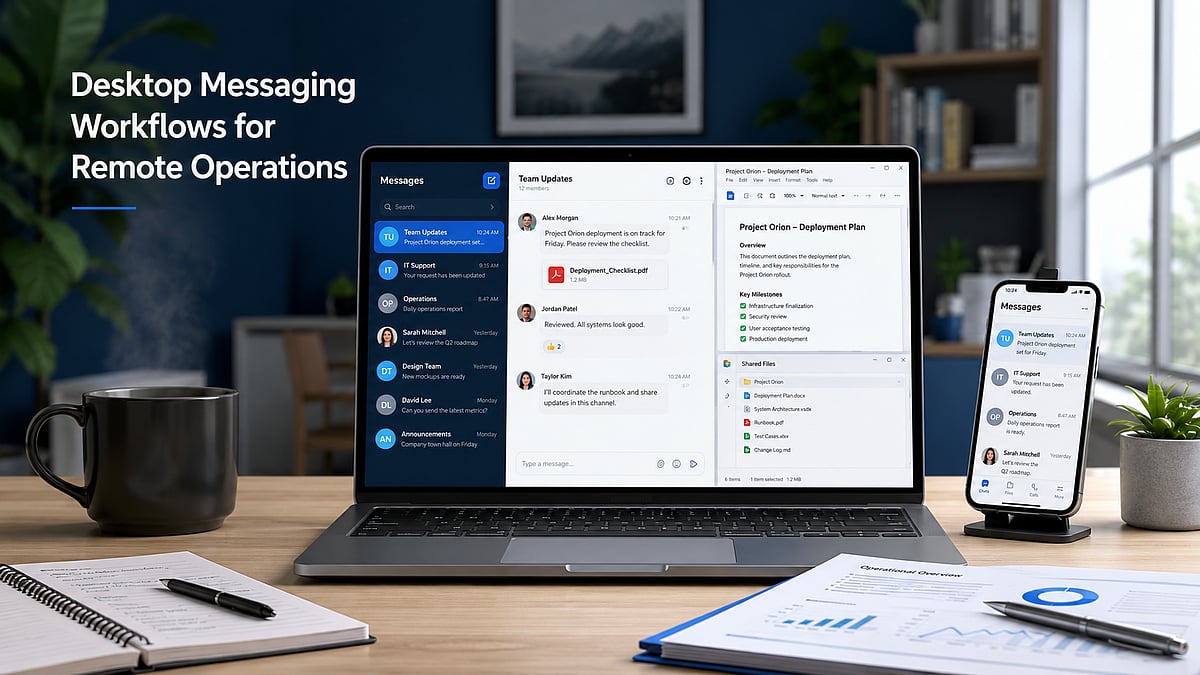
    Desktop messaging applications have become an integral part of the modern digital workspace. They keep communication visible alongside documents, browsers, shared folders, and productivity tools. A team member can receive an update, open the related file, compare information, and respond without switching devices repeatedly.

    However, desktop access alone doesn’t create an efficient workflow. Without clear notification rules, organized download locations, secure installation practices, and session management, messaging apps can cause distraction and file confusion. Remote teams need to treat desktop messaging as an operational system rather than just another communication channel.

    The Return of Desktop-Centered Communication

    The growth of mobile communication hasn’t eliminated desktop work. For many professionals, the computer remains the primary environment for focused tasks, long-form writing, analysis, project management, design, and document review. Desktop messaging supports this environment by allowing users to work across multiple windows. A team member can keep a project discussion open beside a spreadsheet, copy information from a browser into a conversation, or review a shared document while participating in a group chat.

    This is difficult to reproduce efficiently on a phone. Mobile screens are optimized for short interactions, but extended file handling, detailed responses, and multitasking are easier with a keyboard, larger display, and direct access to organized folders. The most effective remote operations don’t choose between desktop and mobile communication—they assign each device a practical role. The computer becomes the primary work environment, while the phone acts as a supplementary device for urgent updates, travel, and short approvals.

    Why Remote Teams Need Persistent Desktop Access

    Persistent desktop access helps remote employees stay connected without interrupting their primary work. Notifications can be reviewed as part of the normal desktop environment instead of requiring repeated checks of a separate phone. This is particularly useful when conversations contain long instructions, technical details, links, or several attachments. Copying a detailed message into a document, responding with formatted content, or comparing multiple files is faster on a computer.

    Teams also benefit when employees can participate in a meeting and follow the related chat simultaneously. One window may contain the video conference, another the project discussion, and another the document being reviewed. Desktop access brings these activities into one coordinated workspace. For users evaluating a solution such as Telegram desktop, the main consideration should be how well the desktop experience supports persistent team access, long-form communication, file handling, and integration with everyday work tools. The value comes from the usage environment, not simply from having a larger version of a mobile app.

    Persistent access should still be managed carefully. Employees should not feel required to respond to every message immediately. Desktop availability is most productive when teams also define reasonable expectations around response time and urgency.

    Managing Notifications Without Losing Productivity

    Messaging applications can improve coordination, but uncontrolled notifications can reduce concentration. When every channel, group, and direct message generates a desktop alert, employees may spend more time reacting than working. Teams should distinguish between urgent and non-urgent communication spaces. Operational alerts, active project incidents, and time-sensitive approvals may justify immediate notifications. General announcements, social discussions, and low-priority updates can often be reviewed at scheduled times.

    Employees should be encouraged to mute low-value groups and disable unnecessary sound or banner alerts. This doesn’t mean ignoring communication—it means choosing a notification system that reflects the importance of each channel. Focus periods are also valuable. A team member working on analysis, writing, or design may reserve specific blocks of time without message interruptions. Colleagues can use a defined urgent channel or another agreed method when immediate attention is genuinely required. A well-managed notification policy protects both productivity and communication quality.

    Organizing Files and Download Locations

    Desktop messaging often becomes an informal file distribution system. Teams exchange reports, images, presentations, contracts, and spreadsheets inside conversations. Without a storage policy, these files can accumulate in a default downloads folder and become difficult to locate later. Organizations should define a standard location for work-related messaging attachments. Files may be moved into project folders, client directories, or approved shared storage after download. Important documents should not remain permanently mixed with personal downloads or temporary installation files.

    Duplicate attachments are another common problem. The same document may be downloaded several times after being shared in different conversations. Employees should regularly remove redundant copies and confirm which version is authoritative before editing. Consistent file naming reduces confusion. Names should identify the project, document type, date, status, and version where relevant. A structured name such as “ClientA_Review_2026-07_v03” is easier to manage than “latest-final-new.” Messaging platforms are effective for delivering files, but they should not automatically become the permanent archive. Final and approved documents should move into a controlled storage location with clear ownership and access rules.

    Verifying Desktop Software Before Installation

    Desktop software should be verified before installation, especially when users discover it through search results, shared links, forums, or third-party download pages. A familiar logo or application name doesn’t by itself confirm that a page is official or trustworthy. Users should inspect the domain carefully and confirm that the site uses HTTPS. Similar-looking domains, added words, unusual subdomains, or unfamiliar redirects should be treated cautiously. Search advertisements may appear prominently, but visibility doesn’t guarantee authenticity.

    The selected download should also match the user’s operating system and device architecture. Employees should confirm that they are choosing the correct Windows version and review the installer’s file name before opening it. Where supported, users can review a file’s digital signature and publisher details through the operating system. Security scanning tools may provide an additional check, although no single scan should be treated as an absolute guarantee. Unexpected permission requests, unclear publisher information, or unusual installation behavior should be reported rather than ignored.

    Managing Multiple Devices and Active Sessions

    Remote employees often access messaging accounts from several devices. A typical setup may include a work computer, personal phone, tablet, and occasionally a temporary or replacement device. This flexibility is useful, but it increases the number of active sessions that must be managed. Users should periodically review connected devices and remove sessions that are no longer required. Old computers deserve particular attention—replaced laptops, repaired devices, and machines transferred to another employee should not remain connected to business messaging accounts.

    Public or shared computers should generally be avoided for business communication. When temporary use is unavoidable, users should not save credentials, should sign out fully, and should verify afterward that the session is no longer active. If a device is lost or stolen, the employee should notify the appropriate administrator, terminate the relevant session where possible, change affected credentials, and review recent account activity.

    Separating Personal and Business Communication

    Remote work can blur the boundary between personal and professional messaging. Employees may use the same device for both, but communication spaces, files, and permissions should remain clearly separated. Business teams can organize projects into dedicated channels, groups, or folders. Sensitive documents should not be forwarded into personal conversations or unrelated community groups. Employees should verify the recipient and destination before sharing confidential material.

    Access should follow job responsibilities. Not every team member needs visibility into every project, client, or internal discussion. Smaller and more relevant communication spaces reduce both information overload and accidental exposure. Offboarding is equally important—when an employee, contractor, or partner leaves, administrators should remove access to work groups, shared files, administrative roles, and related systems promptly. A clear separation policy helps teams preserve professional records while reducing the chance that business information becomes scattered across personal accounts and informal conversations.

    Creating a Secure Cross-Device Workflow

    A secure desktop messaging workflow can be built around a small number of repeatable practices. First, applications should be obtained from trusted and verifiable sources. Employees should avoid unknown download pages, repackaged installers, and unsolicited links. Second, teams should standardize notification rules—urgent communication should be distinguishable from general discussion, and employees should have protected focus time. Third, downloaded files should follow a defined storage and naming process. Important attachments should move from temporary download locations into controlled project folders or shared storage. Fourth, active devices and permissions should be reviewed on a regular schedule. A monthly review can identify old sessions, unnecessary group access, and outdated member permissions. Finally, desktop and mobile applications should be kept updated through approved channels. Updates may address compatibility, stability, and security issues.

    Remote Messaging Workflow: Message → File → Review → Archive

    Desktop messaging tools deliver the most value when they are integrated into the wider office workflow. Their purpose is not simply to reproduce mobile conversations on a larger screen—they support persistent communication, multitasking, detailed responses, file handling, and coordination across documents, meetings, and browser-based tools. Remote teams must manage this convenience carefully. Notification overload can reduce productivity, unorganized downloads can create version confusion, and unmanaged sessions can increase security risk. A reliable desktop messaging workflow combines trusted software sources, clear notification expectations, structured file storage, device oversight, and appropriate access controls. When these elements work together, messaging becomes part of an efficient remote operations system rather than a constant source of interruption.

  • 2026 Guide to the Best Digital Whiteboard Displays for Business Collaboration

    2026 Guide to the Best Digital Whiteboard Displays for Business Collaboration

    Digital whiteboard displays are transforming business collaboration by combining interactive touch, video conferencing, and cloud connectivity. This guide compares leading 2026 models and highlights essential buying factors for choosing the right solution.

    Why Businesses Are Switching to Digital Whiteboards

    A traditional whiteboard has a major limitation: Once erased, the ideas it contains are lost unless someone photographs it beforehand. A digital whiteboard overcomes this limitation automatically. Every note, sketch, and diagram can be saved without manual effort and can be retrieved for a future meeting or shared with anyone unable to attend.

    These screens also allow a team to combine multiple elements such as a slide deck, spreadsheet, product photo, and live video call on a single surface. This makes the presentation an interactive work session.

    Top Digital Whiteboard Displays

    • Samsung Flip Pro – Known for its sharp UHD picture and a screen that can rotate between landscape and portrait mode. It suits teams that switch between presentations and long lists or notes.
    • Microsoft Surface Hub – Built around Microsoft 365. This board accommodates offices that use apps like Teams, Outlook, and OneNote. Its security features and management tools appeal to larger enterprises.
    • Cisco Webex Board – Strength lies in video conferencing and encrypted storage. This display suits security-conscious industries such as finance and legal services.
    • ViewSonic ViewBoard – Budget-friendly option with solid warranty coverage and a straightforward Android interface. Popular among mid-sized businesses.
    • NearHub S Series – All-in-one board offering 4K resolution across multiple screen sizes, with native integration for Zoom, Teams, and Google Meet.

    Comparison at a Glance

    Model Key Feature Best For
    Samsung Flip Pro Rotating UHD display Teams needing flexibility
    Microsoft Surface Hub Deep Microsoft 365 integration Enterprise Microsoft shops
    Cisco Webex Board Encrypted video conferencing Security-sensitive industries
    ViewSonic ViewBoard Affordable Android-based board Mid-sized businesses
    NearHub S Series 4K with multi-platform conferencing Hybrid teams

    What to Look for Before Buying One

    Not every display is suitable for office workflows. Here are some points worth checking:

    • Size and Resolution: For smaller huddle rooms, a 55-inch screen works well, but boardrooms require a 65-inch display. 4K resolution is now common, and clearer text improves the overall experience.
    • Touch Technology: Capacitive touch gives a similar experience to writing on glass with a thin pen. Infrared boards offer multiple touch points simultaneously, useful when several people use the board.
    • Operating System: Windows OS makes it easier to incorporate Microsoft 365 software, while Android gives access to a larger app store. Some manufacturers also have their own OS.
    • Conferencing Capabilities: Built-in camera, microphone, and speaker are necessary for hybrid teams. Lack of these requires external equipment.
    • Application Support: Support for Zoom, Microsoft Teams, and Google Meet is becoming almost mandatory.
    • Mobility: A rolling stand helps move the display between rooms; wall-mounted boards offer a permanent setup.

    Points Worth Keeping in Mind

    Price should not be the only factor. Many boards carry an annual software or storage fee in addition to the purchase cost. A heavy 55-inch or larger display often requires a wall bracket or wheeled stand, which must be purchased separately. Warranty periods vary considerably, ranging from 90 days to 3 years, so review terms carefully. Staff training on the new system also requires time—a board that impresses in a showroom can prove cumbersome if the interface is not intuitive for non-technical employees.

    Final Word

    Digital whiteboard displays are not cheap, but the decision depends heavily on the company’s scope and use case. If your office is dominated by Microsoft tools, Surface Hub is a great option. A security-focused company might prefer Cisco’s Webex Board. For a modestly sized team with a limited budget, ViewSonic or NearHub are decent choices. Focus on compatibility with your needs and existing technology stack rather than just the spec sheet.

    Frequently Asked Questions

    1. Which digital whiteboard display is best for business collaboration?

    The ideal digital whiteboard depends on your business requirements. Microsoft Surface Hub suits Microsoft-centric organisations, Cisco Webex Board prioritises security, while Samsung Flip Pro, ViewSonic ViewBoard, and NearHub offer excellent collaboration for different budgets.

    2. What features should businesses consider before buying a digital whiteboard?

    Evaluate screen size, 4K resolution, touch technology, operating system, built-in conferencing tools, application compatibility, mobility options, warranty coverage, and any recurring software or cloud subscription costs.

    3. Are digital whiteboard displays suitable for hybrid work environments?

    Yes. Most modern models support Zoom, Microsoft Teams, and Google Meet, allowing in-office and remote employees to collaborate, annotate documents, share screens, and participate in meetings seamlessly.

    4. Do digital whiteboards require additional software subscriptions?

    Some include free collaboration tools, while others charge annual fees for cloud storage, advanced software, device management, or premium conferencing features. Always review total ownership cost before purchasing.

    5. Which screen size is recommended for office meeting rooms?

    A 55-inch display works well for smaller huddle spaces, while 65-inch or larger screens are better suited for boardrooms and larger meeting rooms, ensuring clear visibility for every participant.

  • How to Build Secure Private Communication Systems for Small Online Communities

    How to Build Secure Private Communication Systems for Small Online Communities

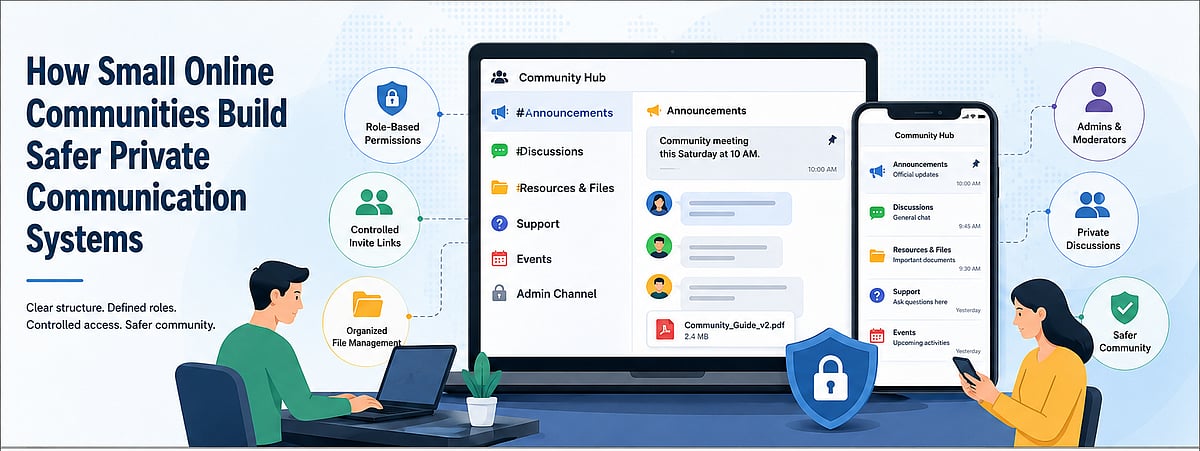
    Small online communities may have only a few dozen or a few hundred members, but they can still handle sensitive information. Member profiles, private discussions, event plans, internal documents, volunteer records, and contact details may all pass through the same communication space.

    When a community grows without a clear structure, its main group chat can quickly become difficult to manage. Announcements disappear beneath casual conversations, multiple versions of the same file circulate, and members may receive access to channels or information they do not need.

    A safer private communication system depends on more than selecting a messaging application. Communities also need documented rules, defined roles, controlled invitations, organized file storage, and a reliable process for removing access when members leave.

    For small communities, these governance practices are especially important because administrators often work part-time or voluntarily. A clear structure reduces both security risks and the long-term workload required to keep the community organized.

    Why Small Communities Need Communication Structure

    Many small communities begin with a single group created for convenience. Every announcement, question, file, event reminder, and private issue is posted in the same place.

    This approach may work during the earliest stage, but it becomes less effective as activity increases. Important messages are easily buried, members repeatedly ask the same questions, and administrators must search through long conversation histories to find previous decisions.

    A single-group structure also makes it difficult to control access. New members may immediately see old discussions or files that were not intended for them. Temporary guests may remain in the group after an event. Former organizers may continue to hold elevated privileges.

    File management presents another challenge. Documents uploaded directly into a busy chat are often difficult to locate later. Members may download, edit, and re-upload files without clear version names, creating uncertainty about which copy is current.

    New members are affected most. Without separate onboarding information, rules, or resource channels, they must learn through observation or repeatedly ask existing members for help.

    Communication structure solves these problems by giving each type of information a defined place and each role a defined level of access.

    Separating Announcements, Discussions and Support

    A practical community structure separates communication according to purpose.

    • Announcement channel: Official notices, deadlines, policy updates, and event information. Posting access can be limited to authorized administrators so important messages remain easy to identify.
    • General discussion channel: Everyday conversation, questions, and community interaction. It should not become the permanent storage location for important documents or final decisions.
    • Administrator channel: Private coordination among owners, moderators, and event organizers. Sensitive membership issues and moderation decisions should not be discussed in a public member space.
    • Files and resources channel: Links to community guidelines, schedules, templates, and final documents. Separating resources from general discussion makes them easier to find.
    • Event and support channels: Temporary spaces for specific projects, onboarding, or technical questions. Temporary channels should be archived or removed when they are no longer needed.

    The objective is not to create as many channels as possible. Each channel should have a clear purpose, an identifiable audience, and a predictable retention policy.

    Choosing and Verifying a Communication Platform

    Before building a channel structure, community organizers should evaluate whether a communication platform supports their operating needs.

    The first step is to confirm which device versions are available. Members may use Windows computers, Android phones, iPhones, tablets, or web browsers. A platform that works well on only one device may create participation barriers.

    Organizers should also verify the domain and download source. Similar-looking domains, misleading advertisements, and unrelated download buttons can confuse non-technical members. Installation instructions should clearly identify the correct platform, file type, and version.

    Users researching resources such as potato 官网入口 should examine the surrounding information rather than assuming a familiar keyword confirms the status of a website. Useful guidance should explain the intended device, download path, and verification steps without relying on exaggerated security claims.

    Privacy pages, help documentation, account-recovery instructions, and device-management guidance should also be reviewed. Community administrators need to understand how members can protect their accounts, review active sessions, and remove access from old devices.

    Platform selection should be based on documented requirements rather than popularity alone. Communities should identify which communication, access, storage, and moderation capabilities they actually need, then confirm whether the selected platform can support those workflows.

    Designing Roles and Member Permissions

    A small community should define roles before assigning elevated access.

    • Owner: Responsible for the overall community structure, primary settings, and continuity planning. Ownership should not be assigned casually because this role may control critical configuration and administrative access.
    • Administrators: Manage channels, member access, invitations, and policy enforcement. The number of administrators should be limited to people who actively perform these responsibilities.
    • Content moderators: Focus on discussions, inappropriate content, and community conduct. They may not need access to account-level settings or sensitive records.
    • Event organizers: Receive access to specific event channels, calendars, or participant lists without permanent control over the entire community.
    • Regular members: Receive access only to the channels and resources necessary for ordinary participation.
    • Temporary guests: Receive limited access for a specific meeting, project, or event, with a clear end date.

    The principle of least privilege is useful even in informal communities. Members should receive the minimum permissions required for their role. Elevated access can be added when necessary, but unnecessary privileges should not remain indefinitely.

    Communities should document who can create invitations, delete content, manage members, edit resources, and approve new administrators. Clear responsibility reduces confusion when an incident occurs.

    Protecting Invite Links and New Member Access

    Invite links are convenient, but they can also become uncontrolled entry points.

    A permanent invitation posted publicly may be copied, forwarded, indexed, or shared with people outside the intended audience. Once distributed, administrators may have little visibility into where the link appears.

    Where supported, communities should prefer time-limited or usage-limited invitations. A separate link can be created for each event, campaign, or recruitment period, then revoked when it is no longer needed.

    New members may also require a verification step. This does not need to be complicated. An administrator can confirm the person’s name, referral source, membership status, or reason for joining before granting full access.

    Some communities use a staged onboarding model. New members first enter a welcome or verification area, review the rules, and receive broader permissions only after approval.

    Old invitations should be reviewed regularly. Links created by former administrators, temporary organizers, or completed projects should be revoked. When a link is accidentally exposed, replacing it is safer than assuming it will no longer be used.

    Invitation control is most effective when responsibility is assigned to a specific role rather than shared informally among many members.

    Managing Shared Files and Community Records

    Files should be treated as community records rather than disposable chat attachments.

    Important documents should be stored in a consistent location. This may be a dedicated resource channel, an approved cloud folder, or another repository that the community can maintain independently of one individual’s device.

    File names should include enough context to identify the content and version. A format such as Community-Guidelines-2026-07-v2.pdf is more useful than final-new.pdf.

    Members should avoid creating several competing copies of the same document. One location should be designated as the current version, while outdated files are archived or clearly marked.

    Access should match sensitivity. Public event posters may be available to all members, while membership lists, payment records, identity information, or internal moderation documents should be restricted.

    When evaluating resources associated with a potato 中文版聊天软件, community organizers should focus on whether their chosen workflow allows members to locate files, understand access rules, and distinguish current records from informal chat attachments. The platform name alone does not solve document-governance problems.

    Sensitive files should not remain permanently downloaded on shared computers or unmanaged phones. Communities should encourage members to remove unnecessary local copies and avoid forwarding restricted documents into unrelated channels.

    Important records may require a separate backup. However, backup access should be controlled, documented, and reviewed rather than distributed broadly.

    Creating a Member Exit Process

    Communities often define how members join but fail to plan how access should end.

    When a member leaves, administrators should remove access to relevant groups and channels. If the person held an elevated role, that role should be revoked before or at the same time as membership removal.

    Invite links created or managed by the departing member should be reviewed. Where necessary, they should be disabled or replaced.

    Shared file access also requires attention. A former member may still have access to external folders, collaborative documents, event planning systems, or contact lists even after being removed from the messaging platform.

    Communities should determine which records must be retained. Decisions, final documents, financial records, or moderation notes may need to remain available to current administrators. Personal information that no longer serves a legitimate purpose should not be kept indefinitely.

    The exit process should also cover community-owned accounts, passwords, or administrative documentation. Critical information should not disappear when one organizer leaves.

    A simple checklist makes departures predictable and reduces the likelihood that old permissions remain active unnoticed.

    Running Regular Security and Membership Reviews

    Even a well-designed system becomes outdated if it is never reviewed.

    A monthly or quarterly review can begin with the administrator list. Communities should confirm that every person with elevated access still needs it and is actively involved.

    Inactive, duplicate, or unidentified member accounts should be investigated. Removal policies should be applied consistently rather than only after a problem occurs.

    Public or long-lived invitation links should be checked and revoked when no longer required. Administrators should also look for links posted on websites, social profiles, or old event pages.

    File repositories should be cleaned periodically. Outdated drafts, duplicate documents, abandoned event folders, and unnecessary sensitive records increase both confusion and exposure.

    Community rules should also be updated when roles, channels, or membership processes change. Members cannot follow procedures that are undocumented or no longer match the current system.

    Reviews do not need to be complex. A short recurring checklist is usually more effective than an extensive policy that no one follows.

    A Practical Community Governance Checklist

    Small communities can use the following framework to evaluate their communication system:

    • Channel structure: Separate announcements, discussions, resources, administration, events, and support where necessary.
    • Role permissions: Define owners, administrators, moderators, organizers, members, and temporary guests. Limit elevated access.
    • Invite links: Use controlled invitations, review active links, and revoke expired or exposed links.
    • File management: Maintain one current version, use consistent file names, restrict sensitive records, and remove outdated copies.
    • Member exit process: Remove channel access, revoke administrative roles, update links, and review external file permissions.
    • Regular review: Audit administrators, members, invitations, files, devices, and written rules on a predictable schedule.

    The checklist should be adapted to the community’s size and purpose. The most important requirement is that responsibilities are clear and reviews actually occur.

    Conclusion

    The safety of a small online community depends more on governance than on any single technology.

    Messaging platforms provide channels, accounts, invitations, and file-sharing mechanisms, but communities must decide how those tools are used. Without defined roles and processes, even a small group can develop unnecessary access, unclear ownership, and unmanaged records.

    Clear channel structures make information easier to find. Limited permissions reduce the impact of mistakes. Controlled invitation links protect membership boundaries. Organized files prevent version confusion, while a documented exit process ensures access does not continue indefinitely.

    By combining practical rules with regular reviews, small communities can build communication systems that remain private, understandable, and manageable as membership changes over time.

    Community Access Lifecycle: Join → Verify → Participate → Review → Exit. Each stage should have a defined owner, access boundary, and review action.

  • A Practical Guide to Evaluating Messaging App Privacy Across Devices

    A Practical Guide to Evaluating Messaging App Privacy Across Devices

    Messaging applications now carry far more than casual conversations. People use them to exchange work documents, personal photographs, payment details, travel information, identity records, and private discussions. As these platforms become embedded in daily life, users are paying closer attention to how their data is handled across phones, tablets, and desktop computers.

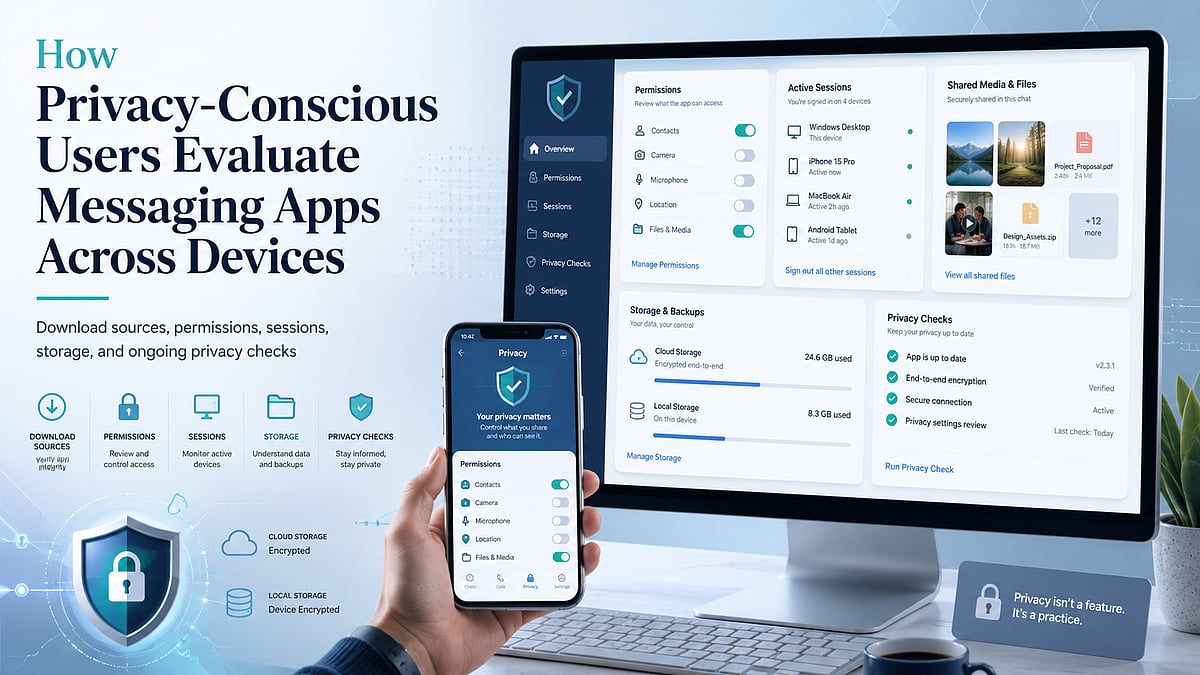
    However, a privacy-focused reputation should not be accepted solely on the basis of marketing claims. Security depends on the complete user journey: where the application is downloaded, which permissions it requests, how login sessions are managed, where files are stored, and whether users regularly review account settings.

    A practical assessment therefore begins before installation and continues throughout everyday use. Instead of asking whether one messaging app is universally “safe,” users should examine the specific risks created by their devices, habits, account configuration, and shared content.

    Why Privacy Expectations Are Changing

    The boundary between personal and professional communication has become increasingly difficult to maintain. A single messaging account may contain family conversations, client discussions, project files, appointment details, and account-recovery information.

    This concentration of data increases the consequences of account compromise. An unauthorized user may not only read recent messages but also gain access to shared documents, saved contacts, group information, and active sessions on other devices.

    Multi-device access introduces another layer of exposure. Logging in on a work computer, home laptop, tablet, and mobile phone can improve convenience, but each device becomes another point that requires protection. Older computers may no longer receive updates. A phone may be lost. A browser session may remain active after a user leaves a shared workspace.

    Privacy expectations are changing because users increasingly understand that security is not determined by one feature. It is affected by account behavior, device maintenance, storage choices, and the way information is shared.

    For this reason, users should evaluate messaging platforms as part of a broader digital workflow rather than treating them as isolated communication tools.

    Evaluating the Download Source

    The first security decision occurs before the application is installed. Users should identify where the download comes from and whether the page provides enough information to make an informed choice.

    Recognized app stores generally provide structured details such as the publisher name, supported operating system, update history, permission information, and user feedback. A developer-managed website may provide direct desktop installers, release notes, or links to platform-specific versions.

    Third-party download pages require additional caution. Some are legitimate software directories, while others use misleading buttons, aggressive advertising, or modified installation packages. A page may display several “Download” buttons that lead to unrelated programs.

    Users should compare the domain name carefully, especially when similar spellings, additional hyphens, or unusual subdomains appear. A familiar logo does not confirm that the page is controlled by the application developer.

    The file itself also provides useful clues. Windows installers commonly use extensions such as .exe or .msi, while Android installation files may use .apk. An unexpected archive, script, or executable format should be treated cautiously. Users should also look for consistent version numbers, platform descriptions, release dates, and installation instructions.

    Chinese-speaking users researching 纸飞机下载 resources should therefore evaluate the surrounding page rather than relying on the keyword alone. The page should clearly explain the intended platform, file type, version context, and installation process without forcing unrelated downloads.

    The objective is not simply to find a working installer. It is to understand what is being downloaded, where it originated, and whether the source provides transparent information.

    Reviewing Permissions Before First Use

    After installation, the next step is to review the permissions requested by the application. Messaging apps may need access to certain device functions, but users should understand why each permission is being requested.

    Contact access can simplify the process of finding people who already use the service. However, users who prefer manual contact management may decide not to provide full address-book access.

    Camera and microphone permissions are normally associated with photo capture, voice messages, video calls, and scanning functions. These permissions can often be enabled only when a feature is used rather than granted permanently during setup.

    Storage or photo-library access allows users to send and save images, videos, and documents. Modern operating systems may offer limited access, allowing the user to select individual files rather than exposing an entire library.

    Notification permissions affect whether message previews appear on a locked screen. Users who receive sensitive work or personal messages may prefer to hide message content while still allowing a generic notification.

    Background activity can help messages and calls arrive promptly, but it may also affect battery usage and data consumption. Users should review whether the application needs unrestricted background operation on every device.

    The most practical principle is to grant only the permissions required for features the user actually intends to use. Permission settings can be revisited later through the operating system.

    Managing Desktop and Mobile Sessions

    Multi-device messaging is useful only when users maintain control over their active sessions. An account may remain logged in on devices that are no longer regularly used, including old phones, office computers, tablets, or borrowed laptops.

    Users should periodically open the account’s device or session management area and review the available information. Depending on the platform, this may include the device type, operating system, approximate location, IP information, or the time of recent activity.

    An unfamiliar session should be investigated promptly. It may reflect a forgotten device, a changed network location, or unauthorized access. When there is uncertainty, ending the session and changing relevant security credentials is generally safer than leaving it active.

    Old devices should also be removed after they are sold, recycled, returned to an employer, or given to another person. Logging out from the device itself may not always be sufficient if the user no longer has physical access to it.

    People researching localized resources such as 纸飞机中文版 should also consider whether the available guidance explains session management clearly in their preferred language. Download and interface localization are useful, but users must also understand how to identify devices, terminate sessions, and respond to unusual account activity.

    Public and shared computers present additional risks. Users should avoid saving passwords, allowing automatic login, or leaving desktop sessions open after use. Where possible, temporary access should be followed by a remote session review from a trusted personal device.

    Understanding Cloud Data and Device-Specific Data

    Users should distinguish between information stored in the cloud and information stored locally on a device.

    Cloud-based messages may remain available when a user logs in from another phone or computer. This provides continuity, but it also means that deleting an application from one device may not remove account data stored elsewhere.

    Local data includes cached images, downloaded videos, exported conversations, temporary files, thumbnails, and documents opened through another application. These files may remain on a computer or phone even after the conversation is deleted or the messaging app is uninstalled.

    The exact behavior varies across platforms and operating systems. Users should avoid assuming that every conversation uses the same encryption method, that every deletion is immediately synchronized, or that uninstalling an app closes the account.

    Instead, they should review the application’s privacy documentation, deletion controls, storage settings, and account-removal process. When the difference between “delete app,” “clear cache,” “delete chat,” and “delete account” is unclear, users should treat them as separate actions.

    Controlling Shared Media and Local Storage

    Photos, videos, voice messages, and documents can consume significant storage space and create privacy risks when automatically saved to a device.

    Automatic media downloads should be configured according to the network and content type. Users may allow images on Wi-Fi while requiring manual approval for large videos or documents. This reduces both storage usage and exposure to unwanted files.

    Desktop users should identify the default download directory. Sensitive files should not remain indefinitely in a general Downloads folder that other applications or users can access.

    Mobile users should check whether received images are automatically copied into the device’s photo gallery. A file intended for a private conversation may become visible to gallery apps, backup services, or other people using the device.

    Cache clearing can remove temporary copies and reduce storage use, but it should not be treated as a substitute for account deletion or secure file management. Important documents should be intentionally backed up to a controlled location before temporary files are removed.

    A useful routine is to review large files, clear outdated media, remove duplicate documents, and separate important records from casual chat attachments.

    Protecting Verification Codes and Recovery Information

    Verification codes are designed to confirm a login or account change. They should be entered only into the relevant application or trusted login screen.

    Users should never send a verification code through chat, even when the request appears to come from a friend, administrator, technical-support agent, or community moderator. Attackers may impersonate trusted contacts and claim that the code is required to restore a group, confirm an account, or solve a technical problem.

    Unexpected login codes are also warning signs. They may indicate that another person is attempting to access the account. Users should review active sessions and account-security settings when unexplained codes arrive.

    Recovery information deserves the same attention. A recovery email address should be current, independently secured, and protected by a strong password. Where additional account-security options are available, users should understand how they work before enabling them.

    Support communication should be verified carefully. Genuine support processes should not require users to disclose passwords, verification codes, or complete recovery credentials through an ordinary chat conversation.

    A Practical Messaging App Evaluation Framework

    Privacy-conscious users can apply a simple framework before committing to a messaging platform.

    • Download source: Determine whether platform versions, file types, publisher details, and update information are clearly presented.
    • Permissions: Review access to contacts, camera, microphone, storage, notifications, and background activity. Grant only what is needed.
    • Login devices: Check whether active sessions can be viewed and ended remotely. Review the list regularly.
    • Privacy settings: Examine message previews, contact visibility, group invitations, blocked users, and account-discovery options.
    • File storage: Understand where images, videos, documents, exports, and cached data are saved on each device.
    • Update mechanism: Confirm whether updates arrive through an app store, built-in updater, or manual installer. Outdated versions may miss important security improvements.
    • Help and support: Look for accessible documentation covering account recovery, session management, privacy controls, and deletion procedures.

    This framework does not require advanced technical knowledge. It encourages users to ask practical questions that reveal how the application behaves across the entire account lifecycle.

    Conclusion

    Messaging app security is not a one-time setup task. It requires continuing attention to devices, permissions, login sessions, recovery information, and shared files.

    Users who review only promotional privacy claims may overlook risks introduced by unofficial downloads, excessive permissions, forgotten desktop sessions, automatic media storage, or exposed verification codes.

    A stronger approach is to evaluate each stage of use: installation, account setup, device access, file management, updates, and recovery. By repeating these checks periodically, users can reduce avoidable exposure while maintaining the convenience of cross-device communication.

    Six recurring checks help users evaluate messaging apps throughout the account lifecycle.