Category: Digital Communication

  • WhatsApp Tests Cross-Platform Media Access: Share Instagram and Facebook Content Directly in Chats

    WhatsApp Tests Cross-Platform Media Access: Share Instagram and Facebook Content Directly in Chats

    WhatsApp is reportedly testing a new feature that will allow users to access eligible media from their Instagram and Facebook accounts directly while composing messages or Status updates. The integration, which requires linking WhatsApp to Meta’s Accounts Center, is currently rolling out to a limited group of beta testers.

    With this update, users can select stories, posts, and Reels from their Instagram and Facebook accounts without needing to download and re-upload files. The feature is designed to simplify sharing content across Meta’s platforms and reduce the number of steps involved.

    The functionality works in both individual and group chats as well as WhatsApp Status updates. Instead of manually saving a photo or video from another app and then attaching it, users will see eligible media through the cross-platform connection.

    Accounts Center Integration

    To use the feature, users must connect their WhatsApp account to Meta’s Accounts Center. The Accounts Center already manages connected experiences across Instagram and Facebook, although linking WhatsApp remains optional. Meta has previously stated that personal messages and calls on WhatsApp remain protected by end-to-end encryption.

    Broader Cross-Platform Push

    This update is part of Meta’s wider effort to integrate its apps more closely. In recent months, WhatsApp has introduced easier chat transfers between Android and iOS, dual-account support on iPhone, and new tools for photos and stickers. The Instagram and Facebook media integration could further streamline sharing for users who frequently switch between Meta platforms.

    The feature is being rolled out gradually, so it may not appear for all users immediately. A full public release date has not been announced.

  • Jio and T-Mobile Achieve First 5G SA Roaming Connection Between India and US

    Jio and T-Mobile Achieve First 5G SA Roaming Connection Between India and US

    Reliance Jio and T-Mobile have successfully tested a 5G Standalone (SA) roaming connection between India and the United States. The milestone, facilitated by Syniverse, marks the first time a 5G SA roaming link has been established between the two countries, opening a new path for international 5G roaming.

    This partnership allows T-Mobile customers visiting India to stay connected through Jio’s extensive 5G SA network. Similarly, Jio users traveling to the US could benefit from T-Mobile’s network in the future. The collaboration is a significant step toward making 5G networks interoperable across borders.

    Key Benefits and Future Potential

    The 5G SA roaming connection promises faster speeds, lower latency, and more reliable connectivity than previous network generations. It also lays the groundwork for advanced services that require direct 5G connections, such as AI-based applications and real-time data processing.

    Mark Yarkosky, Head of International Network, Partnership and Services at Jio, stated that this partnership is a step towards interoperability between 5G SA networks and is expected to support new consumer and enterprise services. T-Mobile authorities echoed this sentiment, highlighting that the collaboration will help travelers move between countries without losing connectivity.

    Significance for India’s Telecom Market

    Jio has built one of the largest 5G SA networks in India, and this test demonstrates how that infrastructure can connect with a major US operator. The development underscores the growing importance of international partnerships as telecom operators worldwide transition to 5G SA.

    T-Mobile has been working on its 5G SA network since 2020, and this test brings together the efforts of both companies. The successful trial indicates where international telecom is heading—towards seamlessly connected 5G networks that serve global customers.

  • Master Gmail Bulk Editing: Clean Up Your Inbox in Minutes

    Master Gmail Bulk Editing: Clean Up Your Inbox in Minutes

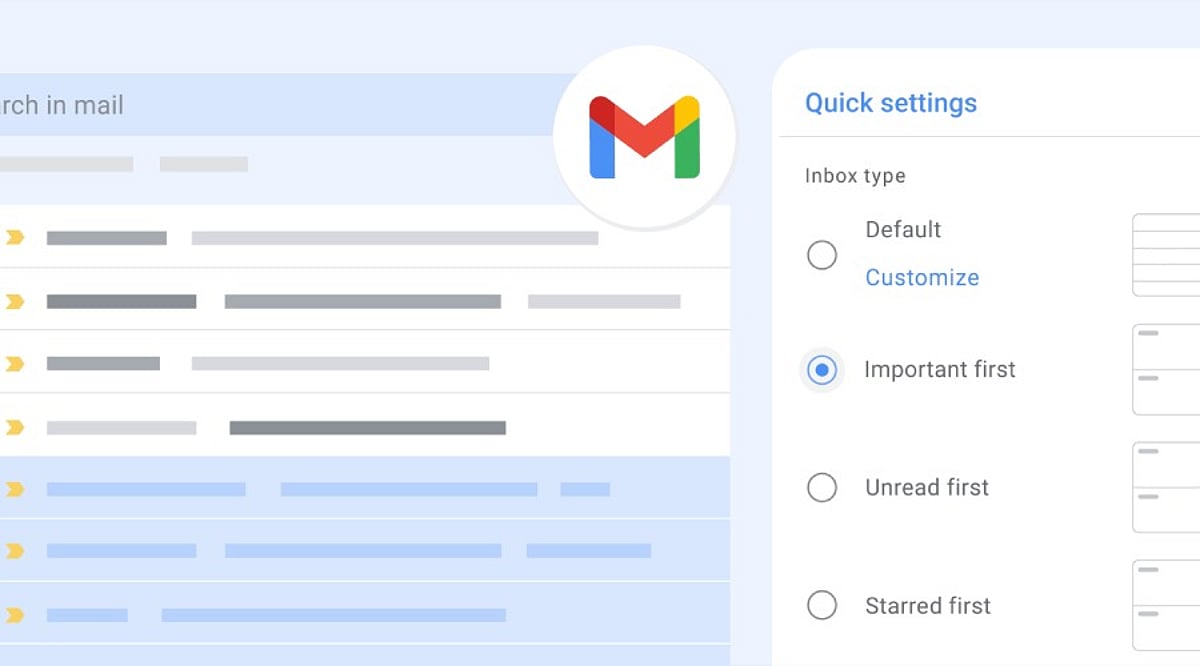
    Gmail’s bulk tools go beyond simple deletion. Selection, archiving, and labeling each serve different needs. Search operators and filters narrow the scope before action. Reviewing results first turns routine cleanup into a controlled, repeatable system rather than a one-time fix.

    Overview

    Gmail’s checkbox and “select all conversations” option can act on messages far beyond what fits on one screen. Archiving, deleting, labeling, and marking messages as read or unread each solve a different inbox problem. Search operators and filters turn a one-time cleanup into a system that runs on its own.

    A full inbox rarely gets fixed one message at a time. Most people open Gmail, sigh at the unread count, and close the tab again. Yet Gmail already has the tools to clear that backlog in minutes, not hours. The gap is not features—it is awareness.

    Selecting Multiple Emails

    Click the checkbox beside a single conversation to select it. For a larger batch, use the master checkbox at the top of the message list. This selects the conversations shown on the current page, usually up to 50, though account settings can change that number.

    Selecting Every Matching Conversation

    A page of messages is rarely the whole problem. Once the master checkbox is clicked, Gmail often shows a banner offering to select every conversation matching the current view or search, not only the ones on screen. That single click turns a partial cleanup into a complete one. It applies equally to an entire inbox or a narrow search result.

    Archiving Emails

    Archiving pulls messages out of the inbox without deleting them. They stay searchable under All Mail, ready to surface again if needed. This suits anyone who wants a clear inbox while keeping every message on record.

    Deleting Emails

    Deleting moves selected messages to Trash, where Gmail removes them permanently after 30 days unless they are cleared sooner. This works well for old notifications, expired promotions, and clutter that serves no future purpose. Storage concerns need a different approach, though. A search like larger:10M finds the large attachments actually consuming space, which clears more room than deleting ordinary messages ever could.

    Labeling and Marking Read or Unread

    Use the Labels button to tag selected messages, grouping related conversations such as receipts or subscriptions. Move to shift messages out of the current view entirely, a distinct action from labeling. The envelope icon marks a batch as read or unread in one step, clearing notification counts without opening a single message.

    Search Operators Before Bulk Editing

    Narrowing a search before acting reduces the odds of a mistake. Gmail operators such as from:, subject:, has:attachment, older_than:, and is:read make it easier to isolate specific messages. Combining operators refines results even further. For example, from:newsletter@example.com older_than:1y finds older emails from a specific sender, while older_than:1y is:read surfaces read messages more than a year old, ready to review, archive, or delete in bulk.

    Filters for Ongoing Management

    Manual cleanup fixes today’s mess, not next month’s. A filter built from the search bar can archive, label, or delete future messages that match set criteria, such as a sender or subject line. It affects only new mail arriving after it is created, unless the option to apply it retroactively is selected during setup. That single distinction saves people from wondering why their inbox history stayed untouched.

    Managing Gmail on Mobile

    The mobile app skips the desktop-style workflow for selecting every conversation across a mailbox or search. Long-pressing a message allows several to be handled together, but sweeping cleanup still belongs on the web version.

    Review Before Acting

    Bulk actions are hard to undo once applied widely. Scan a few results from the search query before deleting or moving a large batch, just to confirm nothing important slipped in. When in doubt, archiving instead of deleting keeps a message available for later reference. Any filter that includes automatic deletion deserves a second look before it gets saved.

    Final Thought

    Fast inbox cleanup has little to do with selecting more messages. It comes down to narrowing the right group first, picking the right action, and letting filters carry the weight of future maintenance. That shift, from reacting to managing, is what separates a cluttered inbox from a controlled one.

    Frequently Asked Questions

    Can I edit multiple emails at once in Gmail?

    Yes. Select multiple conversations using the checkboxes, then archive, delete, label, move, or mark them as read or unread in one action.

    How do I select all emails in my Gmail inbox?

    Click the checkbox at the top of the inbox. If Gmail shows an option to select all conversations matching the current view, click it to expand the selection.

    Can I bulk delete old emails in Gmail?

    Yes. Use search operators such as older_than:1y to find older messages, review the results, select the conversations, and click Delete.

    Can I bulk organize Gmail emails with filters?

    Yes. Gmail filters can automatically label, archive, or delete future messages that match criteria such as a sender, subject, or keyword.

    Can I bulk edit Gmail emails from my phone?

    The Gmail mobile app supports selecting multiple messages, but large-scale inbox cleanup is generally easier through Gmail on the web.


  • How to Add and Edit Music on Instagram: A Step-by-Step Guide for Photos and Carousels

    How to Add and Edit Music on Instagram: A Step-by-Step Guide for Photos and Carousels

    Instagram has evolved beyond static photos and captions. Now you can add music to photo posts and carousels, letting you pair visuals with songs that match the mood. Whether you’re sharing travel snapshots or celebratory moments, music adds an extra layer of emotion.

    This guide walks you through adding and editing music on Instagram, from choosing a track to adjusting the clip before publishing.

    How to Add Music to an Instagram Photo Post

    1. Open Instagram – Launch the app and log into your account.
    2. Create a new post – Tap the “+” icon, select “Post,” then choose an image (or multiple images for a carousel) from your gallery.
    3. Edit your photo – Tap “Next,” then apply filters or make other adjustments as desired.
    4. Select the music option – On the caption screen, find the “Add Music” button and tap it to access Instagram’s music library.
    5. Choose a song – Search for a specific track or browse. Select the song you want. Instagram will let you pick a section of the song to play.
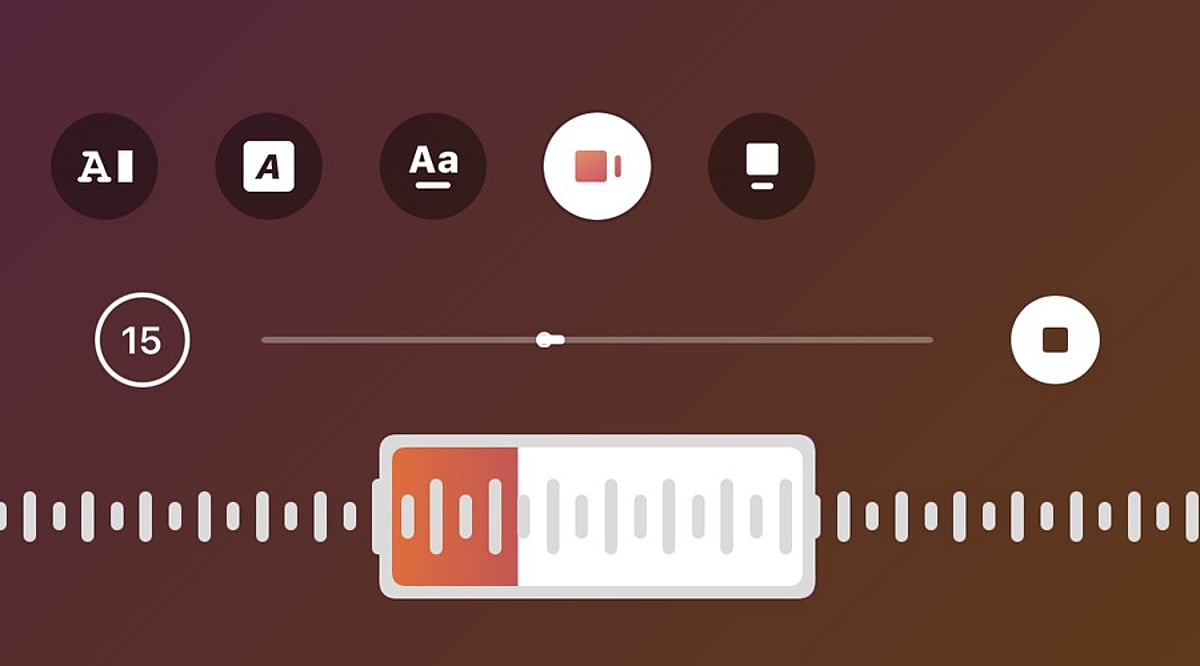
    6. Adjust the music clip – Use the music selector to choose the exact part of the song. Confirm your selection and return to the sharing screen.
    7. Publish the post – Add a caption, tags, or other details, then tap “Share.” The music will play alongside your photo or carousel.

    How to Edit Music Before Posting

    If you change your mind about the song before publishing, go back to the edit or post details page and tap the music icon again. Choose a new track from the library and customize the portion you want. This is especially useful if the first song doesn’t match the mood of your photos.

    Can You Edit Music After Posting?

    Editing options after publishing vary based on your account type, app version, and post type. If the music editing option isn’t available, you may need to delete the post and re-upload it with your chosen song. Before deleting, save a copy of the images and captions to reuse.

    Tips for Choosing Music

    • Select a song that suits the mood of your images. For travel or lifestyle photos, a soothing track works well. For celebrations, choose upbeat music.
    • Test different sections of a song to find the perfect clip that complements your visual story.

    Frequently Asked Questions

    Can you add music to an Instagram photo post?

    Yes, Instagram allows you to add songs to photo posts. Select a track from the music library and choose the section that plays with your photo.

    Can you add music to an Instagram carousel?

    Yes, Instagram supports music on photo carousels. Select multiple images while creating a post, tap Add Music, choose a song, and adjust the desired portion.

    Can you change the music before publishing an Instagram post?

    Yes, you can change the selected song before publishing. Return to the music option, choose another track, and adjust the section you want to include.

    Can you edit Instagram post music after publishing?

    Music editing options after publishing can vary. If editing is unavailable, you may need to recreate the post with different music.

    Why can’t I find the Add Music option on Instagram?

    The Add Music option may depend on your account, region, post type, app version, or music licensing availability. Updating Instagram may help restore missing features.

  • 8 Practical Tips for Discovering Valuable Telegram Channels Without the Clutter

    8 Practical Tips for Discovering Valuable Telegram Channels Without the Clutter

    Telegram can deliver a wealth of useful information, but an unchecked channel list quickly becomes noise. By combining focused search, careful selection, and simple management tools, you can keep your feed relevant and organized. Here are eight actionable strategies.

    1. Search with Specific Topics

    Telegram’s search works best with precise terms. Instead of broad keywords like “technology” or “news,” use phrases such as “Android security,” “football transfers,” or “stock market news.” This narrows results to public channels and posts that match your exact interest, and it can surface sources that a generic search would miss.

    2. Use the Posts Tab for Discovery

    Telegram’s global search now includes a dedicated Posts tab. This lets you search across posts from all public channels—even those you haven’t joined. When you find a useful post, visit the channel’s profile to learn more. This approach helps you discover high-quality sources without subscribing to every channel that appears in general results.

    3. Check Similar Channels Before Subscribing

    On any channel profile, look for the Similar Channels section. Telegram suggests channels with overlapping audiences and topics. You can also find these suggestions in the Channels section of global search. For example, a reliable tech channel may lead you to others focused on software, cybersecurity, or AI—broadening your coverage with a small, curated set of sources.

    4. Test a Channel Before Committing

    Don’t subscribe to every promising channel immediately. Give it a short trial period. Evaluate posting frequency, content quality, originality, repetition, and promotional material. A channel that posts one or two valuable updates daily is often more useful than one that floods your feed with dozens of low-value messages.

    5. Create Folders for Different Topics

    Telegram’s chat folders let you group channels by category—News, Tech, Work, Learning, Entertainment, and more. You can define rules to include or exclude specific chats, groups, channels, bots, or muted chats. This keeps unrelated content separate and gives your main chat list a cleaner, more manageable layout.

    6. Mute Channels that Don’t Need Alerts

    Useful channels don’t always require instant notifications. Telegram’s mute controls let you keep valuable sources accessible without constant interruptions. For instance, mute high-volume news channels while leaving learning channels unmuted. This way, you stay informed on your own schedule.

    7. Use AI Summaries for Long Posts

    Telegram introduced AI summaries for long channel posts in January 2026. This feature provides a concise overview of lengthy content, helping you decide quickly whether to read the full post. It’s especially useful for channels that publish detailed reports, news updates, or extended announcements.

    8. Review Your Channel List Regularly

    Just as important as discovery is cleanup. A channel that once delivered value may later become repetitive or overly promotional. Set aside time periodically to review your subscriptions and remove any that no longer serve your interests. A smaller, well-curated list is far more effective than a large, cluttered one.

    By combining these techniques—focused search, channel checks, folders, mute controls, AI summaries, and regular reviews—you can transform Telegram into a streamlined information hub where every channel has a clear purpose.

  • India’s Internet Growth Faces Undersea Cable Vulnerabilities

    India’s Internet Growth Faces Undersea Cable Vulnerabilities

    India’s rapid digital expansion relies heavily on a network of submarine cables that carry the vast majority of its international internet traffic. However, this critical infrastructure faces several vulnerabilities that could threaten the country’s connectivity ambitions.

    Undersea Cables: The Backbone of Global Internet

    Almost all intercontinental digital communication depends on submarine cables. For India, these cables link the country with Europe, Africa, West Asia, and Asia, enabling seamless international data flow.

    Concentration Near Mumbai Creates a Bottleneck

    At least 13 of India’s 18 intercontinental submarine cables land within roughly six kilometers of Mumbai’s Versova coast. This single landing zone handles a major share of the nation’s international bandwidth, making it a critical point of failure.

    Soaring Data Consumption

    India’s broadband subscriber base surpassed 1.06 billion in March 2026. Wireless data usage jumped from 73,324 PB to 77,953 PB in just one quarter, underscoring the relentless growth in demand.

    Aging Infrastructure

    About 11 of India’s 18 international cable systems are over 20 years old, approaching the end of their typical design life. This aging infrastructure adds strain as AI, cloud computing, and video traffic continue to surge.

    No Domestic Cable Repair Capability

    India currently lacks an Indian-flagged, Indian-owned, or India-stationed submarine cable repair vessel. Repairs depend on foreign operators and ships, leading to potential delays when faults occur.

    Risks of Cable Cuts

    A single cable fault does not immediately disrupt India’s internet—traffic can reroute through other paths. However, multiple cuts, congested alternatives, or slow repairs can degrade international connections, causing higher latency and slower speeds.

    Geopolitical Risks in the Red Sea

    Several key international routes traverse the Red Sea and Strait of Hormuz. Damage in these regions forces traffic onto longer or more congested routes, adding pressure to global connectivity.

    New Projects Offer Hope

    Emerging cable projects aim to reduce dependence on Mumbai. The I-2SEA system will connect India with Malaysia and Singapore, with planned landings at Machilipatnam and South Chennai, targeting operational status by 2029.

    Need for Enhanced Repair Capacity

    The Telecom Regulatory Authority of India (TRAI) has recommended exploring Indian-flagged repair vessels and establishing cable depots on both the eastern and western coasts. Increasing landing sites, deploying newer cables, and speeding up repair systems are essential for building resilience.

    Read more stories and join our WhatsApp Channel for the latest news, exclusives, and videos.

  • India’s Internet Growth Exposes Fragility in Submarine Cable Network

    India’s Internet Growth Exposes Fragility in Submarine Cable Network

    India’s digital revolution is surging—broadband subscriptions have crossed 1.06 billion and data usage jumped from 73,324 petabytes to 77,953 petabytes in just one quarter. Yet the backbone of this connectivity, the undersea cables that carry nearly all intercontinental internet traffic, reveals a critical weakness.

    At least 13 of India’s 18 international submarine cables make landfall within about six kilometers of Mumbai’s Versova coast. This concentration means a single geographic point bears the brunt of the country’s international bandwidth. Meanwhile, 11 of those 18 cable systems are over 20 years old—pushing beyond their typical design life just as artificial intelligence, cloud computing, and video streaming drive demand even higher.

    India also lacks its own submarine cable repair fleet. There is no Indian-flagged, Indian-owned, or India-stationed repair vessel, so the country depends entirely on foreign operators and ships for fixes. While a single cable cut does not automatically crash the internet—traffic can reroute—multiple cuts, congested alternatives, or repair delays can lead to slower international connections and higher latency. Important routes like the Red Sea and Strait of Hormuz add another layer of risk.

    New projects offer hope. The I-2SEA system, connecting India with Malaysia and Singapore via landings at Machilipatnam and South Chennai, targets 2029. But the Telecom Regulatory Authority of India (TRAI) has also recommended developing Indian-flagged repair vessels and cable depots on both coasts. More landing sites, fresher cables, and faster repair capacity are essential to keep India’s internet boom from stalling.

  • WhatsApp for iPhone Gains New Search Shortcut to Find Older Messages Faster

    WhatsApp for iPhone Gains New Search Shortcut to Find Older Messages Faster

    WhatsApp is introducing a dedicated search button for iPhone users that simplifies locating older messages within conversations. The Meta-owned messaging platform began rolling out this feature in September 2026, following beta testing in August.

    The new search button appears automatically when users scroll upward through older messages in individual chats, group conversations, or Channels. Tapping the button opens the existing search tool directly, eliminating the need to navigate to the chat information screen first.

    According to WABetaInfo, the feature is compatible with WhatsApp for iOS version 26.36.74 and is being deployed gradually to select users. A broader rollout is expected in the coming weeks.

    In earlier beta builds, the search shortcut was positioned near the bottom-right corner of the conversation. The final version moves it to the top of the screen, just below the navigation bar. The button only appears while scrolling upward; returning to the latest messages hides it again, keeping the interface clean.

    WABetaInfo described the change simply: “The new search button appears at the top of the screen when users scroll up.” Tapping the button activates search mode directly within the conversation, with no changes to the underlying search functionality. Users can still enter keywords and browse matched messages as before.

    Previously, iPhone users had to open a chat, tap the contact or group name, and then select Search from the chat information screen. The update brings that entry point directly into the conversation, reducing the number of steps required to find older content.

    WhatsApp Channels also benefit from the same shortcut, allowing users to search through historical posts without opening the Channel information screen. This is especially useful for Channels with frequent updates and long histories.

    Because the feature is rolling out gradually, it may not appear immediately on all iPhones. Updating the app can help, but account-level activation determines availability. Users without the shortcut can still use the traditional search method through chat information.

    Overall, the update focuses on improving accessibility rather than introducing new search capabilities. For long conversations, active groups, and busy Channels, fewer navigation steps make it easier to locate older messages.

  • Microsoft Teams Review: Key Features, Benefits, and Challenges for Modern Workplaces

    Microsoft Teams Review: Key Features, Benefits, and Challenges for Modern Workplaces

    Overview

    Microsoft Teams is collaboration software by Microsoft that combines chat, meetings, calls, file storage, calendar, tasks, and document collaboration in one online workspace. Highly integrated with Microsoft 365, Teams enables teams to use tools like Word, Excel, PowerPoint, OneDrive, and SharePoint. Features of Microsoft Teams allow users to communicate, hold virtual meetings, share documents, coordinate projects, and enhance productivity using AI. Benefits include communication centralization, cross-device capability, and teamwork simplification. Despite challenges such as poor performance, notification overload, and difficulty locating old files, Teams remains a leading workplace communication solution.

    General Information

    • Launched in: 2016
    • Platform Support: Android, iOS, Windows, macOS, Web
    • Download: Click Here

    Main Features of Microsoft Teams

    • Chat: Facilitates individual conversations, groups, mentions, and organized discussions for workplace communications.
    • Meetings: Provides audio and video meetings, screen sharing, recordings, live transcription, breakout sessions, and collaboration during meetings.
    • Channels: Organizes discussions according to projects, departments, and topics to make workplace discussions more organized.
    • File Sharing: Supports file and document sharing via chats and channels, integrated with OneDrive and SharePoint to facilitate file management of business documents.
    • AI Copilot: Includes Copilot to facilitate summaries of meetings, conversation assistance, and follow-ups for missing meetings.

    Benefits of Microsoft Teams

    • Integrates chat, meetings, calls, file sharing, and collaboration functionalities, eliminating the need for multiple workplace software applications.
    • Offers great integration with Microsoft 365, keeping documents and productivity applications connected to daily team communications.
    • Fosters remote and hybrid working conditions using cross-device functionality, virtual meetings, screen sharing, recording, and collaborative documents.
    • Organizes project communications using teams, channels, files, calendars, tasks, and meeting-related information.
    • Acts as a centralized digital workspace that can improve communication and collaboration in distributed teams.

    Challenges of Microsoft Teams

    • The application can be resource-hungry, especially during long meetings or when many applications and channels are used simultaneously.
    • A large number of notifications may make it hard to see important alerts among others in busy teams and channels.
    • Locating old messages and documents may require extra effort.
    • Managing multiple teams, channels, accounts, and collaboration tools can make the interface feel crowded.
    • Some users may experience problems with loading the app and accessing account information.

    Subscription Information

    Microsoft Teams is available for free for personal use; additional services are accessible through Microsoft 365 subscriptions. Premium features are available through Microsoft Teams Premium.

    Support Options

    • Help Center and Learning Resources: Microsoft provides Teams help covering meetings, chat, notifications, teams and channels, calls, files, troubleshooting, administration, Copilot, and application management.
    • Customer Support: Microsoft offers support information, technical help, troubleshooting, account help, and IT admin support.

    Conclusion

    Microsoft Teams is an extensive communications solution that integrates messaging, online meetings, calling, file sharing, document collaboration, and productivity tools into one unified system. Its strong relationship with Microsoft 365 is a key advantage, especially for enterprises already using Word, Excel, PowerPoint, OneDrive, and SharePoint. Collaboration and communication features receive high marks in reviews, but performance, search, notifications, and mobile experience still need improvements.

  • How to Locate Your Saved Reddit Posts on Web, iOS, and Android

    How to Locate Your Saved Reddit Posts on Web, iOS, and Android

    Reddit’s saved posts and comments pile up quickly, making older entries hard to find. This guide walks you through locating your saved content across desktop, iPhone, and Android devices, explains why the native Saved section lacks search tools, and offers practical habits and third-party solutions to keep your list manageable.

    Where Are Saved Posts on Reddit?

    Reddit stores all saved posts and comments in a single Saved section within your profile. The exact navigation path varies slightly by platform and app version, but the destination remains the same.

    On the Website (Desktop)

    1. Click your profile icon at the top right corner.
    2. Select your profile name from the dropdown menu.
    3. On the profile page, look for the Saved tab in the navigation bar. If it’s not visible, click the three horizontal lines (hamburger menu) to reveal additional options.
    4. Click Saved to view your full list.

    On iOS and Android

    1. Tap your profile icon at the bottom of the screen.
    2. Tap the hamburger menu (three lines) near the top right of the profile page.
    3. Select Saved from the menu. Depending on the app version, posts and comments may appear together or in separate tabs.

    Saving a Post or Comment

    The Save feature works identically across platforms:

    • Desktop: Click the three-dot overflow menu on any post or comment and choose Save.
    • Mobile: Tap the three-dot icon at the top right of a post or comment and select Save. To unsave, tap the same menu and choose Unsave.

    Why Older Saves Are Hard to Track

    Reddit’s Saved section behaves like a static archive rather than a searchable database. It currently lacks native search or filtering options. As your list grows into the hundreds, scrolling through an unsorted timeline becomes the only way to find an older item — unless you adopt better habits or use third-party tools.

    Managing a Growing Saved List

    Keep your saved content organized with these strategies:

    • Regular cleanup: Periodically review and unsave items you no longer need.
    • Third-party browser extensions: Some extensions connect to Reddit’s API to add keyword search across saved content. Before using any, verify what data it accesses and whether it is actively maintained.
    • Bookmark external tools: If you frequently save reference material, consider using a dedicated bookmarking service alongside Reddit’s native feature.

    Quick Recap by Platform

    • Desktop: Profile icon → Profile page → Saved
    • Mobile: Profile icon → Hamburger menu → Saved

    Final Thought

    The Saved section works well for occasional savers. Frequent users get more value by pairing it with regular cleanup or a reputable third-party tool that handles data responsibly.

    FAQs

    1. Where can I find my saved posts on Reddit?
    Through your Reddit profile. On desktop, open your profile and select Saved. On mobile, open your profile menu and select Saved.

    2. Can I save Reddit comments as well as posts?
    Yes. Both posts and comments can be saved. Saved comments appear in the Saved section, depending on the interface version.

    3. How do I save a post on Reddit?
    Open the three-dot menu and select Save. To remove it later, open the same menu and select Unsave.

    4. Can I search my saved posts on Reddit?
    Reddit’s native Saved section does not currently offer search or filtering. To find older items, you may need to scroll or use third-party tools.

    5. Why can’t I find a Reddit post I saved?
    Ensure you are signed into the correct account. Check whether you saved the comment instead of the post. If the content was deleted or removed, it may no longer be accessible.