Category: Productivity Apps

  • Step-by-Step Guide to Unlocking Apple’s Hidden Siri AI Popover

    Step-by-Step Guide to Unlocking Apple’s Hidden Siri AI Popover

    Apple has introduced a hidden Siri AI Popover that transforms how users interact with the digital assistant on compatible devices. This guide walks you through the activation process, from checking device compatibility to exploring the AI-powered interface.

    Check Device Compatibility

    The hidden Siri AI Popover is available only on compatible Apple Intelligence-supported devices, including newer iPhone, iPad, and Mac models. Ensure your device supports Apple Intelligence and is running the latest compatible software version before attempting to access the redesigned Siri interface.

    Update to the Latest Software

    Install the latest version of iOS, iPadOS, or macOS that includes Apple Intelligence features. Software updates often unlock hidden capabilities, improve Siri performance, and ensure compatibility with the AI-powered floating Siri Popover interface designed for eligible Apple devices.

    Enable Apple Intelligence

    Open your device settings and turn on Apple Intelligence if it is available in your region. Some features may require joining the waitlist or downloading additional AI resources before the hidden Siri Popover becomes accessible through supported voice commands or activation methods.

    Turn On Siri Features

    Navigate to Siri settings and enable options like “Listen for Siri” and side button activation. These settings allow the assistant to launch correctly, making it easier to trigger the new floating AI Popover interface instead of relying on traditional full-screen Siri interactions.

    Activate Siri Normally

    Once everything is configured, activate Siri using your voice or the device’s dedicated button. On supported Apple Intelligence devices, Siri appears as a subtle glowing border or compact Popover, allowing you to continue using apps without interrupting your workflow or screen activity.

    Explore AI Capabilities

    The Siri AI Popover supports contextual assistance, writing tools, summaries, and app-aware interactions through Apple Intelligence. Experiment with different prompts, ask follow-up questions, and use productivity-focused requests to experience the upgraded AI assistant beyond standard voice commands and basic information retrieval.

    Know the Availability Limits

    Apple Intelligence features, including the Siri AI Popover, are rolling out gradually across devices, languages, and regions. If you cannot access the feature immediately, keep your software updated, monitor Apple’s announcements, and wait for wider availability as support continues expanding.

  • Boost Team Productivity: Top Project Management Software Solutions for 2025

    Boost Team Productivity: Top Project Management Software Solutions for 2025

    Choosing the right project management software can transform how your team collaborates, tracks progress, and meets deadlines. Below is a curated list of leading platforms that boost productivity across different workflows and team sizes.

    Asana: Streamlined Task Management

    Asana helps teams organize projects, assign tasks, track deadlines, and manage workflows through intuitive dashboards and collaborative project views.

    Trello: Simple Visual Workflows

    Trello uses flexible boards, lists, and cards to help teams organize tasks, monitor progress, and manage projects efficiently.

    Monday.com: Customizable Team Workflows

    Monday.com offers visual project tracking, automation, dashboards, and custom workflows that support teams across multiple business functions.

    ClickUp: All-In-One Productivity Platform

    ClickUp combines task management, documents, goals, chat, time tracking, and dashboards within a unified productivity platform for teams.

    Microsoft Planner: Microsoft 365 Integration

    Microsoft Planner integrates with Microsoft 365 tools, helping businesses manage tasks, collaborate, track progress, and streamline workplace productivity.

    Jira: Agile Software Development

    Jira supports software teams with sprint planning, issue tracking, product roadmaps, and agile workflows designed for complex development projects.

    Notion: Flexible Workspace Collaboration

    Notion combines project management, documentation, databases, and team collaboration, enabling teams to centralize knowledge and daily workflows.

    Wrike: Enterprise Project Visibility

    Wrike provides advanced project planning, resource management, reporting, and workflow automation for growing teams and enterprise organizations.

    Smartsheet: Spreadsheet-Style Project Planning

    Smartsheet blends familiar spreadsheet functionality with project tracking, automation, reporting, and collaboration for structured business workflows.

  • 10 Essential Google Docs Tips for Android Users in 2026

    10 Essential Google Docs Tips for Android Users in 2026

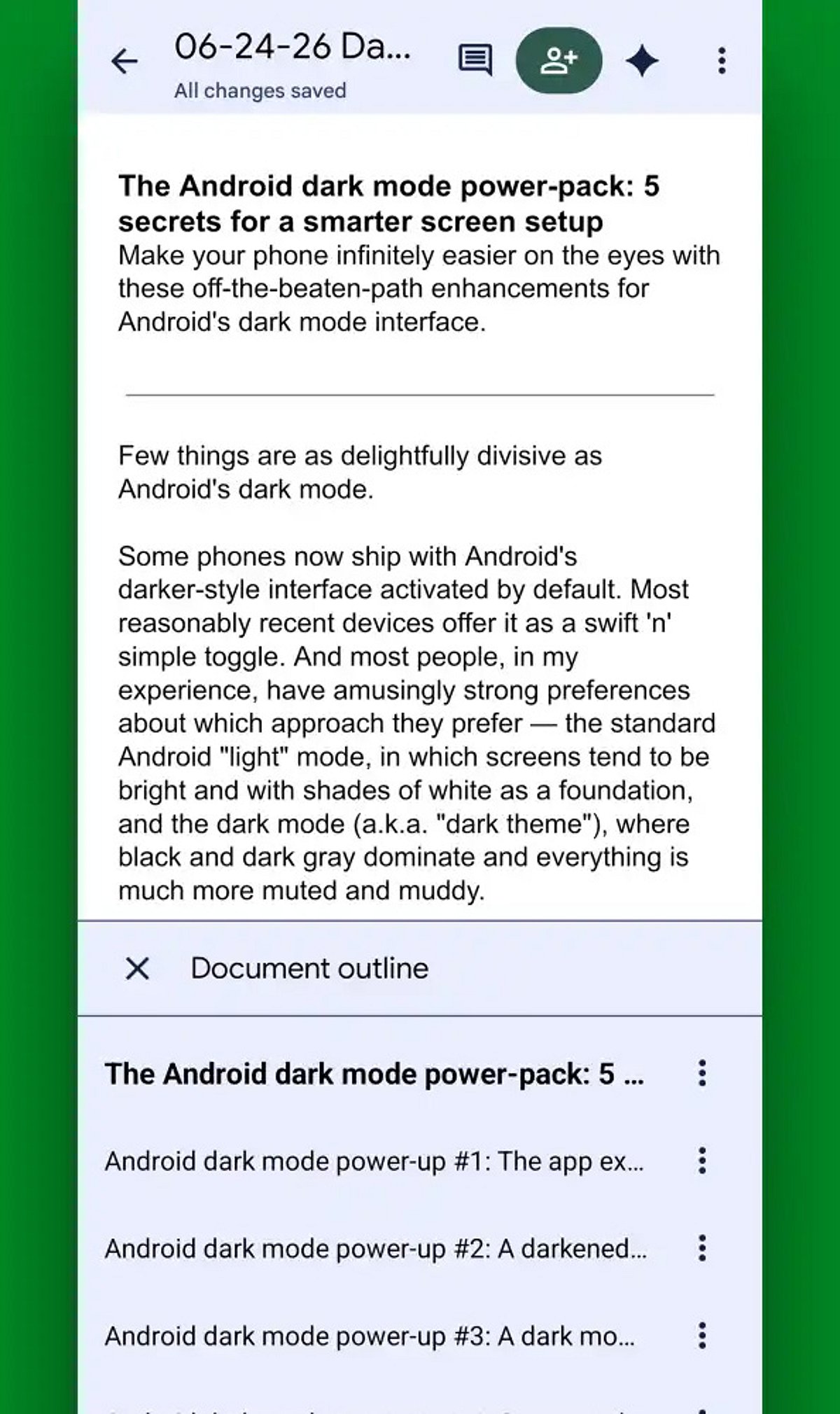
    Google Docs on Android continues to evolve, offering powerful tools that make document creation, editing, and sharing easier than ever from your mobile device. Here are the best tips and tricks for maximizing your productivity in 2026.

    AI-Powered Writing Assistance

    Leverage built-in AI features to draft, rewrite, summarize, and polish documents directly within Google Docs. This smart assistance helps you write faster and with greater clarity.

    Enhanced Voice Typing

    Voice typing has become remarkably accurate, allowing you to dictate entire documents quickly while significantly reducing typing time. Perfect for on-the-go note-taking or drafting long content.

    Offline Mode

    Edit your files without an internet connection. Any changes you make will sync automatically once you reconnect, ensuring you never lose productivity due to connectivity issues.

    Smart Chips for Better Organization

    Use smart chips to link people, files, dates, and meetings directly within your document. This feature streamlines collaboration and keeps all relevant information connected.

    Real-Time Collaboration

    Commenting, suggesting edits, and real-time editing make teamwork seamless, even when collaborators are using different devices. Everyone stays on the same page.

    Document Templates

    Save time with ready-made templates for resumes, reports, meeting notes, and project plans. Simply choose a template and customize it to your needs.

    Version History

    Track every edit and restore previous versions of your document with ease. Version history prevents accidental loss of important content and gives you peace of mind.

    Keyboard Shortcuts & Quick Formatting

    Master keyboard shortcuts and quick formatting tools to speed up your workflow. Combined with Google Drive integration, these features help Android users work faster and stay organized.

    Start implementing these tips today to transform your mobile document experience.

  • How Distributed Teams Rely on Cross-Device Office Software for Seamless Document Workflows

    How Distributed Teams Rely on Cross-Device Office Software for Seamless Document Workflows

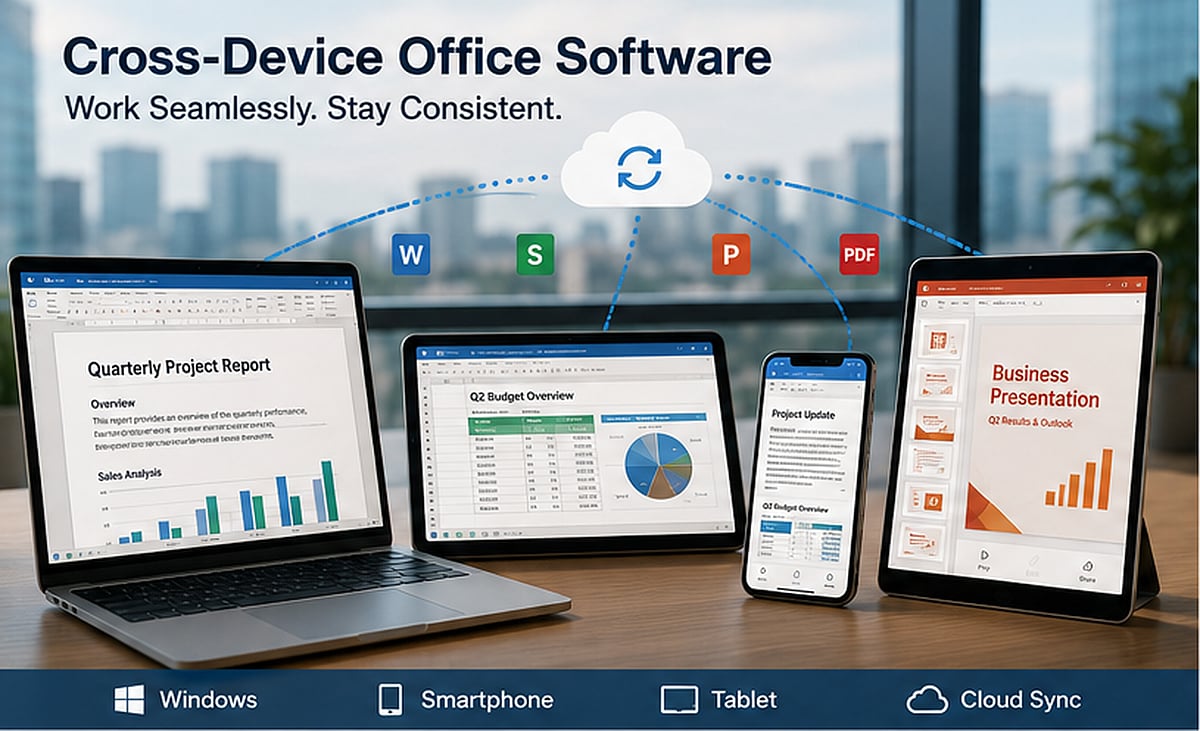
    Distributed work has transformed how documents are created, reviewed, approved, and stored. A single report may start on a Windows laptop, receive comments on a tablet, get approved from a smartphone, and finally be exported as a PDF for a client overseas. This flexibility accelerates team velocity, but it introduces a significant operational challenge: files must remain consistent across devices, operating systems, applications, and user environments.

    Simply opening a file on multiple devices does not guarantee it will display or function correctly. Fonts may be replaced, spreadsheet formulas can behave differently, presentation elements may shift, and PDF annotations might change during conversion. For distributed teams, these inconsistencies lead to rework, approval delays, and uncertainty about which version is final.

    Office software is now a critical component of an organization’s workflow infrastructure. Teams must evaluate not only whether an application can edit files, but whether it supports consistent document handling across Windows PCs, smartphones, tablets, shared folders, and cloud environments.

    The Shift from Single-Device Work to Distributed Document Workflows

    Traditional office workflows relied on a predictable environment: employees used company-managed computers, connected to the same network, and worked with a limited set of approved applications. Most documents were created, edited, and printed from similar devices. Hybrid and remote work have replaced that model with a distributed document lifecycle. A project manager drafts a proposal at home, a finance colleague reviews the budget on a corporate laptop, and an executive approves the final version from a mobile device while traveling. Students and cross-border teams face the same challenge, especially when members use different hardware, operating systems, and languages.

    Files now pass through drafting, review, revision, approval, conversion, distribution, and archiving. Each transition can introduce formatting changes, duplicate copies, missing comments, or outdated content. Cross-device software improves access, but access alone is insufficient. Teams also need clear rules for file naming, storage, approval, and primary editing responsibility.

    Why File Compatibility Still Matters

    Modern office applications can usually open common document, spreadsheet, presentation, and PDF formats, but the quality of compatibility varies with file complexity. Font replacement is a frequent issue—if a device lacks the original font, a substitution may occur. The text remains readable, but page breaks, table widths, headings, and alignment can change. This is especially disruptive in contracts, proposals, multilingual documents, and branded materials.

    Spreadsheets introduce different risks. Basic tables may transfer correctly, but formulas, macros, conditional formatting, data links, and pivot tables can behave differently across applications or versions. A file may appear correct during a quick mobile review even though a calculation has changed. Presentation files are equally sensitive: text boxes may move, images may resize, animations can disappear, and charts may render differently. PDF comments, signatures, form fields, and export settings can also vary between desktop and mobile tools.

    When evaluating a suite such as WPS Office, the relevant question is not simply whether it opens a file. Teams should test whether it preserves structure through editing, review, export, and sharing. Compatibility should be treated as a workflow requirement, particularly for complex templates and client-facing files.

    The Role of Windows in Modern Office Workflows

    Mobile devices are valuable for communication and quick approval, but Windows computers still handle most intensive office work. Long-form writing, detailed spreadsheet analysis, document comparison, bulk conversion, presentation design, and large PDF processing are generally easier in a desktop environment. A full-size screen, keyboard, precise pointer controls, and direct access to local storage make Windows suitable for tasks requiring accuracy. Desktop systems also allow users to compare revisions, organize multiple folders, and manage several files at once.

    Phones and tablets serve a different purpose: they are effective for reading, commenting, signing, approving, and making limited changes while away from a desk. The strongest workflows use Windows as the primary production environment and mobile devices as review and decision-making tools.

    How Teams Standardize Documents Across Devices

    Cross-device consistency depends on standardization. Teams should define which formats are used during editing and which are used for final distribution. Editable document, spreadsheet, and presentation formats may be used during production, while approved files can be converted to PDF for external sharing.

    Default fonts should be widely available across Windows, mobile platforms, and web viewers. Page sizes, margins, heading styles, chart formats, and language settings should be built into shared templates. Naming rules are equally important: a file name should identify the project, document type, date, status, and version. For example, “ProjectName_Proposal_2026-07-19_v03” is more useful than “final-new-latest.”

    Teams should also designate one authoritative working copy. Mobile users can review or comment, but major structural changes should return to the primary file and primary editing environment.

    Version Control Without Enterprise Complexity

    Small teams do not always need an enterprise content management system. Clear habits can prevent most version confusion. Dates and version numbers should follow a predictable format: major versions for approved milestones, minor versions for internal drafts. Vague labels such as “final2” or “final-revised” should be avoided.

    Files should not be repeatedly sent through several chat windows. Every attachment creates another copy, increasing the chance that someone edits an outdated version. A controlled link to a central file is usually safer. A dedicated approval folder can separate drafts from files awaiting review. Once approved, the final version should move to a read-only or restricted archive. When reliable real-time collaboration is unavailable, one person should be responsible for consolidating edits.

    Evaluating Desktop Office Software

    Desktop office software should be tested against real workflow requirements rather than marketing feature lists. The first consideration is format support across documents, spreadsheets, presentations, and PDFs. Windows compatibility should include installation behavior, update methods, performance on typical company hardware, printing, local folder access, and file associations. Companion mobile applications should allow users to review, comment, and approve files without losing important formatting.

    Teams should test PDF tools, spreadsheet functions, presentation fidelity, and document comparison using actual company files. A marketing team may prioritize layout accuracy, while a finance team may focus on formula reliability and large spreadsheet performance. Installation sources and update channels also matter. When assessing WPS Office for a Windows-centered workflow, the evaluation should be tied to desktop tasks such as long-document editing, spreadsheet analysis, presentation preparation, file conversion, and shared-folder integration. The objective is to determine whether the Windows version can serve as a stable primary editing environment.

    Security and Privacy in Document Collaboration

    Cross-device convenience can increase security risk when permissions are poorly managed. Organizations should decide which files may be stored locally, which must remain in approved cloud locations, and which require restricted access. Local files offer control but can be difficult to recover if a device is lost. Cloud files are easier to synchronize and back up, yet they require account security, permission reviews, and clear offboarding procedures.

    Temporary files and autosave data should not be ignored. Office applications may create cached copies, recent-file records, thumbnails, and recovery files. On shared or unmanaged devices, these traces can expose sensitive information. Access should be reviewed whenever a project ends or a member leaves. Shared folders, external links, mobile sessions, and synchronized devices should all be included in the cleanup process.

    A Practical Cross-Device Office Framework

    A practical framework can be built around four principles:

    • Use Windows as the primary editing environment for complex work, including long documents, advanced spreadsheets, presentations, bulk operations, and final formatting.
    • Use phones and tablets mainly for viewing, commenting, signing, and approval. Mobile editing remains useful, but the scope of changes should match the device.
    • Keep the authoritative file in one approved cloud location or shared folder. Share links instead of repeated attachments, and assign permissions according to each member’s role.
    • Perform a weekly version cleanup. Remove obsolete drafts, archive approved files, verify naming conventions, and confirm that the primary version is clearly identified.

    This framework does not require a large IT department. It requires agreement on how documents move through the team and which tools support that process.

    Conclusion

    The value of cross-device office software comes from workflow consistency. Distributed teams need more than the ability to open a document on different screens. They need formatting fidelity, clear version ownership, reliable mobile review, secure storage, and a stable desktop environment for complex editing.

    Software provides the foundation, but governance determines the result. File formats, fonts, templates, naming conventions, permissions, approval folders, and cleanup routines all influence whether a document remains accurate throughout its lifecycle. As remote work, international collaboration, and device switching continue to shape modern organizations, office software will increasingly be treated as operational infrastructure. The teams that benefit most will combine capable cross-device tools with simple, enforceable document rules.

  • How Entrepreneur Ankur Warikoo Leverages ChatGPT to Enhance Daily Productivity and Deep Work

    How Entrepreneur Ankur Warikoo Leverages ChatGPT to Enhance Daily Productivity and Deep Work

    Entrepreneur and author Ankur Warikoo has openly shared how he integrates ChatGPT into his daily workflow to boost productivity, sharpen his thinking, and accelerate learning. Rather than using AI as a crutch to complete tasks for him, Warikoo treats it as a collaborative partner that helps him brainstorm ideas, simplify complex topics, and structure his thoughts before taking action. His approach offers a practical blueprint for professionals who want to harness AI without sacrificing critical thinking or creativity.

    Why This Matters

    As artificial intelligence becomes more embedded in professional environments, the conversation has shifted from whether to adopt AI to how to use it effectively. Warikoo’s methodology demonstrates that AI tools can enhance productivity while preserving human judgment and independent decision-making.

    Overcoming the Blank-Page Challenge

    Starting a new task—whether it’s a presentation, newsletter, or business plan—is often the hardest part. Many professionals spend more time figuring out how to begin than actually completing the work. Warikoo uses ChatGPT to break through this initial barrier. He starts with a simple request, explores different angles, and lets the AI inspire him rather than copying its output verbatim. This approach cuts down the time spent staring at a blank page while keeping creative decisions firmly in human hands.

    Simplifying Complex Information

    In fast-moving fields like finance and business, staying informed is essential—but the challenge is often organizing information, not accessing it. Warikoo uses ChatGPT to clarify complicated concepts, make comparisons, and generate concise summaries. This helps him grasp new topics quickly before diving into deeper research, a strategy that is especially valuable for busy professionals juggling multiple responsibilities.

    Building Better Daily Habits

    Warikoo also applies ChatGPT beyond work tasks. For instance, he asked the chatbot which habits could help someone become more successful than most people. The response emphasized practical, everyday routines such as maintaining a steady schedule, exercising regularly, carving out time for deep work, continuous learning, eating well, saving money, reducing distractions, and nurturing personal relationships. While none of these points are revolutionary, turning them into a structured checklist makes them easier to follow. This exercise highlights how AI can organize proven principles into a manageable daily routine.

    The Importance of Deep Work

    One of Warikoo’s key takeaways from using ChatGPT is the emphasis on uninterrupted, focused work. He recommends dedicating two to four hours each day to deep work—free from notifications, meetings, or social media distractions. This aligns with the growing productivity trend that prioritizes concentrated effort over multitasking. For Warikoo, AI serves as a habit reminder for well-known productivity techniques rather than a source of novel methods.

    Accelerated Learning Without Cutting Corners

    Warikoo also leverages ChatGPT for faster learning. Instead of spending hours searching for articles, videos, and reports, he asks the chatbot for a general overview of an unfamiliar topic. Once he has the basics, he continues with in-depth research—but in a more efficient order. This approach saves time while maintaining research quality.

    AI as a Thought Partner, Not a Replacement

    Perhaps the most important aspect of Warikoo’s strategy is viewing AI as a thinking partner rather than a substitute for expertise. ChatGPT can help structure information, generate ideas, and automate repetitive tasks, but judgment, creativity, and decision-making remain human responsibilities. The quality of the output depends heavily on the quality of the questions asked. Warikoo’s core takeaway is that AI delivers the most value when it augments human thought rather than replacing it.

    Frequently Asked Questions

    1. How does Ankur Warikoo use ChatGPT every day? He uses it to brainstorm ideas, simplify complex topics, plan tasks, accelerate learning, and organize his daily workflow.
    2. Does Ankur use ChatGPT to write all his content? No. He uses it for idea generation and structure, but relies on his own knowledge and judgment for final content.
    3. What productivity habit does Ankur highlight the most? He emphasizes deep work, recommending two to four hours of uninterrupted focus daily for high-impact tasks.
    4. Can ChatGPT help professionals improve productivity? Yes, by organizing information, generating ideas, summarizing topics, and reducing repetitive work, it allows professionals to focus on important decisions.
    5. What is Ankur’s biggest takeaway about using AI? He believes AI works best as a thinking partner that supports human creativity and decision-making, not as a replacement for them.
  • 10 Time-Saving Gemini Hacks to Supercharge Your Daily Workflow

    10 Time-Saving Gemini Hacks to Supercharge Your Daily Workflow

    Google’s Gemini AI assistant is more than just a chatbot—it’s a productivity powerhouse that can slash hours off your weekly workload. Whether you’re drafting documents, analyzing data, or brainstorming ideas, these Gemini tricks will help you work smarter, not harder.

    1. Draft Content Faster

    Use Gemini to generate emails, reports, presentations, and blog outlines. It reduces writing time while maintaining clarity and consistency, so you can produce polished drafts in minutes.

    2. Summarize Long Documents

    Upload lengthy PDFs or documents to Gemini for concise summaries, key insights, and action points. No need to read every page—just get the essential takeaways.

    3. Automate Research

    Ask Gemini to compare products, analyze trends, or explain complex topics. This helps you gather information in minutes instead of hours, freeing up time for deeper analysis.

    4. Improve Your Writing

    Refine grammar, rewrite paragraphs, adjust tone, and simplify technical content. Gemini transforms rough drafts into polished, professional communication quickly.

    5. Generate and Debug Code

    Developers can use Gemini to write code snippets, identify bugs, explain functions, and speed up software development workflows. It’s like having a pair programmer on demand.

    6. Organize Meetings

    Convert meeting notes into summaries, extract action items, and create follow-up emails. Gemini streamlines collaboration and project management, ensuring nothing falls through the cracks.

    7. Analyze Data Efficiently

    Gemini helps interpret spreadsheets, identify trends, summarize datasets, and explain findings. Data analysis becomes faster and easier, even for non-experts.

    8. Brainstorm Creative Ideas

    Generate marketing campaigns, content ideas, social media posts, and business strategies. Gemini helps overcome creative blocks and boosts your team’s creative output.

    9. Integrate with Google Workspace

    Use Gemini across Gmail, Docs, Sheets, Slides, and Drive to automate routine tasks. This deep integration improves daily productivity within the tools you already use.

    10. Save Hours Every Week

    By combining these techniques, you can reclaim hours each week. Start with one or two tricks, and gradually incorporate more as you become comfortable with Gemini’s capabilities.

    These time-saving hacks turn Gemini into your personal productivity assistant. Try them today and experience the difference.

  • Essential Help Desk Software for Small Businesses and Startups in 2025

    Essential Help Desk Software for Small Businesses and Startups in 2025

    Small businesses and startups need efficient customer support without breaking the bank. The right help desk tool streamlines ticket management, automates workflows, and keeps your team responsive across channels. Below are nine top-rated solutions that balance affordability, scalability, and powerful features.

    Zendesk

    Zendesk offers scalable ticket management, automation, omnichannel support, and analytics, helping businesses deliver faster customer service with minimal operational complexity.

    Freshdesk

    Freshdesk simplifies customer support through AI-powered automation, shared inboxes, self-service portals, and affordable pricing tailored for growing startups and businesses.

    Zoho Desk

    Zoho Desk integrates seamlessly with business applications while providing contextual support, workflow automation, and performance insights for efficient customer service operations.

    Help Scout

    Help Scout delivers email-based support, knowledge bases, collaboration tools, and personalized customer experiences designed specifically for small teams and growing organizations.

    Jira Service Management

    Jira Service Management combines IT service management, incident tracking, automation, and developer collaboration, making it ideal for technology-focused startups and businesses.

    LiveAgent

    LiveAgent supports live chat, ticketing, call center features, and social media integration within one affordable platform for responsive customer support management.

    HubSpot Service Hub

    HubSpot Service Hub connects customer service with CRM capabilities, enabling ticket automation, feedback collection, knowledge management, and personalized customer engagement effortlessly.

    HappyFox

    HappyFox provides multi-channel ticketing, automation, reporting, and workflow customization, helping businesses improve support efficiency and customer satisfaction across communication channels.

    Spiceworks Help Desk

    Spiceworks Help Desk offers free IT help desk capabilities including ticket management, asset tracking, reporting, and community support for budget-conscious organizations worldwide.

  • Android Productivity Boost: Essential Apps and Hidden Feature Guide

    Android Productivity Boost: Essential Apps and Hidden Feature Guide

    Introduction

    Hidden apps on Android are not always malicious. Many users hide apps for privacy, while manufacturers offer features like Secure Folder or Private Space. However, hidden apps can also indicate unwanted software. Knowing how to locate them helps improve device security, manage storage, and ensure you have complete control over everything installed on your smartphone.

    Search the App Drawer

    Start by opening your phone’s app drawer. Use the search bar to look for the app by name. Then check the menu or Home Screen Settings for options like “Hidden Apps” or “Hide Apps.” Many Android launchers, including Samsung, OnePlus, and Xiaomi, provide built-in tools to hide or reveal applications.

    Check Installed Apps

    Visit Settings > Apps > See All Apps to view every installed application. This list usually includes apps hidden from the launcher. Review unfamiliar apps, recently installed software, and disabled applications. Sorting by installation date or usage can help identify suspicious or forgotten apps occupying storage and system resources.

    Explore Private Spaces

    Modern Android devices offer secure storage for apps. Samsung includes Secure Folder, Google Pixel offers Private Space, while brands like OnePlus and Xiaomi provide Hidden Space or Second Space. These features require authentication, allowing users to keep sensitive apps separate from the main app drawer for enhanced privacy.

    Use Google Play Store

    Open the Google Play Store, tap your profile, and select Manage Apps & Device. Under the Installed section, you’ll find all apps currently linked to your device. This method helps verify whether an app is installed even if it doesn’t appear on the home screen or app drawer.

    Look for Suspicious Apps

    Watch for apps with generic names, blank icons, excessive permissions, or unusually high battery and data usage. Also, review Device Administrator apps in your security settings. These indicators may reveal hidden spyware or unwanted software that deserves further investigation or removal to protect your privacy.

    Final Tips

    Regularly review installed apps, update Android, and uninstall software you no longer need. If you suspect malware, restart in Safe Mode or scan your device with a trusted security app. By routinely checking hidden and installed apps, you can maintain better security, performance, and privacy on your Android smartphone.

  • Top 6 Telegram Hacks to Boost Privacy and Productivity

    Top 6 Telegram Hacks to Boost Privacy and Productivity

    Boost Your Telegram Experience with These Simple Hacks

    Telegram is one of the most popular messaging apps, but many users don’t tap into its full potential. Here are six easy hacks every Telegram user should know, from organizing chats to protecting your privacy.

    1. Use Saved Messages as Your Personal Notebook

    Treat the Saved Messages chat as your digital filing cabinet. Store important documents, links, photos, voice notes, and reminders—all synced across devices. This eliminates the need for third-party note apps or cloud storage for quick access.

    2. Organize with Chat Folders

    Reduce clutter by creating custom Chat Folders for work, family, friends, and channels. This keeps conversations separate, improves productivity, and helps you instantly find what matters most—especially if you manage many groups or business conversations daily.

    3. Automate Cleanup with Auto-Delete Messages

    Enable Auto-Delete for specific chats to remove messages after a set period. It boosts privacy, clears history, and saves storage. Perfect for sensitive discussions or temporary chats that don’t need to stay forever.

    4. Hide Your Phone Number

    Enhance privacy by limiting who can see your phone number. Choose from Everyone, My Contacts, or Nobody. Communicate through your Telegram username to stay connected without sharing personal contact info.

    5. Pin Important Chats

    Keep priority conversations at the top of your list by pinning them. Whether family, work, or frequently used groups, pinned chats ensure you never miss critical messages and can respond faster.

    6. Manage Storage

    Go to Telegram’s Storage settings to clear cached media, set auto-cache limits, and handle downloads. Regular cleanups free up space without deleting chats, keeping the app running smoothly.

  • Streamline Your Workflow: AI Tools That Eliminate Repetitive Office Work

    Streamline Your Workflow: AI Tools That Eliminate Repetitive Office Work

    Repetitive office tasks—like drafting emails, scheduling meetings, entering data, and summarizing documents—consume valuable time that could be spent on higher-level strategic work. Fortunately, a wave of artificial intelligence tools now automates these mundane activities, freeing teams to focus on creativity and decision-making. Below is a curated list of the most effective AI solutions for eliminating repetitive office tasks, each with a specific use case.

    ChatGPT

    OpenAI’s ChatGPT automates writing, summarizing, brainstorming, email drafting, meeting notes, and document creation. It reduces repetitive communication tasks across teams efficiently by generating coherent text based on simple prompts, making it a versatile assistant for any office environment.

    Microsoft Copilot

    Deeply integrated into Microsoft 365, Copilot automates spreadsheet formulas, presentation design, email replies, meeting summaries, and document editing. It leverages data from your organization to provide contextually relevant suggestions, boosting everyday office productivity without requiring manual formatting.

    Google Gemini

    Google’s Gemini assists with Gmail, Docs, Sheets, and other Workspace tasks. It generates content, organizes information, summarizes long files, and answers workplace queries. Its seamless integration with Google’s ecosystem makes it ideal for teams already using Google Workspace.

    Zapier

    Zapier connects thousands of apps to automate repetitive workflows, data transfers, notifications, approvals, and administrative processes—all without coding. By setting up “Zaps,” users can trigger actions across platforms, eliminating manual handoffs and reducing errors.

    Notion AI

    Notion AI speeds up note-taking, document drafting, meeting summaries, project updates, and knowledge management. It keeps workplace information organized automatically, surfacing relevant content and generating action items from meeting notes, which saves hours of manual documentation.

    Grammarly

    Grammarly improves workplace communication by correcting grammar, refining tone, rewriting sentences, and ensuring professional writing across emails, reports, and documents. Its AI-powered suggestions help maintain consistency and clarity, reducing the need for back-and-forth edits.

    Otter.ai

    Otter.ai automatically records meetings, transcribes conversations, creates searchable notes, and highlights action items. It saves employees from manual note-taking and ensures that no important detail is lost, making post-meeting documentation effortless.

    Trello with Butler Automation

    Trello’s built-in Butler feature automates task assignments, due date reminders, workflow rules, card movements, and repetitive project management activities. It allows teams to set up automation without any coding, keeping boards updated and deadlines tracked automatically.

    UiPath

    UiPath uses robotic process automation (RPA) to handle repetitive data entry, invoice processing, report generation, and enterprise workflows with minimal human involvement. It is ideal for large organizations that need to automate complex, rule-based processes across multiple systems.

    By integrating these AI tools into daily operations, businesses can significantly reduce the time spent on repetitive tasks, increase accuracy, and allow employees to focus on innovation and growth. Whether you’re a solo entrepreneur or part of a large enterprise, there is an AI solution ready to streamline your workflow.