Category: Productivity Apps

  • Top 10 Kanban Software Solutions to Supercharge Your Project Workflow in 2026

    Top 10 Kanban Software Solutions to Supercharge Your Project Workflow in 2026

    Kanban boards have become a cornerstone of effective project management, helping teams visualize workflows, limit work in progress, and deliver results faster. Whether you are a solo entrepreneur or part of a large enterprise, the right Kanban tool can transform how you organize tasks and collaborate. Here are the 10 best Kanban software options for accelerating project delivery in 2026.

    Jira Software

    The industry standard for Agile teams, Jira offers highly customizable Kanban boards, powerful automation rules, and advanced reporting capabilities to keep development projects on track.

    Trello

    Known for its intuitive drag-and-drop interface, Trello is ideal for individuals, startups, and small teams looking for a simple yet effective way to manage tasks visually.

    ClickUp

    ClickUp combines Kanban boards with docs, goals, and AI-powered project management, making it a versatile all-in-one productivity platform for teams of any size.

    Monday.com

    With visual workflows, robust automations, and customizable dashboards, Monday.com helps teams streamline processes and deliver projects faster.

    Asana

    Asana excels at cross-functional project management, offering timeline views alongside Kanban workflows to keep multiple projects organized and aligned.

    Notion

    Notion’s flexible databases and Kanban board views make it a favorite among content creators and product teams who need a blend of documentation and task management.

    Azure DevOps Boards

    Built for software development teams, Azure DevOps Boards provides enterprise-grade Agile planning, tracking, and Kanban capabilities integrated with the Microsoft ecosystem.

    Zoho Projects

    Zoho Projects offers an affordable solution with Kanban boards, issue tracking, and team collaboration features, making it suitable for small to mid-sized businesses.

    Each of these tools brings unique strengths to the table. The best choice depends on your team size, workflow complexity, and budget. Evaluate the features that matter most to your process and start accelerating your project delivery today.

  • 10 Smart Google Drive Hacks to Organize Your Files Like a Pro

    10 Smart Google Drive Hacks to Organize Your Files Like a Pro

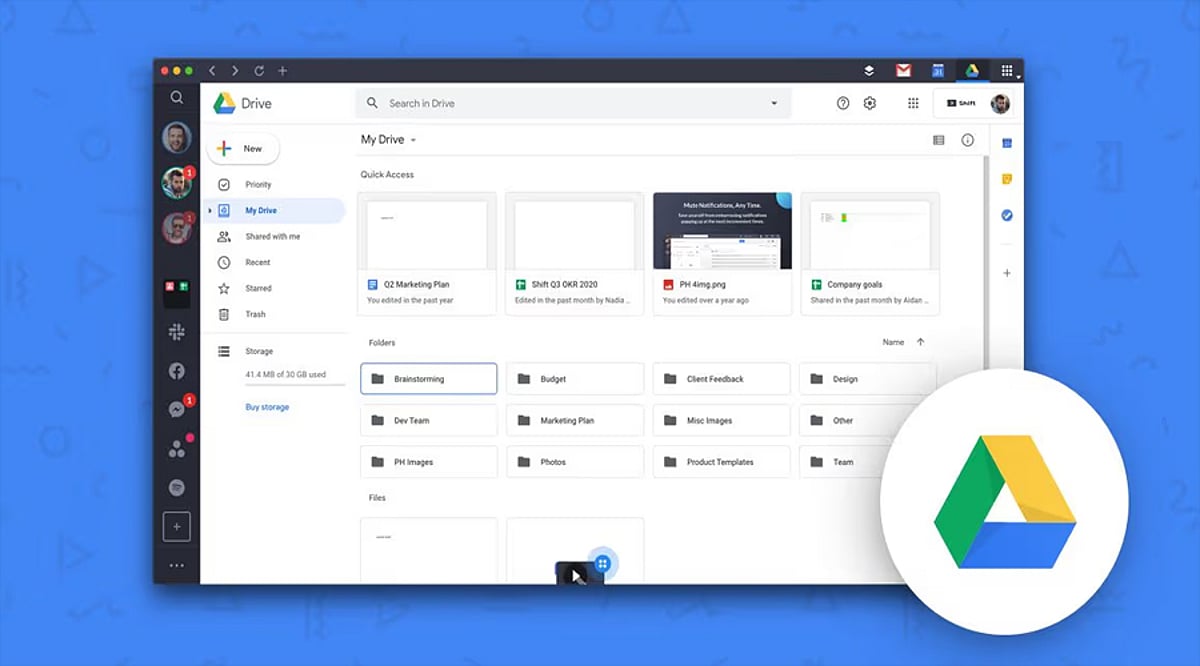
    Google Drive is a powerful cloud storage tool, but without a solid organization system, files can quickly become a mess. Here are proven hacks to keep your Drive tidy, boost productivity, and find any document in seconds.

    1. Create a Clear Folder Structure

    Start by building main folders for work, personal, school, or specific projects. Add subfolders only when necessary to avoid clutter. Use consistent, descriptive names so every file has a logical home. A simple hierarchy speeds up file retrieval and helps maintain order from day one.

    2. Use Color-Coded Folders

    Google Drive allows you to assign colors to folders for instant visual recognition. Give distinct colors to work, personal, finance, or shared folders. This makes important folders stand out and reduces time spent scanning long lists. A splash of color transforms navigation.

    3. Star Frequently Used Files

    Use the Star feature for files you access daily. Starred items appear in a dedicated section for one-click access. Perfect for ongoing projects, key reports, or essential spreadsheets. No more digging through folders—just star and go.

    4. Search Like a Pro

    Google Drive’s search is more powerful than most users realize. Filter by file type, owner, keywords, or last modified date. Combine multiple filters to zero in on any file, even in massive storage libraries. Smart searching beats manual browsing every time.

    5. Clean Up Shared Access

    Regularly review who has access to your shared files and folders. Remove people who no longer need permissions. Update access levels to keep sensitive data secure. This prevents accidental edits and ensures collaboration stays safe and organized.

    6. Delete Unused Files Regularly

    Set aside a few minutes each month to purge duplicates, outdated documents, and unnecessary files. Check for large files consuming storage. Empty the Trash after confirming deletion. Routine cleanup keeps Drive lean, fast, and easy to manage.

    By implementing these hacks, you’ll transform Google Drive from a chaotic storage dump into a streamlined productivity hub. Start today and enjoy a clutter-free digital workspace.

  • Workflow Tools in 2026: What Teams Need for Seamless AI Integration and Reduced Context Switching

    Workflow Tools in 2026: What Teams Need for Seamless AI Integration and Reduced Context Switching

    The way knowledge workers manage their work has not changed as much as the technology around them suggests it should. A Harvard Business Review study tracking teams at three Fortune 500 companies found that knowledge workers toggle between applications roughly 1,200 times a day, losing close to four hours a week just reorienting themselves after each switch — not by choice, but because the information they need is spread across systems that were never designed to connect properly. Tasks live in a project tracker. Specifications live in a separate wiki. Status updates circulate through a messaging tool that nobody checks consistently. The AI layer, if there is one, sits in a chat panel with no access to any of it. The platforms closing this gap in 2026 are the ones redesigning their data architecture so AI has access to the same operational context people do — not bolting a chat window onto a task board.

    Workflow management software was supposed to solve this coordination problem. For basic task organization, it has. But in 2026, the category is undergoing a more significant shift — driven by AI capabilities that have matured beyond novelty, by organizations accumulating years of integration debt, and by teams that have grown tired of spending more time managing the tools than doing the work itself.

    Why Existing Workflow Tools Are Falling Short

    The standard criticism of workflow software is that it does not do enough. The more precise problem is that it does too many separate things without any of them properly connecting. A typical team in 2026 still operates across a project manager for tracking tasks, a knowledge base for documentation, a messaging platform for coordination, and increasingly a standalone AI tool for summarizing or drafting content. Each of these works in isolation. None of them knows what the others contain.

    When an engineer wants to understand the reasoning behind a task, they leave the task board to search for a specification in the wiki — which may or may not be the current version. When a manager needs to report on project status, they assemble information from multiple dashboards that were each built to answer a slightly different question. When a new hire joins, their onboarding consists of being sent a dozen links across different tools and being asked to piece together how everything fits. This coordination overhead does not appear on any single metric. It accumulates across every sprint review, every handoff, and every status meeting that exists because the tools do not surface information automatically. The cost is real — it just does not show up on a software invoice.

    What AI-Ready Workflow Management Software Actually Looks Like

    The platforms gaining ground in 2026 are the ones that treat the AI layer not as a feature to be added, but as a reason to redesign how the underlying data is organized. For AI to be genuinely useful inside a team, it needs access to actual work context — not just a text prompt. That means tasks, documents, comments, decision history, and team structure all need to live in the same operational record. An AI assistant that can only read a chat thread can answer general questions. One that reads the full workspace can summarize sprint progress, flag blockers before they escalate, draft a product requirements document from existing tasks, or surface a decision that was made three months ago and is relevant to a problem being discussed today. This is the architectural difference that separates modern workflow management software from tools that have simply added a chat interface on top of a task board.

    Vaiz is one platform built around this model: a workflow management tool that combines tasks, documents, and an AI assistant inside a single workspace. Its AI assistant has access to tasks, documents, comments, and change history across the entire workspace — which means it can help generate content, summarise projects, or identify bottlenecks without anyone manually feeding it context. The platform covers the core workflow stack — Kanban boards, Gantt charts, real-time document collaboration, and built-in automation — with tasks, docs, and comments stored in the same record so the AI layer has a complete picture of what the team is doing and why. It holds a 4.8 out of 5 rating across G2, Trustpilot, and Crozdesk, and its free plan supports up to 10 users with all core features included.

    The Capabilities That Matter Most When Evaluating Tools

    • Native documentation. Documentation that lives inside the same workspace as tasks eliminates the version-control problem that plagues teams using separate wikis. When a specification updates, the tasks connected to it can reflect that change. When a developer asks why a task exists, the answer is one click away — not three tools away.
    • AI with real context. The most important question to ask about any AI feature in workflow software is not what model it uses — it is what data the model can access. An AI assistant with full-workspace context will generally outperform one that operates in isolation, even when the underlying model is comparable.
    • Automation built into the core. Routing new requests into tasks automatically, triggering assignments when work moves between stages, generating summaries without manual input — these automations are most reliable when they run within a single unified system. Cross-tool automation via third-party connectors works until one side of the integration changes, which is a question of when, not if.
    • Free evaluation on real projects. The practical difference between workflow tools becomes clear within the first two weeks of genuine use. A free plan that allows a team to run a complete project — not a restricted sandbox — is worth more than a feature-rich trial that expires before any meaningful evaluation has happened.

    Where the Category Is Heading

    The next phase of workflow management is less about adding more features and more about reducing the distance between information and the work that depends on it. The tools that will define the category in the next two to three years are the ones where the entire operational context — objectives, tasks, documentation, decisions, history — lives in one place, and the AI layer can act on all of it. For organizations still running on fragmented stacks of loosely connected tools, the switching cost feels significant. But the ongoing cost of coordination overhead — status meetings, duplicate work, lost context, slow onboarding, manual reporting — compounds in ways that rarely get measured directly. The question for most teams in 2026 is not whether consolidation is worth it. It is whether the platform they choose is built around a coherent operational model, or whether it is a collection of features assembled around a task board that was not designed to be the center of anything.

  • Top Accounting Software for Small Business: Key Features to Consider

    Top Accounting Software for Small Business: Key Features to Consider

    Selecting the right accounting software is critical for small businesses aiming to streamline financial operations and focus on growth. Modern solutions offer a range of features that automate manual tasks, improve accuracy, and provide real-time insights. Below are the essential capabilities to look for when evaluating accounting software for your business.

    Cloud Accessibility

    Cloud-based platforms enable you to access financial records anytime, anywhere, from any device. This facilitates seamless collaboration among team members, ensures real-time updates, and provides secure data management across multiple devices without the need for on-premise hardware.

    Automated Bookkeeping

    Reduce manual data entry by automating transaction recording, expense categorization, and bank reconciliation. Automated bookkeeping minimizes human errors, saves time, and ensures your financial records are always up-to-date.

    Invoice Management

    Create professional invoices quickly, send automated payment reminders, and track outstanding payments with ease. Effective invoice management improves cash flow by streamlining billing processes and reducing the time spent on follow-ups.

    Expense Tracking

    Monitor business expenses in real time, digitally organize receipts, and categorize spending to maintain accurate financial records. Robust expense tracking helps you make better budgeting decisions and identify cost-saving opportunities.

    Tax Compliance

    Simplify tax filing with automated calculations, compliance reports, and accurate recordkeeping. Accounting software that supports GST and other tax requirements reduces filing errors and saves valuable time during tax season.

    Financial Reporting

    Generate real-time profit and loss statements, balance sheets, cash flow reports, and other key financial insights. These reports are essential for informed financial planning, strategic decision-making, and demonstrating financial health to stakeholders.

    Payroll Integration

    Manage employee salaries, tax deductions, benefits, and payroll processing efficiently within the same platform. Integrated payroll ensures compliance with labor and taxation regulations while reducing administrative workload.

    Third-Party Integrations

    Connect your accounting software with CRM, payment gateways, inventory systems, banking platforms, and e-commerce tools. This connectivity streamlines business operations, eliminates data silos, and boosts overall productivity.

    Scalability and Security

    Choose software that offers advanced security features such as encrypted backups and user permissions, along with scalable capabilities that grow with your business. This ensures your financial data remains protected as your operations expand.

  • Top File Recovery Software for Windows PCs in 2025

    Top File Recovery Software for Windows PCs in 2025

    Losing important files can be a nightmare, but the right recovery software can bring them back. Whether you accidentally deleted a crucial document, formatted a drive, or experienced a system crash, these tools can help you restore lost data. Below, we’ve compiled a list of the best file recovery software for Windows PCs, ranging from beginner-friendly options to advanced solutions for professionals.

    EaseUS Data Recovery Wizard

    EaseUS Data Recovery Wizard is a versatile tool that recovers deleted files, formatted drives, lost partitions, and data from crashed systems. Its intuitive interface makes it suitable for both beginners and professionals, offering a straightforward way to retrieve lost data without technical expertise.

    Stellar Data Recovery

    Stellar Data Recovery specializes in restoring documents, photos, videos, emails, and data from external drives. It supports deep scans to handle complex data loss scenarios, ensuring a high recovery rate even in challenging situations.

    Disk Drill

    Disk Drill offers powerful file recovery with an added Recovery Vault feature that protects against future data loss. It supports hundreds of file formats and works seamlessly with internal and external storage devices, making it a comprehensive solution for Windows users.

    Recuva

    Recuva is a lightweight, free option that quickly retrieves accidentally deleted files. Its simplicity and effectiveness make it an excellent choice for basic recovery needs without overwhelming users with complex features.

    R-Studio

    R-Studio is an advanced recovery solution designed for professionals. It includes RAID reconstruction, network recovery, and comprehensive support for multiple Windows file systems, making it ideal for IT experts and data recovery specialists.

    MiniTool Power Data Recovery

    MiniTool Power Data Recovery recovers files from damaged, formatted, or inaccessible drives. Its simple interface is tailored for everyday Windows users, providing a hassle-free experience for recovering lost data.

    Wondershare Recoverit

    Wondershare Recoverit restores lost photos, videos, documents, and system files with high recovery rates. It also supports corrupted storage devices, ensuring you can retrieve data from even the most problematic drives.

    Wise Data Recovery

    Wise Data Recovery is a fast scanning tool that recovers deleted files from hard drives, SSDs, USB drives, and memory cards. It uses minimal system resources, making it a lightweight yet effective option for quick recoveries.

    Windows File Recovery

    Windows File Recovery is Microsoft’s official command-line tool for retrieving deleted files from NTFS, FAT, exFAT, and ReFS drives. While it requires some command-line knowledge, it’s a reliable option for advanced users who prefer an official solution.

    When choosing file recovery software, consider your specific needs—whether you need a simple interface for occasional use or advanced features for professional data recovery. Each tool listed above offers unique strengths to help you recover your valuable data effectively.

  • Best QR Scanner Apps for Android: Top Picks for Fast, Secure Scanning

    Best QR Scanner Apps for Android: Top Picks for Fast, Secure Scanning

    QR codes are everywhere, from restaurant menus to event tickets. Having a reliable QR scanner app on your Android device can save time and keep your data safe. Here are the best options available, each offering unique features beyond basic scanning.

    Google Lens

    Google Lens is a versatile tool that scans QR codes, translates text, identifies objects, and opens links instantly. It eliminates the need for a separate QR scanner app on Android devices, making it a convenient all-in-one solution.

    QR & Barcode Scanner by Gamma Play

    This app delivers fast scanning with automatic recognition, flashlight support, and direct access to scanned websites or contacts. It is lightweight and reliable for everyday use.

    Microsoft Lens

    Microsoft Lens combines QR code scanning with powerful document digitization. Users can capture, organize, and share files efficiently from their Android smartphones, making it ideal for productivity.

    Kaspersky QR Scanner

    Security-focused users will appreciate Kaspersky QR Scanner, which checks QR codes for malicious links before opening them. It helps avoid phishing websites and other online threats.

    QRbot

    QRbot supports QR codes and multiple barcode formats while also enabling users to create, save, and share custom QR codes directly from the app. It is a well-rounded tool for both scanning and generation.

    NeoReader QR & Barcode Scanner

    NeoReader reads various barcode and QR code formats accurately, making it suitable for shopping, product information, and website access. Its quick performance is a plus.

    Barcode Scanner by ZXing Team

    This open-source scanning app quickly reads QR codes and barcodes while remaining lightweight, reliable, and free. It is a trusted choice among Android users.

    QR Scanner by Simple Design

    With features like quick scanning, scan history, flashlight support, and automatic recognition for websites, Wi-Fi credentials, contacts, and payment codes, this app covers all the bases.

    QR Code Reader by TeaCapps

    TeaCapps’ QR Code Reader provides fast and accurate scanning with support for URLs, Wi-Fi access, contact details, emails, and product barcodes. It’s simple and efficient.

  • 7 Best AI Browser Extensions to Reclaim Hours Every Week

    7 Best AI Browser Extensions to Reclaim Hours Every Week

    AI browser extensions are transforming how people work online. From drafting emails to summarizing articles and automating research, these tools eliminate repetitive tasks. Whether you’re a student, professional, marketer, or developer, the right extension can significantly improve productivity and save several hours every week with minimal effort.

    ChatGPT Extension – Your AI Productivity Partner

    The ChatGPT browser extension offers instant AI assistance while you browse. It helps generate content, answer questions, summarize webpages, write emails, and assist with coding. Instead of switching between tabs, users can complete tasks directly in their browser, making daily workflows faster, smoother, and more efficient.

    Perplexity AI – Smarter Research in Seconds

    Perplexity AI combines conversational AI with web search to deliver accurate, source-backed answers. It quickly summarizes articles, explains complex topics, and provides reliable references for further reading. Researchers, students, and professionals can spend less time searching and more time understanding important information with confidence.

    Grammarly – Write with Confidence

    Grammarly enhances writing by correcting grammar, improving clarity, refining tone, and suggesting better word choices. Its AI-powered assistant helps users draft emails, reports, and presentations with confidence. Whether writing professionally or academically, Grammarly ensures polished communication while reducing editing time and improving overall writing quality.

    Merlin AI – AI Across Every Website

    Merlin AI integrates seamlessly with websites like Google Search, Gmail, LinkedIn, YouTube, and X. It summarizes content, drafts replies, creates social media posts, and answers questions without opening another application. Its versatility makes it a valuable productivity companion for professionals working across multiple online platforms daily.

    Sider & LanguageTool – Read, Translate, and Edit Better

    Sider offers AI-powered PDF analysis, webpage summarization, translation, and coding support through a convenient browser sidebar. LanguageTool complements it by checking grammar, spelling, punctuation, and style in multiple languages. Together, they improve reading, editing, translation, and communication for users working with diverse content.

    Choose the Right AI Extension for Your Workflow

    Every AI browser extension serves a different purpose. ChatGPT excels at general assistance, Perplexity simplifies research, Grammarly perfects writing, Merlin boosts productivity across websites, while Sider and LanguageTool enhance reading and editing. Selecting the right combination can automate repetitive work and save valuable hours every week.

  • 7 AI Tools for Writing, Coding, and Research That Go Beyond ChatGPT and Gemini

    7 AI Tools for Writing, Coding, and Research That Go Beyond ChatGPT and Gemini

    Looking for more AI tools beyond ChatGPT and Gemini? These powerful platforms help with writing, coding, research, and productivity across different industries. Whether you need long-form content, accurate research, or efficient code development, these AI tools offer specialized capabilities to enhance your workflow.

    • Claude – Excels at long-form writing, document analysis, and thoughtful conversations with strong reasoning capabilities.
    • Perplexity AI – Delivers AI-powered answers with web citations, making research faster and more reliable.
    • Cursor AI – Helps developers write, edit, debug, and understand code using AI directly inside the editor.
    • GitHub Copilot – Speeds up coding by suggesting functions, code snippets, and complete solutions.
    • NotebookLM – Google’s AI tool that helps users summarize documents, generate insights, and organize research.
    • Grok – Built by xAI, Grok combines real-time information with conversational AI for news and research.
    • You.com AI – Combines AI chat with search, coding, writing, and productivity tools in one platform.

    Different AI tools excel at different tasks. Pick the right one based on your workflow and daily needs to maximize your productivity.

  • How to Safely Verify Official Productivity Software Websites Before Installing Office Tools

    How to Safely Verify Official Productivity Software Websites Before Installing Office Tools

    Productivity software has become part of everyday digital work. Students use document tools to prepare assignments, professionals manage reports and spreadsheets, and remote teams depend on office applications to collaborate across devices. Because these tools often handle important files, personal documents, and business information, users should be careful about where they download them.

    Many people still search for office software quickly and click the first download button they find. This habit may seem convenient, but it can expose users to unsafe installers, misleading pages, outdated software versions, or unnecessary bundled programs. Before installing any productivity tool on Windows, Android, or other desktop environments, users should understand how to identify official software websites and verify download sources.

    Why Official Software Sources Matter

    Office and productivity apps are more than just simple utilities. They can access local files, cloud storage, account information, printing systems, templates, fonts, and shared documents. Installing a modified or unreliable version by a user poses a risk not only for one app. It may impact document privacy, system performance, browser settings or future software updates.

    Official software websites typically contain more detailed product information, version details, installation instructions, update channels, and support resources. Also, the risk of downloading repackaged installers with third party software is reduced. If you work or study using productivity tools, downloading from a safer place helps keep your devices and documents safe.

    Common Problems With Unsafe Download Pages

    Unsafe download pages often employ confusing design patterns. A page can have many big buttons, but only one of them actually downloads the intended application. Some of the buttons could be ads, or the links could be to unrelated tools. Users in a hurry can easily click on the wrong option.

    Bundled installers are another common problem. These packages might include browser extensions, search toolbars, system cleaners, or trial software unrelated to the office tool the user intended to download. Even if these additions are optional, they may be selected by default during installation.

    Outdated versions are also a concern. A third-party page may keep old software files available long after the official version has been updated. Older software may lack important security fixes or compatibility improvements. For productivity tools used across Windows, mobile, and cloud environments, version reliability is especially important.

    How to Verify Whether a Website Looks Official

    The first step is to examine the domain name carefully. A trusted source should have a clear and consistent domain that matches the software brand or service. Users should be cautious with websites that imitate official names, add unnecessary words, use unusual spellings, or rely on excessive pop-ups.

    For office software users, verifying the source is especially important before downloading installation files. When checking an official-looking office software page such as wps官网, users should review the page structure, download instructions, HTTPS status, file information, and whether the website provides a clear path for updates or support.

    Users should also look at how the page explains the software. A reliable website usually describes product features, supported platforms, system requirements, and installation steps consistently. A page that only pushes users toward a download button without explaining the software may deserve closer inspection.

    Check HTTPS and Basic Page Signals

    HTTPS is no guarantee of safety, but it is still a basic requirement for modern software websites. Users should not input account information or download important applications from non-secure connection pages. The address bar of your browser can help you confirm that the page uses HTTPS.

    Users should look at basic page signals other than HTTPS. Is the website easy to navigate? Does it offer contact or support information? Are there any obvious spelling errors or suspicious redirects? Does the download page still remain on the same domain or does it take users through a number of unknown websites?

    Multiple redirects are a warning sign. A user should know where a file is coming from before downloading it. If the download path moves through several unrelated domains, it becomes harder to trust the file source.

    Review the Download File Before Installing

    After downloading a file, users should pause before running it. On Windows, the file name should match the application and should not look like a generic installer from an unknown source. Users should also check whether the file extension makes sense. Executable files should be handled carefully, especially when they come from unfamiliar pages.

    For mobile users, APK files require even more attention. Installing an APK outside verified app stores may be necessary in some situations, but it also places more responsibility on the user. The file source, app version, permissions, and update method should all be reviewed before installation.

    If security software warns about a file, users should not ignore the warning. They should verify the source again, scan the file if needed, and consider downloading from a more reliable location.

    Avoid Bundled Installers and Unrelated Add-ons

    During installation, users should read each step instead of clicking through quickly. A safe productivity software installer should not require unrelated browser extensions, search tools, advertising components, or unknown system utilities. If an installer includes extra offers, users should be careful to decline them.

    Bundled software can create long-term inconvenience. It may change browser settings, add startup programs, display unwanted notifications, or slow down the system. For people who use productivity tools daily, these changes can reduce work efficiency and create unnecessary troubleshooting.

    Understand Update Channels

    Safe software installation does not end after the first download. Users should also understand how updates will be delivered. Official websites and verified app stores usually provide more predictable update paths. This helps users receive security patches and compatibility improvements without searching for a new installer every time.

    If an app asks users to download updates from random pop-up messages or unknown pages, they should be cautious. Reliable productivity tools usually provide updates through the application itself, the official website, or a recognized software distribution platform.

    Why Teams Should Standardize Software Sources

    For teams, safe download habits should be part of a broader workflow policy. The more team members download office tools from different sources, the more likely you are to run into compatibility and security issues. One person might be on an old version, another might be on a modified build, and another might be getting updates from a different channel.

    Teams can mitigate these risks by defining approved software sources. They can also record installation steps, rules for account set-up, and update expectations. This is especially beneficial for remote teams that work on a variety of devices and share documents on the cloud.

    Final Checklist Before Installing Productivity Software

    Before installing office or productivity tools, users should confirm several points. The website should have a clear domain, HTTPS protection, useful product information, and a direct download path. The file name should look relevant, the installer should avoid unrelated bundles, and the update channel should be easy to understand.

    Users should also review permissions after installation, especially on mobile devices. If a productivity app requests access that does not match its function, the user should review the settings carefully. Good software habits include downloading from trusted sources, keeping apps updated, and avoiding unnecessary add-ons.

    Productivity software supports everyday work, education, communication, and document management. Because these tools often handle important files, users should not treat installation as a routine click-through. Checking the official software websites helps reduce the risk of downloading unsafe software, outdated versions, installers that bundle other programs, and confusing update processes.

    The safest approach for users installing office software on a personal laptop, work desktop, or mobile device is to slow down and check the source first. A few minutes of checking can help you protect documents, improve device reliability, and make long-term software use safer.

  • Master Gemini Spark on macOS: A Guide to AI-Powered Productivity

    Master Gemini Spark on macOS: A Guide to AI-Powered Productivity

    Google has expanded the Gemini experience across devices, and Gemini Spark on macOS helps users quickly access AI-powered assistance for writing, coding, brainstorming, and research.

    Getting Started with Gemini Spark

    Download and install the latest Gemini app for macOS, then sign in with your Google account to access Gemini Spark features. The setup process is straightforward and takes only a few minutes.

    Core Capabilities

    Gemini Spark lets you summarize long documents, draft emails, generate ideas, and answer complex questions without switching between multiple apps. Its versatility makes it an essential tool for professionals and creatives alike.

    For Developers

    Developers can use Gemini Spark for code generation, debugging, explaining code snippets, and creating scripts in multiple programming languages. This streamlines development workflows and boosts efficiency.

    Integration with Google Workspace

    The app integrates with Google Workspace services, making it easier to work with Docs, Gmail, Drive, and Calendar where supported. You can leverage AI assistance directly within your everyday tools.

    File Analysis

    Users can upload PDFs, images, and other supported files, allowing Gemini Spark to analyze content and provide summaries or insights. This feature is particularly useful for research and data review.

    Voice and Conversational Features

    Voice input and conversational interactions make it easy to ask follow-up questions and refine responses naturally. The AI understands context and maintains coherent dialogues.

    Best Practices

    For the best experience, keep the app updated, verify AI-generated information, and review privacy settings before sharing sensitive data. As Google continues to enhance Gemini with new AI models and productivity tools, Gemini Spark is becoming a valuable assistant for Mac users.

    Stay tuned for more updates and features as Google expands its AI ecosystem on macOS.