
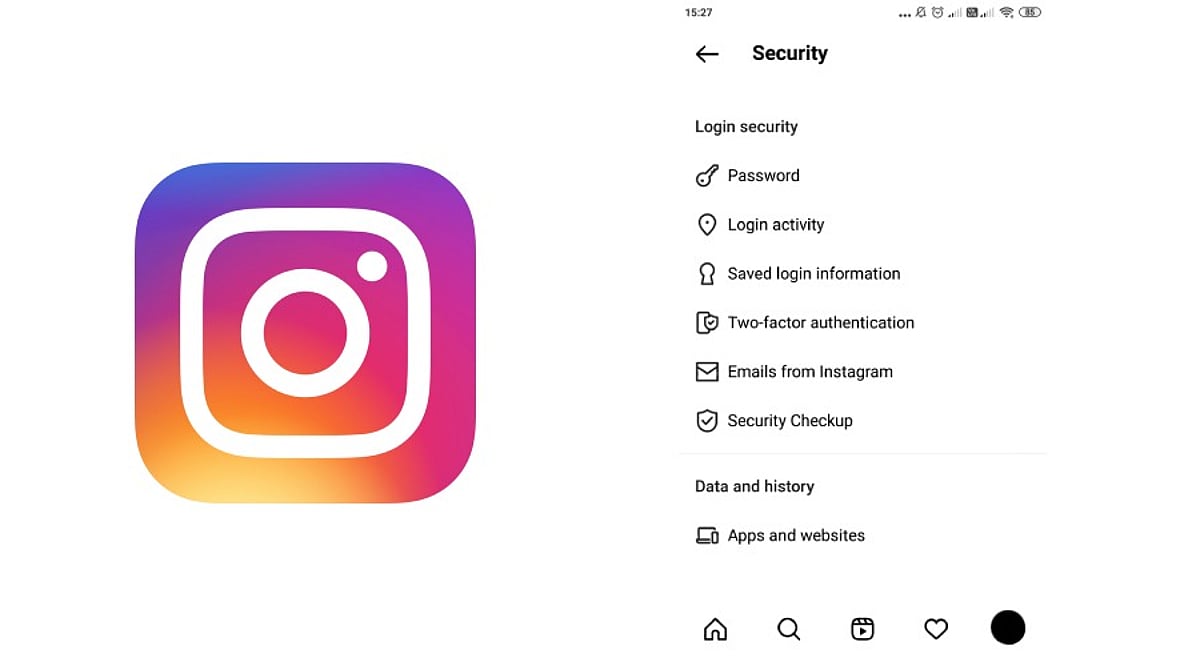
If you notice an unfamiliar device or location in your Instagram account, it could signal a security issue. Instagram provides a dedicated section within the Meta Accounts Center where you can see all active sessions. This guide walks you through the steps to check your login activity, remove unknown devices, and strengthen your account with two-factor authentication.
Key Takeaways
- Navigate to Accounts Center > Password and security > Where you’re logged in to review all Instagram sessions.
- Log out of any unfamiliar devices and change your password if suspicious access appears.
- Enable two-factor authentication to add an extra layer of security at login.
Find Login Activity in the Instagram App
Open Instagram and go to your profile page. Tap the three-line menu in the top-right corner, then select Accounts Center. This area houses account and security controls for Instagram and other Meta services.
Inside Accounts Center, choose Password and security. Under the security section, tap Where you’re logged in. Select the Instagram account you want to review. The page displays your current device and any other active sessions. Menu labels may vary slightly by app version, but Accounts Center remains the key gateway for this security check.
Read the Device List with Care
The login page shows device details, a rough location, and recent access information. Your current device typically appears near the top, with other sessions below. The list helps you distinguish familiar access from potential threats. A phone, tablet, computer, or browser may each appear as a separate session.
An unfamiliar location doesn’t always mean a breach. Instagram uses network information to estimate location, so the city shown may differ from your actual location. Pay closer attention to device type, access time, and other details. A browser session you don’t recognize deserves more scrutiny than a minor city discrepancy.
Remove an Unknown Device
When you spot an unfamiliar session, act quickly. Tap the device entry and select Log out. Instagram can terminate that session remotely, cutting off access from that phone or computer. Some versions also allow logging out of multiple devices at once.
A strange device could indicate a stolen password, an old session on another device, or access from a shared computer. The device list helps you identify the source. If several unknown sessions appear, change your password immediately after logging them out. Use a strong, unique password that you don’t reuse on other services.
Add Another Layer of Account Security
Two-factor authentication (2FA) adds a second verification step at login. You can enable it under Password and security in Accounts Center. Choose an available method, such as an authentication app or SMS. This extra step can block anyone who only has your password.
Login alerts can also notify you when a device that doesn’t match your usual patterns accesses your account. Recent security emails provide another way to confirm legitimate activity. These tools work best when you review alerts promptly after a suspicious session appears.
Check Instagram Login Activity on a Computer
On a desktop, open Instagram in a web browser and go to your profile. Select Settings, then open Accounts Center. Choose Password and security, then Where you’re logged in. Pick your Instagram account to view all sessions. The desktop layout may place controls in a side menu.
The same security checks apply on the web. Review device name, location, and recent access details. If a session doesn’t match a known device, tap Log out to remove it.
A Quick Security Check Can Protect Your Account
Regularly reviewing your Instagram login activity is a direct way to spot unauthorized access. The key path is Accounts Center > Password and security > Where you’re logged in. A careful review can reveal old sessions or suspicious access points. Log out unfamiliar devices, change your password, and enable two-factor authentication to strengthen your account’s security. This small routine can turn an unclear alert into a clear action.
Frequently Asked Questions
Where can I find Instagram login activity?
Go to Accounts Center, then Password and security, followed by Where you’re logged in.
Can Instagram show the device used for account access?
Yes, the login activity section displays device details, recent access information, and a rough location.
What should I do after an unknown device appears?
Log out of the unfamiliar session and change your Instagram password if the access doesn’t match a known device.
Does an unfamiliar location always mean a hacked account?
No. Instagram may show an estimated location based on network information, so a different city doesn’t always confirm unauthorized access.
Does two-factor authentication improve Instagram security?
Yes. Two-factor authentication adds another verification step at login, helping protect your account even if your password is compromised.
Leave a Reply