
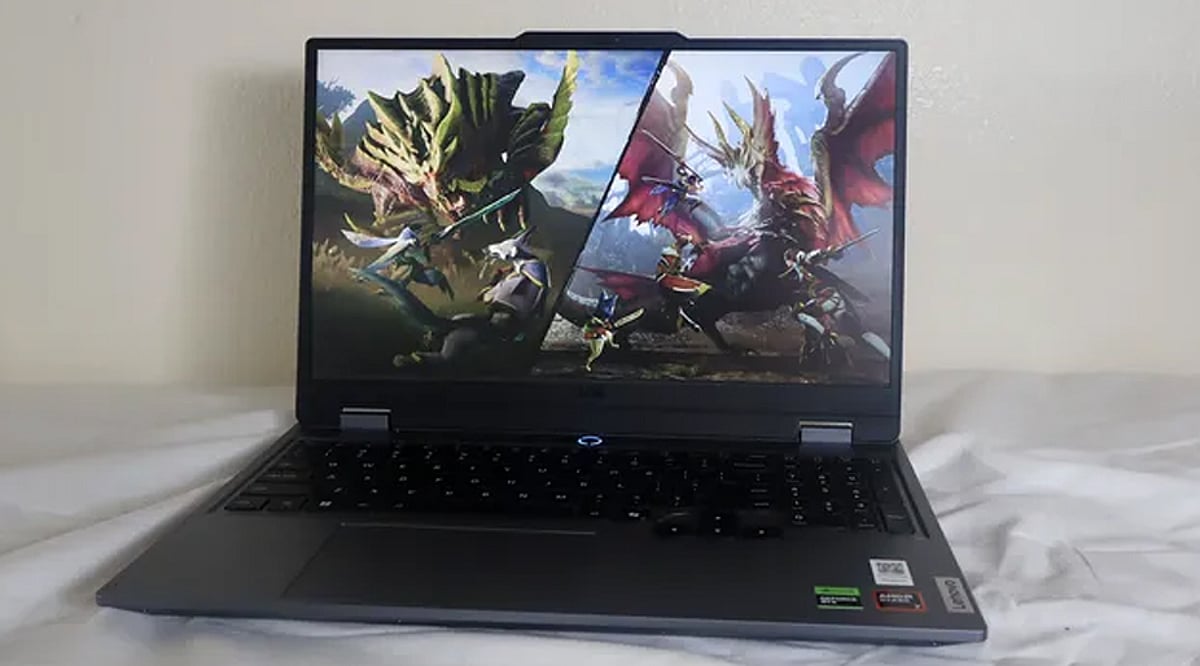
If your laptop has been crawling through everyday tasks—taking forever to open apps, freezing during simple work, or just feeling sluggish—you don’t need to buy a new machine or expensive software. I was in the same boat, but after trying these seven completely free tweaks, my old laptop felt brand new. Here’s exactly what I did.
1. Manage Background Programs
Too many apps running simultaneously can drain your system’s resources. I opened Task Manager (Ctrl+Shift+Esc on Windows), identified programs I wasn’t actively using, and closed them. I also disabled unnecessary startup apps that launch automatically. The result was immediate: apps opened faster, multitasking became smoother, and the constant freezing stopped.
2. Free Up Storage Space
A nearly full hard drive can seriously slow down performance. I deleted old downloads, cleared temporary files, uninstalled software I no longer used, and emptied the recycle bin. This gave my laptop more breathing room. After the cleanup, file searches were quicker and programs loaded noticeably faster.
3. Keep Your Operating System Updated
I had been ignoring system updates for months. Installing the latest updates fixed bugs, patched security holes, and often included performance improvements that optimize memory and power usage. After a restart, my laptop ran more stably with fewer slowdowns during regular use.
4. Disable Unnecessary Startup Apps
Many programs set themselves to launch at boot without asking. I went into Task Manager’s Startup tab and disabled everything I didn’t need daily. This cut boot time in half and freed up system resources. Now my laptop reaches the desktop quickly, letting me start work without waiting.
5. Clean Your Browser
My web browser was overloaded with old extensions, cookies, and cached files. I removed extensions I never used and cleared browsing data. Web pages started loading faster, the browser used less memory, and even video streaming and tab switching became much smoother.
6. Scan for Malware and Unwanted Software
Hidden malware or adware can quietly eat up system resources. I ran a full security scan using Windows Defender (built-in and free) and removed suspicious files. After the scan, my laptop felt more responsive. Regular scans now help maintain steady performance and protect my personal data.
7. Restart Regularly
I used to leave my laptop on for days without restarting. A simple restart clears temporary memory, stops stuck background tasks, and refreshes the system. It takes just a few minutes but makes a noticeable difference. Now I restart at least once a week to keep everything running smoothly.
These seven steps cost nothing and can breathe new life into an aging laptop. Try them yourself—you might be surprised how much faster your machine can feel without spending a penny.
Leave a Reply